
Discover Kartzy by Ecartify: find nearby shops, place pickup orders, manage seller inventory, import products and oversee your marketplace.

Shop local.
Pick up with Kartzy.
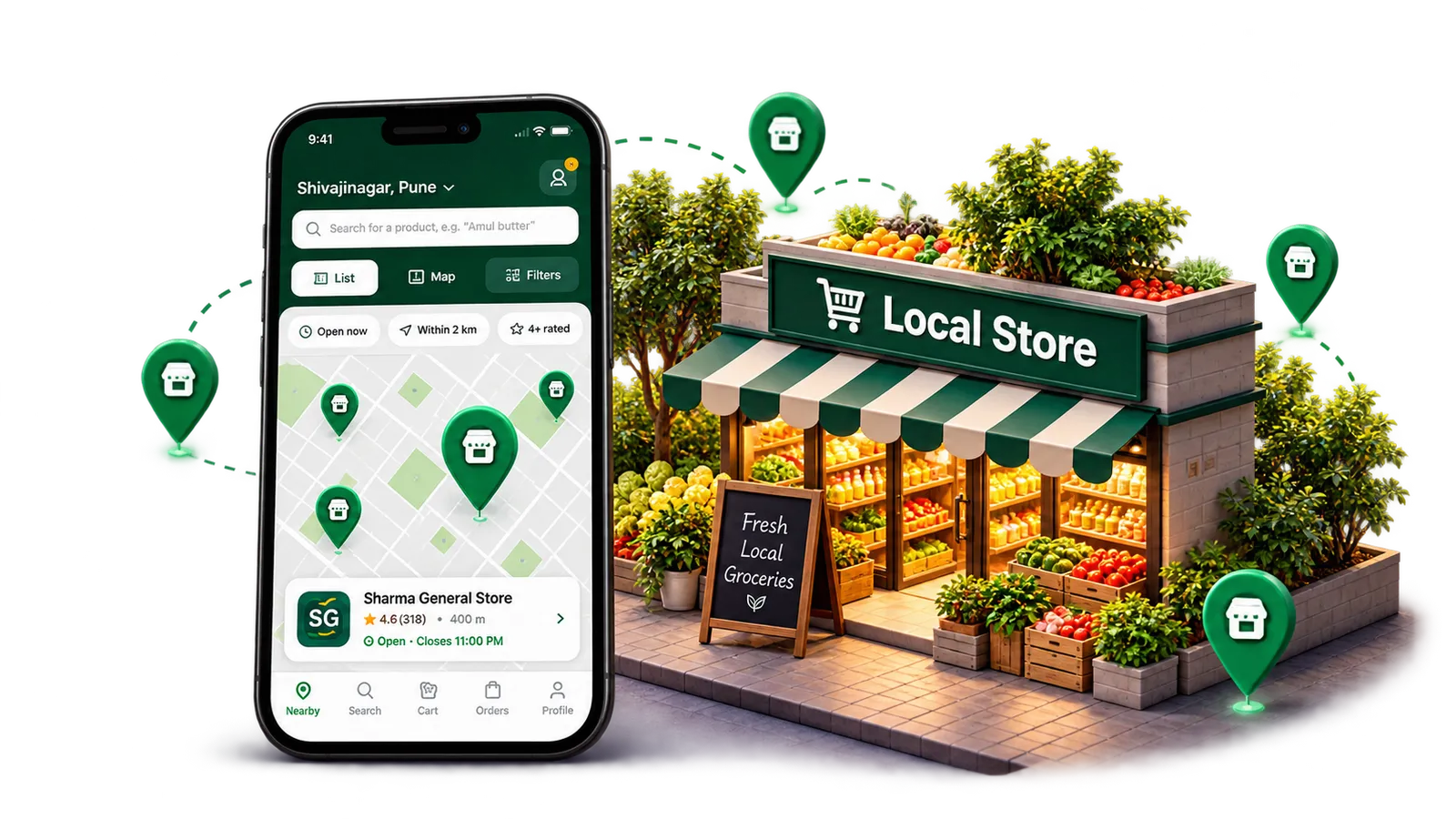
Kartzy App: A Complete Guide for Customers, Sellers and Admins
Kartzy by Ecartify connects people with nearby shops and the products they have in stock. Customers browse, place an order and collect it at the shop. Sellers manage their catalogue and orders from their phone, while administrators oversee the marketplace from a central panel.
The shopping journey is built around local pickup: there is no home delivery or in-app payment. Customers pay at the shop when they collect their order. This guide follows the latest Kartzy platform guide, with screens showing the customer app, seller tools and admin controls.
Three connected parts, one local shopping journey
Find shops by location, check stock and prices, track pickup orders and review completed purchases.
Add products with photos or barcodes, import a catalogue, update inventory and prepare orders.
Manage shops, products, customers, reviews, content, notifications and app settings.
What makes Kartzy useful
List and map views show local shops with distance, ratings and opening status.
AI photo scan, barcode lookup and bulk import reduce repetitive catalogue entry.
Pending, Accepted, Preparing, Ready for pickup and Completed make each stage visible.
Getting started: choose a role and sign in
After the welcome screen, choose “I want to shop” or “I own a shop.” Enter your mobile number and the six-digit verification code. The code can be resent after the countdown shown in the app.
A simple start for both roles
Customers and shop owners begin with the same short sign-in journey.
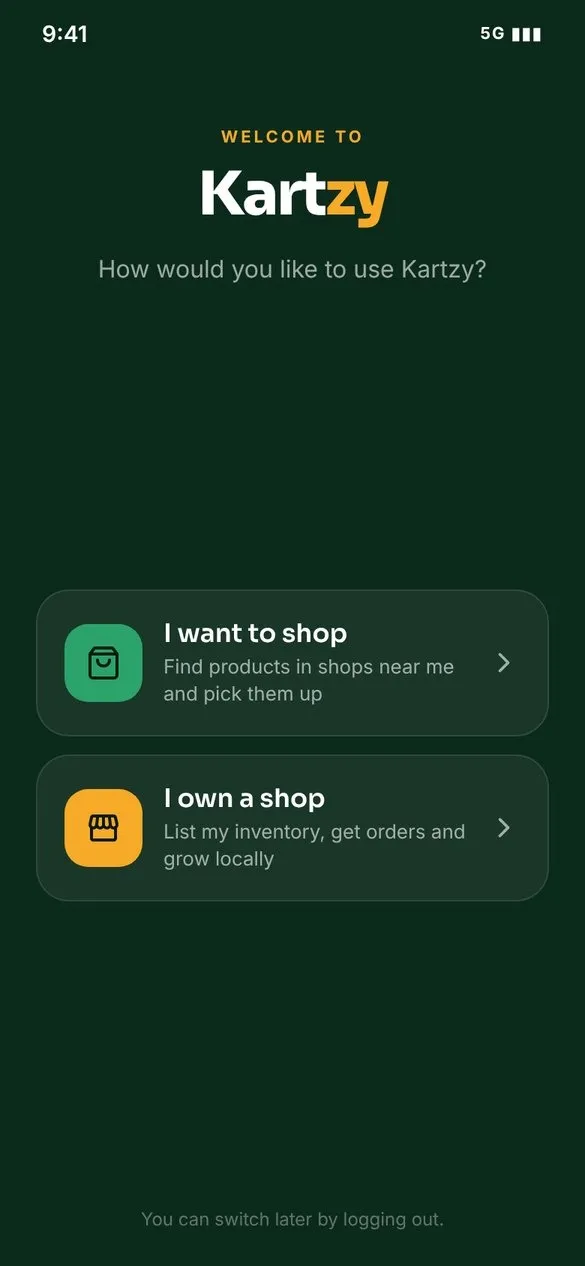 Choose your roleSelect shopping or shop ownership.
 Enter your mobile numberThe country code sits beside the flag.
Customer app: find, order and collect
Kartzy helps customers answer a practical question: which nearby shop has what I need?
1. Discover nearby shops
Allow location access or choose an area by name. Eligible shops within the administrator’s search radius appear nearest first. Customers can narrow results by distance, rating, shop type or “Open now.” Opening times and open/closed status follow the hours set by the seller.
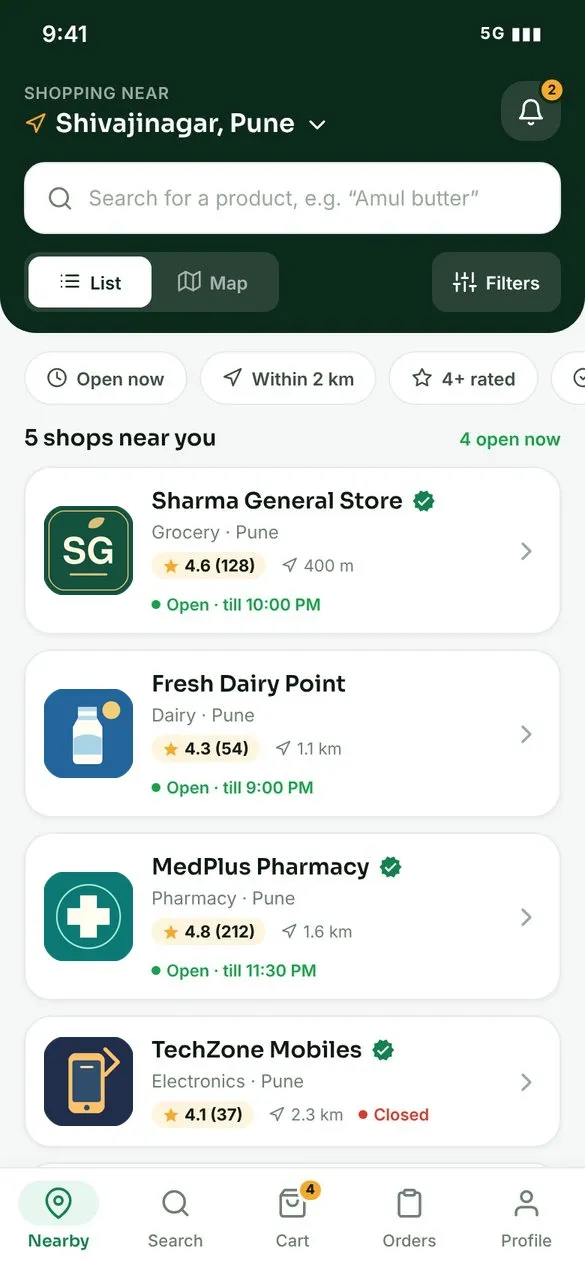 Nearby shopsCompare distance, ratings and opening status.
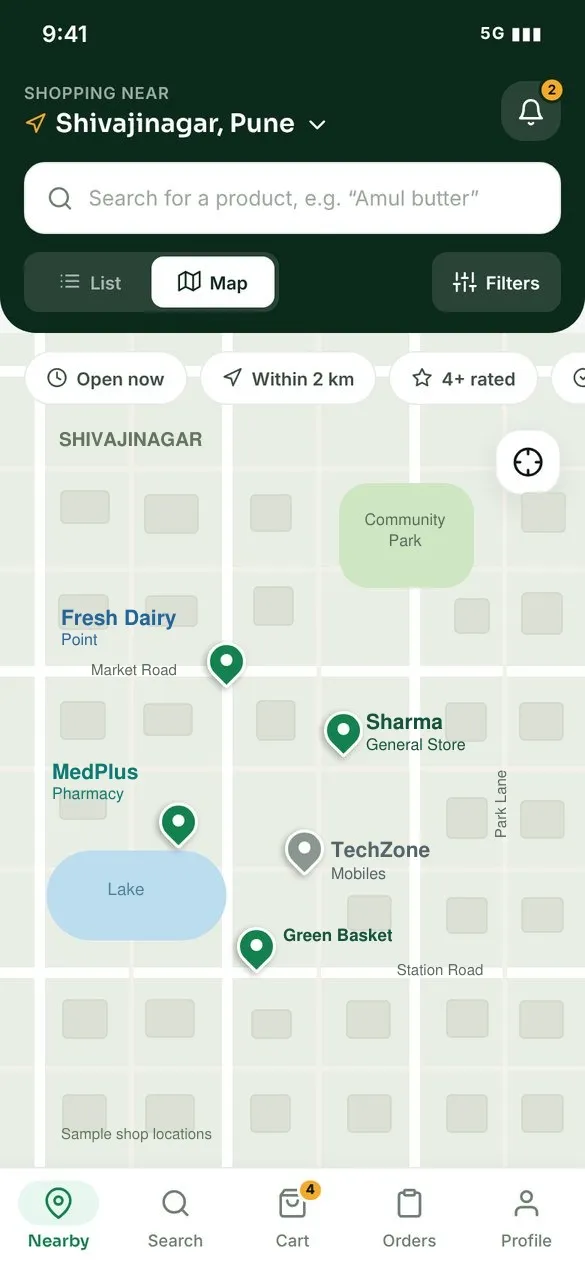 Map viewTap a shop pin to see a preview and open its products.
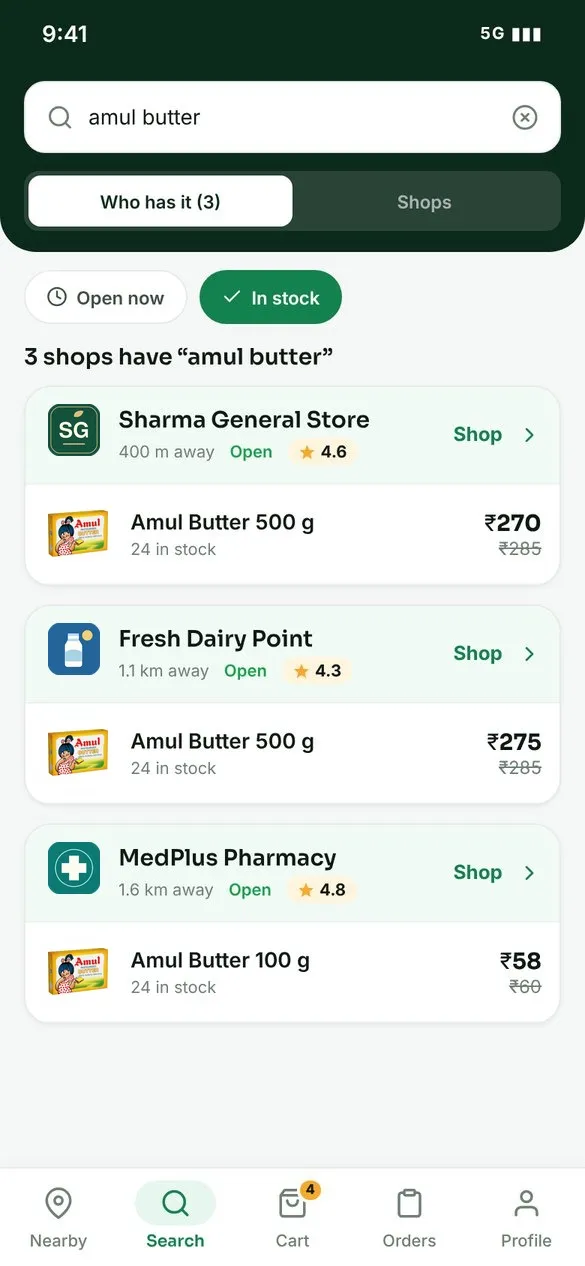 Search for a productSee nearby shops with matching products in stock.
2. Check the shop, product and cart
A shop page brings together categories, products, hours and contact options such as Call, WhatsApp and Directions. Product details show the selling price, MRP, savings and available stock. Review quantities in the cart and add a note, such as your preferred pickup time, before placing the order.
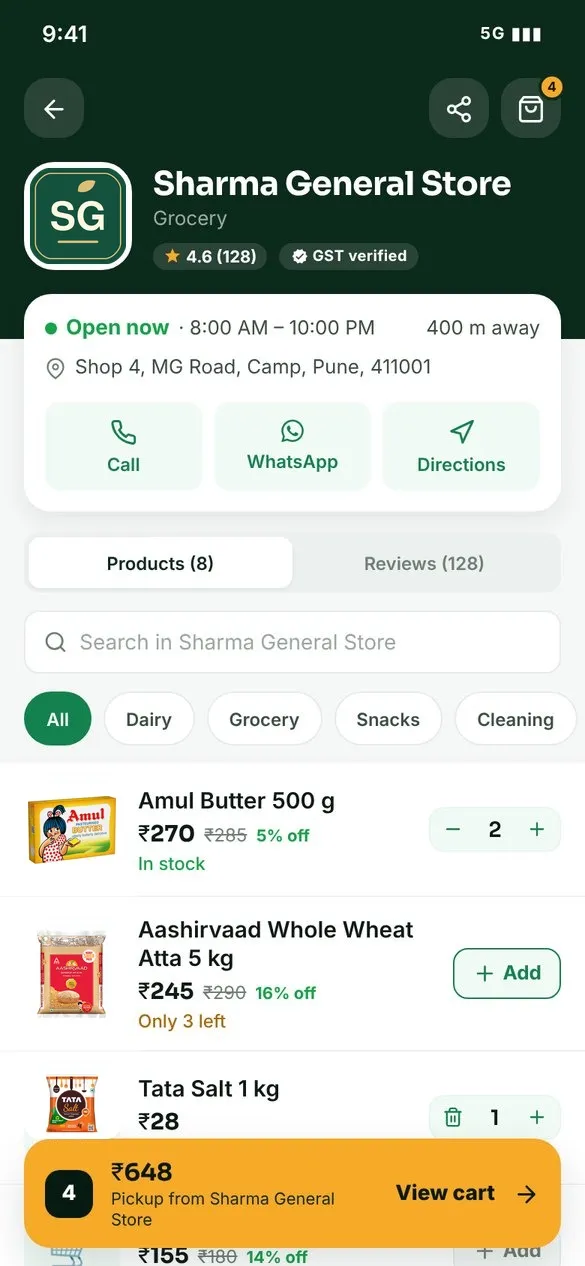 Shop pageBrowse categories and add products.
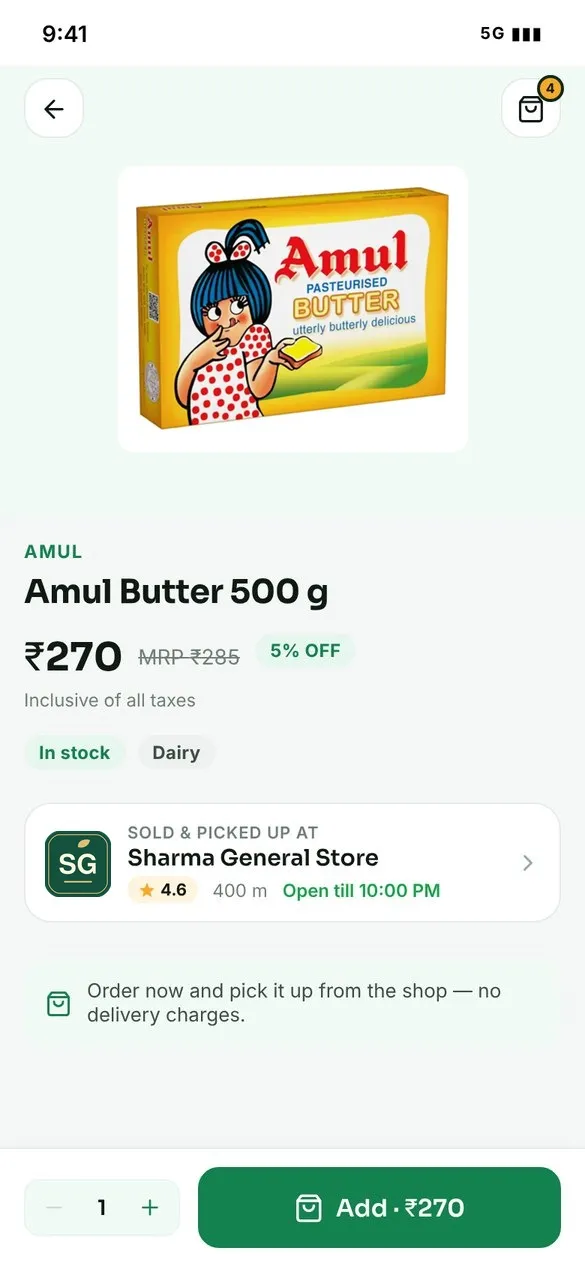 Product detailsCheck the pack image, price and stock.
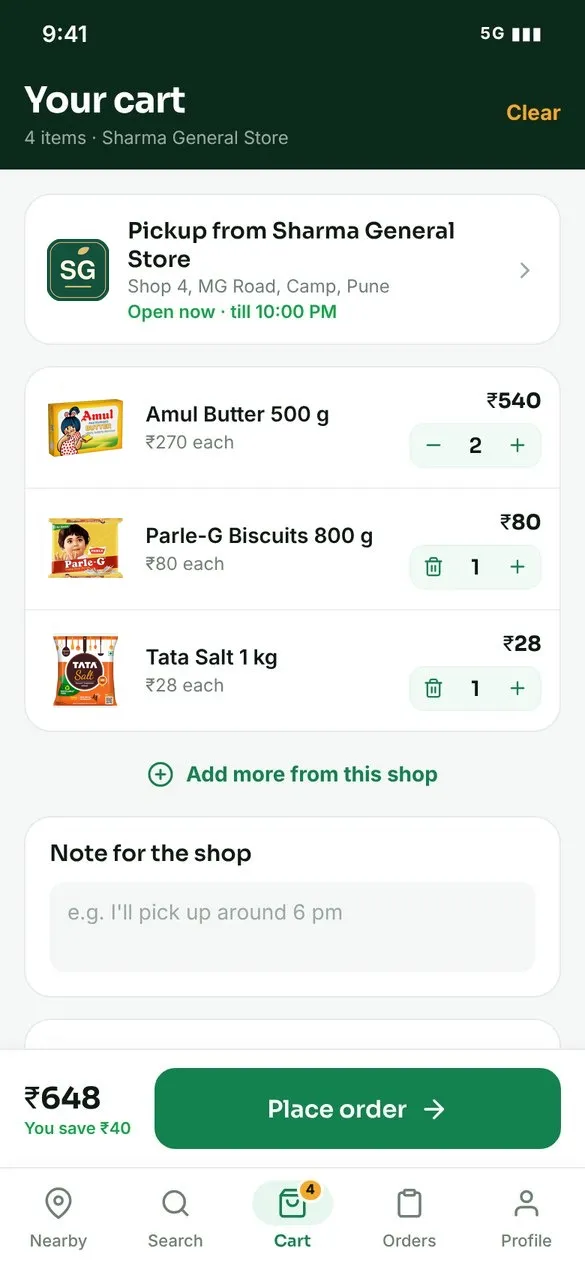 Review your cartConfirm quantities, pickup shop and order note.
3. Track the order and collect it
Once placed, the order can be followed in the app. The shop accepts it, prepares the items and marks it ready for pickup. Collect the order at the shop and pay at the counter. Phone alerts depend on notification settings; updates are also saved in the app’s Notifications screen.
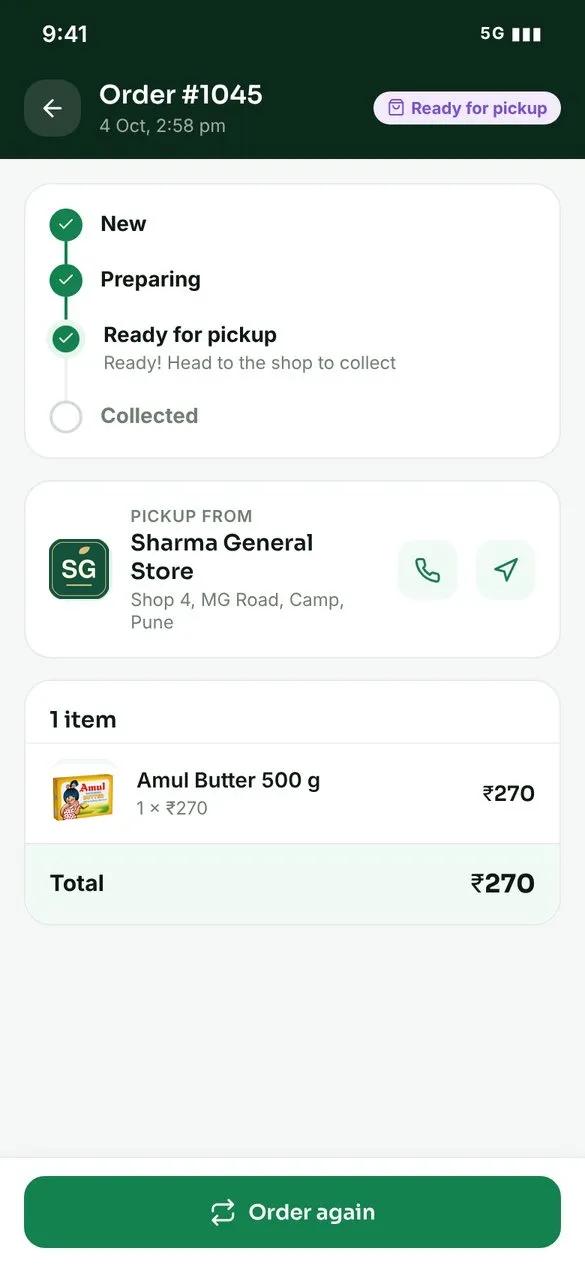 Order trackingFollow the order as it moves toward pickup.
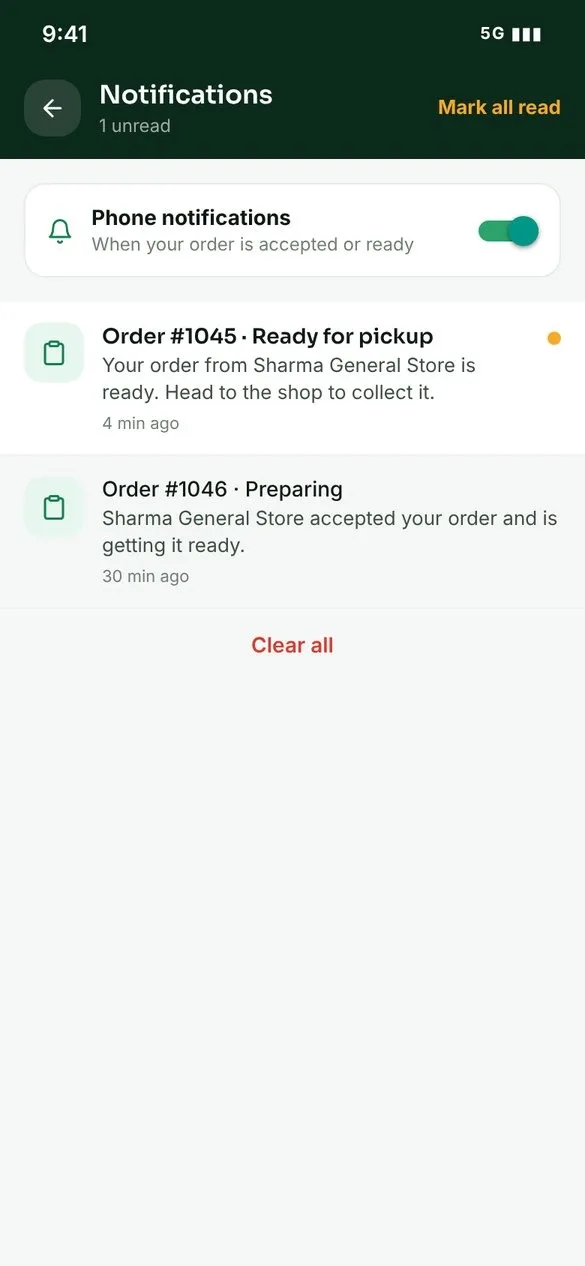 NotificationsFind saved order updates and messages.
The pickup order flow
From order placed to order completed
Each stage gives the customer and shop a shared view of what happens next. Order statuses move forward through the workflow.
The shop or admin can cancel an open order. Cancellation restores stock, with notifications sent to the relevant people.
Seller app: run your shop from your phone
Shop owners can set up their storefront, keep products current and respond to customers without leaving the seller app.
Your shop at a glance
Set up the shop name, category, logo, map location, address and opening hours. The dashboard brings together today’s sales, new orders, product counts and low-stock alerts, with shortcuts for adding products and importing stock. Use the accepting-orders switch alongside your opening hours to control availability.
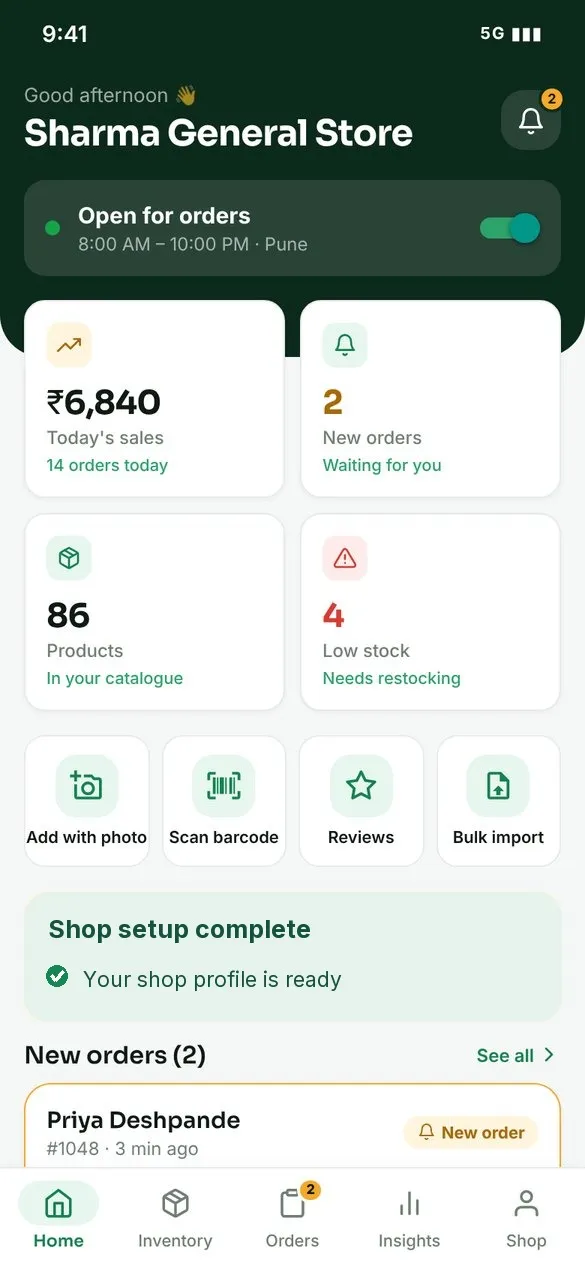 Seller dashboardSee shop activity, orders and shortcuts.
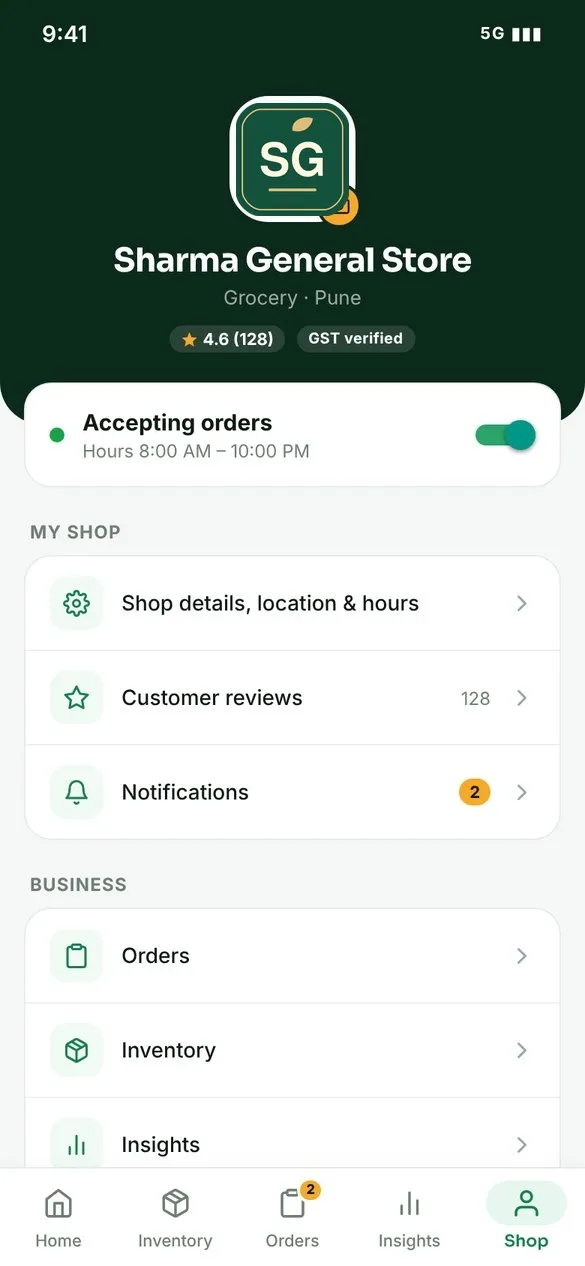 Shop profileManage your logo, details, hours and alerts.
Add products with a photo or barcode
With AI product scan, photograph the pack or choose an image from the gallery. AI suggests details such as name, brand, size, category and MRP. Check every suggestion against the pack, then set the selling price and stock before saving. Barcode scanning supports EAN, UPC and QR codes, with torch and manual entry options. Known products can fill details and photos from Kartzy or a public product database; duplicate barcodes in the same shop show a warning.
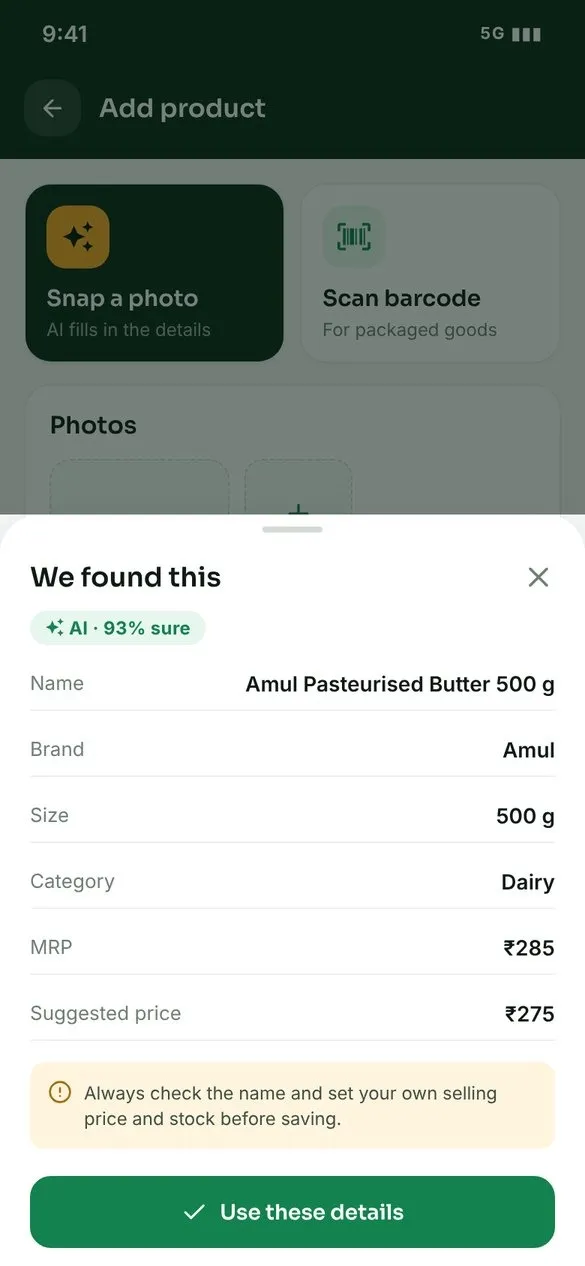 AI product scanReview suggested details before saving.
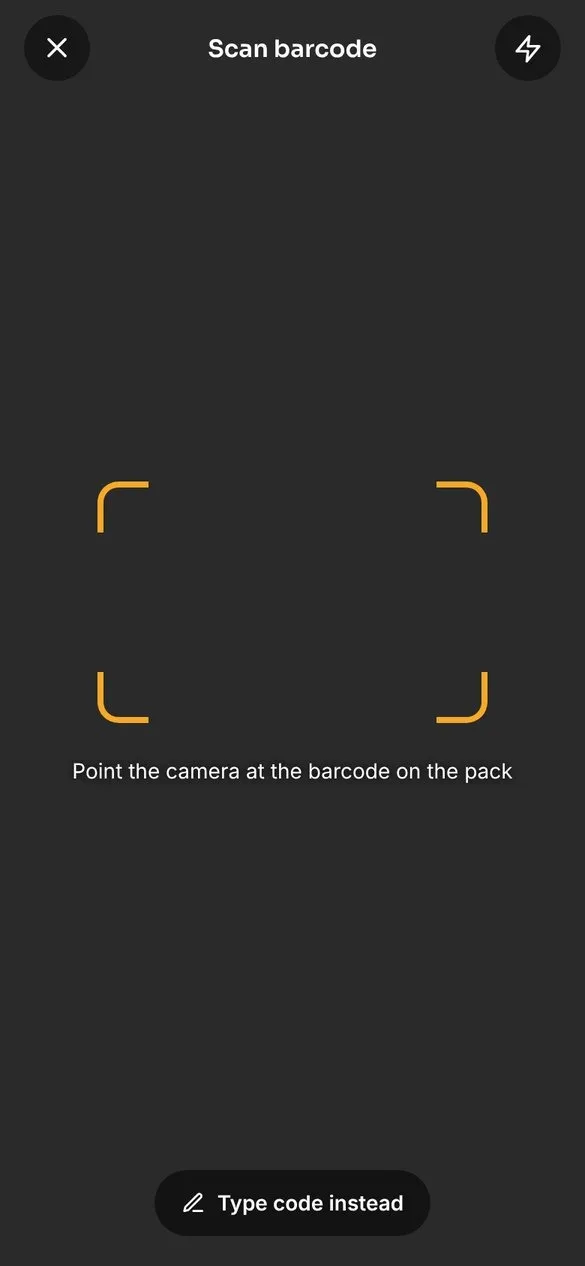 Barcode scannerScan the code or enter it manually.
Keep inventory accurate
Search inventory by name, SKU or barcode, or scan a product. The Low stock filter highlights what needs attention. Quick stock controls let sellers add preset quantities or enter a number without opening the full product form. Active, Hidden and Disabled states allow visibility changes without deleting the product.
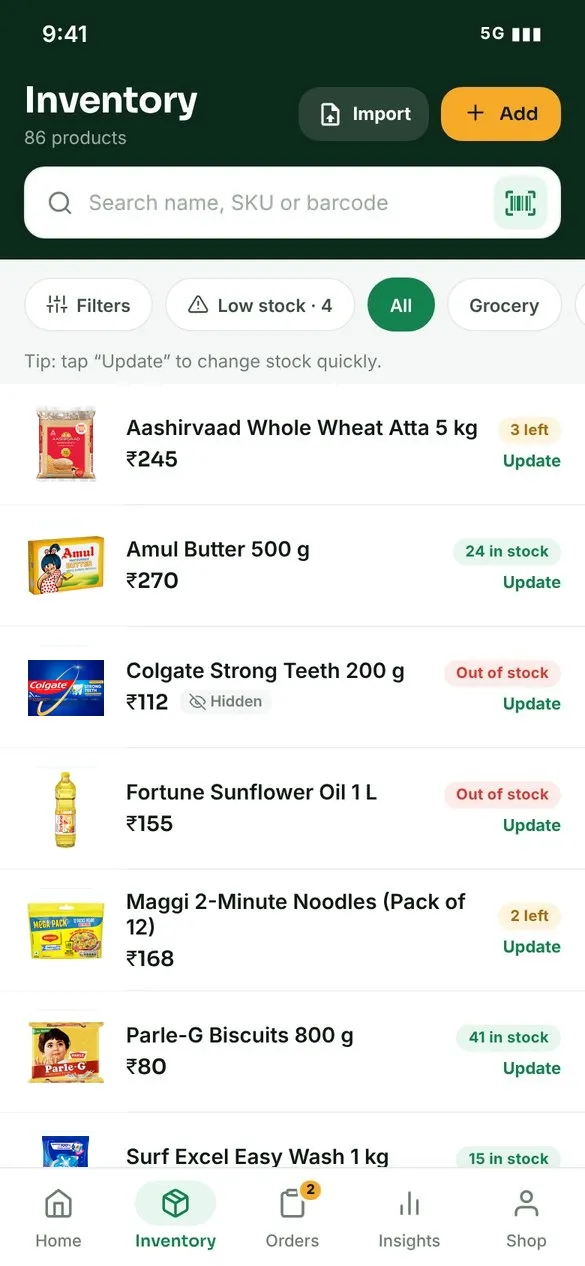 InventoryFind products and spot low stock.
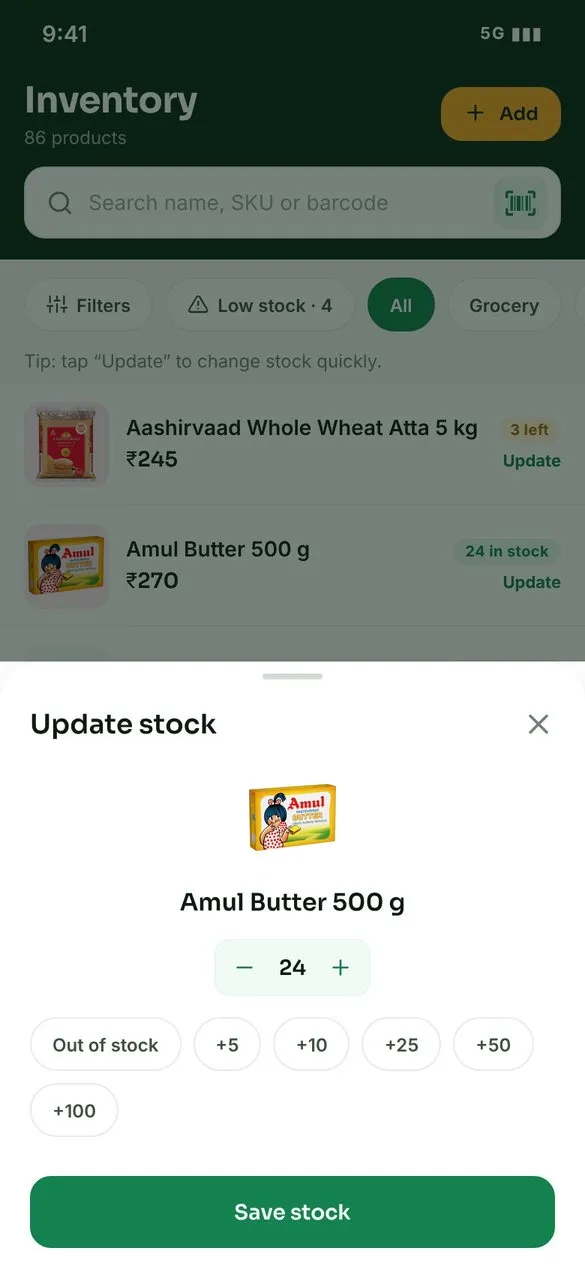 Update stockAdjust quantities and save the new total.
Prepare orders and review performance
New, Preparing and Ready tabs group orders by stage. Open an order to check the items, customer contact details and pickup note. Accept or reject it, prepare the items, mark it ready and confirm collection. Insights show sales, order counts, average order value and orders by day for preset or custom date ranges. Reviews help sellers understand customer feedback.
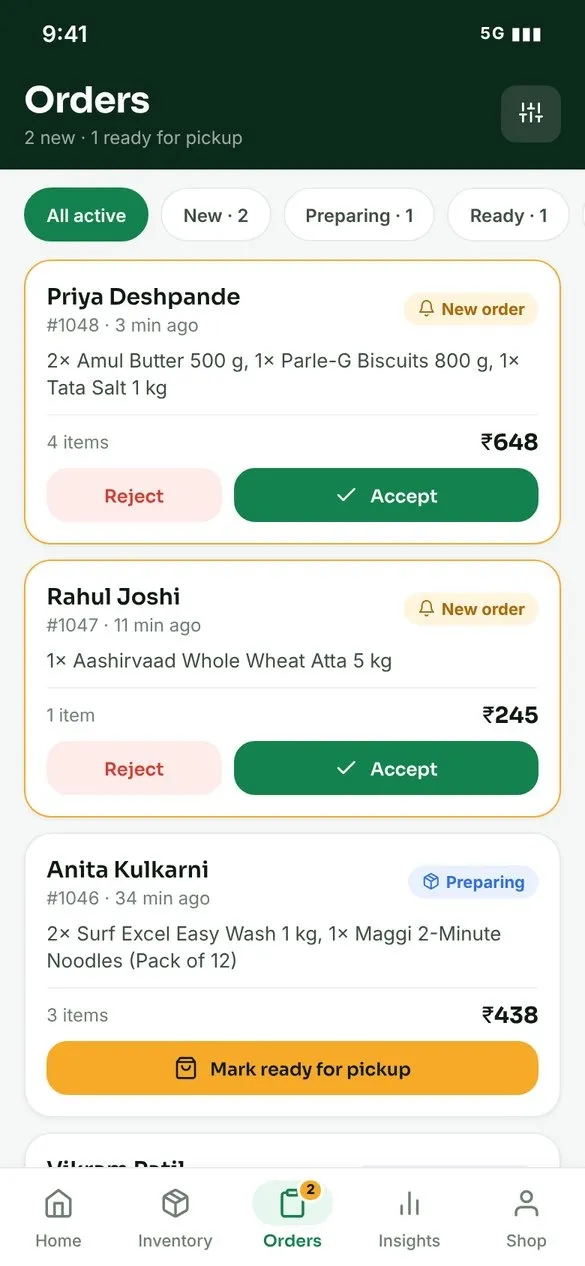 Manage ordersMove orders through preparation and pickup.
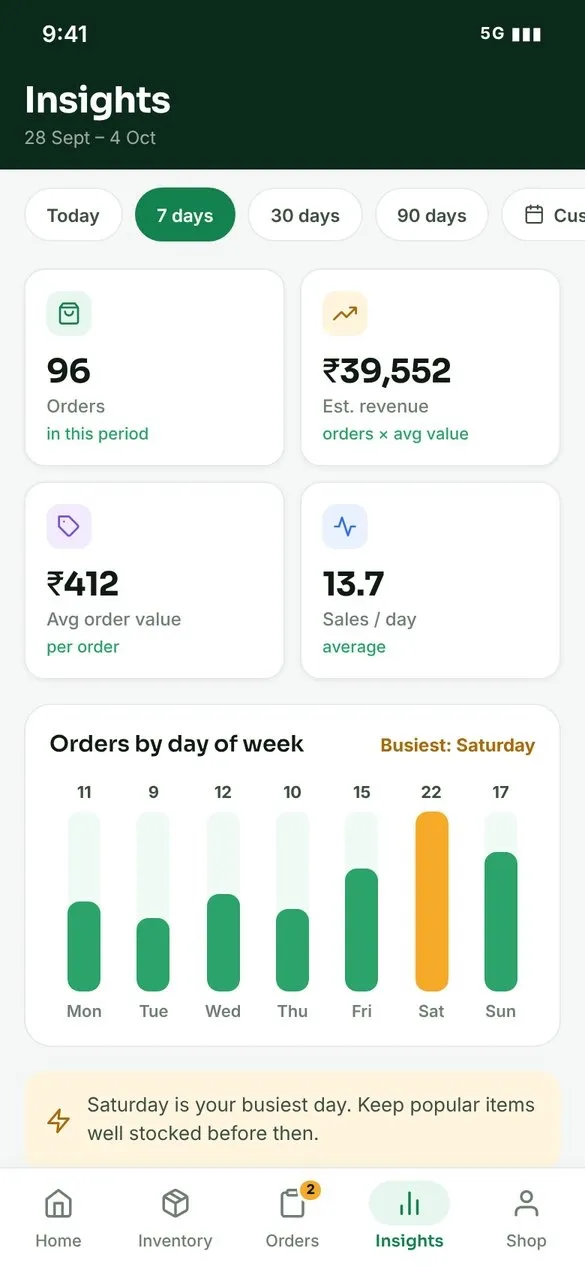 Sales insightsReview orders, sales and busiest days.
Bulk import: bring an entire catalogue into Kartzy
Choose a source, review the rows and import
Bulk import supports Excel or CSV files, a shared Google Sheets link, or up to 10 shelf photos for AI-assisted product identification. A template helps shops prepare their data. Files can contain up to 50,000 products, with large uploads handled in parts.
- Choose your source
Upload a file, paste a shared sheet link or select shelf photos. For AI results, verify product details and set prices and stock. - Match and review
Check detected columns such as name, price, MRP, stock, SKU, barcode and category. Set a default category where needed. - Fix and confirm
Review Ready, Check, Errors and Updates counts. Correct problematic rows or skip them before importing.
Import runs in the background so sellers can continue using the app. Progress appears on the Home screen, and the final summary separates new, updated, skipped and failed rows. Failed rows can be corrected and retried. Product approval rules still apply to imported products.
Bulk import screens
The guided flow makes large catalogue updates easier to review.
From source to completion
Check the data before import, then follow background progress and the final results.
 Choose a sourceFile, Google Sheets or shelf photos.
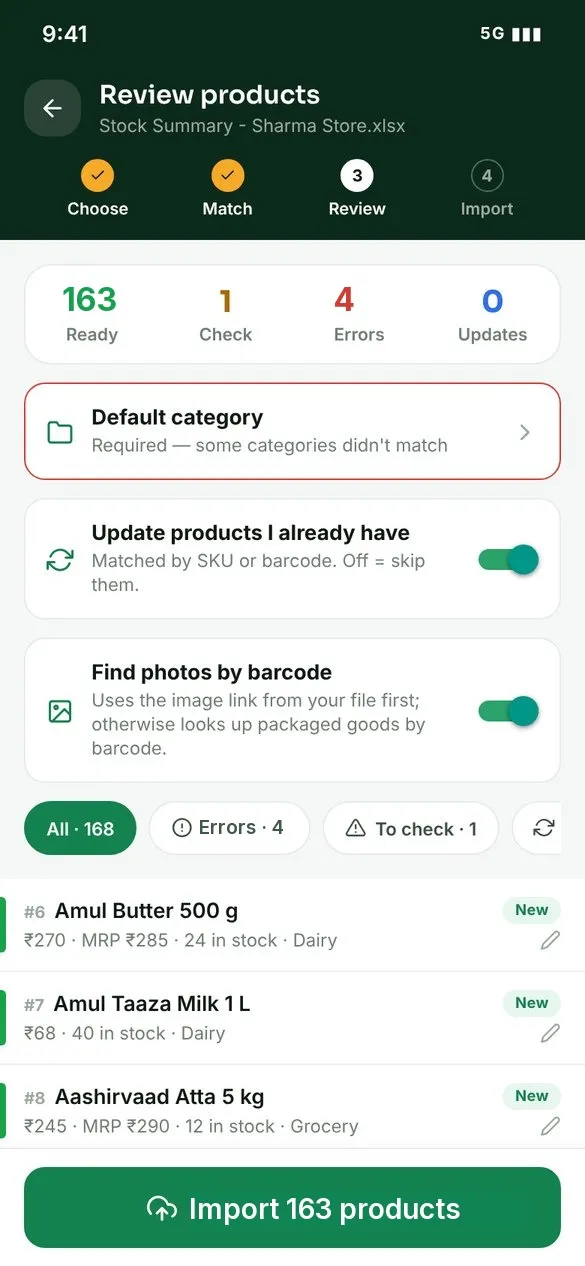 Review product rowsCheck detected fields and fix errors.
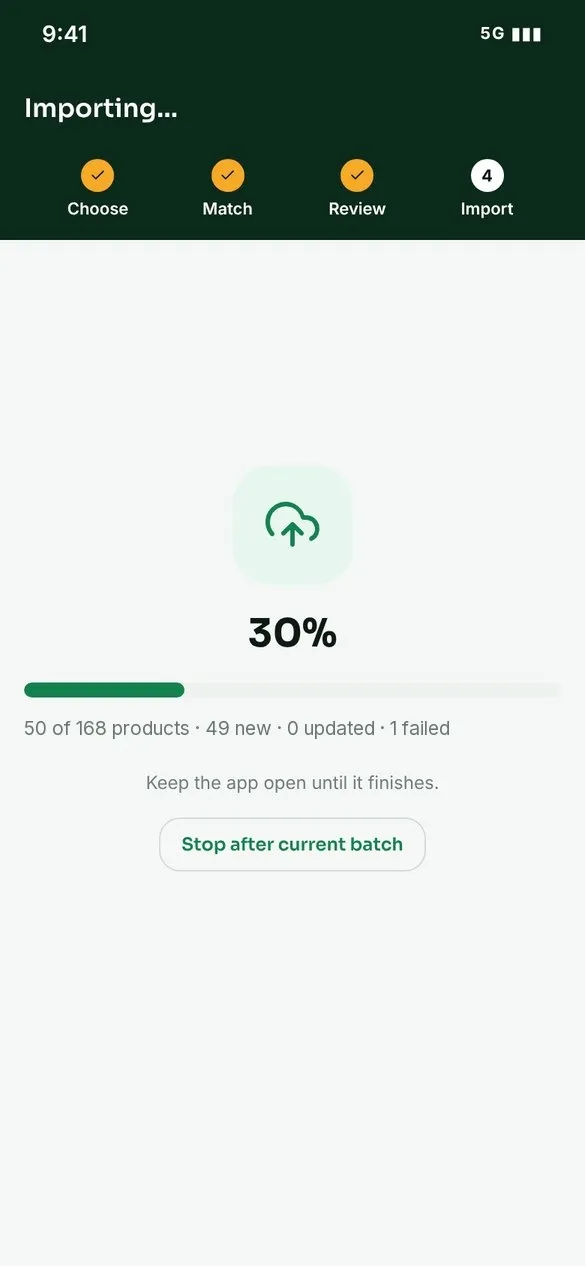 Import in progressFollow the background job.
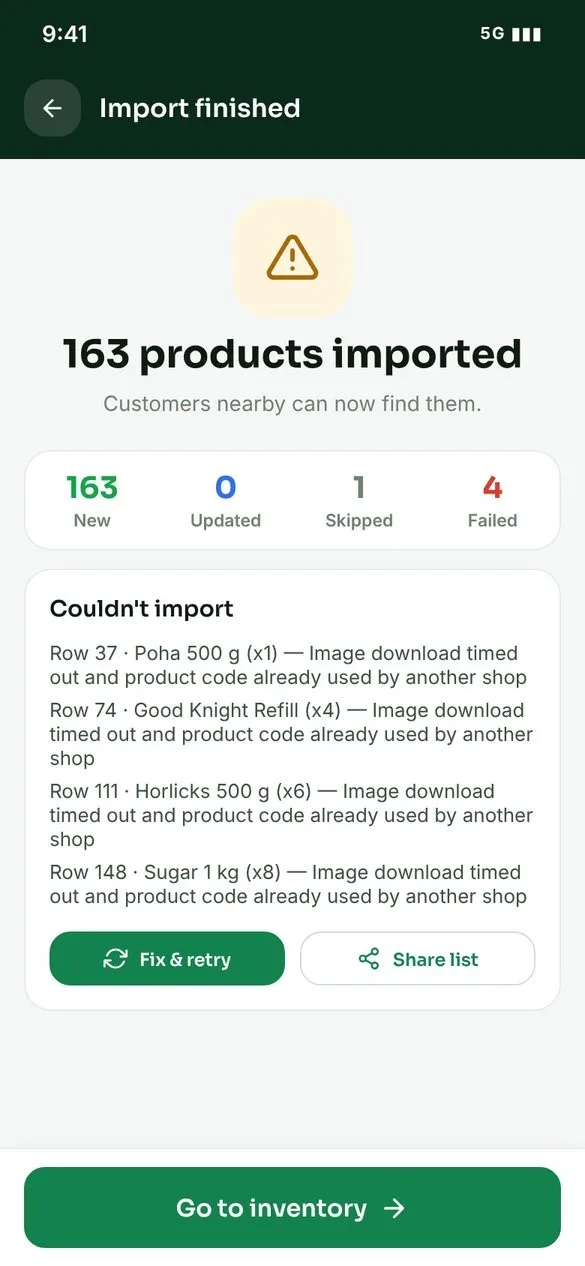 Import summarySee imported, skipped and failed counts.
Admin panel: oversee the marketplace
The admin panel connects shop onboarding, catalogue quality, orders and customer communication. Its dashboard highlights shops, products, orders, customers and work waiting for attention.
Manage shops and products
Filter vendors by approval, status, city or category. Review shop details and location, approve or reject with a reason, and edit or suspend a shop when needed. Product management brings together all shops’ products with filters for category, approval, stock and visibility, including bulk approval.
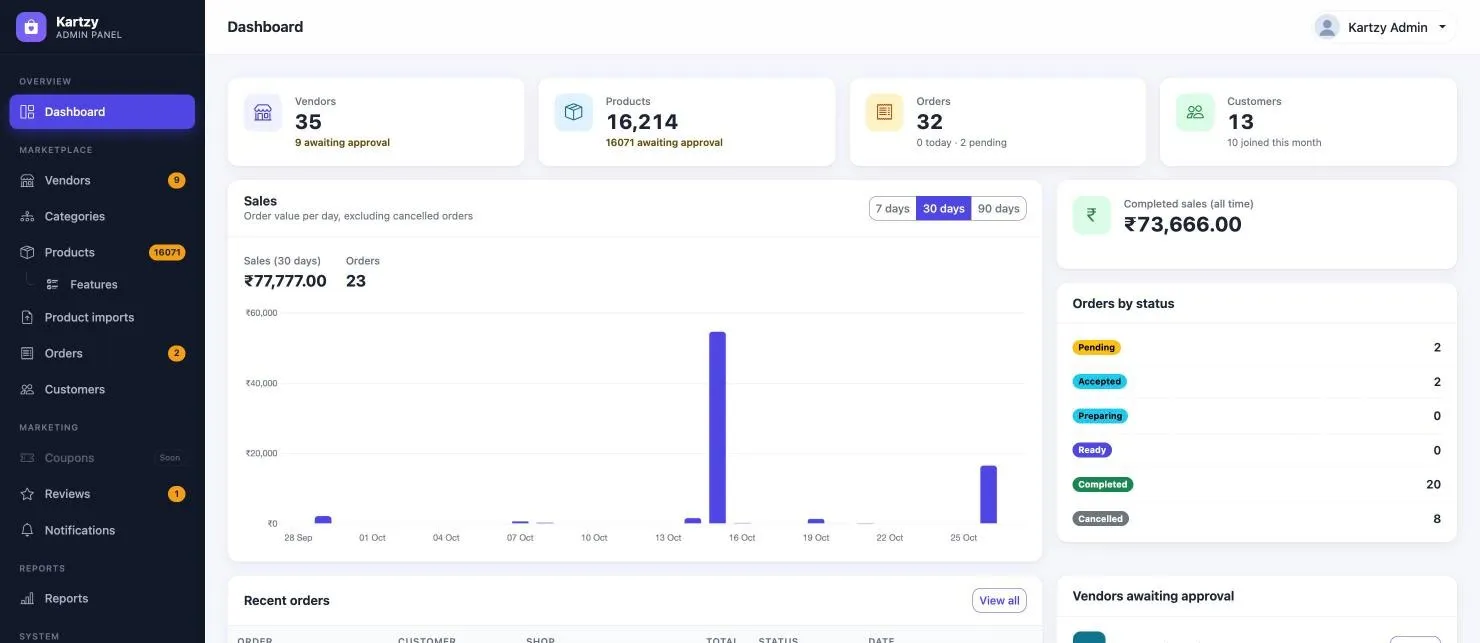 Marketplace dashboardSee activity and items awaiting review.
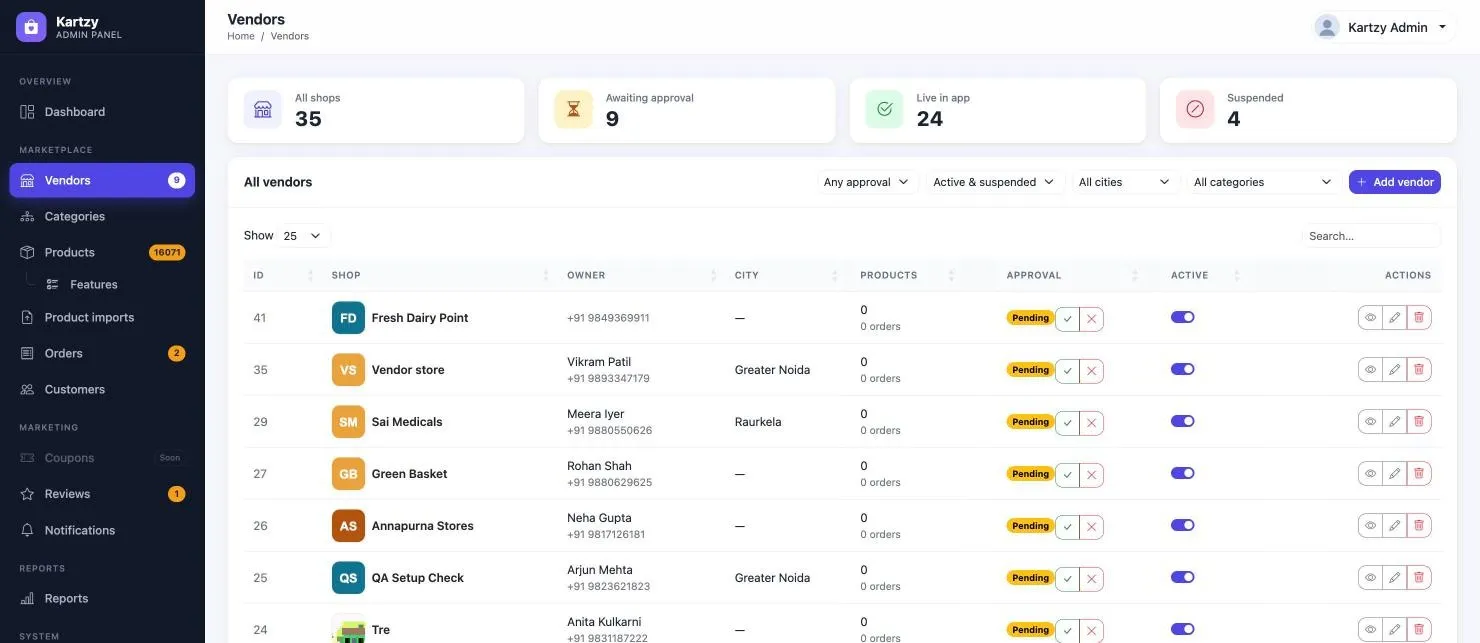 Vendor managementReview and manage shop records.
Follow orders across all shops
Use order status tabs, shop and date filters, and search to find an order. Order details show items, the customer, shop and change timeline. Administrators can cancel open orders and print or save PDF invoices. Product import records provide row-level errors, progress and processing controls.
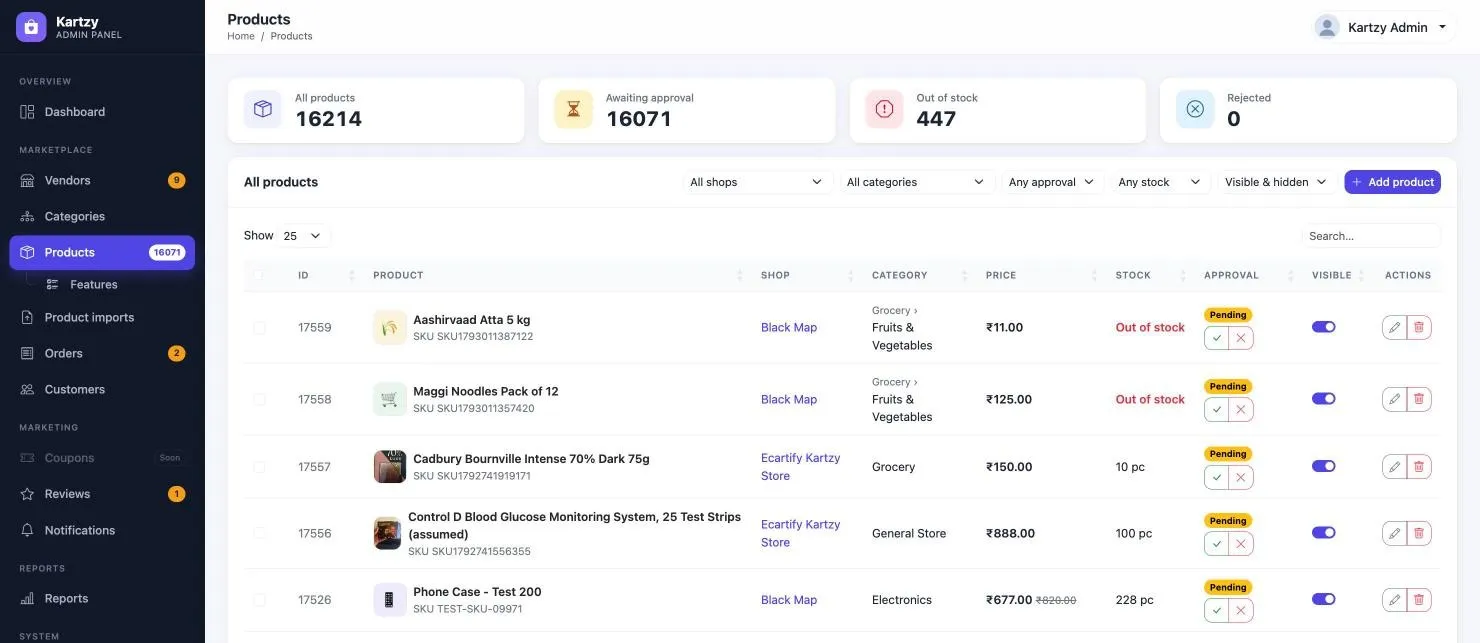 Product managementCheck catalogue information and approval status.
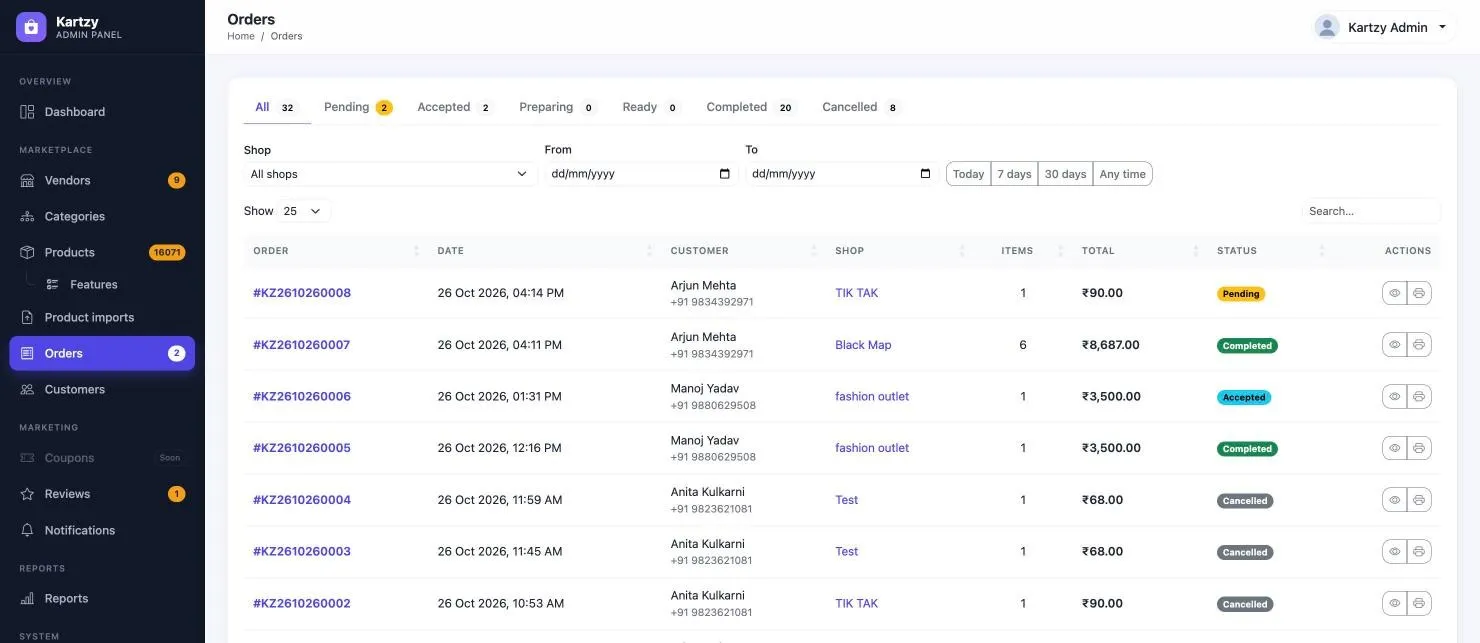 Order managementFilter orders and open their full details.
Content and communication without an app update
Edit Terms, Privacy, About and custom pages, choose their audience and control whether they appear in app menus.
Manage WhatsApp, phone and email contact options, plus FAQs for customers, shops or everyone.
Send a message to everyone, customer or seller groups, or an individual. Review delivery history and the phone preview.
Messages remain available in the in-app inbox even when phone alerts are switched off. Support contacts and FAQ content are controlled by the administrator.
Settings and their effect in the app
Choose how your marketplace operates
Many app behaviors are controlled centrally and take effect on the next screen refresh.
| Setting | What it changes |
|---|---|
| Nearby search radius | Sets which shops customers see in Nearby and Search. The distance is configurable rather than fixed at 10 km. |
| Vendor approval | When enabled, new shops wait for approval. When disabled, they go live after setup is complete. |
| Product approval | Controls approval for new products and changes to name, description, category or photos. Price and stock changes do not need approval. |
| Category restrictions | When enabled, sellers can add products only in categories assigned by the administrator. |
| AI Scan | Enables or disables the seller’s Add with photo feature. Suggested details and reference prices still need checking. |
| Push notifications | Configures phone alerts through Firebase. Saved inbox messages remain available in the app. |
| Maps | Supports address suggestions, draggable shop pins and auto-filled addresses so shops can be located accurately. |
| Versions and maintenance | Force update requires older app versions to update. Maintenance mode pauses access to shops and orders. |
| OTP mode | Test mode displays a code without sending SMS. Configure the SMS service and login mode for your rollout. |
| Import worker | Processes catalogue imports in the background and provides controls for queued jobs and processing errors. |
Admin settings in practice
A single settings area connects app availability, approvals, AI assistance and location tools.
Configure the experience
Review the relevant settings before onboarding shops and inviting customers.
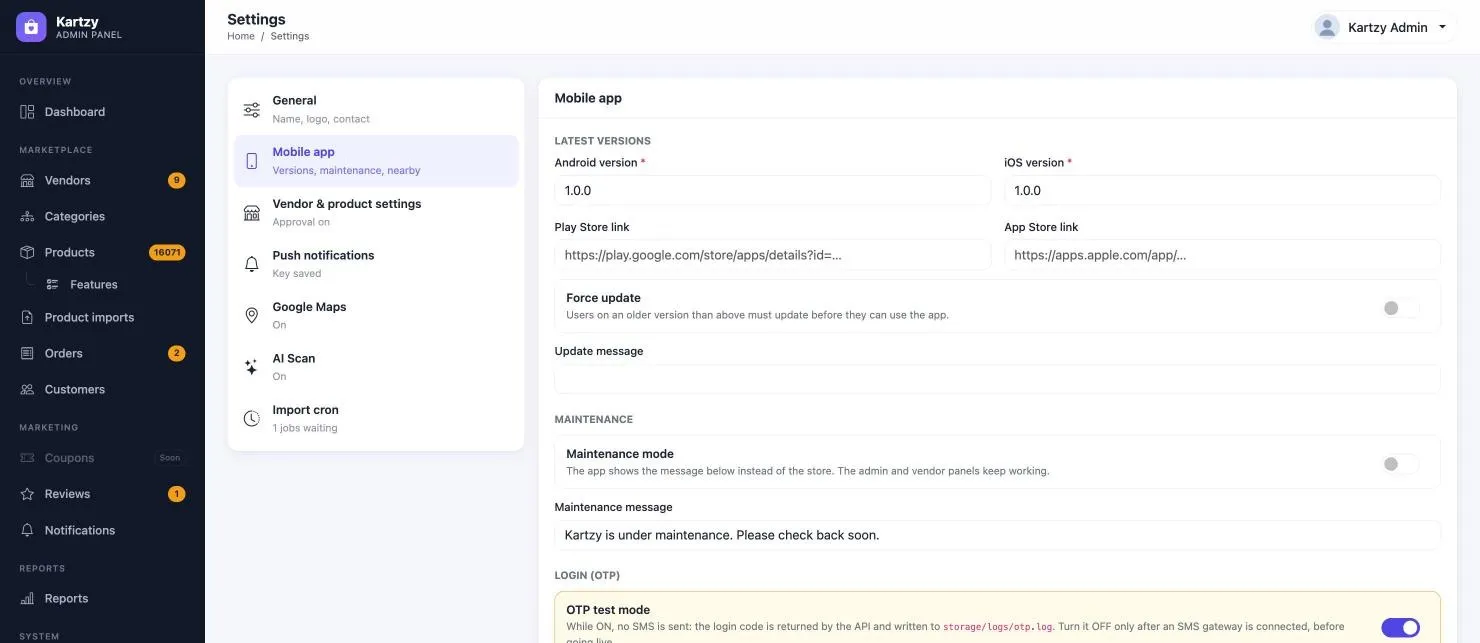 Mobile app settingsVersions, login behavior and nearby radius.
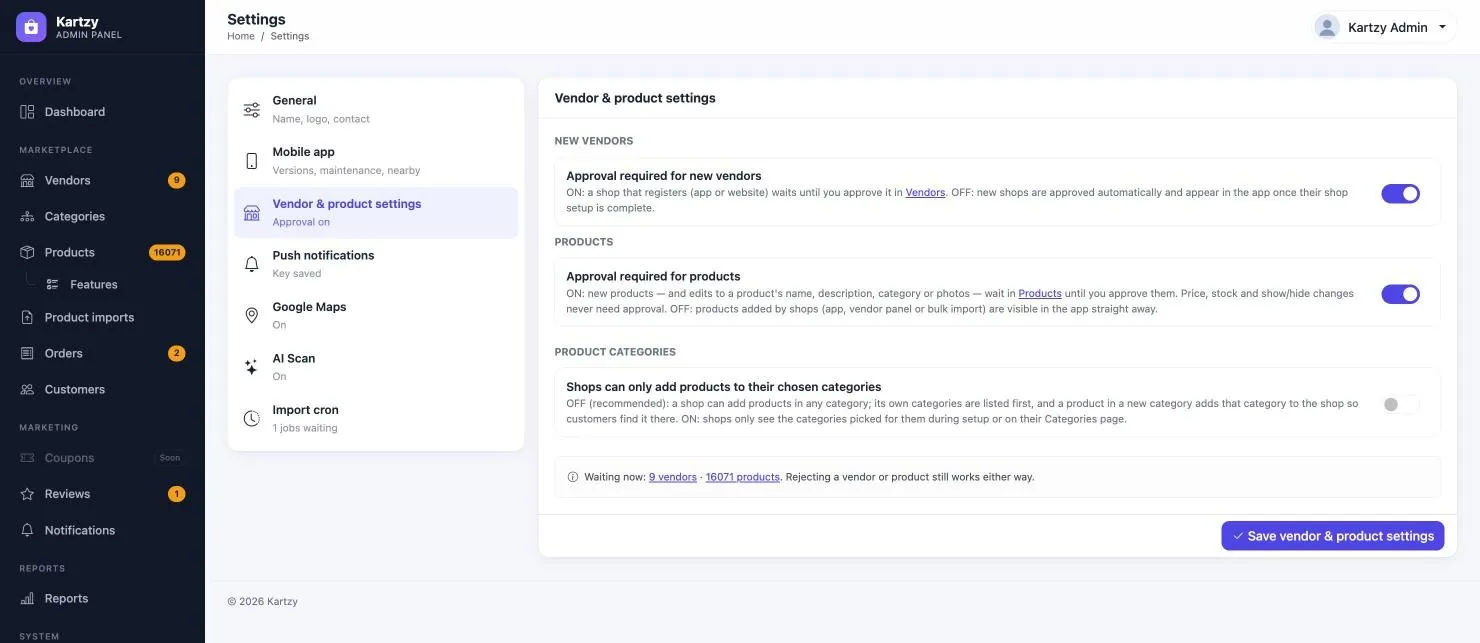 Approval settingsVendor, product and category rules.
Product assistance and location
Keep catalogue entry practical and shop locations accurate.
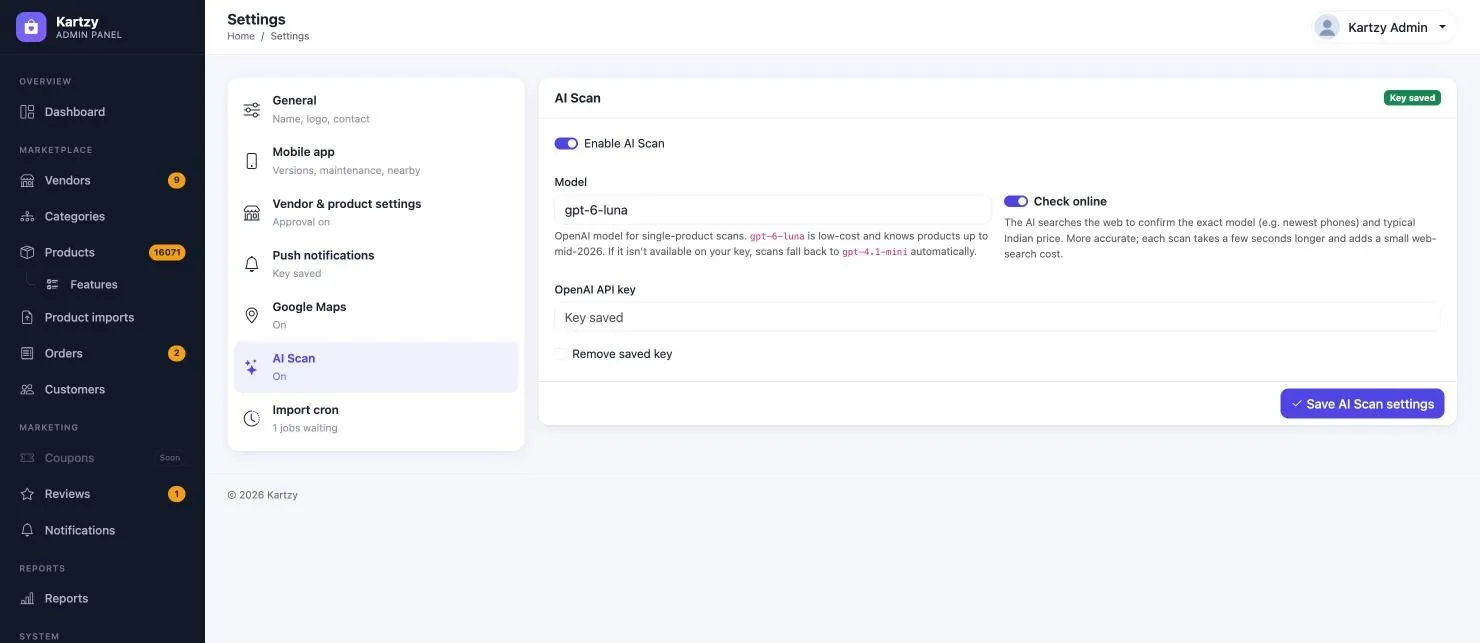 AI Scan settingsControl photo-assisted product entry.
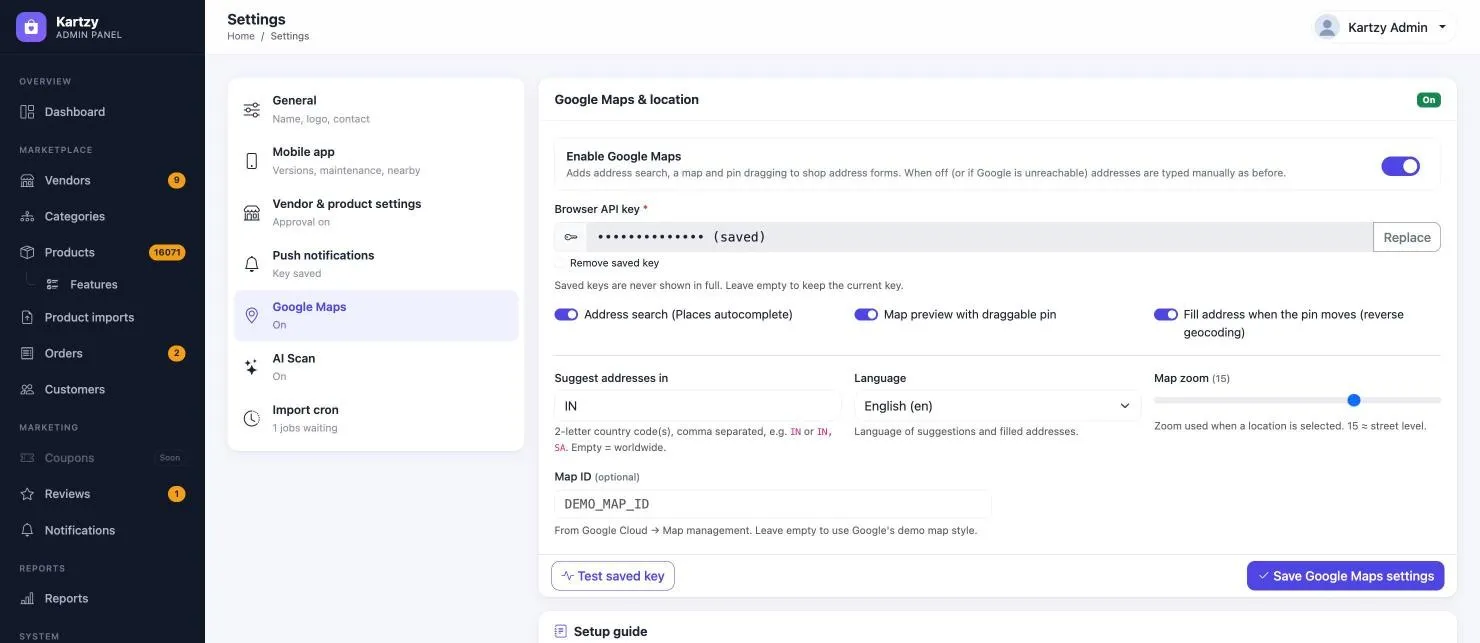 Map settingsConfigure location search and shop pins.
A practical daily routine
Keep each part moving
- Customer: find, order, collect
Sign in, choose an area, compare shops and products, review the cart and place the order. Track progress, collect and pay at the shop, then leave a review after completion. - Seller: stock, prepare, serve
Check opening hours and order availability, keep stock current, review new orders and prepare accepted orders for pickup. Mark collection and use Insights to review performance. - Admin: review, monitor, communicate
Check the dashboard, review shops and products when approval is enabled, moderate reviews and monitor orders. Keep pages, support details and customer messages current.
Bring local shopping and shop operations together
Kartzy by Ecartify combines nearby product discovery with practical seller tools and central marketplace management. Customers know where to find an item, sellers stay in control of stock and pickup orders, and administrators can shape the experience through clear settings.
Discover local shops and available products.
Keep catalogue, stock and order stages current.
Complete the purchase at the shop.
Screens are from the Kartzy platform guide. Names, phone numbers, addresses, prices and order data shown are examples.