Ideas That Power Digital Growth
Stay ahead with actionable insights, expert opinions, and practical guides covering ecommerce trends, platform updates, automation, AI, and real-world solutions to help businesses grow and scale digitally.
Product Resell Addon allows customers to resell purchased products back to your CS-Cart store. It provides a complete buyback and reselling workflow with multi-vendor and multilingual support. Admins can manage resell requests, update statuses, send automated email notifications, and allow users to upload attachments—fully compatible with all CS-Cart versions.
Product Resell – The Complete Resell & Buyback Solution for CS-Cart
Product Resell supercharges your CS-Cart store with a smart buyback and reselling system.Allow customers to resell purchased products back to your store with a smooth, automated workflow.
Go beyond simple reselling with multi-vendor and multilingual support, status-based management, automated email notifications, and file attachment options. One addon. Complete resell & buyback automation for modern CS-Cart marketplaces.
Key Features of Product Resell Addon
Customer Buyback & Reselling System:
Allows customers to resell purchased products back to the store with an easy request process.
Multi-Vendor Support: Fully compatible with CS-Cart Multi-Vendor, enabling vendors to manage resell requests efficiently.
Multilingual Compatibility:
Supports multiple languages for global marketplaces.
Status-Based Workflow Management: Admins can manage and update resell request statuses with full control.
Automated Email: Pre-built email templates notify users on every status update.
Admin-Friendly Management Panel: Easy-to-use interface for tracking and managing resell requests..
Step-by-Step Setup Guide
Step 1: Install the Addon
Installing the Product Resell Addon is simple:
Login to your CS-Cart admin panel.
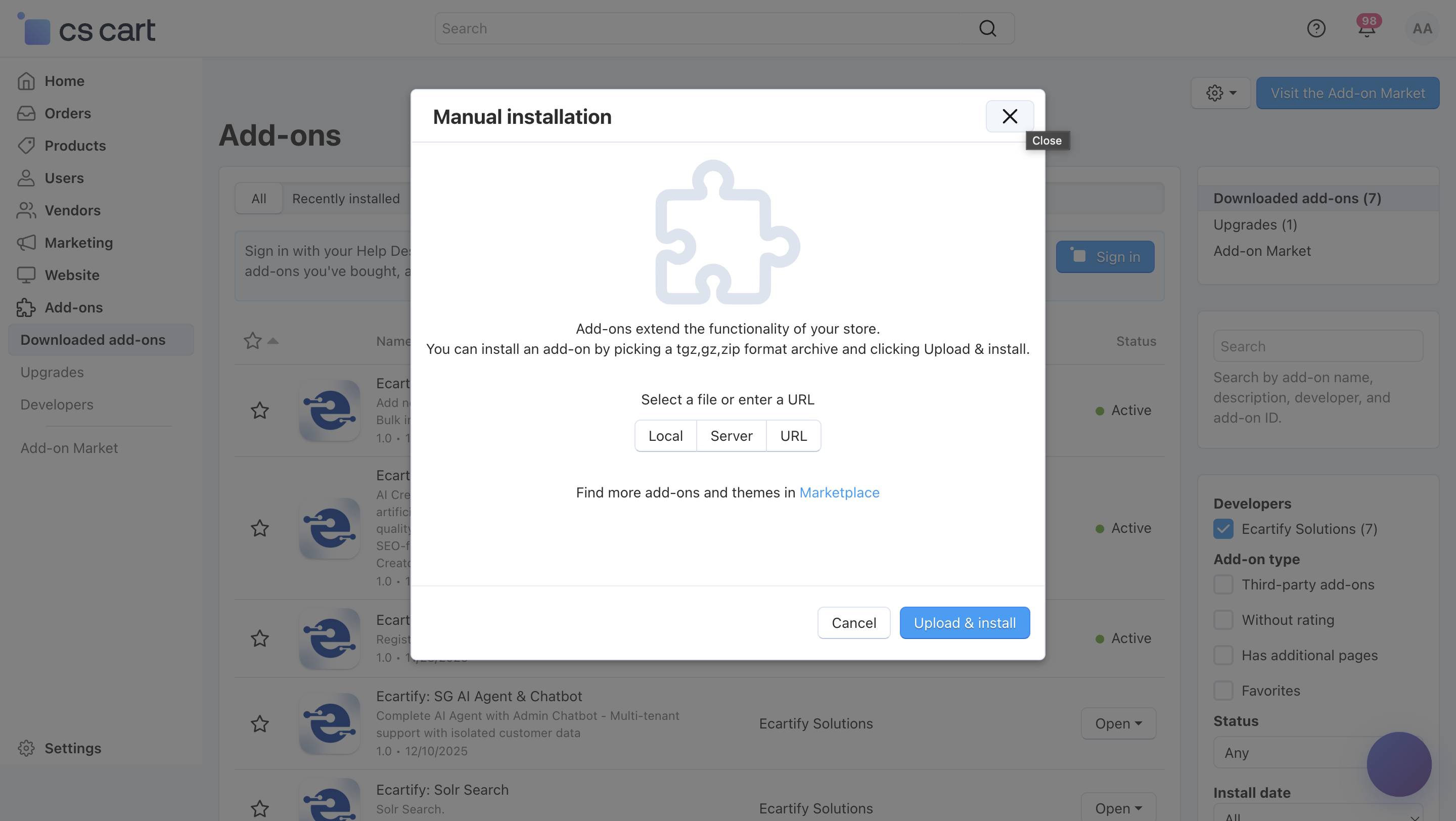
Go To Add-ons → Manage add-ons→ Click on ⚙️ gear icon→ Manual installation
Upload the provided ZIP file of the addon.
Once uploaded, the addon will appear under CS-Cart - Add-ons.
Now click on the Product Resell Add-on and configure the required settings.
This process takes only a few minutes and requires no coding knowledge.
Step 2: Configure the Settings
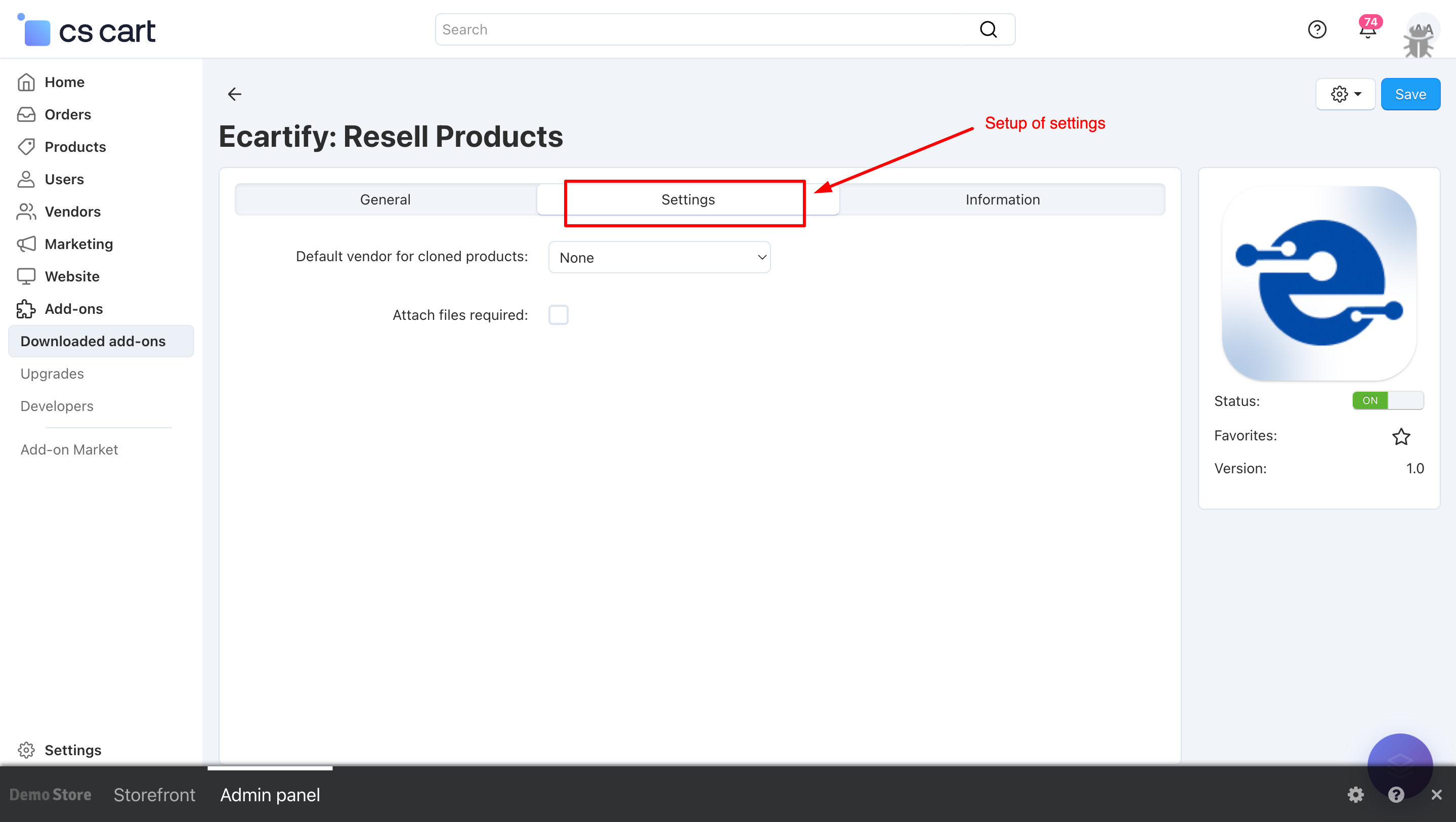
After installing the add-on, go to Add-ons → Manage add-ons and open the Product Resell Add-on settings page.
Here, you can configure the general options that control how the resell and buyback system operates across your store:
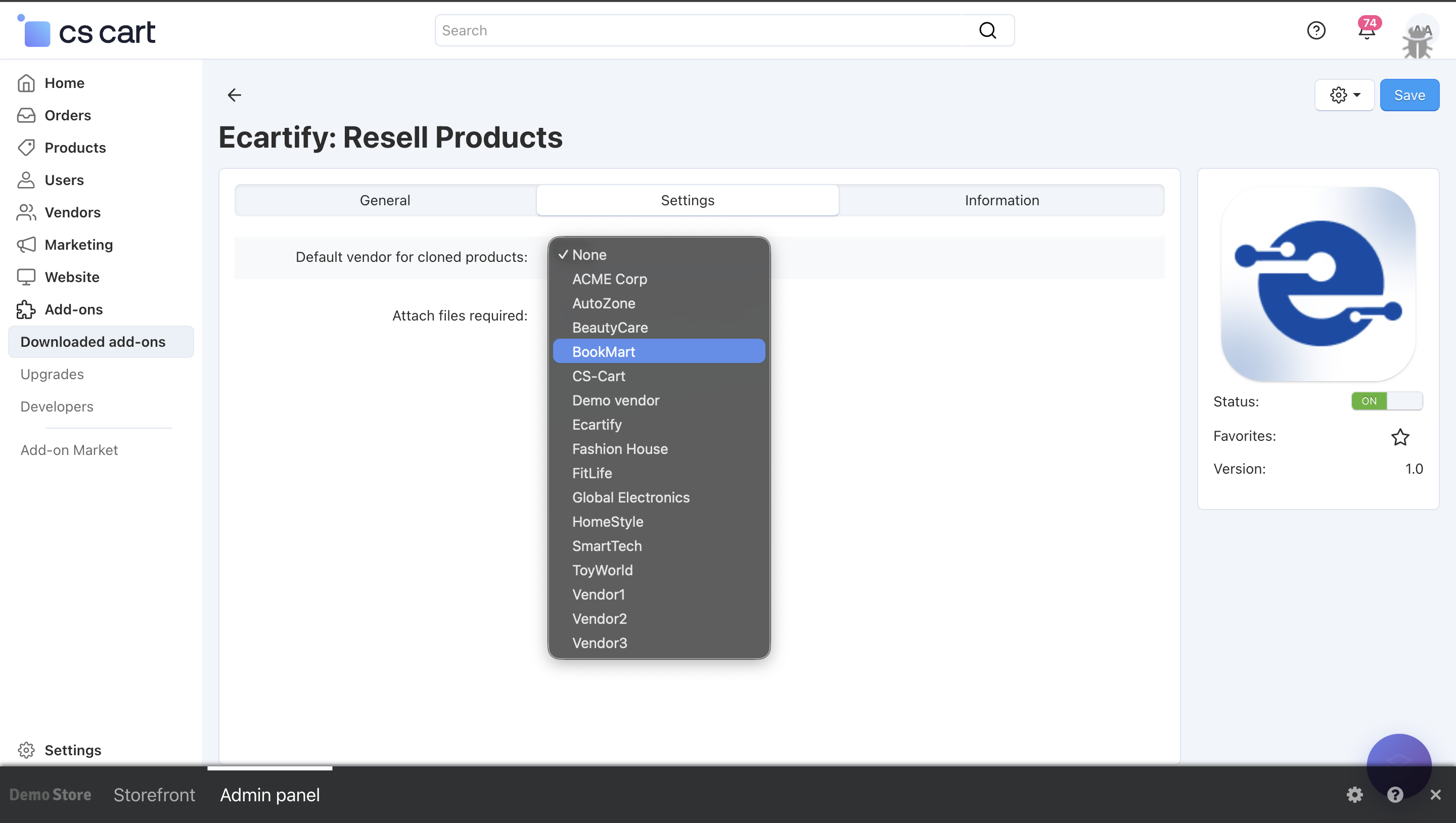
i) Default Vendor for Cloned Products:
Choose the vendor who will be assigned to products cloned during the resell or buyback process.If set to None, the cloned products will be assigned to the store admin by default.
Click on the field to see a list of available vendors. Select the vendor you want to assign as the default for cloned products during the resell or buyback process.
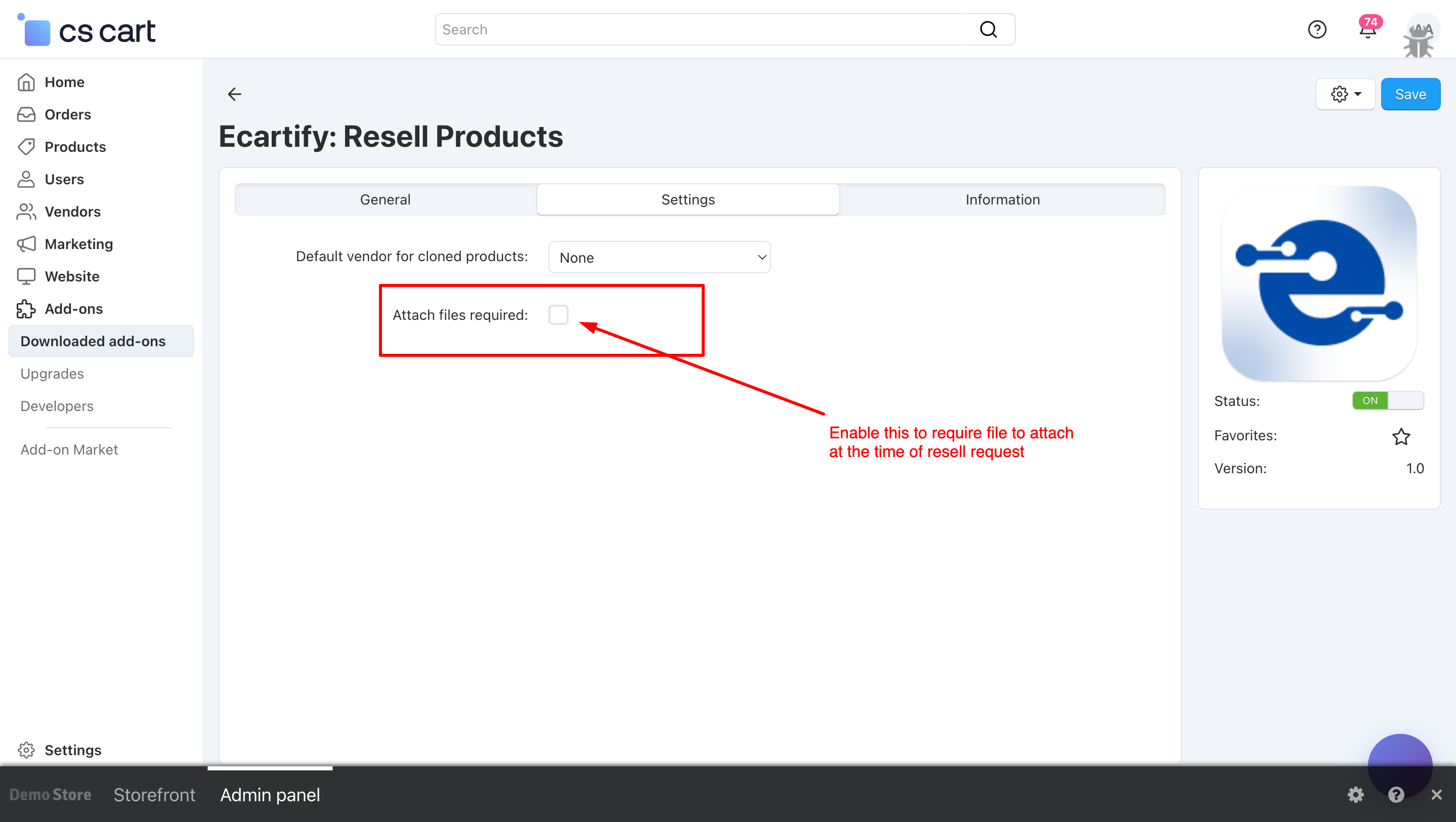
ii) Attach Files Required:
Enable this option to make file attachments mandatory when customers submit a resell request.This ensures that customers provide supporting documents or product images for verification.
Admin Resell Management – Admin can review requests, approve or decline them, assign cloned products to vendors, manage custom statuses, and send automated email notifications, ensuring a smooth and fully controlled resell workflow.
Customer Resell Requests – Customers can submit resell requests, select products, upload attachments, and track the status of their submissions (Pending, Approved, or Declined).
Step 4: Managing Resell Requests Settings
In the Product Resell Add-on, you can manage how customers submit resell requests and how admins handle them. Key sections include:
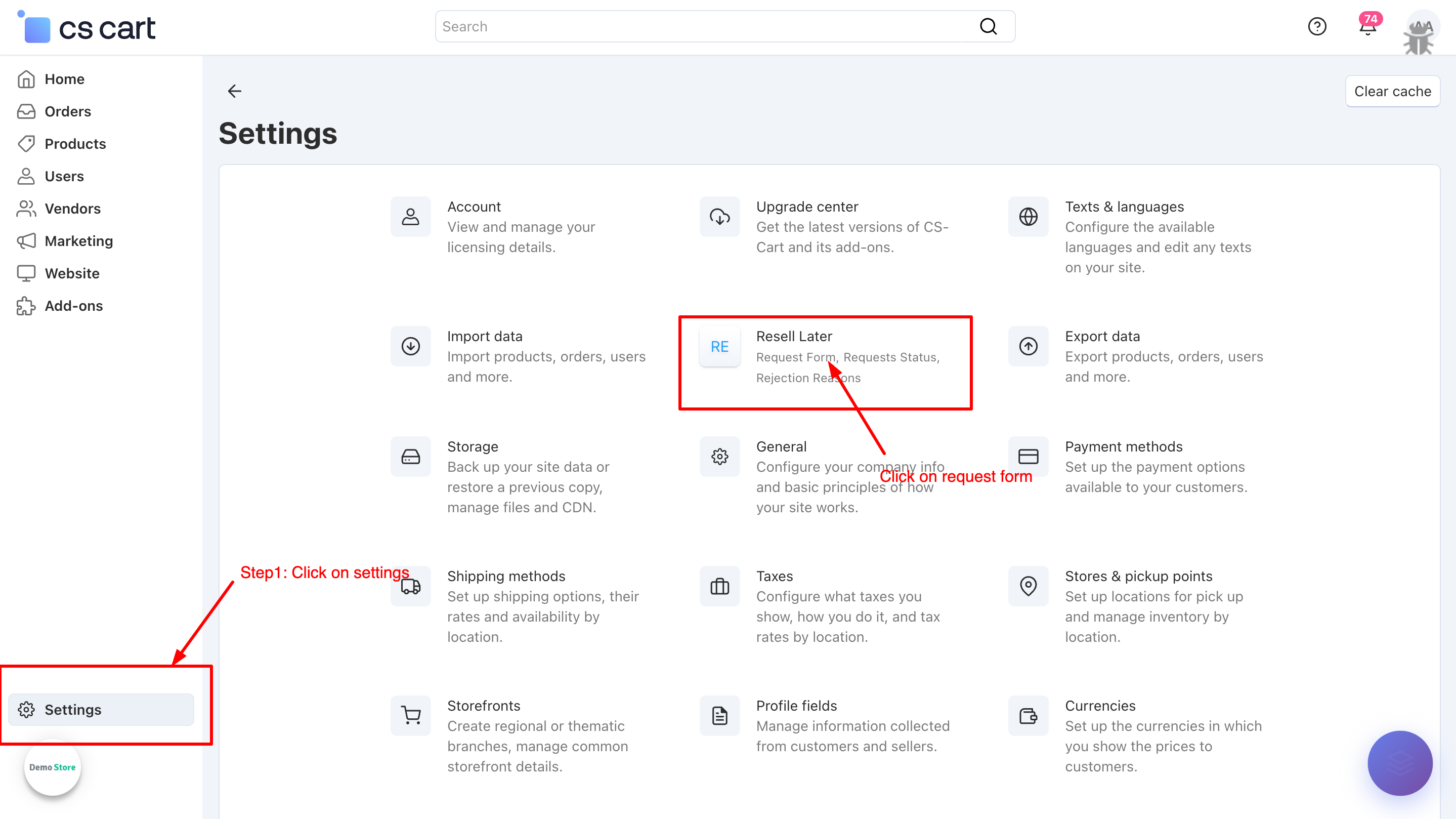
a) Open the Admin Panel.
b) Click Settings for the Product Resell Add-on.
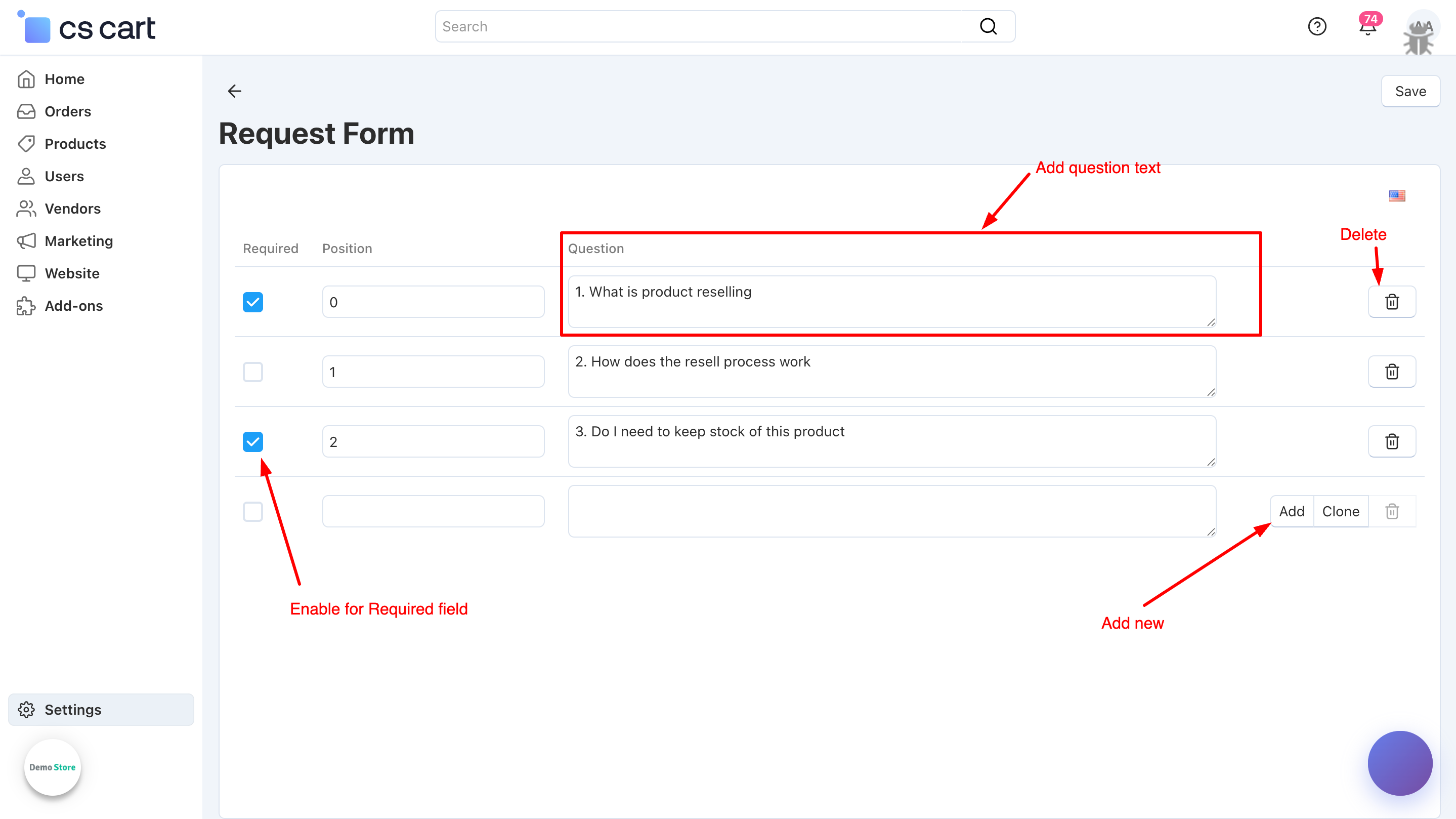
c) Click Request Form to manage the fields customers see when submitting a resell request.
i) Set up the Resell Resuest fields customers will see (product selection, quantity, attachments, notes). Mark fields as mandatory or optional.
ii) Configure each form field by specifying the Question (label shown to the customer), Position (order on the form), and Required (make it mandatory for submission). These settings ensure the resell request form is clear, organized, and collects all necessary information.
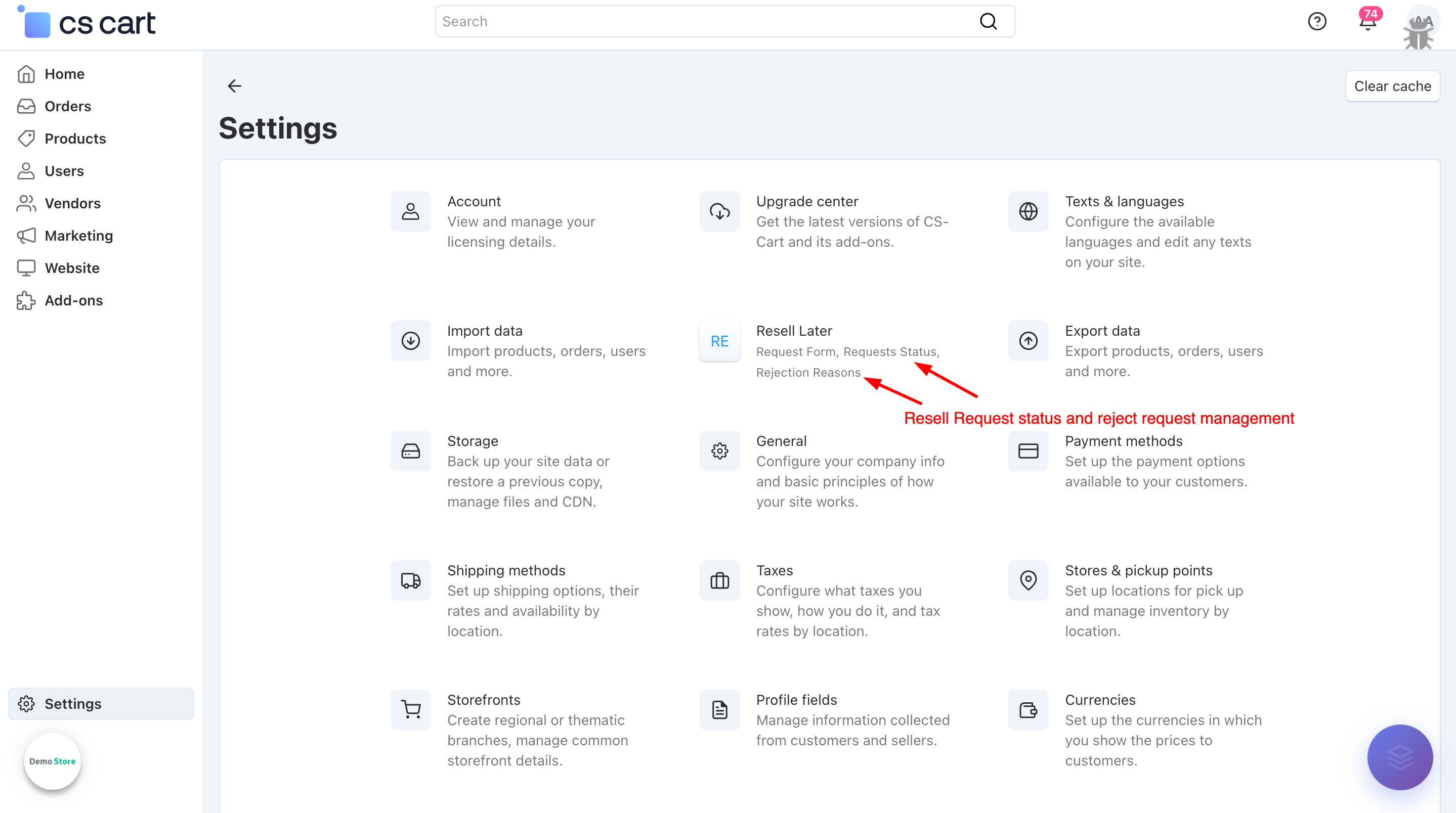
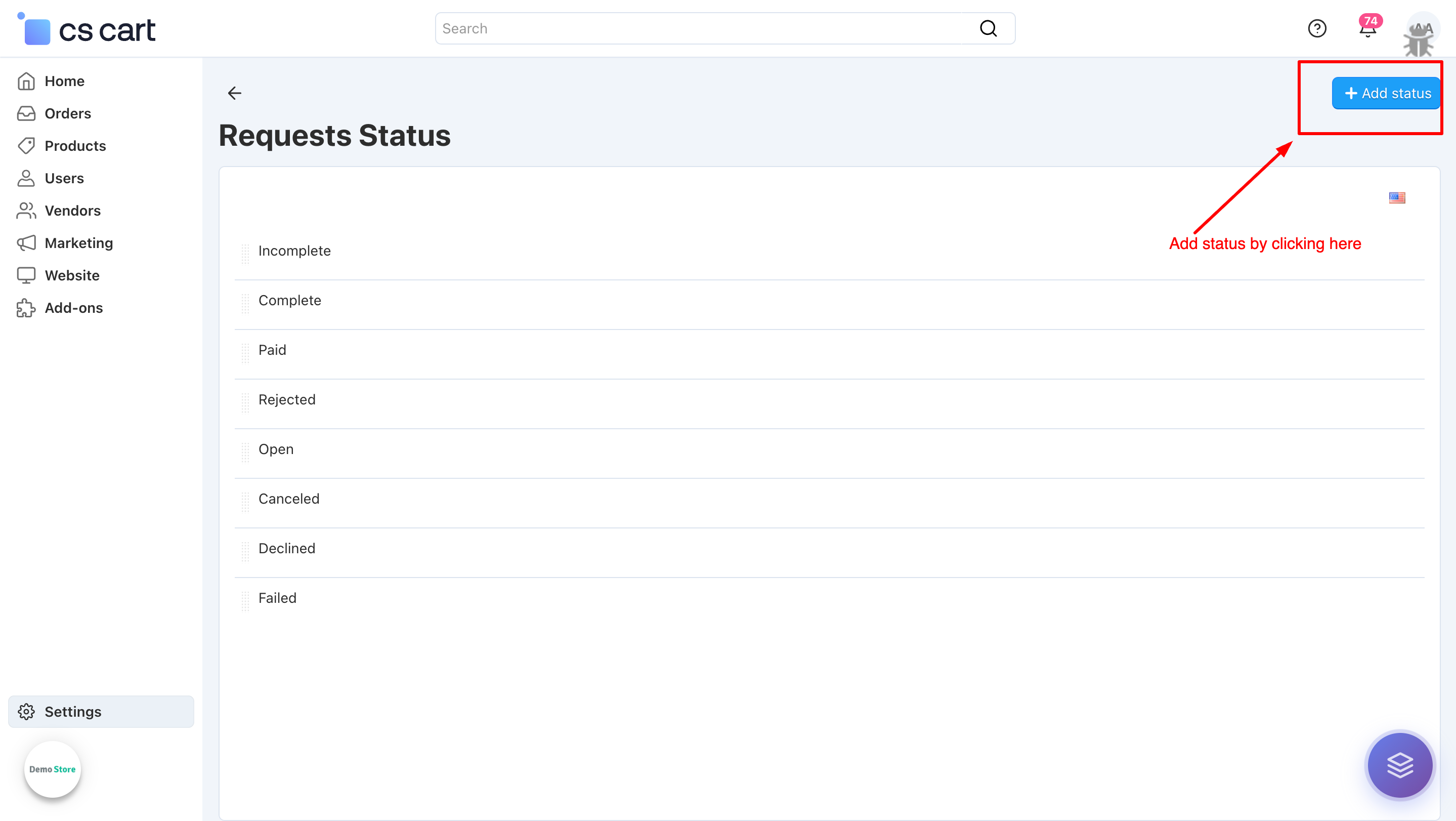
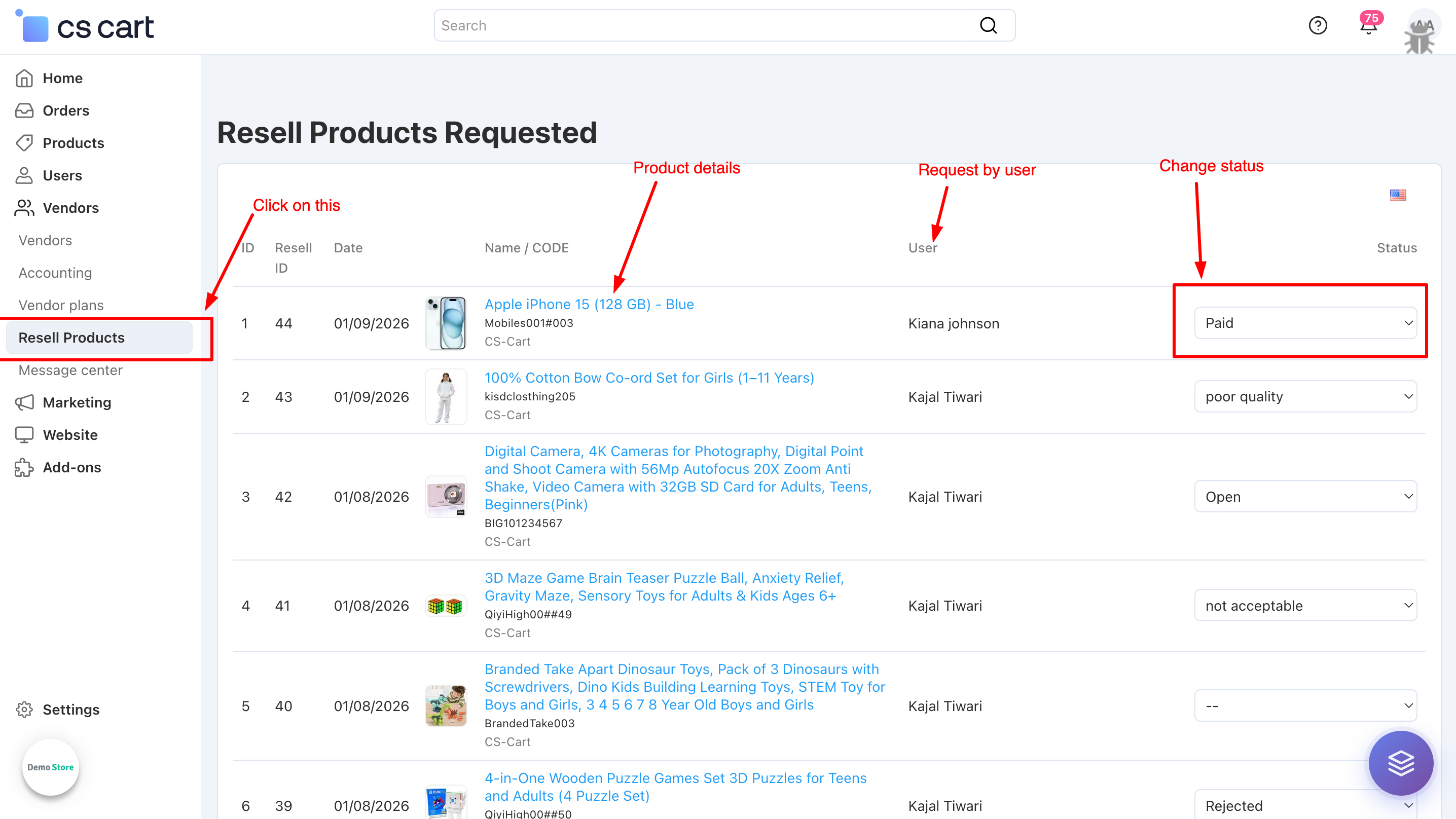
iii) Requests Status allows admins to manage and customize the workflow statuses such as Pending, Approved, or Declined, ensuring smooth tracking of resell requests. Rejection Reasons help define clear, predefined messages so customers are properly informed when a request is declined..
Add status by cliking on add status button.
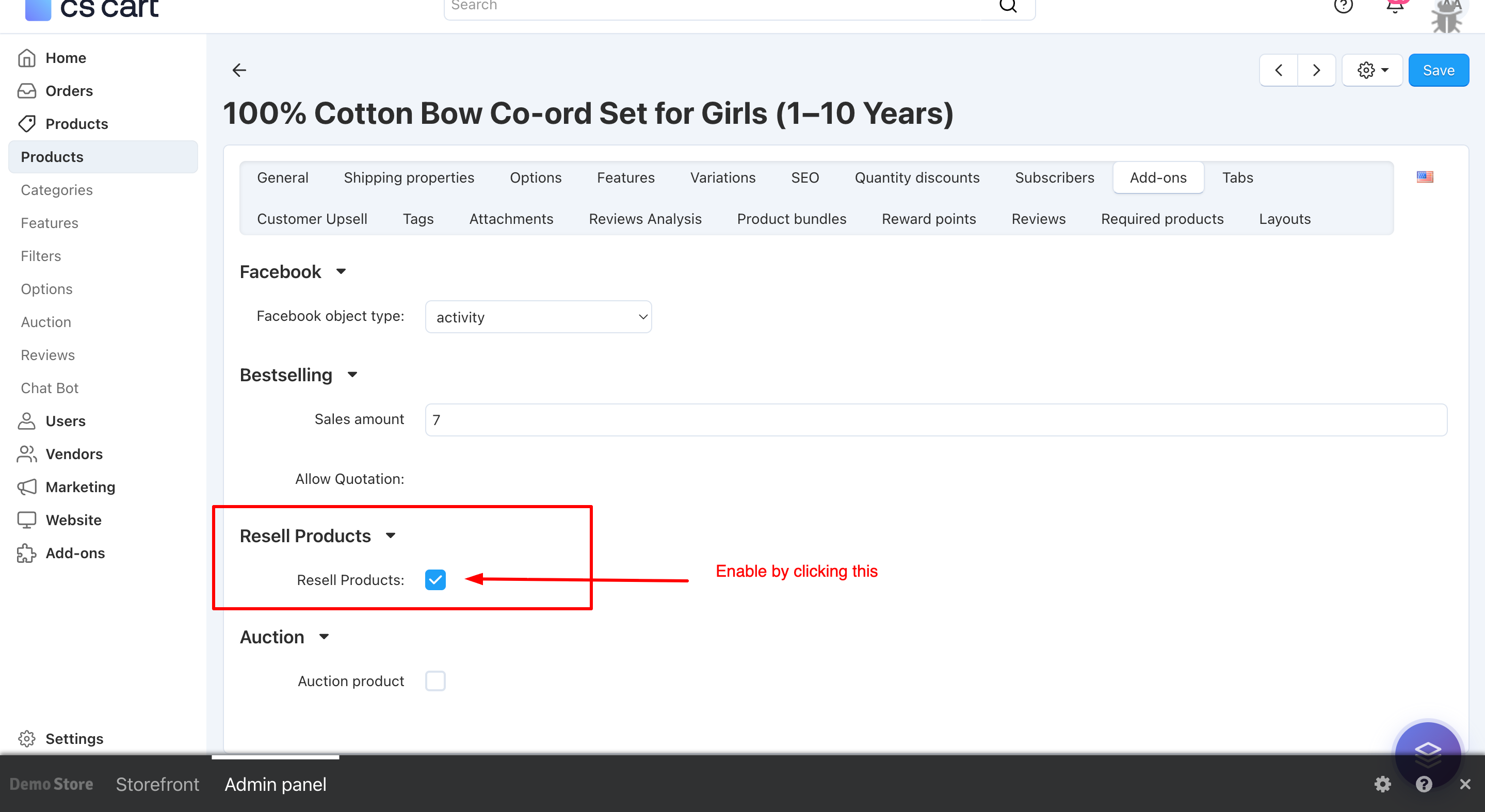
iv) To enable the resell feature, first go to Products → Update Product page. After that, open the Add-ons tab and enable the Resell option.
v) All customer resell requests can be managed from the Admin Panel → Vendors → Resell Products, where admins can review requests, update statuses, and apply rejection reasons to clearly inform customers when a request is declined..
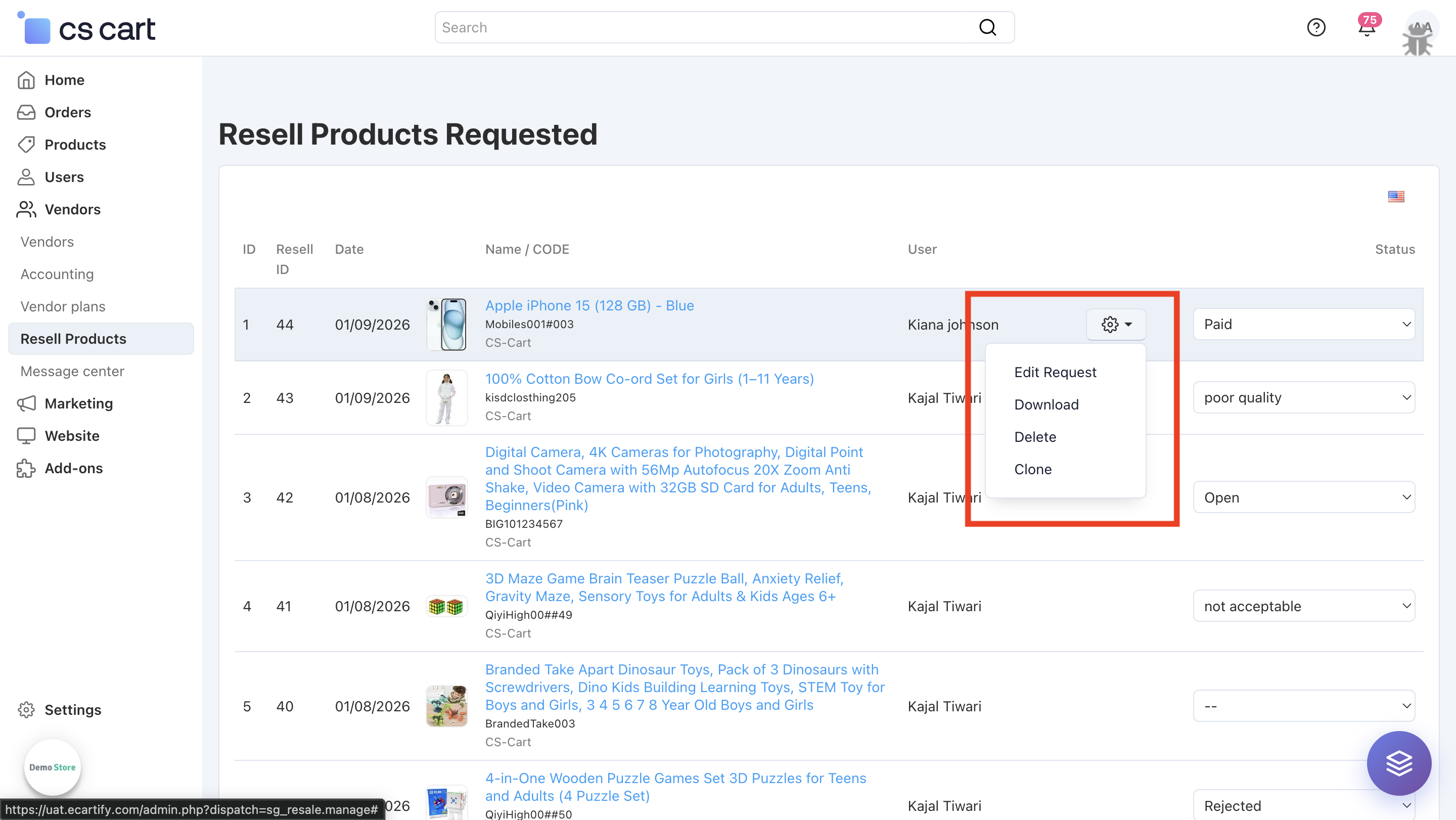
vi) Click on the gear (⚙️) icon to view additional management options, including Edit Request, Download Attachments, Delete Requests, and Clone Products after approval.
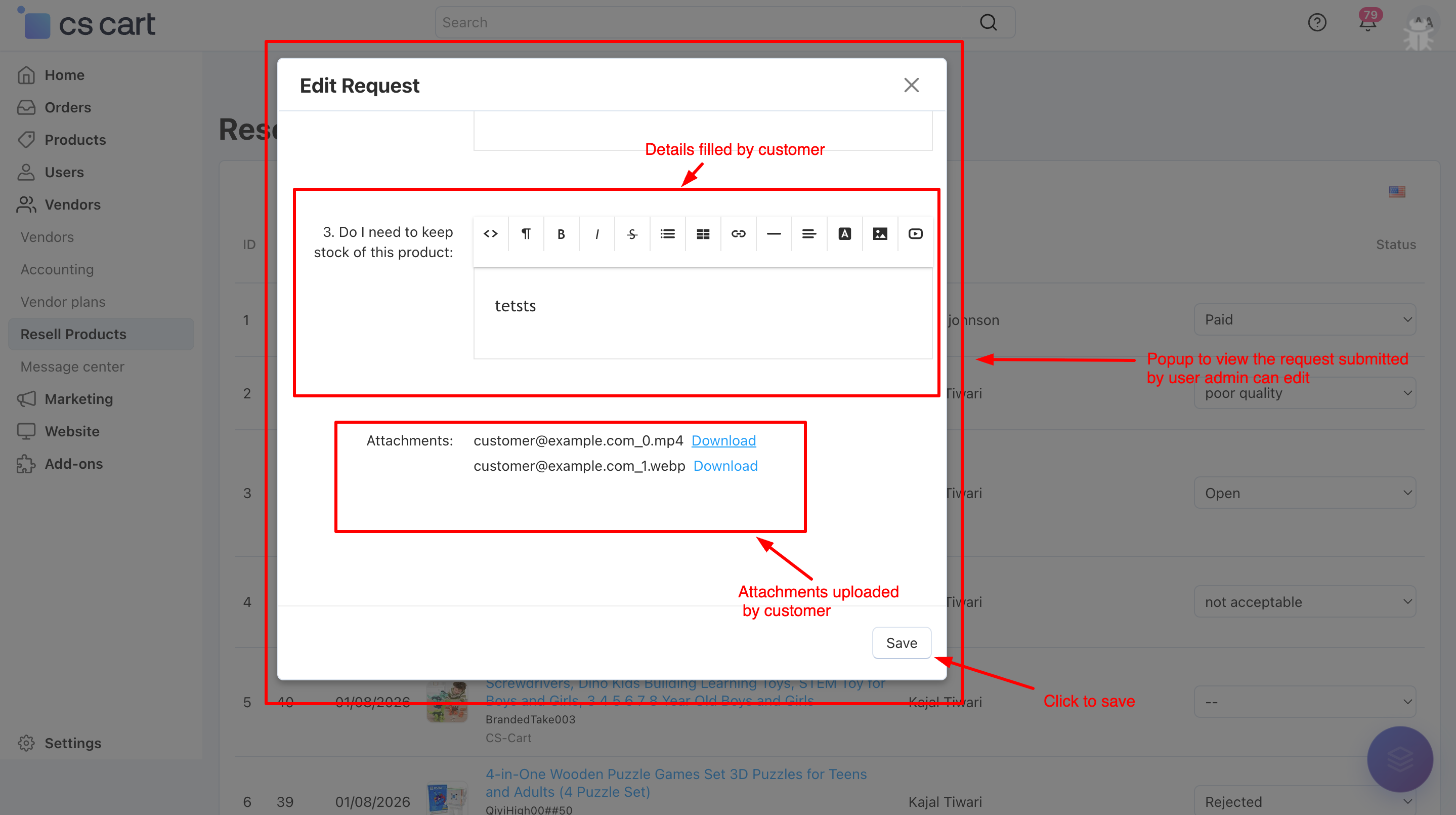
a) When you click on Edit Request, a popup window opens where the admin can view the customer’s resell request details, review uploaded attachments.
b) When you click on Download, all attachments uploaded with the resell request are downloaded at once, allowing the admin to easily review the submitted files.
c)Clone option allows the admin to create a copy of the product linked to the resell request. Once the product is cloned, it is automatically assigned to the vendor selected in the add-on settings as the Default Vendor for Cloned Products.
Step 4: How the Product Resell Add-on Works on the Frontend?
On the storefront, the Product Resell Add-on provides a simple and user-friendly experience for customers:
Customers can see the Resell option on eligible products or in their order details.
By clicking Resell, a request form opens where users select the product, upload required attachments, and submit the resell request.
After submission, customers can view and track the request status (Pending, Approved, or Declined) from their account section.
Customers receive email notifications whenever the status of their resell request is updated by the admin.
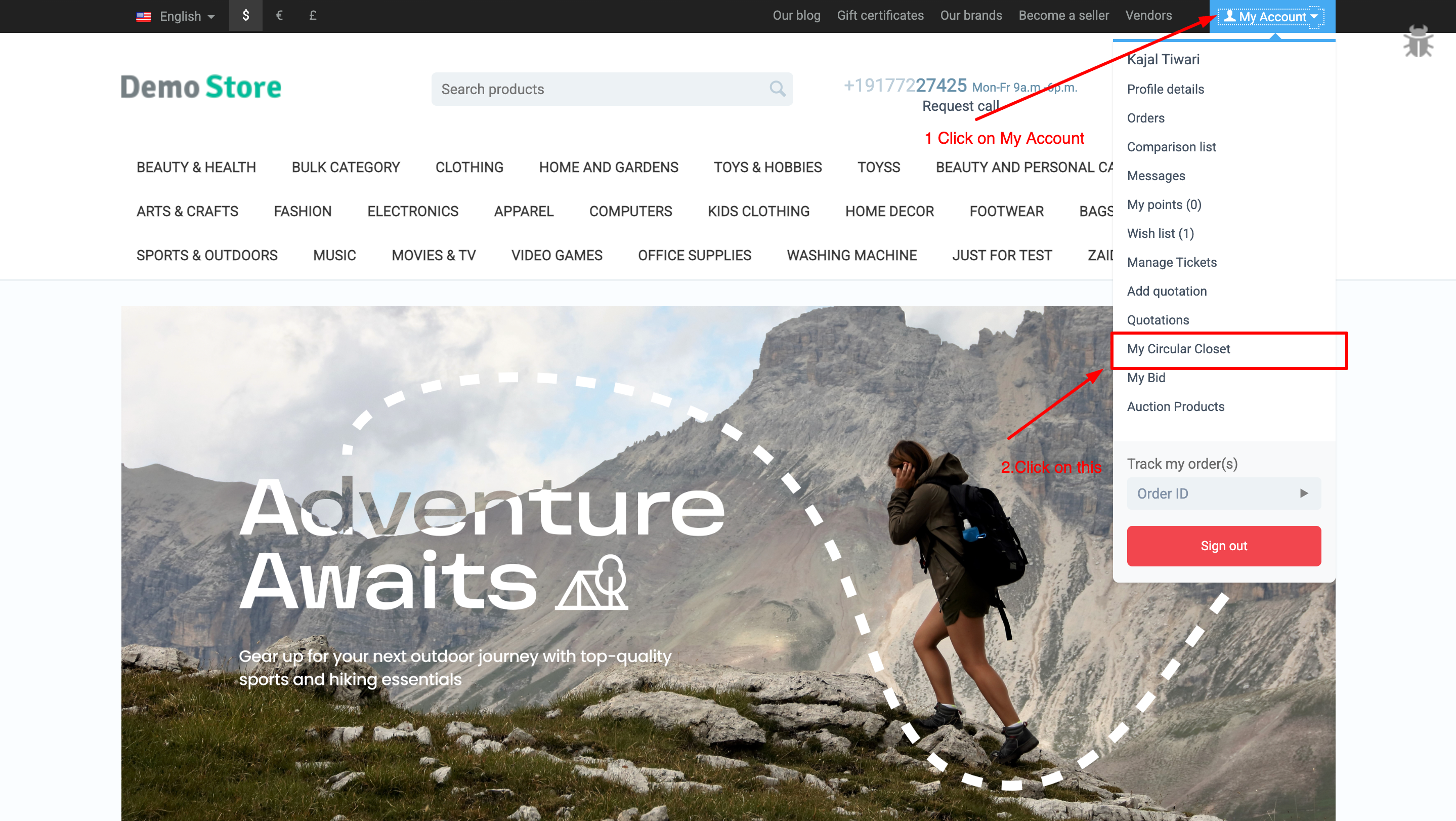
i) To create a resell request from frontend first we need click on My Circular Closet
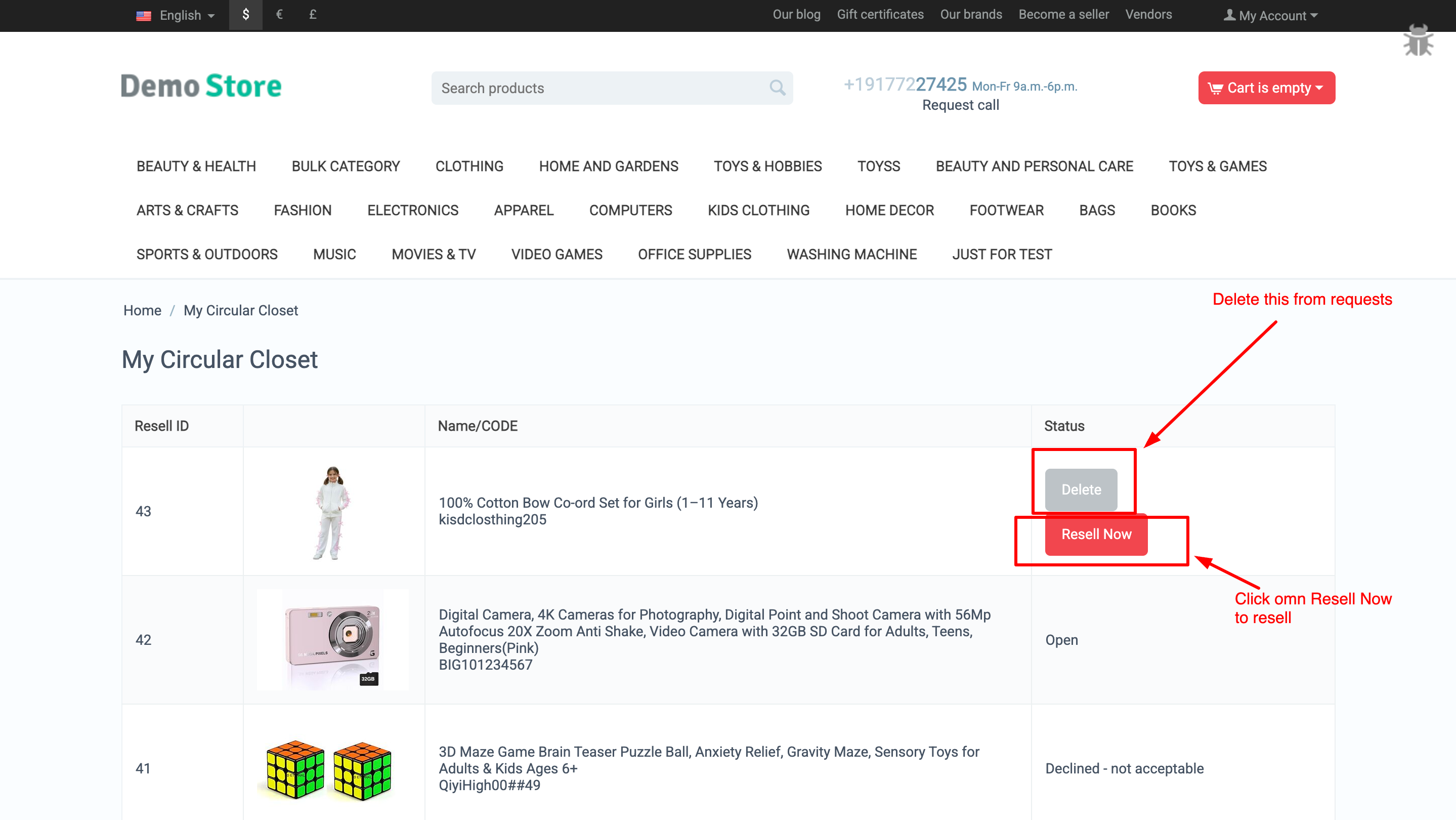
ii) When the resell feature is enabled, a new page called My Closet will be available for the user.
This page will display a listing of all the products that the user is eligible to resell.
To resell a product, the user needs to click on the Resell Now button.
This will start the resell process for the selected product.
Users can also delete a product from the catalog if they no longer want to resell it.
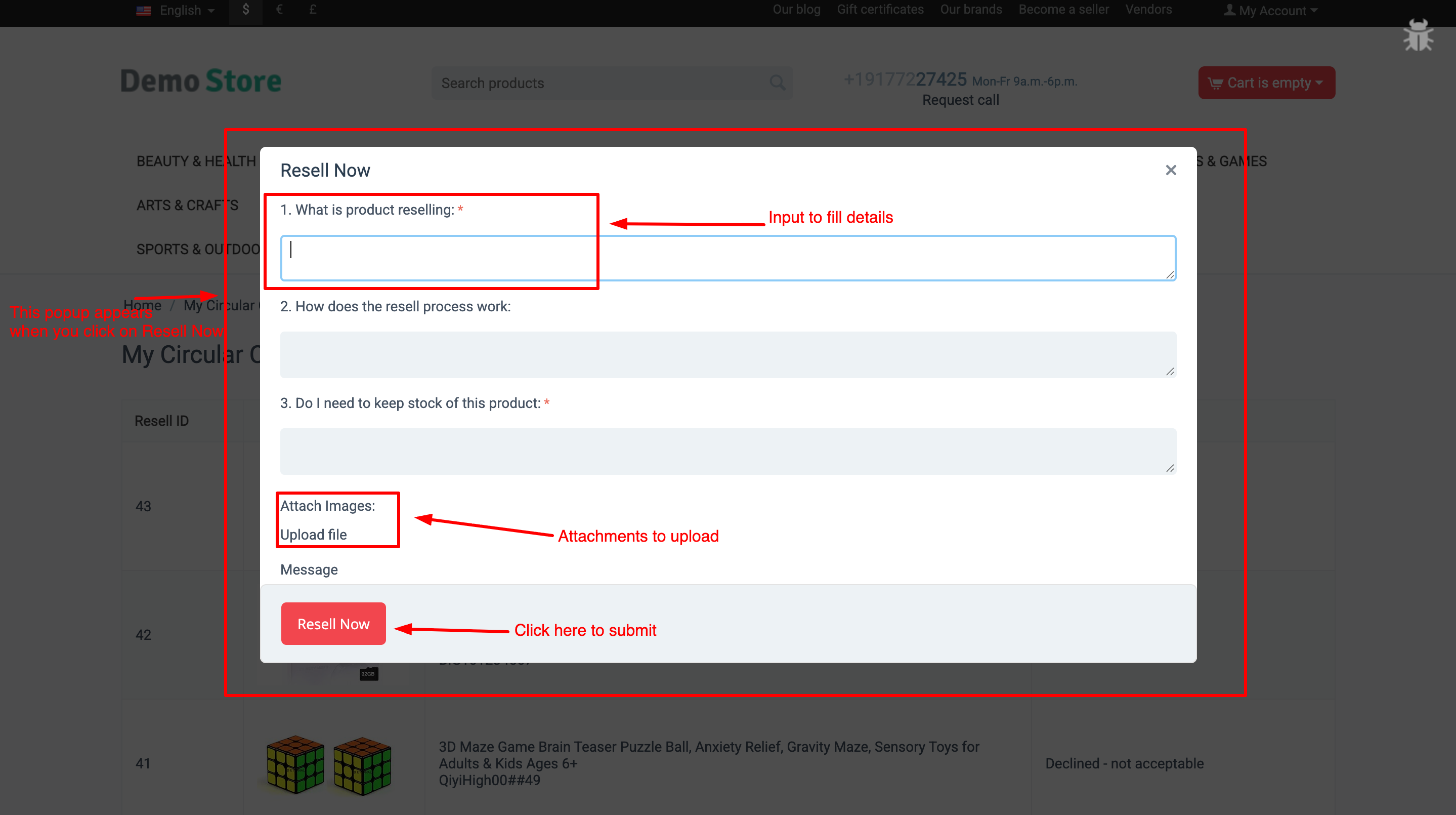
iii) When you click on Resell Now, a popup window appears where you can fill out the resell request form and upload the required attachments. After submitting the form, the request is sent directly to the admin for review. You will receive email notifications whenever the status is updated, and you can also track the current status of your request on the same page.
Why Choose Product Resell Addon for Your CS-Cart Store?
Product Resell Addon helps you easily manage customer resell requests and streamline the buyback process in your CS-Cart store. It allows customers to resell purchased products through a simple frontend form, while admins can review requests, manage statuses, assign vendors, and clone products with full control—saving time, improving transparency, and boosting marketplace engagement.
Easy Customer Resell Requests
Customers can resell purchased products through a simple popup form with attachment support.
Complete Admin Control Admins can review requests, manage statuses, edit or delete requests, and approve reselling with full control.
Smart Vendor Assignment & Product Cloning Approved products are cloned automatically and assigned to the default vendor set in add-on settings.
Automated Notifications & Status Tracking Customers receive email updates on every status change and can track request progress from the storefront.
Your Product Resell Addon is now ready to streamline the resell and buyback process in your CS-Cart store. Customers can easily submit resell requests, upload attachments, and track their status, while admins can efficiently review requests, manage statuses, assign vendors, and clone products. This ensures a transparent workflow, faster processing, and better customer satisfaction.
Pro Tip: Configure email notifications and mandatory attachments to keep customers informed and maintain smooth operations. Set default vendors for cloned products to save time, and use custom statuses to match your store’s workflow for maximum efficiency.