Ideas That Power Digital Growth
Stay ahead with actionable insights, expert opinions, and practical guides covering ecommerce trends, platform updates, automation, AI, and real-world solutions to help businesses grow and scale digitally.
01/30/2026

Ecartify: Advanced RFQ Manager
Empower B2B customers to request custom pricing, negotiate bulk orders, and receive personalized quotes directly through your CS-Cart store.Ecartify: Advanced RFQ Manager
Running a successful B2B e-commerce store requires flexibility in pricing, the ability to negotiate bulk orders, and personalized customer service. Wholesale buyers, corporate clients, and bulk purchasers need a way to request custom quotes for large quantities or special pricing arrangements.
But CS-Cart's default functionality doesn't provide a built-in quotation request system, leaving B2B store owners without an efficient way to handle custom pricing inquiries — from both the frontend storefront and the backend admin panel.
Introducing Ecartify: Advanced RFQ Manager — a comprehensive Request for Quotation (RFQ) management system that enables customers to request custom quotes from the storefront or product pages, allows admins and vendors to manage, discount, and approve requests, and automates the entire quote-to-order workflow.
What is Ecartify: Advanced RFQ Manager?
Ecartify: Advanced RFQ Manager is a powerful B2B sales tool that transforms your CS-Cart store into a professional quotation management platform:
Customers can request quotes directly from product detail pages via a quick popup form
Customers can also submit bulk multi-product quotation requests from their account area
Automated email notifications sent to both customers and admins upon new quotation creation
Vendors can create and manage quotations directly from their backend vendor panel
Admin/Vendor approval or disapproval workflow with reason entry for disapprovals
Percentage or absolute discount options applied before approval for flexible pricing
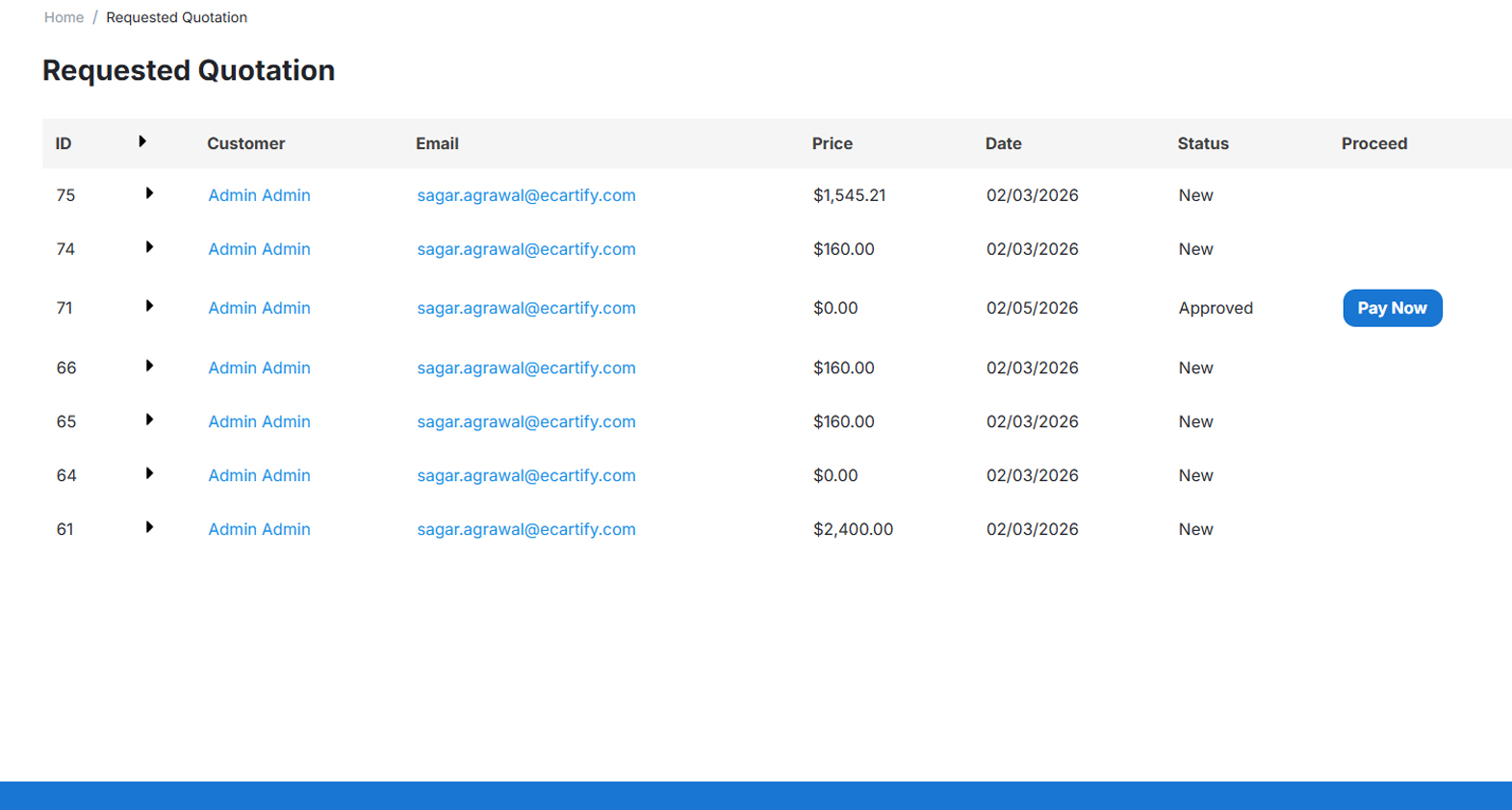
Customers can pay directly from their "Requested Quotation" list using the "Pay Now" button
Complete quotation history tracking with statuses: New, Approved, Disapproved, Completed
Quotation expiration period configurable from addon settings
Optional vendor-wise quotation mode — vendors manage their own product quotations independently
This addon is built for B2B stores, wholesale businesses, multi-vendor marketplaces, and any CS-Cart platform that needs flexible, personalized pricing capabilities for both single and bulk product orders.
How the Advanced RFQ Manager System Works
Customer Requests a Quotation
Customers can request a quote from a product detail page by clicking "Request Quotation" — a popup form appears pre-filled with their name, email, and phone. They enter the required quantity and any additional notes, then submit. Alternatively, customers go to their account and use the "Add Quotation" option to submit a bulk multi-product request using the product picker.
Automatic Email Notifications
Both the customer and the admin (or vendor) receive instant email notifications when a new quotation request is submitted, ensuring no request goes unnoticed.
Admin / Vendor Reviews the Request
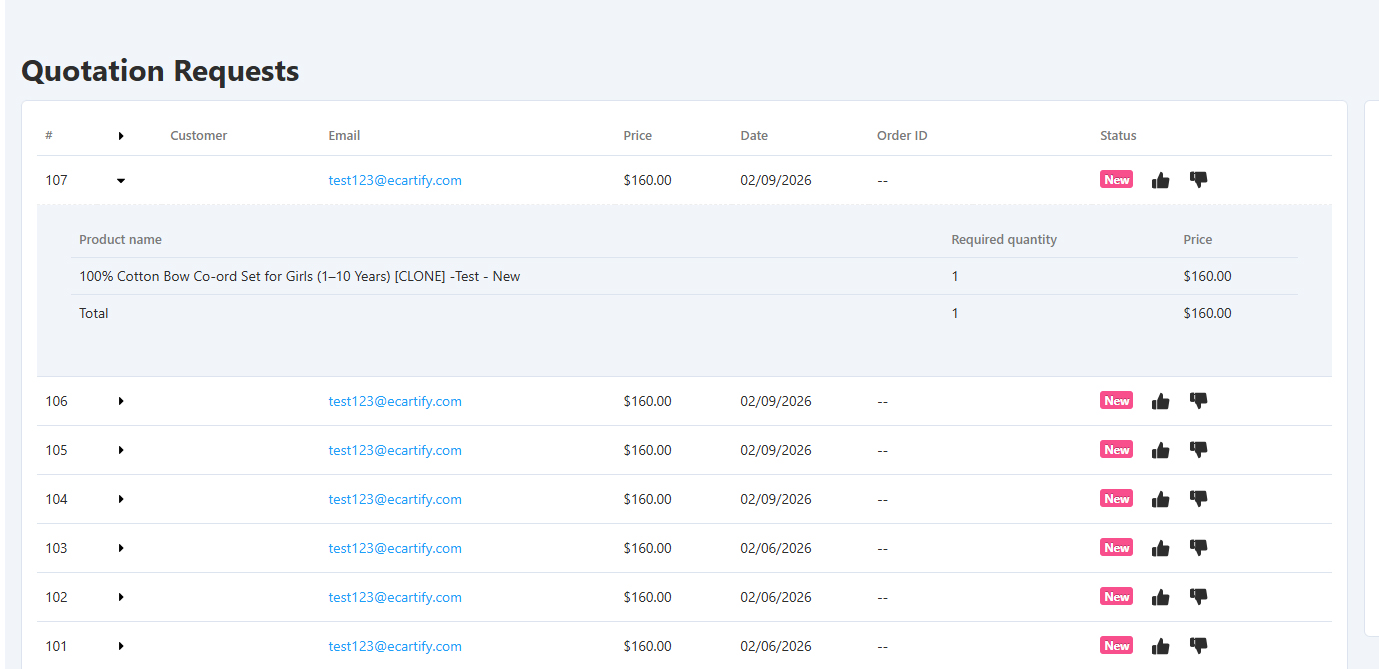
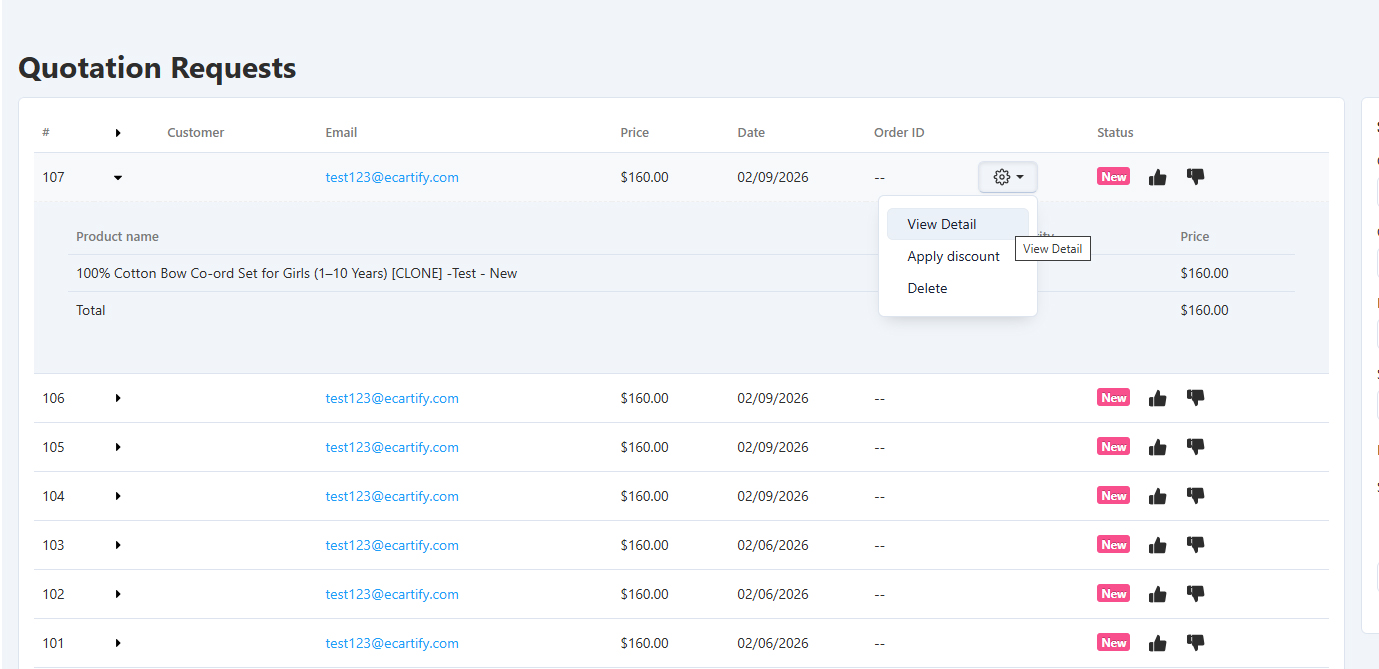
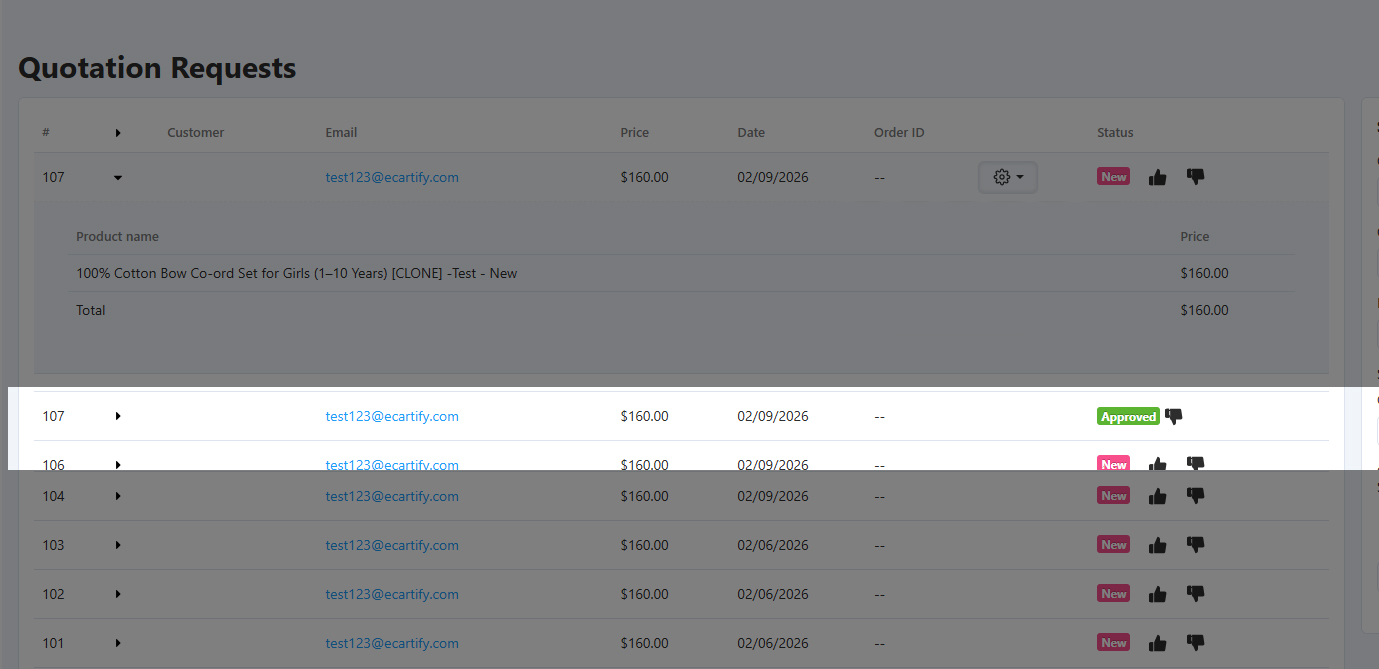
Admins access the "Quotation Requests" page in the backend to view all incoming requests. Each row shows customer email, total price, date, order ID, and status. Admins can expand a row to see per-product quantities, or click the gear icon for "View Detail", "Apply Discount", or "Delete". Vendors see the same interface on their panel when vendor-wise quotation mode is enabled.
Apply Custom Discount (Optional)
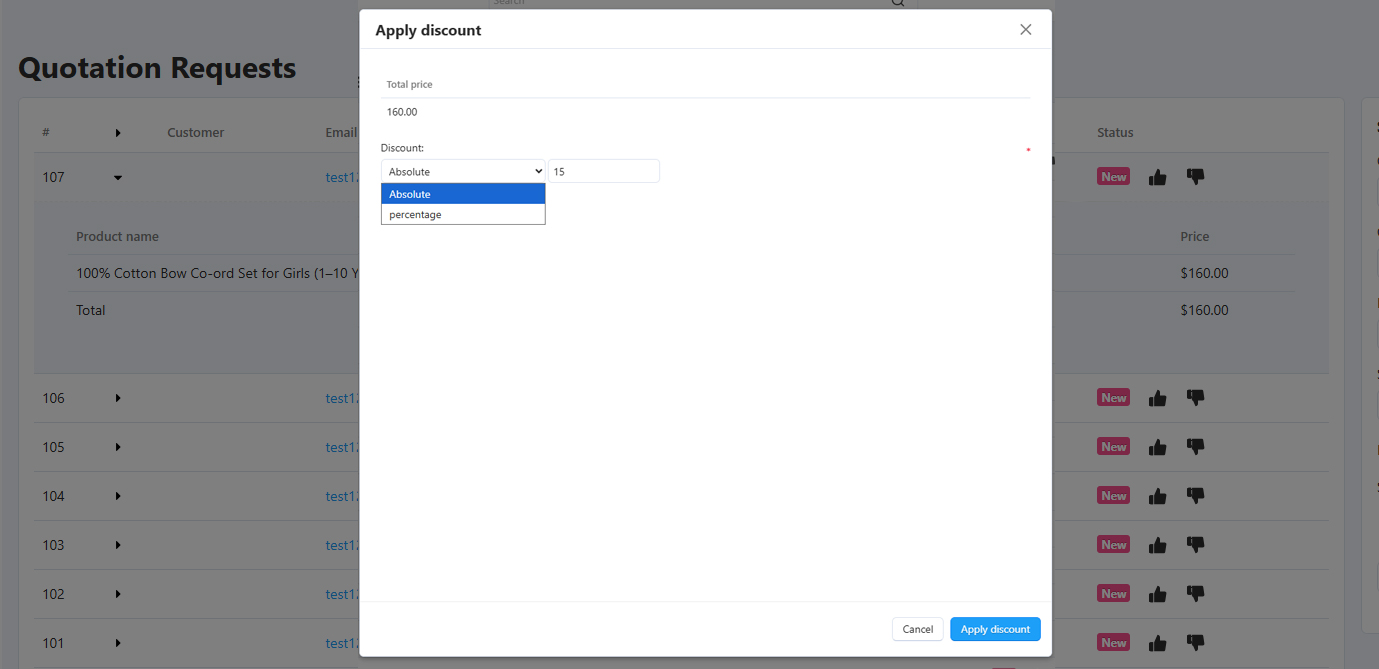
Before approving, admins or vendors can apply a discount by selecting "Apply Discount" from the gear menu. They choose between Absolute (fixed amount) or Percentage discount types, enter the value, and save. The discounted price is reflected when the customer proceeds to checkout.
Approve or Disapprove the Quotation
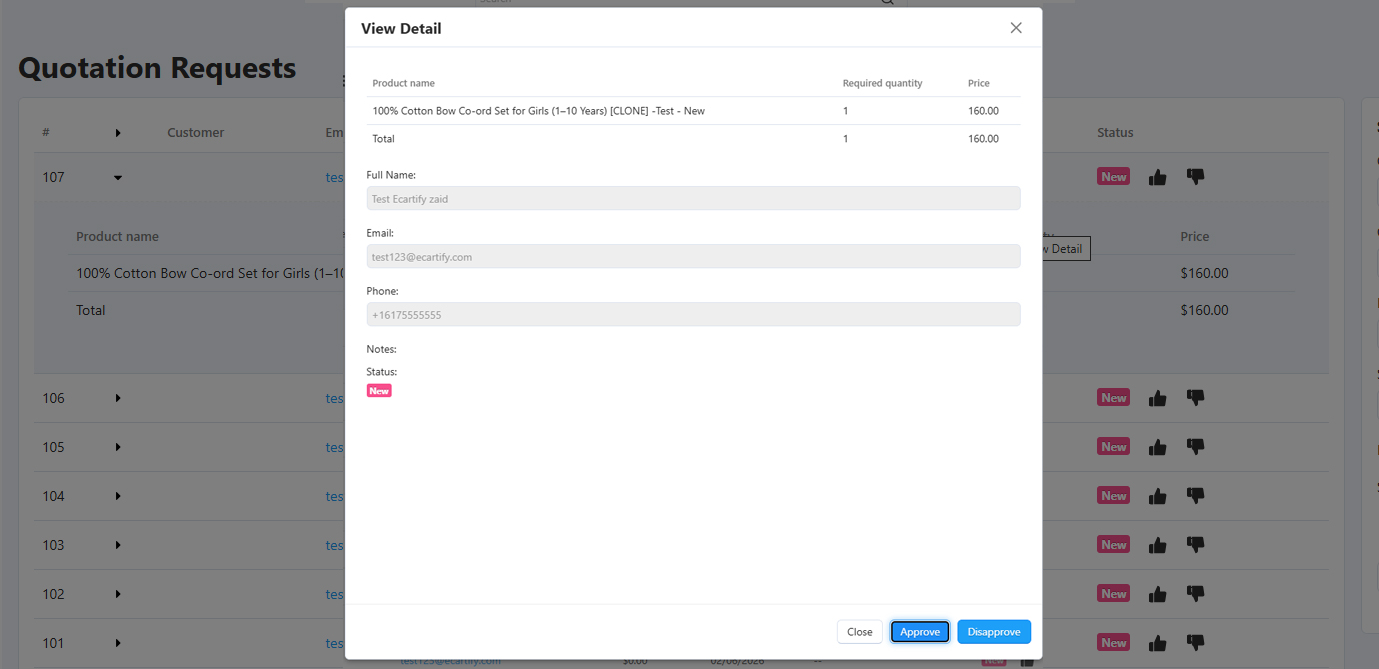
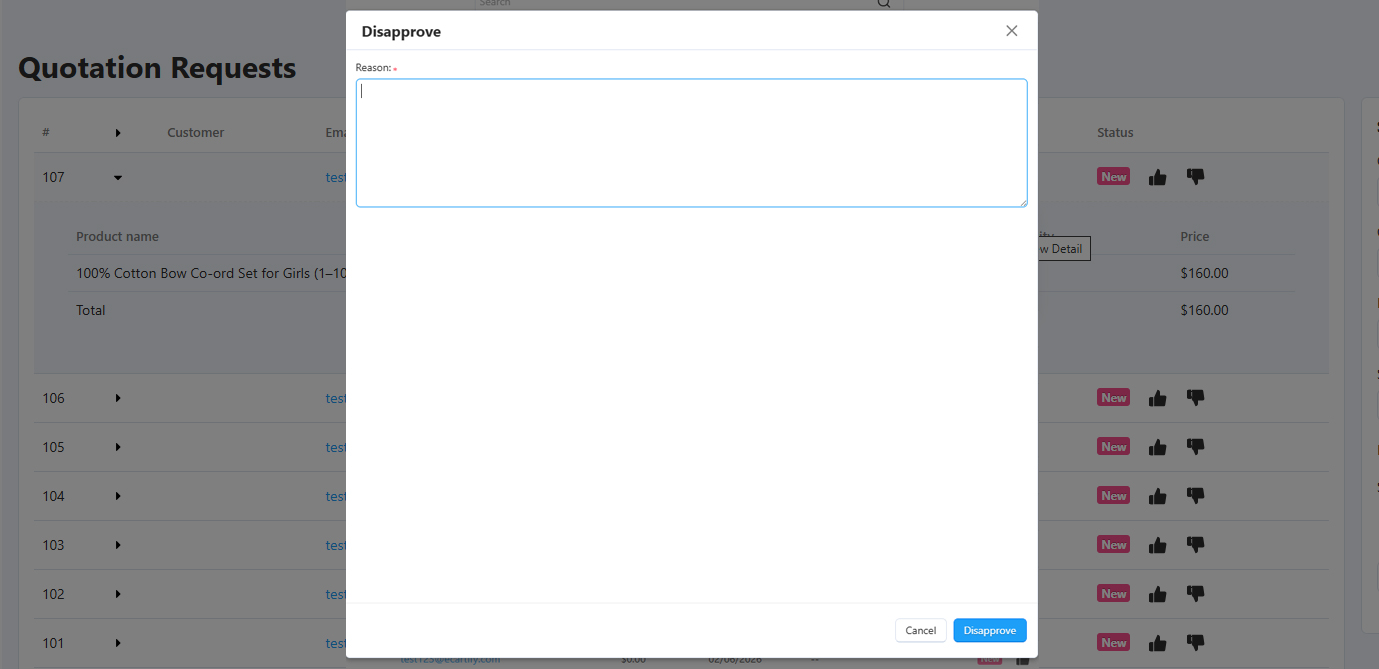
From the "View Detail" popup, admins or vendors click "Approve" or "Disapprove". Approving updates the status to "Approved" and notifies the customer. Disapproving opens a reason entry form — the admin enters a reason and confirms, triggering a notification to the customer with the explanation.
Customer Places the Order
Approved quotations appear with a "Pay Now" button in the customer's "Requested Quotation" list. Clicking it takes the customer directly to checkout with the quoted products and any applied discount pre-loaded. Once the order is placed, the quotation status updates to "Completed".
Key Features
Two Ways for Customers to Request Quotes
Customers have flexible options to submit quotation requests:
- Product Page Popup: Click "Request Quotation" on any product detail page — a modal pre-fills name, email, and phone. Enter required quantity and notes, then save.
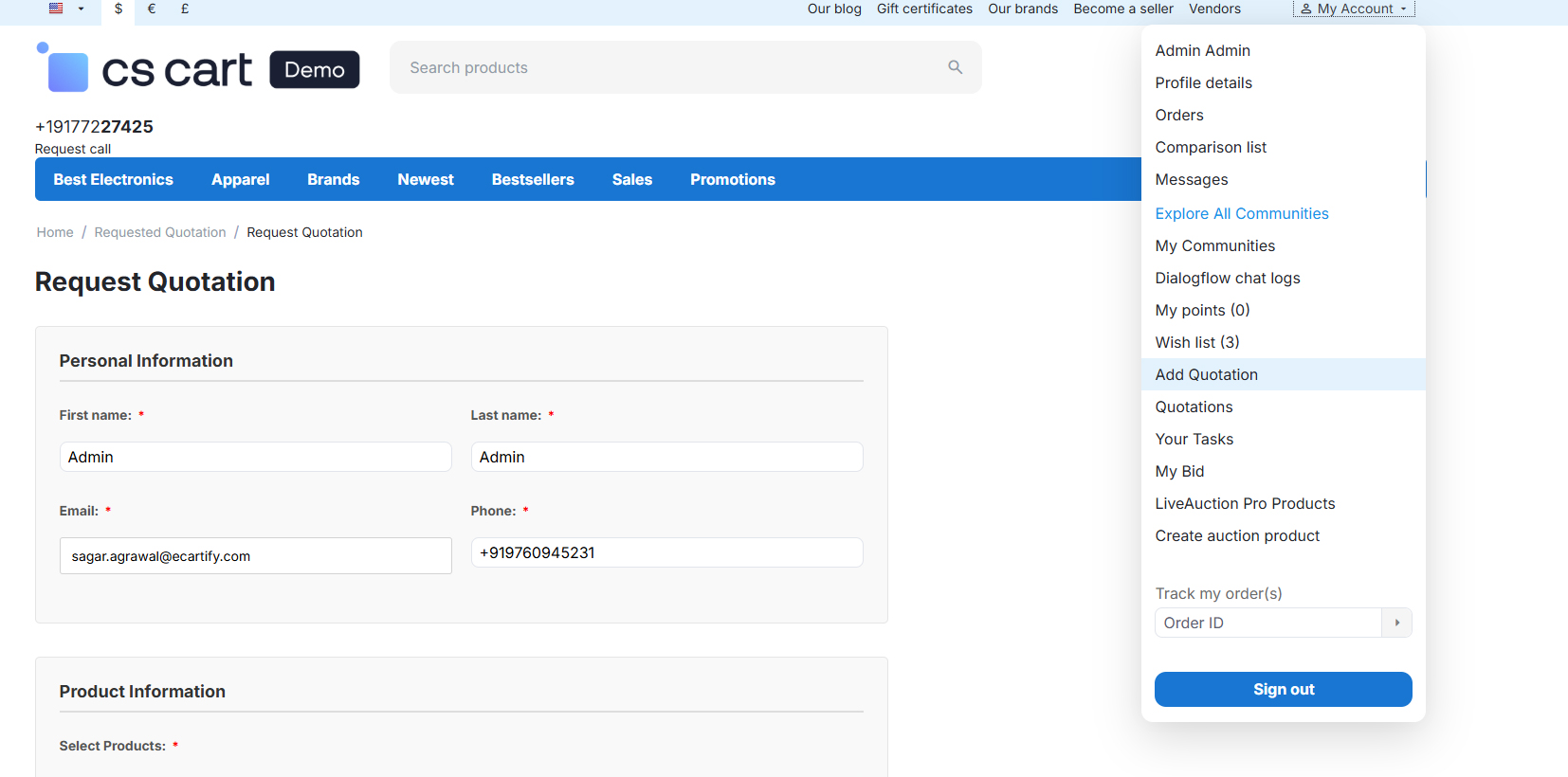
- Account Bulk Request: Use "Add Quotation" from the My Account menu to open a full form supporting multiple products via the product picker.
- Custom Quantities & Notes: Both methods allow specifying quantities and adding special requirements or notes.
Comprehensive Admin & Vendor Management
Admins and vendors get powerful backend tools to manage quotations:
- Centralized "Quotation Requests" page showing all incoming RFQs
- Expandable rows to view per-product quantities and prices
- Gear icon actions: View Detail, Apply Discount, Delete
- Filter and search by Order ID, Customer, Email, Status, and Period
- One-click Approve or Disapprove with reason entry for disapprovals
- Vendors manage their own product quotations independently (when enabled)
Automated Email Communication
Intelligent notifications keep everyone informed at every stage:
- New Request: Admin/Vendor and customer are both notified immediately
- Approval: Customer is notified and can proceed to checkout using "Pay Now"
- Disapproval: Customer receives the reason provided by admin/vendor
Flexible Discount System
Admins and vendors can tailor pricing before approving each quotation:
-
Percentage Discount
Apply any % off the total quotation price
-
Absolute Discount
Deduct a fixed amount from the quoted price
-
Per-Quotation Pricing
Each quotation can have its own unique discount
Customer Quotation Tracking
Customers can monitor all their requests in real time from the storefront:
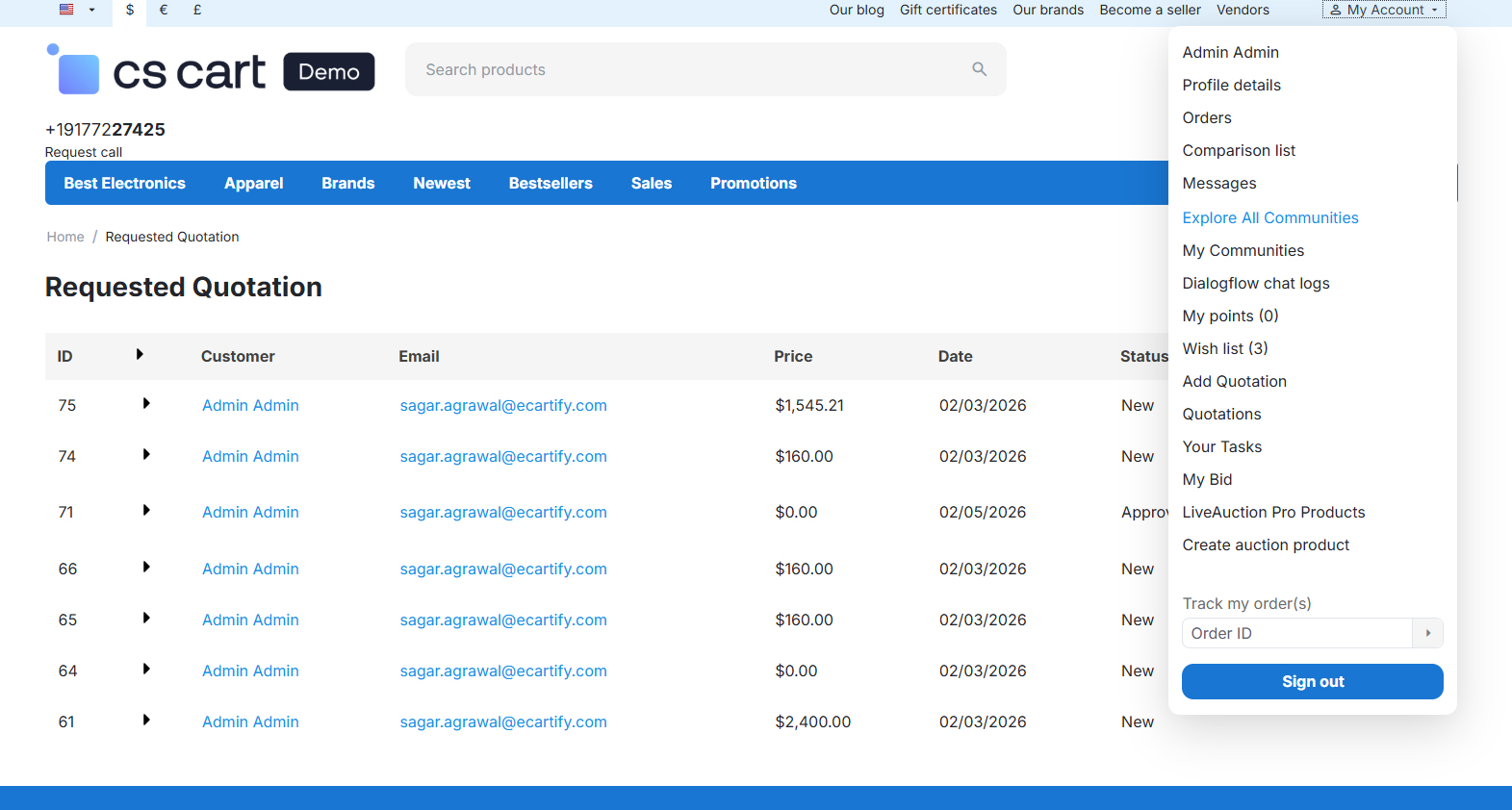
- Dedicated "Requested Quotation" page in the customer account area
- View ID, Customer, Email, Price, Date, Status, and Proceed columns
- Statuses: New, Approved, Disapproved, Completed
- "Pay Now" button appears for Approved quotations to proceed directly to checkout
- Expand rows to see per-product details and quantities
Addon Settings & Vendor-Wise Mode
- Configure admin notification email address from the Settings tab
- Set quotation expiration period in days — approved quotes auto-expire after this period
- Enable "Allow Vendor wise quotation" — quotations are created and managed by vendors based on their products
- Accessible via Add-ons → Ecartify: Advanced RFQ Manager → Settings
Step-by-Step Usage Guide
Step 1: Install and Configure the Addon
Setting up Ecartify: Advanced RFQ Manager is straightforward with a few simple configuration steps:
Download and install the addon from the CS-Cart marketplace or the Ecartify website
Navigate to Add-ons → Ecartify: Advanced RFQ Manager — the General tab shows the addon description and the Quotation List (Orders) menu access point
Click the Settings tab and enter the Admin notification email to receive alerts when new quotations are submitted
Set the Quotation expiration period (days) — approved quotations will auto-expire after this many days (default: 7)
Optionally enable Allow Vendor wise quotation so vendors can manage their own product quotations from their panels
Click Save — the addon is now active and ready to use
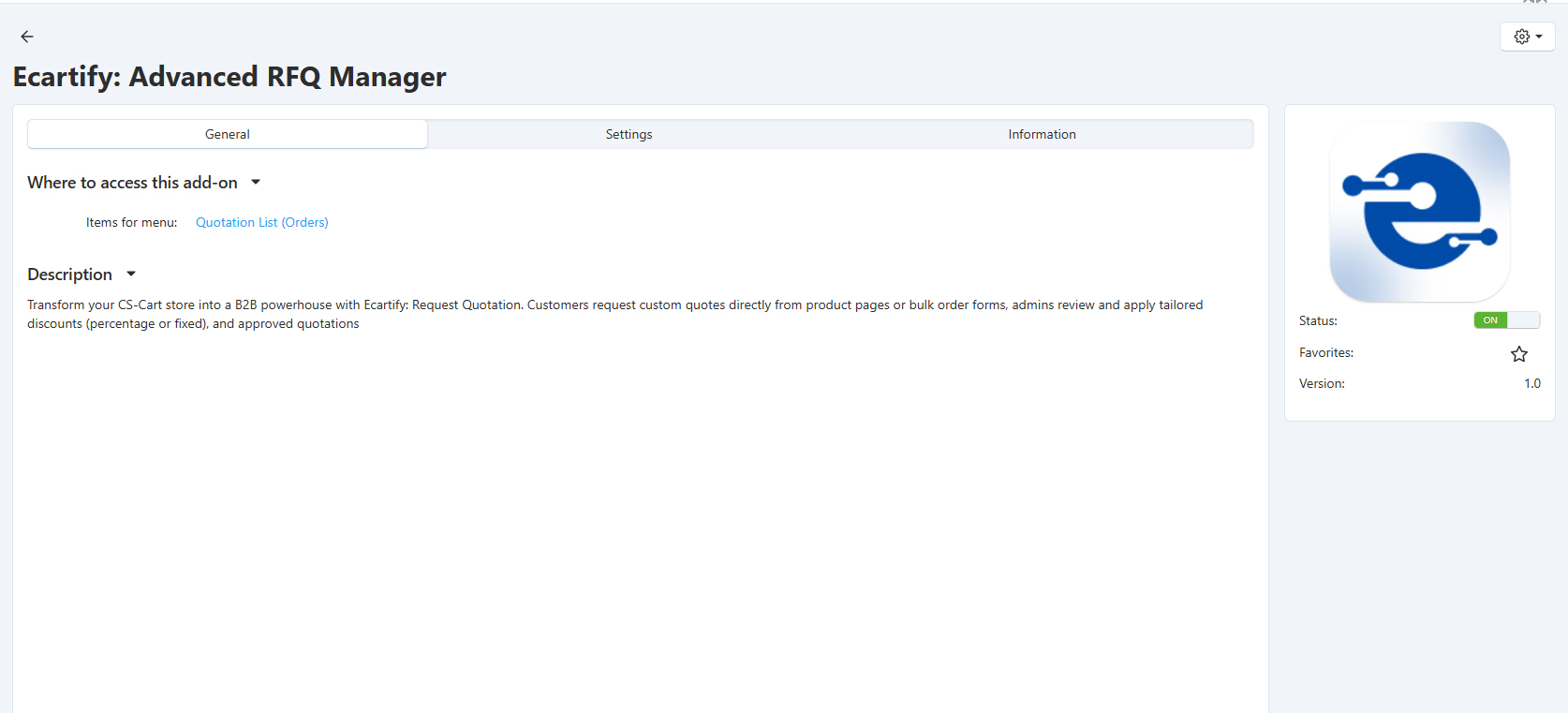
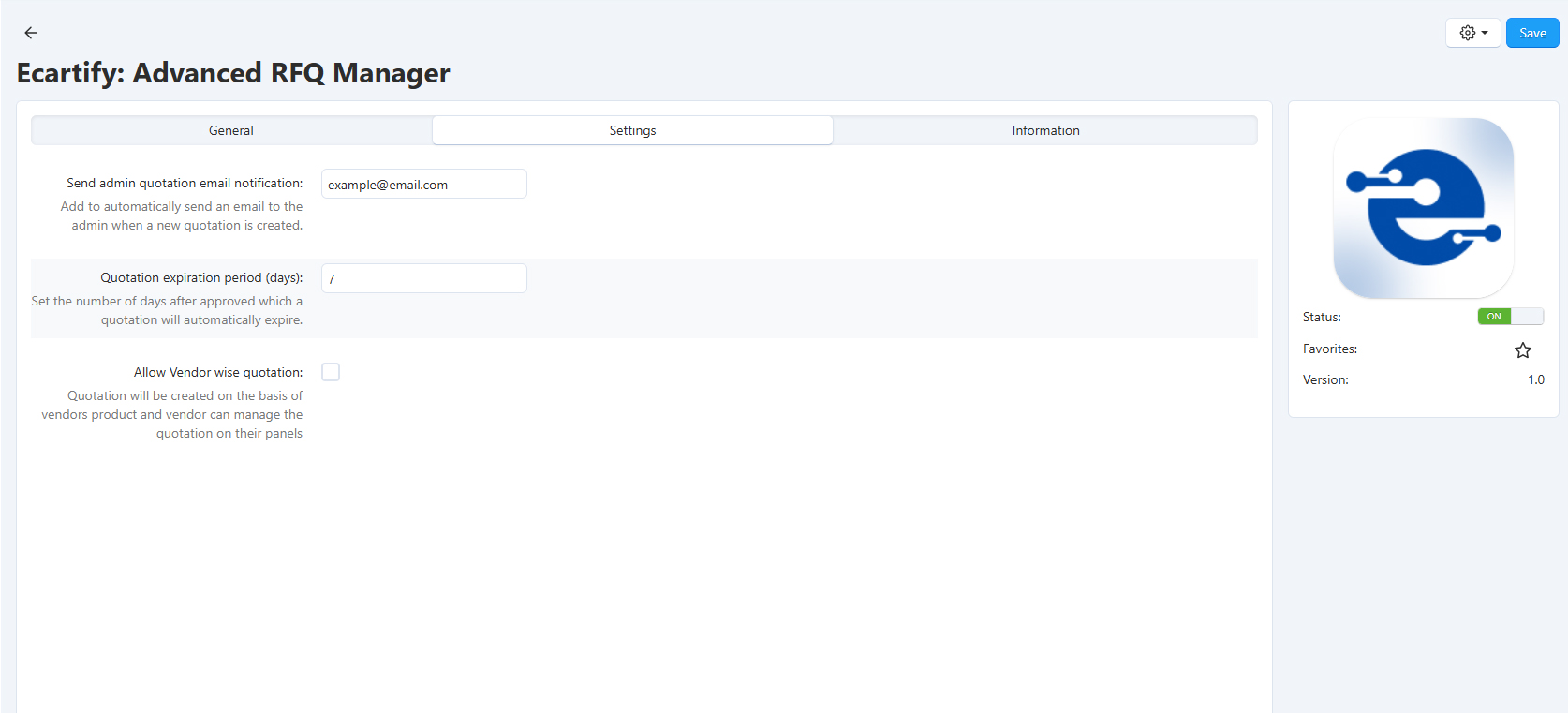
Note: The "Quotation List (Orders)" menu item will automatically appear under the Orders menu in the admin backend after installation.
Step 2: Customer Requests a Quote from a Product Page
Customers can request a quotation directly on any product detail page without leaving the page:
Navigate to any product detail page on the storefront
Click the "Request Quotation" button located next to the Add to Cart button
A popup modal appears pre-filled with the customer's Full Name, Email Address, and Phone Number
Enter the Required Quantity and any Additional Notes or special requirements
Click "Save" to submit the quotation request
Both the customer and the admin receive an instant email notification confirming the new request
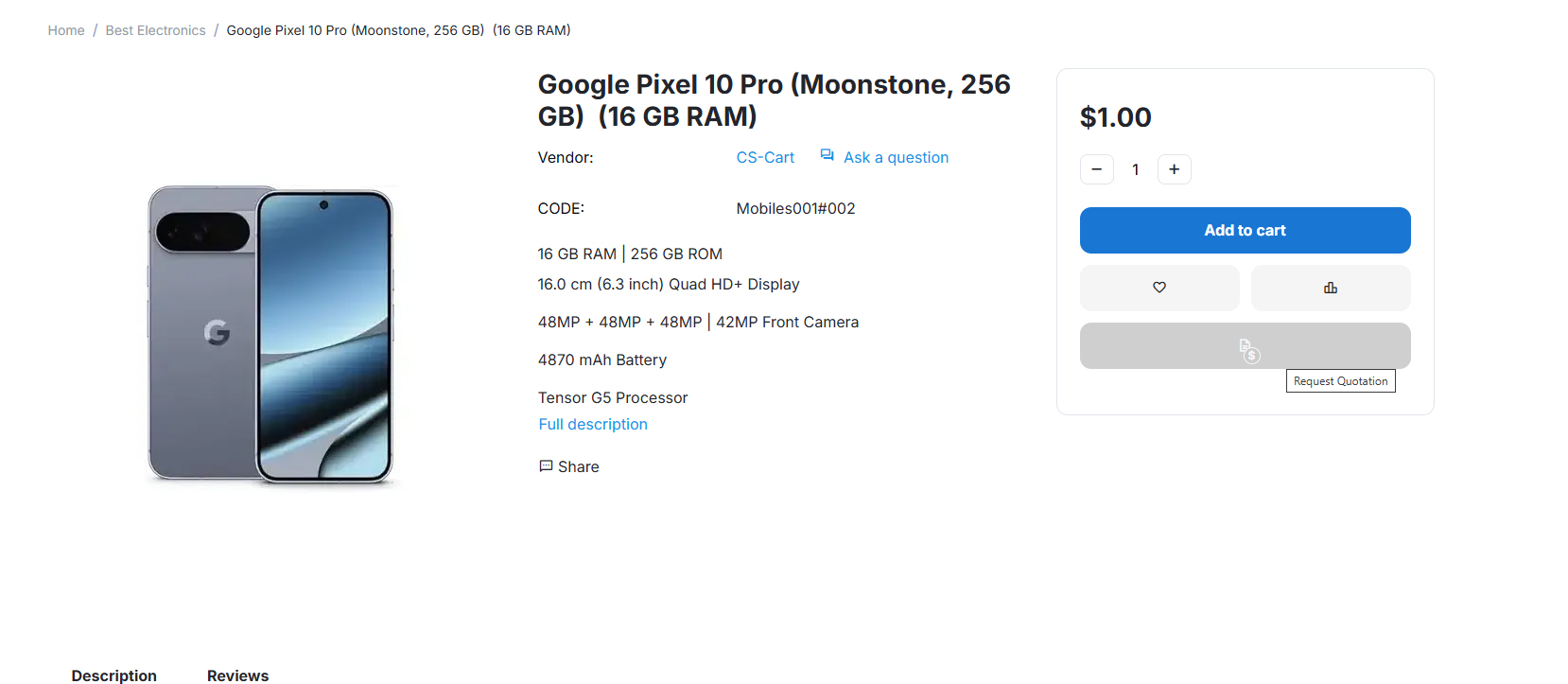
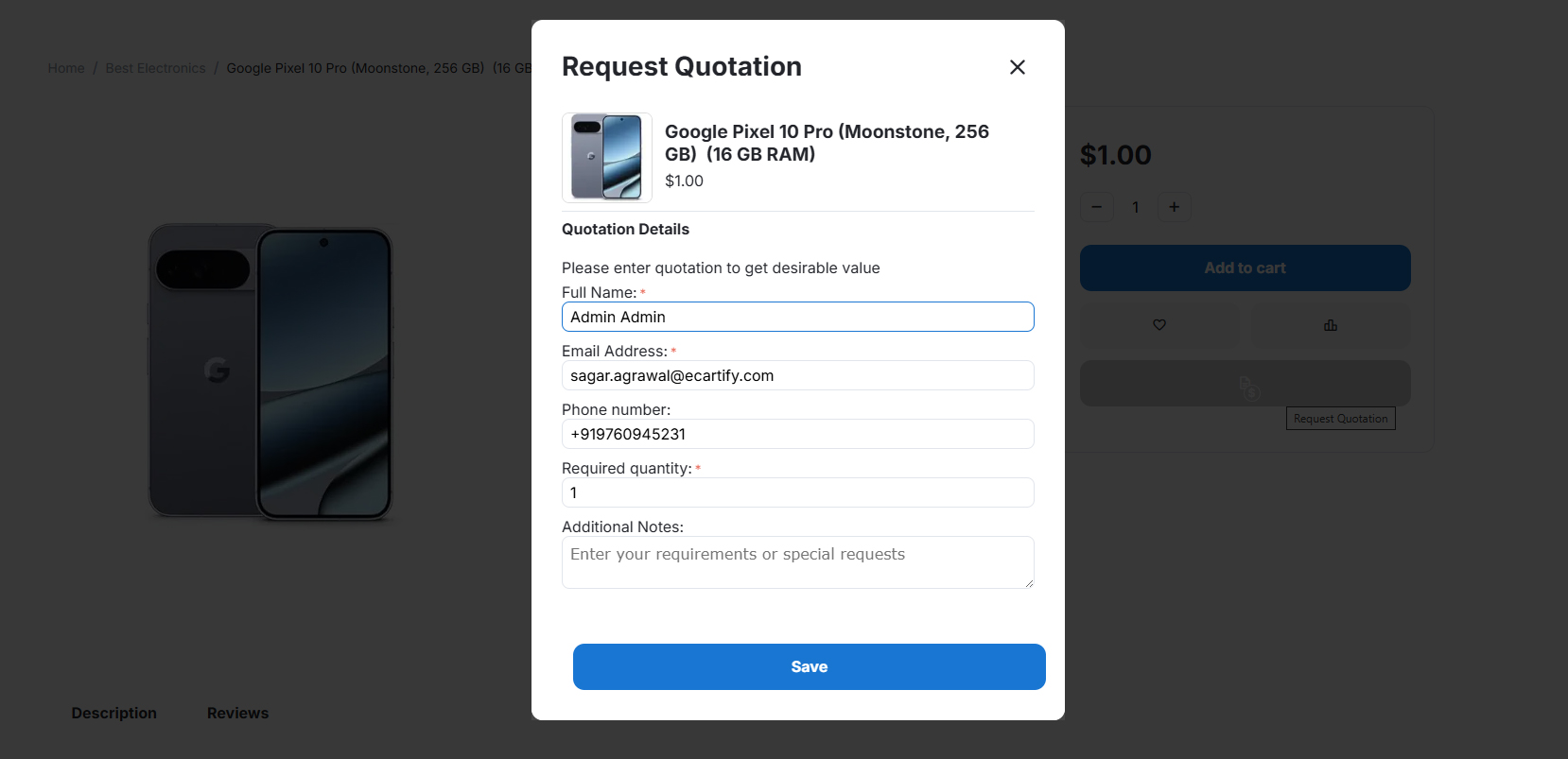
Step 3: Bulk Quotation Request from Customer Account
Customers can also submit multi-product quotation requests directly from their account area:
Sign in and click My Account from the top navigation — select "Add Quotation" from the dropdown menu
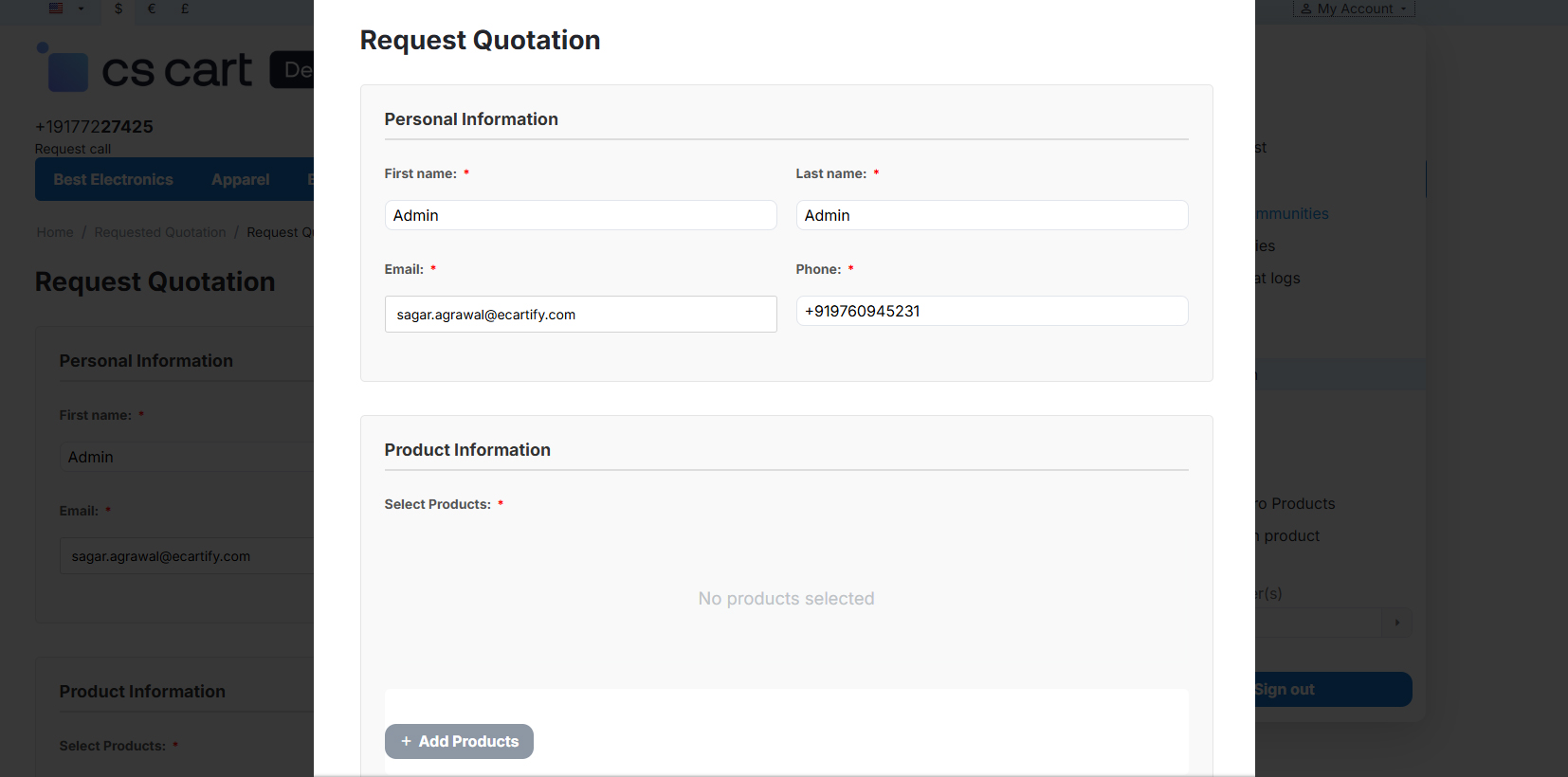
Fill in the Personal Information section: First name, Last name, Email, and Phone
Under Product Information, click "+ Add Products" to open the product picker popup
Search products by name, category, or description — select one or more products and click "Add products and close"
Enter the required quantity for each selected product
Add any Additional Notes / Requirements in the text area, then click "Submit Quotation Request"
Step 4: Admin / Vendor Reviews and Manages Quotation Requests
All quotation requests are managed from the backend "Quotation Requests" page. Admins can review, discount, approve, or disapprove each request:
Access Quotation Requests:
Open the "Quotation Requests" page in the backend. All RFQs are listed with Customer, Email, Price, Date, Order ID, and Status columns. New requests show a pink "New" badge.
Expand & Review Details:
Click the arrow on any row to expand it and see per-product names, required quantities, and prices. Click the gear icon to access "View Detail", "Apply Discount", or "Delete".
Apply Discount (Optional):
Click "Apply Discount" from the gear menu. Choose discount type — Absolute (fixed amount) or Percentage — enter the value, and click "Apply discount". The discounted price is automatically applied at checkout.
Approve or Disapprove:
Open "View Detail" to review customer info, products, quantities, notes, and status. Click "Approve" to accept — the status turns green "Approved". Click "Disapprove" to open the reason form, enter a reason, and confirm — the customer is notified automatically.
Step 5: Customer Views Status and Places Order
Customers track all their quotation requests and complete approved orders directly from the storefront:
Sign in and navigate to My Account → Quotations to open the "Requested Quotation" list
View all requests with ID, Customer, Email, Price, Date, Status, and Proceed columns
Requests with "Approved" status display a "Pay Now" button in the Proceed column
Click "Pay Now" to go directly to checkout with the quoted products and any applied discount pre-loaded
Complete the order — the quotation status automatically updates to "Completed"
Ecartify: Advanced RFQ Manager transforms your CS-Cart store into a professional B2B sales platform with intelligent quotation management, automated workflows, vendor-wise RFQ support, and flexible discount capabilities — covering the full lifecycle from quote request to completed order.
Whether you run a wholesale store, a multi-vendor marketplace, or a corporate B2B platform, this addon gives you and your vendors the tools to handle custom pricing requests efficiently and professionally.
Ready to Boost Your B2B Sales?
Stop losing wholesale customers to complicated ordering processes. Upgrade to Ecartify: Advanced RFQ Manager and provide the professional quotation experience B2B buyers expect — with full admin and vendor control at every step.