
Ideas That Power Digital Growth
Stay ahead with actionable insights, expert opinions, and practical guides covering ecommerce trends, platform updates, automation, AI, and real-world solutions to help businesses grow and scale digitally.
04/17/2026

Zoho Connector for CS-Cart with Seamless Two-Way Integration
Sync products, customers, and orders between CS-Cart and Zoho CRM, Zoho Inventory — automatically and in real-time with cron support.Ecartify: Zoho Connector – For CS-Cart Store Admins
The Ecartify Zoho Connector is a powerful CS-Cart admin add-on that bridges your online store with Zoho's suite of business applications — including Zoho CRM, Zoho Inventory. As a store admin, you get full two-way sync for products, customers, and orders: push your CS-Cart data into Zoho, or import Zoho records directly into CS-Cart. With built-in real-time cron automation, your data stays perpetually up-to-date without any manual effort. Configure order status mappings, customer field mappings, category and vendor defaults — and leverage the full power of Zoho from a single, clean CS-Cart admin interface.
Key Features
Two-Way Product Sync:
Push CS-Cart products to Zoho Inventory and import Zoho products back into CS-Cart — with pricing, SKU, stock, and descriptions kept in sync.
Push CS-Cart products to Zoho Inventory and import Zoho products back into CS-Cart — with pricing, SKU, stock, and descriptions kept in sync.
Two-Way Customer Sync:
Sync CS-Cart customers to Zoho CRM as Contacts/Accounts. Import Zoho CRM accounts and contacts into CS-Cart with flexible field mapping.
Sync CS-Cart customers to Zoho CRM as Contacts/Accounts. Import Zoho CRM accounts and contacts into CS-Cart with flexible field mapping.
Two-Way Order Sync:
Export CS-Cart orders to Zoho as Sales Orders and import Zoho orders into CS-Cart. Order statuses map automatically between both platforms.
Export CS-Cart orders to Zoho as Sales Orders and import Zoho orders into CS-Cart. Order statuses map automatically between both platforms.
Real-Time Cron Automation:
Set up three cron jobs to auto-sync new customers, products, and orders from Zoho into CS-Cart every hour — completely hands-free.
Set up three cron jobs to auto-sync new customers, products, and orders from Zoho into CS-Cart every hour — completely hands-free.
Customer Field Mapping:
Map all 108 standard Zoho contact fields to CS-Cart user/profile columns. Capture every custom field you store in Zoho — no data left behind.
Map all 108 standard Zoho contact fields to CS-Cart user/profile columns. Capture every custom field you store in Zoho — no data left behind.
Order Status Mapping:
Define how CS-Cart order statuses map to Zoho Sales Order statuses — keeping your pipeline consistent across both platforms.
Define how CS-Cart order statuses map to Zoho Sales Order statuses — keeping your pipeline consistent across both platforms.
Category & Vendor Mapping:
Set default CS-Cart categories and vendor assignments for products imported from Zoho, keeping your catalog organized automatically.
Set default CS-Cart categories and vendor assignments for products imported from Zoho, keeping your catalog organized automatically.
Secure OAuth 2.0 Authentication:
Connect to Zoho using industry-standard token-based OAuth 2.0. Token expiry, refresh, and disconnect controls are always visible in the admin panel.
Connect to Zoho using industry-standard token-based OAuth 2.0. Token expiry, refresh, and disconnect controls are always visible in the admin panel.
Setup & Configuration Guide
Step 1: Install & Activate the Add-on
Install the Ecartify Zoho Connector and enable it from the CS-Cart admin panel:
Go to Add-ons → Downloaded Add-ons in your CS-Cart admin
Find "Ecartify: Zoho Connector" and set Status to ON
The sidebar will show Zoho Connector with sub-menus: Zoho Connection, Zoho Products, Zoho Customers, Zoho Orders
Navigate to Website → Zoho Connector to access all sync sections
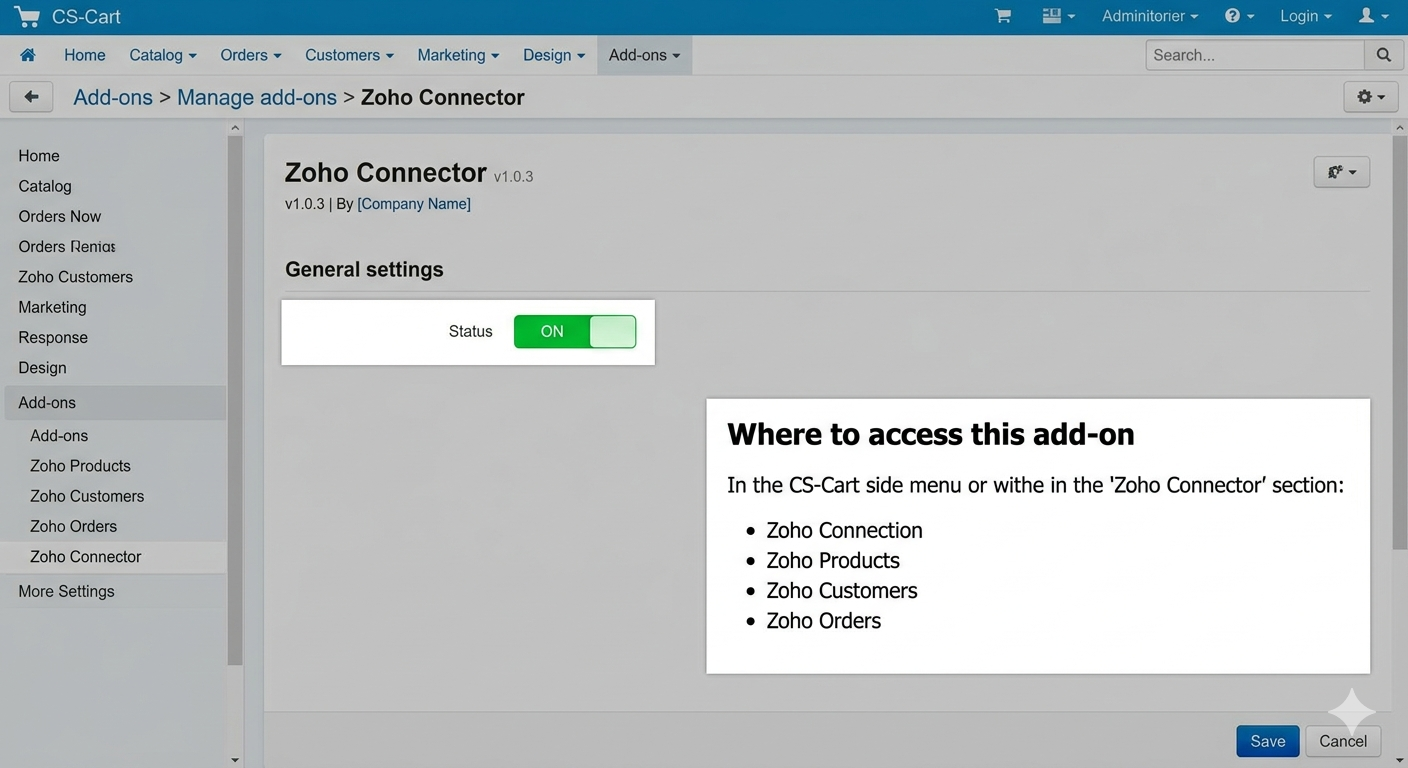
Zoho Connector add-on page in CS-Cart admin showing Status ON, with menu items for Zoho Connection, Zoho Products, Zoho Customers, and Zoho Orders listed under "Where to access this add-on".
This is an admin-only add-on — it gives the store administrator full control over all Zoho sync operations.
Step 2: Create a Zoho Self-Client App & Enter Credentials
You need a Zoho API Self-Client to generate your Client ID and Client Secret. Here's how:
Go to Zoho API Console: Visit api-console.zoho.in (or .com based on your region) and log in to your Zoho account
Create Self-Client: Choose "Self Client" and select the required scopes for ZohoCRM, ZohoInventory
Copy Credentials: Copy the Client ID and Client Secret from your newly created app
Open Add-on Settings: In CS-Cart go to Add-ons → Zoho Connector → Settings tab and paste both values
Select Domain: Choose your Zoho data center domain (.in, .com, .eu, etc.)
Save: Click Save — your credentials are stored securely in CS-Cart
Step 3: Configure Order Status & Default Mappings
In the Settings tab, configure how CS-Cart statuses map to Zoho Sales Order statuses and set product defaults:
On Draft: Set which CS-Cart status keeps a Zoho SO as Draft (e.g., Open)
Processed: SO status becomes Confirmed — map to CS-Cart "Paid"
Confirmed: The SO becomes fully confirmed — map to "Complete"
Void: SO has been voided — map to "Failed"
Map Category for Product: Set a default CS-Cart category for all products imported from Zoho (e.g., "Beauty & Health")
Map Vendor for Product: Set a default vendor for Zoho-imported products (e.g., "ACME Corp")
Select Tax for Orders: Choose how tax is applied to Zoho-imported orders
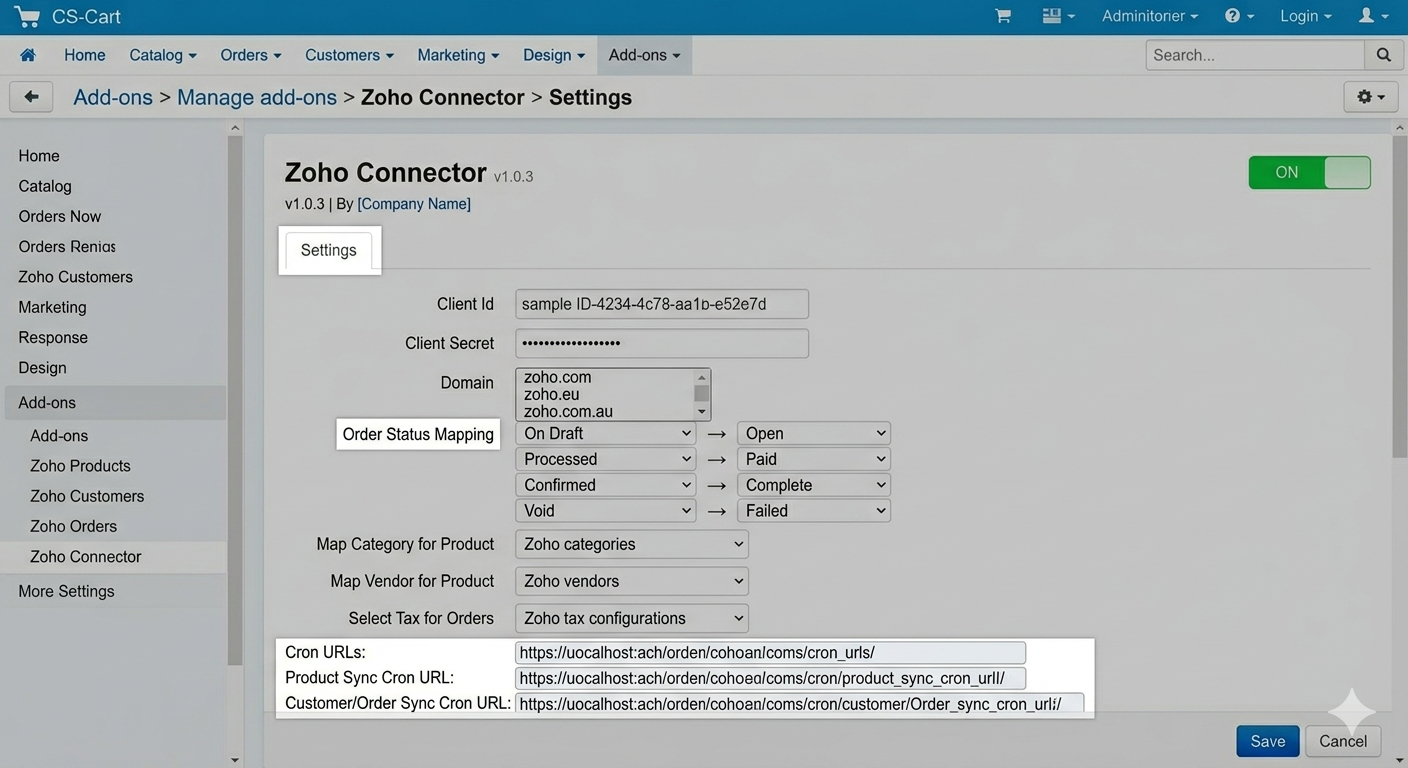
Zoho Connector Settings tab in CS-Cart showing Client Id field, Client Secret field, Domain dropdown, order status dropdowns (On Draft → Open, Processed → Paid, Confirmed → Complete, Void → Failed), Map Category for Product dropdown, Map Vendor for Product dropdown, Select Tax for Orders dropdown, and three cron URL boxes at the bottom.
Click Save in the top-right to apply all mappings.
Step 4: Authorize the OAuth Connection
Complete the secure OAuth 2.0 handshake to connect CS-Cart with your Zoho account:
1. Open Zoho Connection: Go to Website → Zoho Connector → Zoho Connection in the CS-Cart admin sidebar
2. Copy the Auth URL: The page generates an Auth URL — copy it and open it in the same browser where you are logged into Zoho
3. Grant Permissions: Review and approve the requested scopes in the Zoho authorization screen
4. Connected: You will be redirected back and see "✓ Connected to Zoho Inventory" with the token expiry time and creation date displayed
5. Token Management: Use Refresh Token to extend access, or Disconnect to revoke the connection at any time
Step 5: Sync Your CS-Cart Products to Zoho
Push your CS-Cart product catalog into Zoho Inventory from the Products dashboard:
Go to Zoho Products: Navigate to Website → Zoho Connector → Zoho Products
View Stats: The dashboard shows CS-Cart Products total, Synced to Zoho, Not Synced, Zoho Products total, Not in CS-Cart, and Already Imported counts
Sync Unsynced: Click "Sync Unsynced" to push all not-yet-synced products to Zoho in one action
Per-Product Sync: Use the individual "Sync" button on any row to sync a single product
View Zoho Details: Click on a synced product to see its full Zoho Product Details — CS-Cart Product ID, Zoho Item ID, name, SKU, pricing (Sales Rate Rate), tax flag, and inventory info
Update & Stock Sync: From the detail page use "Update from CS-Cart" to push latest data or "Sync Stock" to update inventory levels only
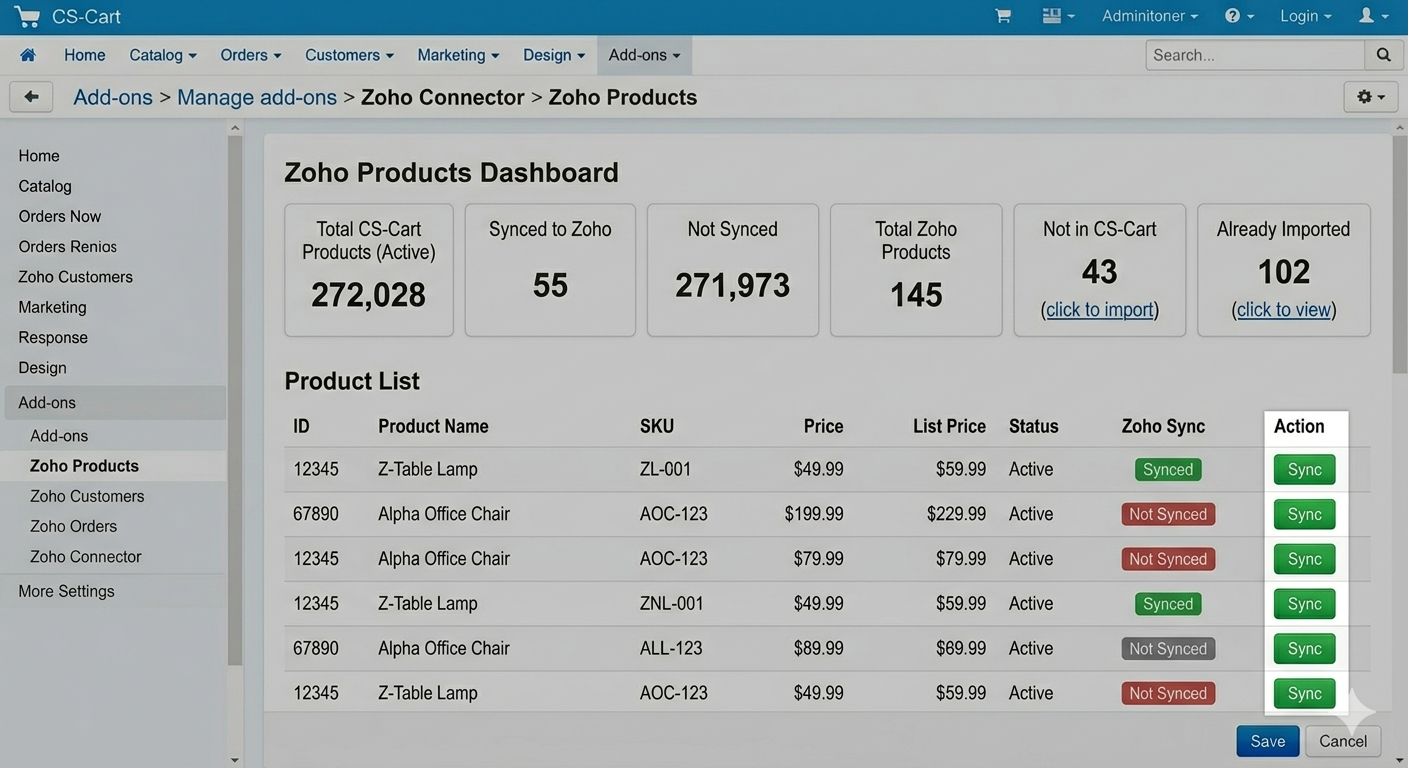
Zoho Products dashboard showing stats: 272,028 CS-Cart Products (total active), 55 Synced to Zoho, 271,973 Not Synced, 145 Zoho Products (total in Zoho), 43 Not in CS-Cart (click to import), 102 Already Imported (click to view). Product list below with ID, Product Name, SKU, Price, List Price, Status, Zoho Sync badge (Synced / Not Synced), and Sync button per row.
Step 6: Import Zoho Products into CS-Cart
Browse all Zoho Inventory products and import the ones that are not yet in your CS-Cart catalog:
Not in CS-Cart (43): Click the "Not in CS-Cart" stat tile to filter and view only Zoho products that don't exist in CS-Cart yet — with Name, SKU, Rate, Type, Stock, and Zoho/CS-Cart Status shown
Import Individual: Click "Import" on any row to bring that Zoho product into CS-Cart with all its details — name, description, SKU, rate, and stock
Import Selected: Tick multiple products and click "Import Selected" to bulk-import them in one action
Already Imported (102): Click the "Already Imported" tile to view all Zoho products that already exist in CS-Cart — with direct links to their CS-Cart product pages
Step 7: Sync Your CS-Cart Customers to Zoho & Configure Field Mapping
Sync your CS-Cart customers to Zoho CRM and control exactly which fields get mapped:
Go to Zoho Customers: Navigate to Website → Zoho Connector → Zoho Customers
View Sync Status: See all customers with their sync status — Synced (green) or Not Synced (orange) badges at a glance
Bulk Sync Selected: Tick multiple customers and click "Bulk Sync Selected" to push them to Zoho CRM as Contacts/Accounts
Field Mapping: Click "Zoho Customers Filed" to open the Field Mapping page — map all 108 standard Zoho contact fields (contact_name, company_name, email, phone, mobile, website, and more) to CS-Cart user/profile columns
Skip Fields: Set any field to "— Do not map —" to ignore it during import entirely
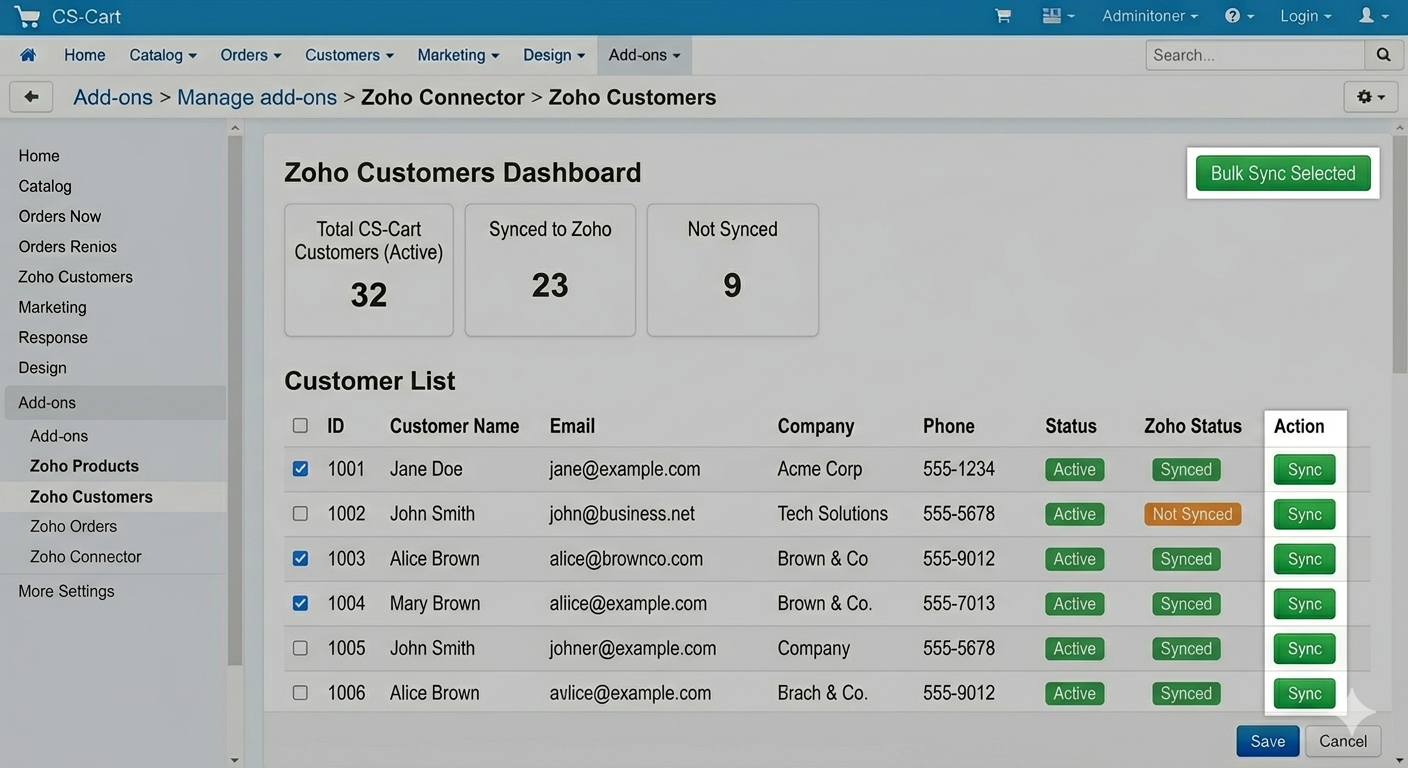
Zoho Customers Sync page showing 32 Total Customers, 23 Synced with Zoho, 9 Not Synced. Customer list with ID, Customer Name, Email, Company, Phone, Status (Active badge), and Zoho Status (green Synced / orange Not Synced badges). Bulk Sync Selected button top-right.
After configuring mappings click Save Mappings. The Status column shows which fields are Mapped.
Step 8: Import Zoho CRM Contacts into CS-Cart
Browse all Zoho CRM Accounts & Contacts and import them directly into CS-Cart as customers:
Browse Zoho Contacts: Click "Zoho Customers" button to open the Zoho CRM — Accounts & Contacts browser, showing Account Name, Parent Account, Primary Email, Phone, Contacts count, and CS-Cart Status
CS-Cart Status: Each account shows "Not in CS-Cart" (Import button available) or "In CS-Cart" with a direct link to the CS-Cart user record
Parent Accounts First: If an Account has a Parent Account, the parent is imported automatically before the child — shown clearly in the interface
Import Individual: Click "Import" on any row to bring that Zoho account into CS-Cart as a customer. Contacts linked to the Account become sub-account users in CS-Cart.
Import Selected: Select multiple accounts and click "Import Selected" to bulk-import them all at once
No Email Handling: If a Zoho contact has no email, a placeholder is auto-generated so the import does not fail — flagged with a "No email" badge so you can review and update later
Step 9: Sync Your CS-Cart Orders to Zoho
Push your CS-Cart order history to Zoho as Sales Orders and keep them in sync:
Go to Zoho Orders: Navigate to Website → Zoho Connector → Zoho Orders
Dashboard Stats: See Total Orders, Synced with Zoho, and Not Synced counts clearly displayed
Sync All: Click "Sync All" to push all CS-Cart orders to Zoho as Sales Orders in one action
Bulk Sync Selected: Tick specific orders and click "Bulk Sync Selected" to sync only those
Per-Order Actions: Use the Actions dropdown on each row to sync an individual order to Zoho
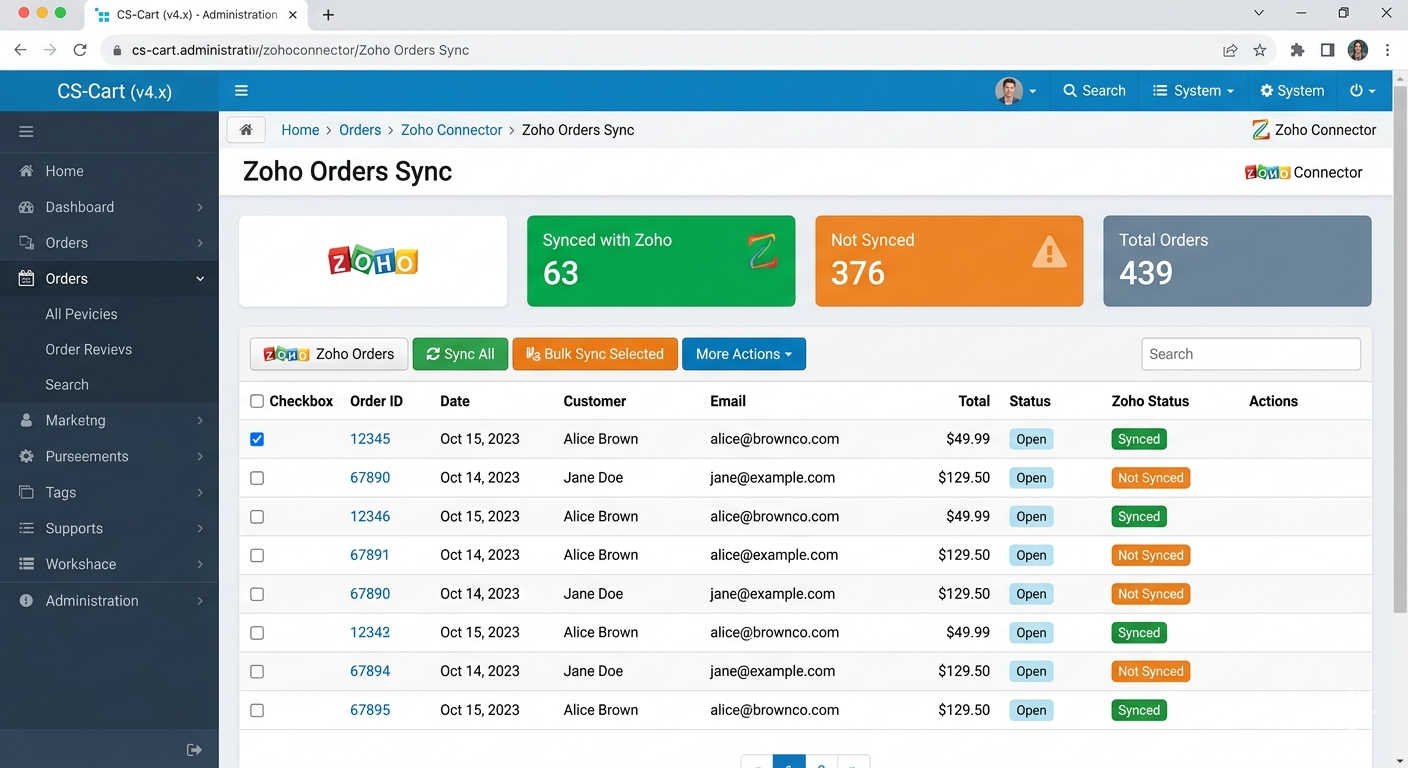
Zoho Orders Sync page showing 439 Total Orders, 63 Synced with Zoho (green tile), 376 Not Synced (orange tile). Order list with Order ID (linked), Date, Customer, Email, Total, Status (Open), and Zoho Status badge (green Synced / orange Not Synced). Zoho Orders, Sync All, Bulk Sync Selected, and More Actions buttons at top.
Order statuses in Zoho automatically reflect the status mappings configured in Step 3.
Step 10: Import Zoho Orders into CS-Cart
Browse Zoho Sales Orders and import them directly into CS-Cart:
Zoho Orders View: Click "Zoho Orders" button on the Orders page to switch to the Zoho Sales Orders browser
CS-Cart Status: Each Zoho order shows whether it has been imported into CS-Cart or not
Import Individual: Click Import on any Zoho order to create it in CS-Cart with all order details, line items, and customer info
Automatic Status Mapping: The Zoho Sales Order status is mapped back to the corresponding CS-Cart order status using your configured mapping from Step 3
Step 11: Set Up Cron Jobs for Real-Time Auto-Sync
Enable fully automated, hands-free sync by adding these three cron URLs to your server. Each runs hourly and automatically imports new records from Zoho into CS-Cart and syncs updates in real-time:
Customers Cron:
Run this URL every hour via cron. It automatically imports any new customers created in Zoho into CS-Cart, and syncs existing ones in real-time whenever the cron executes.
Example crontab:
Run this URL every hour via cron. It automatically imports any new customers created in Zoho into CS-Cart, and syncs existing ones in real-time whenever the cron executes.
https://yourstore.com/index.php?dispatch=sg_zoho_cus_cron.run
Example crontab:
0 * * * * curl -s "https://yourstore.com/index.php?dispatch=sg_zoho_cus_cron.run"
Products Cron:
Run this URL every hour via cron. It automatically imports any new products created in Zoho into CS-Cart, and syncs stock & pricing in real-time whenever the cron executes.
Example crontab:
Run this URL every hour via cron. It automatically imports any new products created in Zoho into CS-Cart, and syncs stock & pricing in real-time whenever the cron executes.
https://yourstore.com/index.php?dispatch=sg_zoho_pro_cron.run
Example crontab:
0 * * * * curl -s "https://yourstore.com/index.php?dispatch=sg_zoho_pro_cron.run"
Orders Cron:
Run this URL every hour via cron. It automatically imports any new orders created in Zoho into CS-Cart.
Example crontab:
Run this URL every hour via cron. It automatically imports any new orders created in Zoho into CS-Cart.
https://yourstore.com/index.php?dispatch=sg_zoho_order_cron.run
Example crontab:
0 * * * * curl -s "https://yourstore.com/index.php?dispatch=sg_zoho_order_cron.run"
Replace yourstore.com with your actual domain. Once set, your Zoho and CS-Cart data will stay perfectly synchronized every hour — automatically, with no manual action needed.
What Gets Synchronized?
A full overview of data flowing between CS-Cart and Zoho in both directions:
Your Products ↔ Zoho Inventory
Product names, descriptions, and short descriptions
SKU, Sales Rate (price), and Rate (list price)
Active / Inactive status synced in both directions
Stock quantity, inventory type, and item type (goods / service)
Tax information — Taxable flag synced from Zoho
Your Customers ↔ Zoho CRM Contacts & Accounts
Customer name, email address, phone, and mobile
Company name and address details
All 108 standard Zoho contact fields — fully configurable via Field Mapping page
Parent Account imported first automatically; linked Contacts become sub-account users in CS-Cart
Placeholder email auto-generated for Zoho contacts missing an email address
Your Orders ↔ Zoho Sales Orders
Order ID, date, customer name, and email
Order total, line items, products, and quantities
Order status mapped to Zoho SO status (Draft, Confirmed, Void) via configurable mapping
New Zoho Sales Orders imported into CS-Cart automatically via cron
Real-Time Cron Sync
Three separate cron URLs — one each for customers, products, and orders
Runs every hour — auto-detects new Zoho records and imports them into CS-Cart
Syncs stock, pricing, and customer data on every cron execution
How This Helps Your Business
Eliminate Manual Data Entry
Automated Sync: Products, customers, and orders flow automatically between CS-Cart and Zoho — no copy-pasting, no spreadsheets, no errors
Real-Time Accuracy: Cron-based sync keeps inventory levels, pricing, and order statuses always current in both systems
Focus on Growth: Spend time running your business, not managing data between two platforms manually
Unified Business Operations
Zoho CRM: All your CS-Cart customers become CRM contacts — enabling smarter sales follow-ups, segmentation, and relationship management
Zoho Inventory: Your product catalog and stock levels stay in sync — preventing overselling and stockouts across both platforms
Flexibility & Full Control
Import or Export: Choose the direction — push CS-Cart data into Zoho, pull Zoho data into CS-Cart, or run both simultaneously
Selective Sync: Sync all records at once or pick specific products, customers, or orders to sync individually
Custom Field Mapping: All 108 standard Zoho contact fields can be mapped to any CS-Cart user/profile column
Default Assignments: Auto-assign categories and vendors to imported Zoho products — keeping your catalog organized from day one
Your Data is Secure
OAuth 2.0 Authentication: Industry-standard secure token-based connection — credentials are never stored in plain text
Token Refresh: See token expiry time in the admin panel and refresh with one click whenever needed
Full Control: Disconnect from Zoho at any time — your CS-Cart data remains completely intact
Region Support: Select your Zoho data center domain (.in, .com, .eu, etc.) for compliance with data residency requirements
Common Questions
Is this add-on for store admins or vendors?
This is a CS-Cart admin-level add-on. It gives the store administrator full control over syncing the entire store's products, customers, and orders with Zoho. It is not a vendor-facing tool.
Which Zoho apps does this connector support?
The connector integrates with Zoho CRM (customers & contacts), Zoho Inventory (products & stock) (orders as Sales Orders) — all from a single OAuth connection.
How does real-time sync work with cron?
Set up the three provided cron URLs on your server to run every hour. Each execution automatically detects new or updated records in Zoho and imports/syncs them into CS-Cart — no manual intervention needed after the initial setup.
Can I import products from Zoho that don't exist in CS-Cart?
Yes. The Products dashboard shows a "Not in CS-Cart" count. Click it to view all Zoho products not yet in your catalog and import them individually or in bulk — with all product details brought across automatically.
What if a Zoho contact has no email address?
A placeholder email is auto-generated so the import does not fail. The Zoho Contacts browser clearly flags these records with a "No email" badge so you can review and update them after import.
Can I disconnect from Zoho at any time?
Yes. Click Disconnect on the Zoho Connection page to revoke the OAuth token instantly. The cron sync will stop but all your existing CS-Cart data remains completely intact. You can reconnect anytime.
Do I have to sync everything at once?
No. Each section — Products, Customers, Orders — is completely independent. You can sync products without setting up the order cron, or import customers without touching products. It is fully flexible based on your business needs.
Ready to Connect CS-Cart with Zoho?
The Ecartify Zoho Connector is the definitive integration between CS-Cart and Zoho's business suite. As a store admin, you get complete two-way data sync across products, customers, and orders — with the reliability of cron-based automation and the flexibility of granular field mapping.
What you gain:
✓ Two-way sync for products, customers & orders
✓ Import Zoho data directly into CS-Cart
✓ Real-time automation via three cron jobs
✓ 108-field customer field mapping
✓ Order status, category & vendor mapping
✓ Secure OAuth 2.0 with token refresh & disconnect
✓ Works with Zoho CRM, Inventory
Start syncing your CS-Cart store with Zoho today!