Ideas That Power Digital Growth
Stay ahead with actionable insights, expert opinions, and practical guides covering ecommerce trends, platform updates, automation, AI, and real-world solutions to help businesses grow and scale digitally.
Automatically segment customers based on order history, search behaviour, activity, risk, and geography — with AI-powered insights.
Get Started
Ecartify: Smart Group for CS-Cart – Automated Customer Segmentation & AI Insights
Stop treating every customer the same. The Smart Group add-on automatically analyses customer behaviour, including order history, search activity, engagement, risk, and location, and places customers into relevant smart groups.
Each customer gets health and risk scores, while smart tags can automatically trigger emails, coupons, or webhooks when specific conditions are met. Smart Groups can also be synced with CS-Cart usergroups to apply existing pricing, discount, and permission rules.
With the optional OpenAI integration, you can use Get AI Take to receive a simple, actionable recommendation for individual customers. The built-in Pipeline Tester lets you verify segmentation results, while the automated Cron Pipeline keeps customer groups and tags updated.
Key Features of Smart Group
Customer Segmentation
Automatic Customer Segmentation: Every active customer is continuously evaluated across five smart group types — Order, Search, Activity, Risk, and Geo — and assigned or removed automatically as their behavior changes.
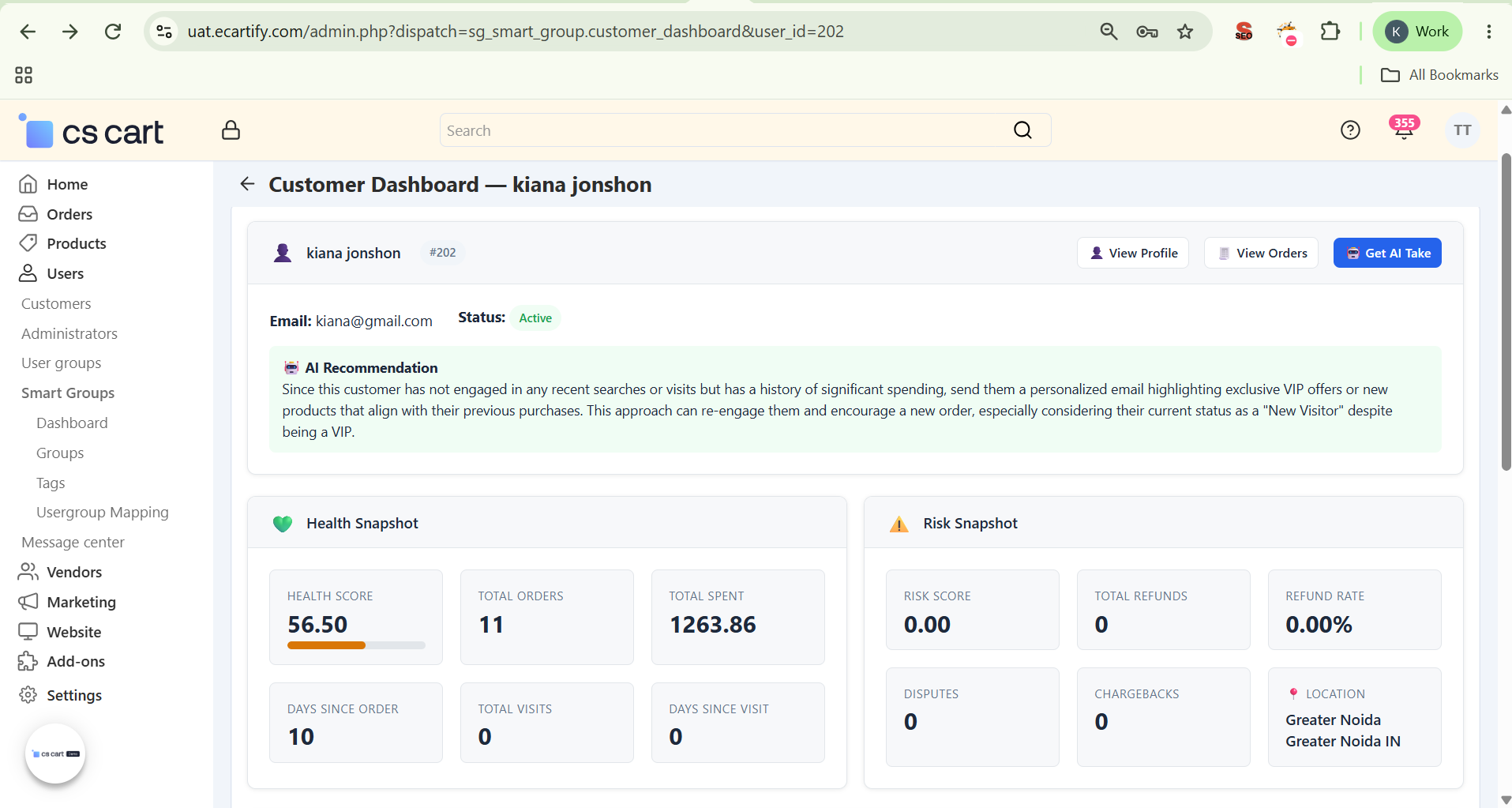
Health & Risk Snapshots: Each customer gets a live Health Score and Risk Score, plus total orders, total spent, visits, refunds, disputes, and chargebacks — all recomputed on every pipeline run.
Automation & Smart Actions
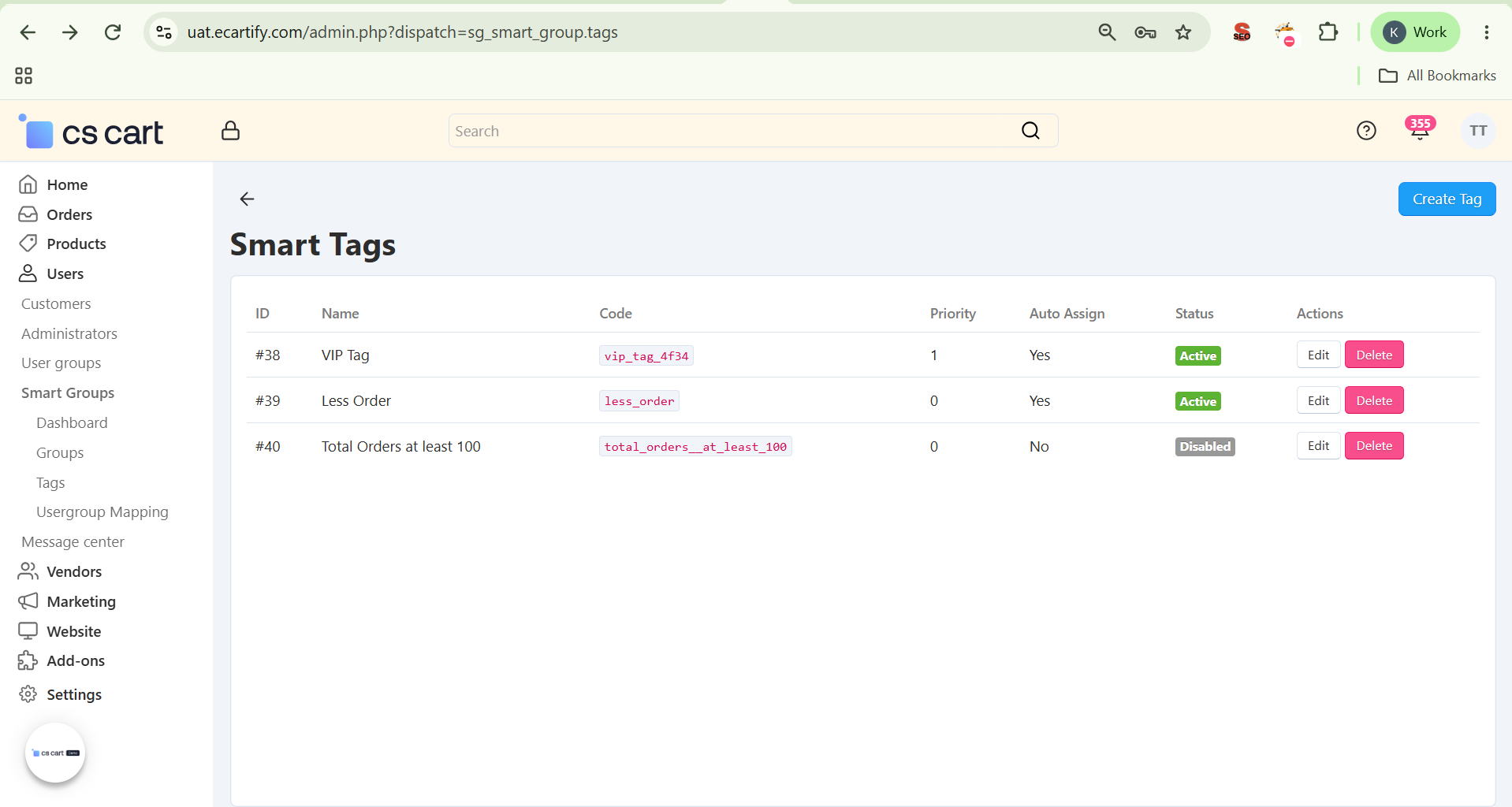
Smart Tags With Auto-Assign Rules: Create tags like "Frequent Searcher" with priority-based auto-assign rules that fire automatically when a customer matches the criteria — no manual tagging required.
On-Group-Join Actions: Fire an email, issue a coupon, or call a webhook the moment a customer newly qualifies for a smart tag — turning segmentation into automated marketing.
Automated Cron Pipeline: A single secured cron endpoint recomputes health & risk, re-evaluates every group type, fires smart tag actions, and expires old memberships in configurable batch sizes.
CS-Cart Integration
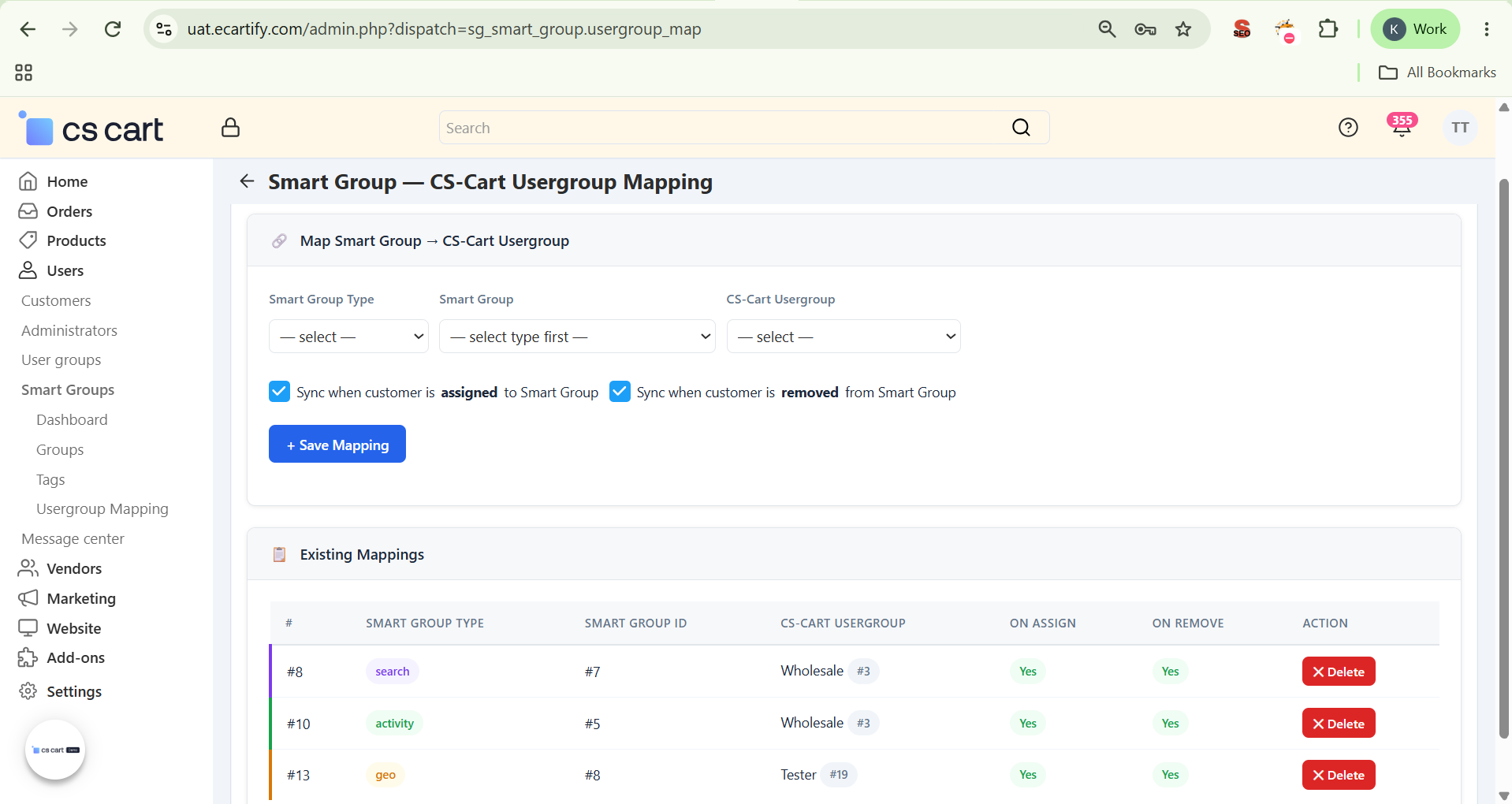
CS-Cart Usergroup Sync: Map any Smart Group to a native CS-Cart usergroup and choose whether to sync on assignment, removal, or both — your existing pricing and permission rules apply instantly.
Testing & Customer Monitoring
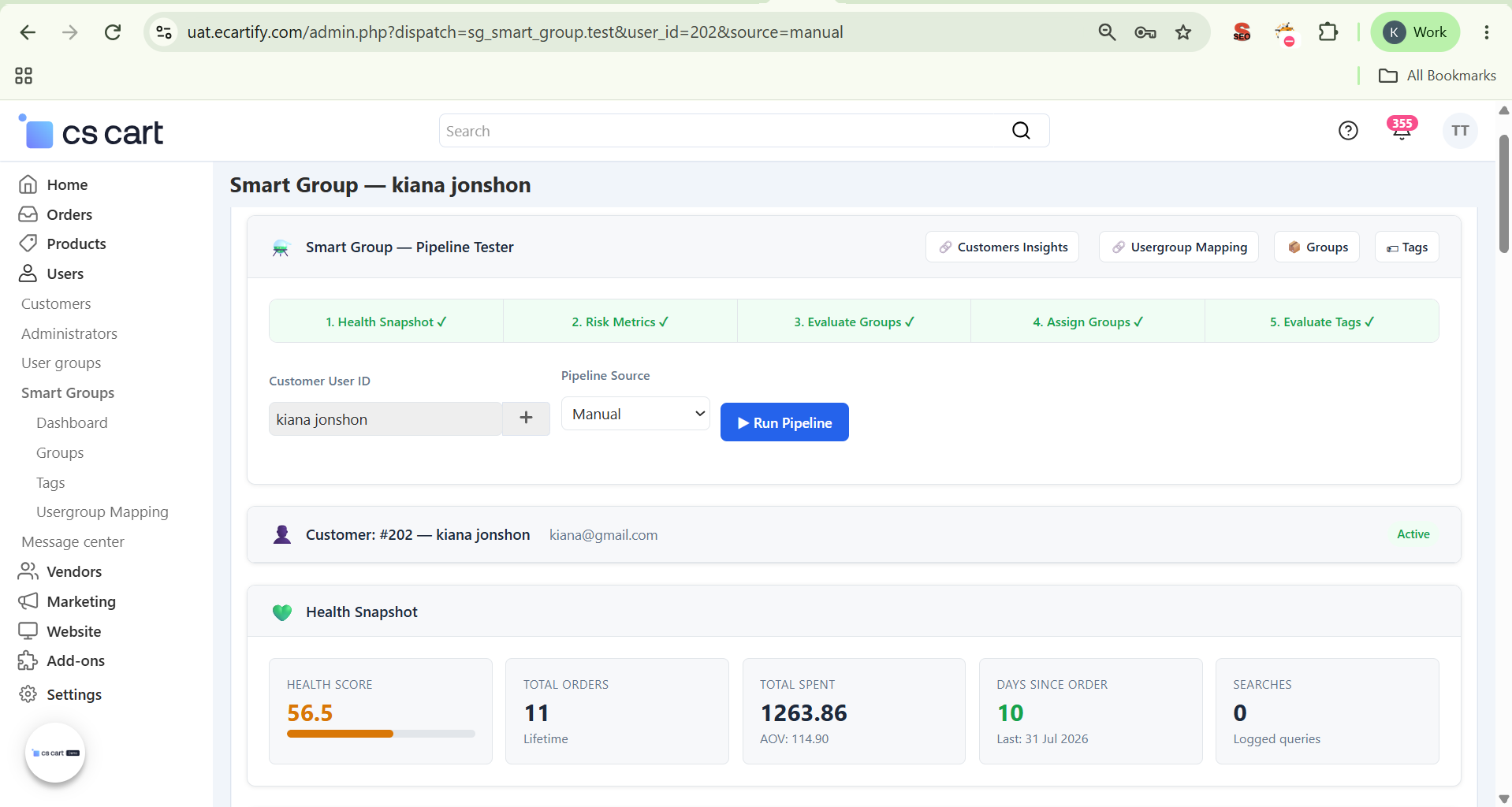
Built-In Pipeline Tester: Test the full segmentation pipeline against a single customer or a batch, and watch each stage — Health Snapshot, Risk Metrics, Evaluate Groups, Assign Groups, Evaluate Tags — run step by step.
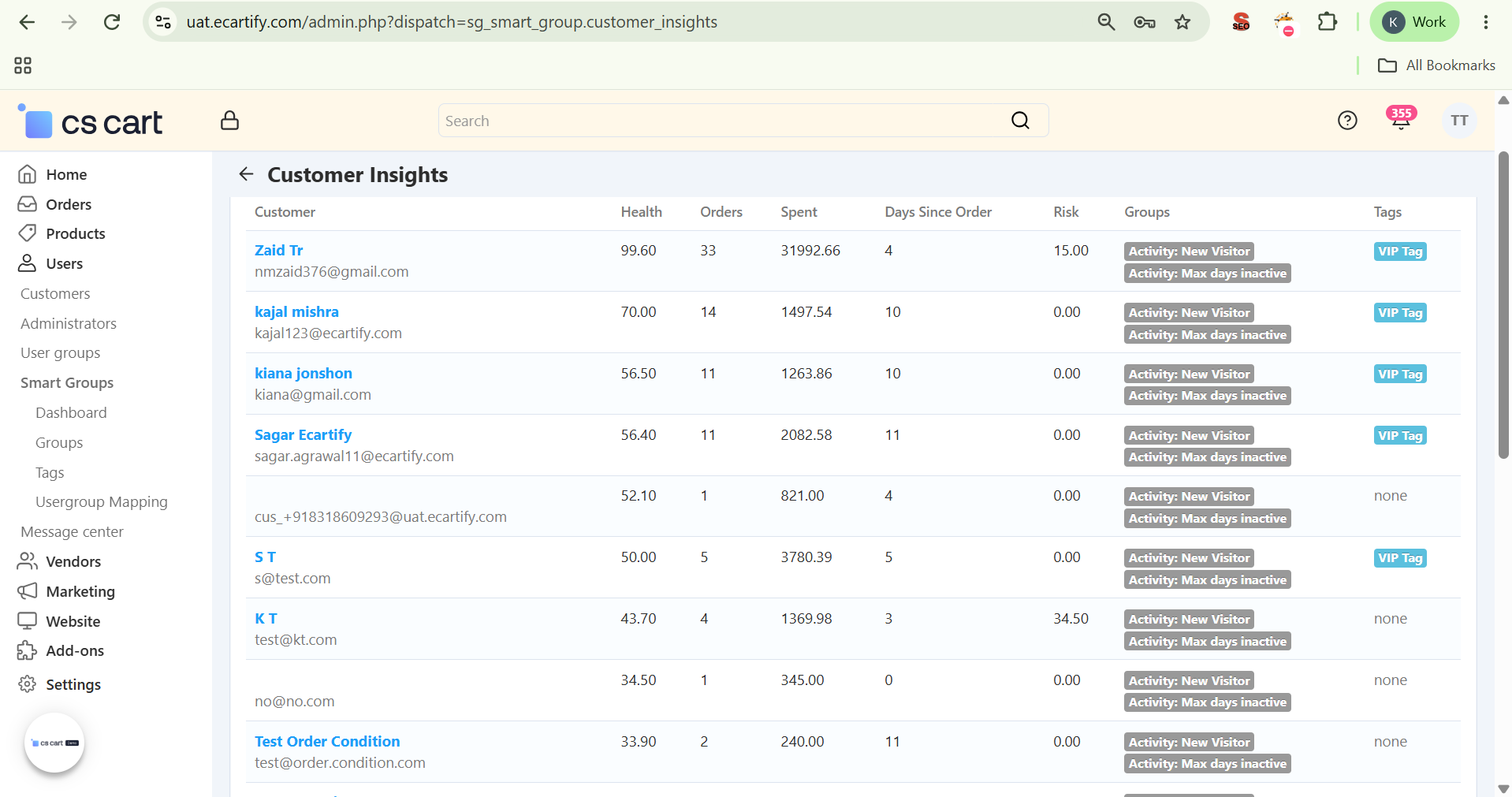
Customer Insights Dashboard: A single table view across all customers showing Health, Orders, Spent, Days Since Order, Risk, Groups, and Tags — sort through your whole customer base at a glance.
Data & AI
Customer Search Logging: Every storefront search query is optionally logged and used to power Search Interest Groups and the Frequent Searcher smart tag.
Configurable Data Retention: Set independent retention windows for search logs, visit logs, and action logs (default 90/180/180 days) — old entries are purged automatically during cron cleanup.
AI-Powered "Get AI Take": Connect an OpenAI API key and get a one-click, plain-English recommendation on any customer dashboard — e.g. suggesting a targeted promo based on recent search behavior and purchase gaps.
One-Click Sample Data: Install 2 CS-Cart usergroups, 6 sample smart groups, 3 pre-configured smart tags, and 2 usergroup mappings instantly — see the whole addon working before you configure anything by hand.
Step-by-Step Setup Guide
Step 1: Install the Add-on
Get Smart Group running on your CS-Cart store in just a few minutes:
Download the Add-on – Download the Smart Group package from the Ecartify website or CS-Cart Marketplace.
Open Add-ons – Go to Add-ons → Manage Add-ons in the CS-Cart admin panel.
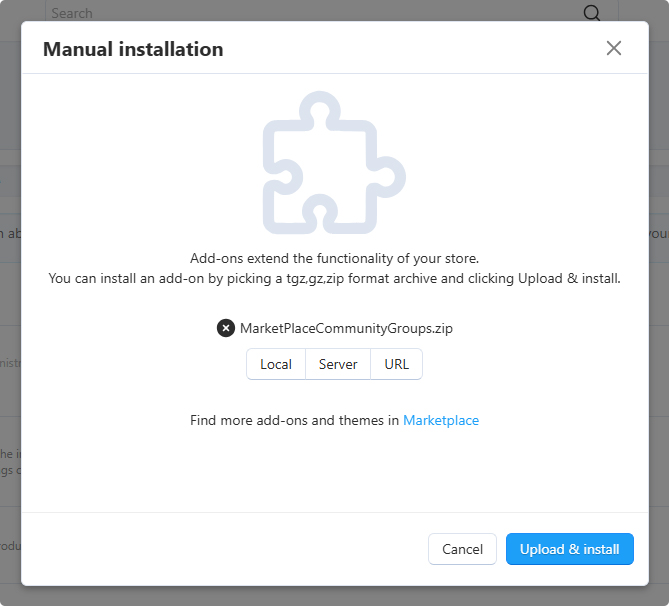
Upload the Package – Click the "+" button and upload the Ecartify: Smart Group package.
Install & Activate – Click 'Install' and set the add-on status to 'ON'.
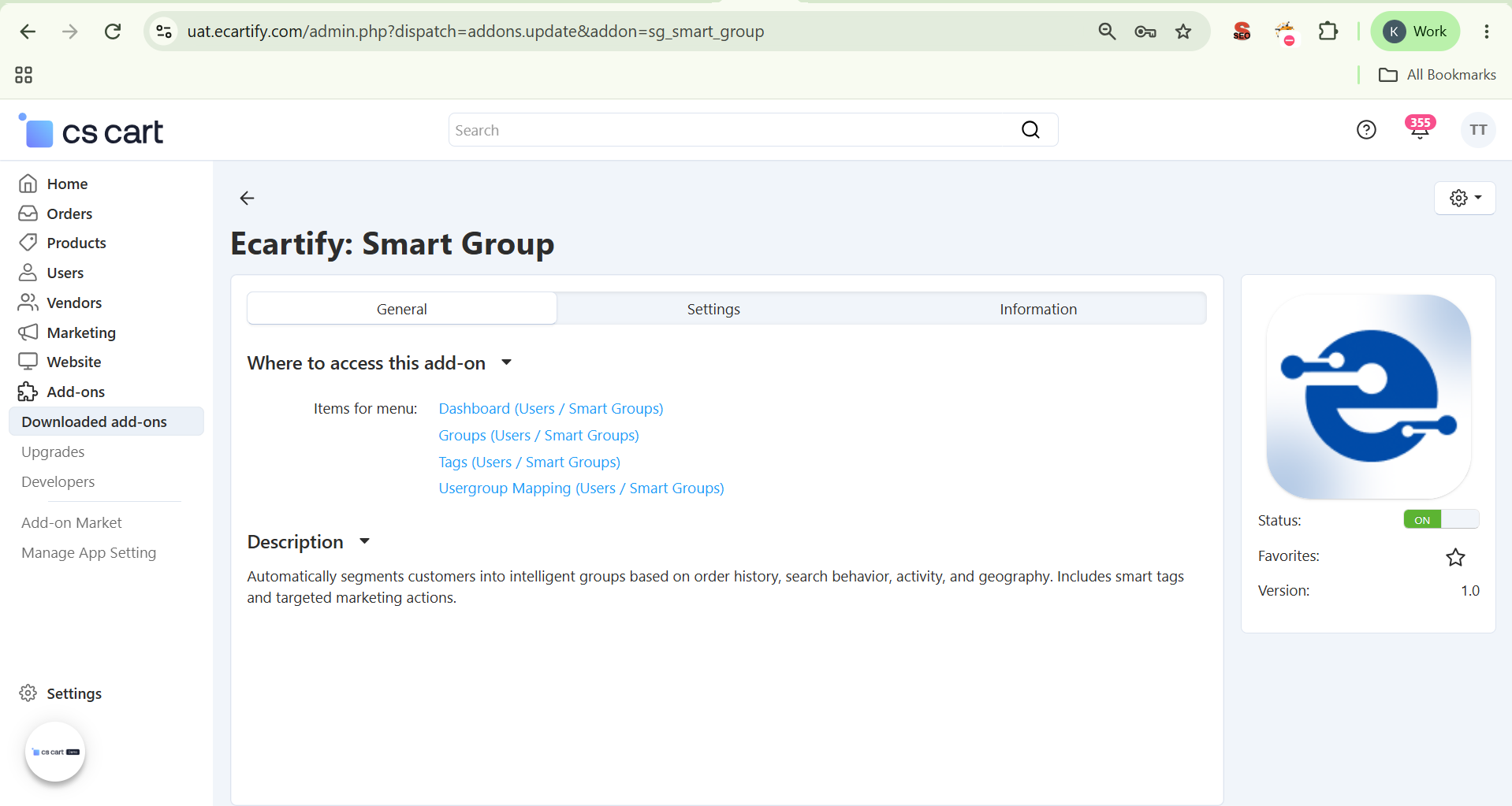
Open Settings – Go to Add-ons → Downloaded Add-ons → Ecartify: Smart Group → Settings to continue configuration.
Step 2: Configure General Settings
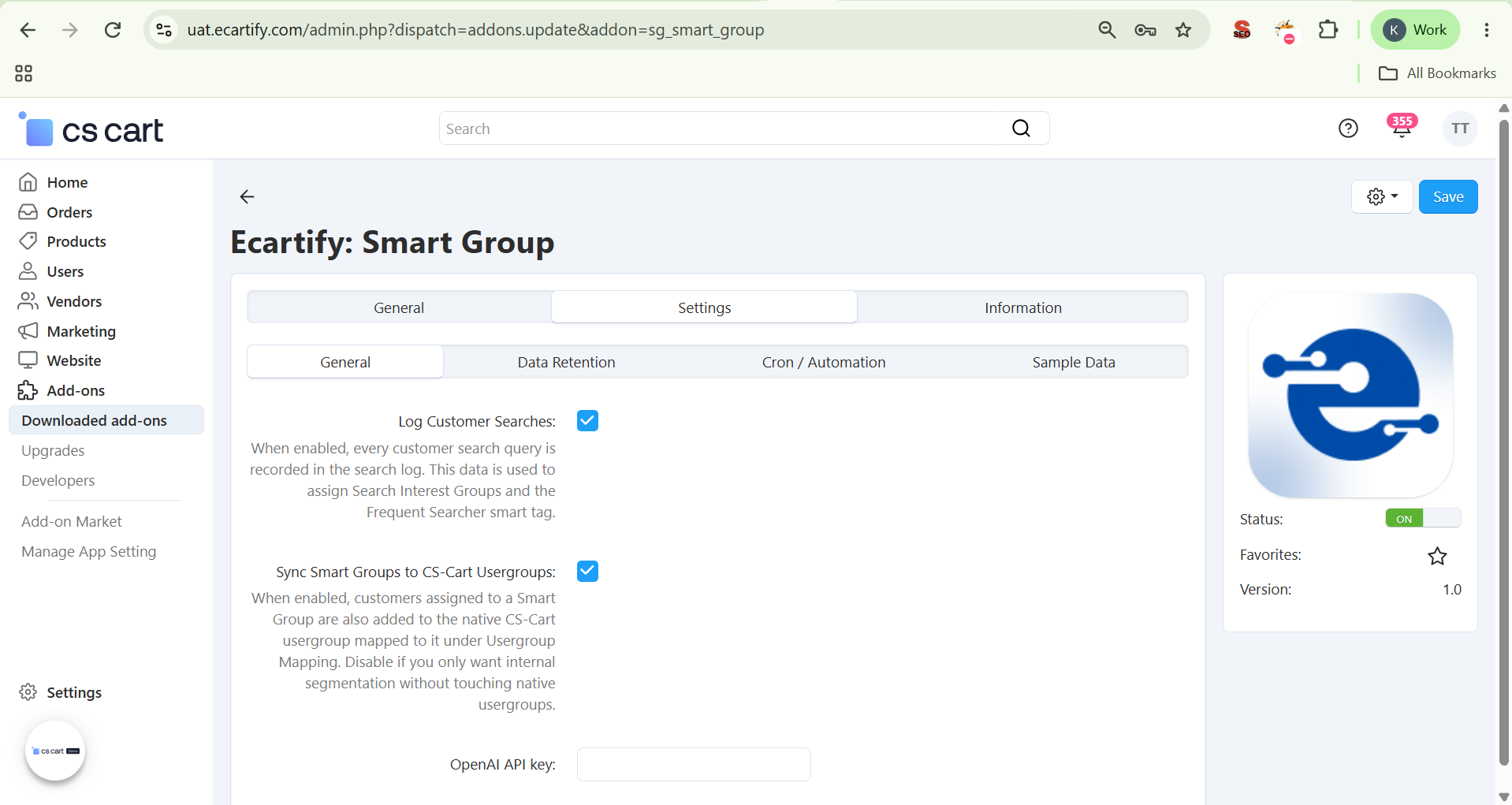
Inside the Settings tab, open the General sub-tab to configure customer search logging, CS-Cart usergroup syncing, and optional AI-powered recommendations:
Enable Customer Search Logging – When enabled, every customer search query is recorded in the search log. This data powers Search Interest Groups and the Frequent Searcher smart tag.
Enable CS-Cart Usergroup Sync – When enabled, customers assigned to a Smart Group are also added to the native CS-Cart usergroup mapped to it under Usergroup Mapping. Disable this if you only want internal segmentation without touching native usergroups.
Add OpenAI API Key (Optional) – Enter your OpenAI API key to unlock the "Get AI Take" recommendation button on every customer dashboard.
Step 3: Configure Data Retention
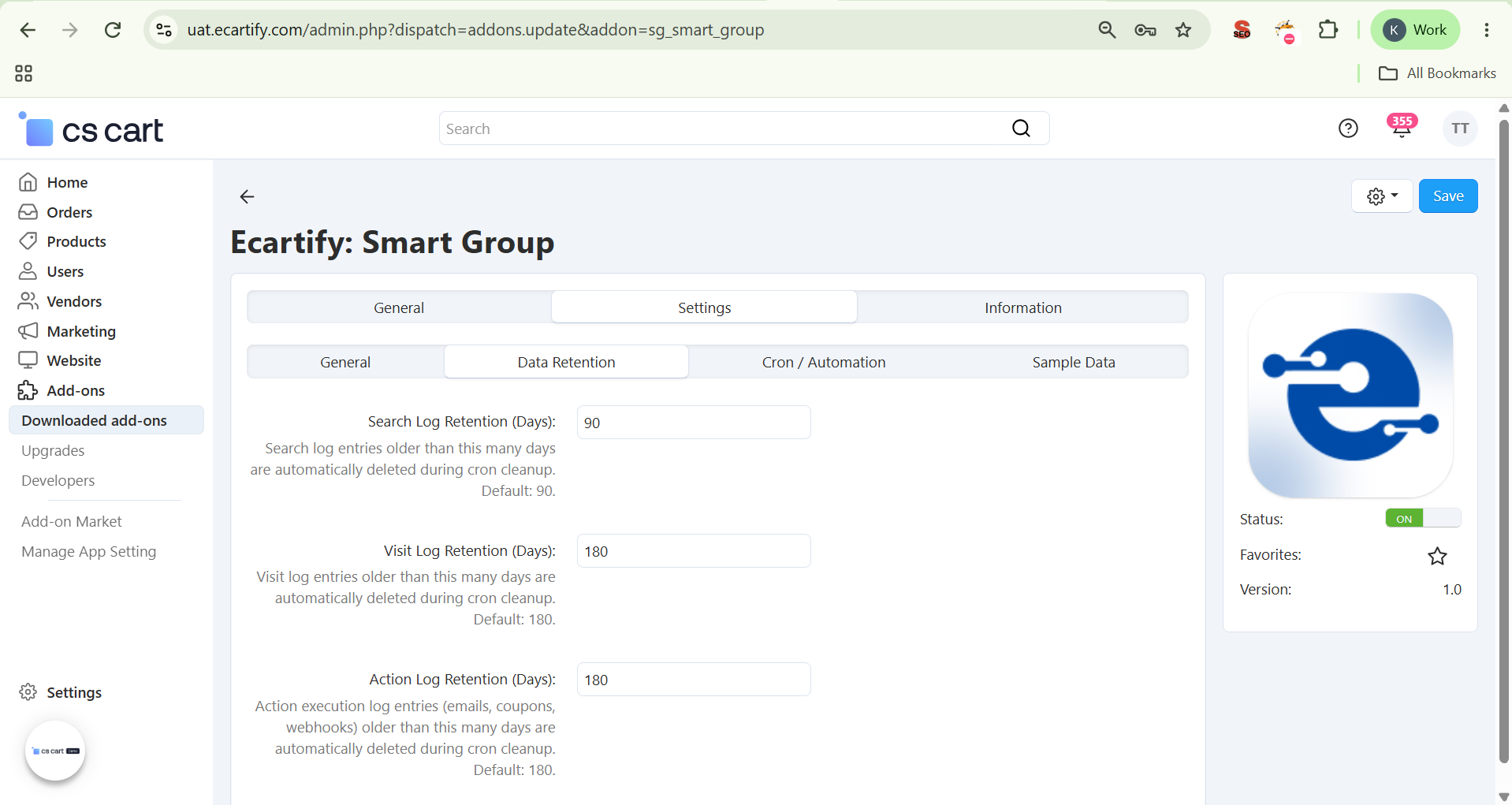
Set how long search, visit, and action logs are stored before they are automatically deleted during cron cleanup.
Search Log Retention (Days): Defines how long customer search logs are stored. Older records are automatically deleted during cron cleanup. Default: 90 days.
Visit Log Retention (Days): Defines how long customer visit logs are stored. Older records are automatically deleted during cron cleanup. Default: 180 days.
Action Log Retention (Days): Defines how long action logs such as emails, coupons, and webhooks are stored. Older records are automatically deleted during cron cleanup. Default: 180 days.
Step 4: Configure Cron / Automation
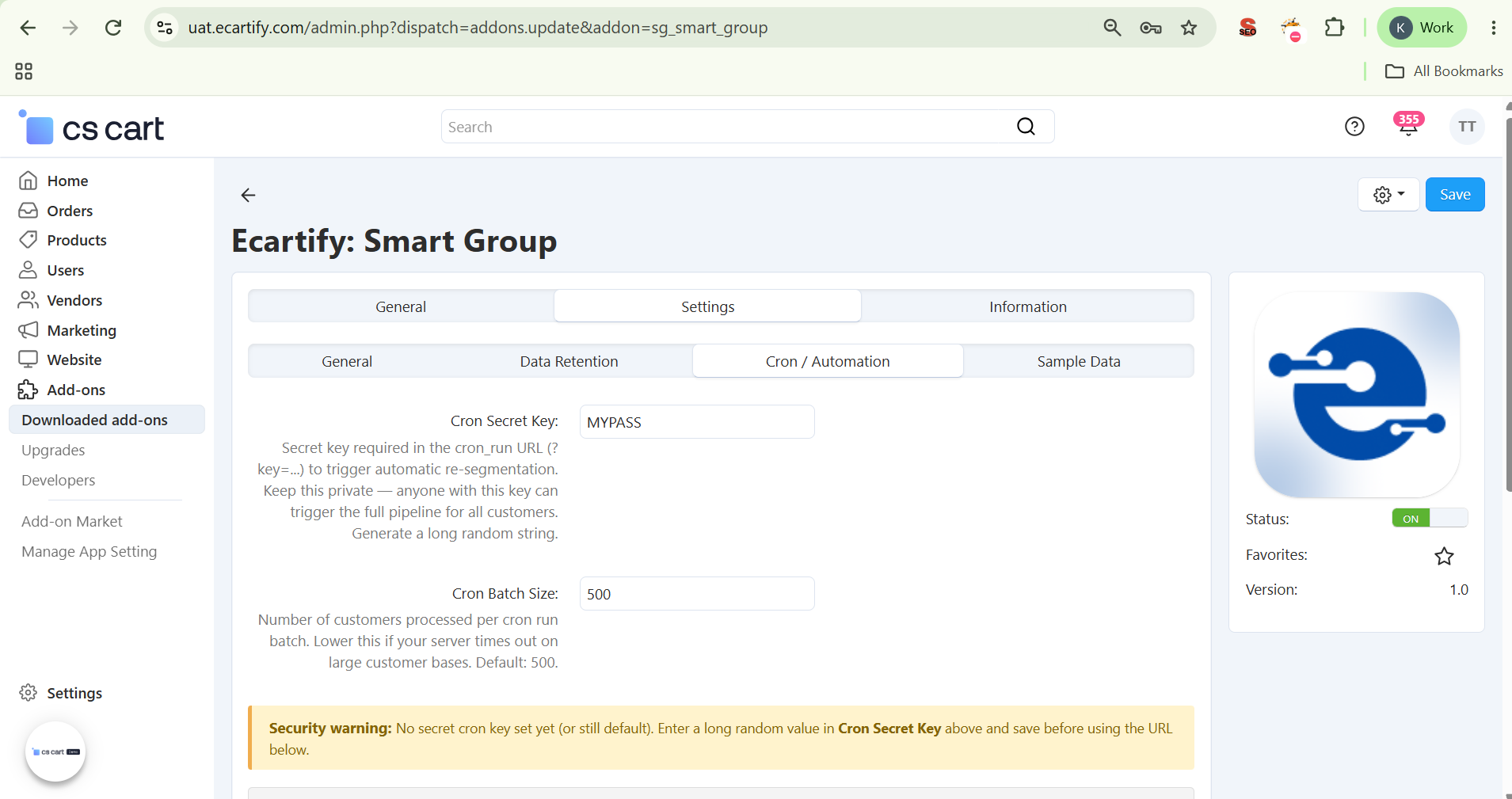
Open the Cron / Automation sub-tab to secure and schedule the re-segmentation pipeline that keeps every customer's groups and tags up to date:
Cron Secret Key: Required in the cron_run URL (?key=...) to trigger automatic re-segmentation. Keep this private — anyone with this key can trigger the full pipeline for all customers. Generate a long random string.
Cron Batch Size: Number of customers processed per cron run batch. Lower this if your server times out on large customer bases. Default: 500.
What the Cron Does: Recomputes health & risk snapshots, re-evaluates order/search/risk/activity/geo groups, re-evaluates smart tags and fires on_group_join actions, then expires old memberships and purges logs past your retention settings.
Run and Verify the Cron
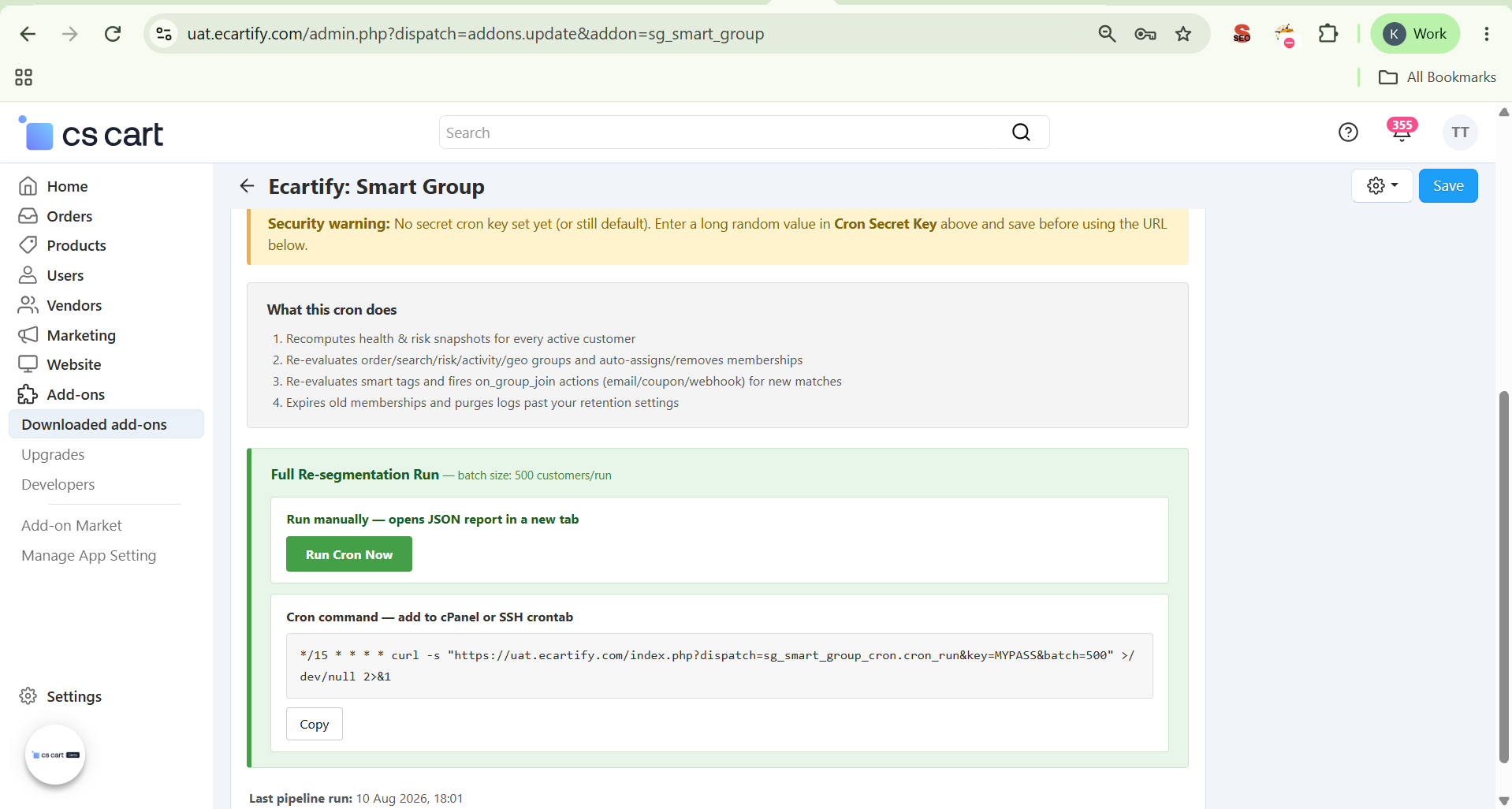
After saving the Cron Secret Key, use Run Cron Now to test the pipeline manually. For automatic execution, copy the generated Cron Command and add it to your cPanel or SSH cron job. Check Last Pipeline Run to verify when the pipeline was last executed:
Run Cron Now: Click Run Cron Now to manually trigger the full segmentation pipeline on demand and open the JSON report in a new tab — the fastest way to test your configuration before scheduling it.
Cron Command: Copy the auto-generated cron command and add it to your cPanel or SSH crontab so the pipeline runs automatically on schedule, without any manual trigger.
Last Pipeline Run: Check this timestamp anytime to confirm exactly when the cron last executed — a quick way to verify your automation is actually running as scheduled.
Step 5: Install Sample Data (Optional)
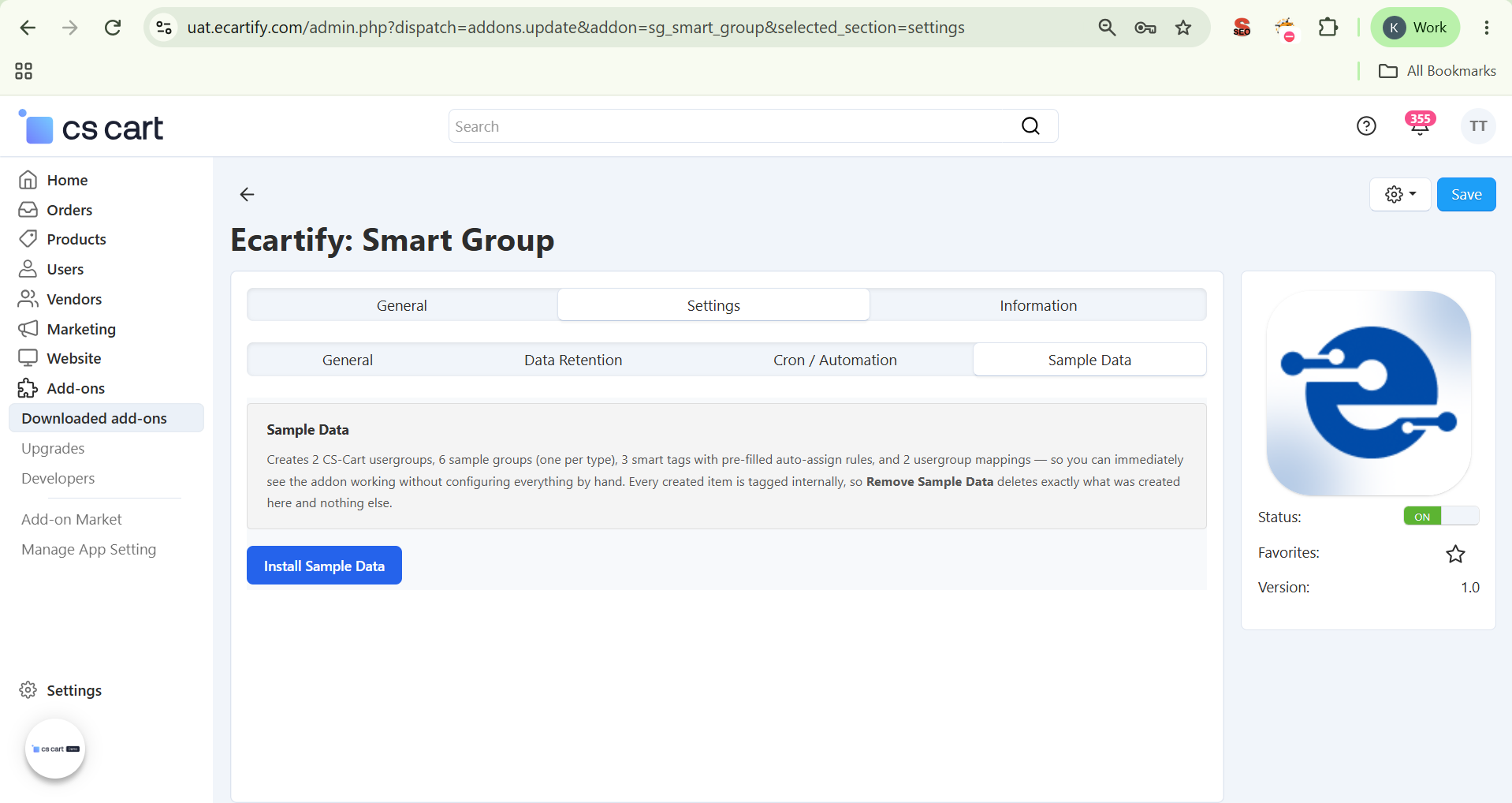
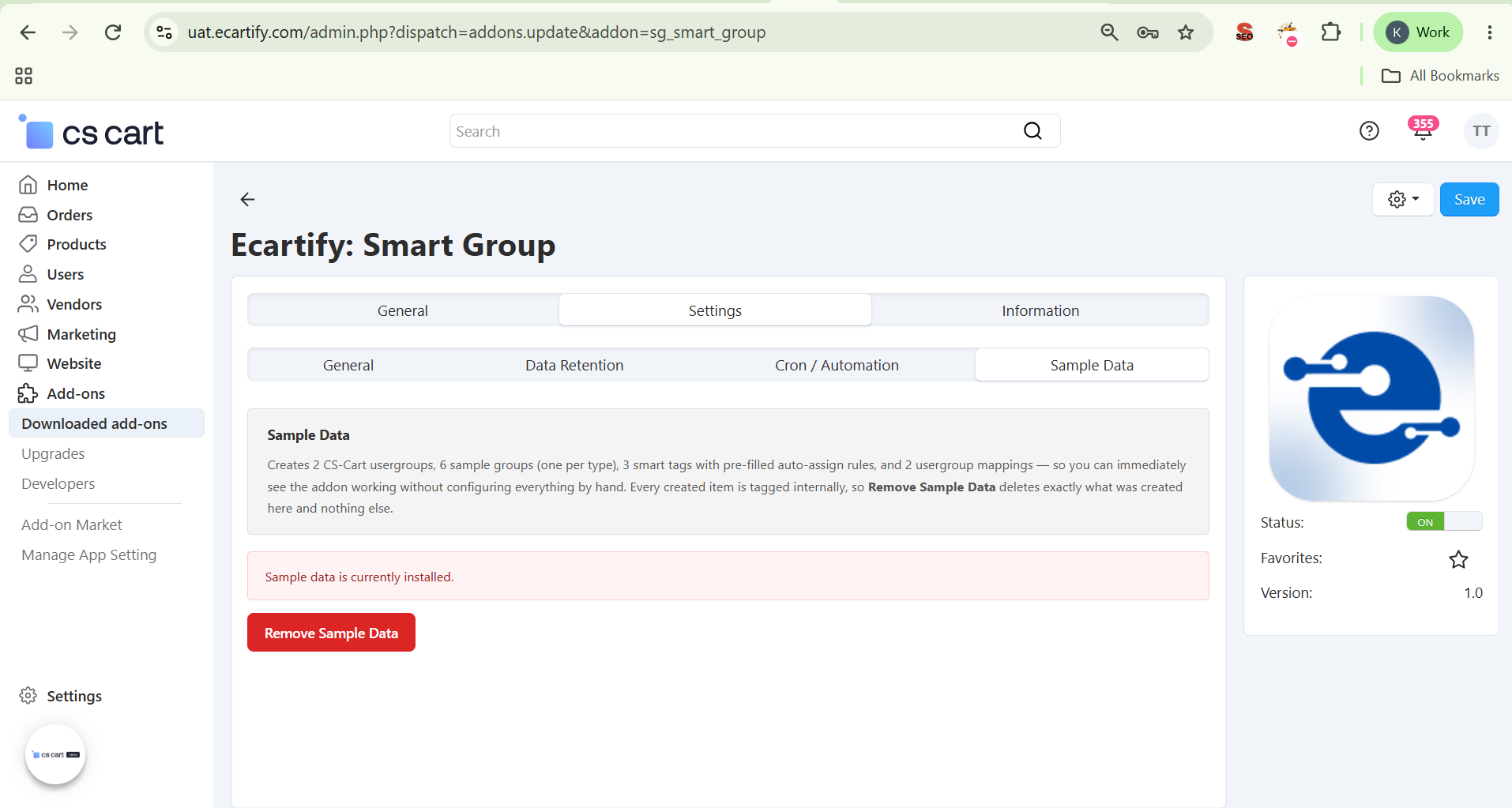
New to Smart Group? Switch to the Sample Data sub-tab to see the addon working immediately, without configuring anything by hand:
One-Click Install: Clicking Install Sample Data creates: 2 CS-Cart Usergroups, 6 Sample Smart Groups (one per type), 3 Smart Tags with pre-filled auto-assign rules, and 2 Usergroup Mappings — so you can see the whole addon working before configuring anything by hand.
Safe to Remove: Remove Sample Data deletes only the data created by the sample-data setup. Existing store data will not be affected.
Step 6: Test the Segmentation Pipeline
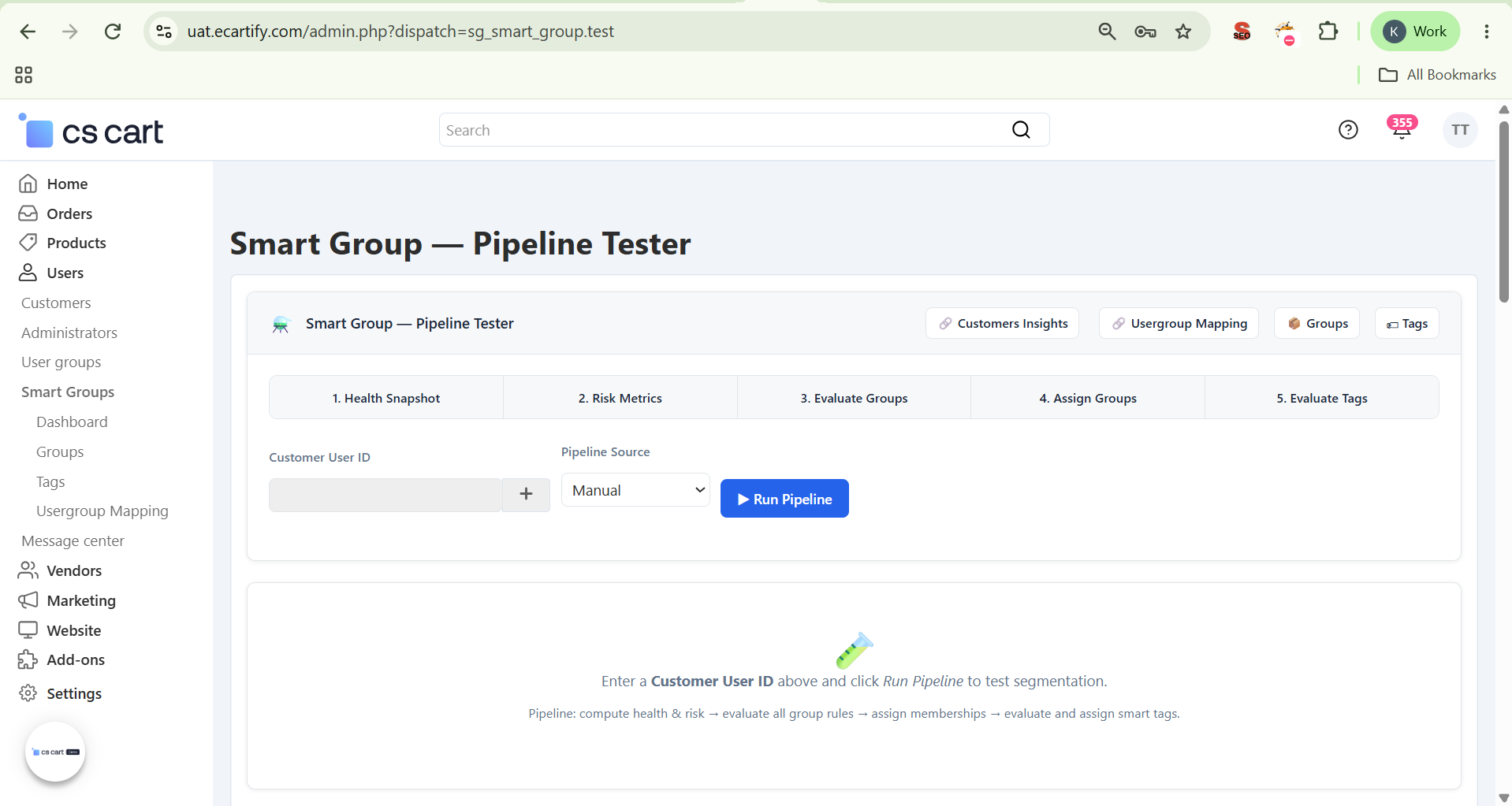
Use the Pipeline Tester to test how Smart Group evaluates a customer, assigns smart groups, and applies smart tags before running the automated cron process. Navigate to Users → Smart Groups → Dashboard:
Select a Customer – Enter a customer User ID and select the Pipeline Source (Manual or scheduled).
Run the Pipeline – Click Run Pipeline to evaluate the selected customer.
Review Pipeline Results – Review the results across the five pipeline stages: 1. Health Snapshot → 2. Risk Metrics → 3. Evaluate Groups → 4. Assign Groups → 5. Evaluate Tags.
Step 7: Create & Manage Smart Groups
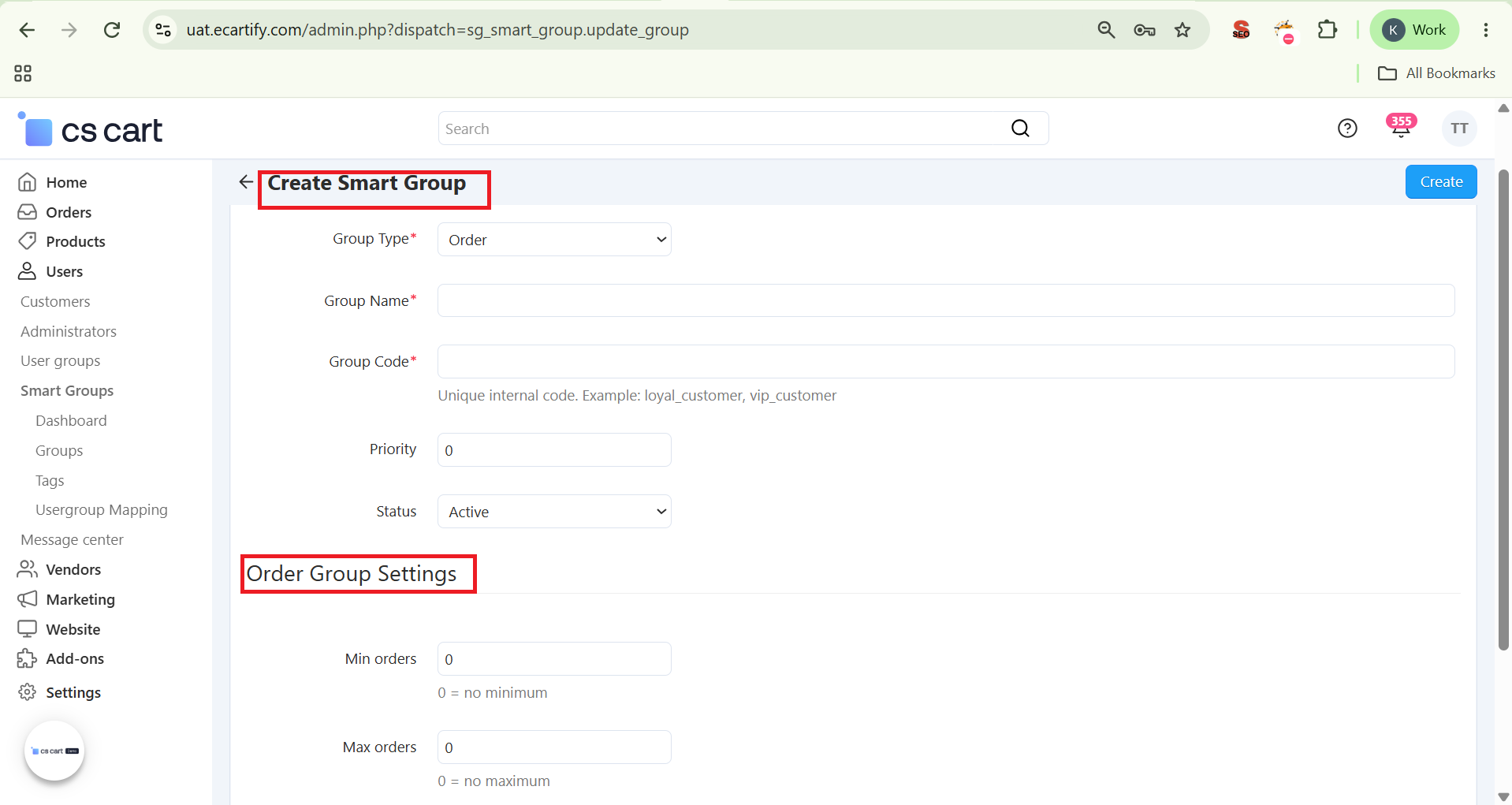
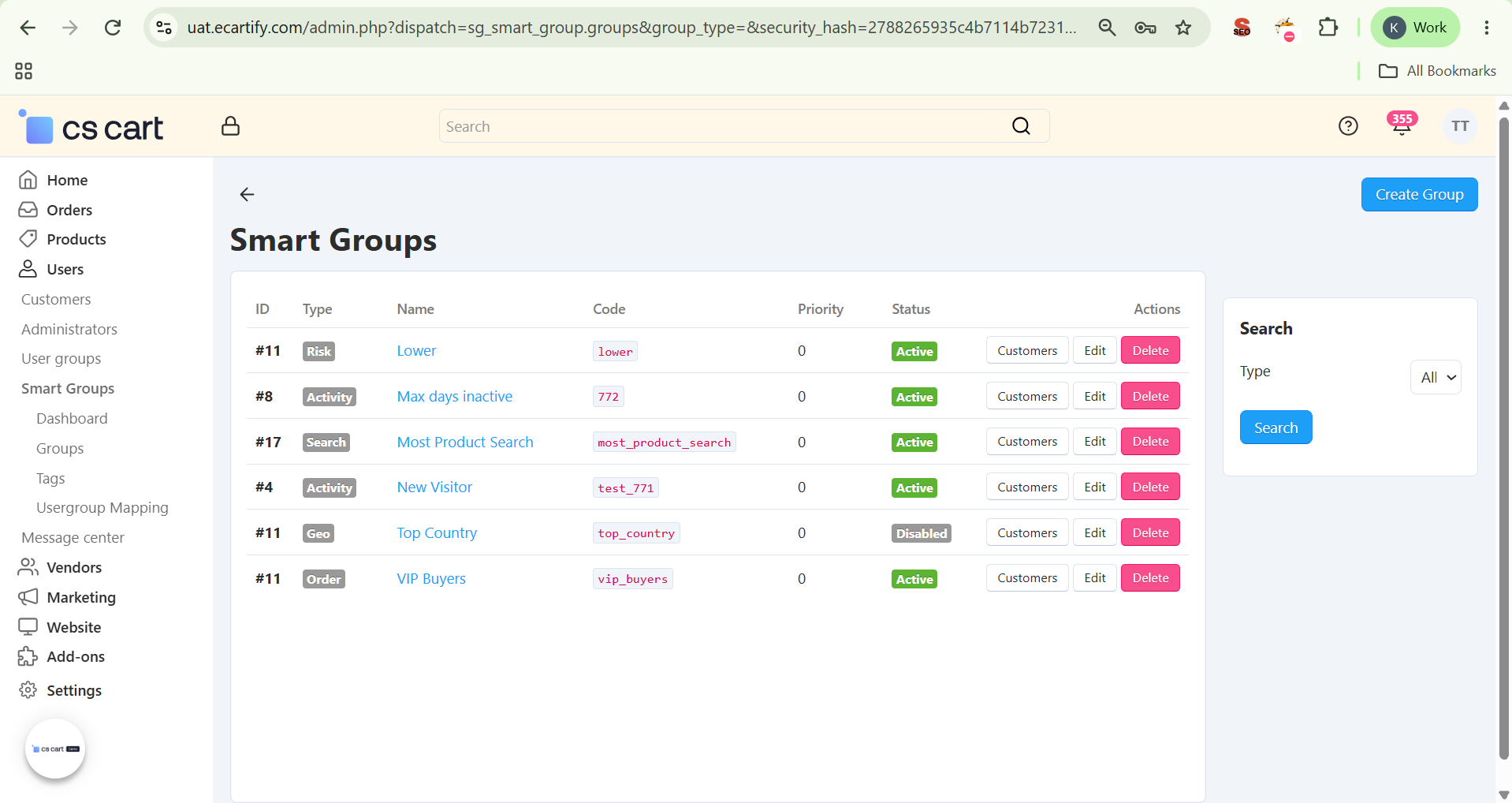
Create a Smart Group by selecting a group type, defining its conditions, and setting its priority. Once saved, the add-on automatically evaluates customers against the configured rules and assigns qualifying customers to the group. Go to Users → Smart Groups → Groups:
Create a Smart Group – Click Create Group and select the group type: Order, Search, Risk, Activity, or Geo.
Enter Group Details – Fill in the Group Type, Group Name, Group Code, Priority, and Status so the group is clearly identified and correctly ordered against other groups when a customer could qualify for more than one.
Configure Group-Specific Conditions – Set the rules for the selected group type — for example, an Order Group lets you configure a Minimum Orders condition. The available conditions change depending on the group type you choose.
Save and Verify the Group – Save the group to see it appear in the Smart Groups list, then use Customers to view every customer currently assigned to it, Edit to adjust its rules and status, or Delete to remove it.
Step 8: Create Smart Tags With Auto-Assign Rules
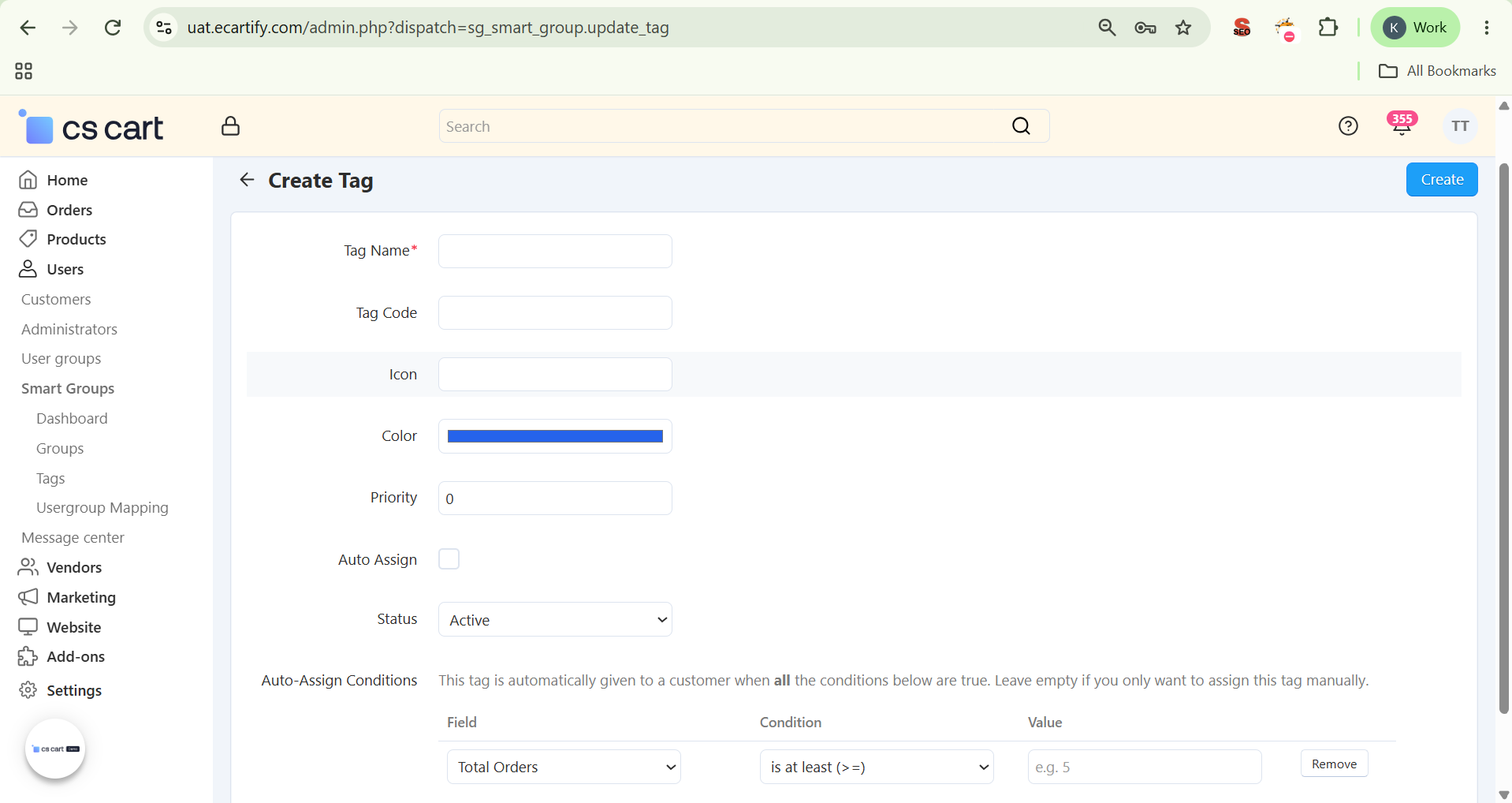
Go to Users → Smart Groups → Tags to create customer tags and automatically assign them based on customer behavior and activity.
Create & Configure Smart Tags – Create a tag by defining its Name, Code, Icon, Color, Priority, Auto Assign, and Status. Enable Auto Assign when you want the system to automatically apply the tag when the customer meets the configured conditions.
Set Auto-Assign Conditions – Choose a Field → Condition → Value to define the rule. For example, Total Orders → is at least (≥) → 5 automatically assigns the tag when a customer has 5 or more orders. You can create rules using metrics such as Total Orders, Total Spent, Average Order Value, Total Visits, Total Searches, Health Score, Refunds, Disputes, and Risk Score.
Use Multiple Conditions – Click + Add Condition to create more specific customer segments. All configured conditions must be satisfied for the tag to be automatically assigned. Example — VIP Customer: Total Orders ≥ 5, Total Spent ≥ ₹10,000, Auto Assign → Enabled.
Priority-Based Tags – Set a priority to control the evaluation order when a customer matches multiple tag rules.
Automate Customer Actions – Use tags to trigger relevant marketing actions, such as emails, coupons, or webhooks, when customers qualify for a tag.
Step 9: Map Smart Groups to CS-Cart Usergroups
Go to Users → Smart Groups → Usergroup Mapping to connect your internal segments to native CS-Cart pricing and permission rules:
Select Smart Group Type & Group: Choose the Smart Group Type first, then pick the specific Smart Group you want to map to a native CS-Cart Usergroup.
Sync On Assign / Remove: Independently choose whether the usergroup should sync when a customer is assigned to the Smart Group, removed from it, or both.
View & Manage Existing Mappings: The Existing Mappings table shows every active mapping with its type, Smart Group ID, target CS-Cart usergroup, sync behavior, and a one-click Delete action.
Before
Customer belongs to the normal / default Usergroup
→
Condition Matches
Customer meets the Smart Group's rules
→
Mapping Applied
Sync On Assign runs for the mapped Usergroup
→
After
Customer belongs to the mapped CS-Cart Usergroup
Step 10: Explore Customer Insights
Open Customer Insights from the Pipeline Tester header to review customer-level segmentation, activity, spending, risk, groups, and tags in a single sortable table.
Review Customer Metrics – Compare customers using Health (customer health score), Orders (total orders), Spent (total spending), Days Since Order (days since their last order), and Risk (customer risk score).
Review Groups & Tags – The Groups and Tags columns show a customer's current Smart Group memberships and assigned Smart Tags without opening their profile.
Sort & Identify Customer Segments – Use sorting to quickly spot high-spending customers, frequent buyers, inactive customers, and customers with higher risk scores.
Open Customer Details – Click a customer's name to open their individual Customer Dashboard for detailed information and AI recommendations.
Example: a customer with high spending, multiple orders, and a low number of days since their last order can be identified as an active, high-value customer. A customer with many days since their last order can be reviewed for a possible re-engagement campaign.
Step 11: Get AI-Powered Customer Recommendations
Open the Customer Dashboard for an individual customer from Users → Smart Groups → Dashboard, or access it through Customer Insights, to review the customer's complete profile and generate an AI-powered recommendation.
Review Customer Health & Risk Snapshot – View key metrics: Health Score, Total Orders, Total Spent, Days Since Order, Total Visits, Days Since Visit, Risk Score, Refunds, Disputes, Chargebacks, and Location.
Review Group Memberships & Recent Searches – See the customer's current Smart Group memberships (with source and assigned date) plus their Recent Searches log: search query, result count, and timestamp.
Get an AI Take – Click Get AI Take to generate a plain-English recommendation based on the customer's health, risk, group memberships, recent searches, and purchase activity — use it to identify targeted promotions, re-engagement campaigns, or follow-up offers.
What AI Analyzes
Health, Risk, Group Memberships, Recent Searches, Purchase Activity
→
What AI Generates
A plain-English recommendation for that customer
→
How Admin Uses It
Targeted promotions, re-engagement campaigns, follow-up offers
Real-World Benefits & Results
Understand Your Customers
Target the Right Customers: Quickly identify loyal, engaged, and at-risk customers and take the right action for each.
Clearer Behavioral Insight: Understand customer behavior and engagement patterns more clearly.
Better Data-Driven Decisions: Make smarter, faster decisions using real customer data instead of guesswork.
Automate Customer Engagement
Behavior-Based Targeting: Automatically target customers based on their behavior.
Marketing on Autopilot: Trigger emails, coupons, or webhooks the moment a customer qualifies.
Less Repetitive Work: Reduce repetitive manual segmentation so your team can focus on strategy.
Take Action Faster
AI-Powered Recommendations: Get AI-powered recommendations for individual customers.
More Relevant Offers: Use customer insights to create offers that actually match what a customer wants.
Focus Where It Matters: Focus your efforts on customers who need attention instead of scanning your entire customer base.
Save Time & Reduce Manual Work
Always Up to Date: Keep customer groups and tags updated automatically, without lifting a finger.
Less Manual Tracking: Reduce the need for manual customer tracking.
One Place to Manage It All: Manage customer segmentation from one place.
Turn customer data into clear actions with Smart Group. Identify loyal, active, and at-risk customers, automate customer segmentation and engagement, and use AI-powered insights to make smarter decisions.
Target Smarter Identify loyal, active, and at-risk customers and target them with relevant offers.
Act Automatically Automatically trigger emails, coupons, or webhooks when customers meet specific conditions.
Save Time Automate customer segmentation, scoring, tagging, and updates to reduce manual work.
Increase Conversions Use customer behavior and insights to create more personalized marketing campaigns.
AI-Powered Insights Get actionable AI recommendations to understand customers and decide what to do next.
Safe & Reliable Use configurable data retention, automated cleanup, and reversible sample data without affecting existing store data.
Turn your product images into stunning AI Powered Product Video Generatorautomatically — powered by Sora Or Kling AI and ChatGPT.
Get Started
Ecartify: AI Powered Product Video Generator – Generate Professional Product Videos Automatically Using Sora, Kling AI & ChatGPT
Stop losing customers to stores with better visual content. The AI Powered Product Video Generator addon transforms your static product images into engaging, high-quality AI-generated videos — fully automatically. The addon now supports two industry-leading video engines: OpenAI Sora, our new recommended provider for the most realistic, cinematic results, and Kling AI, a fast and flexible alternative. Combined with OpenAI ChatGPT for intelligent prompt writing, this addon creates professional product videos in seconds. Whether you need bulk video generation across your entire catalog or individual videos per product, AI Powered Product Video Generator handles everything from prompt creation to video delivery — right inside your CS-Cart admin panel.
Key Features of AI Powered Product Video Generator
NEW: OpenAI Sora Integration: Choose Sora as your video engine for the most realistic, cinematic product videos. Sora is now the recommended provider for stores that want the highest quality output.
Choose Your AI Engine: Switch between Sora and Kling AI at any time from a single Video Provider dropdown — no need to reconfigure your whole store, just pick the engine that fits each campaign.
Kling AI Powered Generation: Still fully supported — Kling AI's industry-leading image-to-video technology produces smooth, cinematic product videos from a single product image.
ChatGPT Prompt Writing: Optionally connect your OpenAI API key and let GPT-4o automatically write detailed, creative video prompts tailored to each product — used for both Sora and Kling generations.
Bulk Video Generator: Select multiple products at once, generate prompts in batch, review them, then fire off all video generations in a single click, using whichever provider is active.
Per-Product AI Powered Product Video Generator Tab: Generate or regenerate a video for any individual product directly from its product edit page — with full control over the prompt and provider.
Sora Video Resolution Control: Choose the output resolution for Sora-generated videos, up to a maximum of 1920x1080, so quality matches your store's needs.
Multiple Kling Models & Modes: When using Kling AI, choose between Kling v2 Master and other available models, plus Standard or Pro generation mode.
Flexible Video Duration: Set video length independently for each provider — Sora and Kling both support multiple duration options to match your use case.
CFG Scale Setting: Control how closely the video follows the prompt (0.0–1.0). Default 0.5 provides a balanced, natural result.
Transparent Cost Tracking: Every generated video — whether from Sora or Kling — shows estimated cost and usage, so you always know what you're spending.
Step-by-Step Setup Guide
Step 1: Install the Addon
Get AI Powered Product Video Generator running on your CS-Cart store in just a few minutes:
Download the package from the Ecartify website or CS-Cart marketplace
Go to Add-ons → Manage Add-ons in your CS-Cart admin panel
Click the + button and upload the "Ecartify: AI Powered Product Video Generator" package
Click Install and then set the Status to ON
Once activated, go to Add-ons → AI Powered Product Video Generator and click the Settings tab to configure your video engine and API connections.
Step 2: Choose Your Video Provider & Connect ChatGPT
Inside the Settings tab, open the General sub-tab. This is where you pick which AI engine generates your videos and connect ChatGPT for automatic prompt writing:
Video Provider:
Choose which AI engine generates your product videos. Select Sora (Recommended) for the most realistic, cinematic results, or choose Kling AI if you prefer that engine. You can switch providers at any time.
OpenAI API Key:
Optional but highly recommended. Enter your OpenAI API key. ChatGPT will use it to automatically generate product video prompts for whichever provider you've selected. Don't have one? Create an OpenAI API key and paste it into this field.
ChatGPT Model:
Select the OpenAI model used to write your video prompts. GPT-4o (Recommended) gives the best results — it understands product context and writes cinematic, visually descriptive prompts.
Poll Timeout (seconds):
Maximum time the addon will wait for the selected provider to finish generating a video before giving up. Default is 600 seconds (10 minutes). For longer videos or heavy server load, you may want to increase this value.
CFG Scale:
Controls how strongly the prompt guides the generation (range: 0.0–1.0). A value of 0.5 is a balanced default that produces natural results.
Step 3: Configure Sora (If Selected as Provider)
If you chose Sora as your Video Provider in Step 2, switch to the Sora configurations sub-tab to fine-tune output quality:
Sora Video Resolution:
Set the output resolution for Sora-generated videos. Options go up to 1920x1080, the maximum resolution Sora 2 supports — ideal for hero products and high-quality storefront displays.
Sora Video Duration:
Choose the length of the generated video in seconds when using the Sora provider. Longer durations give more room for cinematic motion but may use more of your OpenAI usage quota.
Step 4: Configure Kling AI (If Selected as Provider)
If you chose Kling AI as your Video Provider instead, switch to the Kling configurations sub-tab. You'll need a free account at kling.ai/dev to get your API credentials:
Kling Access Key:
Your Kling AI Access Key from the developer dashboard at https://kling.ai/dev. Sign up for a free account to get started — Kling offers pay-as-you-go credits with no monthly commitment.
Kling Secret Key:
Your Kling AI Secret Key. Keep this private — it is used to sign API requests securely. Never share this key publicly or commit it to source control.
Kling Model:
Select the Kling AI model for video generation. Kling v2 Master is recommended for the highest quality output. Other models are available for faster or cheaper generation.
Generation Mode:
Choose Standard for faster, more affordable videos or Pro for premium cinematic quality. Standard works great for most catalog products; use Pro for hero or featured products.
Kling Video Duration:
Set the length of generated videos in seconds when using the Kling provider — typically 5 or 10 seconds. Longer videos consume more Kling credits.
Step 5: Generate Videos in Bulk
The Bulk AI Powered Product Video Generator tool is the fastest way to create videos for your entire catalog, using whichever provider you configured. Navigate to Products → Bulk AI Powered Product Video Generator in the left sidebar:
Select Products: Use the search bar or advanced filter to find and select the products you want to generate videos for. The counter shows how many products are selected.
Generate Prompts: Click Generate Prompts — if OpenAI is configured, ChatGPT will automatically write a unique video prompt for each selected product. This takes a few seconds per product.
Review & Edit Prompts: Move to the Review Prompts step to check every prompt before generation. You can manually edit any prompt or click Regenerate to get a fresh version from ChatGPT.
Create All Videos: Click Create All Videos to send all products to your selected provider — Sora or Kling AI — simultaneously. Track progress in real-time with the Ready / Done / Failed counter at the bottom.
Step 6: Generate a Video for a Single Product
Need to create or update a video for just one product? Every product edit page now has a dedicated AI Powered Product Video Generator tab:
Open the AI Powered Product Video Generator Tab: Go to Products → Products, open any product, and click the AI Powered Product Video Generator tab in the product edit navigation bar.
Write or Auto-Generate a Prompt: Leave the prompt field blank to auto-generate using ChatGPT (if configured), or type your own custom prompt. Click Generate Prompt to have ChatGPT fill it in for you.
View Previous Videos: All previously generated videos for that product are listed below with provider used, model, duration, API status, file size, creation date, estimated cost (USD), and credits used.
Set Active Video: Use the Status dropdown to mark any generated video as Active — the active video will be displayed on the product page in your storefront, regardless of which provider generated it.
Step 7: See Your Videos Live on the Storefront
Once a video is generated and marked as Active, it appears automatically on your product page — no theme changes needed, no matter which provider created it:
Video in the Image Gallery:
Generated videos appear alongside product images in the main product gallery. Customers see a play button thumbnail and can click to watch the video without leaving the product page — keeping them engaged and informed.
Multiple Videos Per Product:
You can generate multiple videos per product over time — even mixing Sora and Kling generations — and switch between them. Run new generations when you update product images, launch seasonal campaigns, or want to test different video styles.
Recent Videos Dashboard:
The Bulk AI Powered Product Video Generator page shows a Recent Videos table with all generated videos across your store — including product name, provider, model used, duration, status, file size, creation date, and an Open Video button to preview any video instantly.
How Sora Brings Your Products to Life
Sora is OpenAI's advanced video generation model, and it's now the recommended engine inside AI Powered Product Video Generator for stores that want the most realistic, cinematic results.
Realistic, Cinematic Output:
Sora is recommended for its realistic motion, lighting, and depth — producing product videos that feel like they were shot by a professional videographer rather than generated by AI.
High-Resolution Support:
Sora supports resolutions up to 1920x1080, so you can generate crisp, high-definition videos for hero products, featured campaigns, and premium listings.
Flexible Duration Options:
Choose the video length that fits your use case — shorter clips for quick product previews, longer durations for more detailed showcases.
How Kling AI Brings Your Products to Life
Kling AI remains fully supported as an alternative video engine. It doesn't just pan or zoom — it creates genuine motion, depth, and cinematic movement from a single still image.
Image-to-Video Technology:
Kling AI analyzes your product image and the written prompt, then generates a smooth video sequence where the product appears to move, shift, or be showcased in a dynamic environment — far beyond simple GIF animations.
Kling v2 Master Quality:
The v2 Master model produces high fidelity output with natural motion, accurate lighting, and realistic depth. A great fit for fashion, electronics, home decor, and lifestyle products.
Transparent Credit Pricing:
Kling operates on a pay-per-use credit system. A typical 5-second video uses approximately 10 credits (~$0.14 USD). Visit kling.ai/dev/pricing for the full pricing breakdown.
How ChatGPT Writes Perfect Video Prompts
A great video starts with a great prompt. AI Powered Product Video Generator uses GPT-4o to write detailed, cinematic prompts that give your selected engine — Sora or Kling AI — exactly the right instructions to showcase each product beautifully.
Product-Aware Prompts:
ChatGPT reads your product's name, description, and category context to write a prompt that makes sense for that specific item. A camera lens gets a different prompt than a dress or a kitchen appliance — each tailored to highlight the product's key appeal.
Cinematic Language:
GPT-4o writes prompts using professional videography vocabulary — camera movements, lighting conditions, scene transitions, and mood descriptions — giving both Sora and Kling AI the richest possible instruction set.
Fully Editable:
Every auto-generated prompt is fully editable before you fire off the generation. Review it in the prompt field, adjust the tone or focus, or click Regenerate to get a completely fresh version. You stay in full creative control.
Real-World Benefits & Results
Increase Product Page Conversion
Video Drives Purchase Intent: Shoppers who watch a product video are significantly more likely to add to cart — video communicates fit, texture, scale, and quality that static images simply cannot.
Stand Out From Competitors: Most small and mid-size CS-Cart stores don't have product videos. Adding AI-generated video — especially with Sora's realistic quality — instantly elevates your store's perceived quality and professionalism.
Reduce Returns: When customers understand exactly what they're buying through video, they make better purchase decisions — leading to fewer surprises and lower return rates.
Save Time & Cut Production Costs
No Videographer Needed: Traditional product video shoots cost hundreds to thousands of dollars per product. AI Powered Product Video Generator generates a professional-looking video for a fraction of the cost, whether you choose Sora or Kling AI.
Bulk Generation at Scale: Generate videos for your entire catalog in a single session. Select products, review prompts, click Create — the addon handles everything else while you focus on your business.
Automatic Prompt Writing: With ChatGPT integration, you don't even need to write prompts. The AI handles creative direction automatically, turning hours of work into seconds.
Choose the Right Engine for Every Campaign
Sora for Premium Quality: Use Sora when realism and cinematic polish matter most — hero products, featured listings, and high-resolution campaigns up to 1920x1080.
Kling AI for Speed & Flexibility: Use Kling AI's Standard mode when you need fast, affordable videos across a large catalog.
Switch Anytime: Change your Video Provider whenever you like — there's no lock-in, so you can test both engines and see which performs best for your store.
Full Control, Zero Complexity
Works With Your Existing Images: No new photography required. The addon uses your product's existing main image to generate videos — your current catalog is ready to go right now.
Track Costs Transparently: Every generated video shows the estimated USD cost and credits used — no hidden fees, no billing surprises. You know exactly what each video costs before you scale up.
No Video Editing Skills Required: The entire pipeline from prompt to published video is handled inside your CS-Cart admin panel. No external tools, no file uploads, no editing software needed.
Transform Your Product Pages With AI-Generated Video — Starting Today
Your customers are buying from stores with better visual content. AI Powered Product Video Generator now gives you two industry-leading engines — Sora and Kling AI — to compete, without a studio, a videographer, or a big budget.
Pro Tip: Start by running Bulk AI Powered Product Video Generator on your top 20 best-selling products with Sora (Recommended) selected as your provider for the highest quality results. Enable GPT-4o for auto-prompt generation — it saves time and consistently produces better prompts than manual writing. If you need faster, lower-cost videos at higher volume, switch the Video Provider to Kling AI with Standard mode. Once you see the conversion uplift on those hero products, roll out video generation across your full catalog.
Sync your vendor products, Zoho accounts as customers, and orders between CS-Cart and Zoho CRM, Zoho Inventory — directly from your vendor panel.
Ecartify: Zoho Connector Vendor – For CS-Cart Vendors
The Ecartify Zoho Connector Vendor is a CS-Cart Multi-Vendor add-on that gives individual vendors their own dedicated Zoho integration — directly from the vendor panel. Each vendor can connect their own Zoho CRM and Zoho Inventory account, sync their own products, import Zoho Accounts (including parent and sub-accounts) as CS-Cart customers, and keep orders in sync as Zoho Sales Orders. Configure your own API credentials, OAuth connection, order status mapping, and default category/tax — all independently, without needing store admin access. Your Zoho data, your vendor panel, your control.
Key Features
Vendor-Level Zoho Integration: Each vendor manages their own independent Zoho OAuth connection with their own Client ID, Client Secret, and Zoho Region — no shared credentials, full isolation.
Product Sync (Vendor Catalog): Push your vendor products to Zoho Inventory and import Zoho products back into your CS-Cart vendor catalog — with pricing, SKU, stock, and descriptions kept in sync.
Zoho Accounts as Customers: Import Zoho CRM Accounts directly as CS-Cart customers. Parent accounts are imported first; sub-accounts are visible but shown as read-only for reference.
Order Sync (Vendor Orders): Export your vendor orders to Zoho as Sales Orders. Order statuses map automatically between CS-Cart and Zoho based on your configured mapping.
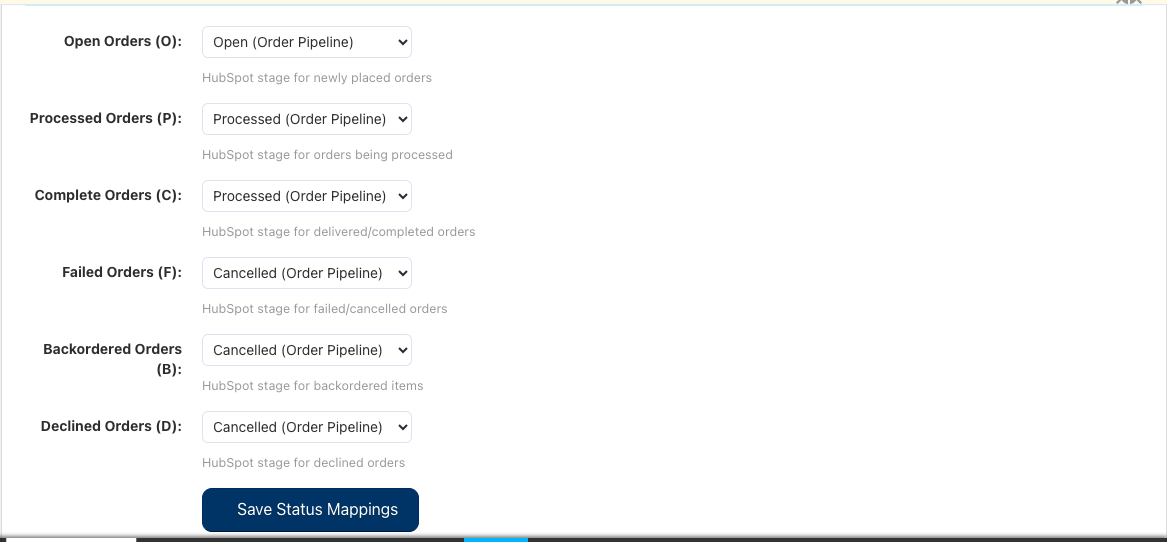
Order Status Mapping: Map CS-Cart order statuses (Open, Processed, Shipped, Cancelled) to Zoho Sales Order stages from within your own vendor settings tab.
Default Entity Mapping: Set a default CS-Cart category and default tax for products imported from Zoho into your vendor catalog — keeping your listings organized automatically.
OAuth 2.0 per Vendor: Each vendor authenticates independently via industry-standard OAuth 2.0. A unique Redirect URI is generated per vendor for use in the Zoho API Console Self-Client setup.
Connection Status Dashboard: See your live connection status (Connected / Disconnected), Zoho Org ID, token expiry, and use Test Connection, Refresh Token, Reconnect, and Disconnect controls at any time.
Setup & Configuration Guide
Step 1: Enable the Add-on & Access Your Vendor Settings
Once the store admin has installed the Ecartify Zoho Connector Vendor add-on, you can access it from your vendor panel:
Log in to your CS-Cart Vendor Panel
Go to Vendors → Your Company → Edit or click Edit Profile
You will see a new tab called "Zoho Connector Vendor" alongside General, Add-ons, Description, Logos, etc.
Click the Zoho Connector Vendor tab to access all your Zoho settings, credentials, and connection controls
The sidebar in your vendor panel also shows quick-access links: Zoho Products, Zoho Customers, and Zoho Orders under the Marketing section.
Step 2: Create a Zoho Self-Client App & Enter Your Credentials
You need your own Zoho API Self-Client to generate a Client ID and Client Secret for your Zoho account:
Go to Zoho API Console: Visit api-console.zoho.in (or .com / .eu based on your Zoho region) and log in with your Zoho account
Create Self-Client: Choose "Self Client" and select the required scopes for ZohoCRM and ZohoInventory
Copy Credentials: Copy your Client ID and Client Secret from the newly created app
Open Zoho Connector Vendor Tab: In your vendor panel, open the Zoho Connector Vendor tab and paste the Client ID and Client Secret into the Zoho API Credentials section
Select Zoho Region: Choose your Zoho data centre region from the dropdown (e.g., zoho.in for India, zoho.com for US, zoho.eu for Europe)
Add Redirect URI: Copy the Redirect URI shown at the bottom of the page and add it to your Zoho API Console → Self Client → OAuth settings
Click Save (top-right) to store your credentials securely. Credentials are stored per-vendor and never shared with other vendors.
Step 3: Configure Order Status & Default Mappings
In the same Zoho Connector Vendor tab, configure how your CS-Cart order statuses map to Zoho Sales Order stages and set your product import defaults:
Open → Zoho Stage: Map the CS-Cart "Open" status to the corresponding Zoho SO stage (e.g., Open)
Processed → Zoho Stage: Map "Processed" to "Paid" — reflecting a payment-confirmed order in Zoho
Shipped → Zoho Stage: Map "Shipped" to "Complete" — indicating the order has been fulfilled
Cancelled → Zoho Stage: Map "Cancelled" to "Canceled" in Zoho to keep pipeline statuses consistent
Default Category ID: Set a default CS-Cart category for all products imported from your Zoho Inventory (e.g., "Cell Phones")
Default Tax ID: Set the default tax to apply to Zoho-imported products (e.g., "No Tax")
Click Save in the top-right to apply all mappings. These settings apply only to your vendor account.
Step 4: Authorize the OAuth Connection
Complete the OAuth 2.0 handshake to connect your vendor account to Zoho:
1. Scroll to Connection Status: At the bottom of the Zoho Connector Vendor tab, find the Connection Status section
2. Copy the Redirect URI: Copy the Redirect URI shown in the blue info box and add it to your Zoho API Console Self-Client's OAuth redirect settings if you haven't already
3. Click Reconnect: Hit the Reconnect button to initiate the OAuth authorization flow — you will be redirected to Zoho to approve access
4. Grant Permissions: Review and approve the requested scopes in the Zoho authorization screen
5. Connected: You are redirected back and the API Status shows "Connected" (green badge) along with your Zoho Org ID
6. Token Management: Use Test Connection to verify, Refresh Token to extend access, or Disconnect to revoke at any time
Step 5: Sync Your Vendor Products to Zoho
Push your vendor product catalog into Zoho Inventory from the Zoho Products dashboard in your vendor panel:
Go to Zoho Products: From your vendor panel sidebar, click Zoho Products
View Stats: See your CS-Cart Products total, how many are Synced to Zoho, how many are Not Synced, and total Zoho Products
Sync Unsynced: Click "Sync Unsynced" to push all unsynced vendor products to Zoho Inventory in a single action
Per-Product Sync: Use the individual "Sync" button on any row to sync a single product to Zoho
View Zoho Details: Click a synced product to see its Zoho Product Details — CS-Cart Product ID, Zoho Item ID, SKU, pricing, tax flag, and stock info
Update & Stock Sync: From the detail page use "Update from CS-Cart" to push latest data or "Sync Stock" to update inventory levels only
Step 6: Import Zoho Products into Your Vendor Catalog
Browse all your Zoho Inventory products and import the ones that are not yet in your CS-Cart vendor catalog:
Not in CS-Cart: Click the "Not in CS-Cart" stat tile to filter and view only Zoho products not yet in your catalog — with Name, SKU, Rate, Type, Stock, and status shown
Import Individual: Click "Import" on any row to bring that Zoho product into your CS-Cart vendor catalog with all details — name, description, SKU, rate, and stock
Import Selected: Tick multiple products and click "Import Selected" to bulk-import them in one action
Already Imported: Click the "Already Imported" tile to view all Zoho products that already exist in your CS-Cart catalog — with direct links to their product pages
Step 7: View Zoho Accounts as Customers (Parent & Sub-Accounts)
The Zoho Customers section lets you browse and import Zoho CRM Accounts as CS-Cart customers. Accounts follow a parent–child hierarchy:
Go to Zoho Customers: From your vendor panel sidebar, click Zoho Customers
Parent Accounts: Top-level Zoho Accounts (those with no Parent Account) are shown with full details — Account Name, Email, Phone, Contacts count, and an Import button
Sub-Accounts (Read-Only): Accounts that belong to a parent are displayed in the list for reference but are shown as read-only — they cannot be imported independently and do not have an Import button
Import Parent First: When you import a parent account, it is created as a CS-Cart customer. Any sub-accounts linked to it are visible in the interface but their import is handled through the parent relationship
CS-Cart Status: Each account row shows "Not in CS-Cart" (with Import available) or "In CS-Cart" with a direct link to the customer record
No Email Handling: If a Zoho account has no email address, a placeholder is auto-generated so the import does not fail — flagged with a "No email" badge for review
Sub-accounts are intentionally shown as read-only to maintain data integrity. Import the parent account first; sub-accounts are visible for your reference and relationship context.
Step 8: Sync Your Vendor Orders to Zoho
Push your CS-Cart vendor orders to Zoho as Sales Orders and keep them in sync:
Go to Zoho Orders: From your vendor panel sidebar, click Zoho Orders
Dashboard Stats: See your Total Orders, Synced with Zoho, and Not Synced counts clearly displayed
Sync All: Click "Sync All" to push all your vendor orders to Zoho as Sales Orders in one action
Bulk Sync Selected: Tick specific orders and click "Bulk Sync Selected" to sync only those
Per-Order Actions: Use the Actions dropdown on each row to sync an individual order to Zoho
Status Mapping Applied: Order statuses in Zoho automatically reflect the status mappings you configured in Step 3
What Gets Synchronized?
A full overview of data flowing between your CS-Cart vendor catalog and Zoho:
Your Products ↔ Zoho Inventory
Product names, descriptions, and short descriptions
SKU, Sales Rate (price), and Rate (list price)
Active / Inactive status synced in both directions
Stock quantity, inventory type, and item type (goods / service)
Tax information — Taxable flag synced from Zoho
Zoho CRM Accounts → CS-Cart Customers
Account name, email address, phone, and mobile
Company name and address details
Parent Accounts imported as top-level CS-Cart customers
Sub-Accounts shown as read-only in the interface — visible for reference, not independently importable
Placeholder email auto-generated for accounts missing an email address
Your Orders ↔ Zoho Sales Orders
Order ID, date, customer name, and email
Order total, line items, products, and quantities
Order status mapped to Zoho SO stage (Open, Paid, Complete, Canceled) via your configured mapping
Per-Vendor OAuth Connection
Each vendor has their own Client ID, Client Secret, and Zoho Region
Unique Redirect URI generated per vendor for Zoho API Console setup
Connection status, Org ID, and token controls visible per vendor at all times
How This Helps Your Vendor Business
Manage Your Zoho Integration Independently
No Admin Dependency: Connect your own Zoho account directly from your vendor panel — no need to involve the store admin for your integration
Vendor-Isolated Data: Your Zoho credentials, sync status, and imported data are completely separate from other vendors on the same CS-Cart store
Unified Inventory & CRM for Vendors
Zoho Inventory: Keep your product catalog and stock levels in sync between CS-Cart and Zoho Inventory — preventing overselling and stockouts
Zoho CRM Accounts: Import your Zoho CRM parent accounts as CS-Cart customers, with sub-accounts visible for relationship context
Flexibility & Full Control
Import or Export: Push your CS-Cart vendor products and orders to Zoho, or pull Zoho products into your catalog
Selective Sync: Sync all records at once or pick specific products, customers, or orders to sync individually
Custom Defaults: Auto-assign a default category and tax to all products imported from Zoho — keeping your catalog organized from day one
Order Status Mapping: Define your own status mapping between CS-Cart and Zoho SO stages for accurate pipeline tracking
Your Data is Secure
OAuth 2.0 Authentication: Industry-standard secure token-based connection — credentials are never stored in plain text
Token Controls: See your connection status and Org ID in real time — refresh the token or disconnect with a single click
Region Support: Select your Zoho data centre domain (.in, .com, .eu, etc.) for compliance with data residency requirements
Full Disconnect Control: Disconnect from Zoho at any time — your CS-Cart data remains completely intact
Common Questions
Is this for store admins or vendors?
This is a vendor-level add-on. It gives each individual vendor their own Zoho integration from within the vendor panel. The store admin is not involved in the vendor's sync operations.
Can each vendor have their own Zoho account?
Yes. Every vendor enters their own Client ID, Client Secret, and selects their own Zoho Region. Each vendor's OAuth connection is completely independent — one vendor's Zoho account has no relation to another's.
Why are sub-accounts shown as read-only?
Sub-accounts (Zoho Accounts that belong to a parent) are displayed for reference and relationship context. They are shown as read-only and cannot be imported independently — the parent account must be imported first to maintain the account hierarchy.
Can I import products from Zoho into my vendor catalog?
Yes. The Zoho Products dashboard shows a "Not in CS-Cart" count. Click it to view all your Zoho Inventory products not yet in your catalog and import them individually or in bulk — with all product details brought across automatically.
What if a Zoho account has no email address?
A placeholder email is auto-generated so the import does not fail. The Zoho Customers browser clearly flags these records with a "No email" badge so you can review and update them after import.
Can I disconnect from Zoho at any time?
Yes. Click Disconnect in the Connection Status section to revoke your OAuth token instantly. All your existing CS-Cart vendor data remains completely intact. You can reconnect at any time using the Reconnect button.
Do I have to sync everything at once?
No. Products, Customers, and Orders are completely independent. You can sync only products, or only import Zoho accounts as customers, without touching orders. It is fully flexible based on your business needs.
Where do I find the Redirect URI for Zoho setup?
The Redirect URI is shown in a blue info box at the bottom of the Zoho Connector Vendor tab in your vendor panel. Copy it and add it to your Zoho API Console → Self Client → OAuth settings before authorizing.
The Ecartify Zoho Connector Vendor is the dedicated Zoho integration built specifically for CS-Cart Multi-Vendor sellers. From your own vendor panel, you get full control over syncing your products, importing Zoho CRM accounts as customers, and keeping your orders flowing into Zoho as Sales Orders — all with your own secure OAuth connection.
What you gain as a vendor:
✓ Independent Zoho OAuth connection per vendor
✓ Product sync between your CS-Cart catalog & Zoho Inventory
✓ Zoho CRM Accounts imported as CS-Cart customers
✓ Parent accounts imported; sub-accounts shown read-only
✓ Order sync with configurable status mapping
✓ Default category & tax mapping for imported products
✓ Test Connection, Refresh Token & Disconnect controls
✓ Works with Zoho CRM & Zoho Inventory Start syncing your vendor store with Zoho today!
Zoho Connector for CS-Cart with Seamless Two-Way Integration
Sync products, customers, and orders between CS-Cart and Zoho CRM, Zoho Inventory — automatically and in real-time with cron support.
Ecartify: Zoho Connector – For CS-Cart Store Admins
The Ecartify Zoho Connector is a powerful CS-Cart admin add-on that bridges your online store with Zoho's suite of business applications — including Zoho CRM, Zoho Inventory. As a store admin, you get full two-way sync for products, customers, and orders: push your CS-Cart data into Zoho, or import Zoho records directly into CS-Cart. With built-in real-time cron automation, your data stays perpetually up-to-date without any manual effort. Configure order status mappings, customer field mappings, category and vendor defaults — and leverage the full power of Zoho from a single, clean CS-Cart admin interface.
Key Features
Two-Way Product Sync: Push CS-Cart products to Zoho Inventory and import Zoho products back into CS-Cart — with pricing, SKU, stock, and descriptions kept in sync.
Two-Way Customer Sync: Sync CS-Cart customers to Zoho CRM as Contacts/Accounts. Import Zoho CRM accounts and contacts into CS-Cart with flexible field mapping.
Two-Way Order Sync: Export CS-Cart orders to Zoho as Sales Orders and import Zoho orders into CS-Cart. Order statuses map automatically between both platforms.
Real-Time Cron Automation: Set up three cron jobs to auto-sync new customers, products, and orders from Zoho into CS-Cart every hour — completely hands-free.
Customer Field Mapping: Map all 108 standard Zoho contact fields to CS-Cart user/profile columns. Capture every custom field you store in Zoho — no data left behind.
Order Status Mapping: Define how CS-Cart order statuses map to Zoho Sales Order statuses — keeping your pipeline consistent across both platforms.
Category & Vendor Mapping: Set default CS-Cart categories and vendor assignments for products imported from Zoho, keeping your catalog organized automatically.
Secure OAuth 2.0 Authentication: Connect to Zoho using industry-standard token-based OAuth 2.0. Token expiry, refresh, and disconnect controls are always visible in the admin panel.
Setup & Configuration Guide
Step 1: Install & Activate the Add-on
Install the Ecartify Zoho Connector and enable it from the CS-Cart admin panel:
Go to Add-ons → Downloaded Add-ons in your CS-Cart admin
Find "Ecartify: Zoho Connector" and set Status to ON
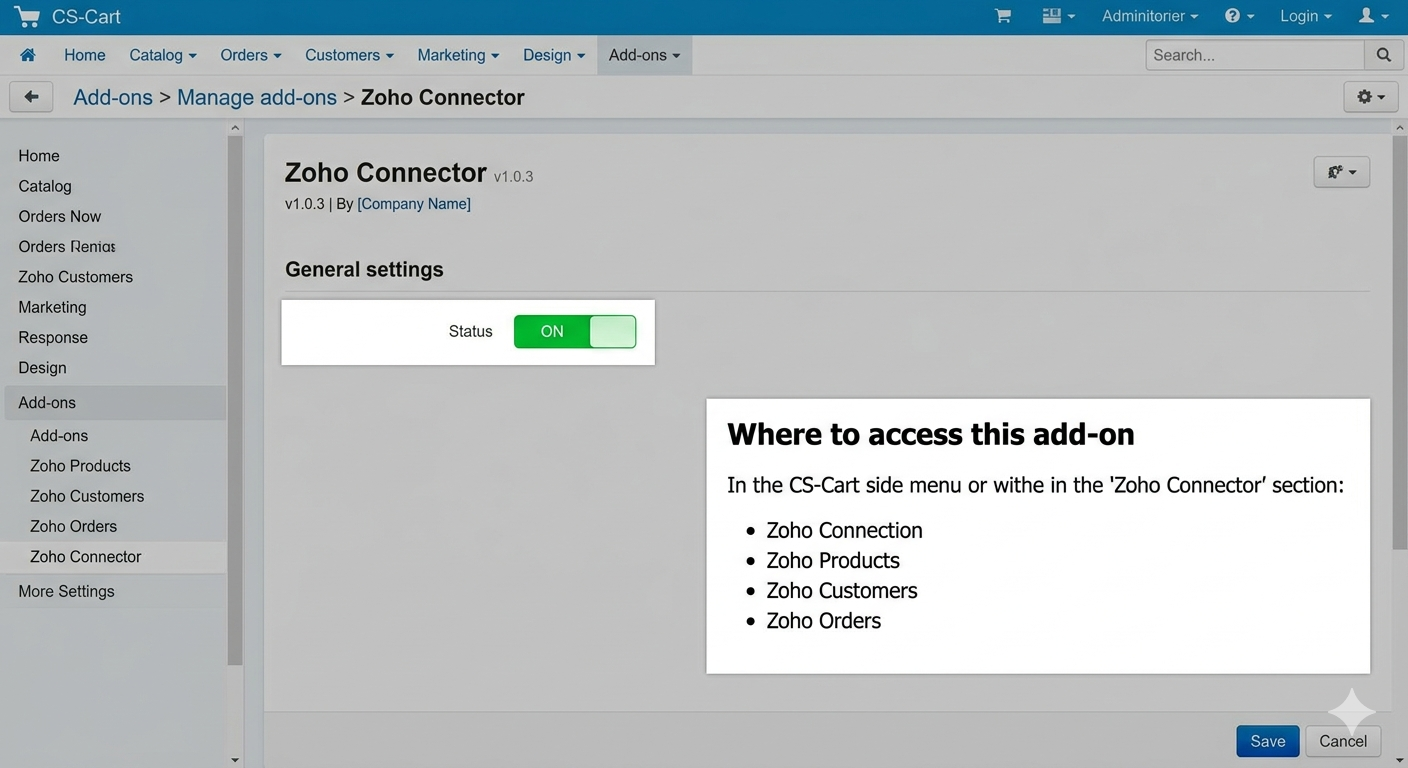
The sidebar will show Zoho Connector with sub-menus: Zoho Connection, Zoho Products, Zoho Customers, Zoho Orders
Navigate to Website → Zoho Connector to access all sync sections
Zoho Connector add-on page in CS-Cart admin showing Status ON, with menu items for Zoho Connection, Zoho Products, Zoho Customers, and Zoho Orders listed under "Where to access this add-on".
This is an admin-only add-on — it gives the store administrator full control over all Zoho sync operations.
Step 2: Create a Zoho Self-Client App & Enter Credentials
You need a Zoho API Self-Client to generate your Client ID and Client Secret. Here's how:
Go to Zoho API Console: Visit api-console.zoho.in (or .com based on your region) and log in to your Zoho account
Create Self-Client: Choose "Self Client" and select the required scopes for ZohoCRM, ZohoInventory
Copy Credentials: Copy the Client ID and Client Secret from your newly created app
Open Add-on Settings: In CS-Cart go to Add-ons → Zoho Connector → Settings tab and paste both values
Select Domain: Choose your Zoho data center domain (.in, .com, .eu, etc.)
Save: Click Save — your credentials are stored securely in CS-Cart
Step 3: Configure Order Status & Default Mappings
In the Settings tab, configure how CS-Cart statuses map to Zoho Sales Order statuses and set product defaults:
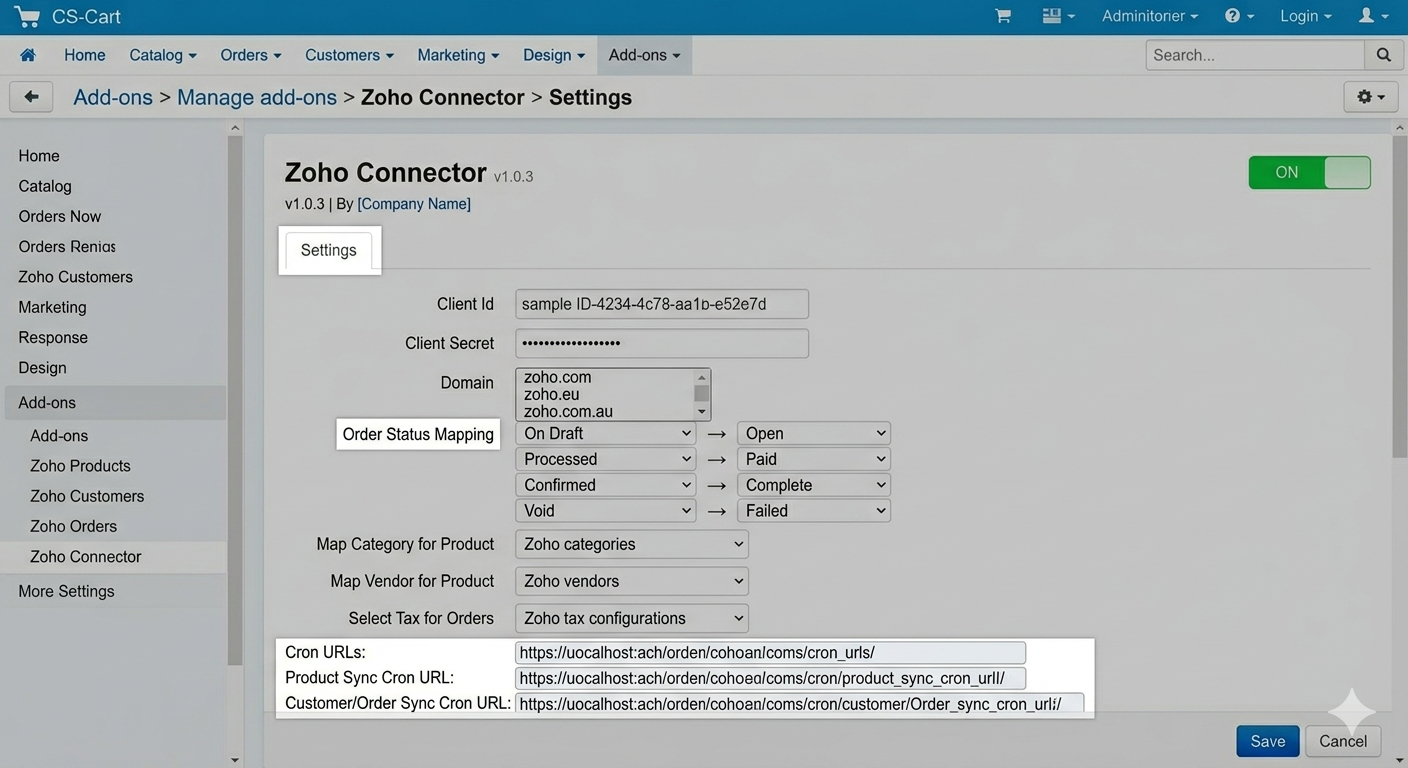
On Draft: Set which CS-Cart status keeps a Zoho SO as Draft (e.g., Open)
Processed: SO status becomes Confirmed — map to CS-Cart "Paid"
Confirmed: The SO becomes fully confirmed — map to "Complete"
Void: SO has been voided — map to "Failed"
Map Category for Product: Set a default CS-Cart category for all products imported from Zoho (e.g., "Beauty & Health")
Map Vendor for Product: Set a default vendor for Zoho-imported products (e.g., "ACME Corp")
Select Tax for Orders: Choose how tax is applied to Zoho-imported orders
Zoho Connector Settings tab in CS-Cart showing Client Id field, Client Secret field, Domain dropdown, order status dropdowns (On Draft → Open, Processed → Paid, Confirmed → Complete, Void → Failed), Map Category for Product dropdown, Map Vendor for Product dropdown, Select Tax for Orders dropdown, and three cron URL boxes at the bottom.
Click Save in the top-right to apply all mappings.
Step 4: Authorize the OAuth Connection
Complete the secure OAuth 2.0 handshake to connect CS-Cart with your Zoho account:
1. Open Zoho Connection: Go to Website → Zoho Connector → Zoho Connection in the CS-Cart admin sidebar
2. Copy the Auth URL: The page generates an Auth URL — copy it and open it in the same browser where you are logged into Zoho
3. Grant Permissions: Review and approve the requested scopes in the Zoho authorization screen
4. Connected: You will be redirected back and see "✓ Connected to Zoho Inventory" with the token expiry time and creation date displayed
5. Token Management: Use Refresh Token to extend access, or Disconnect to revoke the connection at any time
Step 5: Sync Your CS-Cart Products to Zoho
Push your CS-Cart product catalog into Zoho Inventory from the Products dashboard:
Go to Zoho Products: Navigate to Website → Zoho Connector → Zoho Products
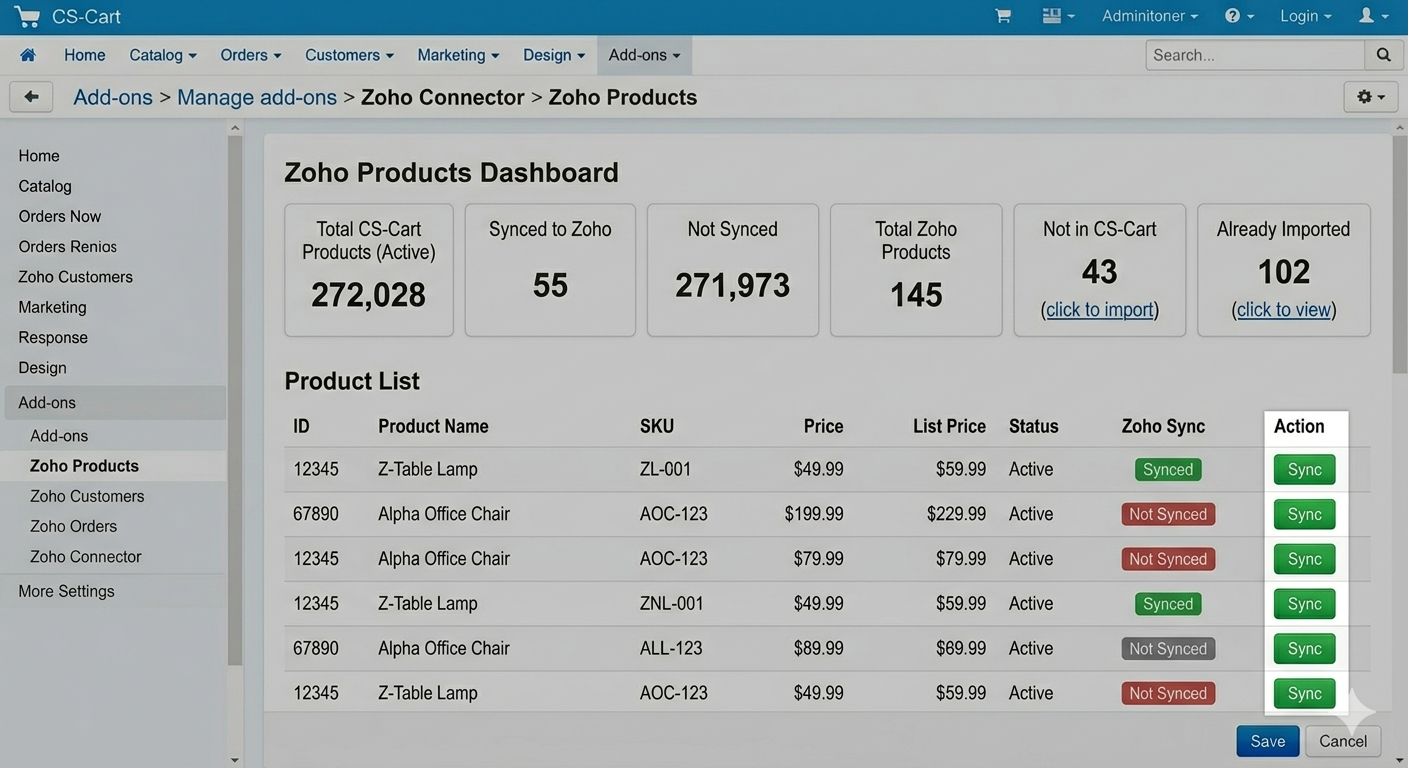
View Stats: The dashboard shows CS-Cart Products total, Synced to Zoho, Not Synced, Zoho Products total, Not in CS-Cart, and Already Imported counts
Sync Unsynced: Click "Sync Unsynced" to push all not-yet-synced products to Zoho in one action
Per-Product Sync: Use the individual "Sync" button on any row to sync a single product
View Zoho Details: Click on a synced product to see its full Zoho Product Details — CS-Cart Product ID, Zoho Item ID, name, SKU, pricing (Sales Rate Rate), tax flag, and inventory info
Update & Stock Sync: From the detail page use "Update from CS-Cart" to push latest data or "Sync Stock" to update inventory levels only
Zoho Products dashboard showing stats: 272,028 CS-Cart Products (total active), 55 Synced to Zoho, 271,973 Not Synced, 145 Zoho Products (total in Zoho), 43 Not in CS-Cart (click to import), 102 Already Imported (click to view). Product list below with ID, Product Name, SKU, Price, List Price, Status, Zoho Sync badge (Synced / Not Synced), and Sync button per row.
Step 6: Import Zoho Products into CS-Cart
Browse all Zoho Inventory products and import the ones that are not yet in your CS-Cart catalog:
Not in CS-Cart (43): Click the "Not in CS-Cart" stat tile to filter and view only Zoho products that don't exist in CS-Cart yet — with Name, SKU, Rate, Type, Stock, and Zoho/CS-Cart Status shown
Import Individual: Click "Import" on any row to bring that Zoho product into CS-Cart with all its details — name, description, SKU, rate, and stock
Import Selected: Tick multiple products and click "Import Selected" to bulk-import them in one action
Already Imported (102): Click the "Already Imported" tile to view all Zoho products that already exist in CS-Cart — with direct links to their CS-Cart product pages
Step 7: Sync Your CS-Cart Customers to Zoho & Configure Field Mapping
Sync your CS-Cart customers to Zoho CRM and control exactly which fields get mapped:
Go to Zoho Customers: Navigate to Website → Zoho Connector → Zoho Customers
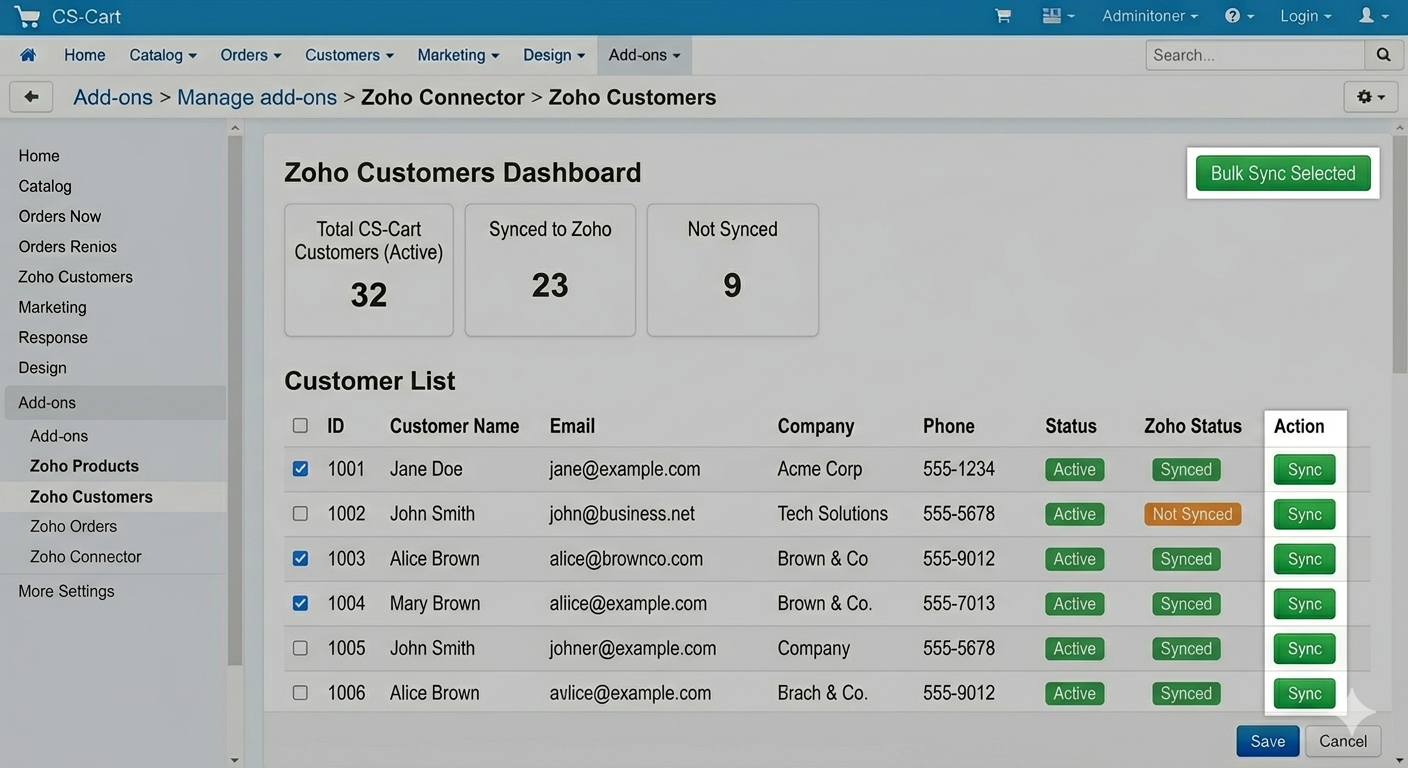
View Sync Status: See all customers with their sync status — Synced (green) or Not Synced (orange) badges at a glance
Bulk Sync Selected: Tick multiple customers and click "Bulk Sync Selected" to push them to Zoho CRM as Contacts/Accounts
Field Mapping: Click "Zoho Customers Filed" to open the Field Mapping page — map all 108 standard Zoho contact fields (contact_name, company_name, email, phone, mobile, website, and more) to CS-Cart user/profile columns
Skip Fields: Set any field to "— Do not map —" to ignore it during import entirely
Zoho Customers Sync page showing 32 Total Customers, 23 Synced with Zoho, 9 Not Synced. Customer list with ID, Customer Name, Email, Company, Phone, Status (Active badge), and Zoho Status (green Synced / orange Not Synced badges). Bulk Sync Selected button top-right.
After configuring mappings click Save Mappings. The Status column shows which fields are Mapped.
Step 8: Import Zoho CRM Contacts into CS-Cart
Browse all Zoho CRM Accounts & Contacts and import them directly into CS-Cart as customers:
Browse Zoho Contacts: Click "Zoho Customers" button to open the Zoho CRM — Accounts & Contacts browser, showing Account Name, Parent Account, Primary Email, Phone, Contacts count, and CS-Cart Status
CS-Cart Status: Each account shows "Not in CS-Cart" (Import button available) or "In CS-Cart" with a direct link to the CS-Cart user record
Parent Accounts First: If an Account has a Parent Account, the parent is imported automatically before the child — shown clearly in the interface
Import Individual: Click "Import" on any row to bring that Zoho account into CS-Cart as a customer. Contacts linked to the Account become sub-account users in CS-Cart.
Import Selected: Select multiple accounts and click "Import Selected" to bulk-import them all at once
No Email Handling: If a Zoho contact has no email, a placeholder is auto-generated so the import does not fail — flagged with a "No email" badge so you can review and update later
Step 9: Sync Your CS-Cart Orders to Zoho
Push your CS-Cart order history to Zoho as Sales Orders and keep them in sync:
Go to Zoho Orders: Navigate to Website → Zoho Connector → Zoho Orders
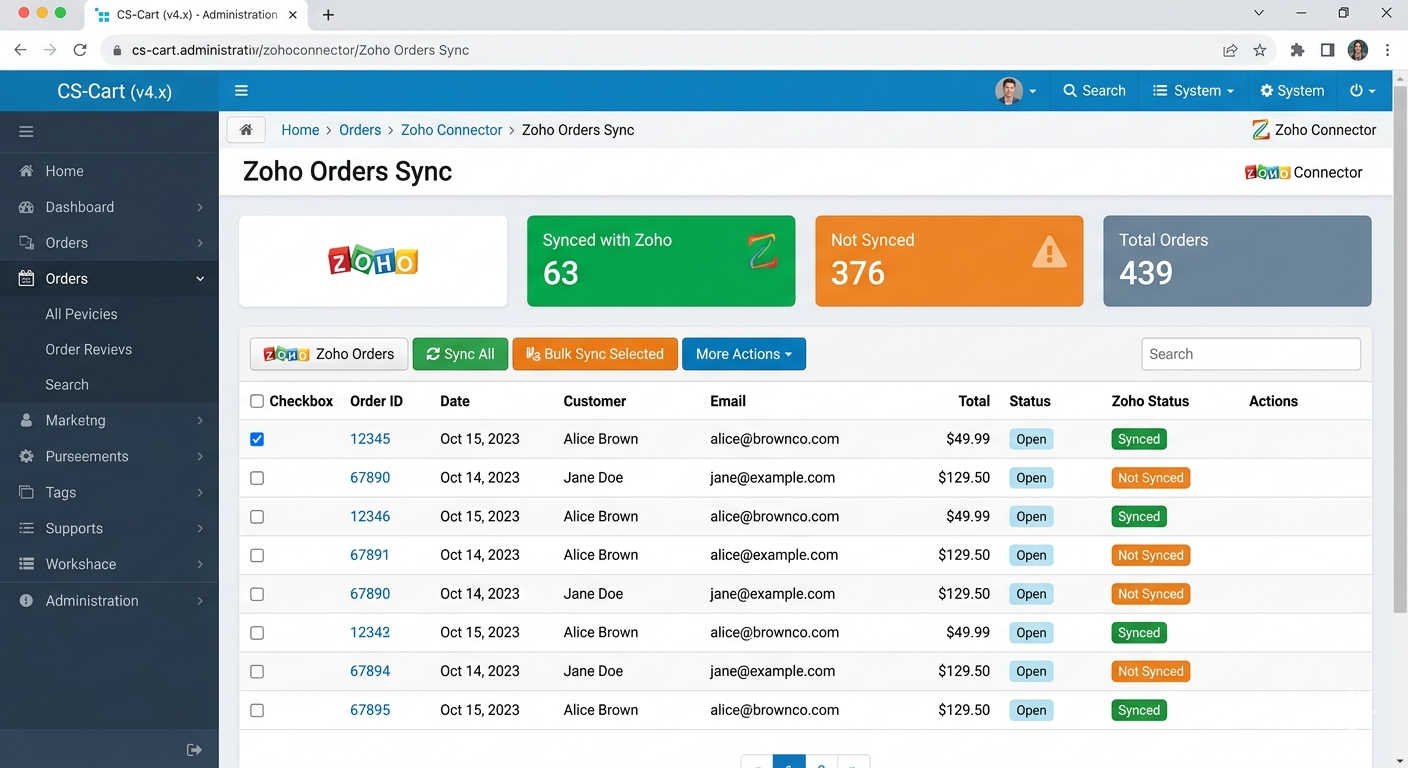
Dashboard Stats: See Total Orders, Synced with Zoho, and Not Synced counts clearly displayed
Sync All: Click "Sync All" to push all CS-Cart orders to Zoho as Sales Orders in one action
Bulk Sync Selected: Tick specific orders and click "Bulk Sync Selected" to sync only those
Per-Order Actions: Use the Actions dropdown on each row to sync an individual order to Zoho
Zoho Orders Sync page showing 439 Total Orders, 63 Synced with Zoho (green tile), 376 Not Synced (orange tile). Order list with Order ID (linked), Date, Customer, Email, Total, Status (Open), and Zoho Status badge (green Synced / orange Not Synced). Zoho Orders, Sync All, Bulk Sync Selected, and More Actions buttons at top.
Order statuses in Zoho automatically reflect the status mappings configured in Step 3.
Step 10: Import Zoho Orders into CS-Cart
Browse Zoho Sales Orders and import them directly into CS-Cart:
Zoho Orders View: Click "Zoho Orders" button on the Orders page to switch to the Zoho Sales Orders browser
CS-Cart Status: Each Zoho order shows whether it has been imported into CS-Cart or not
Import Individual: Click Import on any Zoho order to create it in CS-Cart with all order details, line items, and customer info
Automatic Status Mapping: The Zoho Sales Order status is mapped back to the corresponding CS-Cart order status using your configured mapping from Step 3
Step 11: Set Up Cron Jobs for Real-Time Auto-Sync
Enable fully automated, hands-free sync by adding these three cron URLs to your server. Each runs hourly and automatically imports new records from Zoho into CS-Cart and syncs updates in real-time:
Customers Cron: Run this URL every hour via cron. It automatically imports any new customers created in Zoho into CS-Cart, and syncs existing ones in real-time whenever the cron executes.
Products Cron: Run this URL every hour via cron. It automatically imports any new products created in Zoho into CS-Cart, and syncs stock & pricing in real-time whenever the cron executes.
Replace yourstore.com with your actual domain. Once set, your Zoho and CS-Cart data will stay perfectly synchronized every hour — automatically, with no manual action needed.
What Gets Synchronized?
A full overview of data flowing between CS-Cart and Zoho in both directions:
Your Products ↔ Zoho Inventory
Product names, descriptions, and short descriptions
SKU, Sales Rate (price), and Rate (list price)
Active / Inactive status synced in both directions
Stock quantity, inventory type, and item type (goods / service)
Tax information — Taxable flag synced from Zoho
Your Customers ↔ Zoho CRM Contacts & Accounts
Customer name, email address, phone, and mobile
Company name and address details
All 108 standard Zoho contact fields — fully configurable via Field Mapping page
Parent Account imported first automatically; linked Contacts become sub-account users in CS-Cart
Placeholder email auto-generated for Zoho contacts missing an email address
Your Orders ↔ Zoho Sales Orders
Order ID, date, customer name, and email
Order total, line items, products, and quantities
Order status mapped to Zoho SO status (Draft, Confirmed, Void) via configurable mapping
New Zoho Sales Orders imported into CS-Cart automatically via cron
Real-Time Cron Sync
Three separate cron URLs — one each for customers, products, and orders
Runs every hour — auto-detects new Zoho records and imports them into CS-Cart
Syncs stock, pricing, and customer data on every cron execution
How This Helps Your Business
Eliminate Manual Data Entry
Automated Sync: Products, customers, and orders flow automatically between CS-Cart and Zoho — no copy-pasting, no spreadsheets, no errors
Real-Time Accuracy: Cron-based sync keeps inventory levels, pricing, and order statuses always current in both systems
Focus on Growth: Spend time running your business, not managing data between two platforms manually
Unified Business Operations
Zoho CRM: All your CS-Cart customers become CRM contacts — enabling smarter sales follow-ups, segmentation, and relationship management
Zoho Inventory: Your product catalog and stock levels stay in sync — preventing overselling and stockouts across both platforms
Flexibility & Full Control
Import or Export: Choose the direction — push CS-Cart data into Zoho, pull Zoho data into CS-Cart, or run both simultaneously
Selective Sync: Sync all records at once or pick specific products, customers, or orders to sync individually
Custom Field Mapping: All 108 standard Zoho contact fields can be mapped to any CS-Cart user/profile column
Default Assignments: Auto-assign categories and vendors to imported Zoho products — keeping your catalog organized from day one
Your Data is Secure
OAuth 2.0 Authentication: Industry-standard secure token-based connection — credentials are never stored in plain text
Token Refresh: See token expiry time in the admin panel and refresh with one click whenever needed
Full Control: Disconnect from Zoho at any time — your CS-Cart data remains completely intact
Region Support: Select your Zoho data center domain (.in, .com, .eu, etc.) for compliance with data residency requirements
Common Questions
Is this add-on for store admins or vendors?
This is a CS-Cart admin-level add-on. It gives the store administrator full control over syncing the entire store's products, customers, and orders with Zoho. It is not a vendor-facing tool.
Which Zoho apps does this connector support?
The connector integrates with Zoho CRM (customers & contacts), Zoho Inventory (products & stock) (orders as Sales Orders) — all from a single OAuth connection.
How does real-time sync work with cron?
Set up the three provided cron URLs on your server to run every hour. Each execution automatically detects new or updated records in Zoho and imports/syncs them into CS-Cart — no manual intervention needed after the initial setup.
Can I import products from Zoho that don't exist in CS-Cart?
Yes. The Products dashboard shows a "Not in CS-Cart" count. Click it to view all Zoho products not yet in your catalog and import them individually or in bulk — with all product details brought across automatically.
What if a Zoho contact has no email address?
A placeholder email is auto-generated so the import does not fail. The Zoho Contacts browser clearly flags these records with a "No email" badge so you can review and update them after import.
Can I disconnect from Zoho at any time?
Yes. Click Disconnect on the Zoho Connection page to revoke the OAuth token instantly. The cron sync will stop but all your existing CS-Cart data remains completely intact. You can reconnect anytime.
Do I have to sync everything at once?
No. Each section — Products, Customers, Orders — is completely independent. You can sync products without setting up the order cron, or import customers without touching products. It is fully flexible based on your business needs.
The Ecartify Zoho Connector is the definitive integration between CS-Cart and Zoho's business suite. As a store admin, you get complete two-way data sync across products, customers, and orders — with the reliability of cron-based automation and the flexibility of granular field mapping.
What you gain:
✓ Two-way sync for products, customers & orders
✓ Import Zoho data directly into CS-Cart
✓ Real-time automation via three cron jobs
✓ 108-field customer field mapping
✓ Order status, category & vendor mapping
✓ Secure OAuth 2.0 with token refresh & disconnect
✓ Works with Zoho CRM, Inventory Start syncing your CS-Cart store with Zoho today!
AI Companion helps you automate customer journeys and store operations using a smart Dialogflow-powered chatbot. From user and vendor registrations to real-time order tracking and personalized product recommendations like "Bestsellers" or "Products under $1000," this addon transforms your store into an interactive shopping hub. Reduce support tickets and boost conversions with a bot that truly understands your store's data.
AI Assistant – The Conversational Commerce & Business Automation Engine for CS-Cart
AI Assistant supercharges your CS-Cart store with powerful conversational AI. Automate your entire store journey—from User & Vendor registrations to real-time Order Tracking and Cart management—using Dialogflow’s smart engine.
Go beyond basic chat with action-driven search: instantly show Bestsellers, Latest Products, or custom filters like "Products under $1000" directly in the chat. With a built-in Custom Knowledge Base, your bot learns your business to provide 24/7 expert support. One assistant. Complete automation for modern CS-Cart marketplaces.
Key Features of AI Assistant
Smart Conversational AI Engine:
Powered by Google Dialogflow, providing human-like interaction. Automate complex queries and guide customers through your store with a fully customizable Knowledge Base.
Automated User & Vendor Onboarding: Simplify your marketplace operations with built-in flows for User Registration, Vendor Signups, and seamless Account Login directly within the chat interface.
Real-Time Shopping Actions:
Go beyond simple chat—users can instantly use commands like "Show my cart" or "Track my order" to get live updates without leaving the current page.
Advanced Product Discovery: Boost sales with AI-driven filters. Let customers find exactly what they need with queries like "Bestselling products," "Latest arrivals," or price-specific searches like "Products under 1000 USD."
Works on All CS-Cart Setups: Fully compatible with CS-Cart, Multi-Vendor, and Ultimate editions. Works perfectly with any theme, hosting, or custom modification
Easy Installation: No technical expertise required—connect your Dialogflow Agent ID and get your AI Assistant live in just a few minutes.
Step-by-Step Setup Guide
Step 1: Install the Addon
Installing the AI Assistant Addon is simple:
Login to your CS-Cart admin panel.
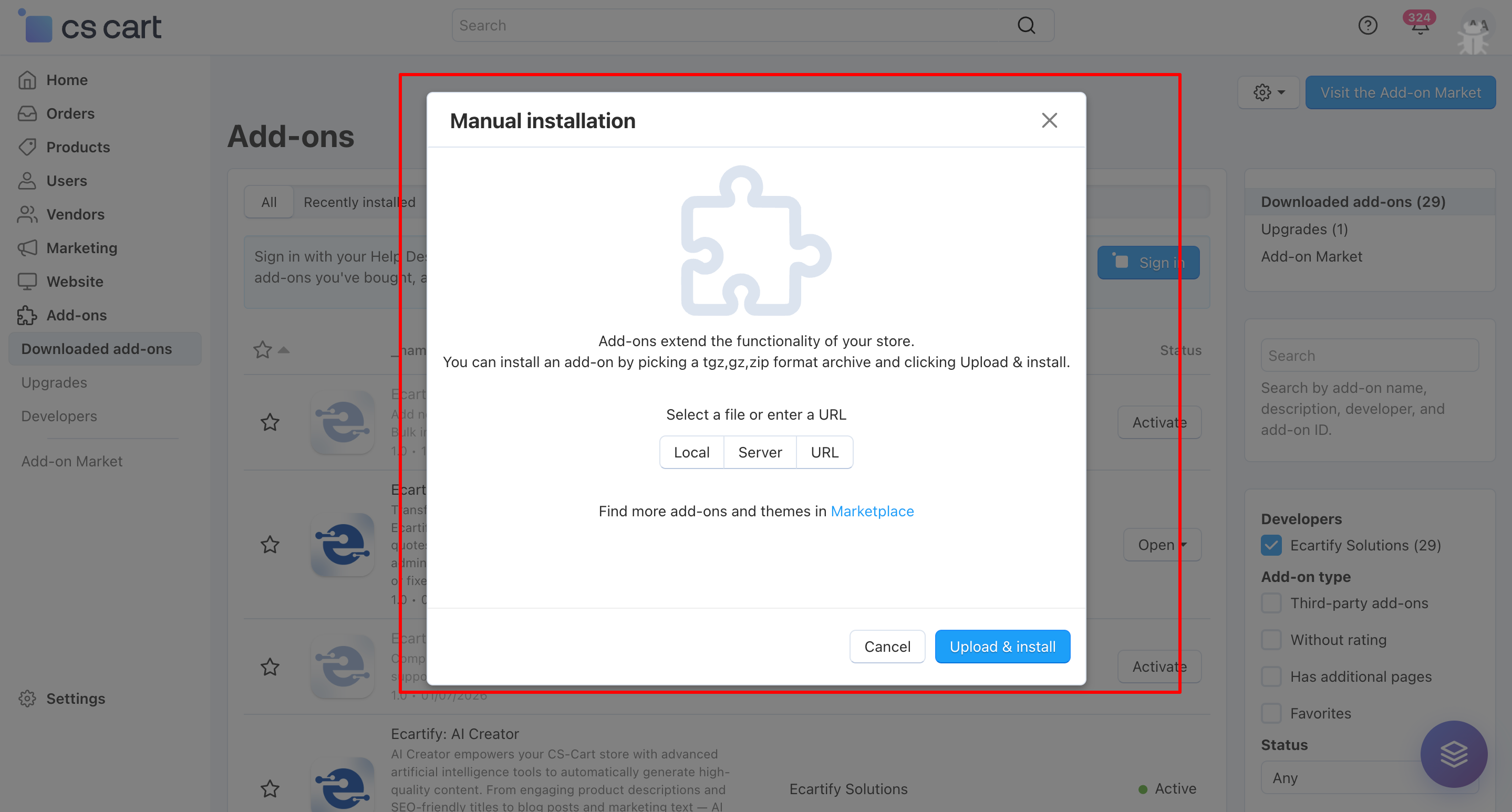
Go To Add-ons → Manage add-ons→ Click on ⚙️ gear icon→ Manual installation
Upload the provided ZIP file of the addon.
Once uploaded, the addon will appear under CS-Cart - Add-ons.
Now click on the AI Assistant add-on and add the required settings.
This process takes only a few minutes and requires no coding knowledge.
Step 2: Configure the Settings
After installing the add-on, you need to connect your store with Google Dialogflow. Follow these simple steps to get your AI Assistant ready:
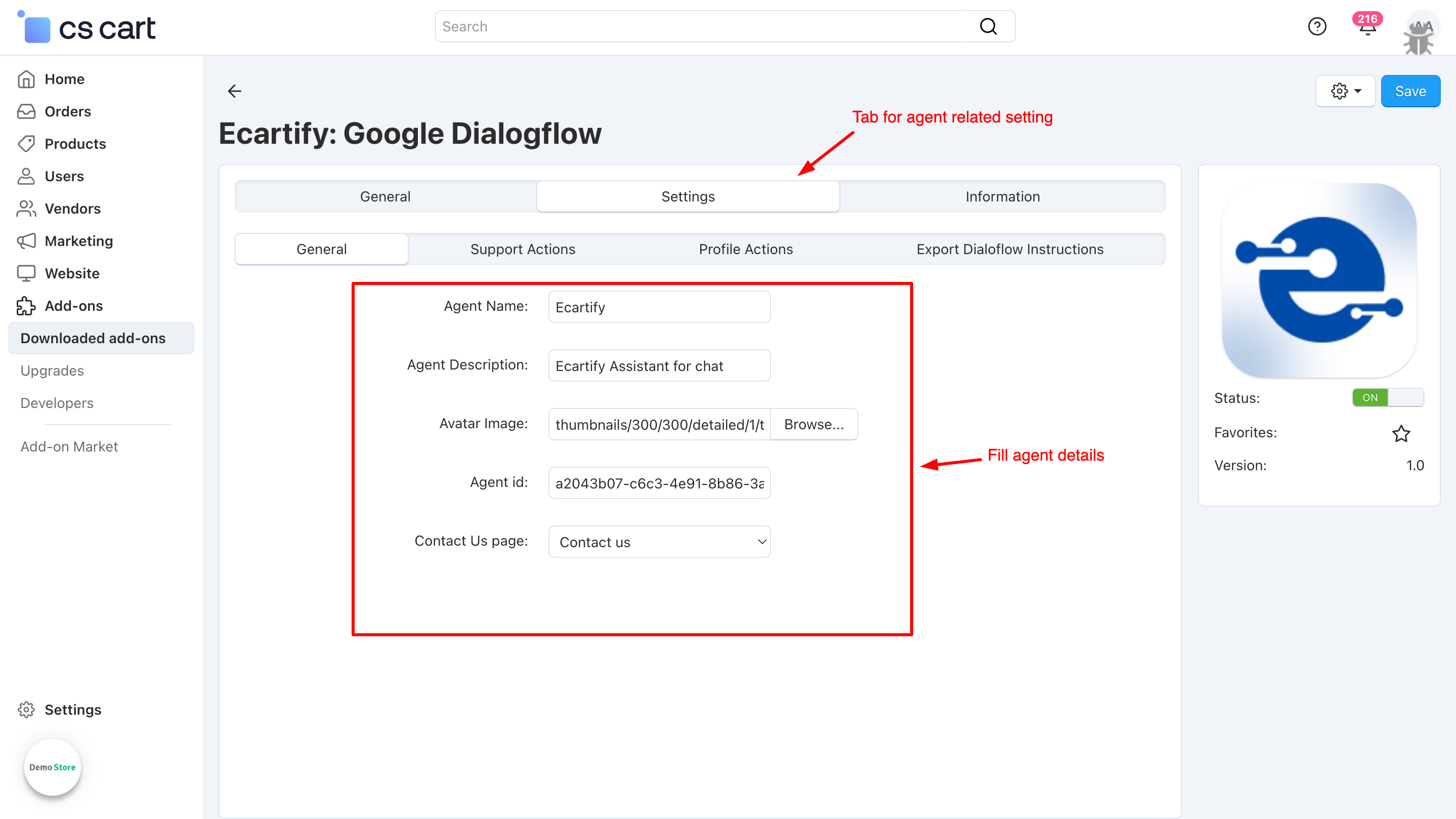
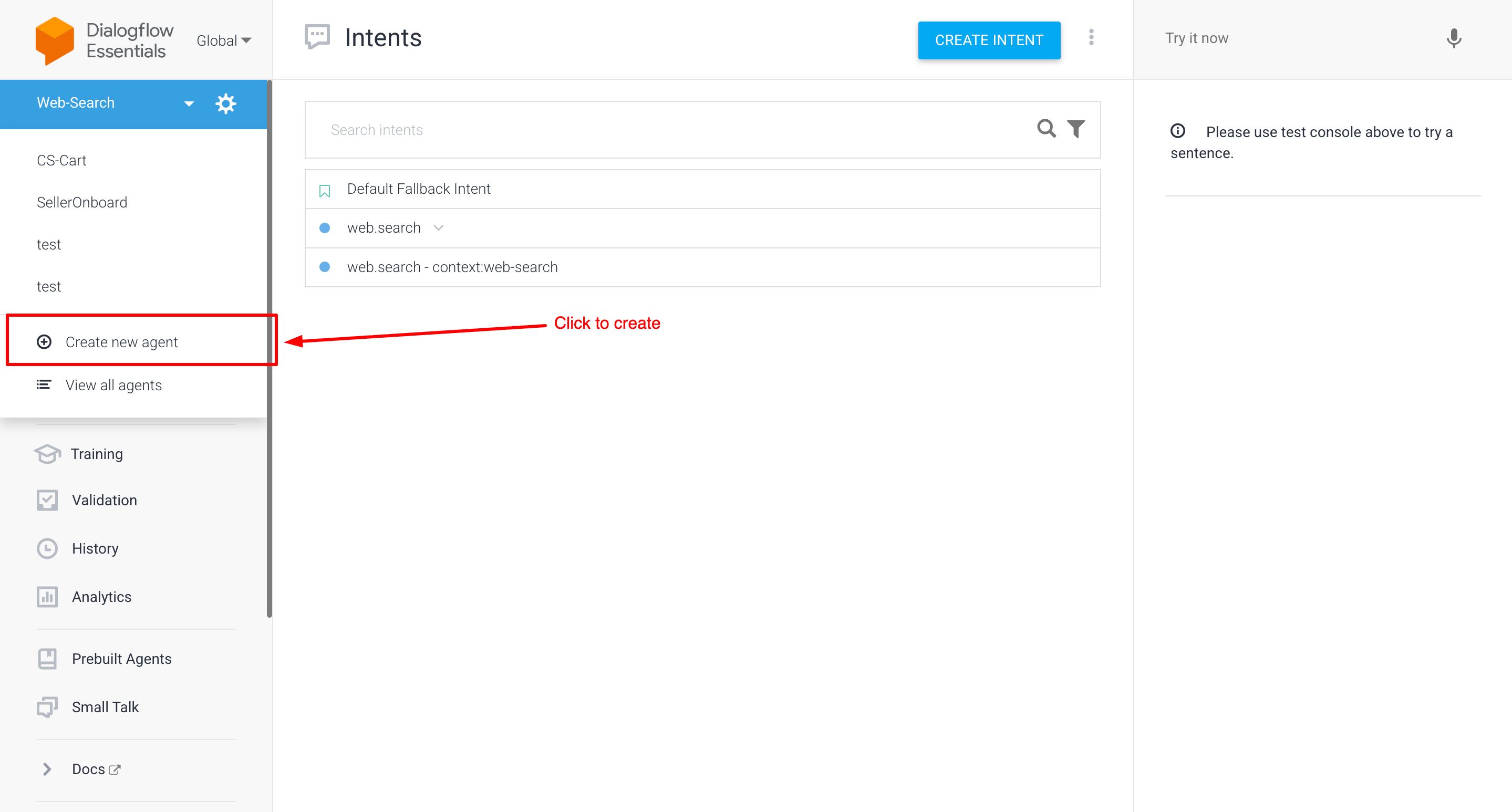
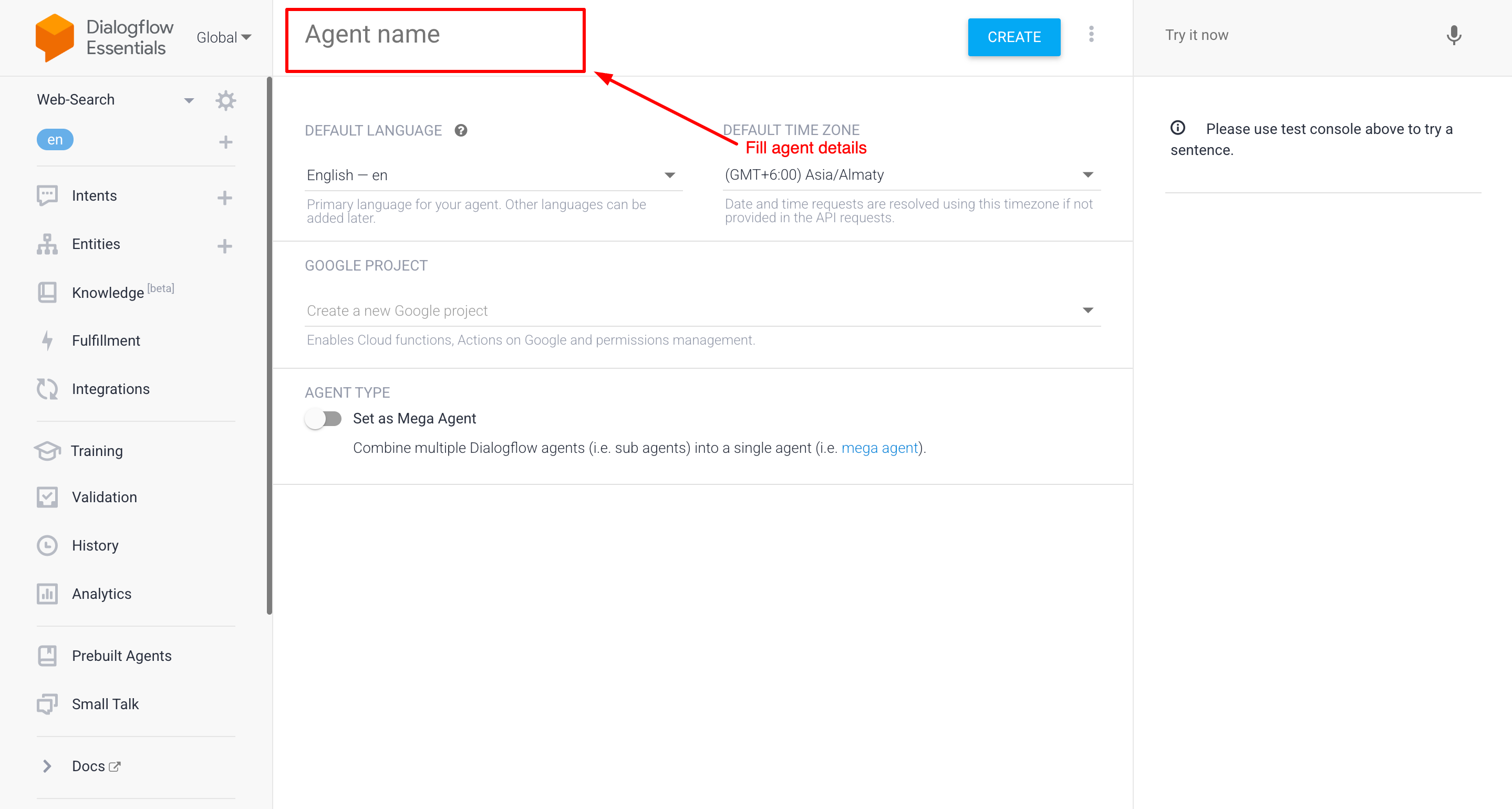
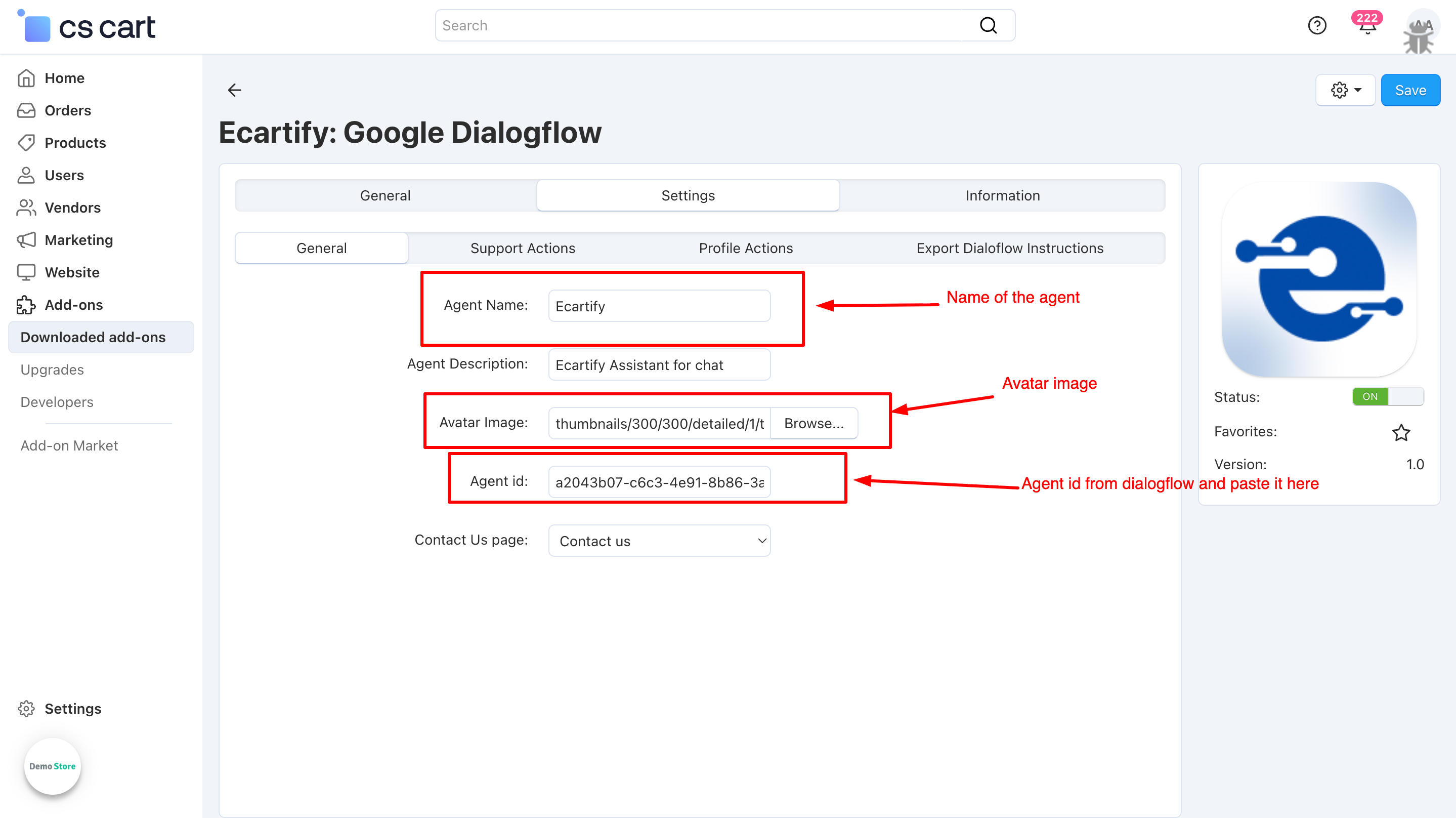
i) Create a Dialogflow Account: Visit the Dialogflow Console and create a new Project/Agent for your store. This will be the "brain" of your assistant.
Click "Create Agent": Locate and click the "Create Agent" button on your dashboard to start the configuration.
Configure Settings: Fill the basic details related to the agent.
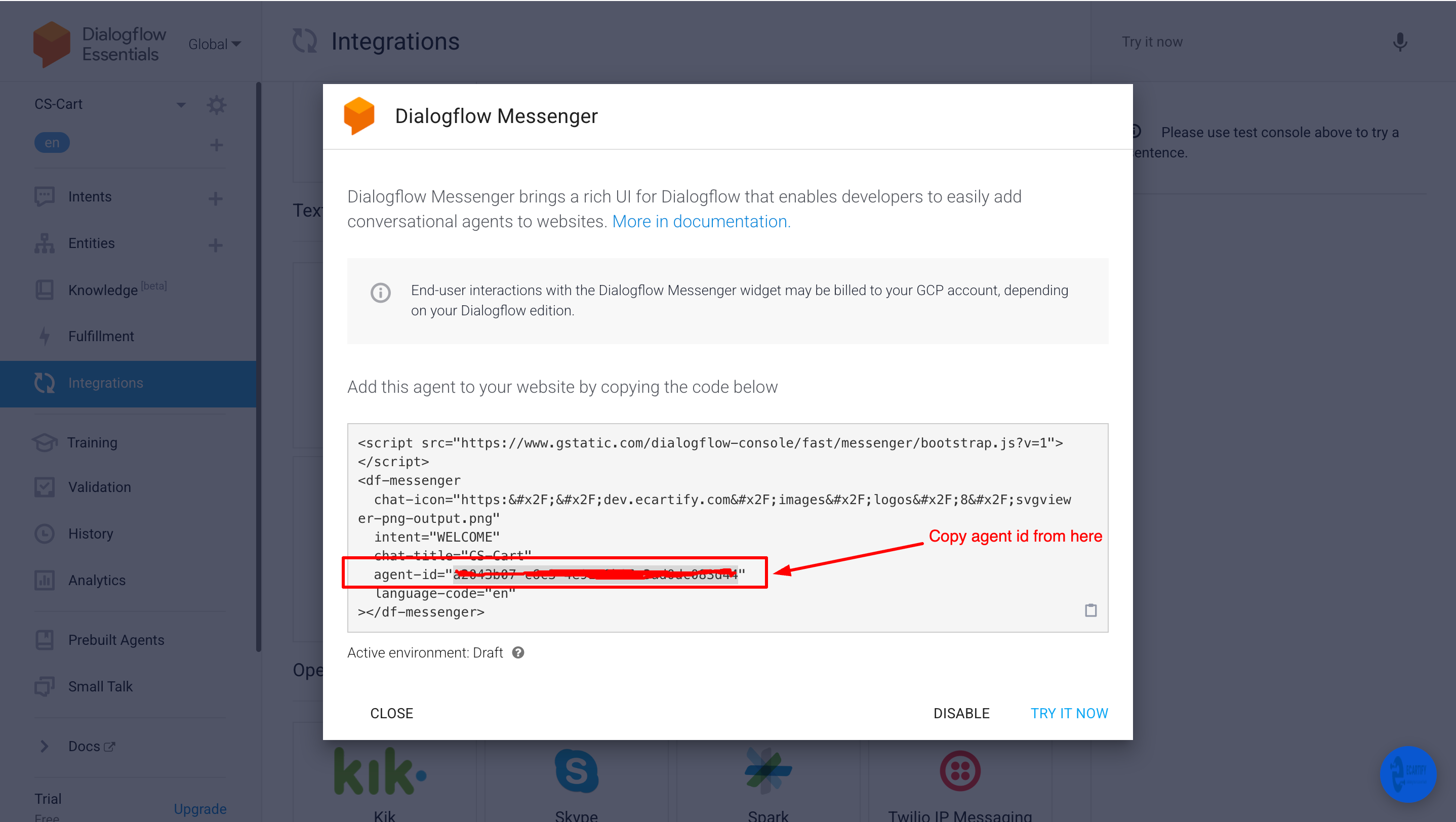
ii) Copy agent id from dialogflow To connect your specific bot to CS-Cart, you need to provide the unique ID:
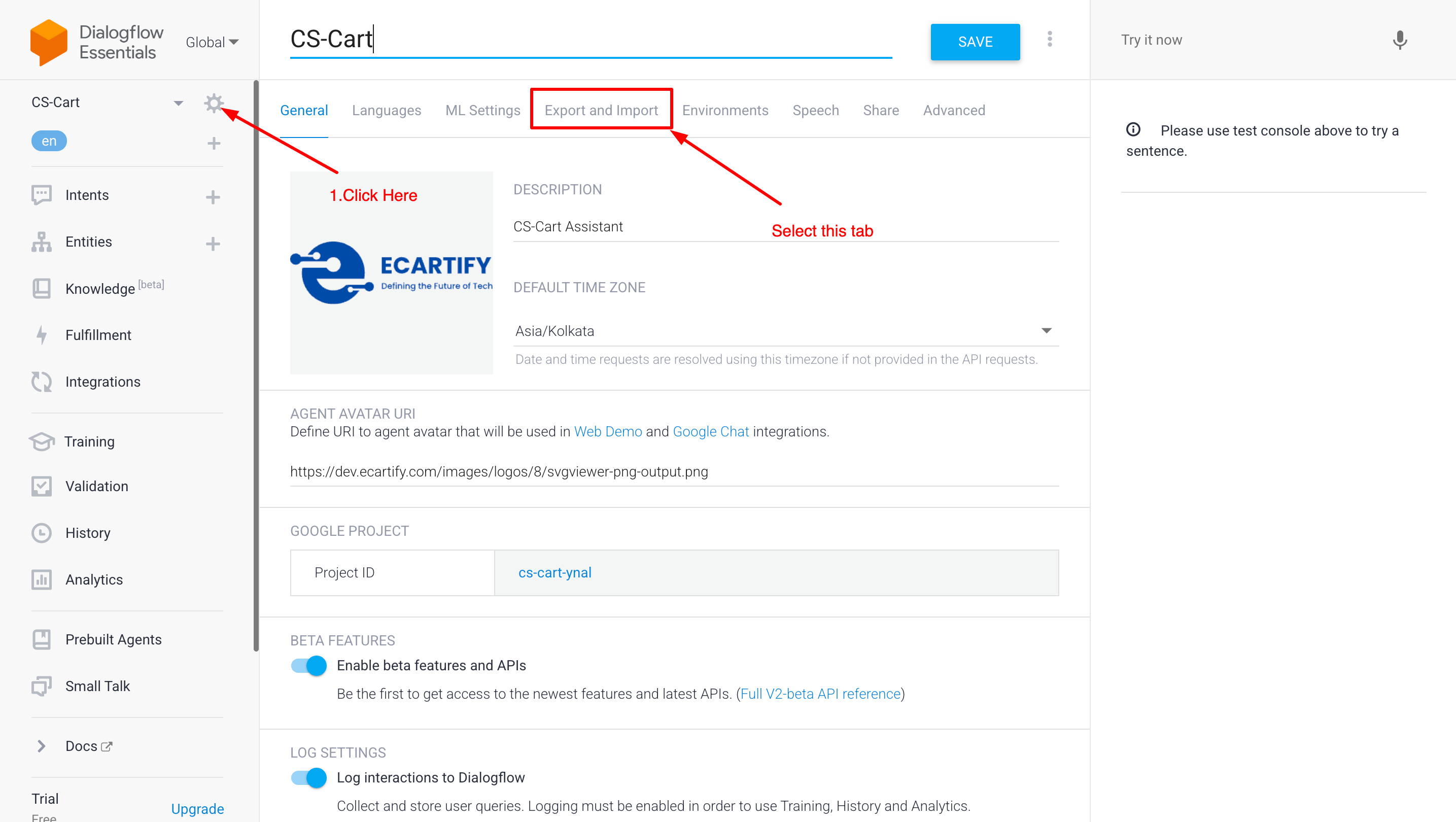
Copy Agent ID from Dialogflow: Go to your Dialogflow Console, click on the Settings gear icon (⚙️) next to your agent's name, and copy the "Project ID" or "Agent ID" displayed there.
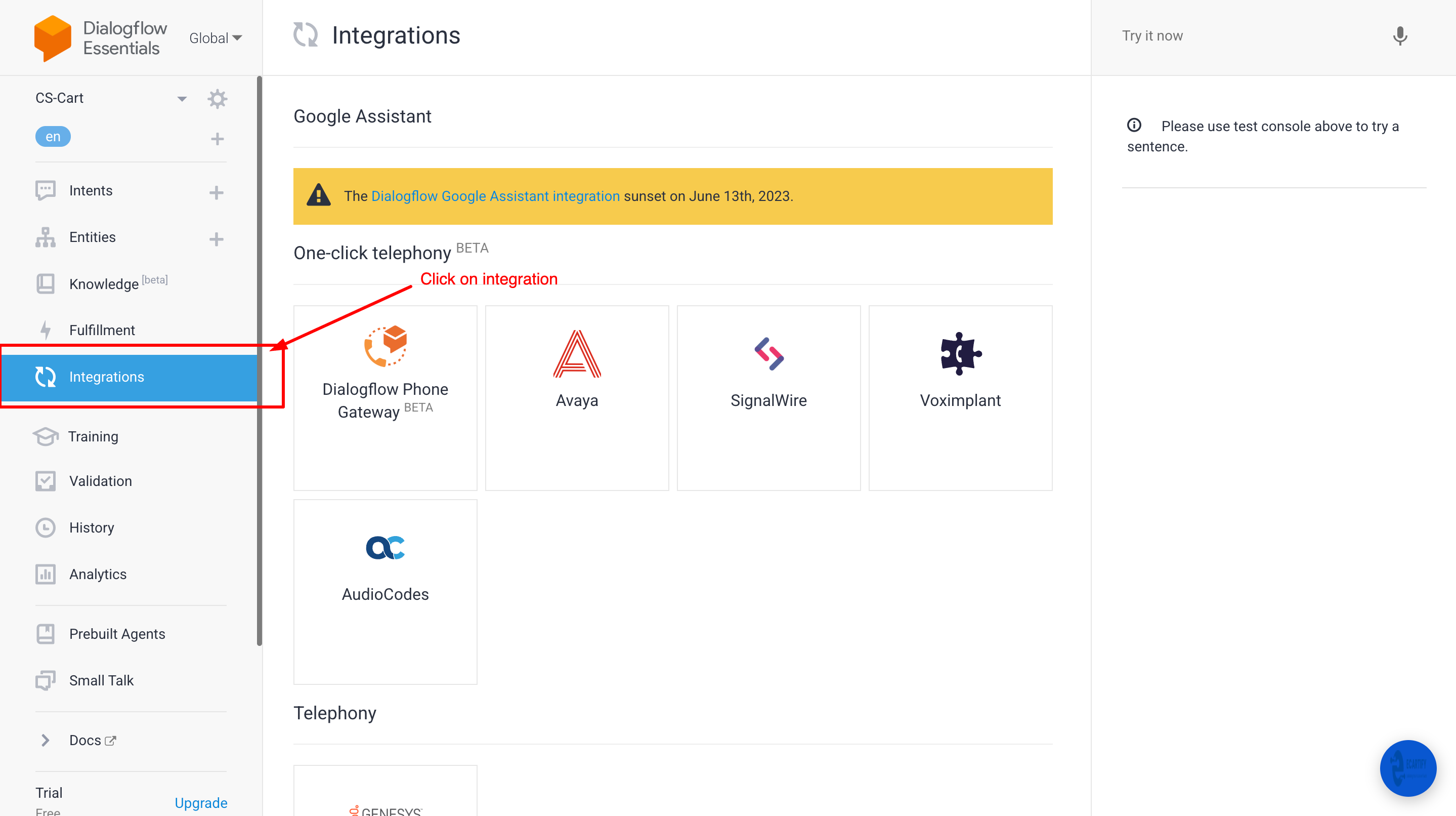
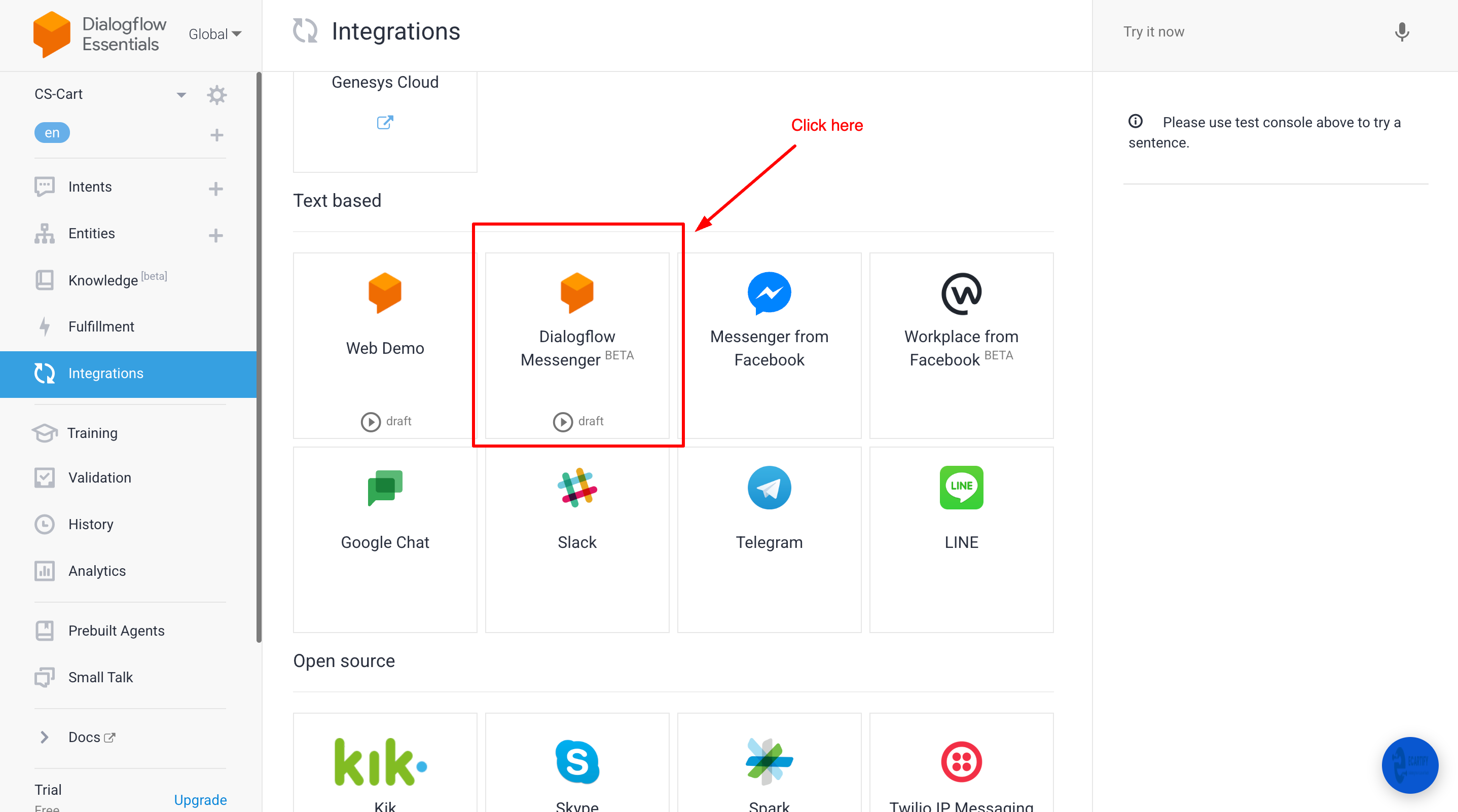
Click on Dialogflow Messanger
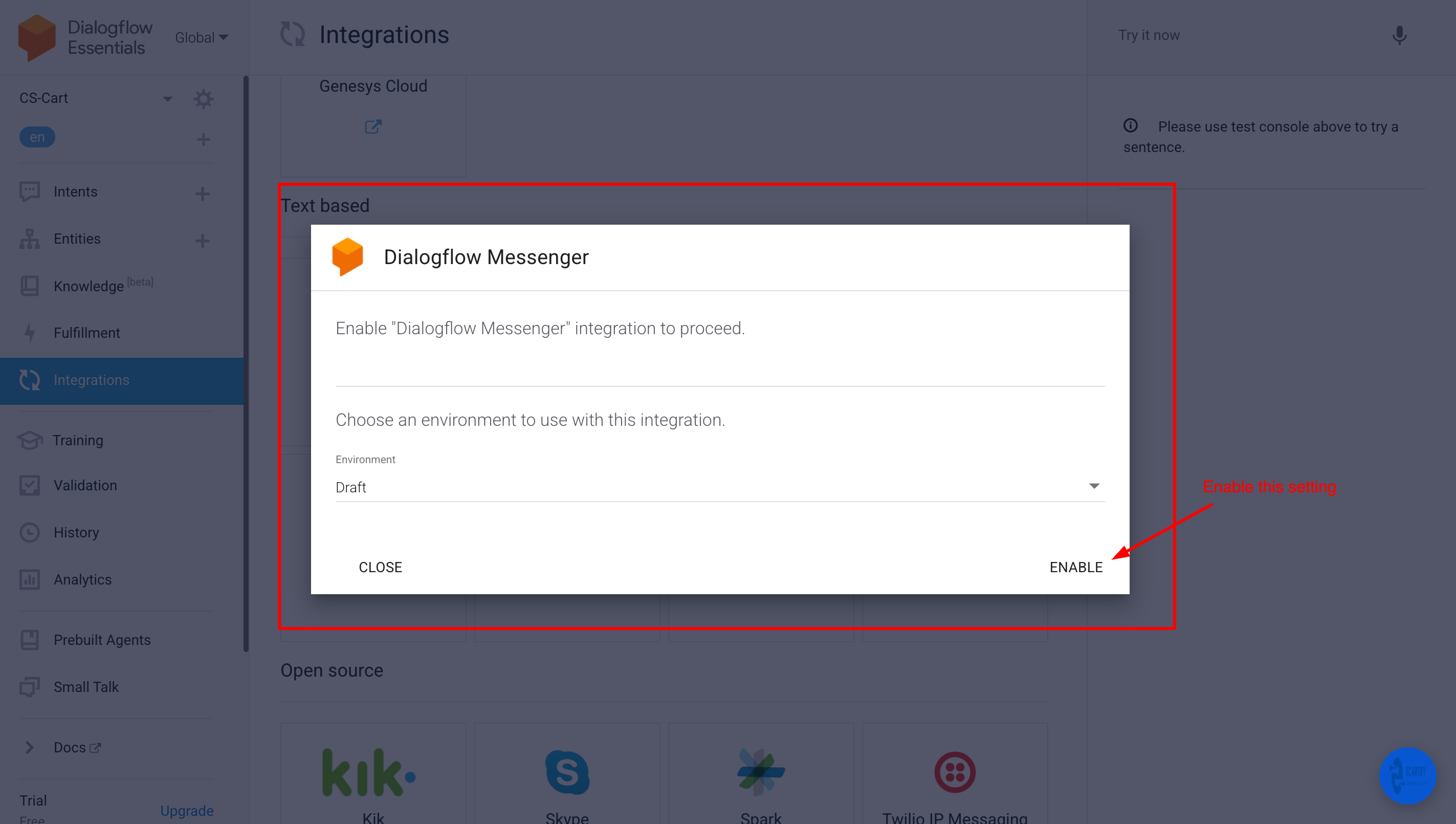
Enable it by clicking here
Copy agent id
iii) Agent zip file generation
Go to CS-Cart Admin: Log in to your CS-Cart administration panel.
Navigate to Add-ons: Click on the "Add-ons" menu at the top and select "Manage add-ons".
Open Add-on Settings: Locate your AI/Chatbot add-on from the list and click on its "Settings" tab.
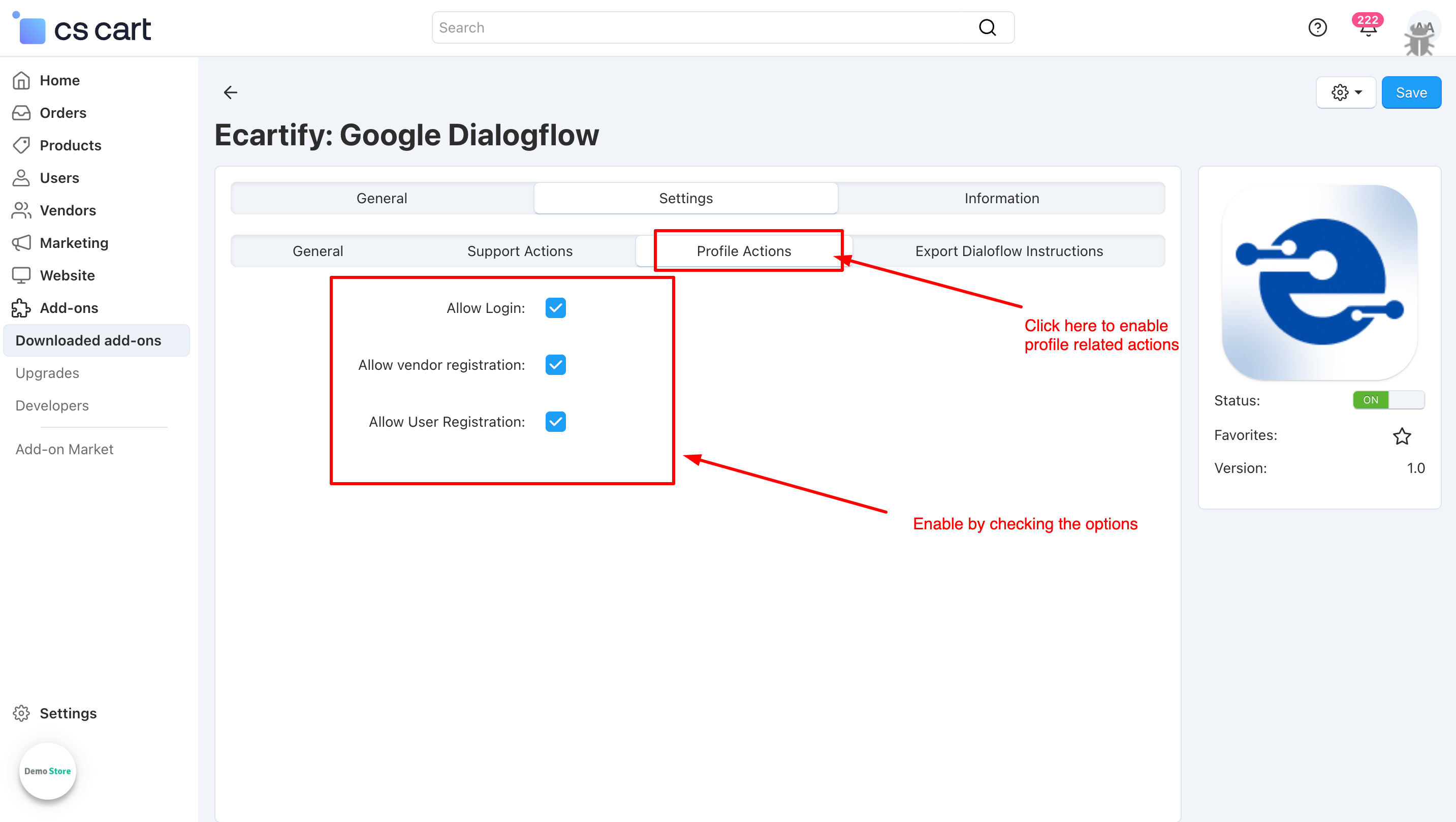
v) Profile Actions: Configure how the AI agent interacts with user accounts and registrations:
Enable Talk to Human: Toggle this on to allow the AI to hand over the conversation to a live agent when the query becomes too complex or the customer requests a person.
Allow Login: Enable this to allow the AI to guide existing users through the login process or provide direct links to the sign-in page.
Allow Vendor Registration: Toggle this on if you want the AI to assist potential partners in signing up as sellers or vendors on your platform.
Allow User Registration: Activate this to enable the AI to help new customers create an account, making the onboarding process faster and more interactive.
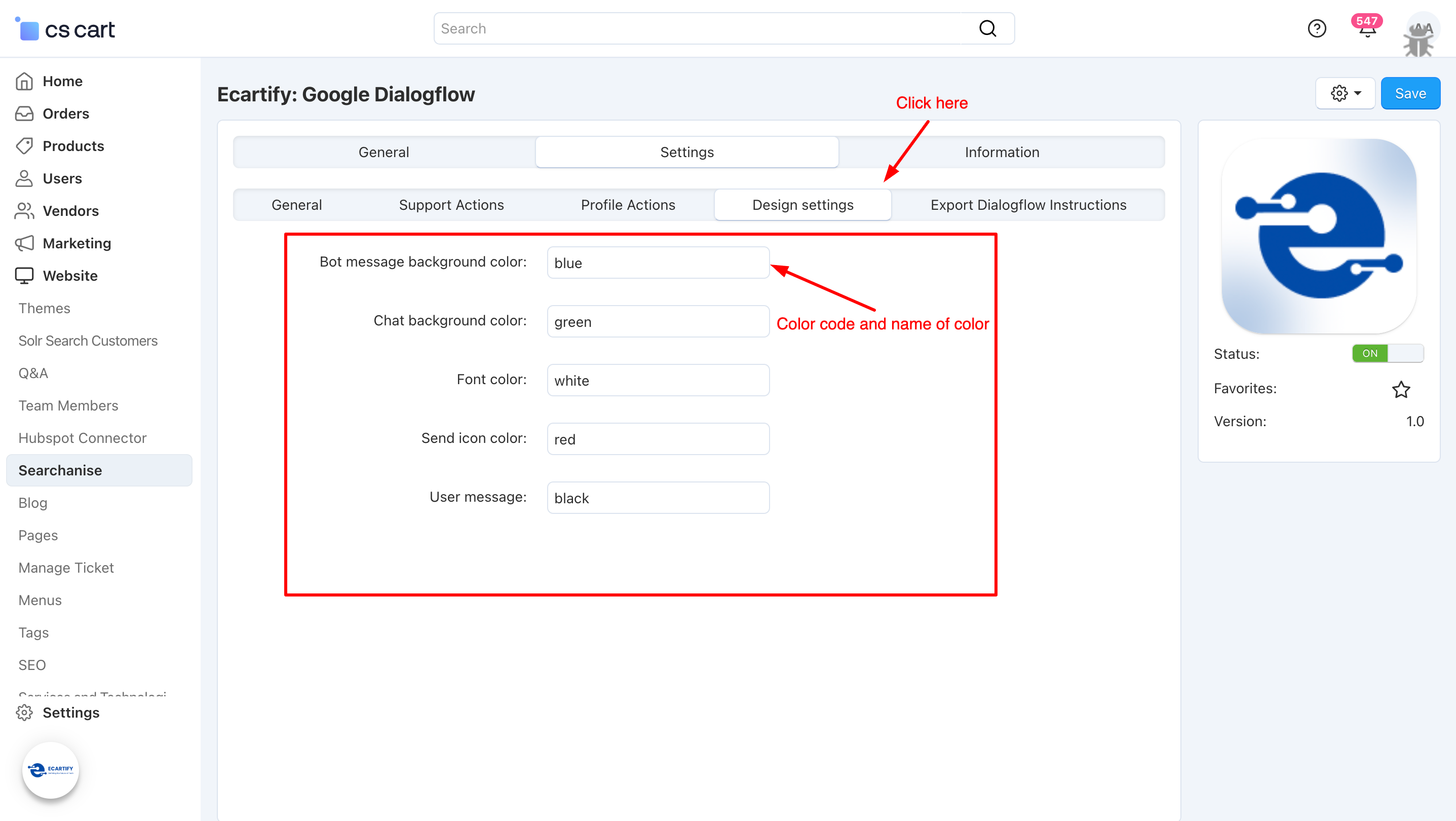
vi) Design Settings: You can customize the design of your chatbot from these settings.
Step 3: Exporting Your Configuration
Now that you have configured all your settings, you need to generate the bundle for your add-on:
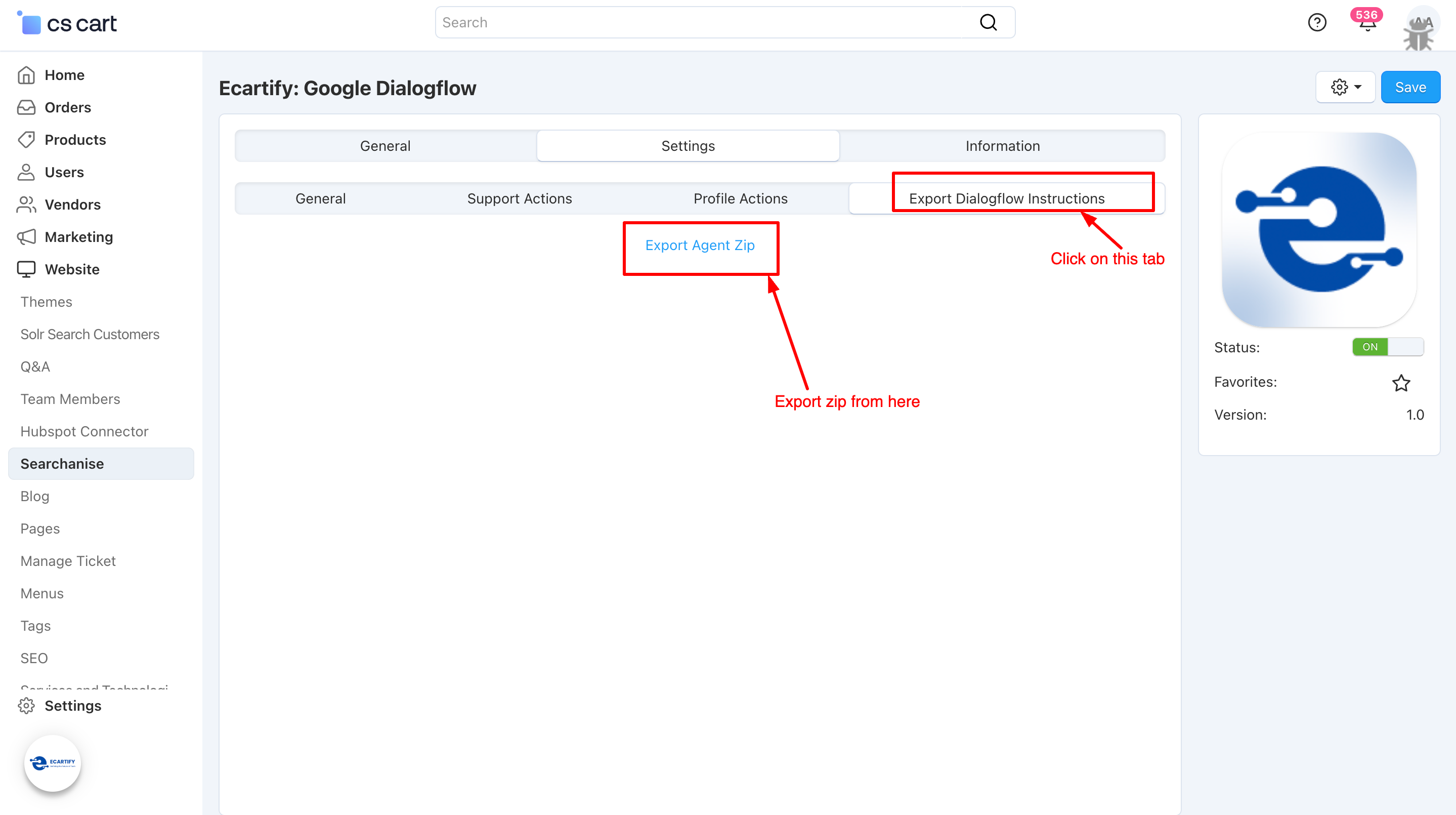
i) Export the Zip File: Use the settings you just saved to generate a custom configuration file.
ii) Click "Export Dialogflow Instructions": Find and click the "Export Dialogflow Instructions" button to prepare your package.
iii) Download the File: Once generated, download the zip file from this tab. You will need this file to complete the final integration between Dialogflow and your CS-Cart store.
Step 4: How to Import the Agent File in Dialogflow
Once you have downloaded the zip file from your settings, follow these steps to upload it:
i) Open Dialogflow Console: Log in to your Dialogflow ES Console.
ii) Select Your Agent: Click on the Settings (gear icon ⚙️) next to your Agent's name in the left-hand menu. Go to "Export and Import": In the settings tabs at the top, click on the "Export and Import" tab.
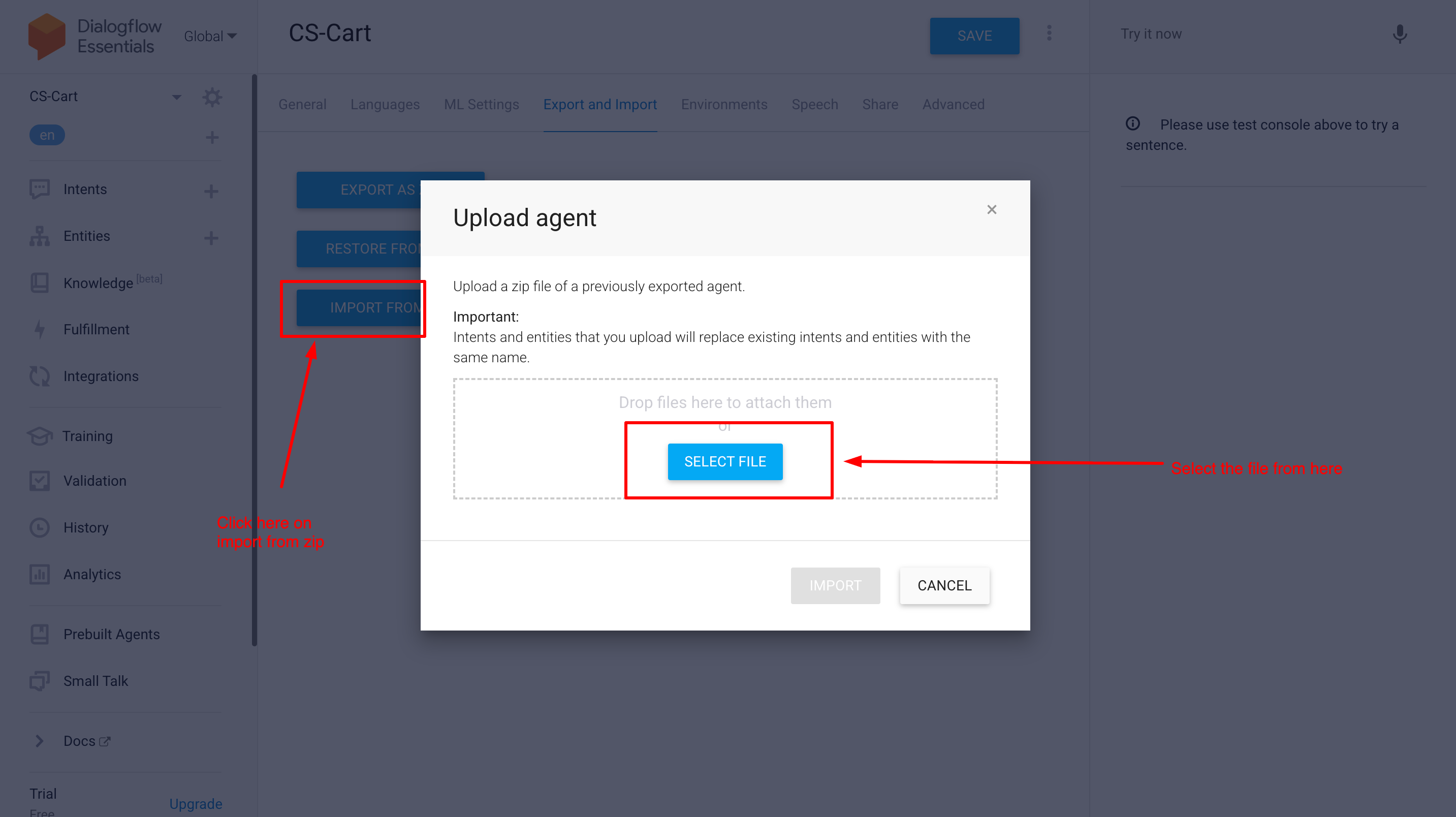
iii) Choose "Import From Zip": Click the "Import From Zip" button. Note: Use "Restore" instead of "Import" to ensure all intents and entities are fully updated with your new settings.
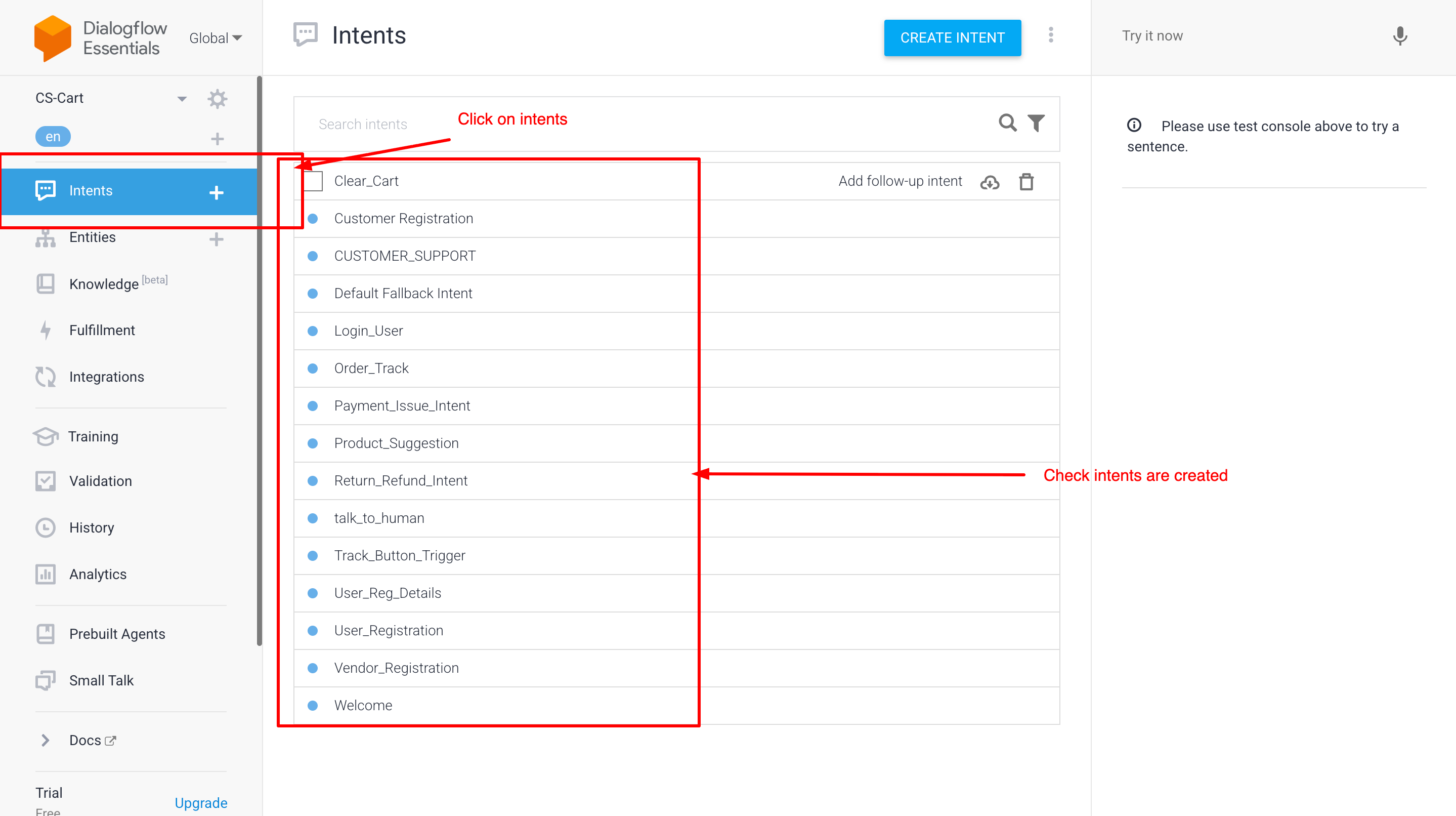
iii) Now verfiy intents are created or not
Step 4: Final Step: Test Your AI Agent
Congratulations! Your setup is now complete. Before going live, you should verify that everything is working as expected:
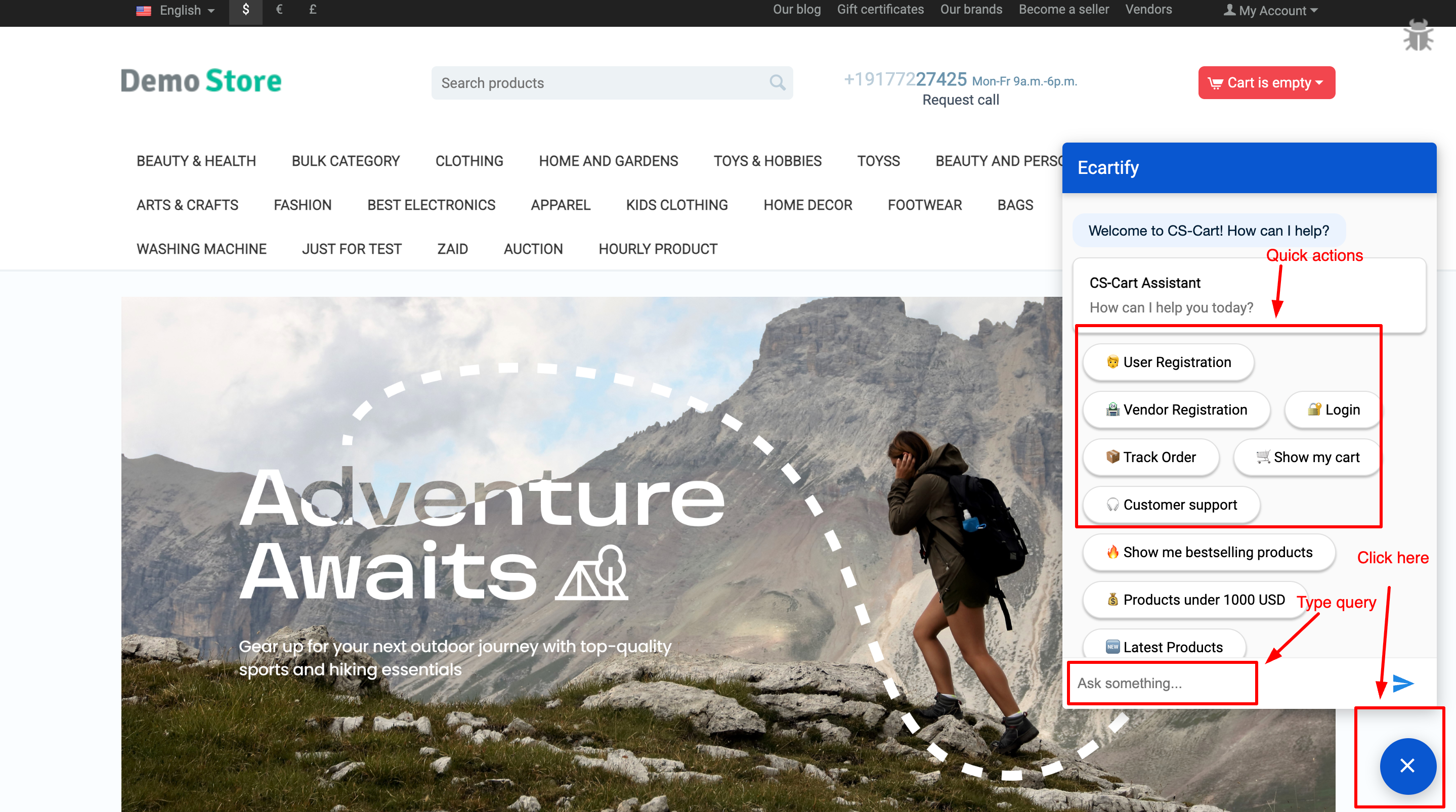
Verify CS-Cart Connection: Open your storefront and send a test message through the chat widget to ensure the AI is communicating with your CS-Cart store
Now open storefront
Why Choose AI Conversational Assistant for Your CS-Cart Store?
AI conversational Assistant addon turns your CS-Cart store into a 24/7 automated powerhouse. By integrating Dialogflow, you get a smart assistant that doesn't just "chat"—it understands your customers, handles support, and automates store actions without you lifting a finger.
Deep Store Integration: Unlike basic bots, this agent is built for CS-Cart. It can assist with User Registrations, Vendor Sign-ups, and Login issues directly through the chat interface.
Final Thoughts
AI Assistant transforms your store into an interactive shopping hub. By leveraging Google Dialogflow, this addon automates customer journeys—from User & Vendor registrations to real-time Order Tracking and personalized product discovery.
Go beyond basic chat with action-driven search: instantly show Bestsellers, Latest Products, or custom filters like "Products under $1000" directly in the chat. With a built-in Custom Knowledge Base, your bot learns your specific business rules to provide 24/7 expert support, reducing tickets and boosting conversions.
AI Merchandising Engine for Personalized Discovery
Deliver smart recommendations across products, categories, blogs and deals based on real shopper behavior.
Get Started
Ecartify: AI Merchandising Engine – Smart Product Suggestions Powered by Real Shopper Behavior
Boost your store revenue by intelligently recommending relevant products to customers during their purchase journey. The AI Merchandising Engine addon uses vector-based AI technology to learn what your customers search, view, add to cart, and buy — then shows them the most relevant products at the right time. Powered by Qdrant (vector database) and Cohere (AI embeddings), this addon delivers truly personalized recommendations that increase average order value, reduce bounce rate, and keep customers coming back for more.
Key Features of AI Merchandising Engine
Behavior-Based AI: Learns from search, views, cart adds, and orders to build a personalized profile for each customer.
Vector Search (Qdrant): Uses lightning-fast vector similarity search to find the most relevant products in milliseconds.
Cohere AI Embeddings: Converts product and behavior data into smart embeddings that understand context and meaning.
Weighted Activity Scoring: Configure how much each action matters — views, cart adds, searches, and orders each carry adjustable weights.
Automated Product Sync: Background cron job automatically syncs your entire product catalog into the AI vector database.
Filter by Activity Type: Show recommendations based only on Search, View, Cart, Order activity — or mix all together.
Flexible Block Display: Add a Recommendation block anywhere on your storefront using CS-Cart's layout manager.
Responsive on All Devices: Recommendations display beautifully on Phone, Tablet, and Desktop with the Scroller template.
Optional Add-to-Cart Button: Show or hide the Add to Cart button on recommendation cards to match your store's design.
Step-by-Step Setup Guide
Step 1: Install the Addon
Get the AI Merchandising Engine running on your CS-Cart store in just a few minutes:
Download from the CS-Cart marketplace or the Ecartify website
Go to Add-ons → Manage Add-ons in your admin panel
Click the + button and upload the "Ecartify: AI Merchandising Engine" package
Click Install and then set the Status to ON
Once activated, go to Add-ons → Ecartify: AI Merchandising Engine to open the settings panel.
Step 2: Connect Your AI Services (Qdrant + Cohere)
The AI AI Merchandising Engine needs two external services to work. Both have free tiers to get you started:
Qdrant URL:
Your Qdrant cloud cluster URL (e.g. https://xxxxxxxx-xxxx-xxxx-xxxx-xxxxxxxxxxxx.us-east4-0.gcp.cloud.qdrant.io). Sign up free at cloud.qdrant.io
Qdrant API Key:
Generated from your Qdrant cloud dashboard. Used to authenticate requests to the vector database.
Cohere API Key:
Get your free API key from cohere.com. Cohere converts product data into AI "embeddings" (smart numeric representations) for similarity matching.
Step 3: Set Activity Weights
Tell the AI how much each customer action matters when calculating recommendations. Higher weight = more influence on the results:
Weight of View Product (default: 1):
How much a customer simply viewing a product page influences their recommendations. Low weight since browsing doesn't always mean strong interest.
Weight of Add to Cart (default: 2):
Adding a product to cart shows strong buying intent. Higher weight means cart actions influence recommendations more.
Weight of Search Product (default: 1):
When a customer searches for something, the AI learns what they're looking for. Searching shows active interest.
Weight of Create Order (default: 3):
Completing a purchase is the strongest signal. A high weight means past purchases heavily shape future recommendations.
Step 4: Set Up Product Sync (Cron Job)
The AI needs to know about all your products. A background cron job syncs your product catalog to Qdrant automatically — every minute in the background:
Set a Cron Password: Enter a secure password (e.g. MYPASS). This protects the cron endpoint from unauthorized access.
Copy the Cron Command: The addon shows the exact command to add to your server's cron scheduler.
Step 5: Add the Recommendation Block to Your Storefront
Now display personalized recommendations to your customers by adding the Recommendation block to any page layout:
Go to Design → Layouts:
Open the CS-Cart layout manager and select the page where you want recommendations to appear (homepage, product page, etc.)
Add a New Block:
Click the +Icon in your chosen grid position and search for and check products and found in checkbox "Recommendation" in the check list
Configure General Tab:
Set the block Name (e.g. "Recommendation"), choose Template as Scroller, set Wrapper to Main block (H1 heading), and select which devices to show on (Phone, Tablet, Desktop)
Configure Content Tab:
Set Filling to Recommended Products, set Limit (e.g. 10 products), set Page to 1, and choose which activity types to base recommendations on: All, Search, View, Cart, or Order
Step 6: Configure Block Settings
Fine-tune how the recommendation block behaves on your storefront:
Hide Add to Cart Button:
Check this box if you want a cleaner look — customers click the product to view it before buying. Uncheck to show "Add to Cart" directly on recommendation cards.
Limit:
Control how many products appear (default: 10). The Scroller template lets customers scroll through all recommendations smoothly.
Save the Block:
Click Save and then publish your layout changes. Visit your storefront to see the recommendation block live
Step 7: See It Live on Your Storefront
Once everything is set up, your storefront will show a beautiful "Recommendation" scroller section to every customer. Here's what happens automatically:
Customer Visits Store:
As soon as a customer views products, searches, or adds to cart — the AI starts tracking their preferences in real-time.
AI Calculates Best Matches:
Qdrant searches through all product vectors to find items most similar to the customer's behavior profile, weighted by your activity settings.
Scroller Displays Products:
A horizontal product scroller appears on the page showing personalized recommendations — each customer sees different products based on their own behavior.
Gets Smarter Over Time:
The more a customer interacts with your store, the more accurate and personalized their recommendations become.
Step 8: Add the AI Recommended Categories Block
In your layout grid, click +, and under Use Existing Block select "AI Recommended Categories".
General Tab:
Set Name (e.g. "Recommended Categories"), Template to Recommended, Wrapper to Main block (H1 heading), and choose devices to show on.
Content Tab:
Set Filling to Recommended Categories. No further configuration is needed.
Step 9: Add the AI Recommended Blogs Block
In your layout grid, click +, and under Use Existing Block select "AI Recommended Blogs".
General Tab:
Set Name (e.g. "Recommended Blogs"), Template to AI Recommended Blogs, Wrapper to Main block (H1 heading), and choose devices to show on.
Content Tab:
Set Filling to AI Recommended Blogs.
Step 10: Add the AI Recommended Best Deals Block
In your layout grid, click +, and under Use Existing Block select "AI Recommended Best Deals".
General Tab:
Set Name (e.g. "Recommended Best Deals"), Template to Scroller, Wrapper to Main block (H1 heading), and choose devices to show on.
Content Tab:
Set Filling to AI Recommended Best Deals, Limit (default 10), Minimum Discount % (e.g. 5), and Recommendation only based on (leave "All" or narrow to Search/View/Cart/Order).
Category-Based Suggestions
Beyond individual products, the AI Merchandising Engine can surface entire category suggestions based on what your customer has been browsing. This helps customers explore deeper sections of your catalog they may not have discovered on their own.
Browse-Driven Category Match:
When a customer views products across multiple categories, the AI identifies their dominant interest and surfaces the most relevant category to explore next — keeping them engaged and browsing longer.
Works With Your Existing Categories:
No extra configuration needed. The addon reads your CS-Cart category tree and maps product vectors to their parent categories automatically, so suggestions stay accurate as your catalog grows.
Great for Homepage Placement:
Place a Category Suggestion block near the top of your homepage or after the main banner to guide first-time visitors toward sections most relevant to their browsing intent.
AI-Powered Blog Suggestions
Keep customers engaged beyond the product pages. The AI Merchandising Engine can suggest relevant blog posts based on what a customer is actively viewing or searching — turning content into a conversion tool.
Content That Matches Intent:
If a customer is browsing cameras, the AI surfaces blog posts like buying guides, comparison articles, or setup tutorials related to cameras — adding value and building trust before the purchase.
Boosts SEO & Time-on-Site:
Recommended blog content keeps visitors reading longer, lowers bounce rate, and signals engagement to search engines — indirectly improving your store's organic ranking over time.
Easy Block Integration:
Just like the product recommendation block, you can add an "AI Recommended Blogs" block anywhere in your layout — on product pages, category pages, or the homepage — through the standard CS-Cart layout manager.
Best Deals Personalized to Each Shopper
The AI Merchandising Engine doesn't just suggest any discounted product — it shows the best deals that are most relevant to each individual customer based on their behavior, making promotions feel personal rather than generic.
Behavior-Filtered Discounts:
Instead of showing the same sale items to everyone, the AI cross-references your discounted product list with each customer's activity profile — so they only see deals on products they actually care about.
Minimum Discount Threshold:
Set a minimum discount percentage (e.g. 5%) so only meaningful deals surface in the Best Deals block. This keeps the section credible and prevents minor markdowns from diluting the impact.
Drives Urgency Without Being Pushy:
When customers see discounts on products they've already viewed or added to cart, conversion rates spike. The AI naturally creates the right moment to close a sale — without aggressive pop-ups or countdown timers.
Real-World Benefits & Results
Increase Average Order Value
Relevant Cross-Sells: Customers discover products that genuinely match their interests — increasing basket size naturally without aggressive selling.
Behavior-Driven: Unlike manual "related products," AI recommendations adapt to each customer — so every shopper sees what's most relevant to them.
Purchase History Learning: Repeat customers get recommendations based on past orders — encouraging add-ons, upgrades, and complementary items.
Boost Conversion Rates
Right Product, Right Time: Showing customers what they're actually interested in dramatically reduces bounce rate and increases time on site.
Search Intent Captured: If a customer searches "blue shoes" and doesn't find exactly what they want, recommendations surface similar options automatically.
Reduces Decision Fatigue: Instead of overwhelming customers with your full catalog, the AI curates a small set of highly relevant products.
Better Customer Experience
Personalized for Every Visitor: No two customers see the same recommendations — each experience feels tailored and unique.
Discovers Hidden Catalog Gems: Products that don't appear in top search results or categories get surfaced to the right customers through AI matching.
Builds Customer Loyalty: A store that "gets" what you like keeps customers coming back — personalization creates stickiness.
Zero Manual Work
Fully Automated: Once the cron job is set, product sync and customer tracking happen automatically — no ongoing manual work needed.
Self-Improving: As more customers use your store, recommendation quality improves organically with more data.
No ML Expertise Required: The addon handles all the AI complexity — you just configure weights and place the block.
Transform Your Store Into a Personalization Engine
Your AI Merchandising Engine addon is ready to make every customer's shopping experience feel like it was designed just for them. Say goodbye to generic "You might also like" lists that show the same products to everyone.
Pro Tip: Start with the default weights (View=1, Cart=2, Search=1, Order=3) and let the system collect data for 1-2 weeks. Then analyze which activity type drives the most conversions in your store and increase that weight. Set the recommendation block limit to 10 and place it just below your main homepage banner for maximum visibility.
Transform plain gift certificates into beautiful, branded gift cards with AI-generated templates, custom designs, scheduled delivery, and professional presentation.
Extended Gift Certificate AI Powered
Gift certificates are a powerful revenue driver for e-commerce stores, offering customers an easy way to give the perfect gift while providing merchants with immediate cash flow and future sales potential. However, CS-Cart's default gift certificate system delivers plain, text-based emails that lack visual appeal and fail to create the premium gifting experience customers expect.
Generic email notifications don't match the emotional value of gift-giving. Recipients want beautiful, branded gift cards that feel special. Senders want scheduling flexibility to deliver gifts at the perfect moment. Merchants need professional presentation that strengthens brand identity and encourages repeat purchases.
Introducing Ecartify: Extended Gift Certificate — a comprehensive gift card enhancement system powered by AI that transforms CS-Cart's basic gift certificates into visually stunning, professionally designed gift cards with AI-generated templates, custom designs, scheduled delivery, dynamic personalization, and automated email management.
What is Ecartify: Extended Gift Certificate?
Ecartify: Extended Gift Certificate is a complete visual and delivery enhancement for CS-Cart gift certificates that elevates the entire gifting experience:
NEW: AI-powered gift card template generation using OpenAI
Create custom templates from text prompts in seconds
Upload and manage multiple custom gift card templates from backend
Customers select preferred template designs during purchase
Dynamic gift card image generation with personalized details
Professional email delivery with branded gift card presentation
Scheduled gift certificate delivery for special occasions
Cron-based automated sending on scheduled dates
Delivery status tracking and management
Seamless integration with CS-Cart's default gift certificate system
This addon is built for any CS-Cart store that wants to provide a premium gift certificate experience with AI-generated designs, beautiful templates, perfect timing, and professional branding.
How the Extended Gift Certificate System Works
1
Admin Creates Gift Card Templates (Manual or AI-Generated)
Administrators can upload custom-designed templates OR use AI to generate unique gift card designs from text prompts. Simply describe the desired design (e.g., "Blue and gold Hanukkah theme with Star of David") and OpenAI creates a professional template instantly.
2
Customer Selects Template & Schedules Delivery
When purchasing a gift certificate, customers browse all available templates (both uploaded and AI-generated) and select their favorite design. They can also choose a specific delivery date for scheduled sending—perfect for birthdays and special occasions.
3
System Generates Personalized Gift Card
After purchase, the system dynamically generates a gift card image by overlaying personalized details (recipient name, sender name, amount, message, gift code) onto the selected template. This creates a complete, branded gift card.
4
Gift Card Delivered via Email
The generated gift card is sent to the recipient via beautifully designed email. Instead of plain text, recipients receive a professional gift card with all details and branding—dramatically improving the gifting experience.
5
Scheduled Delivery (If Selected)
For scheduled gift certificates, the system stores them in pending status until the chosen date. A cron job automatically sends the gift card on the scheduled date and updates the delivery status to completed.
6
Recipient Redeems Gift Certificate
Recipients redeem their gift certificates using the provided code during checkout. The entire redemption process works exactly as it does in CS-Cart's default system—no changes to core functionality.
Key Features of Extended Gift Certificate
AI-Powered Template Generation New
Revolutionary AI technology creates professional gift card designs from simple text descriptions:
Powered by OpenAI's advanced image generation
Create templates from text prompts in seconds
No design skills or graphic software required
Generate unlimited unique designs on demand
Perfect for seasonal themes, holidays, and special occasions
AI understands style, color schemes, and design elements
Preview and regenerate until you get the perfect design
Example Prompts:
"Elegant gold and white wedding gift certificate with floral borders"
"Modern minimalist birthday design with colorful balloons"
"Professional corporate gift card with blue gradient background"
"Festive Christmas theme with snow and presents"
Transform ideas into beautiful gift card templates instantly with the power of AI.
Custom Gift Card Template Management
Administrators have complete control over gift card visual design and branding:
Create unlimited gift card templates (AI-generated or manually uploaded)
Upload custom images and designs for each template
Define template layouts for different occasions (Birthday, Holiday, Thank You, etc.)
Manage template status (Active/Inactive)
Templates act as the visual foundation for all gift cards
Ensure consistent, professional brand presentation
Update or replace templates at any time
Complete creative control with both manual and AI-powered template creation.
Frontend Template Selection
Customers choose their preferred gift card design during the purchase process:
View all available gift card templates on purchase page
See visual previews of each template design
Select the template that best matches the occasion
Ecartify: Extended Gift Certificate transforms CS-Cart's basic gift certificate system into a premium, AI-powered gifting experience with beautiful custom templates, AI-generated designs, scheduled delivery, and professional brand presentation.
With revolutionary OpenAI integration, dynamic gift card generation, automated email delivery, and seamless CS-Cart integration, you create an elevated gifting experience that drives sales, strengthens brand identity, and delights both gift givers and recipients—all without needing any design skills.
If you want to increase gift certificate revenue, provide better customer experiences with AI-generated designs, and ensure your gifts arrive beautifully presented at exactly the right moment, this AI-powered addon is absolutely essential for your store's success.
Ready to Transform Your Gift Certificates with AI?
Stop sending plain, generic gift certificate emails. Upgrade to Ecartify: Extended Gift Certificate and leverage the power of AI to create stunning, branded gift cards with perfect timing and professional presentation that customers will love—all from simple text prompts!
Transform your marketplace into a thriving community platform with vendor-managed community, exclusive discounts, real-time chat, and collaborative features.
Marketplace Community Groups Addon
Modern e-commerce is evolving beyond simple transactions. Successful marketplaces are building communities where vendors and customers connect, collaborate, and engage in meaningful relationships. Wholesale buyers want exclusive access to their trusted suppliers. Vendors need better ways to communicate with their loyal customers. Communities drive repeat business, increase customer lifetime value, and create competitive advantages.
But CS-Cart's default functionality doesn't support community features, vendor-customer collaboration spaces, or community-based exclusive benefits—leaving marketplace owners struggling to build the engagement their business needs to thrive.
Introducing Ecartify: Marketplace Community Groups Addon — a complete community management system that transforms your CS-Cart marketplace into a collaborative platform where vendors create and manage communities, customers join communities for exclusive benefits, real-time chat enables instant communication, and community-based discounts reward member loyalty.
What is Ecartify: Marketplace Community Groups Addon?
Ecartify: Marketplace Community Groups Addon is a comprehensive community management solution that brings social and collaborative features directly into your CS-Cart marketplace:
Vendors create and manage community-based communities
Public, private, and invite-only community access control
Customer membership system with join requests and approvals
Built-in community feed for announcements, updates, and offers
Real-time community chat for vendor-customer communication
File sharing system for catalogs, brochures, and documents
Exclusive community discounts with vendor approval workflow
Private product visibility for community members only
Complete notification system for engagement
This addon is built for multi-vendor marketplaces that want to foster community engagement, strengthen vendor-customer relationships, and create exclusive membership benefits.
How the Community System Works
1
Vendor Creates a Community
Vendors create community from their vendor panel. Each community can be public (anyone can join) or private (join requests required). The vendor owns and manages their community.
2
Customers Join Communities
Customers discover communities on the marketplace and request to join. For public communities, they're added instantly. For private communities, vendors review and approve join requests. This ensures controlled community building.
3
Vendors Post Updates & Share Files
Once the community is active, vendors post announcements, updates, special offers, and important information to the community feed. They can also upload files like product catalogs, brochures, or technical documents for members to download.
4
Real-Time Community Chat
Members communicate directly through the built-in community chat system. Vendors can provide support, answer questions, and engage with customers in real-time. This creates stronger relationships and faster collaboration.
5
Exclusive Community Discounts
Administrators create community-based discounts, but these require approval from vendors whose products are included. Once approved, discounts automatically apply when community members purchase from approved vendors.
6
Private Product Access
Vendors can show exclusive products or special pricing only to community members. This creates VIP experiences and strengthens customer loyalty through privileged access.
Key Features of Communities Addon
Flexible Communities Creation & Management
Vendors have complete control over their communities with powerful management tools:
Create unlimited communities from the vendor panel
Set community type: Public, Private, or Invite-Only
Manage community details, description, and settings
Approve or reject member join requests
Invite specific customers to join communities
Remove members if needed
Associate multiple vendors with a single community
Vendors build targeted communities around their products, niches, or customer segments.
Complete Membership System
Customers can discover and join communities based on their interests and needs:
Browse all available communities on the marketplace
View community details and member benefits
Request to join communities directly
Receive notifications on approval status
Access community-exclusive features after joining
Leave communities at any time
Track all community memberships from account dashboard
Ecartify: Marketplace Community Groups Addon transforms your CS-Cart marketplace from a simple transaction platform into a thriving community ecosystem where vendors and customers connect, collaborate, and build lasting relationships.
With vendor-managed communities, real-time chat, exclusive discounts, and private product access, you create a competitive advantage that goes far beyond just selling products—you build loyal communities that drive repeat business and long-term growth.
If you want to increase customer lifetime value, strengthen vendor-customer relationships, and create a marketplace that customers want to be part of, this addon is absolutely essential for your platform's success.
Ready to Build a Thriving Community?
Stop competing on price alone. Upgrade to Ecartify: Marketplace Community Groups Addon and transform your marketplace into a community-driven platform where vendors and customers collaborate, communicate, and grow together through exclusive communities and member benefits.
HubSpot Vendor Management with Seamless CS-Cart Integration
Sync vendor profiles, performance metrics, products, and communications automatically to optimize vendor relationships and marketplace operations.
HubSpot Vendor Connector - For Marketplace Vendors
As a vendor on our marketplace, the HubSpot Vendor Connector empowers you to connect your personal HubSpot account and automatically sync your products, customers, and orders. Take control of your vendor business by maintaining a unified view of all your marketplace data in HubSpot. Grow your business faster with automated data synchronization, powerful marketing automation, and real-time customer insights - all while keeping your data secure with industry-standard OAuth 2.0 authentication.
Key Features for Vendors
Personal HubSpot Account Connection: Connect your own HubSpot account securely and keep your business data completely private and under your control.
Automatic Product Sync: Your marketplace products automatically sync to HubSpot with pricing, inventory, and complete product details in real-time.
Customer Data Synchronization: All your customers from the marketplace sync to HubSpot contacts, giving you a complete customer database.
Order Management: Every order appears as a deal in your HubSpot pipeline, with status updates that automatically reflect marketplace changes.
Marketing Automation: Create targeted email campaigns in HubSpot based on customer behavior, purchase history, and engagement patterns.
Secure OAuth 2.0 Authentication: Industry-standard secure connection ensures your HubSpot data and marketplace information are protected.
How to Connect Your HubSpot Account
Step 1: Access Your Vendor Dashboard
Log in to your vendor account and find the HubSpot Connector option:
Log in to your marketplace vendor account
Navigate to Integrations or Settings
Look for "HubSpot Vendor Connector"
Click to open the connector setup
The connector interface is simple and designed specifically for vendors like you!
Step 2: Create a HubSpot Private App
You'll need to create a Private App in your HubSpot account to allow the marketplace to sync your data:
Go to HubSpot: Visit app.hubspot.com and log in to your account
Navigate to Settings: Click your account name → Settings
Find Integrations: Go to Integrations → Private Apps
Create New App: Click "Create app" and give it a name like "Marketplace Sync"
Set Permissions: Select permissions for contacts, companies, deals, products, and custom objects
Create Token: Click "Create" and copy your app ID and secret
Step 3: Enter Your HubSpot Credentials
Paste your HubSpot credentials into the vendor connector:
Paste App ID: Copy the Client ID from your HubSpot Private App
Paste Secret Key: Copy the Client Secret from HubSpot (keep this secure!)
Click Save: Your credentials are encrypted and stored securely
Confirmation: You'll see "Credentials saved successfully" message
Your HubSpot credentials are encrypted using enterprise-grade security.
Step 4: Authorize the Connection
Complete the secure OAuth connection to your HubSpot account:
1. Copy the Callback URL and paste in the app that you created.(You can find in connection page)
2. Copy the Auth URL in HubSpot App
3. Open it in Same browser where your vendor login.
4. Grant Permissions: Review and approve the requested permissions
5.Return & Confirm: You'll be redirected back showing "Connected to HubSpot"
Step 5: Configure Order Status Mapping
Map your marketplace order statuses to HubSpot deal stages so your pipeline reflects your real business:
Pending Orders: Choose which HubSpot stage represents new orders
Processing Orders: Select the stage for orders being prepared
Shipped Orders: Define stage for orders that have shipped
Delivered Orders: Set stage for completed deliveries
Cancelled Orders: Choose stage for cancelled orders
Click "Save Configuration" to apply your status mapping.
Step 6: Sync Your Products
Start synchronizing your marketplace products to HubSpot:
Go to Products Section: Click "Products" in the connector
Sync All Products: Click "Sync All Products" to sync your entire catalog
Monitor Progress: Watch the sync status as your products are added to HubSpot
View in HubSpot: Log into HubSpot and see your products in the Products tab
Your products stay synchronized, allowing you to manage inventory and create targeted marketing campaigns.
Step 7: AutoSync Your Customers
Bring all your marketplace customers into HubSpot for better relationship management:
Step 8: Sync Your Orders
Get your complete order history into HubSpot as deals in your sales pipeline:
Go to Orders: Click "Orders" in the connector
Sync Order History: Click "Sync All Orders" to import all past orders
See Pipeline: Orders appear as deals in your HubSpot sales pipeline
Real-time Updates: New marketplace orders automatically appear in HubSpot
Step 9: Create Marketing Campaigns
Use HubSpot's powerful marketing tools to grow your vendor business:
In HubSpot, Create Campaigns: Use your synced customer list
Segment Customers: Target by purchase history, location, or product interest
Send Email Campaigns: Promote new products and special offers
Track Results: See open rates, click rates, and sales impact
Your customers and products are now synchronized - you can leverage HubSpot's full marketing power!
What Gets Synchronized?
When you connect HubSpot, these marketplace items automatically sync to your HubSpot account:
Your Products → HubSpot Products
Product names, descriptions, and images
Pricing and inventory information
Product categories and attributes
Your Customers → HubSpot Contacts
Customer names and email addresses
Contact information and addresses
Complete purchase history
Your Orders → HubSpot Deals
Order details and order totals
Products ordered and quantities
Order status and shipping information
Marketing Campaigns → HubSpot
Create and manage email campaigns
Send targeted messages to your customers
Track campaign performance and results
How This Helps Your Vendor Business
Grow Your Business
Marketing Automation: Send targeted emails to customers based on purchase history
Customer Insights: Understand what your customers buy and when
Sales Pipeline: See all your orders organized in a sales pipeline view
Save Time
Automatic Syncing: No manual data entry needed
Real-time Updates: Your HubSpot data is always current
Focus on Selling: Spend time on growing your business, not managing data
Better Customer Relationships
Complete Customer View: See all interactions and purchases in one place
Personalized Communication: Send messages tailored to each customer
Track Engagement: Know which customers are most active
Professional Business Tool
Industry Standard CRM: HubSpot is used by thousands of businesses
Powerful Features: Email marketing, sales pipeline, analytics, and more
Grow with Confidence: Professional tools to help scale your vendor business
Your Data is Secure
Private HubSpot Account: Only you can access your data
Full Control: Disconnect anytime - your data is yours
Common Questions
Do I need a HubSpot account?
Yes, you'll need to create a HubSpot account (free tier available). HubSpot offers a free CRM with email marketing, contact management, and deal tracking - perfect for growing your vendor business.
Is my data secure?
Absolutely. We use industry-standard OAuth 2.0 authentication. Your HubSpot account is private and only you can access it. You can disconnect anytime.
How often does data sync?
New orders, customers, and products sync automatically in real-time. Your HubSpot account always has the latest data from the marketplace.
Can I disconnect later?
Yes, anytime. If you disconnect, the sync stops but your HubSpot data remains in your account. You maintain full control.
Do I have to sync everything?
You can choose what to sync. You can sync products without orders, or customers without campaigns - it's completely flexible based on your needs.
Ready to Take Your Vendor Business to the Next Level?
The HubSpot Vendor Connector is designed to help you grow your marketplace business. By connecting your personal HubSpot account, you get access to powerful marketing, sales, and customer management tools - all synchronized with your marketplace data in real-time.
What you gain:
✓ A complete view of your customers and orders
✓ Powerful email marketing tools
✓ Sales pipeline to track your growth
✓ Customer insights to drive business decisions
✓ Professional business management tools
✓ Full control over your data
Ready to connect? Click the button above to get started. The setup takes just minutes, and you'll immediately start seeing the benefits. If you have any questions, our support team is here to help!
Start growing your vendor business today with HubSpot!
Checkout.com Payment: Fast, Secure & Modern Checkout
Transform your payment experience with lightning-fast transactions, Apple Pay, Google Pay, and enterprise-grade security.
Ecartify: Checkout.com Payment Gateway
In today's competitive e-commerce landscape, customers expect a seamless, fast, and secure payment experience. A complicated checkout process leads to abandoned carts, lost sales, and frustrated customers who never return.
Traditional payment gateways often create friction with slow loading times, complex forms, outdated interfaces, and limited payment options—especially for mobile shoppers who want quick, one-tap payment methods like Apple Pay and Google Pay.
That's exactly why we built Ecartify: Checkout.com Payment Gateway — a modern, enterprise-grade payment solution designed to maximize conversions, reduce cart abandonment, and provide your customers with the smooth, professional checkout experience they expect.
Key Features of Checkout.com Payment Gateway
Lightning-Fast Payment Processing:
Speed matters at checkout. Every extra second customers spend waiting increases the chance they'll abandon their purchase. Our Checkout.com integration is optimized for maximum speed and minimal friction.
Performance Benefits:
Instant payment form loading with no delays
Optimized code for minimal resource usage
Quick transaction processing and confirmation
Smooth checkout flow without page reloads
Mobile-optimized for fast thumb-friendly payments
A faster checkout means happier customers and higher conversion rates.
Apple Pay & Google Pay Integration:
Modern customers want the convenience of one-tap payments. Our addon fully supports both Apple Pay and Google Pay, providing the seamless experience mobile shoppers demand.
Digital Wallet Benefits:
Apple Pay: Customers checkout with Face ID or Touch ID in seconds
Google Pay: One-tap checkout for Android users
No Form Filling: Payment and shipping details auto-filled instantly
Mobile-First: Perfect for smartphone shoppers on the go
Digital wallets can increase mobile conversion rates by up to 30% compared to traditional card entry.
Enterprise-Grade Security & Compliance:
Checkout.com is a globally trusted payment processor used by major enterprises worldwide. Our integration brings that same level of security to your CS-Cart store.
Security Features:
PCI DSS Level 1 compliant payment processing
Tokenization of sensitive card data
3D Secure authentication support
Advanced fraud detection and prevention
Encrypted transactions end-to-end
No sensitive data stored on your server
Your customers' payment information is protected by the same technology used by global Fortune 500 companies.
Simple & Clean Checkout Interface:
We've designed the payment interface to be clean, intuitive, and distraction-free—removing every unnecessary element that could cause hesitation or confusion.
Interface Highlights:
Clean, modern design that matches your store branding
Minimal form fields to reduce friction
Clear error messages with helpful guidance
Real-time card validation as customers type
Mobile-responsive with large tap targets
Progress indicators showing checkout steps
A simplified checkout process means fewer abandoned carts and more completed purchases.
Multi-Currency & Global Payment Support:
Checkout.com supports payments in 150+ currencies and accepts cards from customers worldwide, making it perfect for international stores.
Global Capabilities:
Accept payments in local currencies automatically
Support for all major credit and debit cards
Dynamic currency conversion
Region-specific payment methods
Automatic fraud screening by geography
Settlement in your preferred currency
Expand your business globally without worrying about payment complexities.
Advanced Payment Features:
Beyond basic payment processing, our integration includes powerful features that give you complete control over transactions.
Advanced Capabilities:
Automatic payment capture or manual authorization
Partial and full refund processing
Recurring payment support for subscriptions
Detailed transaction logs and reporting
Webhook notifications for payment events
Test mode for safe development and testing
Professional payment management tools built right into your CS-Cart admin panel.
Step-by-Step Setup Guide
Step 1: Install the Addon
Getting started with Checkout.com payment gateway is quick and straightforward:
Download the addon from CS-Cart marketplace or Ecartify website
Login to your CS-Cart admin panel and navigate to Add-ons
Upload and install "Ecartify: Checkout.com Payment Gateway"
Activate the addon from the add-ons list
Navigate to Administration → Settings → Payment methods
Add "Checkout.com" as a new payment method
The installation process is fully automated and requires no coding knowledge!
Step 2: Configure Checkout.com API Credentials
Before you can accept payments, you need to connect your Checkout.com account:
Sign up for a Checkout.com merchant account at checkout.com
Login to your Checkout.com dashboard
Navigate to Settings → Channels to get your API keys
Copy your Public Key and Secret Key
Return to CS-Cart and paste these credentials in the payment method settings
Enable Test Mode for initial testing before going live
Security Note: Never share your Secret Key publicly. It should only be entered in your CS-Cart admin panel.
Step 3: Enable Apple Pay & Google Pay
Activate digital wallet payments to provide the fastest checkout experience:
Enable Apple Pay:
Toggle the Apple Pay option in payment settings. Ensure your domain is verified in Checkout.com dashboard under Apple Pay settings.
Enable Google Pay:
Toggle the Google Pay option in payment settings. Configure your merchant details in Checkout.com dashboard.
Test Digital Wallets:
Use test mode to verify Apple Pay and Google Pay work correctly on both desktop and mobile devices.
SSL Requirement:
Ensure your store has a valid SSL certificate (HTTPS) as this is required for digital wallet payments.
Digital wallets will automatically appear for customers on supported devices and browsers.
Step 4: How It Works for Customers
Here's the seamless payment experience your customers will enjoy:
1. Customer adds products to cart and proceeds to checkout
2. On the payment page, customer sees Checkout.com payment option with Apple Pay/Google Pay buttons
3. Customer can either use digital wallet (one-tap) or enter card details manually
4. Payment is processed securely through Checkout.com with instant verification
5. Customer receives instant confirmation and order details via email
6. Admin can view transaction details, process refunds, and track payments in CS-Cart backend
The entire process takes less than 30 seconds with digital wallets—dramatically reducing cart abandonment.
Step 5: Testing Before Going Live
Always test your payment integration thoroughly before accepting real payments:
Enable Test Mode in the payment method settings
Use Checkout.com test card numbers for testing transactions
Test successful payments, failed payments, and refund scenarios
Verify Apple Pay and Google Pay on actual mobile devices
Check email notifications are being sent correctly
Once satisfied, disable Test Mode and start accepting real payments
Pro Tip: Keep Test Mode enabled on a staging site for ongoing development and testing.
Who Should Use This Payment Gateway?
Checkout.com payment gateway is perfect for:
High-Growth E-commerce Stores:
Businesses that need enterprise-grade payment processing with room to scale.
Mobile-First Retailers:
Stores with significant mobile traffic who need Apple Pay and Google Pay support.
International Sellers:
Businesses selling globally who need multi-currency payment support.
Subscription Services:
Companies offering recurring billing or subscription products.
Security-Conscious Merchants:
Stores that prioritize customer data protection and PCI compliance.
Conversion Optimizers:
Merchants focused on reducing cart abandonment and maximizing checkout completion.
If fast, secure, and modern payment processing is important to your business success, Checkout.com is the ideal solution.
Ecartify: Checkout.com Payment Gateway transforms your CS-Cart checkout into a fast, secure, and modern payment experience that customers love.
With support for Apple Pay, Google Pay, multi-currency processing, and enterprise-grade security, you get everything needed to compete with the biggest e-commerce platforms—all integrated seamlessly into CS-Cart.
If you're serious about reducing cart abandonment, increasing mobile conversions, and providing a world-class checkout experience, this payment gateway is absolutely essential for your store's success.
Ready to Upgrade Your Checkout Experience?
Stop losing sales to slow, complicated checkout processes. Upgrade to Ecartify: Checkout.com Payment Gateway today and give your customers the fast, secure, one-tap payment experience they expect.
Accept one-time payments and recurring subscriptions with flexible plans — daily, weekly, monthly, quarterly, and yearly.
Ecartify: Flutterwave Payment Gateway
Modern e-commerce isn't just about selling products once—it's about building recurring revenue streams through subscriptions, memberships, and repeat purchases. Businesses need payment solutions that handle both simple one-time transactions and complex recurring billing with ease.
Traditional payment gateways force you to choose between basic payments or expensive third-party subscription management tools, creating complexity, higher costs, and poor customer experiences.
That's exactly why we built Ecartify: Flutterwave Payment Gateway — a comprehensive payment solution that combines simple product payments with powerful subscription management, all integrated seamlessly into CS-Cart with flexible billing cycles from daily to yearly.
Key Features of Flutterwave Payment Gateway
Dual Payment Modes: One-Time & Subscriptions:
Unlike traditional payment gateways that only handle basic transactions, our Flutterwave integration gives you complete flexibility to sell products as either one-time purchases or recurring subscriptions.
Payment Flexibility:
Process standard one-time product purchases
Enable subscription-based recurring payments per product
Let customers choose between purchase or subscribe
Mix regular and subscription products in the same store
Toggle subscription mode on/off per product easily
This dual-mode approach gives you ultimate control over your revenue model without needing multiple payment systems.
5 Flexible Subscription Plan Types:
Create subscription plans that match your business model perfectly. Our addon supports five different billing frequencies to accommodate any subscription strategy.
Available Subscription Plans:
Daily: Perfect for consumables, services, or daily access products
Weekly: Ideal for meal kits, fresh produce, or weekly content
Monthly: Most popular for SaaS, memberships, and regular deliveries
Quarterly: Great for seasonal products or business subscriptions
Yearly: Best for annual memberships with discounted pricing
Each plan can have custom pricing, iteration limits, and individual activation status—giving you complete control.
Comprehensive Subscription Plan Management:
For each product, create and manage multiple subscription plans with detailed control over pricing, duration, and billing cycles.
Plan Configuration Options:
Plan Name: Create custom names like "Premium Monthly" or "Basic Weekly"
Plan Type: Select from daily, weekly, monthly, quarterly, or yearly
Subscription Amount: Set the recurring price per billing cycle
Number of Iterations: Define how many billing cycles (e.g., 12 months, unlimited)
Status: Activate or deactivate plans individually
All plan details are managed through an intuitive subscription plan table directly in the product editor.
Smart Frontend Subscription Selection:
When subscriptions are enabled for a product, customers see clear subscription options on the product detail page, making it easy to choose their preferred plan.
Customer Experience:
Subscription plans displayed clearly on product page
"No Subscription" option available for one-time purchase
All active plans shown with pricing and frequency
Selected plan pricing automatically applied to cart
Clear indication of billing frequency and total iterations
Seamless checkout process with Flutterwave
Customers can easily understand and select the subscription that fits their needs without any confusion.
Automated Subscription Billing & Tracking:
Once a customer subscribes, the system automatically handles recurring billing according to the selected plan schedule.
Automation Features:
Automatic recurring charges based on plan frequency
Iteration counter tracks completed billing cycles
Subscription automatically ends after set iterations
Failed payment retry logic built-in
Email notifications for successful charges
Complete payment history for each subscription
Set it and forget it—the system handles all recurring billing automatically.
Dedicated Subscription Order Management:
Admins get a specialized backend interface to monitor and manage all subscription-based orders separately from regular orders.
Admin Dashboard Features:
Access via Orders → Flutterwave Subscription Orders
View all active and completed subscriptions
Track completed iterations for each subscription
Monitor subscription status and payment history
See customer subscription details at a glance
Export subscription data for reporting
Complete visibility into your recurring revenue stream with professional subscription management tools.
Step-by-Step Setup Guide
Step 1: Install & Configure the Addon
Setting up Flutterwave payment gateway with subscription support is straightforward:
Download the addon from CS-Cart marketplace or Ecartify website
Login to your CS-Cart admin panel and navigate to Add-ons
Upload and install "Ecartify: Flutterwave Payment Gateway"
Activate the addon from the add-ons list
Enter your Flutterwave API credentials (Public Key & Secret Key)
Navigate to Administration → Settings → Payment methods
Add "Flutterwave" as a new payment method
Get your API keys from your Flutterwave dashboard at flutterwave.com
Step 2: Enable Subscriptions for Products
To make a product available as a subscription, you need to enable the subscription feature:
Navigate to Products → Products and edit any product
Find the "Enable Subscription" checkbox in product addons tab
Check the box to activate subscription functionality for this product
The subscription plan table will now appear below
Save the product to confirm subscription activation
Note: You can enable subscriptions on some products while keeping others as regular one-time purchases.
Step 3: Configure Subscription Plans for a Product
Subscription plans are configured directly inside each product's edit page. Here's how to set them up:
1. Navigate to Products → Products and open any product to edit it
2. Click on the Add-ons tab inside the product edit page
3. Find the "Enable Subscription" checkbox and check it to activate subscription plans for this product
4. Once enabled, a subscription plan table will appear with 5 pre-defined plan types: Yearly, Quarterly, Monthly, Weekly, and Daily
5. For each plan type, fill in the following fields:
Ecartify: Flutterwave Payment Gateway is more than just a payment processor—it's a complete subscription management system integrated seamlessly into CS-Cart.
With support for both one-time purchases and five different subscription frequencies (daily, weekly, monthly, quarterly, yearly), you get the flexibility to build any business model from simple e-commerce to complex subscription services.
If you're looking to unlock recurring revenue streams, reduce payment friction, and provide customers with flexible subscription options—all while maintaining full control through your CS-Cart admin panel—this payment gateway is absolutely essential.
Ready to Build Recurring Revenue?
Stop leaving money on the table with one-time sales only. Upgrade to Ecartify: Flutterwave Payment Gateway today and transform your CS-Cart store into a subscription-powered revenue machine with flexible billing and automated recurring payments.
HubSpot Marketing Automation with Seamless CS-Cart Integration
Sync products, customers, orders, and campaigns automatically to supercharge your marketing efforts and grow your business faster.
Ecartify: HubSpot Connector
Transform your CS-Cart marketing workflow with the HubSpot Connector. This powerful addon automatically synchronizes products, orders, customers, and marketing campaigns between your CS-Cart store and HubSpot CRM. Eliminate manual data entry, automate marketing campaigns, and maintain real-time customer insights with secure OAuth 2.0 authentication and automated synchronization.
Key Features of HubSpot Connector
Automatic Product Sync: Products instantly sync to HubSpot with complete details, pricing, and inventory information.
Real-Time Customer Tracking: Customer data automatically syncs to HubSpot contacts for comprehensive CRM management.
Order Synchronization: Orders sync automatically as deals or timeline events in HubSpot for complete visibility.
Campaign Management: Create and manage marketing campaigns directly from your CS-Cart admin panel.
Bidirectional Data Sync: Changes in either platform automatically reflect in the other system.
Custom Stage Mapping: Map CS-Cart order statuses to HubSpot deal stages for accurate pipeline tracking.
OAuth 2.0 Security: Industry-standard secure authentication with encrypted data transmission.
Connection Monitoring: Real-time connection status and comprehensive health diagnostics dashboard.
Step-by-Step Setup Guide
Step 1: Install the Addon
Installing the HubSpot Connector addon is simple and takes just a few minutes:
Download the addon from CS-Cart marketplace or Ecartify website
Login to your CS-Cart admin panel and navigate to Add-ons
Upload and install "Ecartify: HubSpot Connector"
Activate the addon from the add-ons list
No coding knowledge required - the installation is fully automated!
Step 2: Create HubSpot Private App
Before connecting, you need to create a HubSpot Private App to obtain API credentials:
1. Visit HubSpot Settings: Go to your HubSpot account → Settings → Integrations → Private Apps
2. Create New Private App: Click "Create a private app" and fill in your application details
Your HubSpot Connector is now ready to revolutionize how you manage your CS-Cart store marketing. Say goodbye to manual data synchronization, disconnected customer data, and missed marketing opportunities. With automated synchronization, you can:
Ready to supercharge your marketing? Install HubSpot Connector today and experience seamless integration between your e-commerce platform and marketing automation powerhouse!
Transform any product into an exciting auction with countdown timers, live bidding, automatic winner selection, and instant notifications.
Ecartify: LiveAuction Pro Addon
Transform your CS-Cart store into a dynamic auction platform with the LiveAuction Pro Addon. This powerful extension lets you convert any product into an auction item with real-time bidding, countdown timers, automatic winner determination, and seamless order processing. Create excitement and urgency that drives customer engagement and increases sales with competitive bidding on your products.
Key Features of LiveAuction Pro Addon
Real-Time Countdown Timer: Display dynamic countdown showing days, hours, minutes, and seconds until auction ends.
Live Bidding System: Customers place bids in real-time with instant validation and confirmation notifications.
Automatic Winner Selection: System automatically determines and notifies the highest bidder when auction closes.
Bid History Tracking: Complete audit trail showing all bids, bidders, timestamps, and bid amounts.
Reserved Price Protection: Set minimum reserve prices to protect your inventory value and profitability.
Opening Bid Configuration: Define starting bid amounts to control auction starting points.
Flexible Auction Scheduling: Set precise start and end dates/times for each auction campaign.
Multi-Auction Management: Run multiple concurrent auctions across your product catalog simultaneously.
Auction Status Tracking: Monitor auction states: Pending, Running, or Completed with visual indicators.
Bid Subscription System: Customers subscribe to receive notifications about auction progress and results.
Admin Winner Override: Manually select auction winners when needed for special circumstances.
Step-by-Step Setup Guide
Step 1: Install the LiveAuction Pro Addon
Installing the Ecartify: LiveAuction Pro addon takes just minutes:
Download the addon from CS-Cart marketplace or Ecartify website
Login to your CS-Cart admin panel and navigate to Add-ons
Upload and install "Ecartify: LiveAuction Pro"
Activate the addon from the add-ons list
Once activated, you'll see a new "LiveAuction Pro" menu in your admin sidebar!
Step 2: Configure the Settings
After installing the add-on, navigate to the Add-ons → Manage addons section and open the LiveAuction Pro add-on settings page. Here, you can configure the general options that control how the Auction works across your store.:
i) Input and select general setting:
The General Settings section allows the admin to control core auction behavior and limits for customers. These options help manage bidding activity, ensure fairness, and keep the auction process smooth and organized.
Each setting includes a tooltip that provides a clear explanation of its purpose and how it works. Hover over the tooltip icon next to any setting to view detailed guidance and usage information.
ii) Notifications settings :
-Enter your OneSignal App ID to enable push notifications for auction events. This allows real-time alerts to be sent to bidders when new bids are placed or auction status changes.
-Enable the options Send Email and Send Push Notifications to all users who have placed a bid on the auction. This helps re-engage bidders whenever a new bid is placed or important auction updates occur.
iii) Auction Cron job setting:
The Auction Crons section allows you to automate important auction processes using server cron jobs. These crons ensure that auctions run smoothly without manual intervention and that winners, restarts, and reminders are handled on time.
-Assign Winners Cron:
This cron job automatically assigns primary and secondary winners for each completed auction based on the highest valid bids.It ensures that winners are selected accurately and without manual effort.
-Restart Auctions Cron:
This cron automatically restarts auctions that have ended and have the restart option enabled.It is useful for recurring auctions or products that need continuous bidding.
-Send Emails Cron:
This cron job sends automatic reminder emails to auction winners who have not completed their purchase within the allowed time.It helps reduce abandoned wins and increases conversion rates.
All settings are now configured.
Step 3: Access LiveAuction Pro Management
Navigate to the LiveAuction Pro management interface from your admin panel:
Find LiveAuction Pro Menu: Look for "LiveAuction pro" in the left sidebar navigation menu
View All Auctions: See list of all created auctions with status, dates, and current bids
Filter & Search: Use search filters to find specific auctions by product name or date range
Status Overview: Quickly identify Running, Completed, and Pending auctions with color-coded badges
Step 3: Create Your First Auction
Set up a new auction for any product in your catalog:
Select Product: Choose any existing product from your catalog to convert into an auction
Set Start Date/Time: Define when the auction will begin accepting bids (e.g., 01/21/2026, 00:00)
Set End Date/Time: Specify when bidding closes and winner is determined (e.g., 01/23/2026, 11:11)
Configure Opening Bid: Set the starting bid amount (e.g., $11.00)
Your auction is now ready to accept bids when the start time arrives!
Step 4: Customer Auction Experience
Your customers get an engaging, intuitive bidding interface:
Transform Your Store with LiveAuction Pro Excitement
The CS-Cart LiveAuction Pro Addon is ready to revolutionize how you sell products and engage customers. Create competitive excitement, drive higher prices through bidding wars, and build a loyal customer base that keeps coming back for your auction events.
Pro Tip: Start with high-value or limited-edition products to generate maximum buzz. Promote upcoming auctions through email and social media to build anticipation. Use reserve prices to protect your margins while letting the market determine final values. Monitor bid patterns to understand customer demand and optimize future auction strategies!
Ready to launch your first auction? Install the LiveAuction Pro addon today and watch customer engagement soar as they compete for your products in real-time!
Leverage AI-driven analytics to identify SEO gaps, improve page performance, and outperform competitors. Ecartify Page Ranker turns complex CS-Cart SEO into clear, actionable strategies.
Page Ranker
Running a successful e-commerce store requires more than just great products. You need to be visible on search engines, track your performance metrics, and continuously optimize your content for better rankings.
But CS-Cart's default capabilities don't provide integrated Google Search Console data, AI-powered SEO suggestions, or comprehensive page-level optimization tools.
Introducing Ecartify: Page Ranker — an advanced SEO analytics and optimization extension that brings Google Search Console insights, AI-powered content suggestions, and comprehensive SEO analysis directly into your CS-Cart admin panel.
What is Ecartify: Page Ranker?
Ecartify: Page Ranker is a comprehensive SEO management tool that enhances your CS-Cart store with powerful features designed to improve your search engine visibility and optimize your content:
Direct Google Search Console integration for real-time performance data
AI-powered SEO suggestions using Gemini and OpenAI
Comprehensive SEO analysis for products, categories, and pages
Visual dashboards showing impressions, clicks, and performance metrics
Intelligent meta title, description, and URL optimization
Multi-dimensional data analysis by pages, queries, countries, and devices
This addon is built for store owners who want to leverage data-driven insights and cutting-edge AI to dominate search engine rankings.
Key Features of Ecartify: Page Ranker
Google Search Console Integration:
Connect your CS-Cart store directly to Google Search Console for comprehensive search performance insights:
One-click authorization with Google Search Console
Secure OAuth integration using Client ID and Secret
Real-time synchronization of search performance data
Track impressions, clicks, CTR, and average positions
No manual data exports or third-party tools needed
All your search console data is accessible directly within CS-Cart's familiar admin interface.
Comprehensive Analytics Dashboard:
View your store's search performance through multiple analytical lenses with beautiful visual representations:
Pages Analysis
Track performance of individual URLs and landing pages
Query Analysis
Discover which search terms drive traffic to your store
Country Analysis
Understand geographic distribution of your search traffic
Device Analysis
Compare desktop, mobile, and tablet search performance
Each analysis type features both interactive graphs and detailed data tables for comprehensive insights.
AI-Powered SEO Optimization:
Leverage cutting-edge AI technology to improve your content with intelligent suggestions:
Integration with Google Gemini AI for advanced content analysis
OpenAI integration for alternative optimization approaches
AI-generated meta title suggestions optimized for click-through rates
Intelligent meta description recommendations
SEO-friendly URL slug suggestions
Comparative analysis showing improvements over existing content
Example AI Optimizations:
Current: "Blue Shoes" → AI Suggests: "Premium Blue Running Shoes for Men - Comfortable & Durable"
Current: "shoes" → AI Suggests: "premium-blue-running-shoes-men"
AI analyzes keyword density, length optimization, and engagement potential
Page-Level SEO Analysis:
Get detailed SEO health reports for every product, category, and page in your store:
Dedicated "Page Ranker" tab in product, category, and page editors
Real-time SEO score and improvement points
Meta title analysis with length and keyword optimization
Meta description quality assessment
URL structure evaluation and recommendations
Actionable improvement suggestions for each element
No more guessing what needs improvement—get specific, actionable recommendations for every page.
Visual Data Representation:
Transform raw Google Search Console data into meaningful insights with professional visualizations:
Interactive line charts showing trends over time
Bar graphs for comparative analysis
Color-coded performance indicators
Sortable data tables with filtering options
Export capabilities for external reporting
Mobile-responsive dashboard design
Intelligent Suggestion System:
One-click optimization that compares AI suggestions against your current content:
Current vs. Suggested
Side-by-side comparison of existing and AI-optimized content
Improvement Metrics
Quantified predictions for potential ranking improvements
One-Click Apply
Instantly update your content with AI suggestions
The "Suggest to Improve" button revolutionizes content optimization by bringing enterprise-level SEO intelligence to CS-Cart.
Step-by-Step Setup Guide
Step 1: Install and Configure the Addon
Setting up Page Ranker requires a few configuration steps to connect your external services:
Download and install the addon from CS-Cart marketplace or Ecartify website
Navigate to Add-ons → Page Ranker → Settings
Enter your Google Search Console Client ID
Enter your Google Search Console Client Secret
Configure Gemini AI Credentials for AI-powered suggestions
Optionally add OpenAI Credentials for alternative AI suggestions
Note: You'll need to create a Google Cloud project and obtain OAuth credentials. The addon includes detailed documentation for this process.
Step 2: Connect to Google Search Console
Authorize your CS-Cart store to access Google Search Console data:
Add "YOURADMINPANELURL?dispatch=sg_page_ranker.returnauthorization" to your Auth2.0 Authorised redirect URIs.
Click the "Authenticate" button in addon settings
Sign in with your Google account that has Search Console access
Grant the necessary permissions for data access.
Verify the connection status shows "Connected"
Once connected, data synchronization begins automatically and updates regularly.
Step 3: Explore the Analytics Dashboard
Access comprehensive search performance data through the Page Ranker dashboard:
Pages Tab:
View impressions and clicks for individual pages. Identify top-performing URLs and pages needing optimization.
Queries Tab:
Discover which search terms bring traffic. Find opportunities for content expansion and keyword targeting.
Countries Tab:
Analyze geographic performance. Understand where your search traffic originates and optimize accordingly.
Devices Tab:
Compare desktop vs. mobile vs. tablet performance. Optimize for device-specific user experiences.
Each tab includes both visual graphs and sortable data tables for comprehensive analysis.
Step 4: Use Page-Level SEO Analysis
Optimize individual products, categories, and pages with integrated SEO analysis:
Navigate to any product, category, or page edit screen
Click on the new "Page Ranker" tab
Review the SEO Analysis Report showing current optimization status
Check improvement points for meta title, description, and URL
Review title and description analysis with specific recommendations
Step 5: Get AI-Powered Optimization Suggestions
Use artificial intelligence to improve your SEO content with one click:
In the Page Ranker tab, click "Suggest to Improve"
The AI analyzes your current meta title, description, and URL slug
Review AI-generated suggestions with improvement explanations
Compare suggested content against your existing content
Apply suggestions with one click or manually refine them
Save changes and monitor performance improvements
Pro Tip: Test AI suggestions on lower-performing pages first to measure impact before rolling out across your entire store.
Perfect for Every E-Commerce Store
Whether you're a small boutique or large marketplace, Page Ranker helps you:
Improve Search Rankings:
Data-driven optimization based on actual Google Search Console metrics.
Save Time:
AI-powered suggestions eliminate hours of manual SEO research and writing.
Increase Click-Through Rates:
Optimized meta titles and descriptions attract more clicks from search results.
Monitor Performance:
Track the impact of your SEO efforts with comprehensive analytics.
Make Informed Decisions:
Use real data from Google to prioritize optimization efforts.
Stay Competitive:
Leverage enterprise-level SEO tools typically only available to large corporations.
The addon ensures every page in your store can be optimized using the same professional-grade tools used by Fortune 500 companies.
Ecartify: Page Ranker is the ultimate SEO solution for CS-Cart stores that want to dominate search engine results with data-driven insights and AI-powered optimization.
It transforms CS-Cart into a comprehensive SEO command center—combining Google Search Console integration, artificial intelligence, and actionable analytics in one seamless package.
If you want to increase organic traffic, improve search rankings, and leverage cutting-edge AI for content optimization, this addon will completely revolutionize how you approach SEO in CS-Cart.
Ready to Dominate Search Rankings?
Stop guessing and start optimizing with real data and AI intelligence. Upgrade to Ecartify: Page Ranker and transform your CS-Cart store into an SEO powerhouse that attracts more organic traffic and drives sustainable growth.
Automate vendor invoices, purchase orders, and bill payments with seamless Xero integration for multi-vendor marketplaces.
Ecartify: Xero Accounting Integration for Vendors
Streamline your multi-vendor marketplace accounting with the Xero Vendor Integration. This specialized addon automatically synchronizes vendor bills, purchase orders, commission payouts, and vendor settlements between your CS-Cart marketplace and Xero accounting software. Manage vendor finances effortlessly, track commissions accurately, and maintain complete financial transparency with automated vendor accounting.
Key Features for Vendor Management
Vendor Bill Creation: Vendor orders automatically generate bills in Xero with complete details and commission deductions.
Vendor Contact Sync: Vendors sync as Xero suppliers with complete business details.
Commission Account Mapping: Map vendor commissions to appropriate revenue accounts in Xero.
Vendor Payout Tracking: Monitor pending and completed vendor payments with detailed transaction history.
OAuth 2.0 Security: Enterprise-grade security with encrypted vendor financial data transmission.
Step-by-Step Vendor Setup Guide
Step 1: Install the Vendor Addon
Installing the Xero Vendor Accounting Integration takes just minutes:
Download the vendor edition from CS-Cart marketplace or Ecartify
Navigate to Add-ons in your CS-Cart admin panel
Upload and install "Ecartify: Xero Vendor Connector"
Activate the addon for marketplace-wide vendor accounting
Step 2: Configure Xero Developer Credentials
Set up your Xero API connection for vendor data synchronization:
Your Xero Vendor Integration is ready to revolutionize multi-vendor marketplace accounting. Eliminate manual vendor reconciliation, automate commission tracking, and provide complete financial transparency to your vendors. With automated synchronization, you can:
Pro Tip: Start by syncing existing vendor data to populate Xero with historical commission and settlement records, then enable real-time synchronization for all new vendor transactions. Use vendor-specific reports to analyze performance and optimize your commission structure!
Ready to automate vendor accounting? Install the Xero Vendor Integration today and experience seamless multi-vendor financial management!
AI-powered addon that analyzes all product reviews, detects fake feedback, and generates transparent review reports for admins and customers.
AI Review Analyzer – Smart Reviews Analyzer
AI Review Analyzer uses advanced AI models powered by OpenAI or Google Gemini to analyze product reviews across the store and generate detailed review intelligence reports. The addon evaluates sentiment, language patterns, and behavioral signals to detect fake, spam, or misleading reviews. These insights are available to administrators for effective moderation and decision-making, while fake review detection results are transparently displayed to customers to improve trust, authenticity, and confidence in product reviews.
Key Features of AI Review Analyzer
Dual AI Engine: Gemini + ChatGPT:
Use Google Gemini or OpenAI (ChatGPT) to generate full product reviews analysis report and detection of fake reviews.
Choose what fits your needs and budget
Full Multilingual Support: Generate content in any language your store supports: English, Hindi, Arabic, French, German, Spanish — or any custom language used in CS-Cart.
Works on All CS-Cart Setups:
CS-Cart, Multi-Vendor, Ultimate, Any theme, Any hosting, Any custom modifications
Fake review detection: Automatically analyze every new review with AI to detect fake or suspicious content
Easy Installation: No technical expertise required—get started in just a few minutes.
Step-by-Step Setup Guide
Step 1: Install the Addon
Installing the AI Review Analyzer Addon is simple:
Login to your CS-Cart admin panel.
Go To Add-ons → Manage add-ons→ Click on ⚙️ gear icon→ Manual installation
Upload the provided ZIP file of the addon.
Once uploaded, the addon will appear under CS-Cart - Add-ons.
Now click on the AI Review Analyzer add-on and add the required settings.
This process takes only a few minutes and requires no coding knowledge.
Step 2: Configure the Settings
After installing the add-on, navigate to the Add-ons → Manage add-ons section and open the AI Review Analyzer add-on settings page. Here, you can configure the general options that control how the AI review Analyzer works across your store, including content generation, translations, and vendor access:
i) Switch between two AI engines:
Use Google Gemini for creative, detailed, and natural-sounding content, or OpenAI (ChatGPT) for structured, precise, and SEO-optimized writing.
You can change the AI anytime based on your content goals, accuracy needs, or budget — giving you full control and flexibility.
Select the preferred AI provider to generate content and translations. This provider will be used for all AI-powered features enabled in the add-on. Choose the provider that best fits your content style, performance needs, or cost preferences.
Make sure the required API key is added in the corresponding tab before saving the settings.
Without a valid API key, AI-powered features will not work.
Activates AI-based analysis to detect fake or suspicious product reviews.
-Highlight Fake Reviews on Storefront
Displays AI-flagged fake or suspicious reviews clearly on the storefront for customer awareness.
-Threshold Percentage for Fake Reviews
Reviews with a fake score above this percentage will be automatically unapproved.
iii) Enable Positive and Negative reviews on Storefront
-Enable Negative Points for “What customer says”
Shows AI-generated negative highlights extracted from customer reviews in the “What customer says” section.
-Enable PostivePoints for “What customer says”
Shows AI-generated positive highlights extracted from customer reviews in the “What customer says” section.
iv) Automatic Cron job:
These settings allow you to automate product review analysis using a CRON job. By configuring the CRON password and using the generated CRON URL, the system can periodically process and analyze product reviews in the background using AI. This ensures review reports, insights, and fake review detection are kept up to date without manual intervention.
All settings are now configured — AI Review Analyzer is ready to generate review analysis reports and detect fake reviews for your store.
Step 3: How to generate product reviews analysis report
Generating reports with AI Review Analyzer is quick and easy. Follow these steps:
i) Open any product page (existing with reviews) in your CS-Cart admin panel and Click on the Review Analysis tab.
ii) The review analysis report has been successfully generated using AI. All product reviews have been analyzed, and the latest insights are now available.
iii)You can delete and generate report.
.
Step 4: Fake detection on frontend and backend
Runs fake review detection on both frontend submission and backend processing to identify, score, and flag suspicious or fake reviews for moderation.
Fake review on frontend
Fake review on backend
Why Choose AI Review Analyzer for Your CS-Cart Store?
AI Review Analyzer helps you turn raw customer reviews into clear, actionable insights that improve trust, transparency, and conversions on your store. It automatically analyzes reviews to highlight positive and negative feedback, detect fake or low-quality reviews, and generate structured summaries that are easy for both customers and store owners to understand — all without manual effort..
Generate product titles, descriptions, and SEO-friendly content in seconds with advanced AI, and instantly translate chat and review messages across languages for seamless communication.
Multiple AI Engines, One Addon Choose between OpenAI (ChatGPT), Google Gemini, or a free translation engine anytime.
Final Thoughts
Your AI Review Analyzer Add-on is now ready to help you make smarter use of customer feedback in your CS-Cart store. It automatically analyzes customer reviews to extract meaningful positive and negative insights, detect fake or low-quality reviews, and generate structured reports that are easy to understand and act on.
By keeping your review section clean, transparent, and informative, this add-on helps build customer trust, improves product credibility, and supports better purchasing decisions — ultimately leading to higher engagement and increased conversions.
Product Resell Addon allows customers to resell purchased products back to your CS-Cart store. It provides a complete buyback and reselling workflow with multi-vendor and multilingual support. Admins can manage resell requests, update statuses, send automated email notifications, and allow users to upload attachments—fully compatible with all CS-Cart versions.
Product Resell – The Complete Resell & Buyback Solution for CS-Cart
Product Resell supercharges your CS-Cart store with a smart buyback and reselling system.Allow customers to resell purchased products back to your store with a smooth, automated workflow.
Go beyond simple reselling with multi-vendor and multilingual support, status-based management, automated email notifications, and file attachment options. One addon. Complete resell & buyback automation for modern CS-Cart marketplaces.
Key Features of Product Resell Addon
Customer Buyback & Reselling System:
Allows customers to resell purchased products back to the store with an easy request process.
Multi-Vendor Support: Fully compatible with CS-Cart Multi-Vendor, enabling vendors to manage resell requests efficiently.
Multilingual Compatibility:
Supports multiple languages for global marketplaces.
Status-Based Workflow Management: Admins can manage and update resell request statuses with full control.
Automated Email: Pre-built email templates notify users on every status update.
Admin-Friendly Management Panel: Easy-to-use interface for tracking and managing resell requests..
Step-by-Step Setup Guide
Step 1: Install the Addon
Installing the Product Resell Addon is simple:
Login to your CS-Cart admin panel.
Go To Add-ons → Manage add-ons→ Click on ⚙️ gear icon→ Manual installation
Upload the provided ZIP file of the addon.
Once uploaded, the addon will appear under CS-Cart - Add-ons.
Now click on the Product Resell Add-on and configure the required settings.
This process takes only a few minutes and requires no coding knowledge.
Step 2: Configure the Settings
After installing the add-on, go to Add-ons → Manage add-ons and open the Product Resell Add-on settings page.
Here, you can configure the general options that control how the resell and buyback system operates across your store:
i) Default Vendor for Cloned Products:
Choose the vendor who will be assigned to products cloned during the resell or buyback process.If set to None, the cloned products will be assigned to the store admin by default.
Click on the field to see a list of available vendors. Select the vendor you want to assign as the default for cloned products during the resell or buyback process.
ii) Attach Files Required:
Enable this option to make file attachments mandatory when customers submit a resell request.This ensures that customers provide supporting documents or product images for verification.
Admin Resell Management – Admin can review requests, approve or decline them, assign cloned products to vendors, manage custom statuses, and send automated email notifications, ensuring a smooth and fully controlled resell workflow.
Customer Resell Requests – Customers can submit resell requests, select products, upload attachments, and track the status of their submissions (Pending, Approved, or Declined).
Step 4: Managing Resell Requests Settings
In the Product Resell Add-on, you can manage how customers submit resell requests and how admins handle them. Key sections include:
a) Open the Admin Panel.
b) Click Settings for the Product Resell Add-on.
c) Click Request Form to manage the fields customers see when submitting a resell request.
i) Set up the Resell Resuest fields customers will see (product selection, quantity, attachments, notes). Mark fields as mandatory or optional.
ii) Configure each form field by specifying the Question (label shown to the customer), Position (order on the form), and Required (make it mandatory for submission). These settings ensure the resell request form is clear, organized, and collects all necessary information.
iii) Requests Status allows admins to manage and customize the workflow statuses such as Pending, Approved, or Declined, ensuring smooth tracking of resell requests. Rejection Reasons help define clear, predefined messages so customers are properly informed when a request is declined..
Add status by cliking on add status button.
iv) To enable the resell feature, first go to Products → Update Product page. After that, open the Add-ons tab and enable the Resell option.
v) All customer resell requests can be managed from the Admin Panel → Vendors → Resell Products, where admins can review requests, update statuses, and apply rejection reasons to clearly inform customers when a request is declined..
vi) Click on the gear (⚙️) icon to view additional management options, including Edit Request, Download Attachments, Delete Requests, and Clone Products after approval.
a) When you click on Edit Request, a popup window opens where the admin can view the customer’s resell request details, review uploaded attachments.
b) When you click on Download, all attachments uploaded with the resell request are downloaded at once, allowing the admin to easily review the submitted files.
c)Clone option allows the admin to create a copy of the product linked to the resell request. Once the product is cloned, it is automatically assigned to the vendor selected in the add-on settings as the Default Vendor for Cloned Products.
Step 4: How the Product Resell Add-on Works on the Frontend?
On the storefront, the Product Resell Add-on provides a simple and user-friendly experience for customers:
Customers can see the Resell option on eligible products or in their order details.
By clicking Resell, a request form opens where users select the product, upload required attachments, and submit the resell request.
After submission, customers can view and track the request status (Pending, Approved, or Declined) from their account section.
Customers receive email notifications whenever the status of their resell request is updated by the admin.
i) To create a resell request from frontend first we need click on My Circular Closet
ii) When the resell feature is enabled, a new page called My Closet will be available for the user.
This page will display a listing of all the products that the user is eligible to resell.
To resell a product, the user needs to click on the Resell Now button.
This will start the resell process for the selected product.
Users can also delete a product from the catalog if they no longer want to resell it.
iii) When you click on Resell Now, a popup window appears where you can fill out the resell request form and upload the required attachments. After submitting the form, the request is sent directly to the admin for review. You will receive email notifications whenever the status is updated, and you can also track the current status of your request on the same page.
Why Choose Product Resell Addon for Your CS-Cart Store?
Product Resell Addon helps you easily manage customer resell requests and streamline the buyback process in your CS-Cart store. It allows customers to resell purchased products through a simple frontend form, while admins can review requests, manage statuses, assign vendors, and clone products with full control—saving time, improving transparency, and boosting marketplace engagement.
Easy Customer Resell Requests
Customers can resell purchased products through a simple popup form with attachment support.
Complete Admin Control Admins can review requests, manage statuses, edit or delete requests, and approve reselling with full control.
Smart Vendor Assignment & Product Cloning Approved products are cloned automatically and assigned to the default vendor set in add-on settings.
Automated Notifications & Status Tracking Customers receive email updates on every status change and can track request progress from the storefront.
Your Product Resell Addon is now ready to streamline the resell and buyback process in your CS-Cart store. Customers can easily submit resell requests, upload attachments, and track their status, while admins can efficiently review requests, manage statuses, assign vendors, and clone products. This ensures a transparent workflow, faster processing, and better customer satisfaction.
Pro Tip: Configure email notifications and mandatory attachments to keep customers informed and maintain smooth operations. Set default vendors for cloned products to save time, and use custom statuses to match your store’s workflow for maximum efficiency.
Turn every customer interaction into a revenue opportunity with proven upselling strategies that increase order value and customer satisfaction.
Ecartify: Customer Upsell – Boost Sales with Gamified Engagement
Transform your checkout experience with interactive spin wheels and quiz games! The Customer Upsell addon engages customers at the perfect moment, increases average order value, and recovers abandoned carts through gamified discounts and smart product recommendations. Perfect for e-commerce stores looking to boost conversions!
Key Features of Customer Upsell
Interactive Spin Wheel: Engage customers with exciting spin-to-win games offering instant discounts.
Quiz Games: Create fun quizzes that reward customers with discounts and promotions.
Product Upsells: Display related products with special discounts during checkout.
Your Customer Upsell addon is ready to revolutionize how customers interact with your store. Say goodbye to boring checkouts and abandoned carts. With gamified engagement and smart upselling, you can:
Pro Tip: Start with a 60% win rate (more green segments) and 10% win discount to maximize engagement. After analyzing data, adjust segment ratios and discount amounts to optimize profitability. The abandoned cart notifications work best with a 2% discount code for the first reminder and 5% for the 7-day follow-up!
Ready to gamify your checkout? Install Customer Upsell today and watch your conversion rates and revenue soar!
Enhance your CS-Cart store with lightning-fast and accurate product search powered by Apache Solr. This addon delivers smarter search results, better relevance, advanced filtering, and high performance even with large product catalogs.
Solr Search – The High-Performance Product Search Engine for CS-Cart
Solr Search supercharges your CS-Cart store with lightning-fast and scalable product search. By replacing heavy SQL queries with Apache Solr, it delivers accurate results even for large product catalogs without slowing down your store.
Go beyond basic search with background product syncing and cron-based automation. One addon. Enterprise-grade search. Built to keep your CS-Cart store fast, responsive, and ready to scale.
Key Features of Solr Search addon
High-Performance Product Search:
Replaces slow SQL queries with Apache Solr for ultra-fast and accurate search results.
Optimized for Large Catalogs: Handles thousands or millions of products without impacting store performance..
Background Product Sync:
Index products in the background without blocking your CS-Cart frontend.
Cron-Based Automation: Automatically keep Solr data updated using scheduled cron jobs.
Advanced Filtering & Sorting: Supports filters like price, category, vendor, attributes, and custom fields
Faster Page Load Times: Reduces database load and improves overall site speed.
Scalable & Future-Ready: Designed to grow with your business as your product catalog expands.
CS-Cart & Multi-Vendor Compatible: Works seamlessly with CS-Cart, Multi-Vendor, Ultimate editions, any theme, and any hosting.
Advanced Filtering & Sorting: Supports filters like price, category, vendor, attributes, and custom fields
Faster Page Load Times: Reduces database load and improves overall site speed.
Scalable & Future-Ready: Designed to grow with your business as your product catalog expands.
CS-Cart & Multi-Vendor Compatible: Works seamlessly with CS-Cart, Multi-Vendor, Ultimate editions, any theme, and any hosting.
Multilingual Search Support: Supports multilingual product search with accurate results across all CS-Cart languages.
Step-by-Step Setup Guide
Step 1: Install the Addon
Installing the AI Creator Addon is simple:
Works seamlessly with CS-Cart, Multi-Vendor, Ultimate editions, any theme, and any hosting.
Login to your CS-Cart admin panel.
Go To Add-ons → Manage add-ons→ Click on ⚙️ gear icon→ Manual installation
Upload the provided ZIP file of the addon.
Once uploaded, the addon will appear under CS-Cart - Add-ons.
Now click on the Solr Search add-on and add the required settings.
This process takes only a few minutes and requires no coding knowledge.
Step 2: Configure the Settings
After installing the add-on, go to Add-ons → Manage add-ons and open the Solr Search settings page. From here, you can configure the core options that control how Solr works in your store, including product indexing, search behavior, multilingual support, and cron-based background synchronization:
i) Connect Solr Server:
Click the Connect button and enter your Solr server details to establish a connection. This is the first step to enable fast, scalable product search for your CS-Cart store.
After clicking, a request will be sent to the Solr server. Product indexing will start only after the connection is approved, ensuring your store’s search data is synced securely and accurately.
When you click the Connect button, your CS-Cart store sends a request to set up the Solr connection. Once the request is received, you’ll see the message:
ii) Solr Dashboard Overview:
After the setup is complete, you will see a dedicated Solr dashboard. This dashboard displays the total number of synced products, plan expiry information, and control options to pause syncing or remove all indexed products from Solr.
iii) Product Sync Control Section:
This section of the dashboard shows detailed product sync information, including when syncing was last stopped and how many products have been synced. It also provides control options to stop syncing or remove all products from Solr whenever needed.
iv) Plan Details & Status:
This section displays plan-related information, including which plan is currently active and its status. You can also view other available plans and manage plan-related details directly from the dashboard.
v) General settings:
The General Settings section allows you to configure and manage your Solr connection and product synchronization easily.
The access key is automatically generated when you click the Connect button, or you can manually purchase a plan and use the provided key via the plan purchase link available on the settings page.
Fetch products via solr :
Fetch Product by Solr on Backend:
Enables Solr-based product loading in the CS-Cart admin panel.
Fetch Product by Solr on Frontend:
Enables Solr-powered product loading on the storefront, improving page load speed and search performance.
vi) Query Suggestions:
This setting enables real-time search suggestions while typing in the search input. It displays relevant Products, Categories, Pages, and Companies based on the entered query, helping users find results faster and improving overall search experience.
If a result type is enabled, suggestions will be displayed only for that type during search input.
Step 3: Access Solr Search & Products Page
To start using the Solr Search addon:
Go to your CS-Cart Admin Panel.
From the Website menu, click on the Solr Search tab.
Inside Solr Search, click on Products.
A dedicated Solr Products page will open, where you can manage product syncing and search behavior using Solr.
Step 4: How to Sync Products with Solr
Syncing products from CS-Cart to Solr is simple and efficient. Follow these steps:
i) Go to Website → Solr Search → products from the CS-Cart Admin Panel menu. You will see the Products Sync page, where all product-related Solr actions are available.
ii) Sync Options Available
Sync Products
Sync selected products instantly to Solr.
Add All Products in Background Sync
Sends all products to Solr using background cron (recommended for large catalogs).
Add All Non-Synced Products in Background Sync
Syncs only products that are not yet indexed in Solr.
Remove All Products
Deletes all indexed products from Solr.
Stop Background Sync
Stops any running background sync process.
iii) Use the Search, Product, and Status (All / Synced / Not Synced) options to quickly find and manage products during the Solr sync process.
.
Step 4: Products result and Query suggestions by solr search
To fetch products from Solr Search on the storefront, you must enable frontend Solr results in the addon settings, so all search queries are routed through Solr instead of CS-Cart’s default SQL search.
Query suggestions will appear directly in the storefront search input as users type, but only when the option is enabled in the addon settings from the CS-Cart admin panel.
Why Choose Solr Search for Your CS-Cart Store?
Solr Search Addon connects your CS-Cart store directly with Apache Solr, allowing products to be fetched from Solr instead of the database. This removes the load from SQL queries and delivers lightning-fast search results even with a large product catalog.
Instant High-Speed Search Results
Fetch products directly from Solr instead of SQL, ensuring faster response times and smooth
performance—even with thousands of products.
Optimized for Large Product Catalogs
No matter how many products your store has, Solr handles search efficiently without slowing down your CS-Cart
store.
Advanced & Accurate Search
Deliver highly relevant search results using Solr’s powerful indexing, filtering, and ranking capabilities.
Query Suggestions & Smart Results
Show smart query suggestions directly in the storefront search input, helping users find products faster as
they type.
Background Product Sync
Sync all products, only non-synced products, or remove products using background cron jobs—without impacting store performance.
Seamless CS-Cart Integration
Built specifically for CS-Cart, the addon integrates smoothly with your existing store setup and admin workflow.
Your Solr Search Addon is now ready to supercharge search performance in your CS-Cart store. By fetching products directly from Apache Solr instead of SQL, your store delivers faster, more accurate, and highly relevant search results—even with a large product catalog. This results in smoother browsing, quicker product discovery, and an overall improved shopping experience that boosts conversions.
Pro Tip: For best performance, always keep your products fully synced with Solr using background cron sync and enable frontend product fetching via Solr in addon settings. This ensures lightning-fast search results and reduced database load, even during high traffic.
Advanced Import: Fast, Accurate & Automated Data Uploads
Streamline importing products, customers, and more — all with smart mapping and automation for seamless data management.
Ecartify: Advanced Import
Managing large product catalogs in CS-Cart can be overwhelming—especially when dealing with complex CSV files, huge imports, unstable processes, or accidental data overwrites. Store owners often struggle with slow imports, incorrect field mapping, and the fear of breaking existing product data.
That's exactly why we built Ecartify: Advanced Import — a powerful extension designed to enhance and modernize CS-Cart's native Advanced Import functionality.
Large CSV imports often freeze browsers or time out, leaving you frustrated and your data incomplete. Our addon solves this by moving the entire import process to the background, where a cron job handles everything in smaller, stable batches.
Benefits:
No more browser timeouts or frozen screens
Import continues running even if you close your browser
Perfect for large files (20,000 – 500,000+ products)
Monitor progress in real-time with clear visibility
Product Rollback System (Revert to Previous Data):
Made a mistake? Used the wrong CSV file? Mapped fields incorrectly? No problem.
The addon automatically saves each product's previous version before updating it. This means you can instantly rollback imported products to their exact previous state with just one click.
Rollback can restore:
• Product titles and descriptions
• Prices
• Stock quantities
• Categories
• Any other imported field
This feature protects your store from bad imports and accidental data overwrites, giving you peace of mind.
AI-Powered Auto-Mapping of CSV Columns:
Inspired by our popular NLP SmartSearch AI Addon, we've added intelligent automation to the import process. The addon can automatically detect and map CSV column headers to the appropriate CS-Cart product fields using AI.
You don't need to manually map fields over and over again. The AI understands different naming conventions and automatically matches them correctly. This is a massive time-saver for big marketplaces and multi-vendor stores that receive product files from multiple suppliers.
Ecartify: Advanced Import is more than just an addon—it's a complete upgrade to how CS-Cart handles product management and data imports.
Importing products becomes safer, smarter, and significantly faster, thanks to cron-based background processing, AI-powered automation, and comprehensive rollback protection.
If you're looking to modernize your store's import system, improve admin workflows, eliminate manual field mapping, and avoid costly data mistakes, this addon is absolutely essential.
Ready to Transform Your Product Imports?
Stop struggling with slow, unstable imports. Upgrade to Ecartify: Advanced Import today and experience the difference that AI and automation can make.
Unlock Deeper Insights and Multi-Vendor Analytics in Your CS-Cart Marketplace
Extended Sales Report
Running a successful marketplace requires more than just viewing basic sales numbers. You need flexible reporting, multi-vendor insights, export-ready analytics, and the ability to filter data based on business-specific conditions.
But CS-Cart's default reporting module, while useful, lacks several advanced capabilities that growing marketplaces demand.
Introducing Ecartify: Extended Sales Report — a powerful analytics extension designed to help CS-Cart admins view, filter, compare, and download advanced sales reports with ease.
What is Ecartify: Extended Sales Report?
Ecartify: Extended Sales Report enhances the existing CS-Cart "Sales Reports" module by adding powerful features that transform how you analyze your marketplace data:
Vendor-based filtering and reporting
Report export options: CSV, PDF, and Spreadsheet formats
New vendor-specific conditions for deeper insights
Clean UI integration within the CS-Cart admin panel
More meaningful breakdowns of sales data
Better control over report formats for accounting and auditing
This addon is built for marketplace owners who need more than the default "number of sales" table—especially those managing multiple vendors.
Key Features of Ecartify: Extended Sales Report
Vendor-Based Sales Conditions (Brand New Feature):
The most powerful addition: vendor-specific conditions in CS-Cart sales reports. Admins can now filter reports based on:
Specific individual vendors
Multiple vendors at once for comparison
Vendor groups or categories
Vendor performance over custom time periods
Example Reports You Can Generate:
"Show total products sold by Vendor A in 2025"
"Compare Vendor A, Vendor B, and Vendor C in a single report"
"Display the number of items sold by each vendor across months"
"Show top 10 vendors by revenue this quarter"
Download Reports in Multiple Formats:
Export your custom sales reports in professional formats that fit your business needs:
CSV Format
Perfect for accounting software and ERP system imports
PDF Format
Ideal for sharing reports or archiving documents
Spreadsheet
Excel/ODS files for deep analytics and custom editing
All export formats use clean, readable layouts similar to native CS-Cart exports, ensuring consistency and professionalism.
Enhanced Report UI Integrated with CS-Cart:
The addon seamlessly integrates into CS-Cart's existing interface with zero learning curve:
Ecartify: Extended Sales Report is the missing piece for CS-Cart marketplaces that demand deeper visibility, richer analytics, and cleaner data export tools.
It transforms CS-Cart's default sales report system into a professional-grade reporting suite—with special focus on vendor-based insights that multi-vendor stores desperately need.
If you want full control over vendor analytics, professional reporting formats, and multi-condition filtering capabilities, this addon will completely transform how you manage and understand sales data inside CS-Cart.
Ready to Unlock Deeper Marketplace Insights?
Stop struggling with limited reporting. Upgrade to Ecartify: Extended Sales Report and get the vendor analytics and export capabilities your marketplace deserves.
Supercharge your CS‑Cart store’s search with AI‑powered Natural Language Processing for smarter, faster, and more accurate results.
Upgrade Your Search Experience
NLP SmartSearch AI Addon – Complete Description & Setup
Boost your CS-Cart store's search functionality with the NLP (Natural Language Processing) SmartSearch AI Addon. This intelligent tool enables customers to use conversational, natural language queries to quickly find the products they need. Whether users type “show me blue jeans under $40” or “find wireless headphones with noise cancellation,” this addon delivers fast, accurate, and AI-powered product suggestions.
AI-Powered Recommendations: Predicts customer intent to improve user experience and increase conversions.
Instant Suggestions: Provides live product suggestions as shoppers type, reducing bounce rates.
Multi-Language Support: Works with different languages and phrases for global stores.
Easy Installation: No technical expertise required—get started in just a few minutes.
Step-by-Step Setup Guide
Install the Addon
Installing the NLP SmartSearch AI Addon is simple:
Login to your CS-Cart admin panel.
Upload the provided ZIP file of the addon.
Once uploaded, the addon will appear under CS-Cart - Add-ons.
This process takes only a few minutes and requires no coding knowledge.
Configure the Settings
After installation, navigate to the Add-on Settings page. Here, you will find two API URLs that are crucial for running the addon:
Copy both URLs carefully—these will be used to trigger the addon manually or via automated cron jobs.
These URLs ensure that your store’s product index remains up to date for faster and smarter search results.
Proper configuration guarantees that your search data stays optimized for high performance and SEO visibility.
Run the Addon
You can run the addon in two ways:
Manual Run: Paste each API URL directly into your browser and execute them one by one. This is ideal for quick testing or troubleshooting.
Automatic Run (Recommended): Add the URLs to your server’s cron jobs so they run automatically at scheduled times. Automation ensures your product data remains fresh without manual effort.
Test on the Frontend
Visit your store’s frontend to experience the addon in action:
Type any product name into the search bar.
Once you enter three or more letters, the addon will instantly display smart product suggestions.
Observe how quickly the system predicts and presents relevant products.
This real-time interaction improves user engagement and creates a more professional shopping experience.
NLP SmartSearch AI in Action
The true power of this addon lies in its ability to handle natural language queries. For example, type:
The NLP SmartSearch AI engine will immediately return a list of t-shirts priced below $30.
This AI-driven search mimics how people naturally speak and think, improving customer satisfaction and boosting conversions.
Why Choose NLP SmartSearch AI for Your CS-Cart Store?
Traditional keyword-based searches often fail to capture customer intent, leading to poor user experience and lost sales. The NLP SmartSearch AI Addon eliminates these problems by understanding contextual meaning and delivering results that match natural speech patterns. This leads to:
understanding contextual meaning and delivering results that match natural speech patterns. This leads to:
Higher search accuracy and customer satisfaction.
Better product discovery, even with vague or conversational queries.
Reduced bounce rates and increased revenue potential.
Your NLP SmartSearch AI Addon is now ready to enhance your store’s search capabilities. Customers will enjoy a fast, intelligent, and user-friendly shopping experience, while you benefit from increased conversions and stronger SEO performance.
Pro Tip: Combine this addon with a well-structured product catalog and clear pricing to maximize search efficiency and rankings on search engines.
AI-Powered Chatbots That Elevate Support & store management
The AI Agent & Chatbot provides comprehensive assistance across all aspects of CS-Cart development and store management
Ecartify: AI Agent & Chatbot – Your Intelligent Development Assistant
Transform your CS-Cart development workflow with the AI Agent & Chatbot. This addon brings AI-powered assistance directly into your admin and vendor panels. Auto-generate addons, Simple debug code instantly, perform CRUD operations, and get expert CS-Cart guidance - all through natural conversation. Perfect for developers, store owners, and multi-vendor marketplaces!
Step-by-Step Setup Guide
Step 1: Install the Addon
Installing the AI Agent & Chatbot is simple and takes just minutes:
Download the addon from CS-Cart marketplace or Ecartify website
Login to your CS-Cart admin panel and go to Add-ons
Upload and install "Ecartify: AI Agent & Chatbot"
Activate the addon from the add-ons list
The addon will appear in your Products menu as "Chat Bot" for easy access!
Step 2: Configure N8N Integration
After installation, navigate to the addon settings page. You have two easy options to get started:
Option 1: Use Our Ready-Made Server (Recommended)
We provide a free N8N server that's already configured and ready to use! Live URL: You can find the URL on the addon settings page.
Simply paste this URL into the addon settings and start asking questions immediately. Note: Currently free during beta. Future subscription plans may apply.
Option 2: Host Your Own N8N Server
Prefer complete control? Set up your own N8N server:
• Install N8N on your hosting
• Go to Addon Settings and import our workflow template
• Configure Gemini or any AI model
• Get your webhook URL
• Add it to the addon settings
Both options work perfectly - choose what fits your needs!
Step 3: Configure Chatbot
Enable/Disable Widget: Turn the chat interface on or off as needed
Add N8N URL: Check step 2
Set Default Vendor for product: Limit queries to a specific vendor's data (perfect for multi-vendor stores)
Set Default Category for product: Filter results to a specific product category automatically
Step 4: Access AI Assistant
Start using your intelligent CS-Cart development assistant:
Navigate to Chat Bot: Go to Products → Chat Bot in your admin panel
View Capabilities: See what the AI can help you with (Create Addons, Debug Code, CS-Cart Help, CRUD Operations)
Start Chatting: Type your request in natural language and get instant AI-powered assistance
Access Configuration: Switch to Configuration tab to manage API settings and domain access
The AI assistant is now ready to help with all your CS-Cart development needs!
Step 5: Set Up Vendor Plans (Multi-Vendor)
Control which vendors can access the AI agents:
Navigate to Vendor Plans: Go to Vendors → Vendor plans
Edit Plan Privileges: Open any vendor plan (Gold, Silver, etc.)
Enable "Show Agent On Vendor End": Check this option to give vendors access to AI Agent
Save Configuration: Vendors in this plan will now see the AI chatbot
Multi-Tenant Security: Each vendor only accesses their own isolated data
What Can the AI Agent Do?
The AI Agent & Chatbot provides comprehensive assistance across all aspects of CS-Cart development and store management:
Create Addons
Full Addon Generation: Describe what you want, AI creates complete addon with all necessary files.
Best Practices: Code follows CS-Cart coding standards and best practices
Time Saving: What takes hours to code manually, AI generates in minutes. just need to save file.
Debug Code & Fix Files
Fetch & Fix Feature: Enter file path, AI analyses and fixes all issues
Error Detection: AI finds bugs, syntax errors, logic issues automatically
Code Optimization: Improves performance and code quality
Save Back Easily: One-click to save corrected code back to file.
Learn & Understand: AI explains what was wrong and how it was fixed
CS-Cart Expert Help
Hook System Guidance: Learn which hooks to use and how to implement them
Controller Assistance: Get help with frontend/backend controller structure
Schema Explanation: Understand addon schemas, database schemas, and configurations
CRUD Operations
Product Management: Create, update, delete products through chat
Order Operations: View, search, and manage orders with natural language
Your AI Agent & Chatbot is now ready to revolutionize how you develop and manage CS-Cart stores. Say goodbye to time-consuming coding, manual debugging, and complex database operations. With AI-powered assistance, you can:
Pro Tip: Start with simple requests like "Show me all products" to get familiar with the AI. Then progress to addon generation and file debugging. The AI learns your coding style and preferences over time for even better results!
Grow with WhatsApp Reports | Daily, Weekly & Monthly Insights for Vendors
Automatically send business performance reports to vendors via WhatsApp.
Orders, revenue, and key metrics — delivered on time, every time.
Ecartify: Business WhatsApp Report
Keep your vendors informed with the Business WhatsApp Report addon. Automatically send daily, weekly, and monthly business reports directly to vendor WhatsApp numbers. Track orders, revenue, customers, and key metrics without manual effort. Perfect for multi-vendor marketplaces that need automated, professional reporting!
Key Features of Business WhatsApp Report
Automated Report Scheduling: Send daily, weekly (any day), and monthly reports automatically via WhatsApp.
WhatsApp Business API: Secure integration with official WhatsApp Business API for reliable delivery.
Multi-Vendor Support: Each vendor receives reports with only their isolated data and metrics.
Comprehensive Metrics: Orders, revenue, customers, products, order status, and top-selling items.
Flexible Scheduling: Choose specific days for weekly reports (Monday-Sunday).
Vendor Management: Centralized dashboard to manage WhatsApp numbers and report preferences per vendor.
Report Logs & Tracking: View complete history of sent reports with status, timestamps.
Analytics Dashboard: Monitor success rates, daily statistics, and delivery performance.
Your Business WhatsApp Report addon is now ready to revolutionize how you communicate with vendors. Say goodbye to manual report creation, email chains, and vendor inquiries about performance. With automated WhatsApp delivery, you can:
Pro Tip: Start with daily reports enabled for all vendors to establish the routine. After vendors become familiar with the format, you can customize frequencies based on individual preferences. The analytics dashboard helps you monitor delivery success and optimize timing!
AI Creator helps you generate high-quality product content for your CS-Cart store using AI. Create product descriptions, titles, and SEO text in seconds, with optional multilingual and translation support.
AI Creator – The Product Content Generator & Translation Engine for CS-Cart
AI Creator supercharges your CS-Cart store with powerful AI content generation. Create professional, SEO-friendly, and multilingual product content in seconds using Google Gemini or OpenAI (ChatGPT).
Go beyond content with built-in chat and review translation, including a free translation option to reduce costs. One addon. Two AI engines. Complete automation for modern CS-Cart stores.
Key Features of AI Creator
Dual AI Engine: Gemini + ChatGPT:
Use Google Gemini for creative content or OpenAI (ChatGPT) for SEO-focused writing.
Choose what fits your needs and budget
Full Multilingual Support: Generate content in any language your store supports: English, Hindi, Arabic, French, German, Spanish — or any custom language used in CS-Cart.
Works on All CS-Cart Setups:
CS-Cart, Multi-Vendor, Ultimate, Any theme, Any hosting, Any custom modifications
NEW: AI Chat & Review Translation System: A powerful built-in translation feature designed for global stores.(included free api for translation)
Easy Installation: No technical expertise required—get started in just a few minutes.
Step-by-Step Setup Guide
Step 1: Install the Addon
Installing the AI Creator Addon is simple:
Login to your CS-Cart admin panel.
Go To Add-ons → Manage add-ons→ Click on ⚙️ gear icon→ Manual installation
Upload the provided ZIP file of the addon.
Once uploaded, the addon will appear under CS-Cart - Add-ons.
Now click on the AI Creator add-on and add the required settings.
This process takes only a few minutes and requires no coding knowledge.
Step 2: Configure the Settings
After installing the add-on, navigate to the Add-ons → Manage add-ons section and open the AI Creator add-on settings page. Here, you can configure the general options that control how the AI Creator works across your store, including content generation, translations, and vendor access:
i) Switch between two AI engines:
Use Google Gemini for creative, detailed, and natural-sounding content, or OpenAI (ChatGPT) for structured, precise, and SEO-optimized writing.
You can change the AI anytime based on your content goals, accuracy needs, or budget — giving you full control and flexibility.
Select the preferred AI provider to generate content and translations. This provider will be used for all AI-powered features enabled in the add-on. Choose the provider that best fits your content style, performance needs, or cost preferences.
Make sure the required API key is added in the corresponding tab before saving the settings.
Without a valid API key, AI-powered features will not work.
Use the provided options to enable or disable translation for customer reviews and customer/vendor messages as needed. You can easily turn these features on or off from the settings panel — refer to the screenshot for a step-by-step view on how to enable them.
iii) Free AI for review and message translations:
Enable this option to use the built-in free translation service for translating customer reviews and messages instead of paid AI APIs. This helps reduce or completely avoid API costs while still allowing smooth multilingual communication. You can switch to Gemini or OpenAI (ChatGPT) anytime if higher accuracy is needed.
iv) Allowed for vendor plans:
Use this option to select which vendor plans are allowed to access and use the AI Creator features. This gives you full control over AI usage by vendors and helps manage permissions based on different subscription or pricing plans.
All settings are now configured — AI Creator is ready to generate and translatecontent for your store.
Step 3: Unlock the Power of AI Creator
You can run the addon in two ways:
Generate AI-powered product content that is professional, SEO-friendly, and multilingual using Google Gemini or OpenAI (ChatGPT).
Translate customer reviews and messages instantly using AI or the free translation engine to save time and costs.
Step 4: How to generate product content
Generating content with AI Creator is quick and easy. Follow these steps:
i) Open any product page (new or existing) in your CS-Cart admin panel and fill in the product title. (Note: For updating an existing proudct,click on ⚙️gear button first)
ii) Review the content in the popup. You will see checkboxes for different fields (e.g., Full Description, Short Description, Product Name, etc.).
Only the fields you check will be updated when you click Save.
If you select “Update all languages”, the content will be applied to all languages, not just the currently selected language.
iii) After clicking Apply, the selected content is automatically added to the respective input fields on the product page. Review the content carefully in the input fields. Click Save on the product page to finally save the changes.
.
Step 4: How to translate chat and reviews
For Chat and reviews page in your CS-Cart backend and frontend.
You will see a Translate button next to the message.
Click on translate button
Translated text
Why Choose AI Creator for Your CS-Cart Store?
AI Creator helps you instantly generate high-quality, SEO-friendly product content for new and existing products in your CS-Cart store using multiple AI engines. It also allows you to translate review and chat messages from one language to another, giving you full control over what gets updated while saving time and improving conversions and customer engagement.
Generate product titles, descriptions, and SEO-friendly content in seconds with advanced AI, and instantly translate chat and review messages across languages for seamless communication.
Multiple AI Engines, One Addon Choose between OpenAI (ChatGPT), Google Gemini, or a free translation engine anytime.
SEO-Friendly & Conversion-Focused Get optimized, keyword-rich content that ranks better and converts more.
Multilingual Content & Chat Translation Generate and translate content across multiple languages with ease.
Your AI Creator Addon is now ready to simplify product content creation and multilingual communication in your CS-Cart store. You can instantly generate SEO-friendly product content and translate customer reviews and chat messages from one language to another, making it easier to understand customer feedback and respond globally. This results in better engagement, improved trust, and higher conversions.
Pro Tip: Use the free translation API for translating reviews and chat messages to save costs, and leverage OpenAI or Google Gemini for high-quality product content and advanced translations on important pages.
Xero Accounting Financial Control with Seamless Xero Integration
Sync invoices, payments, and reports automatically to eliminate errors and spend more time growing your business.
Ecartify: Xero Accounting Integration
Transform your CS-Cart accounting workflow with the Xero Connector. This powerful addon automatically synchronizes orders, invoices, payments, products, and inventory between your CS-Cart store and Xero accounting software. Eliminate manual data entry, reduce errors, and maintain real-time financial visibility with secure, automated synchronization.
Key Features of Xero Connector
Automatic Invoice Creation: Orders instantly become Xero invoices with complete details, line items, and taxes.
Real-Time Payment Tracking: Payments automatically sync to Xero for accurate cash flow monitoring.
Credit Note Management: Refunds and cancellations generate credit notes automatically in Xero.
Customer Synchronization: Customer data syncs as Xero contacts, maintaining consistent records.
Product & Inventory Sync: Products and stock levels stay synchronized across both platforms.
Flexible Account Mapping: Map transactions to correct Xero accounts for accurate financial reporting.
Tax Configuration: Automatic tax calculation and recording for GST/VAT compliance.
OAuth 2.0 Security: Industry-standard secure authentication with encrypted data transmission.
API Health Monitoring: Real-time connection status and comprehensive diagnostics dashboard.
Step-by-Step Setup Guide
Step 1: Install the Addon
Installing the Xero Accounting Integration addon is simple and takes just a few minutes:
Download the addon from CS-Cart marketplace or Ecartify website
Login to your CS-Cart admin panel and navigate to Add-ons
Upload and install "Ecartify: Xero Connector"
Activate the addon from the add-ons list
No coding knowledge required - the installation is fully automated!
Step 2: Create Xero Developer App
Before connecting, you need to create a Xero Developer App to obtain API credentials:
1.Visit Xero Developer Portal: Go to developer.xero.com and log in with your Xero account
2.Create New App: Click "New App" and fill in your application details (name, company URL, etc.)
3.Get Credentials: Once created, you'll receive your Client ID and Client Secret
4.Add Redirect URIs: Add both redirect URLs provided in the addon settings to your Xero app configuration
Step 3: Connect to Xero
Configure the authentication settings to securely connect your store to Xero:
Enter Client ID: Paste your Xero OAuth 2.0 Client ID from the developer portal
Enter Client Secret: Paste your Client Secret (keep this confidential)
Add Redirect URIs: Copy both provided URLs and add them to your Xero Developer App
Click Connect to Xero: Authenticate via OAuth 2.0 secure connection
Once connected, you'll see your organization details and connection status!
Step 4: Enable Synchronization Features
Choose which data you want to sync between CS-Cart and Xero:
Invoice Sync: Automatically create Xero invoices when orders are placed or updated
Payment Sync: Record payments in Xero when orders are marked as paid
Credit Notes: Create credit notes for cancelled or refunded orders
Customer Sync: Sync customer contact information to Xero
Product Sync: Synchronize product catalog with Xero inventory items
Shipping Revenue Account: Account code for shipping revenue
Discount Account Code: Account for discounts and promotions (e.g., 429)
Payment Account Code: Bank account for received payments (e.g., 970 - Undeposited Funds)
Inventory Asset Account: Account for inventory assets (e.g., 630)
Cost of Goods Sold Account: Account for COGS (e.g., 310)
Flexible account mapping ensures proper financial categorization and simplified reporting!
Step 6: Set Up Tax Configuration
Configure tax settings to ensure accurate tax handling and compliance:
Default Tax Type: Select from Xero's predefined tax types (Output, Input, None, or Other)
Custom Tax Value: Enter custom tax codes if your required tax isn't in the standard list
Prices Include Tax: Check this box if CS-Cart prices already include tax
Accurate tax handling ensures compliance and eliminates reconciliation issues during tax season!
Step 7: Configure Order Status Triggers
Choose which order statuses trigger automatic invoice and credit note creation:
Create Invoice on Status: Select: Processed, Complete, Open, All Status
Customize Workflow: Match synchronization to your specific business processes
This flexibility allows you to control exactly when financial data is synced to Xero!
Step 8: Enable Debug Logging (Optional)
For troubleshooting and monitoring synchronization activity:
Enable Debug Logging: Get detailed sync information for troubleshooting connection issues
Log Retention: Set automatic log cleanup with configurable retention period (default: 30 days)
Comprehensive logs help with technical support and diagnostics when needed!
Step 9: Verify API Health & Connection
Monitor your Xero connection status and view important integration details:
Real-Time Status: View connection status, organization details, and tenant ID
Store Summary: See total products synchronized to Xero
Account Chart: View complete list of Xero accounts with codes, names, types, and status
Health Checks: One-click diagnostics to verify connection health
The API Health dashboard gives you complete visibility into your integration!
Step 10: Test & Start Syncing
Test the integration and begin automatic synchronization:
Manual Sync Test: Select products or orders and use "Sync to Xero" option to test
Verify in Xero: Check your Xero account to confirm data appears correctly
Enable Automatic Sync: Once tested, all future transactions sync automatically
Monitor Regularly: Check API Health dashboard and logs to ensure smooth operation
View Xero Logs:
Navigate to Search Logs in the left sidebar to access all three log sections —
Xero Webhook, CS-Cart → Xero Create, and CS-Cart → Xero Update. Each section shows
a live count of logged entries and lets you filter by Order ID, Invoice ID, or Date.
CS-Cart → Xero Create Log:
Every time a new invoice is pushed from CS-Cart to Xero, an entry is recorded here.
You can see exactly which order triggered the invoice, the payload sent, and the
Invoice ID returned by Xero. If the count shows 0, no invoices have been created yet.
CS-Cart → Xero Update Log:
When an existing order is modified and the corresponding Xero invoice is updated,
the event is captured here. This helps you trace whether an update was successfully
pushed or failed silently.
Xero Webhook Log:
Logs all incoming events from Xero back to CS-Cart. If you have set up a webhook in
Xero, every trigger (such as a payment marked in Xero) will appear here for
debugging and monitoring.
Webhook URL:
Found in Advanced Settings, this is the URL you paste into Xero when creating a
webhook. It follows the format
https://yourstore.com/index.php?dispatch=sg_xero.webhook and must be
reachable publicly for Xero to send events to your store.
What Can You Sync?
The Xero Connector provides comprehensive synchronization across all major e-commerce and accounting entities:
Orders → Invoices
Every order automatically becomes a Xero invoice
Complete order details, line items, and taxes included
Customer information linked to Xero contacts
Payments → Bank Transactions
Payment records sync to appropriate Xero accounts
Real-time cash flow tracking
Refunds → Credit Notes
Cancelled orders generate credit notes
Declined orders create credit notes
Maintain accurate financial records for all adjustments
Customers → Contacts
Customer information syncs as Xero contacts
Billing addresses and account details included
Consistent customer data across platforms
Products → Inventory Items
Product catalog maps to Xero inventory
Automatic product mapping and SKU matching
Product information stays consistent
Stock Levels → Inventory Tracking
Real-time stock level synchronization
Automatic inventory updates when orders are placed
Accurate cost of goods sold calculations
Benefits for Your Business
Time Savings
Eliminate 10-20 hours per week of manual data entry
No more double-entry bookkeeping between systems
Focus on growing your business instead of administrative tasks
Error Reduction
Eliminate transcription errors from manual entry
Automatic data validation and synchronization
Accurate financial records for tax compliance and auditing
Real-Time Financial Visibility
Up-to-date financial data in Xero at all times
Generate reports on demand without waiting for month-end
Make informed business decisions with current data
Scalability
Handles growing order volumes automatically
Maintains accuracy whether processing 10 or 10,000 orders
Your Xero Connector is now ready to revolutionize how you manage your CS-Cart store finances. Say goodbye to manual data entry, reconciliation headaches, and time-consuming bookkeeping tasks. With automated synchronization, you can:
Pro Tip: Start by syncing historical orders in batches to populate your Xero account, then enable automatic synchronization for all future transactions. Use the API Health dashboard to monitor your integration and ensure everything runs smoothly!
Ready to automate your accounting? Install Xero Connector today and experience error-free, real-time financial management!
Unlock Smarter Automation with a Universal AI Agent
Learn how a flexible, adaptable AI agent can streamline processes, learn from context, and handle multi-step tasks across systems.
Ecartify: Universal AI Agent – Complete Description & Setup
Transform your CS-Cart store management with the Universal AI Agent. This revolutionary addon enables you to interact with your store's database using natural language - no SQL knowledge required! Simply ask questions like "Show me products with low stock" or "What were today's sales?" and get instant, accurate answers. Manage inventory, analyze sales, create products, and track orders - all through simple conversation.
Key Features of Universal AI Agent
Natural Language Interface: Ask questions in plain English - no technical knowledge required.
Comprehensive CRUD Operations: Create, Read, Update, and Delete products, categories, orders, and users.
Instant Analytics: Get real-time insights on sales, inventory, and customer behavior.
Granular Security Controls: Control what operations the AI can perform with approval workflows.
Multi-Vendor Support: Perfect for marketplaces with vendor-specific access controls.
Conversation Memory: Maintains context across multiple queries for natural interactions.
Rate Limiting: Built-in protection against abuse with customizable request limits.
SQL Preview: See the actual database query before execution for complete transparency.
Easy N8N Integration: Use our free server or host your own.
Step-by-Step Setup Guide
Step 1: Install the Addon
Installing the Universal AI Agent addon is simple and takes just a few minutes:
Download the addon from CS-Cart marketplace or Ecartify website
Login to your CS-Cart admin panel
Navigate to Add-ons → Manage add-ons
Upload the provided ZIP file
Click Install & Activate
No coding knowledge required - the entire process is automated!
Step 2: Configure N8N Integration
After installation, navigate to the addon settings page. You have two easy options to get started:
Option 1: Use Our Ready-Made Server (Recommended)
We provide a free N8N server that's already configured and ready to use! Live URL: You can find the URL on the addon settings page.
Simply paste this URL into the addon settings and start asking questions immediately. Note: Currently free during beta. Future subscription plans may apply.
Option 2: Host Your Own N8N Server
Prefer complete control? Set up your own N8N server:
• Install N8N on your hosting
• Go to Addon Settings and import our workflow template
• Configure Gemini or any AI model
• Get your webhook URL
• Add it to the addon settings
Both options work perfectly - choose what fits your needs!
Step 3: Configure Chat Widget
Customize how the AI assistant appears in your admin panel:
Enable/Disable Widget: Turn the chat interface on or off as needed
Position Anywhere: Choose from bottom-right, bottom-left.
Set Default Vendor: Limit queries to a specific vendor's data (perfect for multi-vendor stores)
Set Default Category: Filter results to a specific product category automatically
The widget provides one-click access to AI assistance - always there when you need it, hidden when you don't!
Step 4: Configure Security Settings
Control exactly what the AI can do with your database for maximum safety:
Auto-confirm Read Operations: Automatically execute SELECT queries without manual approval
Require Confirmation for Write Operations: Manual approval needed for INSERT, UPDATE, DELETE operations
Enable Direct SQL Execution: Allow or block direct SQL query execution (use with caution)
Rate Limiting: Set maximum requests per user per hour (recommended: 100)
Excluded Tables: Specify which database tables to hide from the AI (e.g., sessions, api_sessions)
Maximum Search Results: Limit results to improve performance (recommended: 50)
Step 5: Configure Conversation Settings
Maintain context and transparency across multiple queries:
Conversation Memory: Set how many previous messages to remember (default: 20 messages) This allows the AI to understand follow-up questions and maintain context
Conversation Logging: Enable logging for analytics and debugging purposes Review past conversations to improve efficiency
Log Retention: Auto-delete logs older than specified days (default: 90 days) Keeps your database clean and compliant
SQL Preview: Show users the actual SQL query before execution Complete transparency for what's happening in your database
Step 6: Set Up Vendor Permissions (Optional)
Running a multi-vendor marketplace? Give vendors controlled access to the AI agent:
Administrator Control: Go to Vendors → Vendor plans Edit or create a vendor plan Check "Show Agent On Vendor End" Vendors with this plan can use the AI agent in their panel
Automatic Data Isolation: Each vendor sees only their own data No access to other vendor's information Admins get full marketplace analytics Perfect for secure multi-vendor operations
What Can You Do with Universal AI Agent?
The AI agent can perform comprehensive CRUD (Create, Read, Update, Delete) operations on all major store entities:
Products
Create single or multiple products with all details
Update product prices, inventory, and descriptions
Search and filter products by any criteria
Find low stock items and out-of-stock products
Identify profitable products and best sellers
Delete test products or discontinued items
Categories
Create category hierarchies effortlessly
Update category information and structure
Count products per category instantly
Find empty categories that need attention
Reorganize category structure with simple commands
Users
Create new users (Admin/Vendor/Customer)
Update user information and profiles
Search users by type, status, or activity
Count active and disabled users
Manage user permissions and roles
Orders
View detailed order information
Search orders by status, date, or customer
Calculate revenue (daily, weekly, monthly)
Find top-selling products
Identify best customers and VIPs
Track unpaid orders and pending payments
Perfect For Every Store Size
Small Store Owners
Quick Inventory Checks: No need to navigate multiple pages - ask and get instant answers
Simple Analytics: Get insights without complex reporting tools or technical knowledge
Fast Product Updates: Change prices, update stock, or modify details in seconds through conversation
Multi-Vendor Marketplaces
Vendor Access Control: Give vendors limited AI access through customizable vendor plans
Automatic Data Isolation: Each vendor sees only their own data - complete security and privacy
Admin Oversight: Administrators get full marketplace analytics and control
Your Universal AI Agent is now ready to revolutionize how you manage your CS-Cart store. Say goodbye to complex SQL queries, tedious navigation, and time-consuming manual tasks. With natural language commands, you can: Pro Tip: Start with read-only operations to get comfortable with the AI, then gradually enable write operations as you build confidence. Use the SQL preview feature to learn how your natural language queries translate to database commands!
Welcome to Your Premier CS-Cart Development Company
Looking for the best CS-Cart addons and expert CS-Cart developers? You've come to the right place. As a leading CS-Cart agency, we specialize in CS-Cart customization, CS-Cart theme customization, and CS-Cart plugin development. Whether you need to hire CS-Cart developer expertise or access free CS-Cart addons, our CS-Cart web development services have you covered.
Our CS-Cart development company offers comprehensive solutions for your CS-Cart e-commerce platform needs, from CS-Cart store setup to advanced CS-Cart multi-vendor marketplace configurations.
Best CS-Cart Addons & Extensions
CS-Cart SEO Addons
Boost your CS-Cart store visibility with our top CS-Cart SEO addons. These CS-Cart extensions are designed to optimize your CS-Cart marketplace for search engines, improving your rankings and driving organic traffic.
CS-Cart SEO
Best CS-Cart addons
SEO optimization
CS-Cart Marketing Addons
Supercharge your sales with our CS-Cart marketing addons. From email campaigns to promotional tools, these top CS-Cart extensions help you convert visitors into customers.
Marketing tools
CS-Cart integrations
Conversion optimization
CS-Cart Payment Gateway Addons
Accept payments seamlessly with our CS-Cart payment gateway addons. Support multiple payment methods and provide a smooth checkout experience on your CS-Cart e-commerce platform.
Payment solutions
CS-Cart addons
Secure checkout
CS-Cart Shipping Addons
Streamline your logistics with our CS-Cart shipping addons. These CS-Cart plugin list includes real-time shipping rates, tracking, and multi-carrier support for your CS-Cart store.
Shipping solutions
Logistics
CS-Cart features
CS-Cart Multi-Vendor Addons
Enhance your CS-Cart multi-vendor marketplace with specialized CS-Cart marketplace addons. Perfect for CS-Cart dropshipping and vendor management solutions.
Multi-vendor
Marketplace
Vendor management
Free CS-Cart Addons
Get started with our collection of free CS-Cart addons. Essential tools to boost your store without breaking the bank, including basic CS-Cart analytics and CS-Cart security tips implementations.
Free addons
Starter pack
Essential tools
Ready to Hire CS-Cart Developer Experts?
Our team of best CS-Cart developers is ready to transform your CS-Cart e-commerce platform. From CS-Cart freelance developer projects to enterprise CS-Cart web development services, we deliver excellence.
CS-Cart Speed Optimization: Performance tuning for faster CS-Cart store optimization
CS-Cart Security: Implement CS-Cart security tips and best practices
CS-Cart Analytics: Advanced tracking and CS-Cart analytics implementation
Why Choose Our CS-Cart Development Company?
As a leading CS-Cart agency with years of experience, we understand the CS-Cart platform inside and out. Our best CS-Cart developers have worked on hundreds of CS-Cart e-commerce platform projects, from simple CS-Cart stores to complex CS-Cart multi-vendor marketplaces.
Our Expertise Includes:
CS-Cart vs Shopify comparisons and migrations
CS-Cart vs WooCommerce platform transitions
CS-Cart vs Magento expert consulting
CS-Cart pricing optimization strategies
CS-Cart conversion optimization techniques
CS-Cart best practices implementation
CS-Cart marketplace themes customization
CS-Cart vendor dashboard enhancements
CS-Cart multi-vendor features development
CS-Cart marketplace pricing strategies
Whether you're looking for a CS-Cart freelance developer for a quick project or want to hire CS-Cart developer teams for ongoing CS-Cart web development services, our CS-Cart development company is your trusted partner. We work with all CS-Cart features, CS-Cart templates, and can handle any CS-Cart customization challenge.
Top CS-Cart Extensions & Plugin List
Explore our curated collection of the best CS-Cart addons available:
Advanced CS-Cart SEO addons for better search rankings
Powerful CS-Cart marketing addons to drive sales
Secure CS-Cart payment gateway addons for global transactions
Flexible CS-Cart shipping addons with multi-carrier support
Comprehensive CS-Cart analytics and reporting extensions
Mobile-optimized CS-Cart themes and templates
Transform Your CS-Cart Store Today
Join hundreds of satisfied clients who chose our CS-Cart development company for their CS-Cart customization needs. From CS-Cart theme customization to complex CS-Cart plugin development, we're your go-to CS-Cart agency.