
Launch Your Store as a Mobile App
Give customers a smooth shopping experience on Android and iOS, and manage your app’s theme, homepage, banners, and help center — all from your admin panel.Get Started
Ecartify: Customer Mobile App for Android & iOS – Complete Setup and Customization Guide
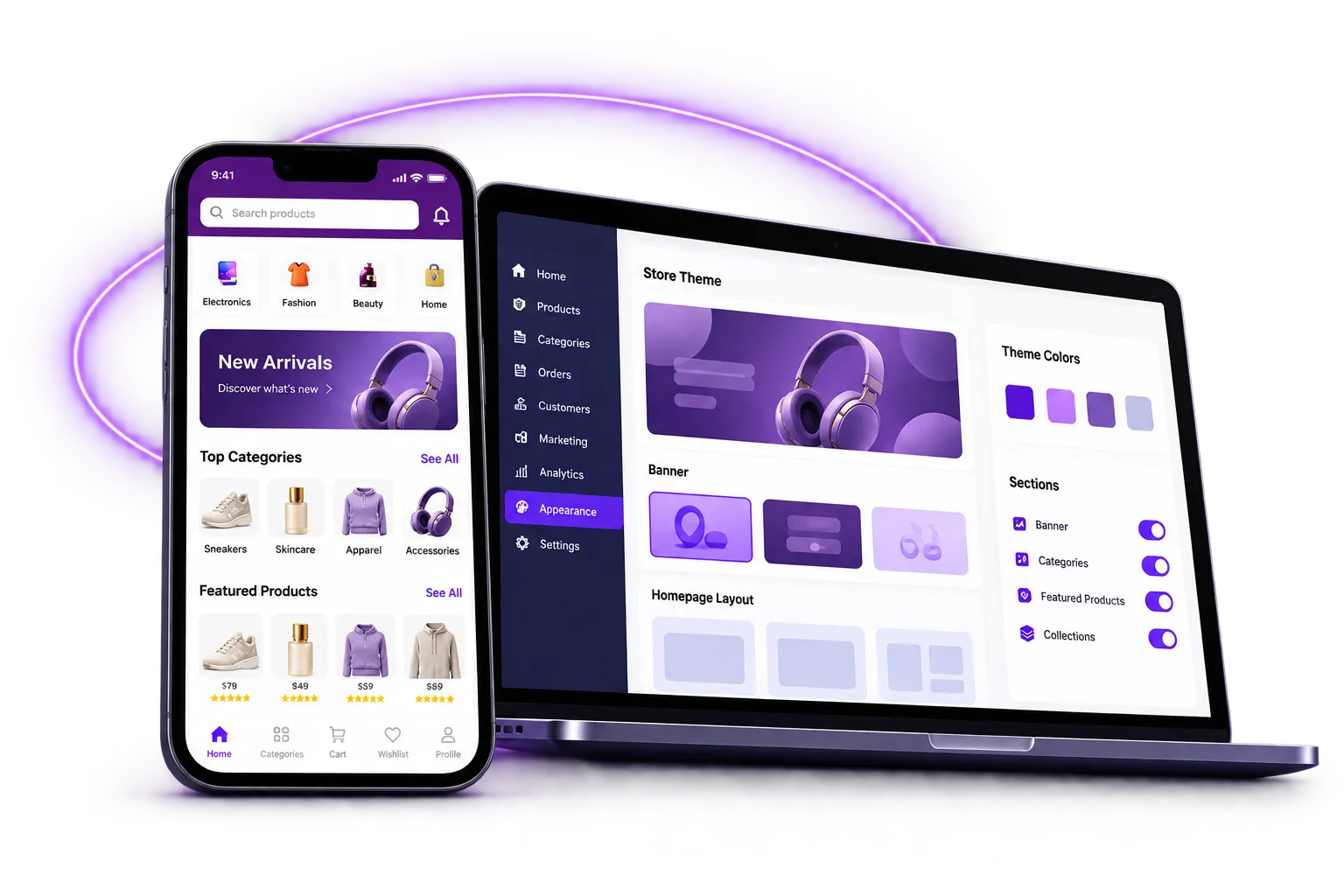
Take your eCommerce business to the next level with the Customer Mobile App, designed to deliver a smooth, engaging, and user-friendly shopping experience.
Built using React Native, the app supports both Android and iOS, helping you connect with customers across both mobile platforms.
A powerful backend management system lets store administrators customize the app's appearance, manage homepage content, configure banners, and maintain help center information — all from one place. In this guide, we walk you through the installation process and the key features available in the app.
Key Features of Customer Mobile App
Cross-Platform & Centralized Management
Built with React Native, so your customers can shop on both Android and iOS devices.
One dedicated section in your admin panel to manage Theme settings, Homepage layout, Mobile App Banner, and Help Center Q&A.
Your app stays connected with your store, so everything you manage from the admin panel is reflected in the app.
Theme & Branding
Upload your app logo, set Android and iOS app versions with a Force Update option, and select your Privacy Policy and Terms pages.
Set the Primary, Secondary, and Header colors, plus notification colors, and preview the look before saving.
Control how long each banner stays on screen and turn on a dark theme for your app.
Show trending search keywords of your choice and let customers see their recent searches.
Engagement & Easy Login
Set up Firebase push notifications and send a title and message to your app users straight from the admin panel.
Let customers sign in quickly with their Google, Facebook, or X (Twitter) accounts.
Homepage & Banners
Build your homepage with Banners, Products, Categories, Brands, and Vendors blocks, and set the position, title, and "See All" link for each.
Show each block as a structured grid or as a horizontally scrolling row.
Pick items yourself, or fill blocks automatically with Newest items — and for products, Most popular, Bestsellers, On sale, or Rating.
Create banners that open Products, Categories, Vendors, Brands, or any web URL, and reuse them in your homepage layout.
Customer Support
Add questions and answers under topics like Shipping and delivery, Returns and refunds, Account settings, and Vendor guide to reduce repetitive support inquiries.
Step-by-Step Setup Guide
Step 1: Install the Customer Mobile App Add-on
Getting started is simple. The add-on enables the required integration between your eCommerce storefront and the mobile application:
- Download the Add-on – Download the Customer Mobile App package from the Ecartify website.
- Open Add-ons – Go to Add-ons → Manage Add-ons in your admin panel.
- Upload the Package – Click the "+" button and upload the add-on package.
- Install & Activate – Click 'Install' and set the add-on status to 'ON'.
Step 2: Connect Your App with Your Storefront Through the Admin Panel
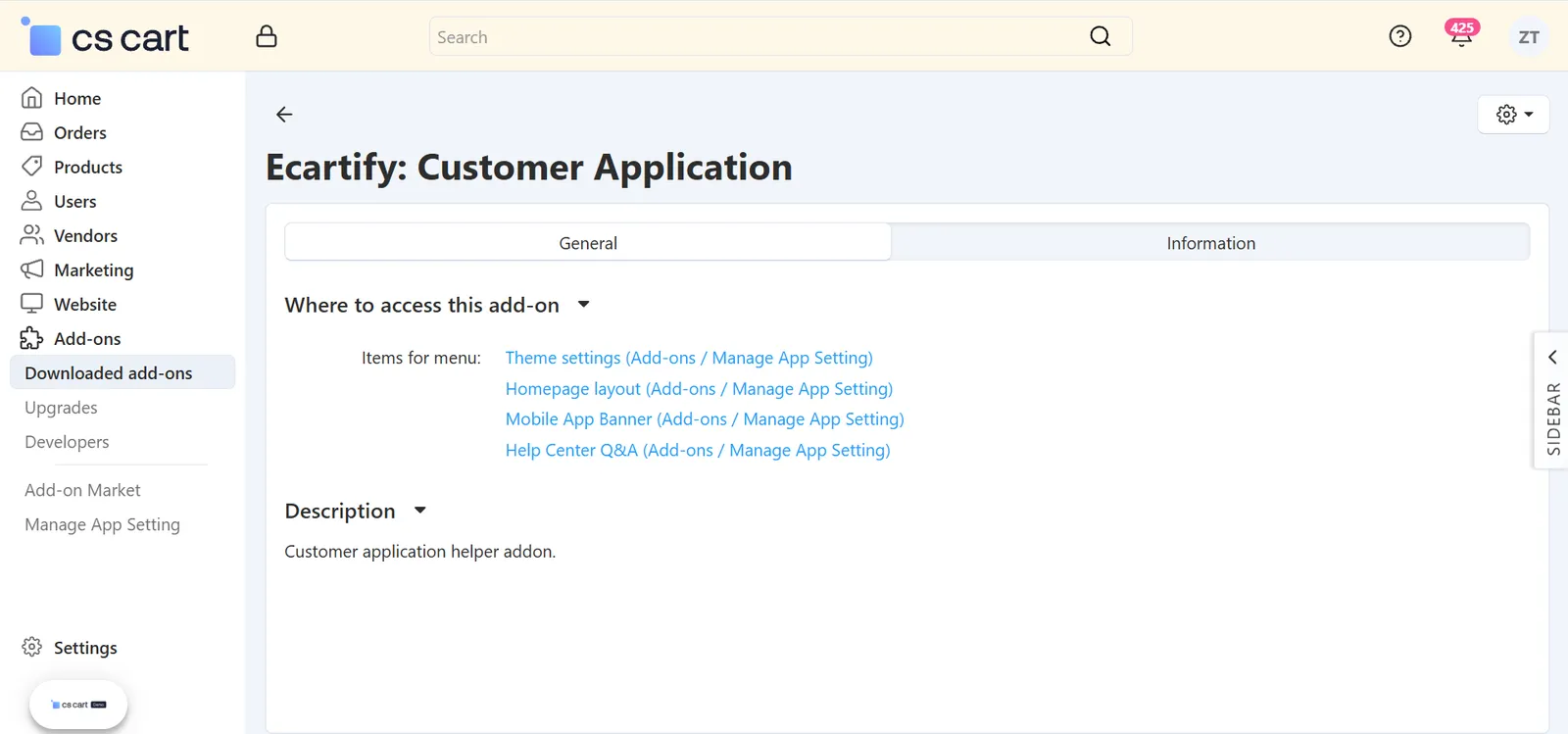
Once the add-on is installed, the next step is to connect your mobile app with your online store. This connection keeps your storefront and mobile app in sync, so everything you manage from the admin panel is reflected in the app:
- Starting Fresh:
Launching a new mobile app? Our team will help you get it ready and connected to your store. - Manage Everything From One Place:
After the connection is complete, you can control your app directly from your store's admin panel — no separate management tool needed.
Step 3: Access Manage App Settings
After installing the add-on, click on Add-ons in the left menu of your admin panel and you will see a new Manage App Setting option. Under it, you get the following sections to manage your mobile app:
- Theme Settings – Customize the look and feel of your app, including colors, layout, search, push notifications, and social login.
- Homepage Layout – Choose which sections appear on the app homepage and how they are displayed.
- Mobile App Banner – Add and manage promotional banners for your mobile app.
- Help Center Q&A – Manage the questions and answers that help your customers inside the app.
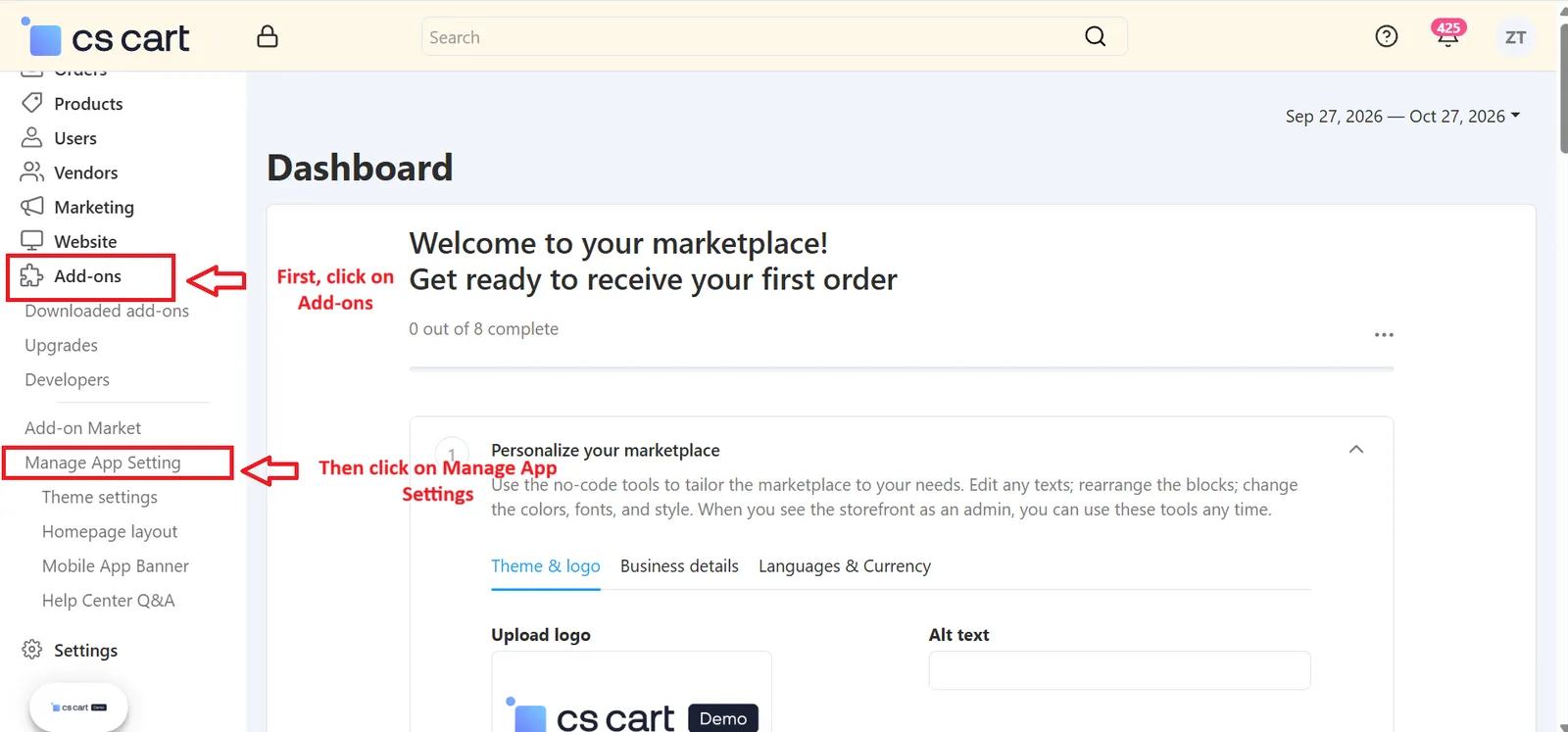
Step 4: Customize Your App with Theme Settings
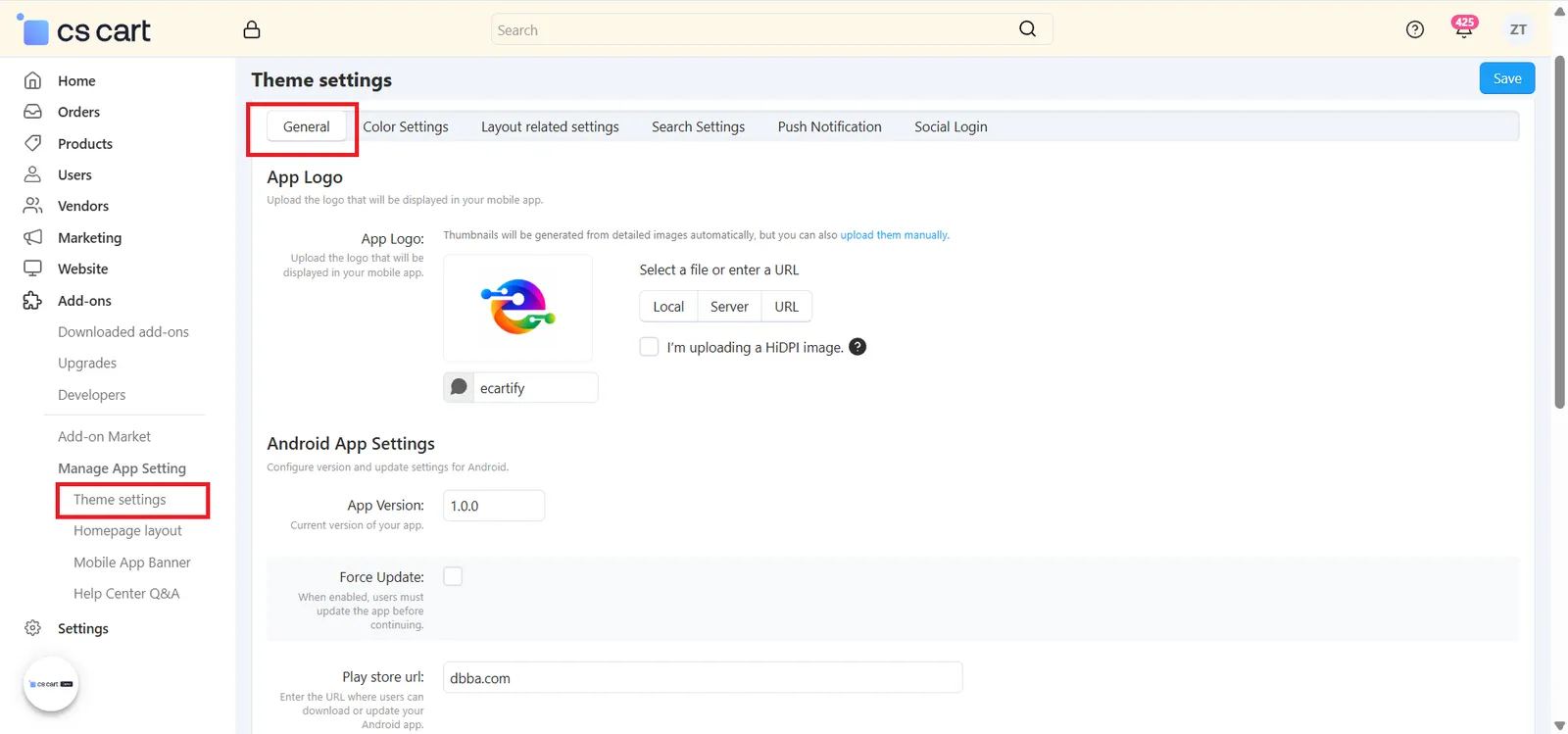
Go to Add-ons → Manage App Setting → Theme settings. This is where you set up your app's logo, colors, search, notifications, and login options. The page has 6 tabs at the top — open each tab one by one, fill in the details, and click the Save button (top-right corner) before moving to the next tab.
- General – App logo, Android & iOS app versions, and privacy policy / terms pages.
- Color Settings – Brand colors for buttons, header, and notification messages.
- Layout related settings – Banner slide time and dark theme.
- Search Settings – Trending searches and recent searches for your customers.
- Push Notification – Send notifications to your app users.
- Social Login – Let customers sign in with Google, Facebook, or X (Twitter).
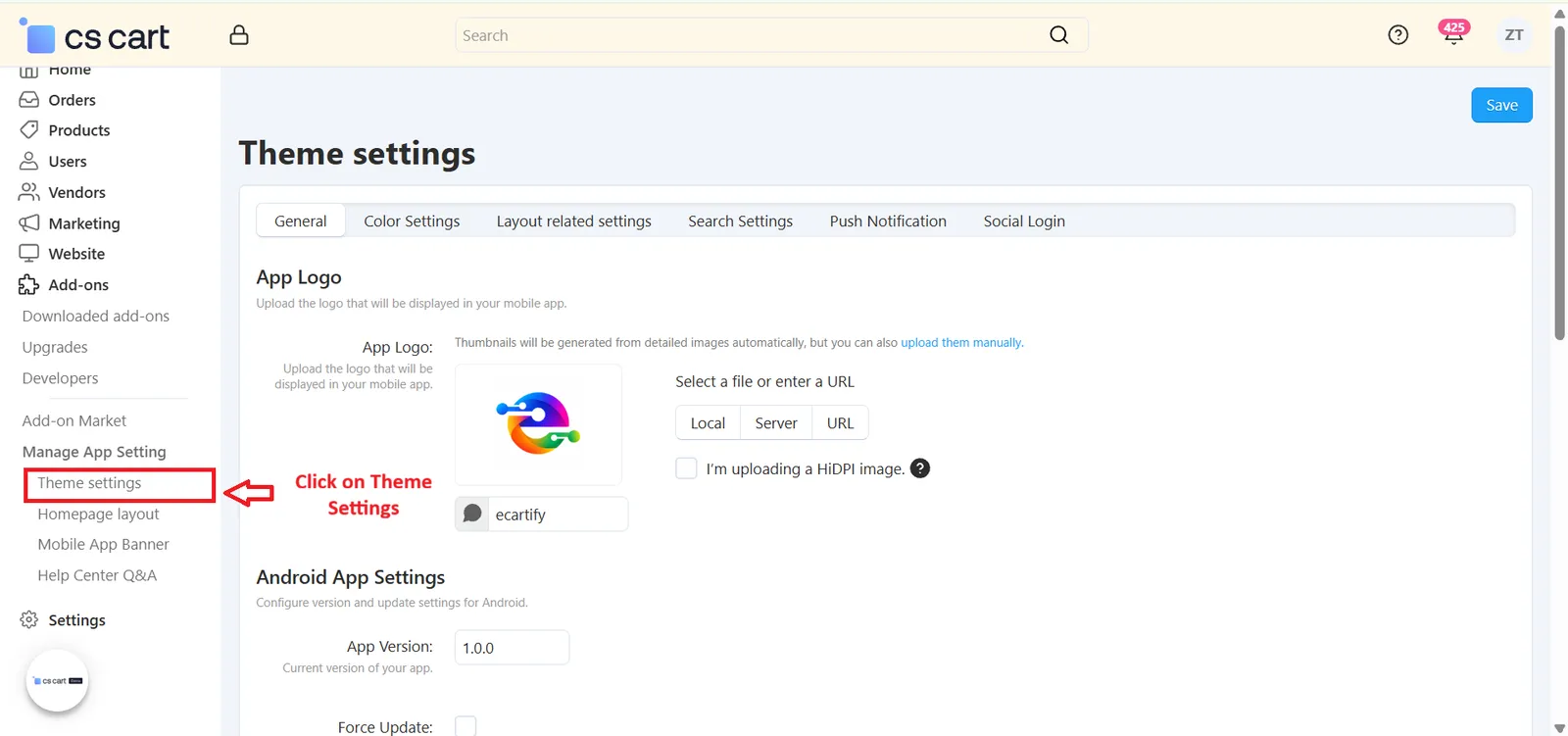
Step 4.1: General Settings
Open the General tab to set your app's logo, version details, and policy pages:
- App Logo:
Upload the logo that will be displayed in your mobile app. You can select the file from Local (your computer), Server, or enter a URL. You can also add an Alt text for the logo. - Android App Settings:
Enter the current App Version of your Android app and the Play Store URL where users can download or update it. Enable Force Update if you want users to update the app before they can continue using it. - iOS Settings:
Enter the current App Version of your iOS app and the App Store URL where users can download or update it. Enable Force Update if users must update the app before continuing. - Pages:
Select the Privacy policy page and the Terms page from the dropdowns. These are the pages your app will show for privacy policy and terms & conditions.
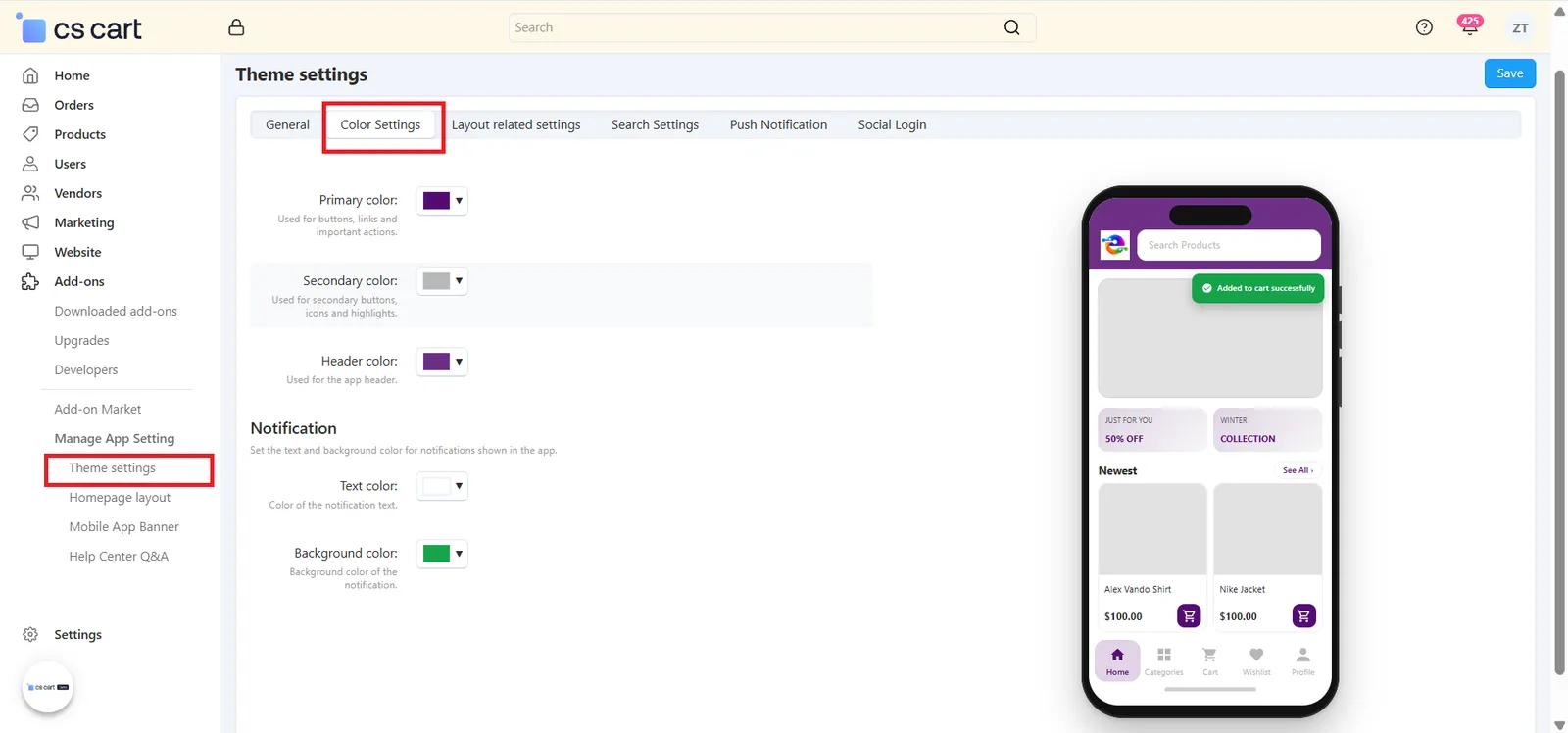
Step 4.2: Color Settings
Open the Color Settings tab to match the app with your brand. Click any color box to pick a color — the phone preview on the right shows how your app will look:
- Primary color:
Used for buttons, links, and important actions in the app. - Secondary color:
Used for secondary buttons, icons, and highlights. - Header color:
Used for the app header (the top bar of the app). - Notification colors:
Set the Text color and Background color of the notification messages shown inside the app (for example, the "Added to cart successfully" message).
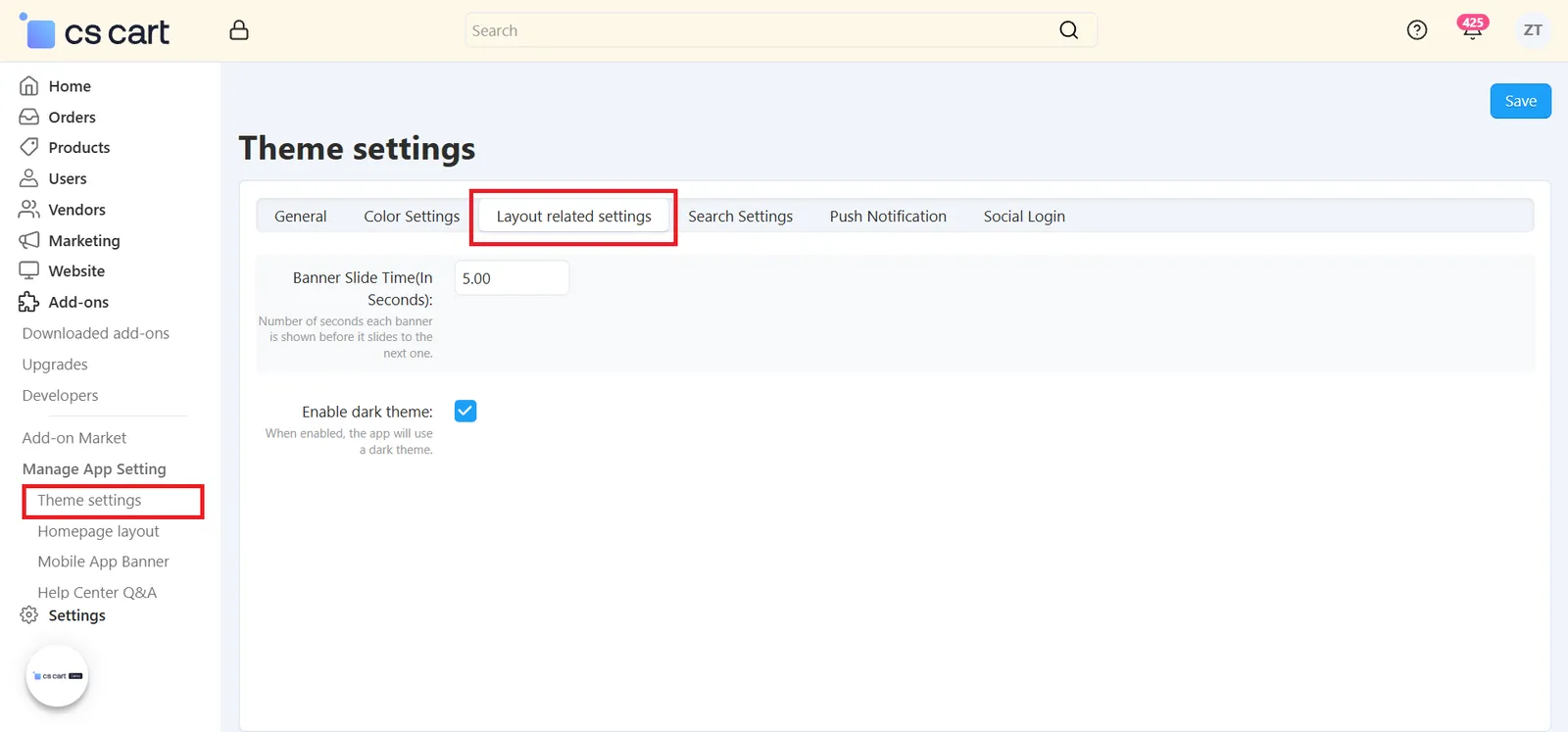
Step 4.3: Layout Related Settings
Open the Layout related settings tab to control how your homepage banners and app theme behave:
- Banner Slide Time (in Seconds):
Set how many seconds each banner stays on screen before it slides to the next one. For example, 5 means each banner is shown for 5 seconds. - Enable dark theme:
Tick this checkbox if you want the app to use a dark theme.
Step 4.4: Search Settings
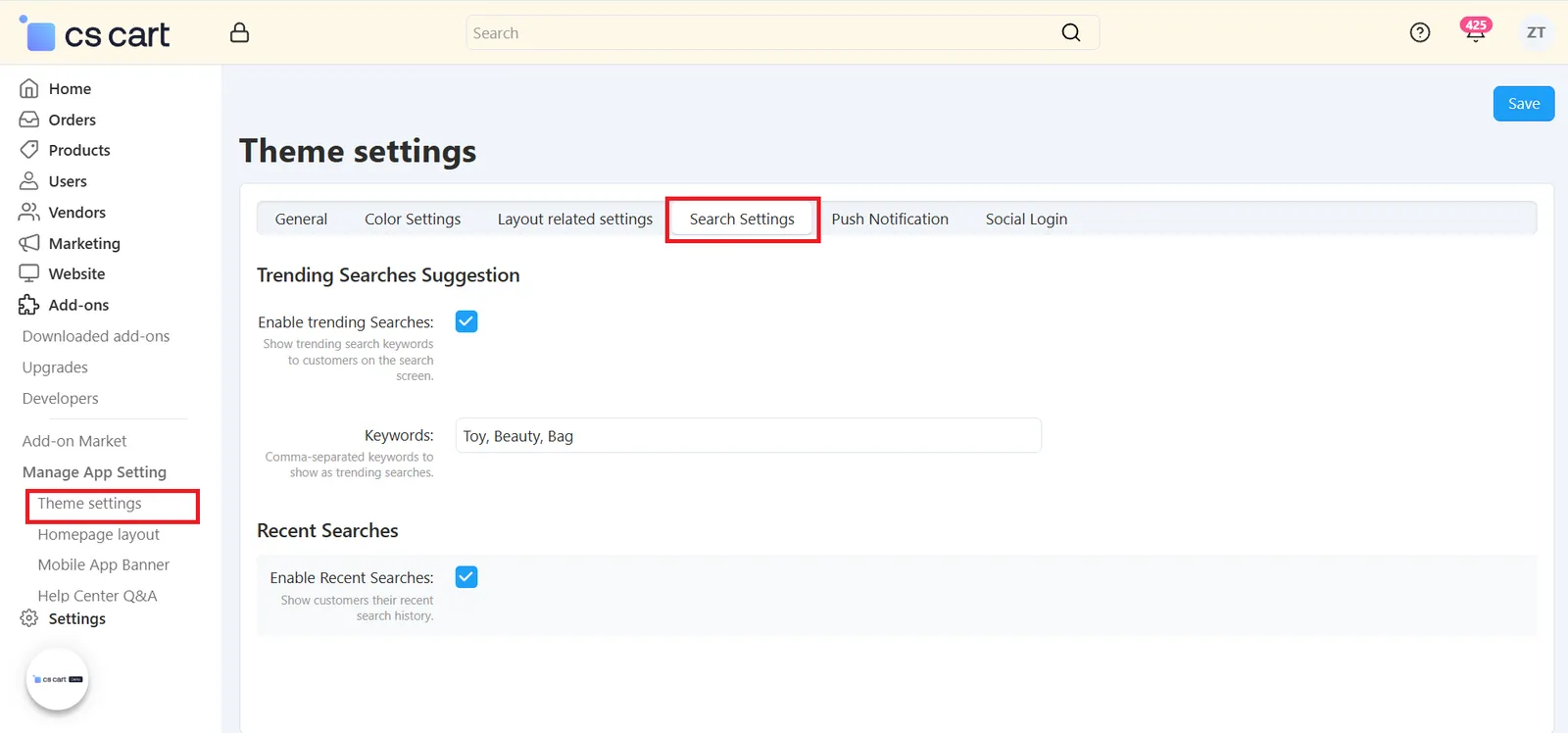
Open the Search Settings tab to help customers find products faster:
- Enable trending Searches:
Tick this to show trending search keywords to customers on the search screen. - Keywords:
Enter the keywords you want to show as trending searches, separated by commas. Example: Toy, Beauty, Bag. - Enable Recent Searches:
Tick this to show customers their recent search history.
Step 4.5: Push Notification
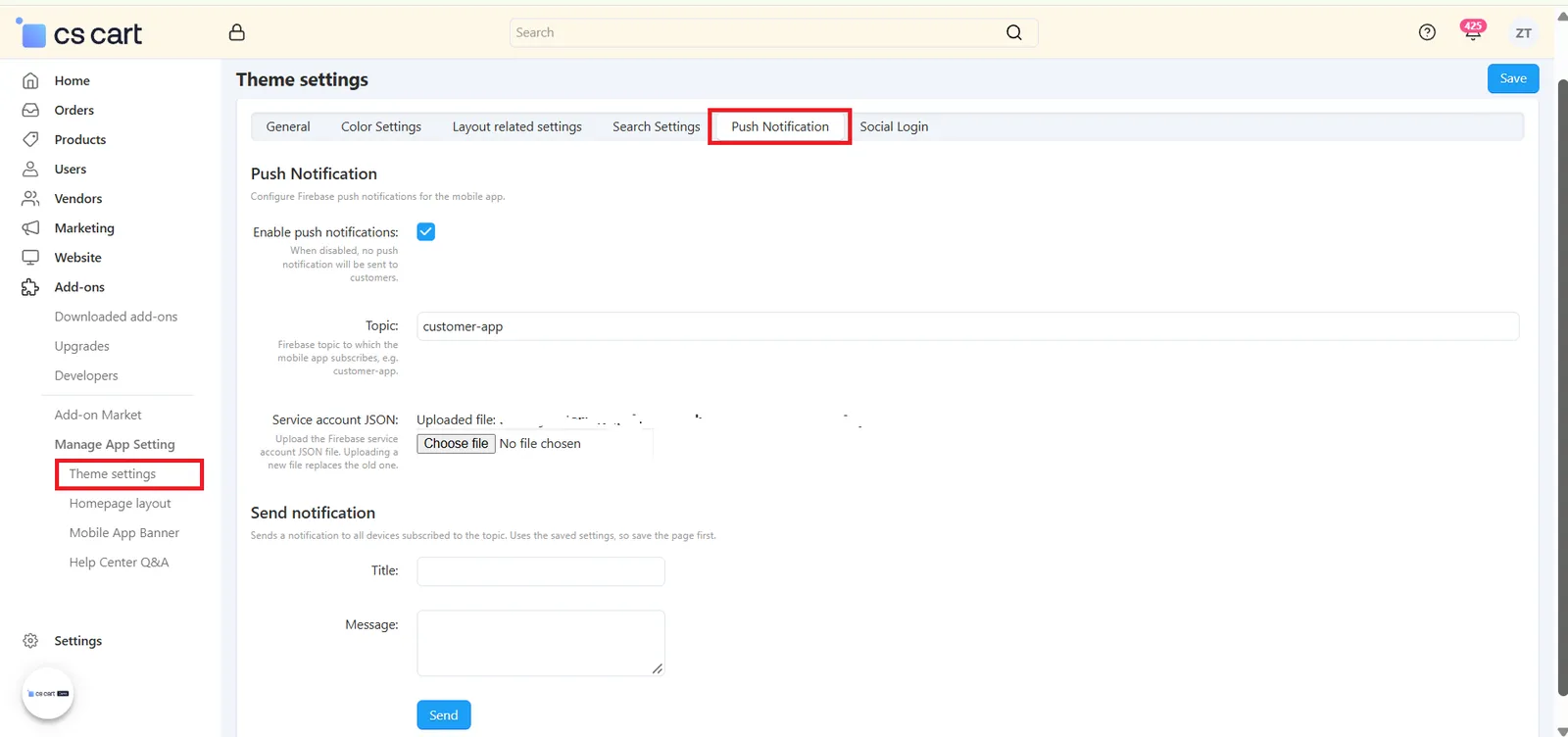
Open the Push Notification tab to set up Firebase push notifications and send messages to your app users:
- Enable push notifications:
Tick this to turn on push notifications. When it is disabled, no push notification will be sent to customers. - Topic:
Enter the Firebase topic to which your mobile app subscribes, for example customer-app. - Service account JSON:
Click Choose file and upload your Firebase service account JSON file. If you upload a new file later, it replaces the old one. - Send notification:
Enter a Title and a Message, then click Send to send the notification to all devices subscribed to the topic.
Step 4.6: Social Login
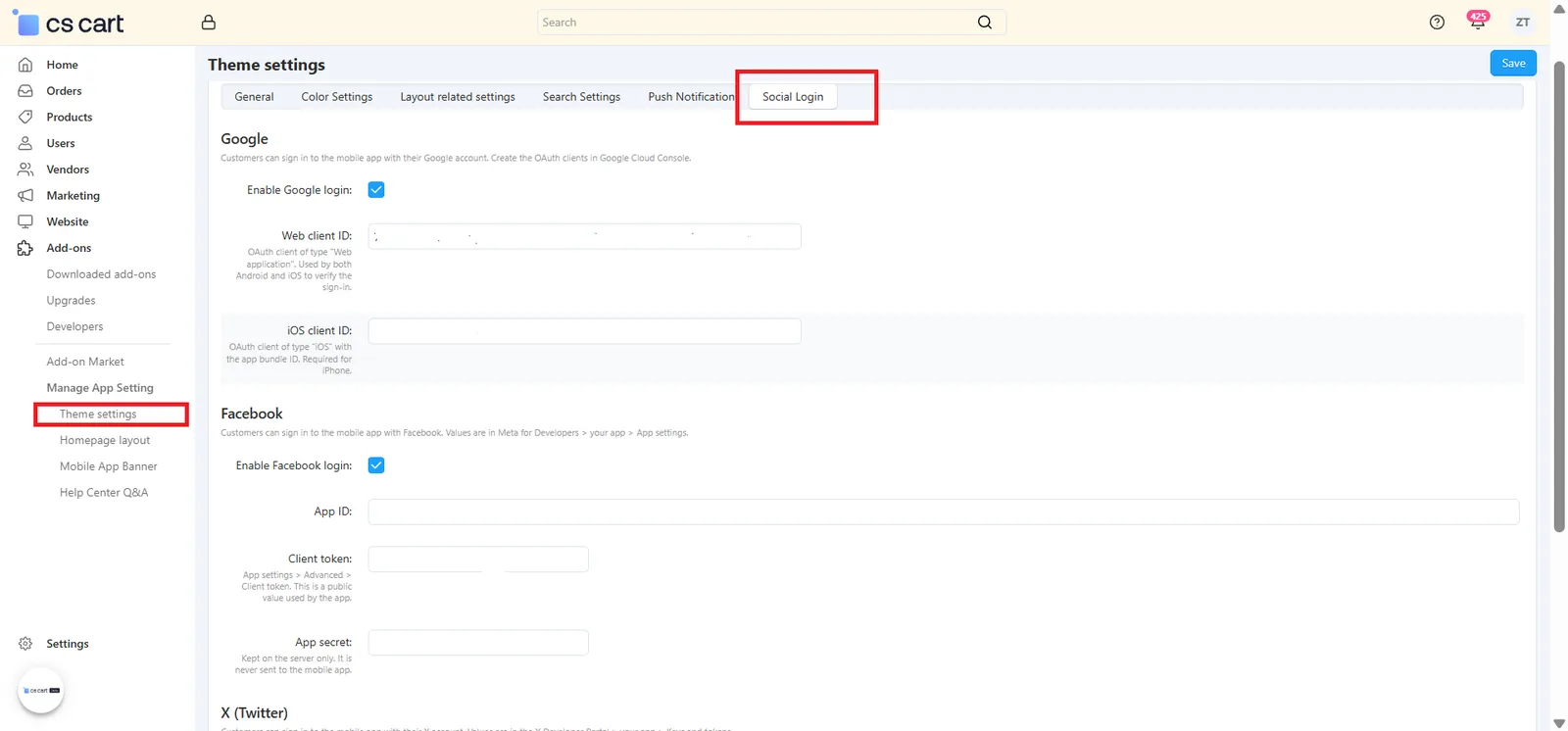
Open the Social Login tab to let customers sign in to your app with their existing accounts. Enable only the options you want to offer, and fill in the details from each platform:
- Google:
Tick Enable Google login and enter the Web client ID (used by both Android and iOS to verify sign-in) and the iOS client ID (required for iPhone). Create these OAuth clients in your Google Cloud Console. - Facebook:
Tick Enable Facebook login and enter your App ID, Client token, and App secret. You can find these in Meta for Developers → your app → App settings. The App secret is kept on the server only and is never sent to the mobile app. - X (Twitter):
Tick Enable X login and enter your API key (consumer key) and API key secret from the X Developer Portal → your app → Keys and tokens. Then copy the Callback URL shown on this page and add it exactly as it is to the callback URLs of your X app.
Step 5: Design Your Homepage Layout
Your app's homepage is built from blocks. Each block is one section of the homepage — for example a banner slider, a list of categories, or a row of best-selling products. Go to Add-ons → Manage App Setting → Homepage layout to create and arrange these blocks. For every block you decide three things:
- Where it appears – Set the block's position on the homepage.
- How it looks – Choose the content type (Banners, Products, Categories, Brands, or Vendors), the display style (Grid or Scroller), and whether to show the title and a "See All" link.
- What it shows – Pick the items yourself (Manually) or let the app fill the block automatically (for example, Newest or Bestsellers).
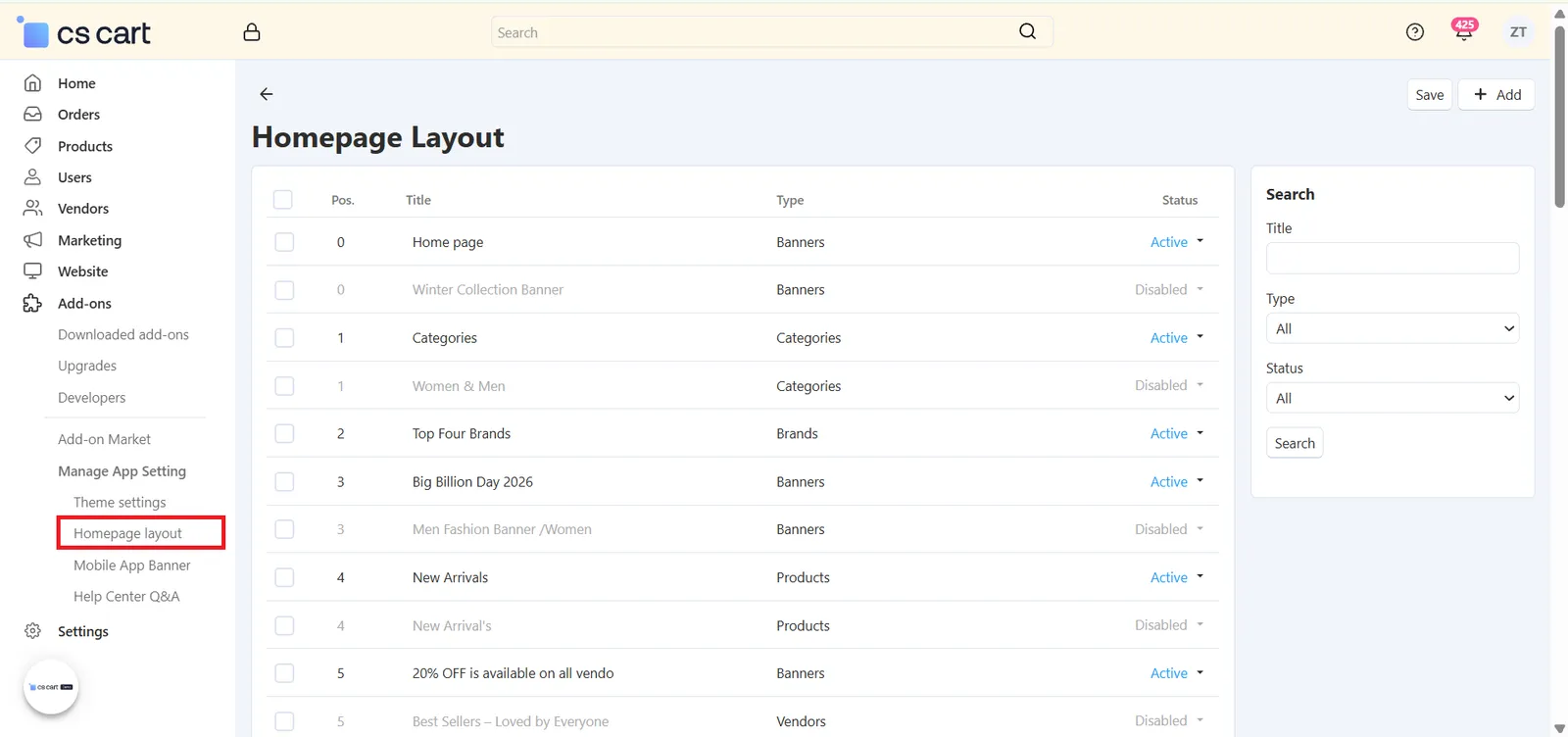
Example: Place a promotional banner at the top of the homepage, followed by product categories in a grid layout, best-selling products in a scroller, and featured brands below.
Step 5.1: View and Manage Your Homepage Blocks
When you open Homepage layout, you see a list of all the blocks created for your app homepage:
- Pos.:
The position of the block on the homepage. Blocks with lower numbers are displayed first. - Title:
The name of the block, so you can easily identify it (for example, Home page, Categories, Top Four Brands). - Type:
The kind of content the block shows — Banners, Products, Categories, Brands, or Vendors. - Status:
Set a block to Active to show it in the app, or Disabled to hide it without deleting it. - Search:
Use the search panel on the right side of the page to quickly find a block when your homepage has many blocks. - Add & Save:
Click + Add (top-right) to create a new block, and click Save to save your changes on this page.
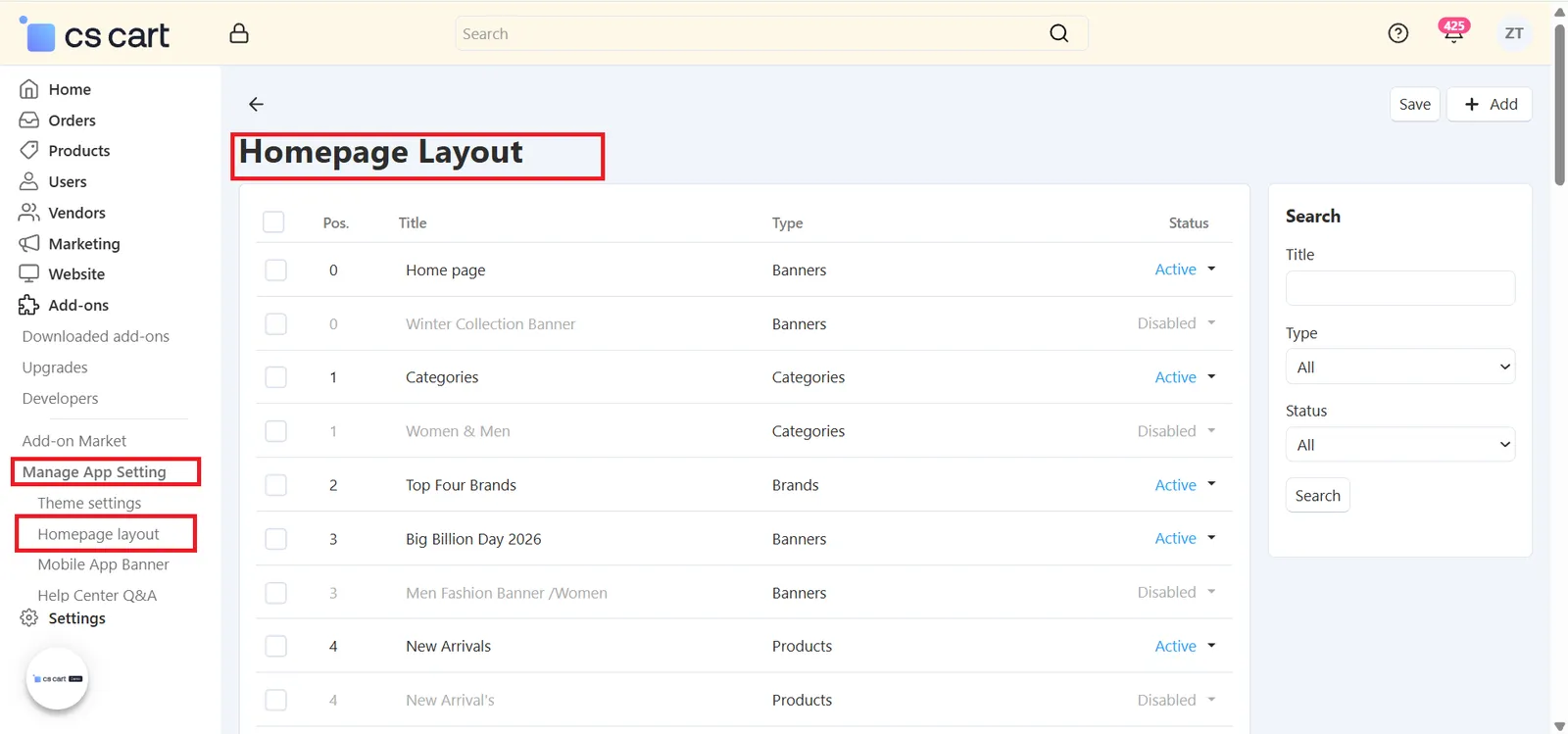
Step 5.2: Add a New Block (General Tab)
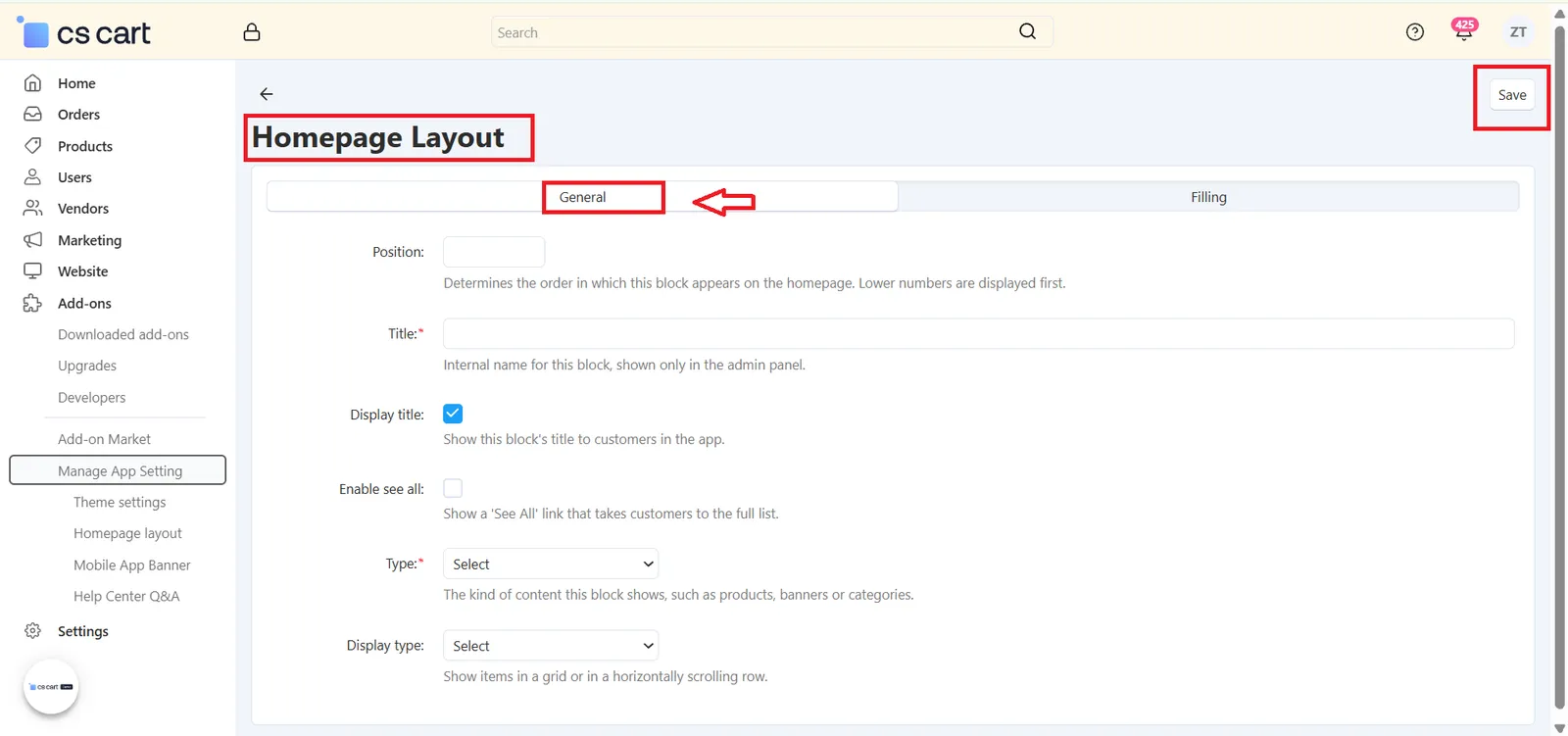
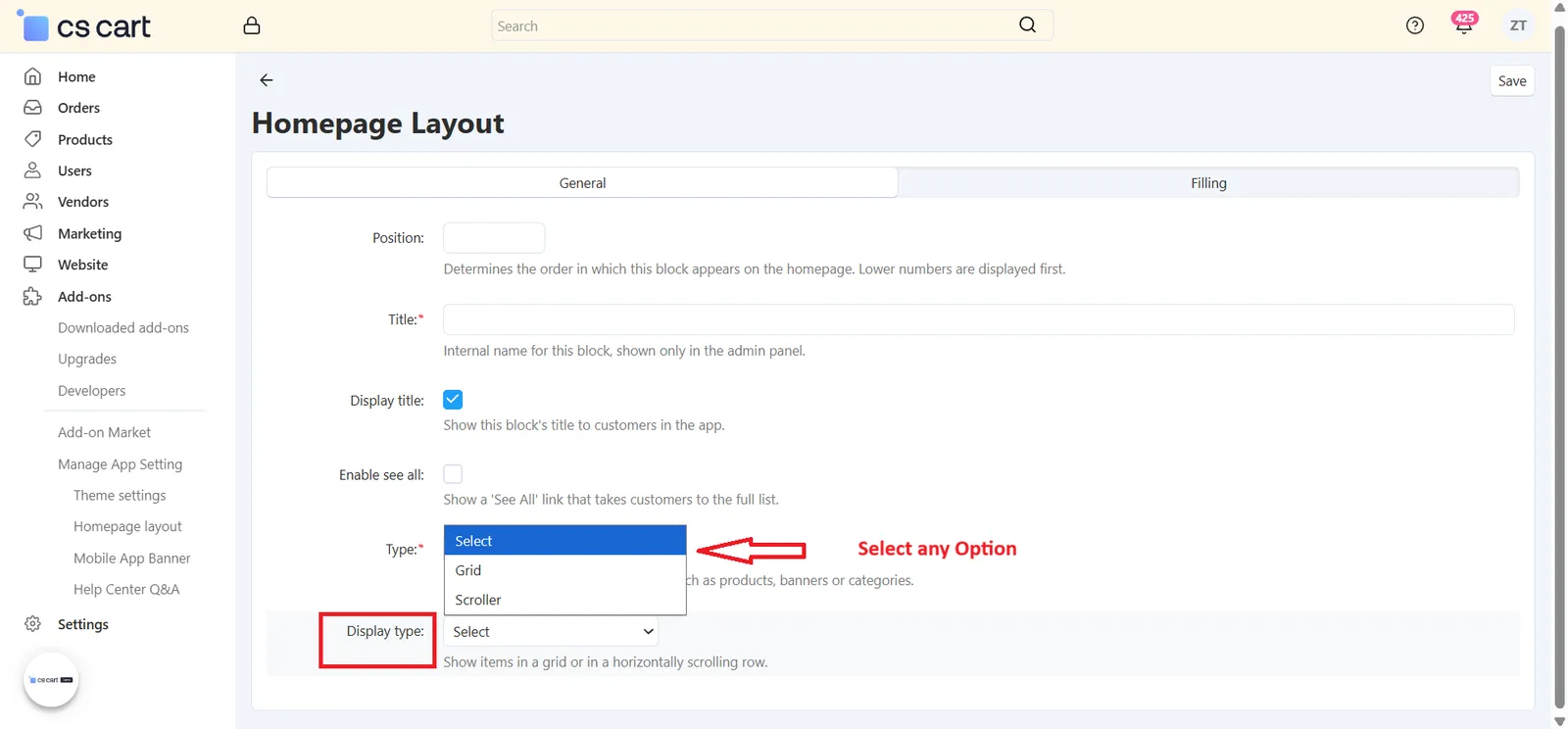
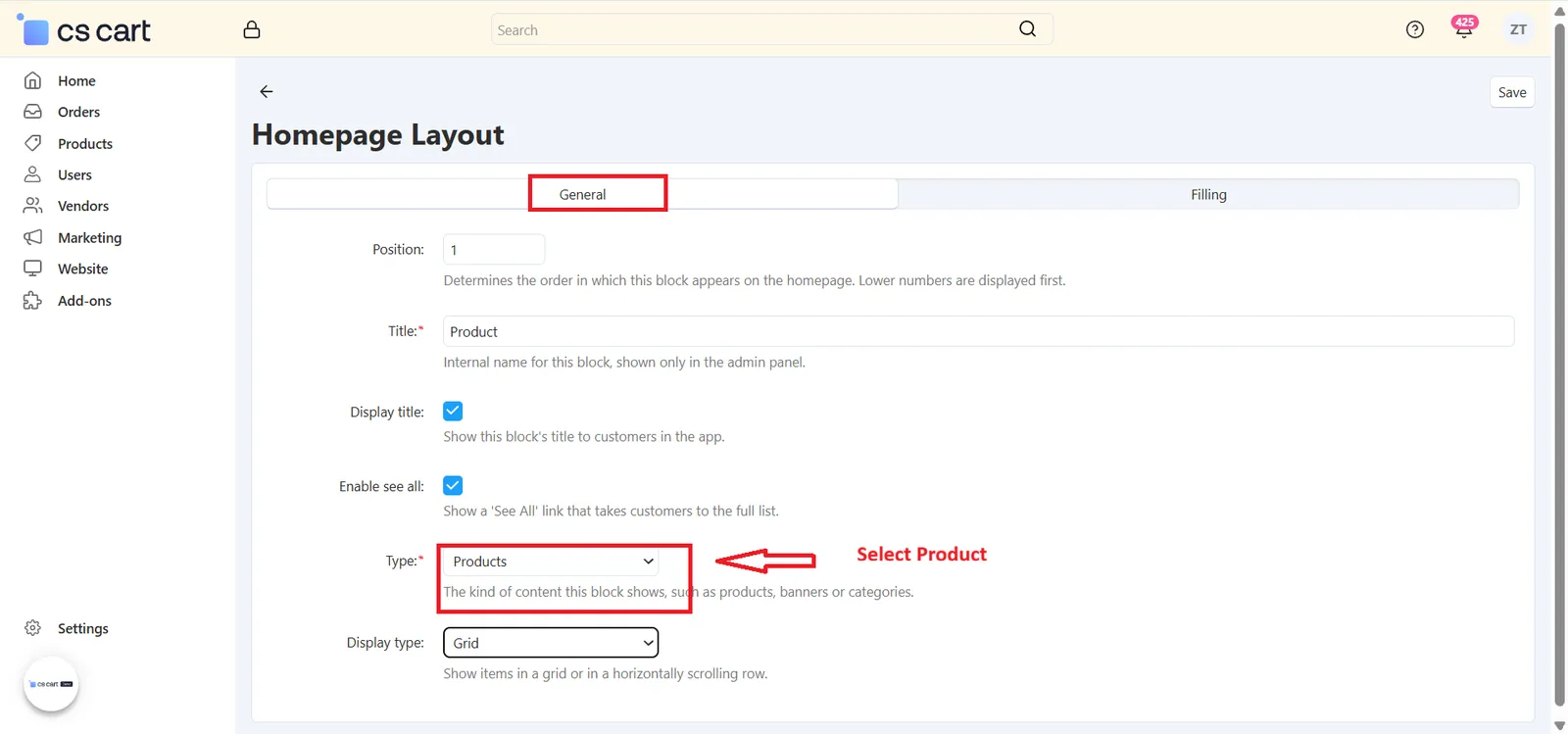
Click + Add to create a new block. The General tab opens first. Fill in the following fields:
- Position:
Decides the order in which this block appears on the homepage. Lower numbers are displayed first. - Title:
Enter a name for this block. It helps you identify the block in the admin panel. - Display title:
Tick this checkbox to show the block's title to customers in the app (for example, "Popular Products" or "Shop by Category"). Untick it to hide the title. - Enable see all:
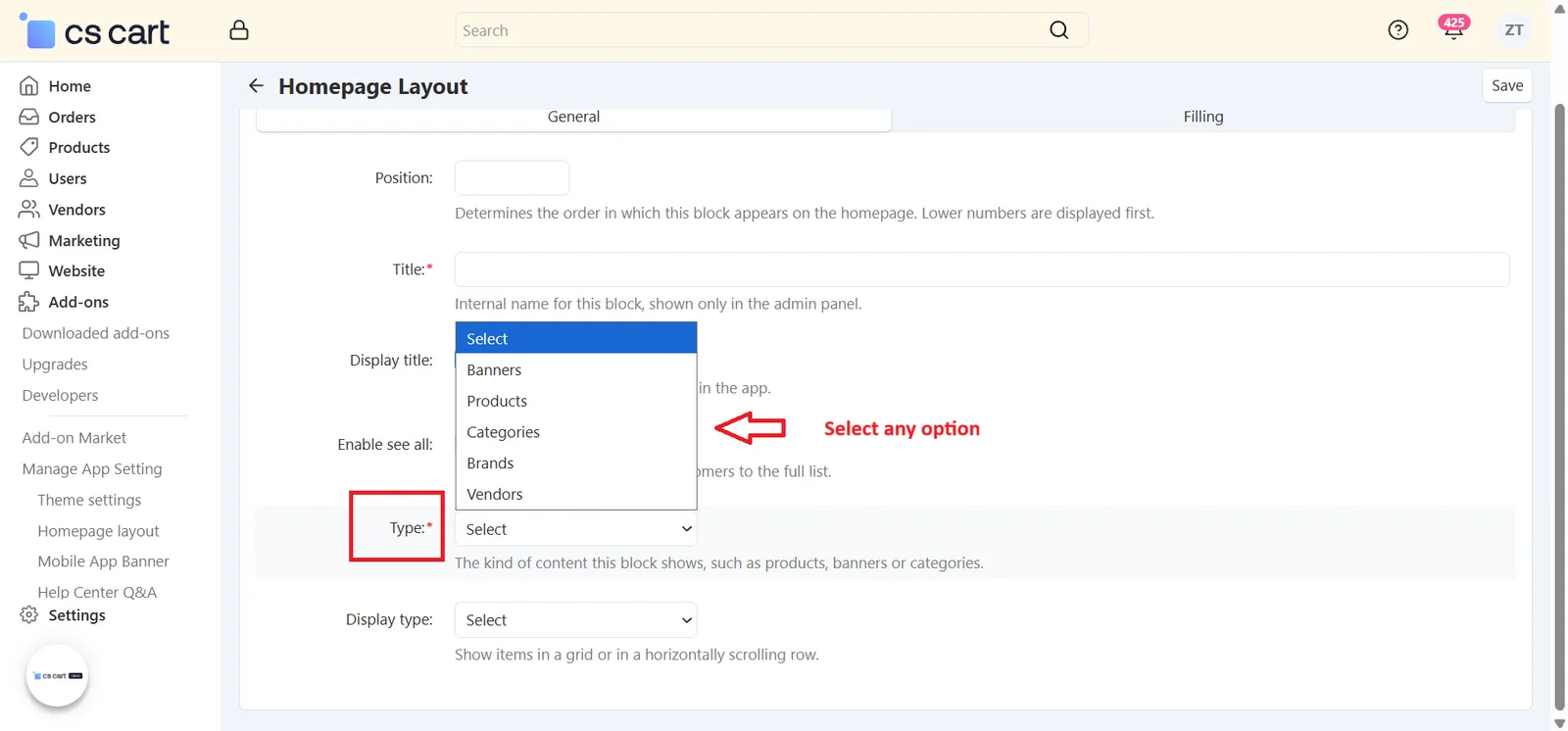
Tick this checkbox to show a See All link, which takes customers to the full list of items. - Type:
Select the kind of content this block will show: Banners, Products, Categories, Brands, or Vendors. - Display type:
Select how the items are shown: Grid (items arranged in a structured grid) or Scroller (items in a horizontally scrolling row).
Step 5.3: Choose What Appears in the Block (Filling Tab)
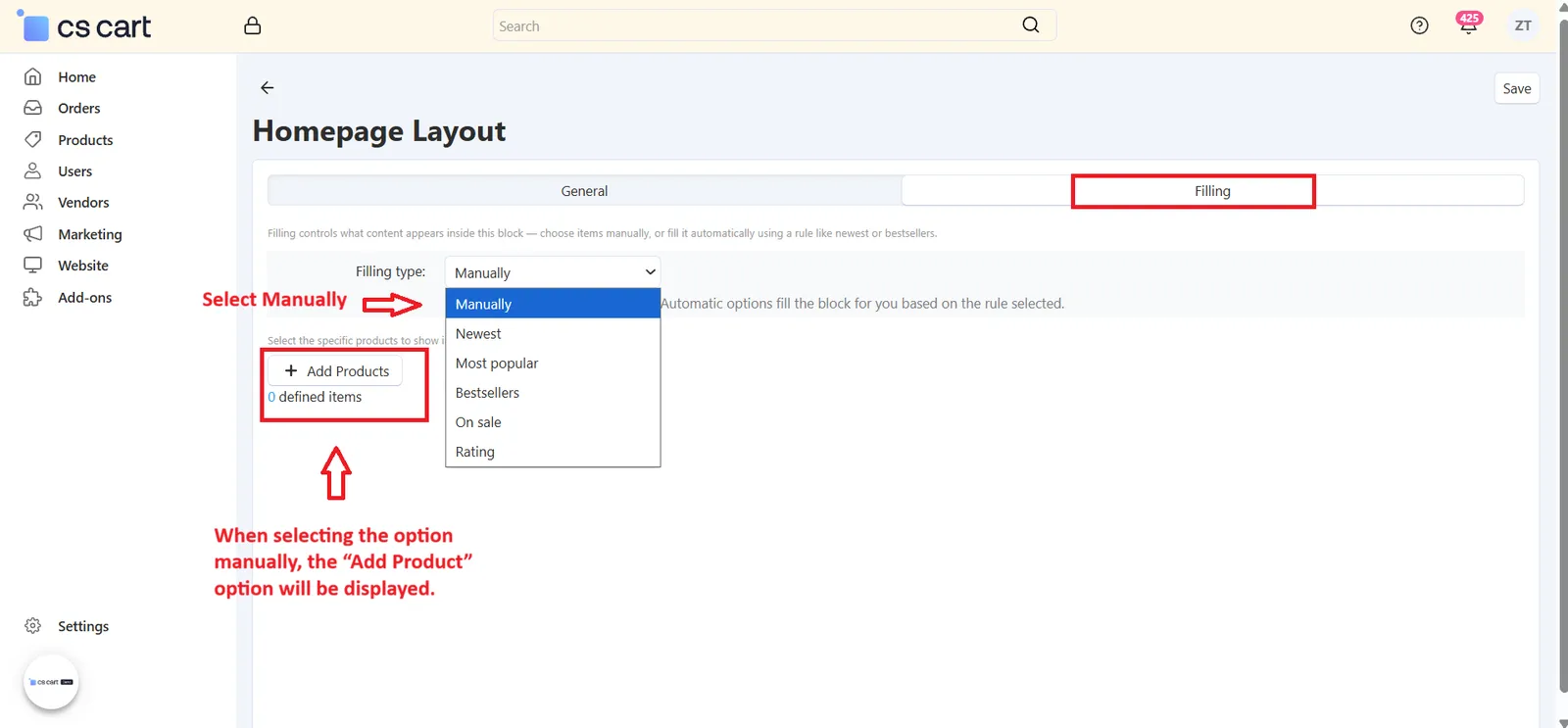
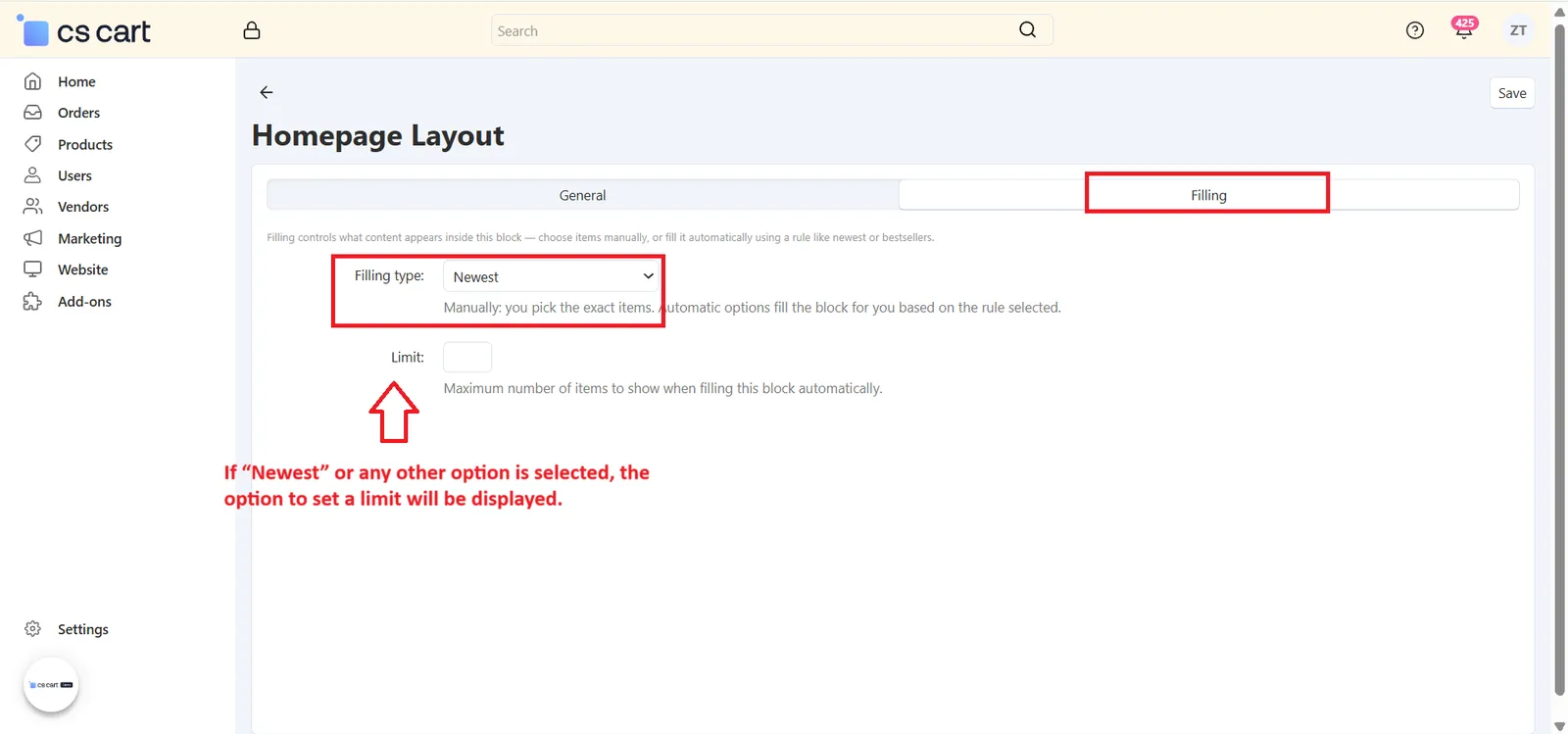
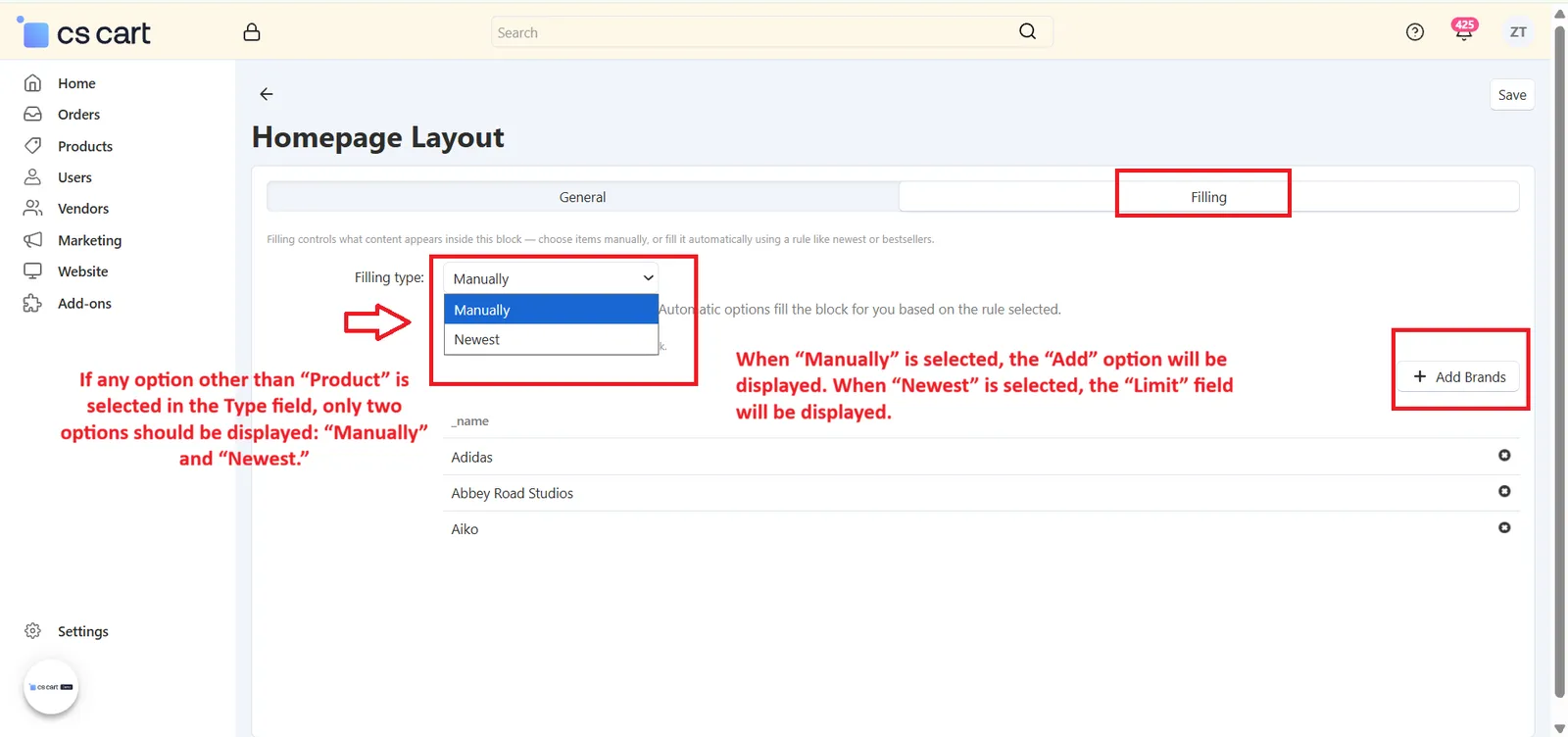
After the General details, open the Filling tab. Filling controls what content appears inside the block — you can pick the items yourself or let the app fill the block automatically. Select a Filling type:
- Manually:
You pick the exact items to show. Click the add button for your block type — Add Products, Add Banners, Add Categories, Add Brands, or Add Vendors — and select the items you want. This option is available for every block type. - Automatic options:
The app fills the block for you based on the rule you select, so you don't need to pick items one by one. For Banners, Categories, Brands, and Vendors, choose Newest to show the latest items. For Products, more options are available, as listed in the table below.
| Filling Type | What It Shows |
|---|---|
| Manually | The exact items you select yourself |
| Newest | Recently added items |
| Most popular | Popular products (Products block only) |
| Bestsellers | Best-selling products (Products block only) |
| On sale | Products currently on sale (Products block only) |
| Rating | Products based on customer ratings (Products block only) |
- How to Add Items Manually:
Click the add button (for example, Add Products). A pop-up opens where you can search items, select the ones you want using the checkboxes, and click Add products and close (or Add Products to keep the pop-up open and add more). The selected items are listed below the button, with a count of defined items. If nothing is added yet, you will see No items defined. - Save Your Block:
Click Save (top-right) to save the block. It will now appear on your app homepage based on its position and status.
Step 6: Manage Mobile App Banners
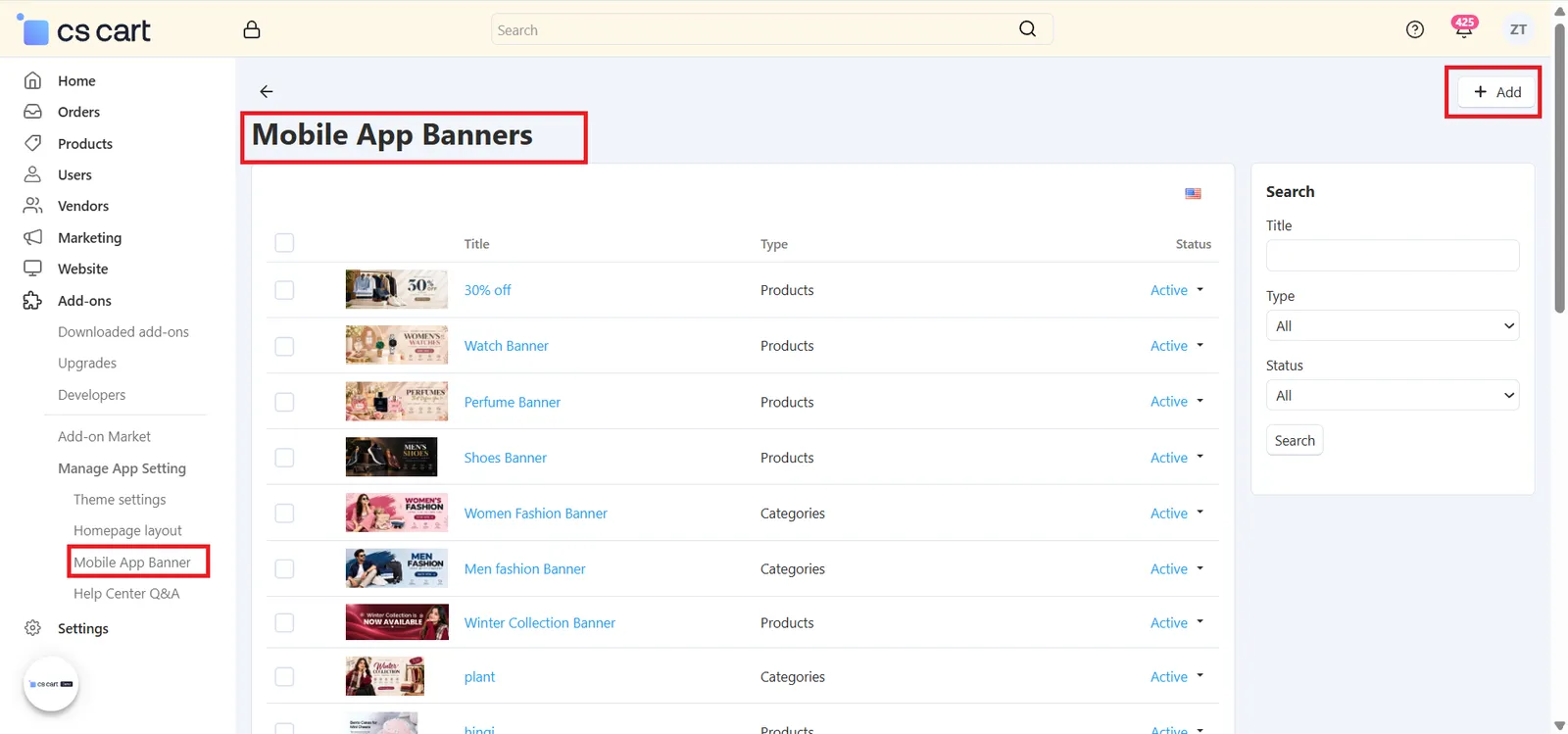
Banners are the promotional images shown in your app — use them for sales, new collections, featured products, brands, or any campaign. Go to Add-ons → Manage App Setting → Mobile App Banner to see all the banners created for your app:
- Banner List:
Every banner is listed with its image, Title, Type (what it links to), and Status. Set the status to Active to show a banner, or Disabled to hide it without deleting it. - Search & Filter:
Use the panel on the right to find a banner quickly by Title, Type, or Status, then click Search. - Add a New Banner:
Click + Add (top-right) to create a new banner. - Edit an Existing Banner:
Click a banner's title to open and edit it.
Step 6.1: Add a New Banner (General Tab)
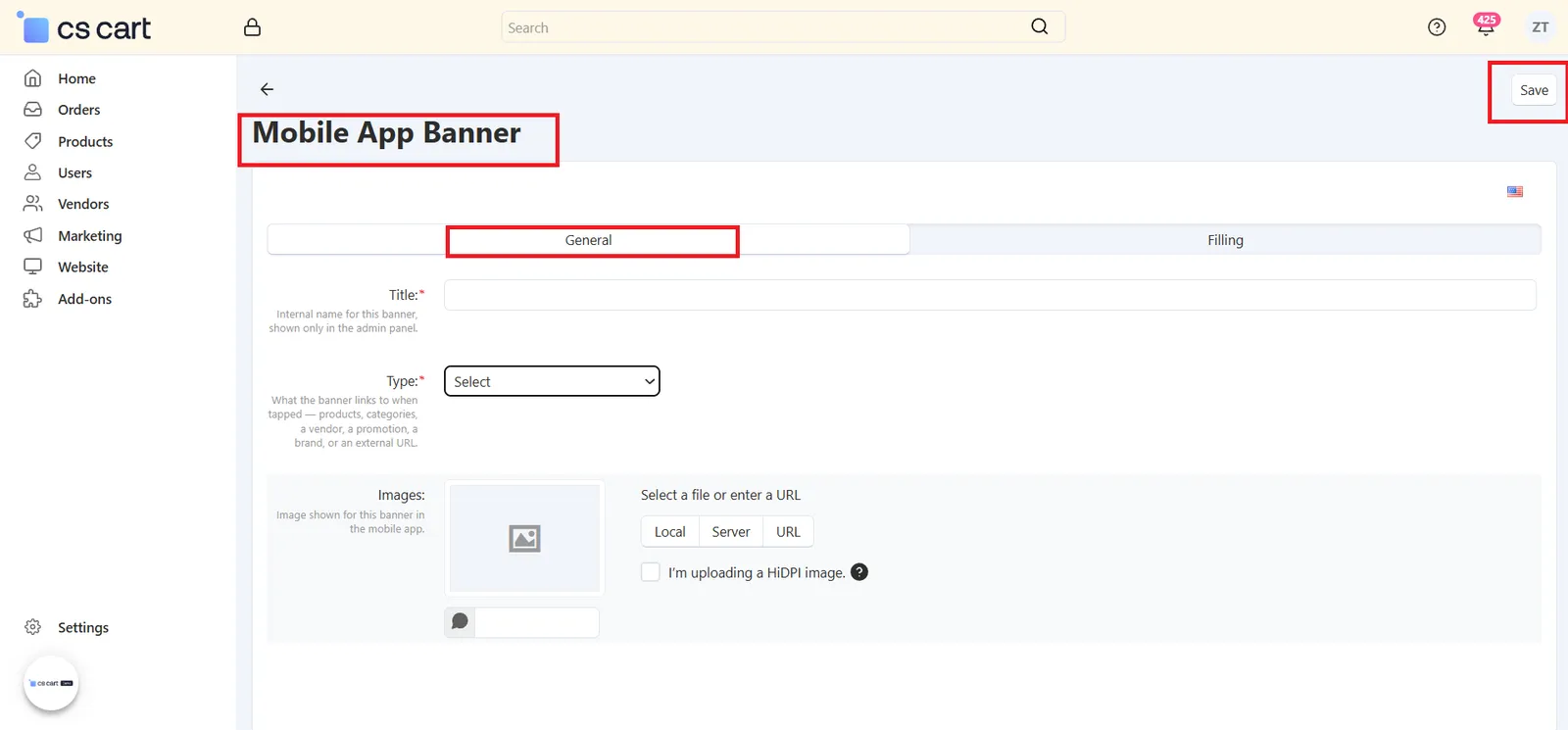
After clicking + Add, the General tab opens. Fill in the following fields:
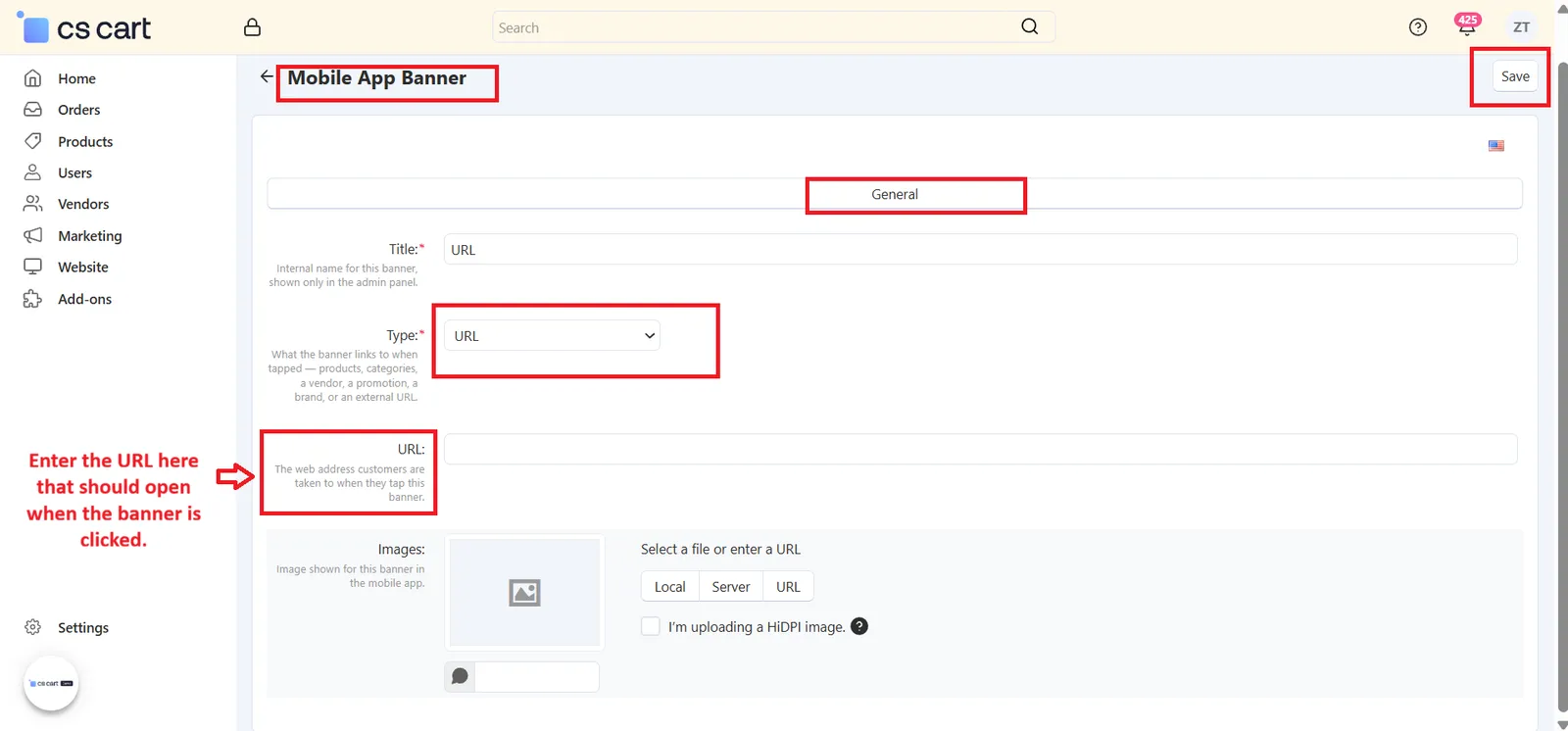
- Title:
Enter a name for this banner. It is used as an internal name and is shown only in the admin panel. - Type:
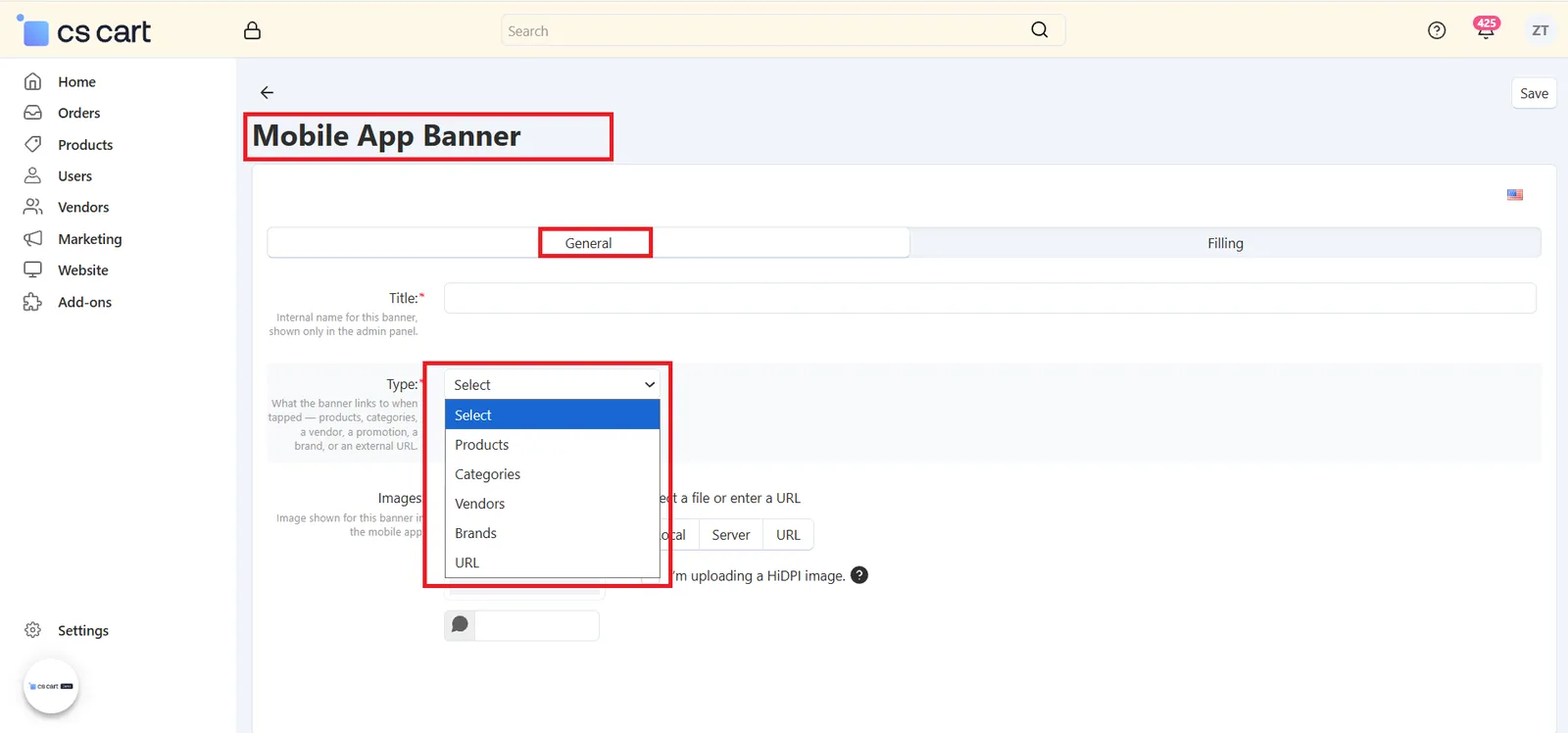
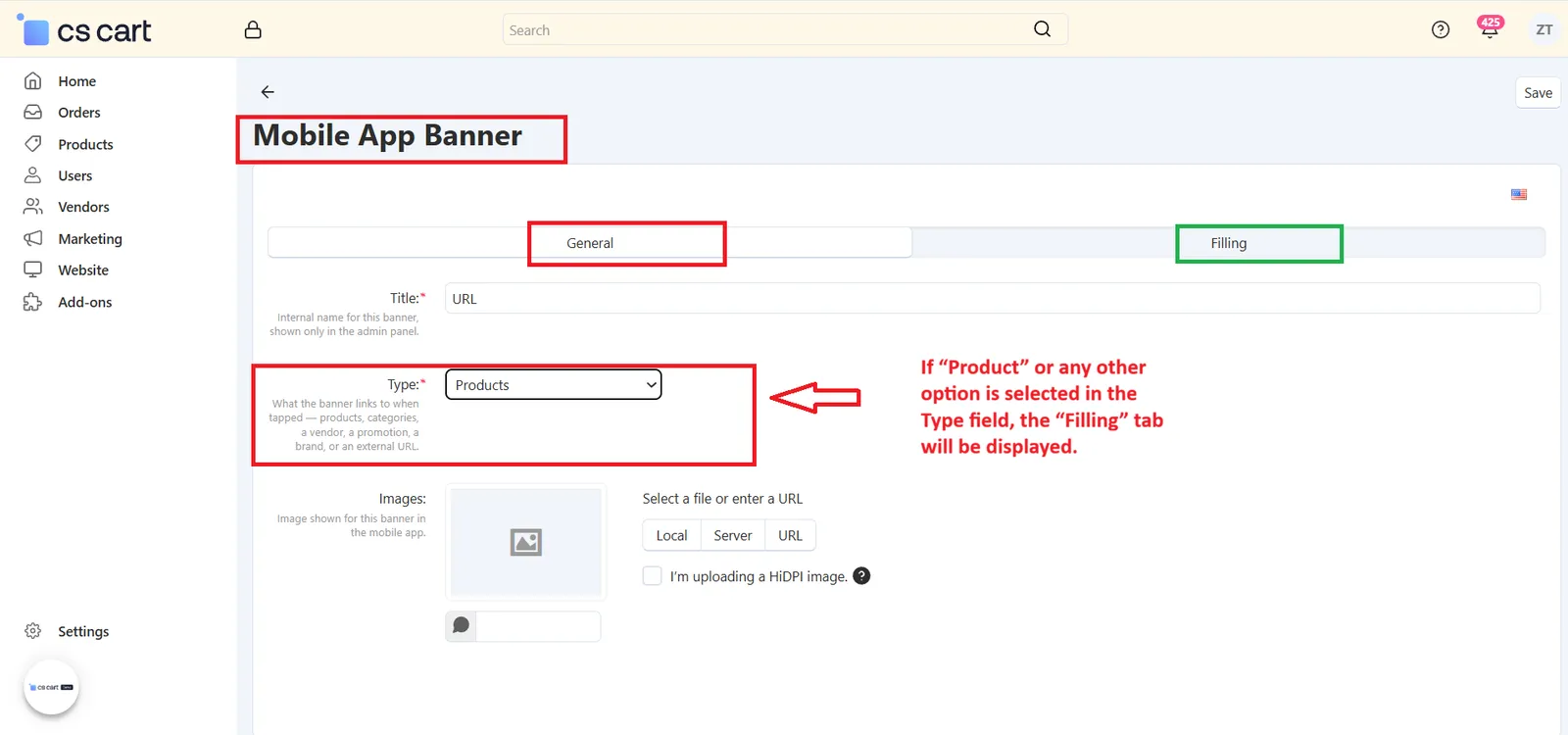
Select what the banner links to when a customer taps it: Products, Categories, Vendors, Brands, or URL. - Images:
Upload the banner image that will be shown in the mobile app. You can select the file from Local (your computer), Server, or enter a URL. Tick I'm uploading a HiDPI image if your image is a high-resolution (HiDPI) version, and add an Alt text for the image if needed.
Step 6.2: Choose What Happens When a Customer Taps the Banner
The Type you select decides where the customer goes after tapping the banner. This makes banners interactive and directs customers to relevant shopping content:
| Type | What Happens When the Banner Is Tapped |
|---|---|
| Products | Opens the product(s) you select |
| Categories | Opens the category you select |
| Vendors | Opens the vendor you select |
| Brands | Opens the brand you select |
| URL | Opens the web address you enter |
- Type = URL:
A new URL field appears. Enter the web address customers should be taken to when they tap the banner. For this type, you don't need to select any items. - Type = Products, Categories, Vendors, or Brands:
A Filling tab appears next to the General tab. Open it to select the items the banner links to (see the next step).
Step 6.3: Select the Linked Items (Filling Tab)
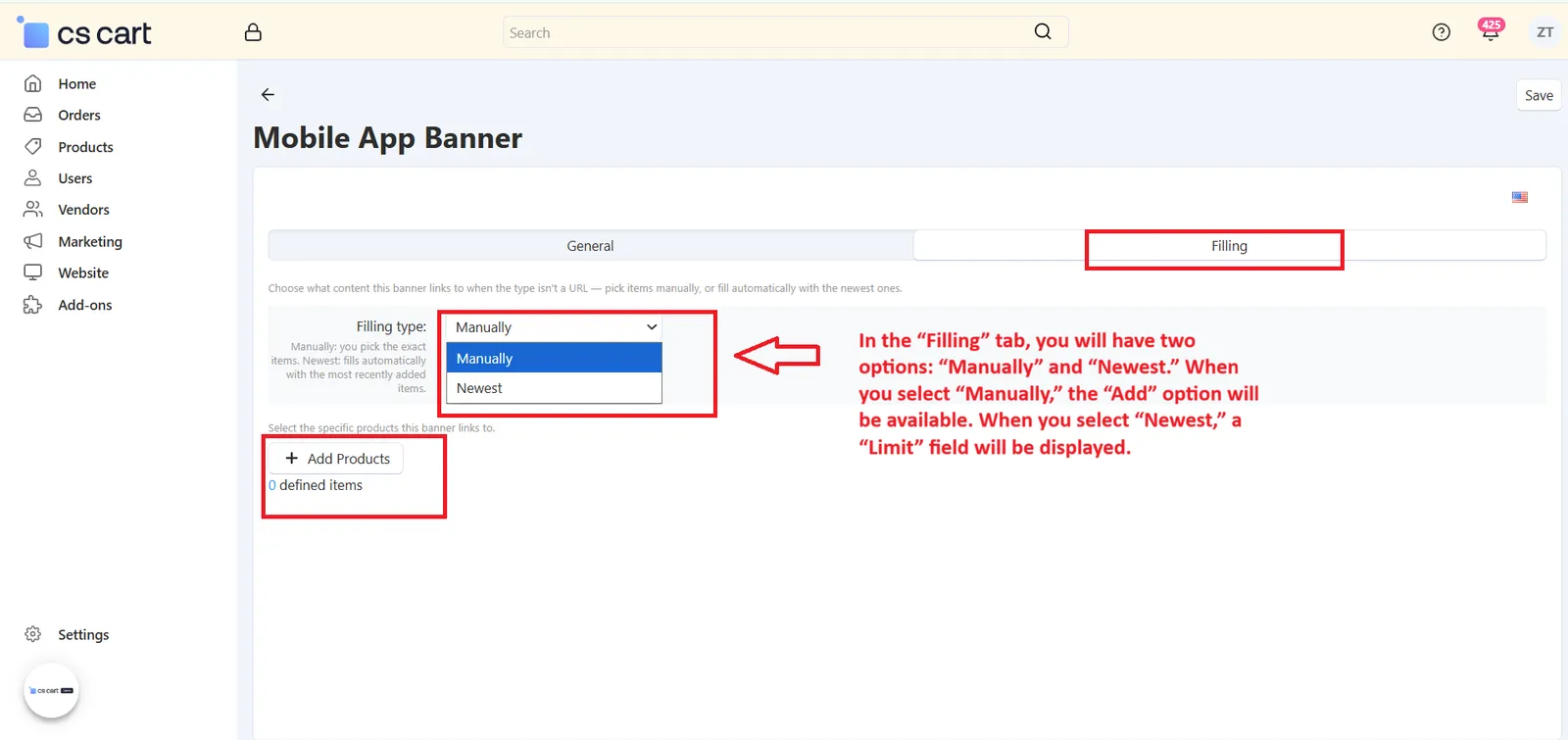
If the banner Type is not URL, open the Filling tab to choose what content the banner links to. Select a Filling type:
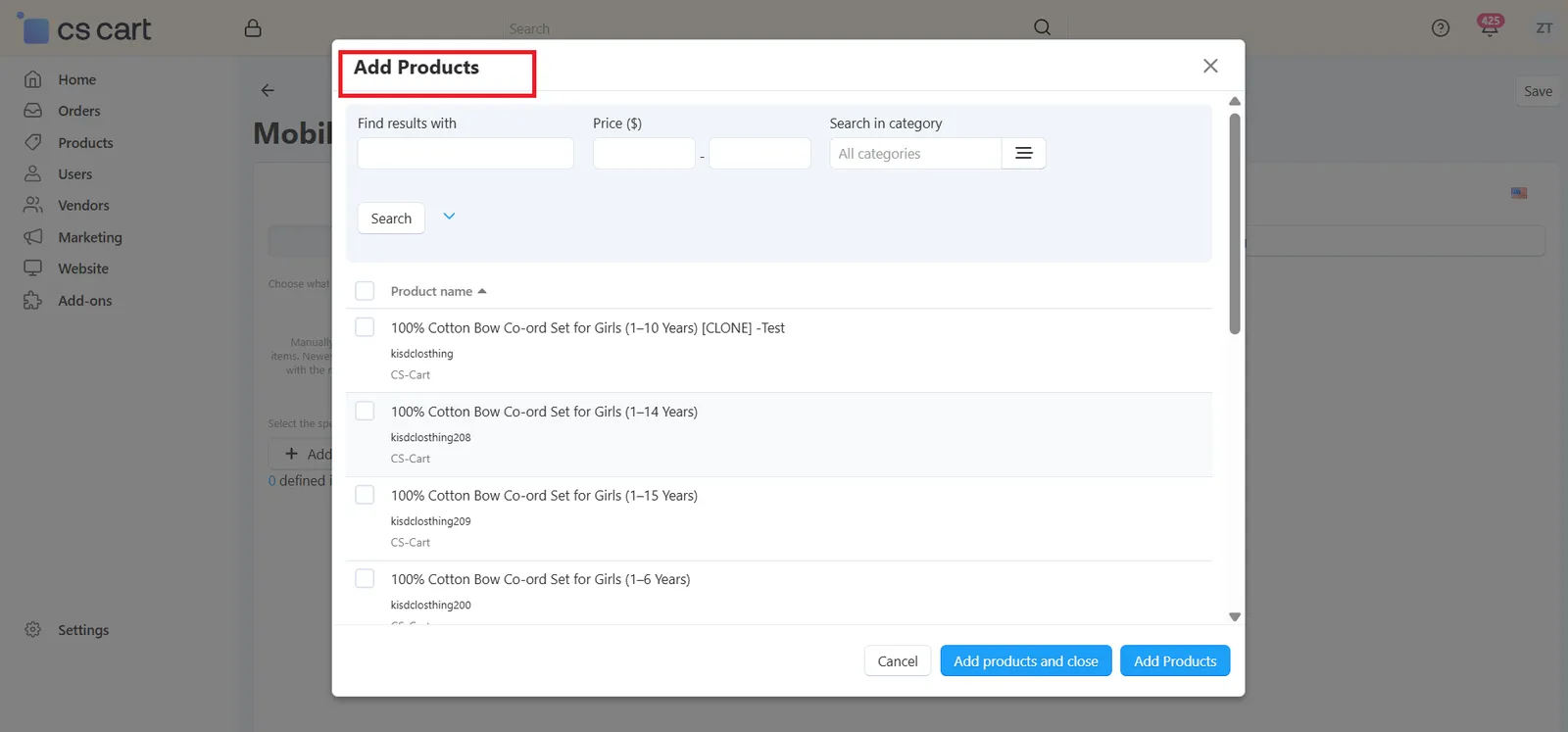
- Manually:
You pick the exact items. Click the add button (for example, Add Products), search for the items in the pop-up, select them using the checkboxes, and click Add products and close (or Add Products to keep the pop-up open and add more). The number of selected items is shown below the button as defined items. - Newest:
The banner fills automatically with the most recently added items, so you don't need to select anything. - Save the Banner:
Click Save (top-right) to save your banner.
Step 6.4: Show Your Banner on the App Homepage
The banners you add in Mobile App Banner are the same banners that you can select for your homepage. To display them:
- Create Your Banners:
Add and save your banners in Mobile App Banner, as explained in the steps above. - Open Homepage Layout:
Go to Add-ons → Manage App Setting → Homepage layout and create (or edit) a block with the Type set to Banners. - Select Banners Manually:
In the block's Filling tab, choose Manually and click Add Banners. All the banners you created in Mobile App Banner appear here — select the ones you want to show on the homepage.
Step 7: Manage the Help Center Q&A
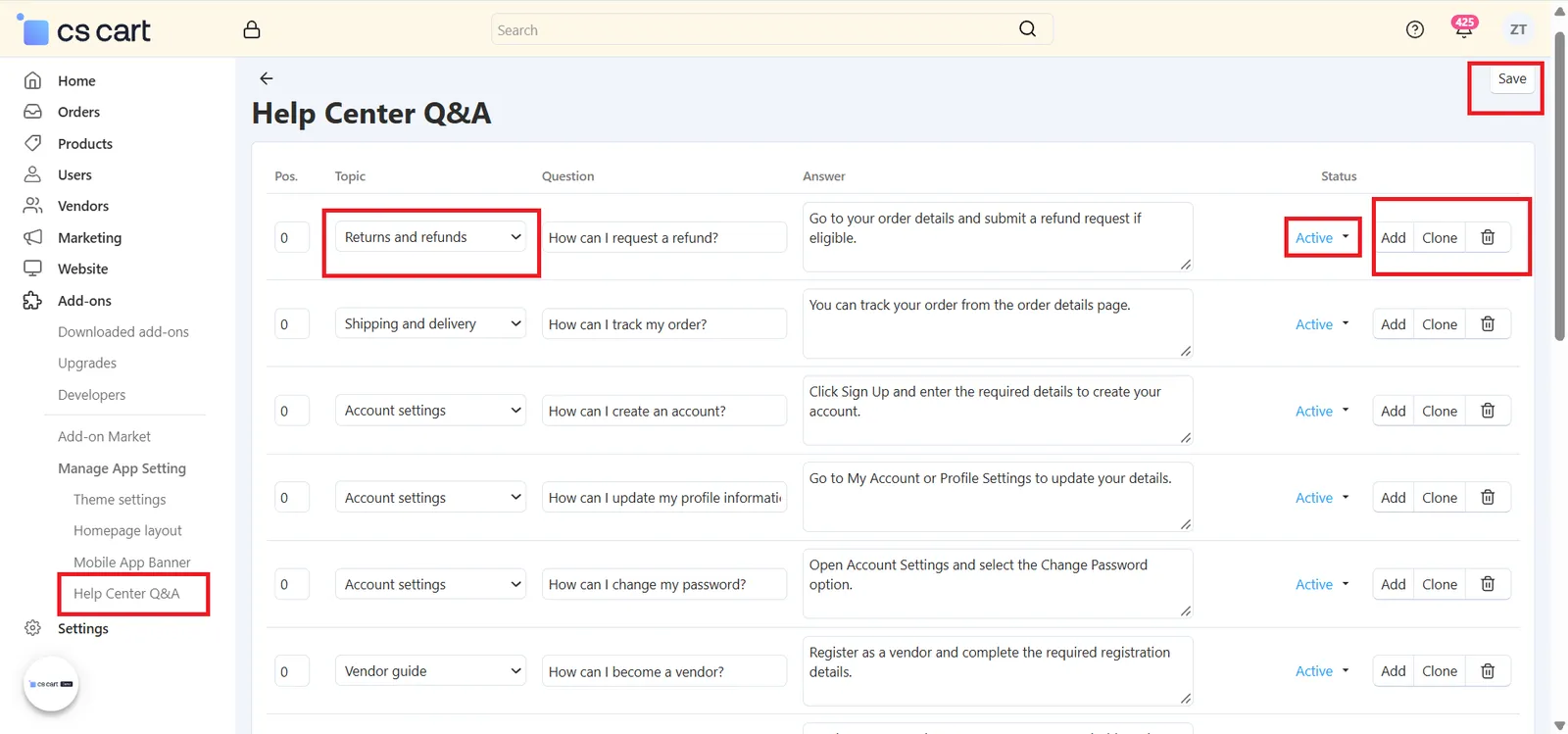
The Help Center Q&A section lets you add common customer questions and answers directly from the admin panel, so customers can find support information inside the app. Go to Add-ons → Manage App Setting → Help Center Q&A. Each row on this page is one question and answer, with the following fields:
- Pos.:
The position number that decides the order in which the questions appear. - Topic:
Select the group this question belongs to: Shipping and delivery, Returns and refunds, Account settings, or Vendor guide. This keeps related questions together for customers. - Question:
Type the question customers commonly ask. Example: How can I request a refund? - Answer:
Write a clear, short answer. Example: Go to your order details and submit a refund request if eligible. - Status:
Keep the status Active to show the question in the app. - Add, Clone & Delete:
Click Add to create a new question row, Clone to copy an existing row (handy for similar questions), or the bin icon to delete a row. - Save Your Changes:
Click Save (top-right) after adding or editing questions.
What Your Customers Will See in the App
Everything you set up in the admin panel shows up inside the app. Here is a quick look at the customer-side experience, from the home screen to checkout, account, and support.
Login & Create Account
Customers can log in with their email and password or with a social account, and new customers can create an account in a few seconds.
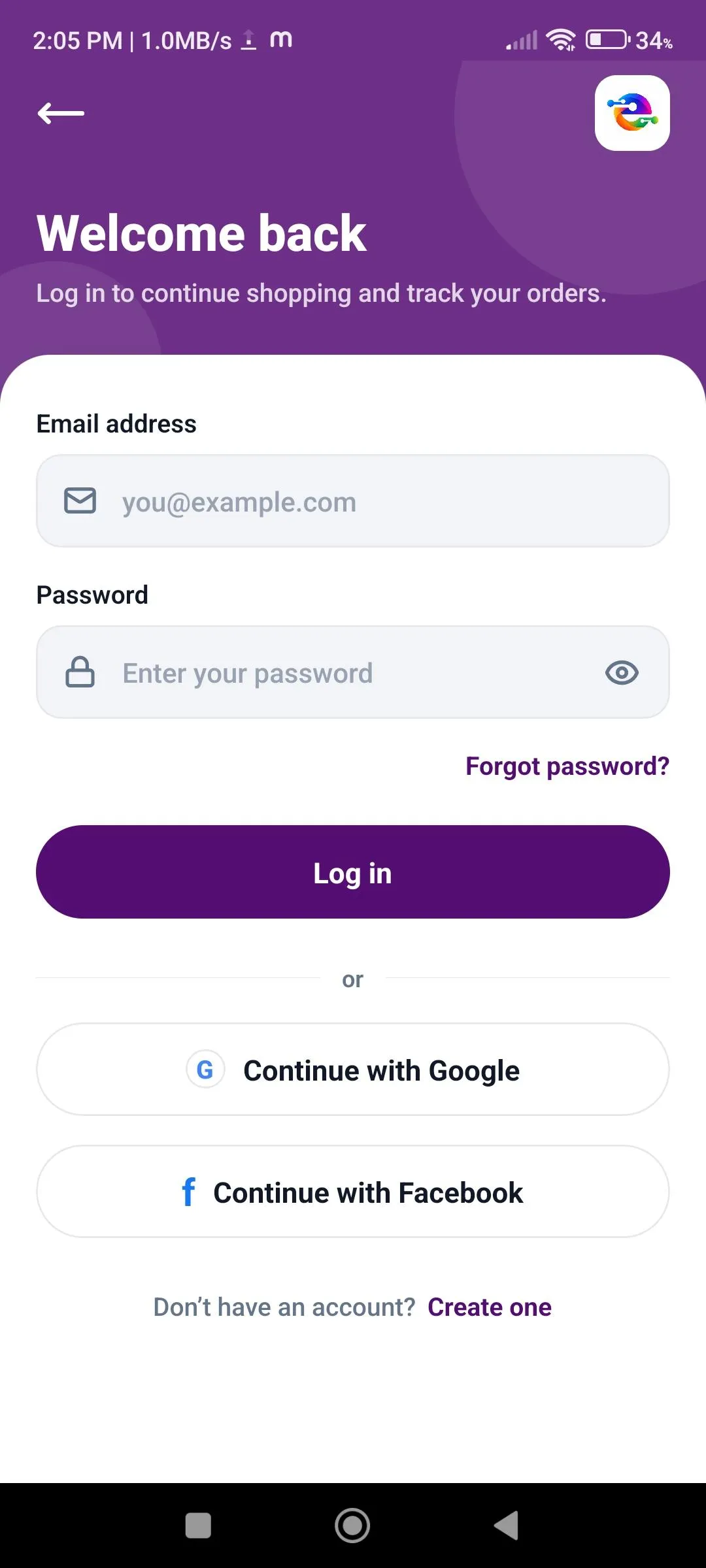 LoginLog in with email and password, or continue with Google or Facebook. Forgot password and Create account options are also available.
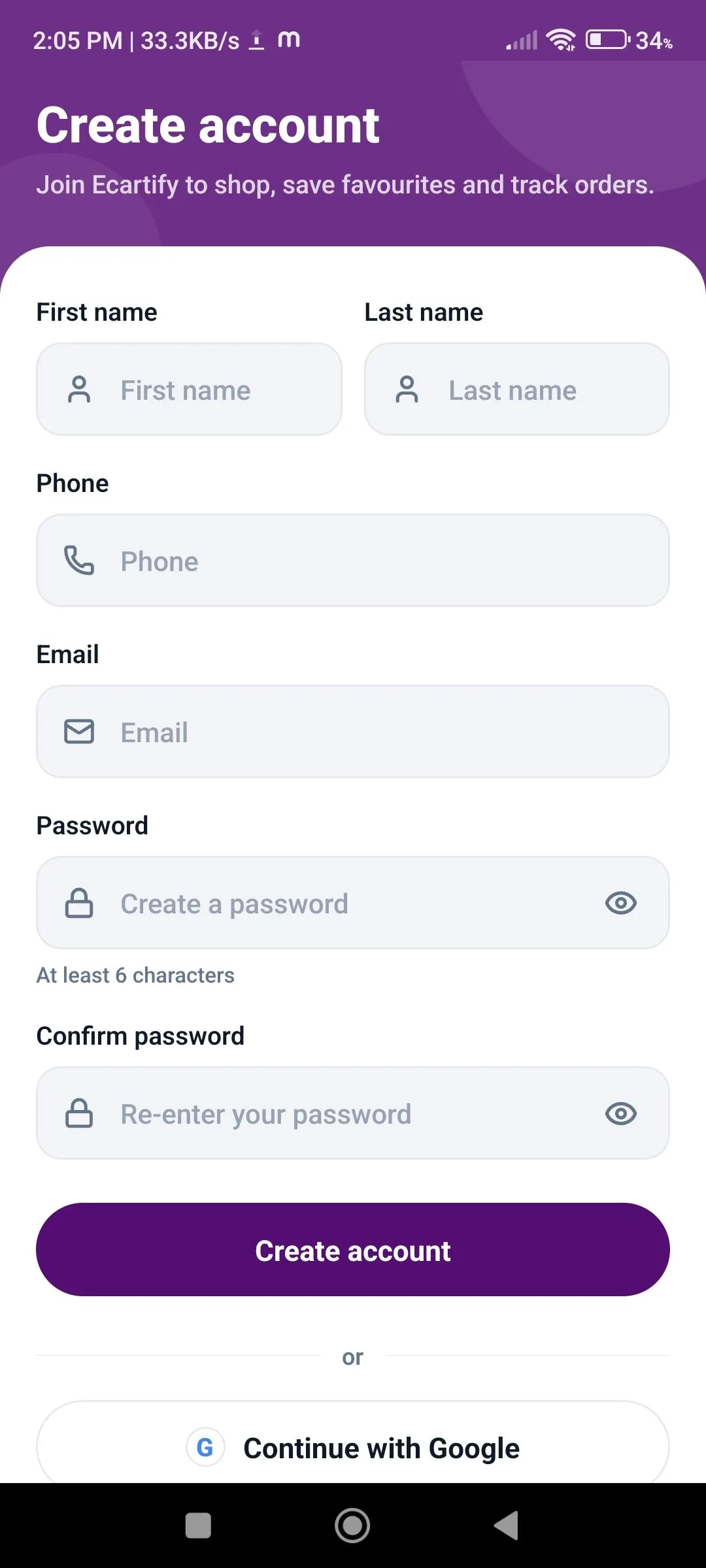 Create AccountNew customers sign up with their name, phone, email, and password, or continue with Google.
Browse & Discover
Customers start on a clean home screen built from the blocks and banners you set in the admin panel, and can easily explore categories and product details.
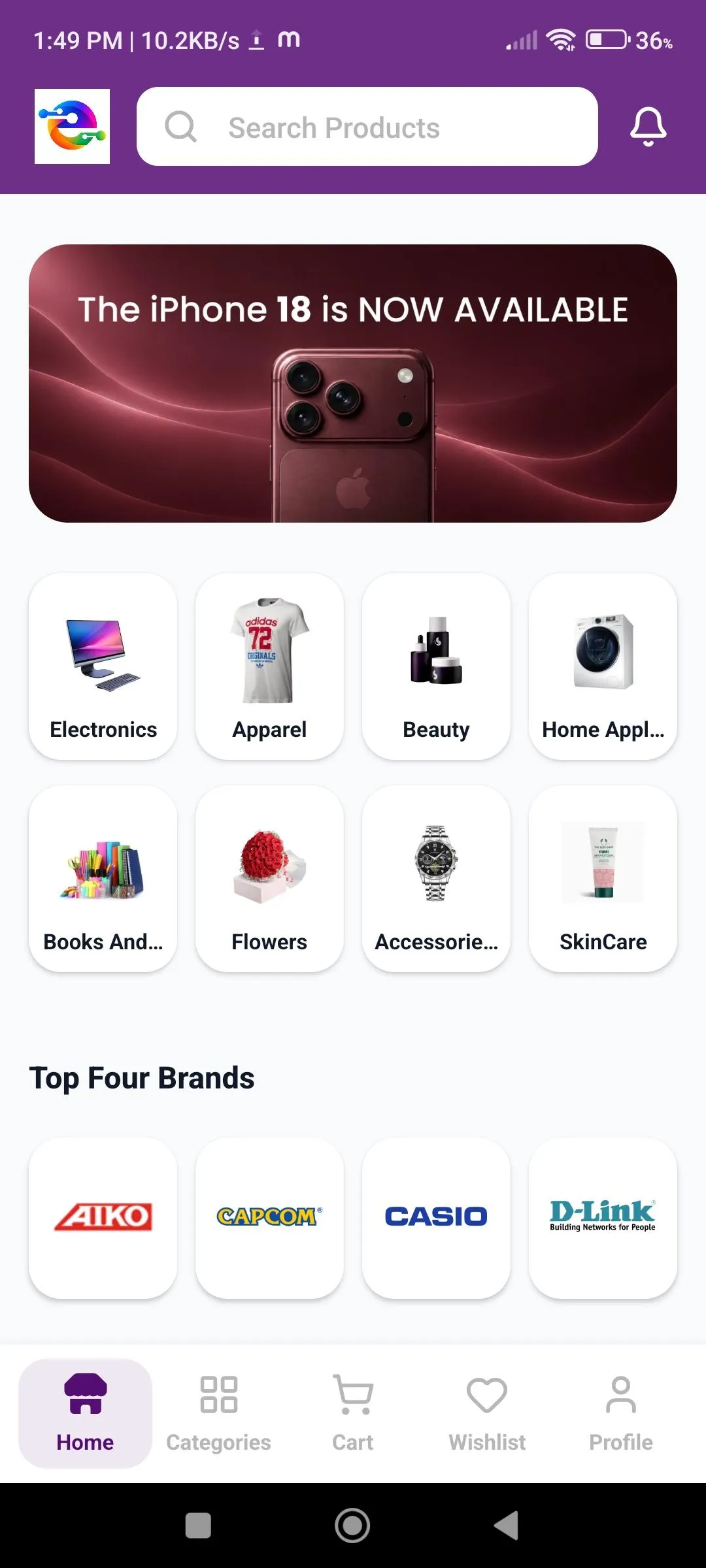 HomeSearch bar, banners, categories, and brands — arranged exactly as set in your Homepage Layout.
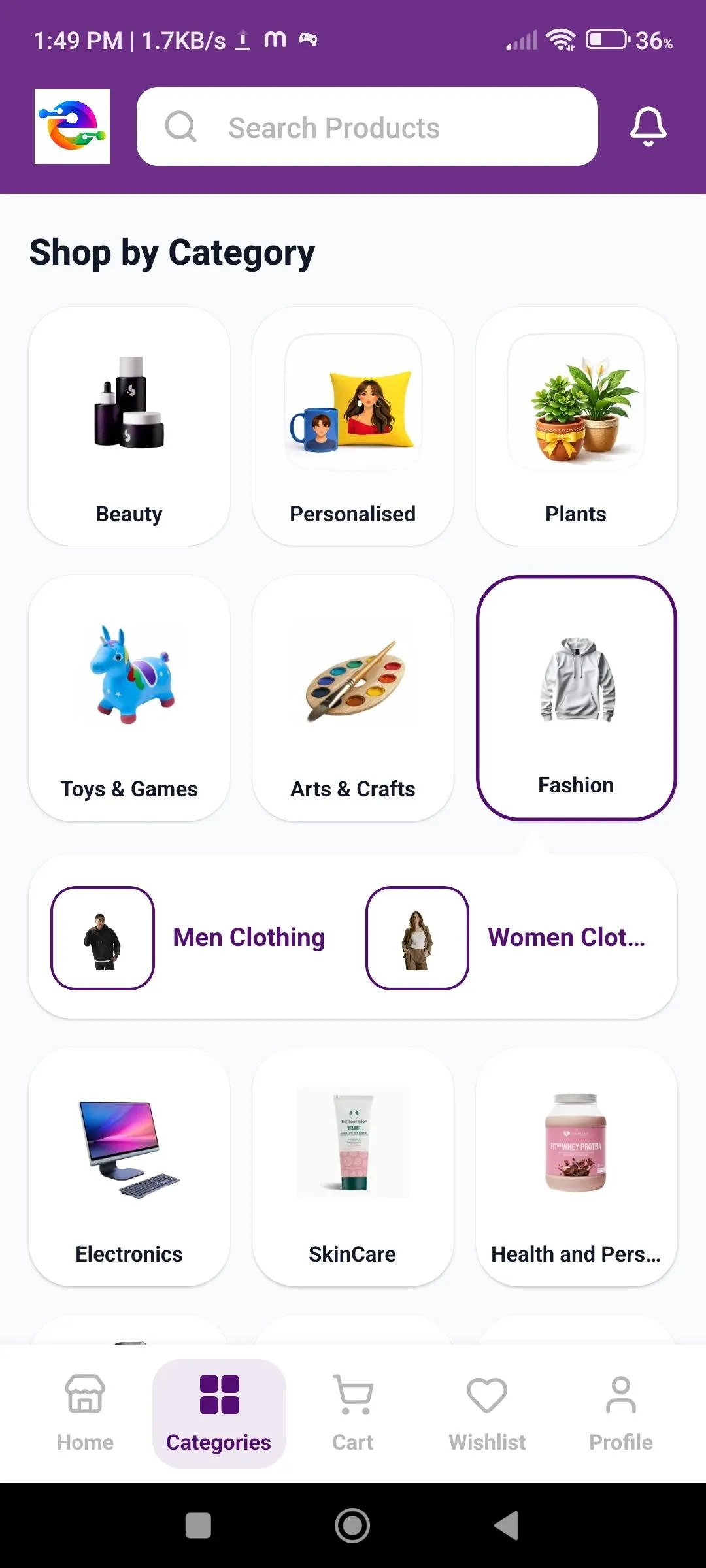 Shop by CategoryBrowse main categories and open their sub-categories in one tap.
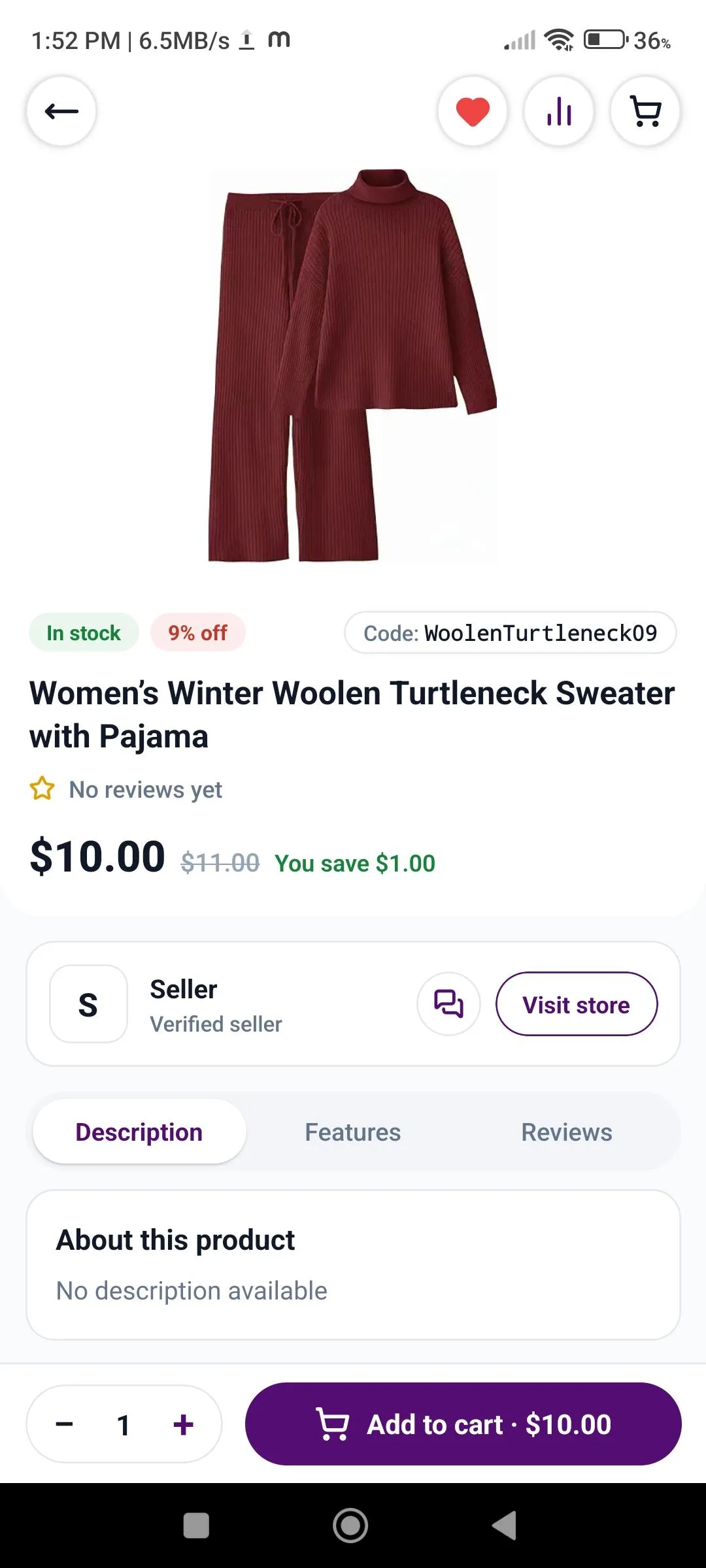 Product DetailsPrice, discount, stock status, seller details, description, features, and reviews, with quick wishlist and compare buttons.
Cart, Wishlist & Compare
Customers can save products for later, compare them, and manage their cart before checkout.
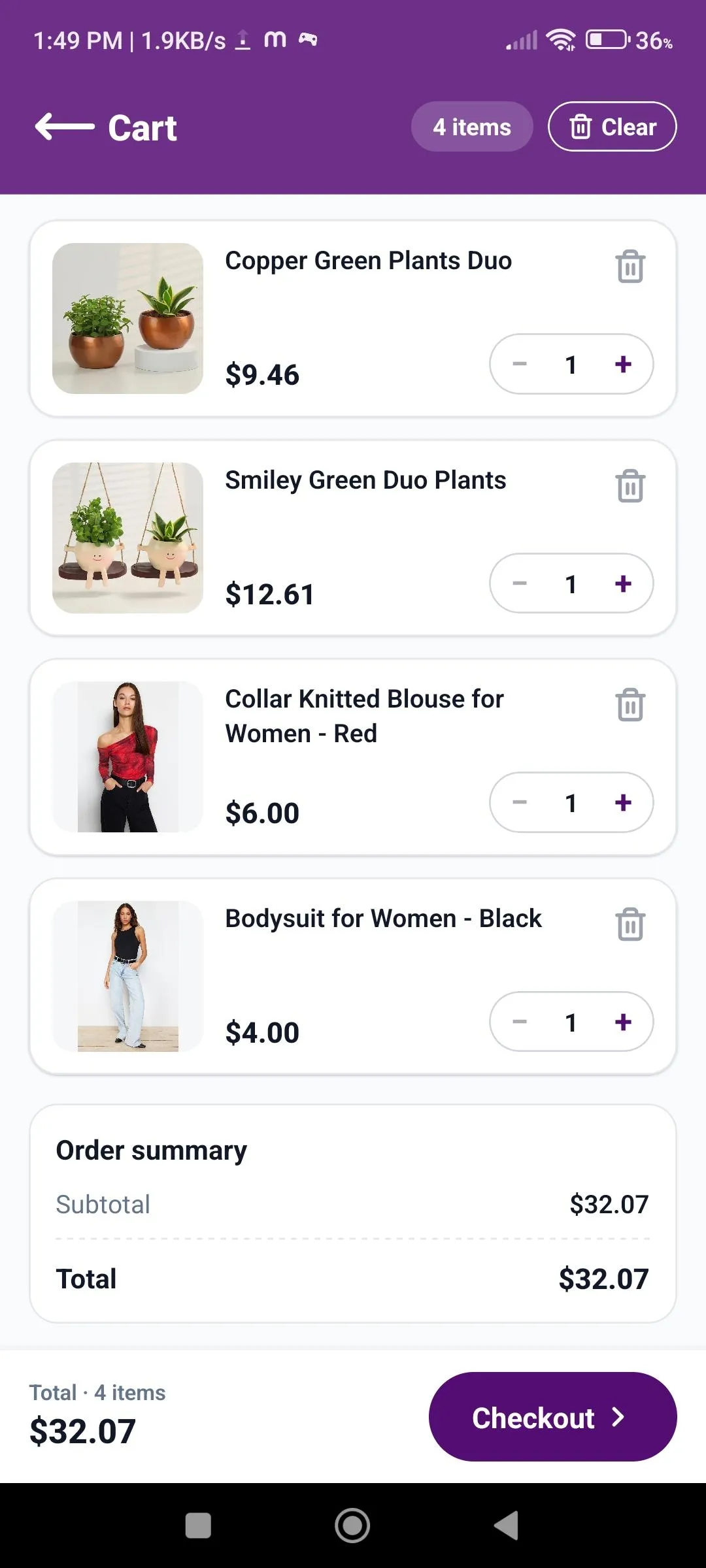 CartChange quantities, remove items, check the order summary, and move to Checkout.
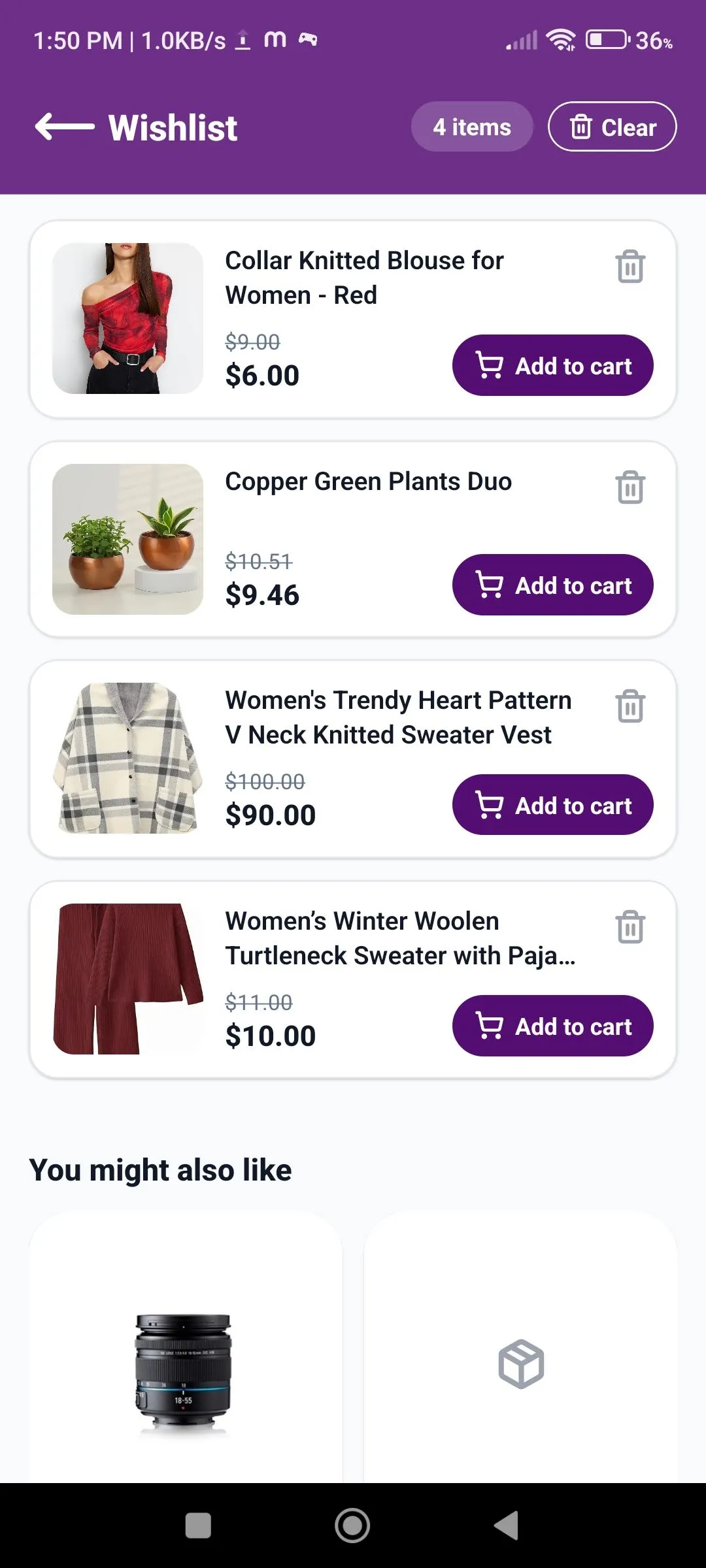 WishlistSave favorite products and add them to the cart in one tap. Similar products are suggested below.
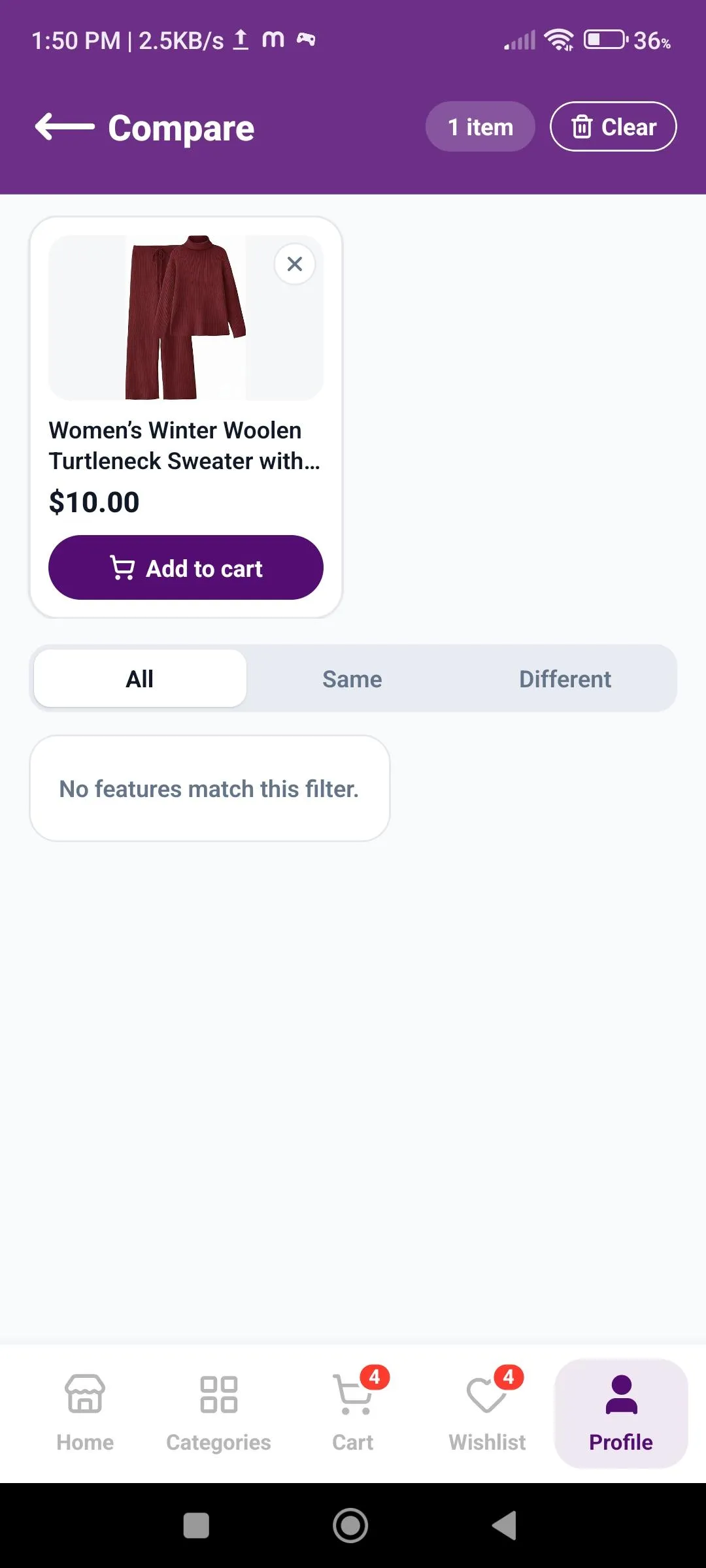 CompareCompare products and filter the features by All, Same, or Different.
Simple 3-Step Checkout
Checkout is divided into three easy steps — Address → Shipping → Payment — and ends with an order confirmation.
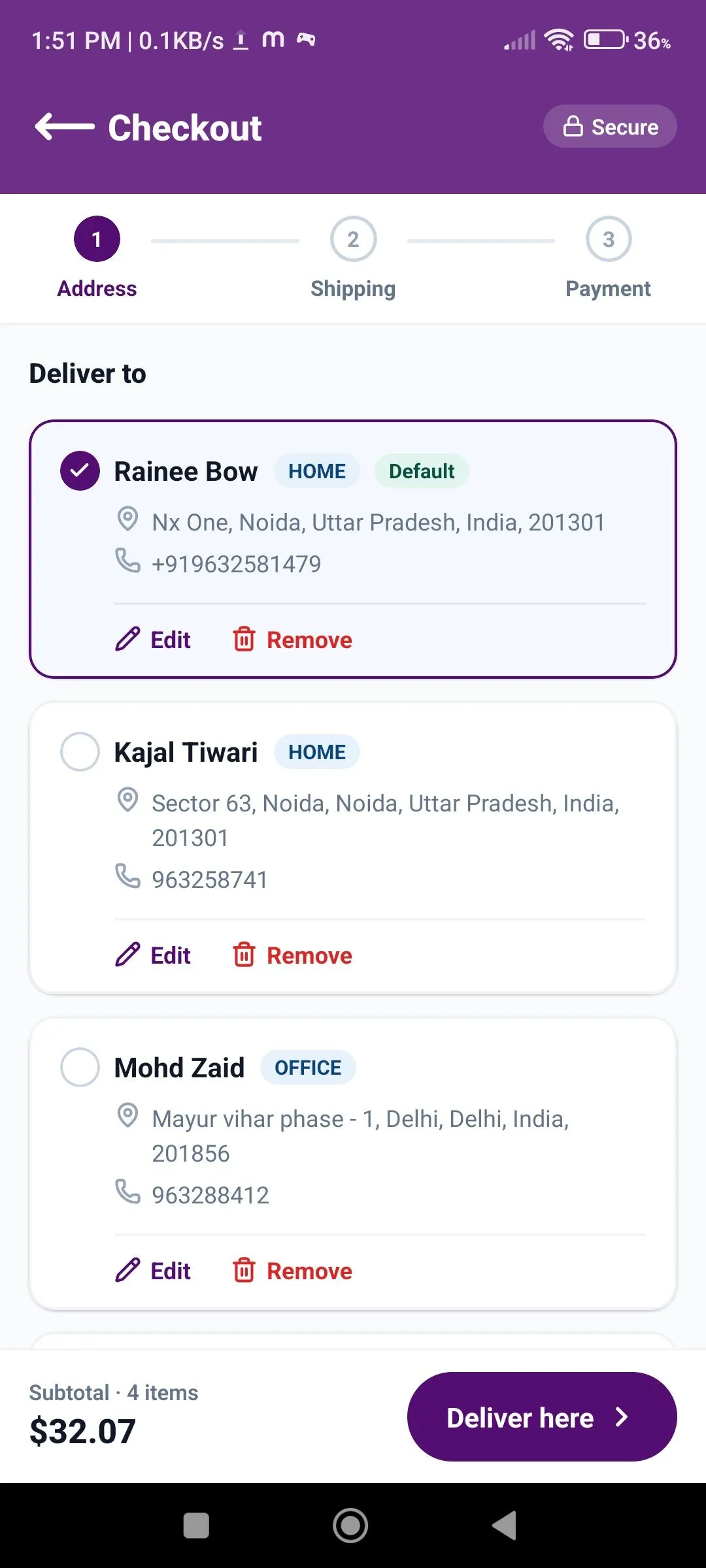 1. AddressPick a saved delivery address, or edit and remove addresses.
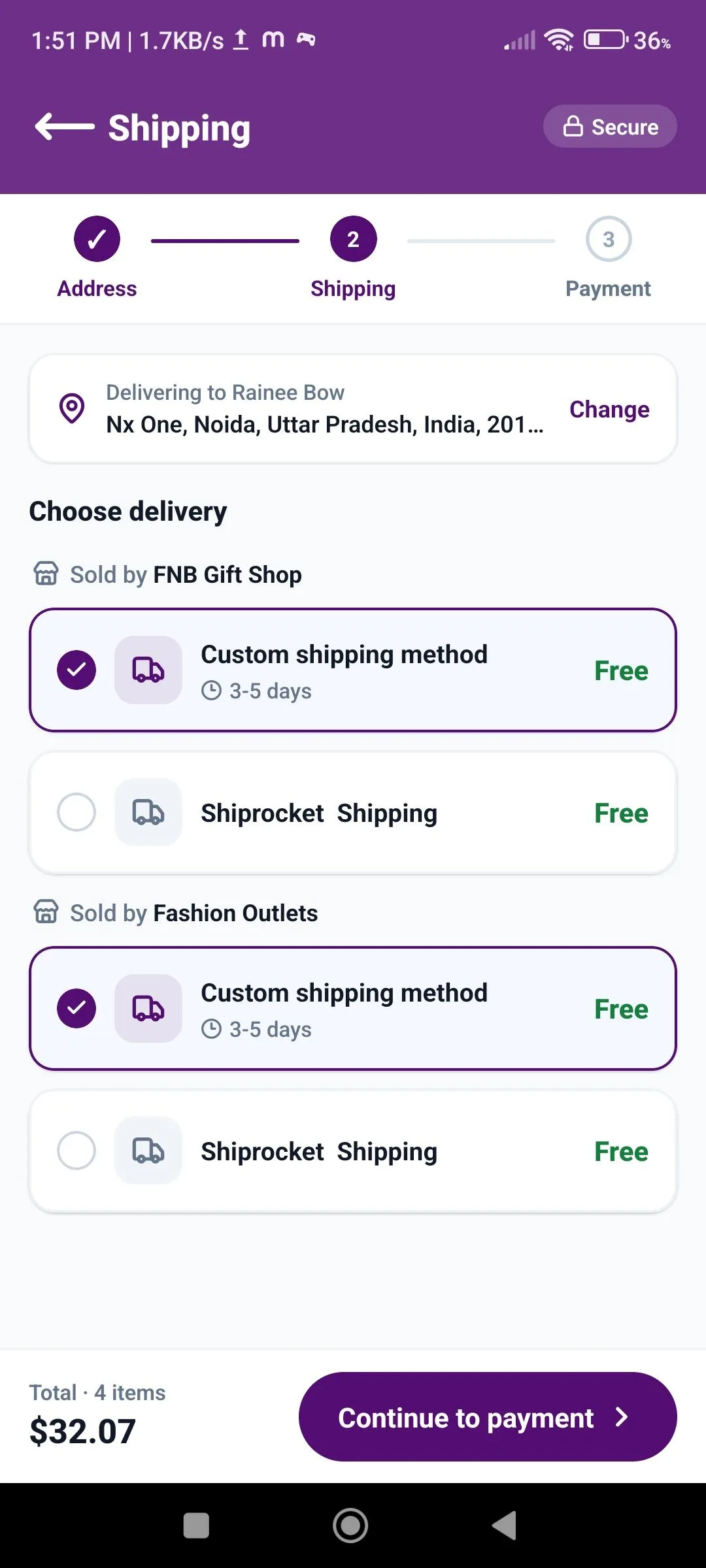 2. ShippingChoose a delivery method for each seller.
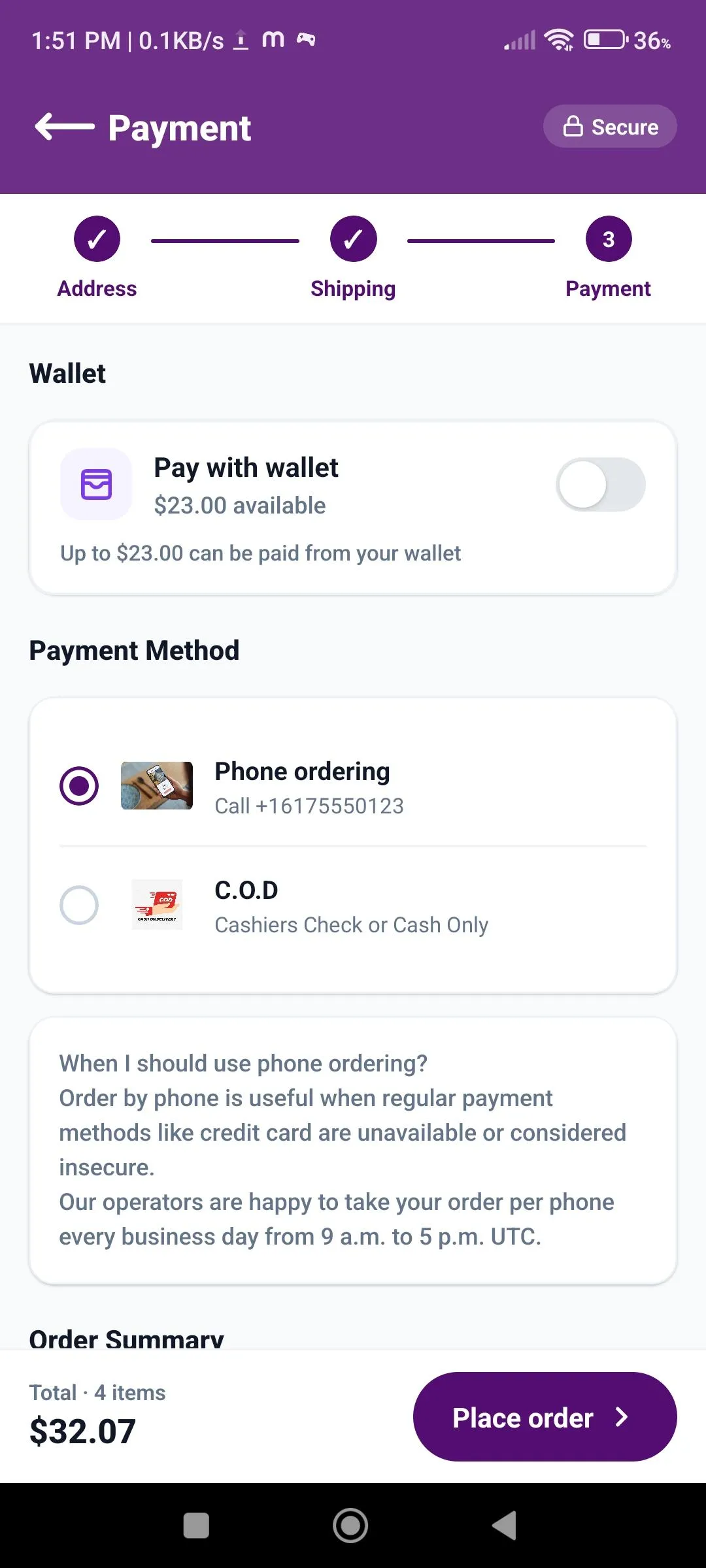 3. PaymentUse wallet balance if available and select a payment method.
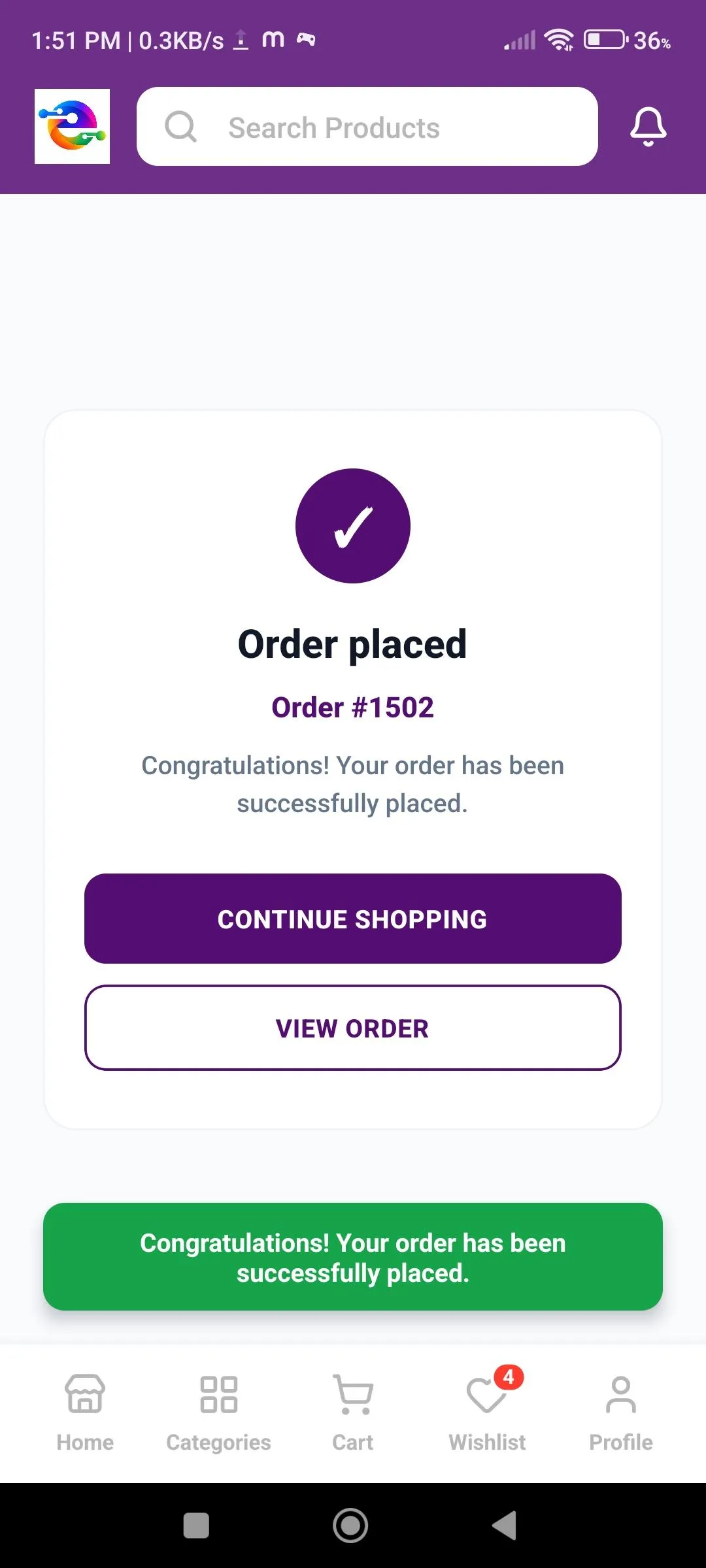 Order PlacedA confirmation screen with the order number, plus Continue Shopping and View Order buttons.
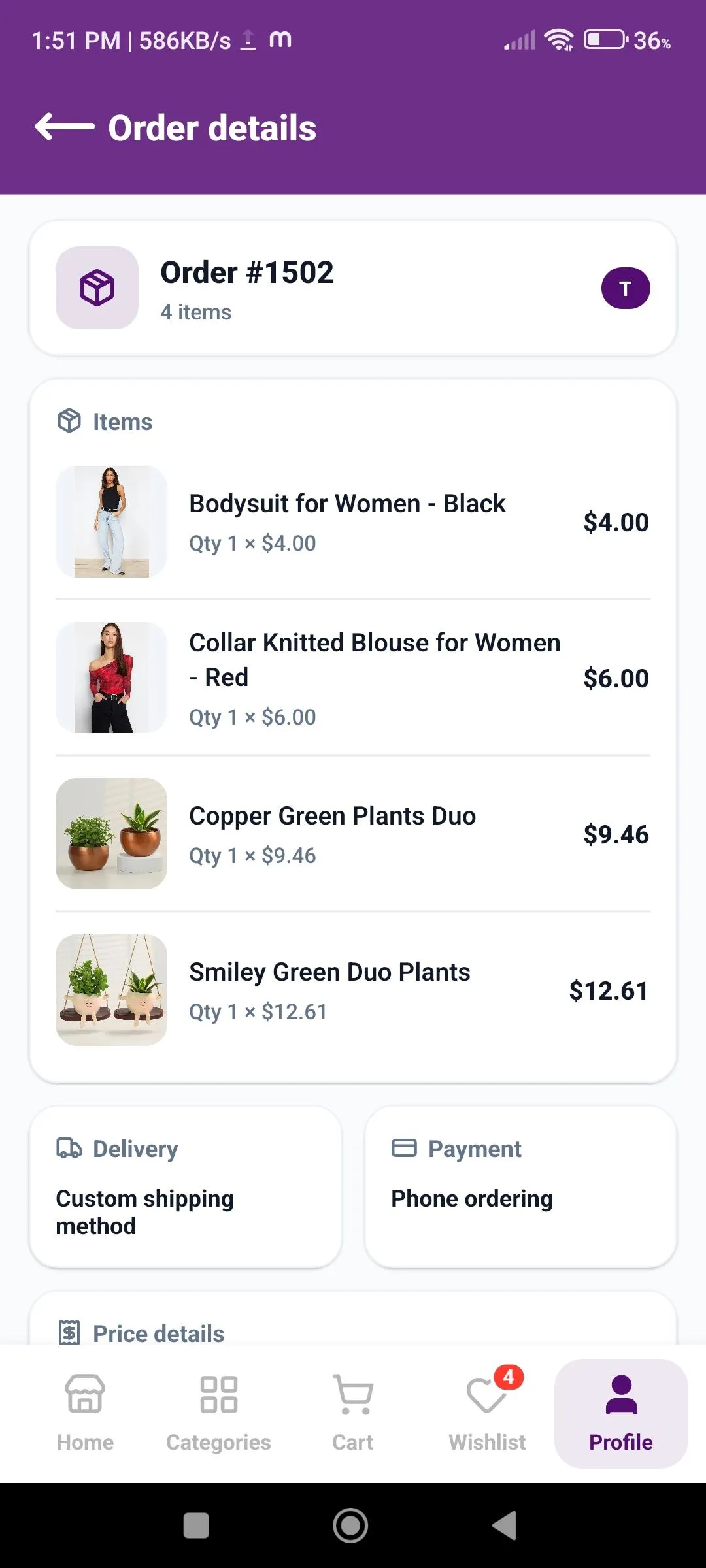 Order DetailsItems, delivery method, payment method, and price details in one place.
Notifications
Customers stay on top of order updates and special offers without leaving the app. From the instant alert on the home screen to the full notification list, every message is easy to find, read, and manage.
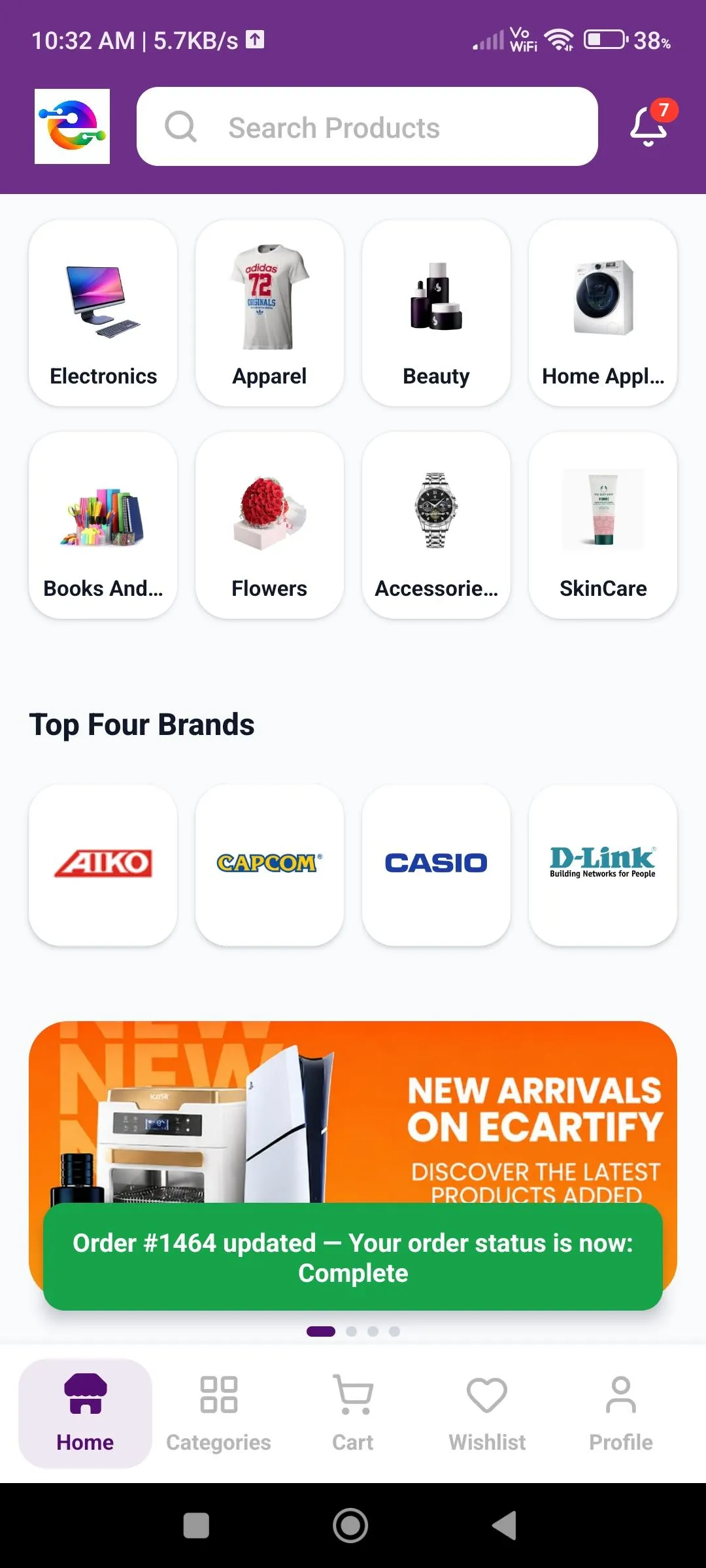
 Instant Order AlertAs soon as an order status changes, an alert appears on the home screen, for example "Your order status is now: Complete".
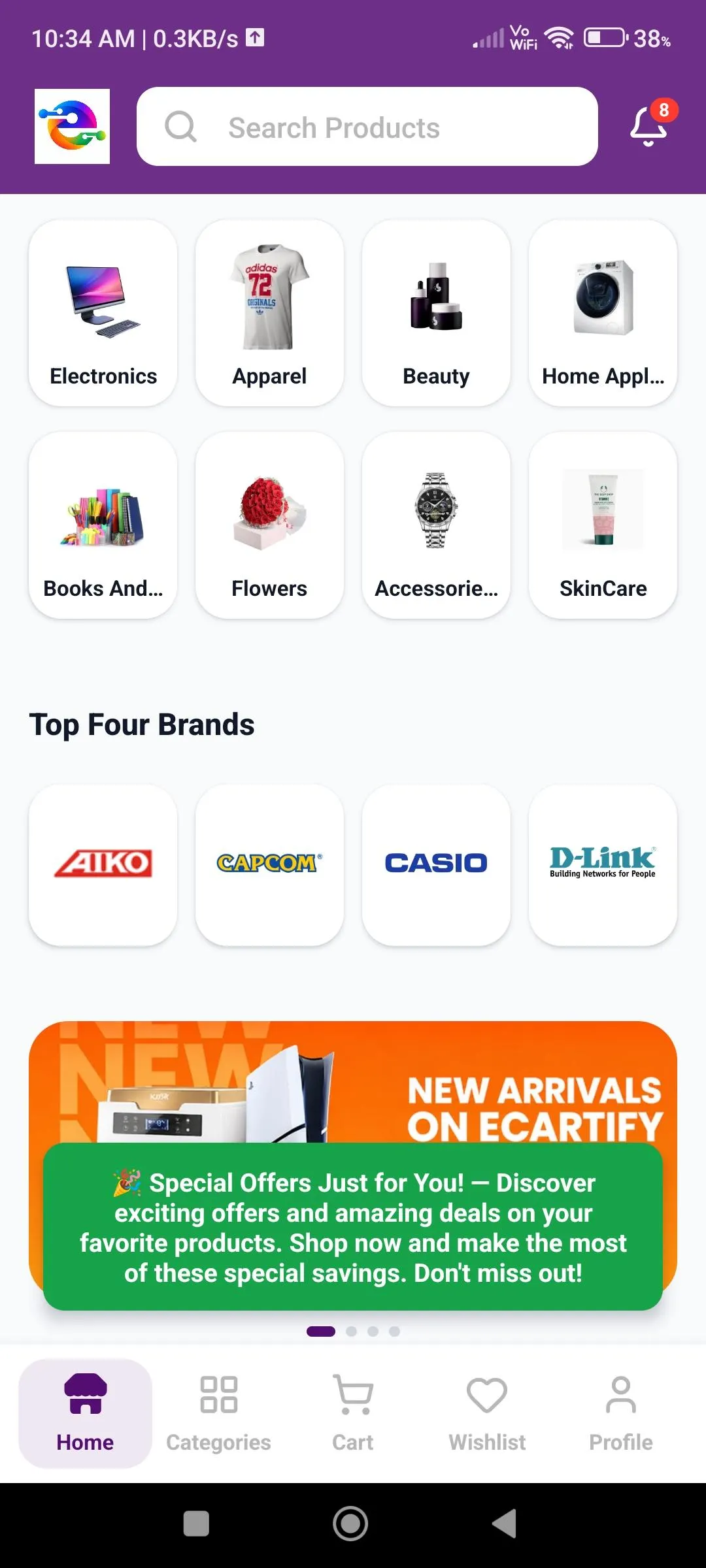
 Offer Alerts & BadgeOffers sent from your admin panel also pop up on the home screen, and the bell icon shows the number of unread notifications.
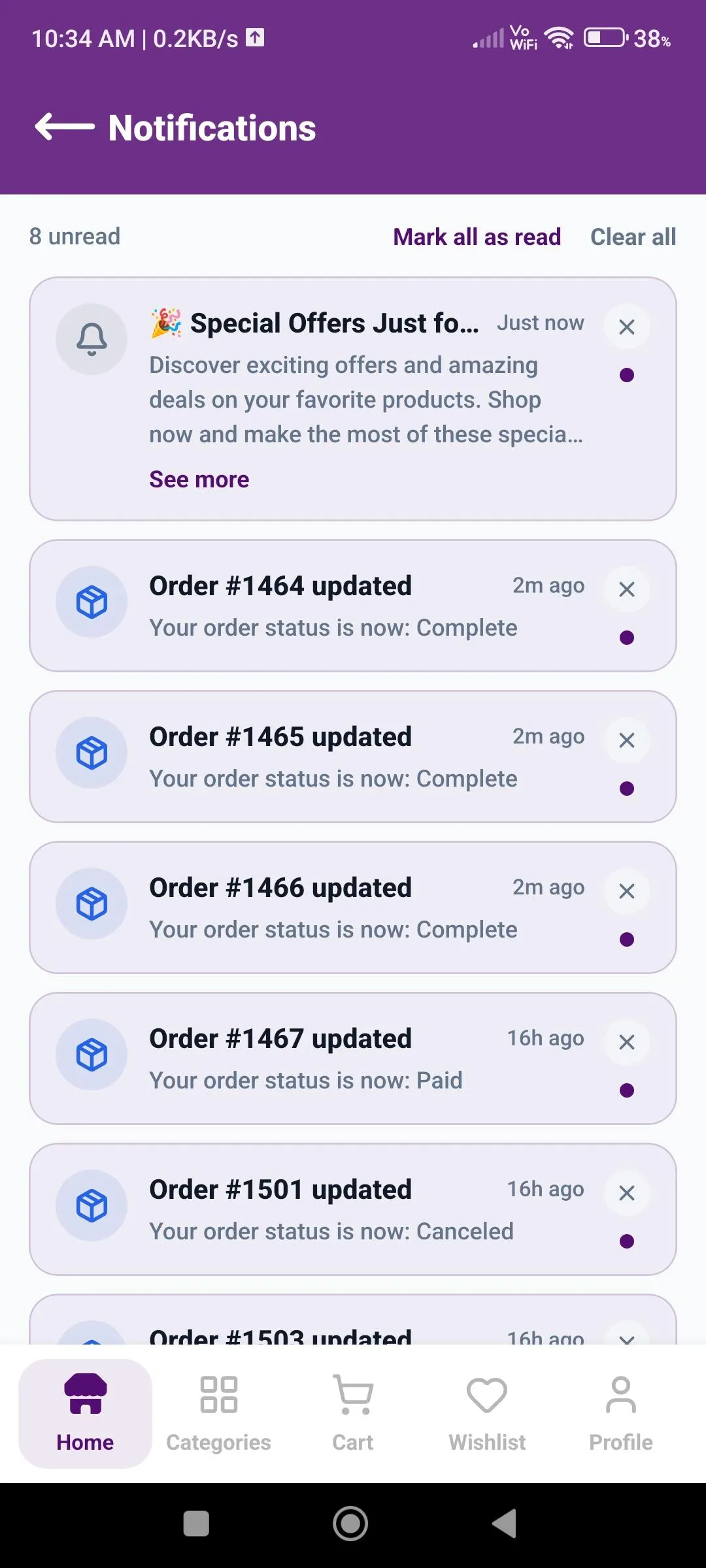
 Notification ListAll offers and order updates in one list. Unread items carry a dot, and the top bar shows the unread count with Mark all as read and Clear all.
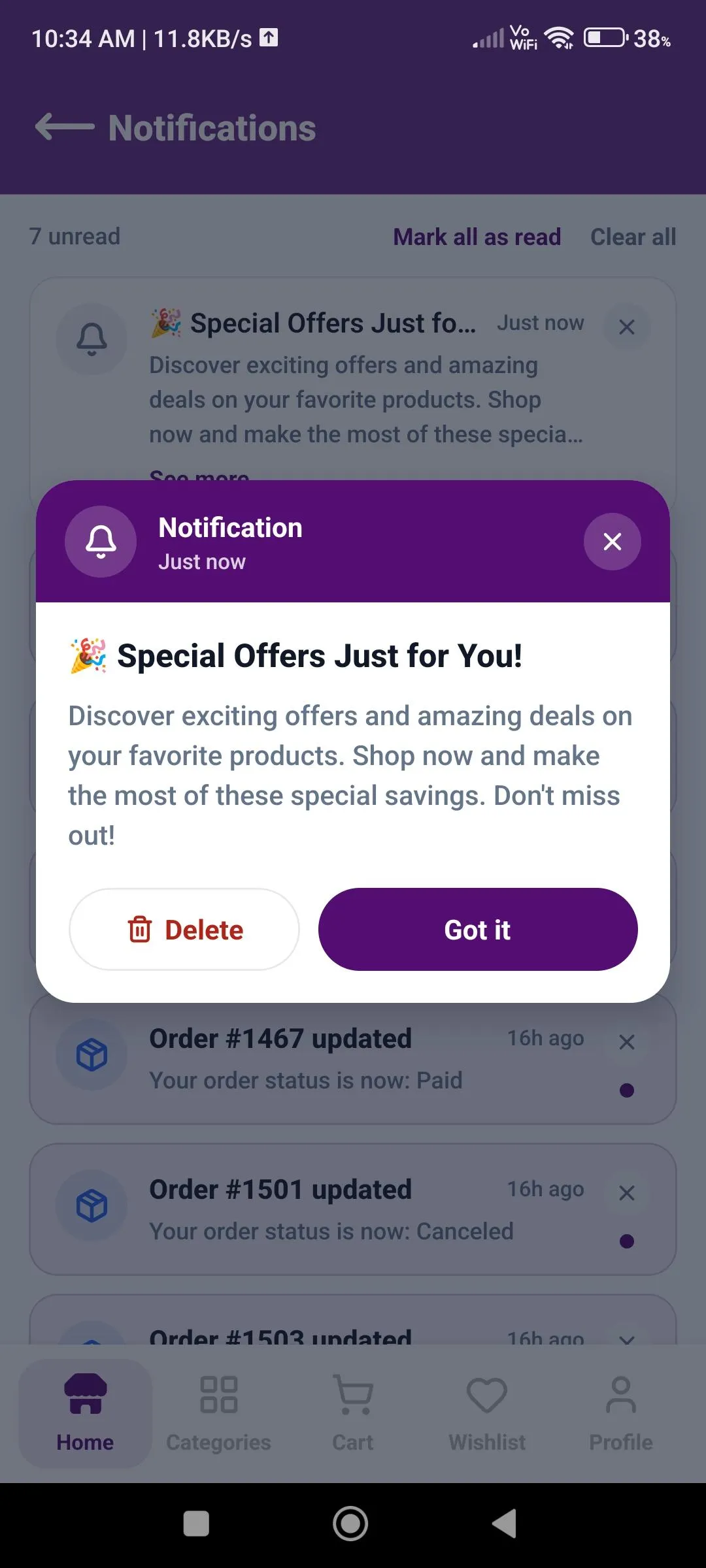
 Full Message PopupTap a notification or "See more" to read the full message in a popup. Customers can close it with Got it or remove it with Delete.
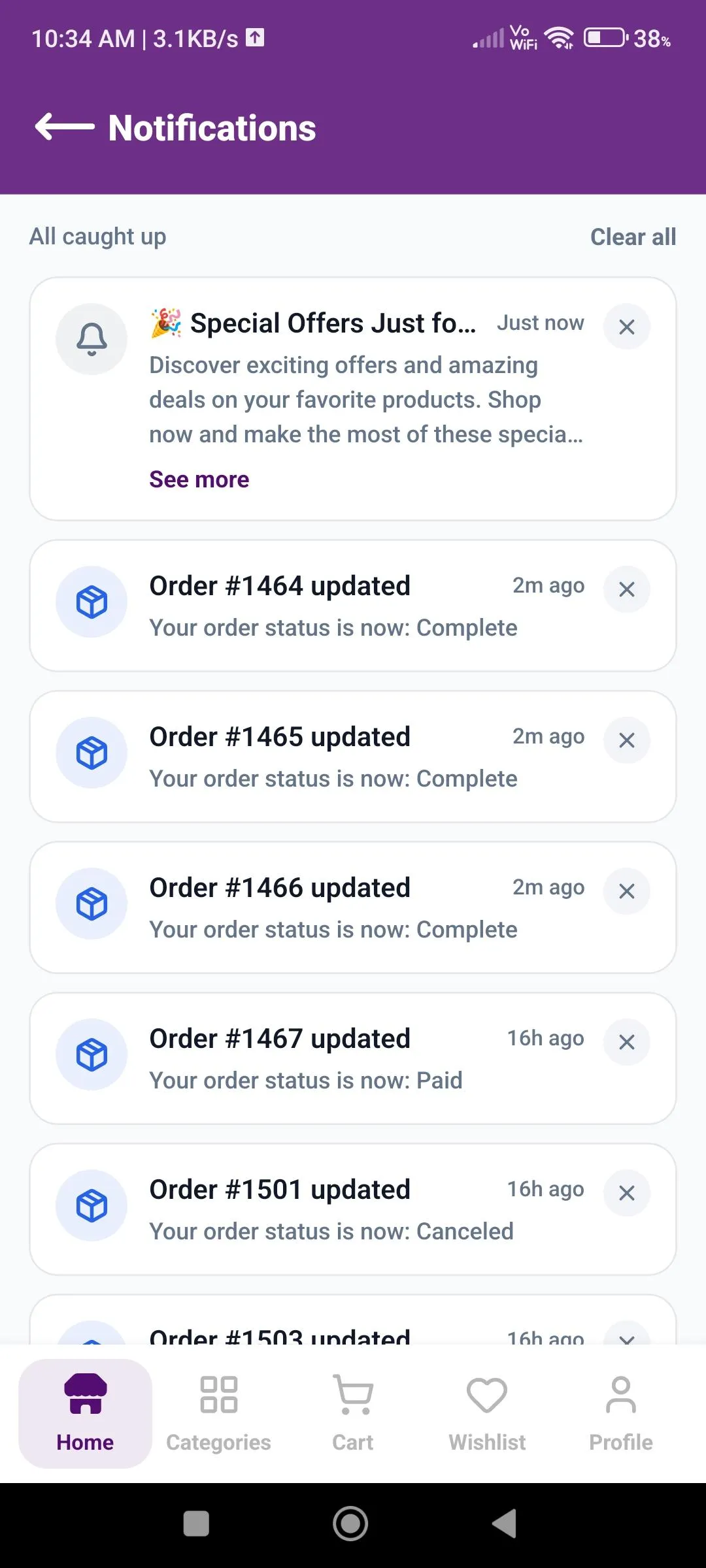
 All Caught UpAfter Mark all as read, the unread count is replaced by "All caught up". Customers can still remove a single notification with the X icon or use Clear all.
Profile & Account Settings
Everything a customer needs to manage their account is available from the Profile tab.
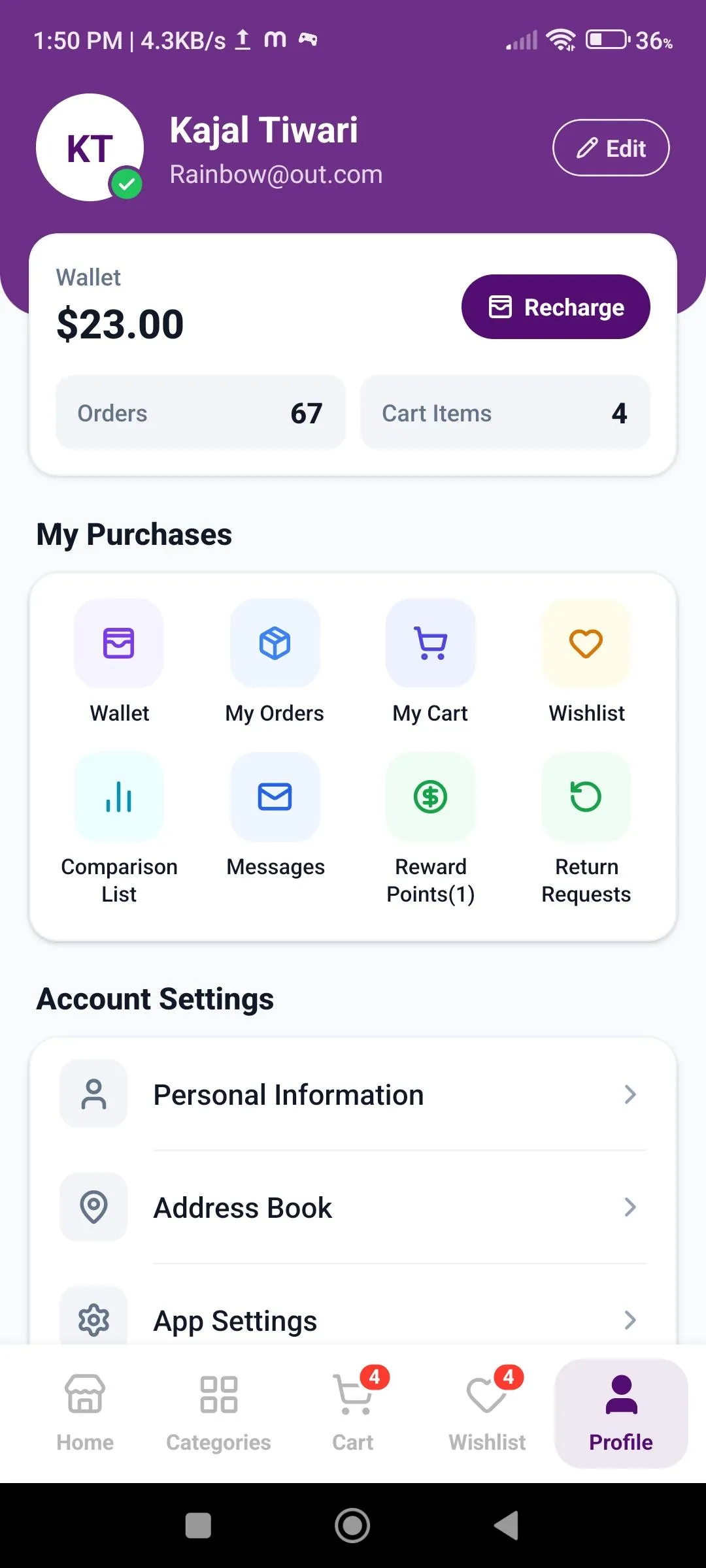 ProfileWallet balance, orders, cart items, and quick links to purchases and account settings.
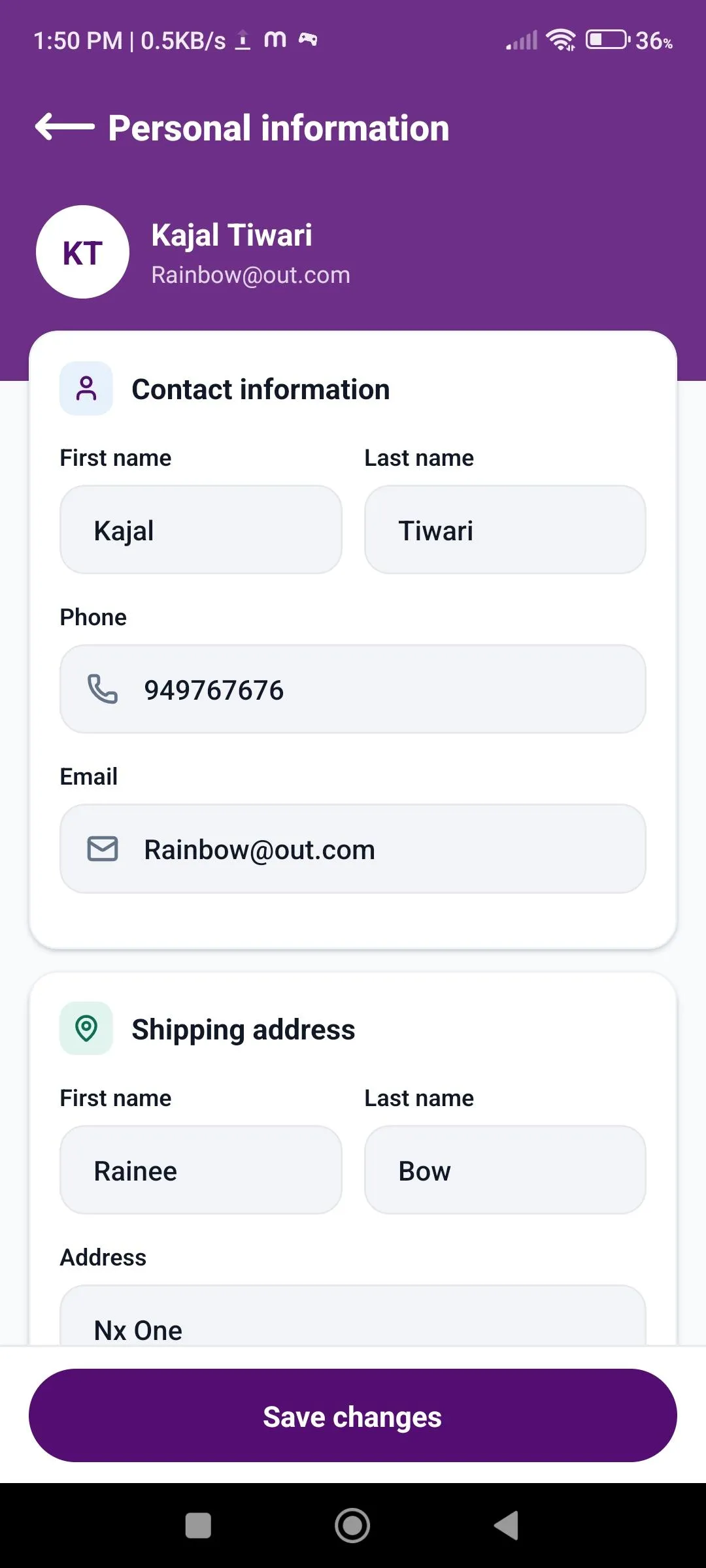 Personal InformationUpdate contact details and shipping address, then save changes.
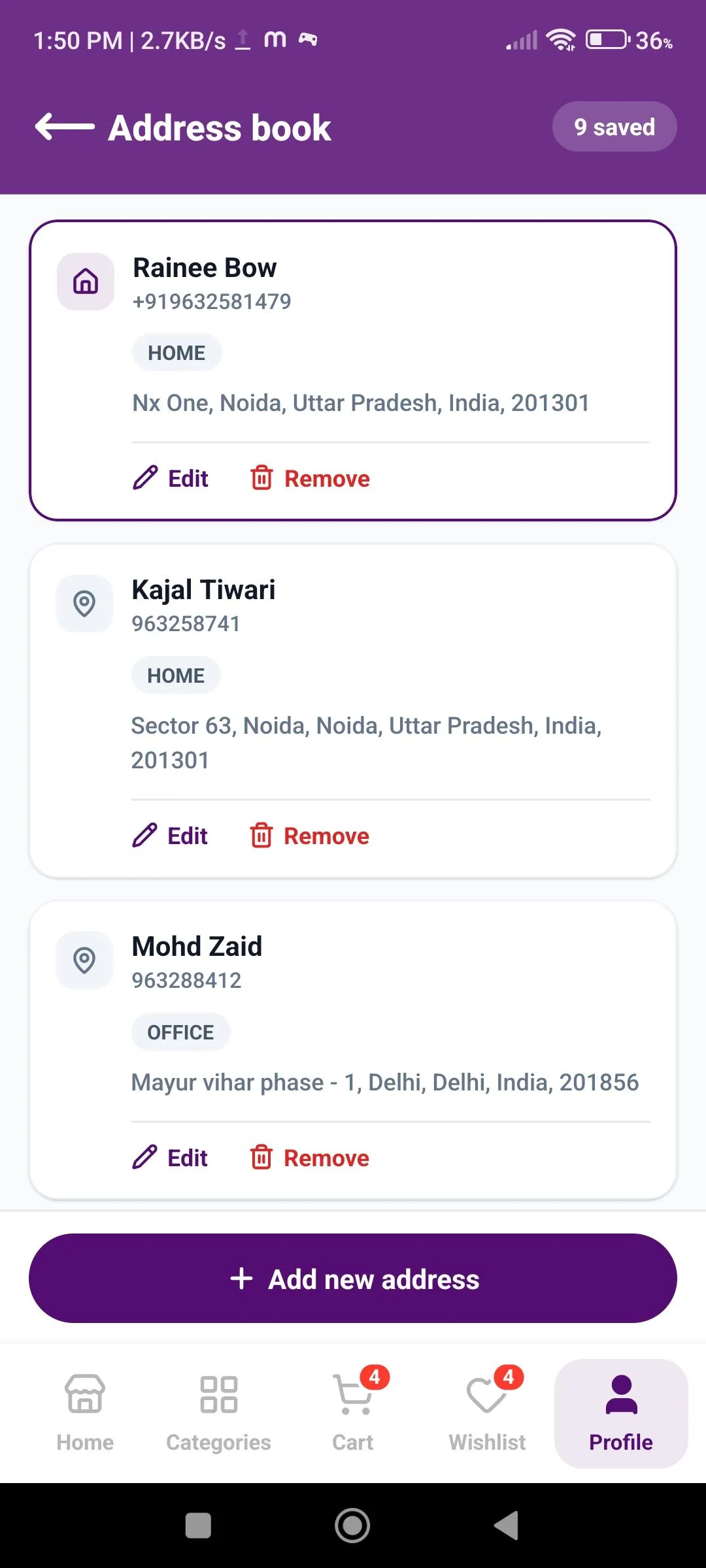 Address BookSave multiple addresses (such as Home or Office), edit, remove, or add a new one.
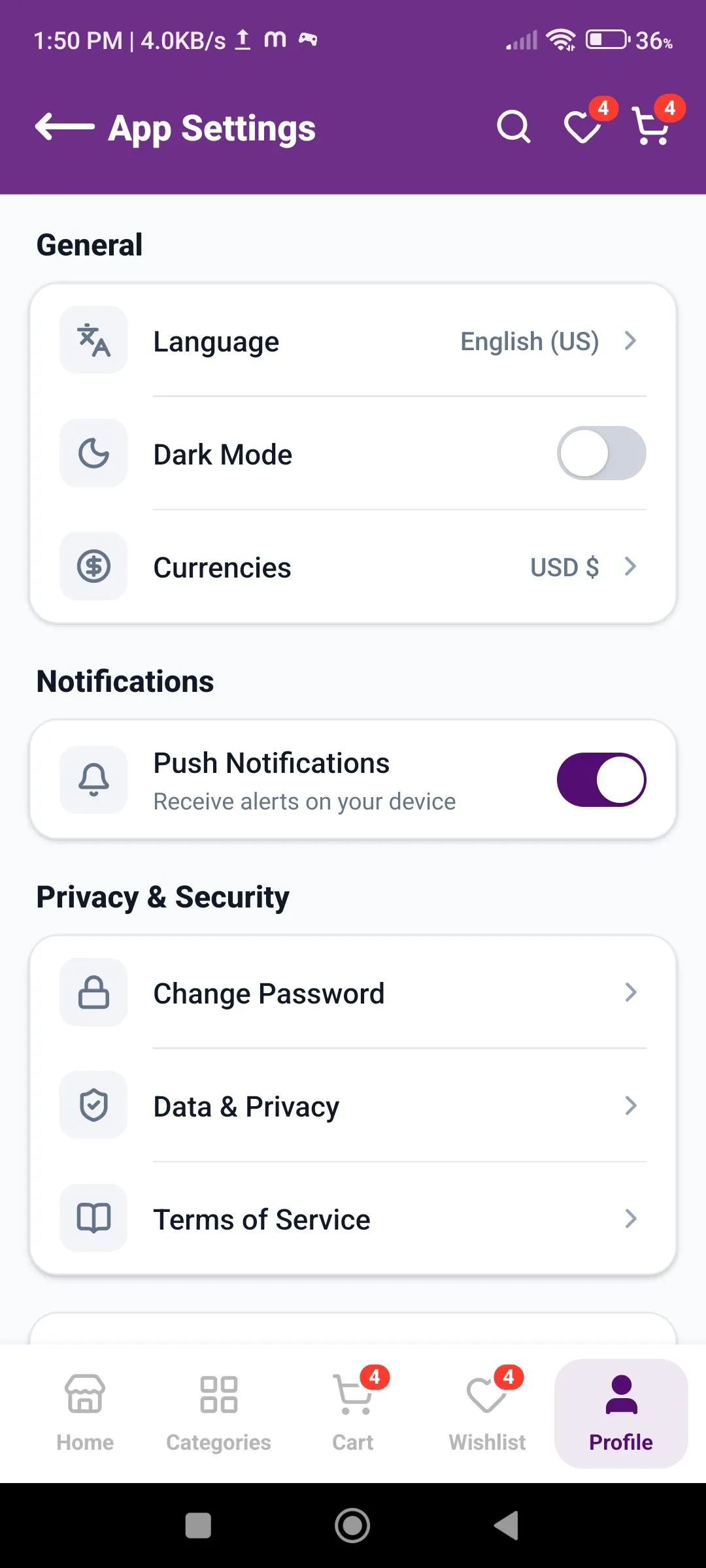 App SettingsLanguage, dark mode, currency, push notifications, change password, data & privacy, and terms of service.
Wallet, Rewards & Support
Customers can track their wallet, reward points, returns, and messages, and get answers from the Help Center.
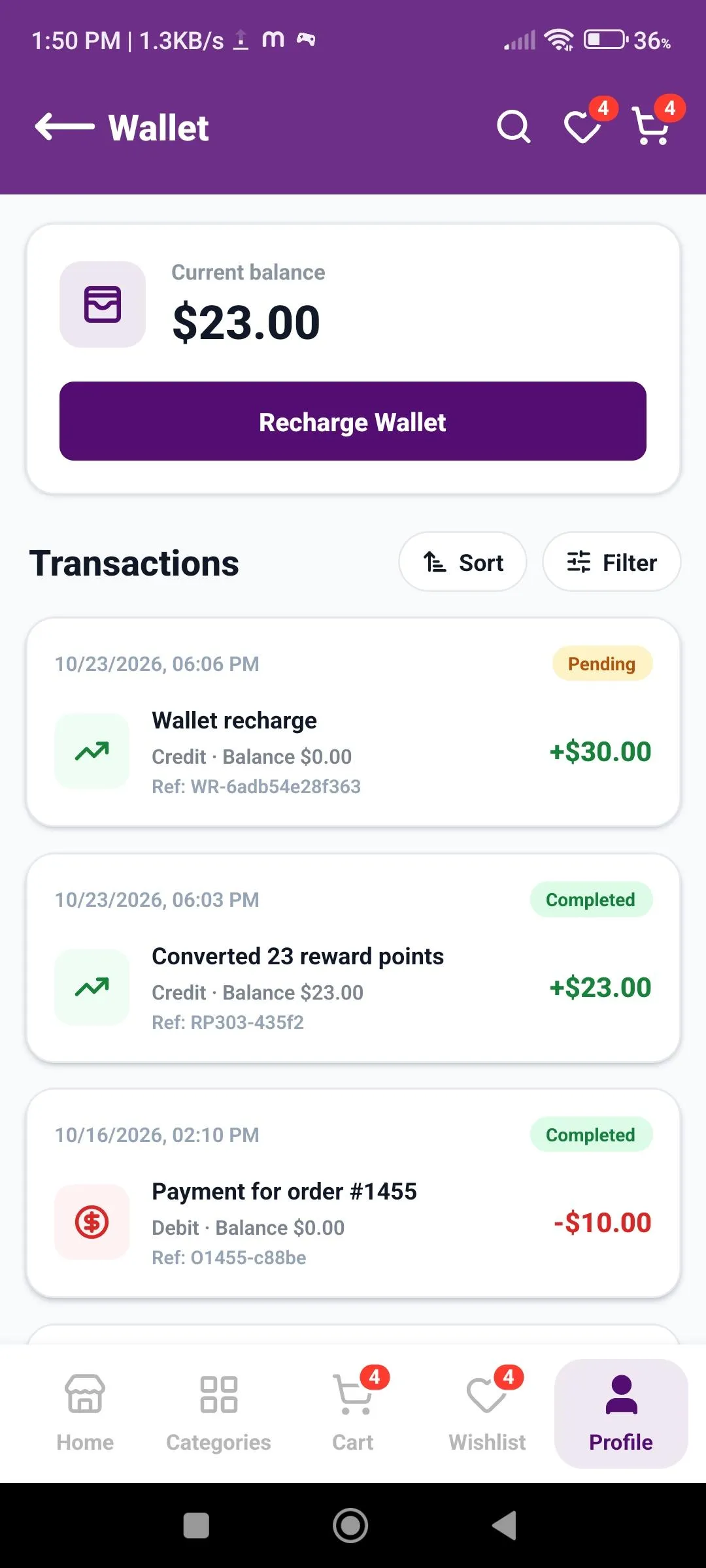 WalletCurrent balance, wallet recharge, and a transaction history with Sort and Filter.
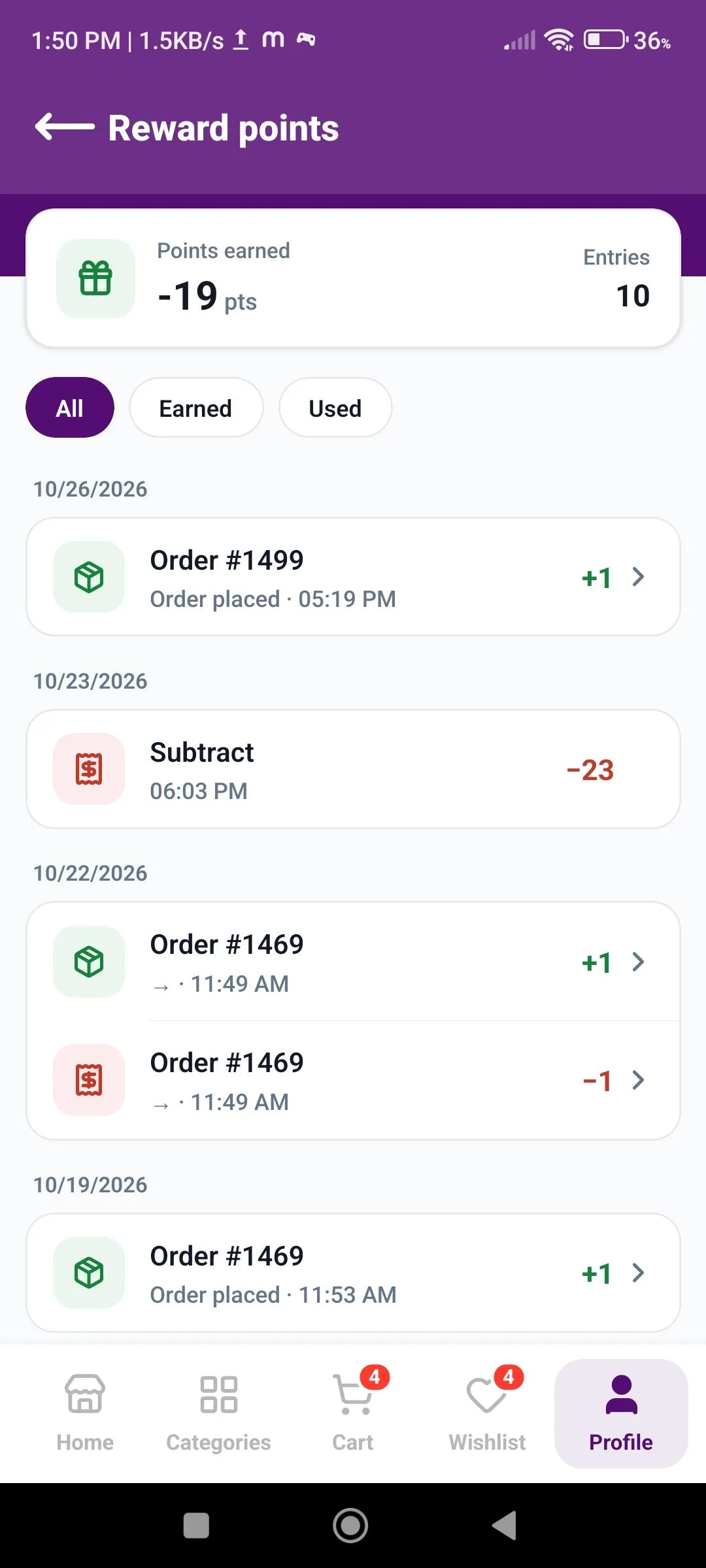 Reward PointsPoints earned and used, with All, Earned, and Used filters.
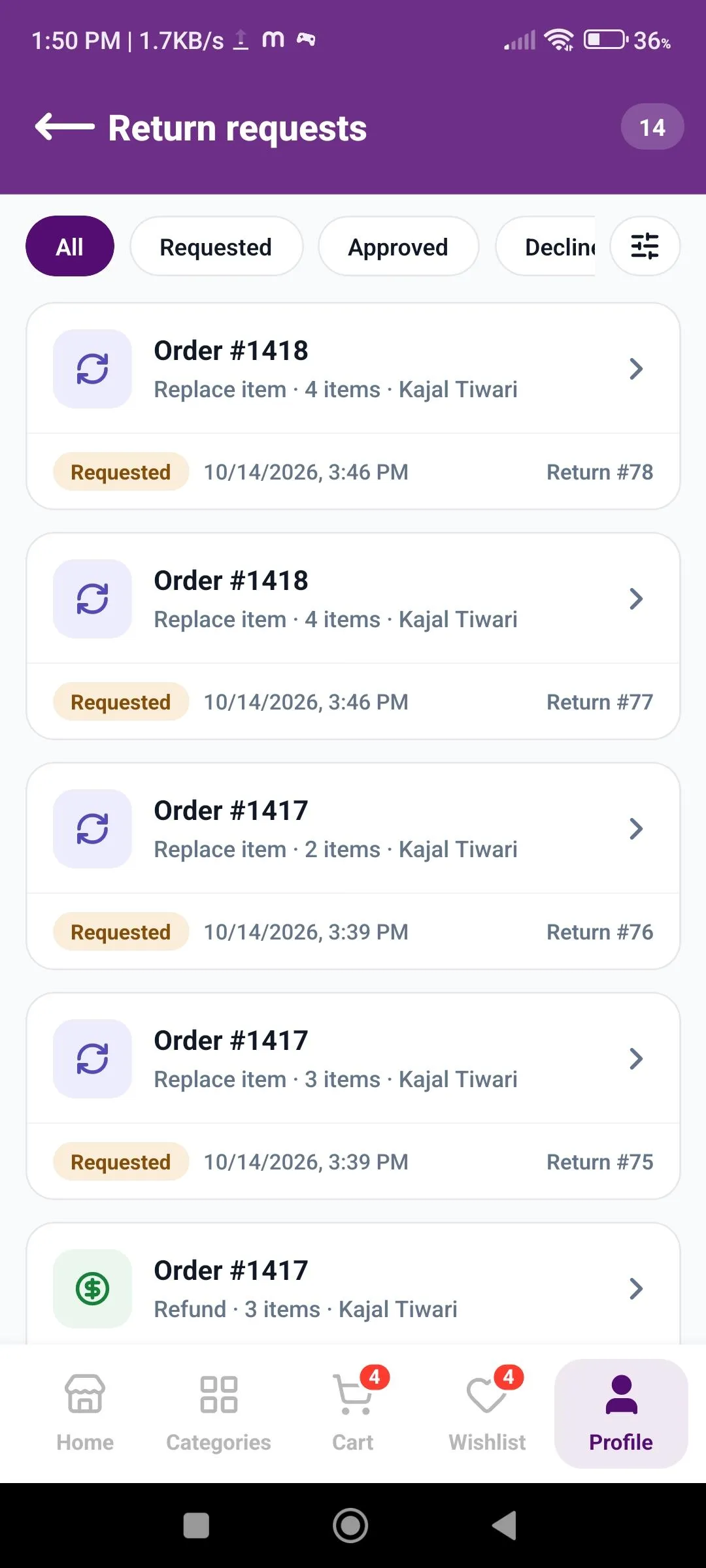 Return RequestsTrack return, replace, and refund requests by status.
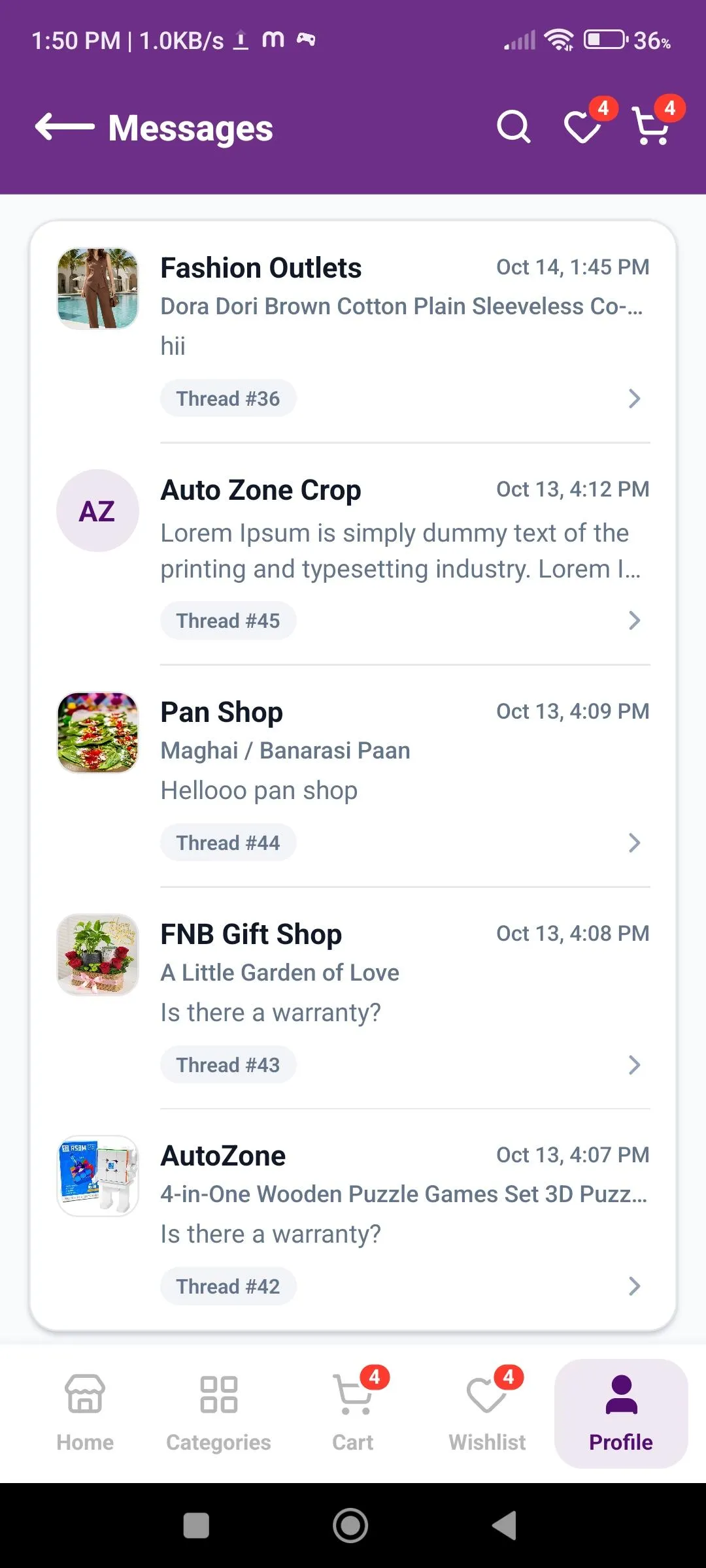 MessagesMessage sellers and continue conversations from one place.
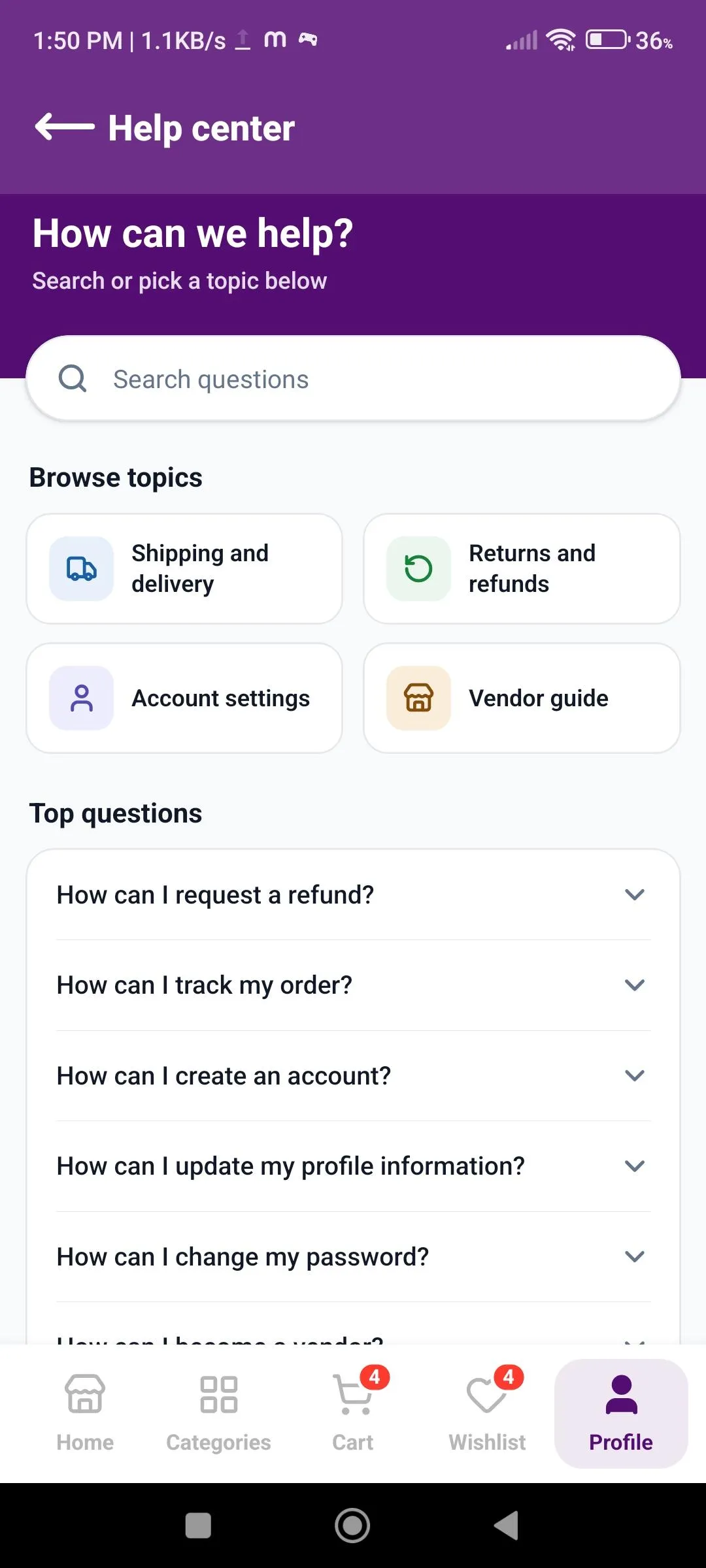 Help CenterThe questions and answers you add in Help Center Q&A are shown here, grouped by topic.
Why Choose Our Customer Mobile App?
A Complete Shopping Experience for Customers
Built with React Native, so your customers can shop on both major mobile platforms.
Login or guest browsing, categories, product details, cart, wishlist, compare, and a simple 3-step checkout.
Customers can manage their wallet, reward points, return requests, and orders right inside the app.
Full Control From Your Admin Panel
Set your logo, colors, dark theme, and search suggestions from Theme settings.
Arrange Banners, Products, Categories, Brands, and Vendors blocks in Grid or Scroller view, filled manually or automatically.
Link banners to products, categories, vendors, brands, or any URL, and reuse them on the homepage.
Engage & Support Your Customers
Send Firebase push notifications to your app users straight from the admin panel.
Let customers sign in with Google, Facebook, or X, and let guests explore the app without logging in.
Add questions and answers by topic so customers find answers without contacting support.
Ready to Launch Your Store as a Mobile App?
Give your customers a complete mobile shopping experience — from browsing and checkout to wallet, rewards, and support — on both Android and iOS, while you manage the theme, homepage, banners, push notifications, and help center from one admin panel.
Reach customers on both platforms with one React Native app.
Set your logo, colors, dark theme, and search suggestions to match your brand.
Arrange banners, products, categories, brands, and vendors in Grid or Scroller view.
From login or guest browsing to cart, checkout, wallet, and rewards — all in one app.
Use promotional banners, push notifications, and social login to keep customers coming back.
Help Center Q&A organized by topic helps customers find answers on their own.