

Safepay Payment Gateway – Secure Payments & Easy Refunds
Accept payments securely on your CS-Cart store with Safepay, and manage refunds, currency conversion, and vendor permissions — all from your admin panel.Get Started
Safepay Payment Gateway for CS-Cart – Secure Checkout & Simplified Refunds
Give your customers a secure, trusted checkout experience with the Safepay add-on, built on Safepay's Tracker-based hosted checkout flow. Every order generates a secure payment tracker, and the transaction is verified with Safepay before it's marked complete — keeping your store protected against failed or incomplete payments.
Refunds no longer need a separate dashboard — process full or partial refunds directly from the CS-Cart admin panel, fully connected to the RMA (Return Merchandise Authorization) flow. Once a return request is approved, admins — and marketplace vendors — can process the refund without leaving CS-Cart.
Multi-currency stores are handled automatically — the addon uses your store's secondary currency (from a supported list) to charge customers, so order totals stay accurate no matter which currency they pay in.
Key Features of Safepay Integration
Payment Processing
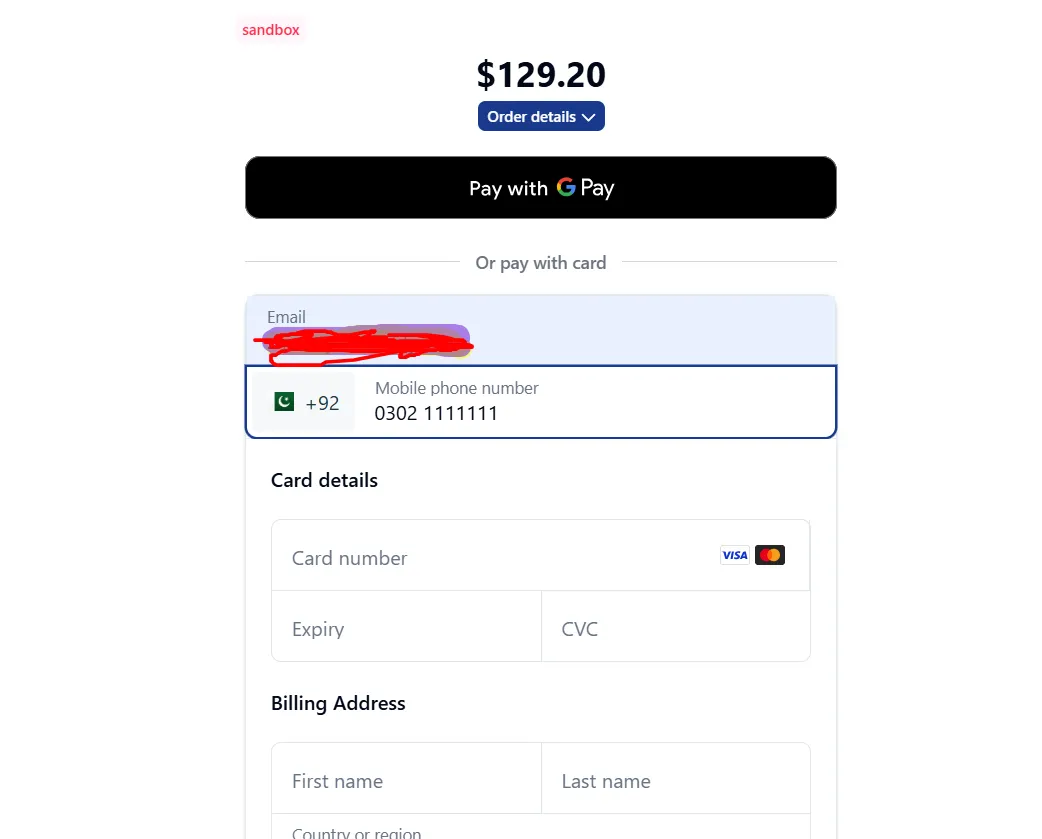
Every order creates a secure Safepay payment tracker, and the customer completes payment on Safepay's hosted checkout page — the transaction is then verified with Safepay before it's marked complete, reducing failed or unverified payments.
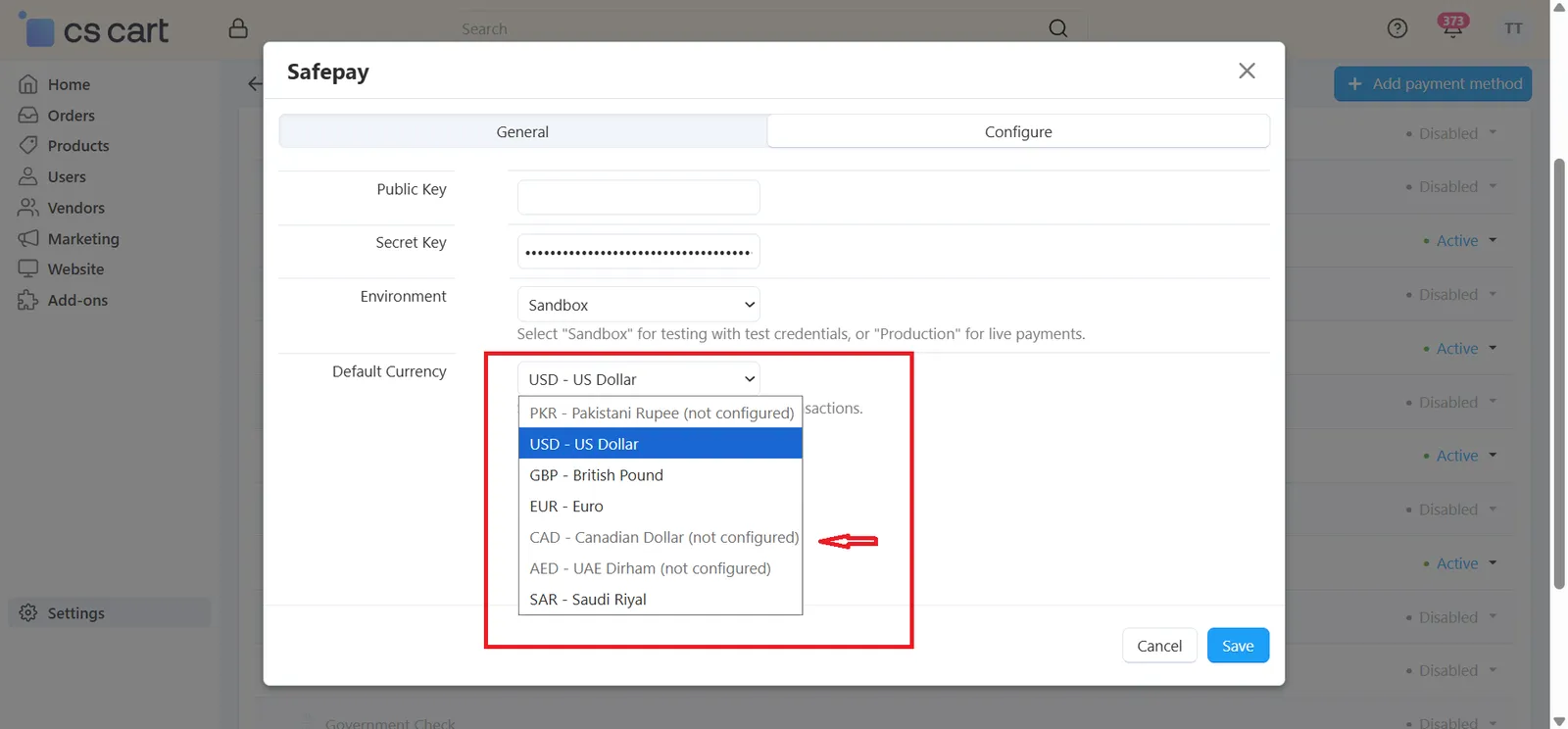
Charges customers using CS-Cart's secondary currency whenever it's one of Safepay's supported currencies (PKR, USD, EUR, GBP, AED, CAD, SAR), automatically falling back to a configured default currency otherwise.
Refund Management
Process full or partial refunds directly from the order admin panel, without logging into a separate Safepay dashboard, once a return request has been approved.
Refunds are unlocked by CS-Cart's Return Merchandise Authorization flow — the refund panel appears only after a return is approved, keeping return records and refund records in sync automatically.
Vendors can process refunds themselves once a return request is approved, so admins don't have to handle every single refund manually.
Step-by-Step Setup Guide
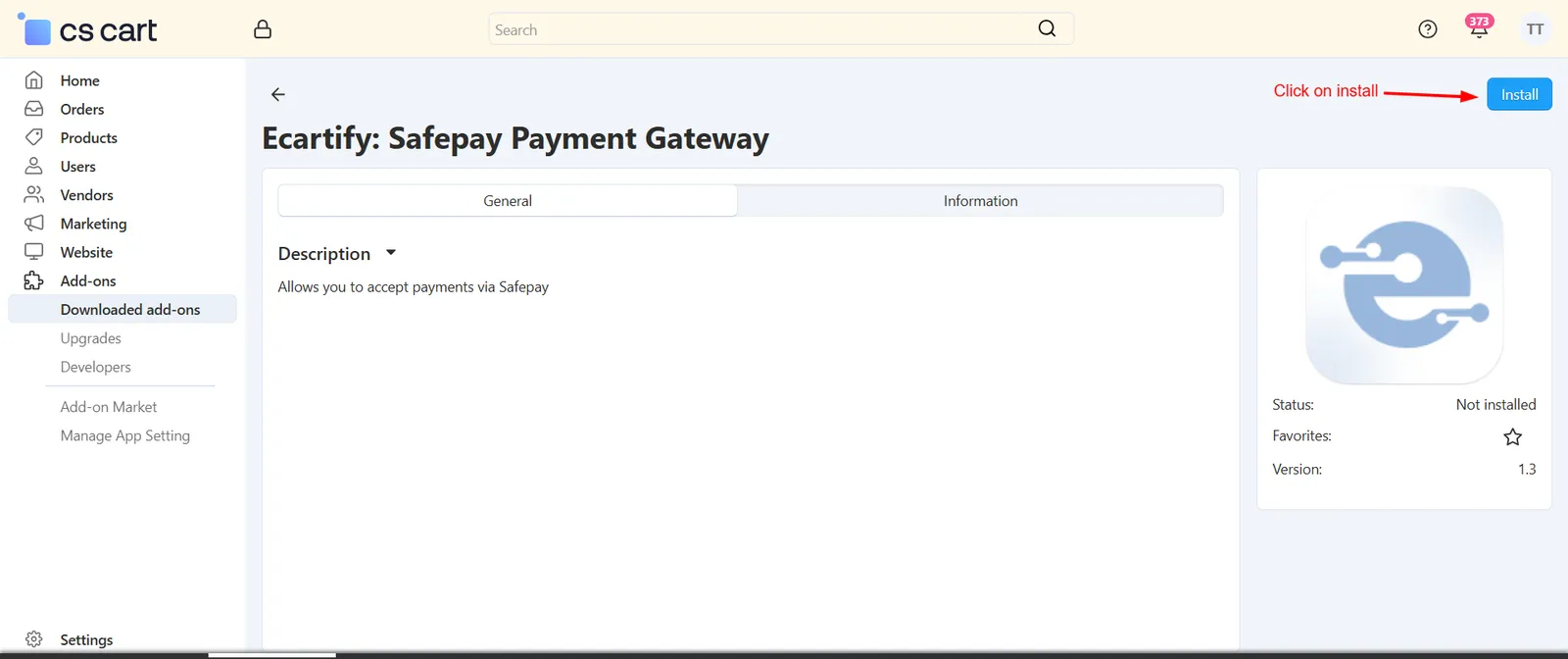
Step 1: Install the Add-on
Get Safepay running on your CS-Cart store in a few minutes:
- Download the Add-on – Download the Safepay package from the Ecartify website or CS-Cart Marketplace.
- Open Add-ons – Go to Add-ons → Manage Add-ons in the CS-Cart admin panel.
- Upload the Package – Click the "+" button and upload the Ecartify: Safepay package.
- Install & Activate – Click 'Install' and set the add-on status to 'ON'.
Step 2: Add Safepay as a Payment Method
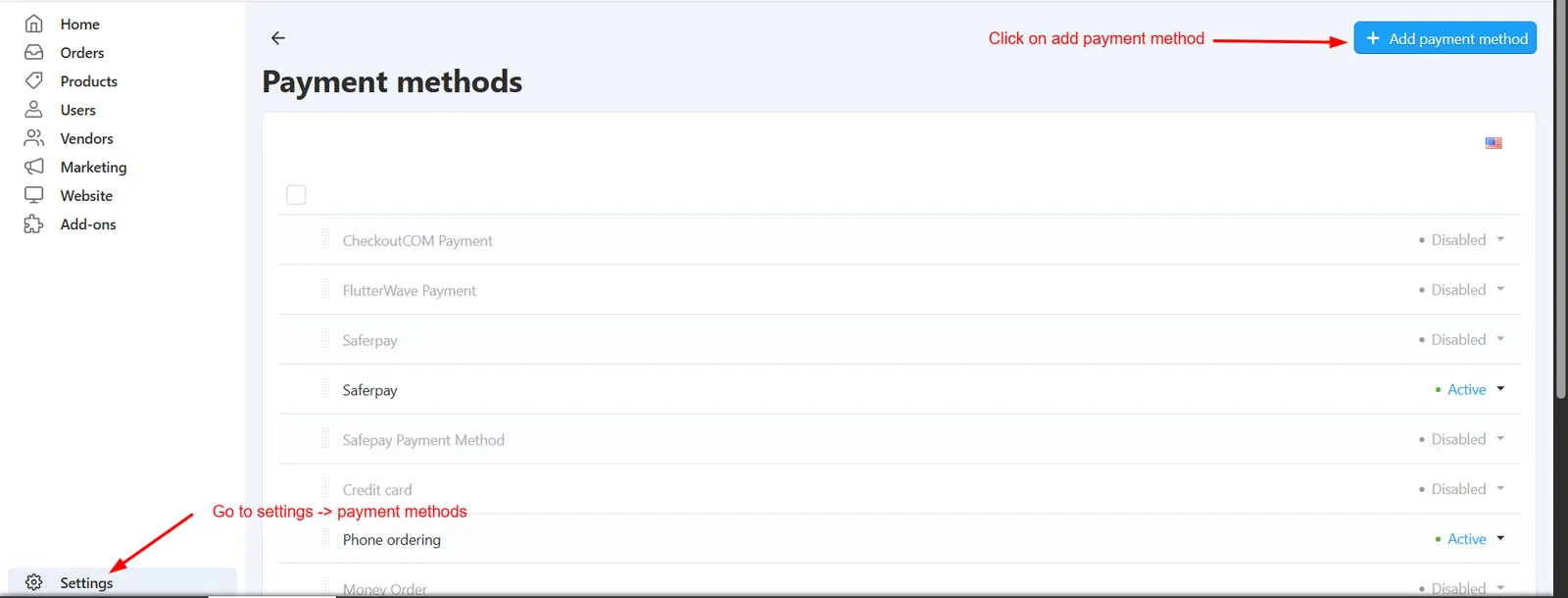
Go to Settings → Payment Methods and add Safepay as a new processor:
- Add Payment Method – Click "+ Add payment method" on the Payment Methods page.
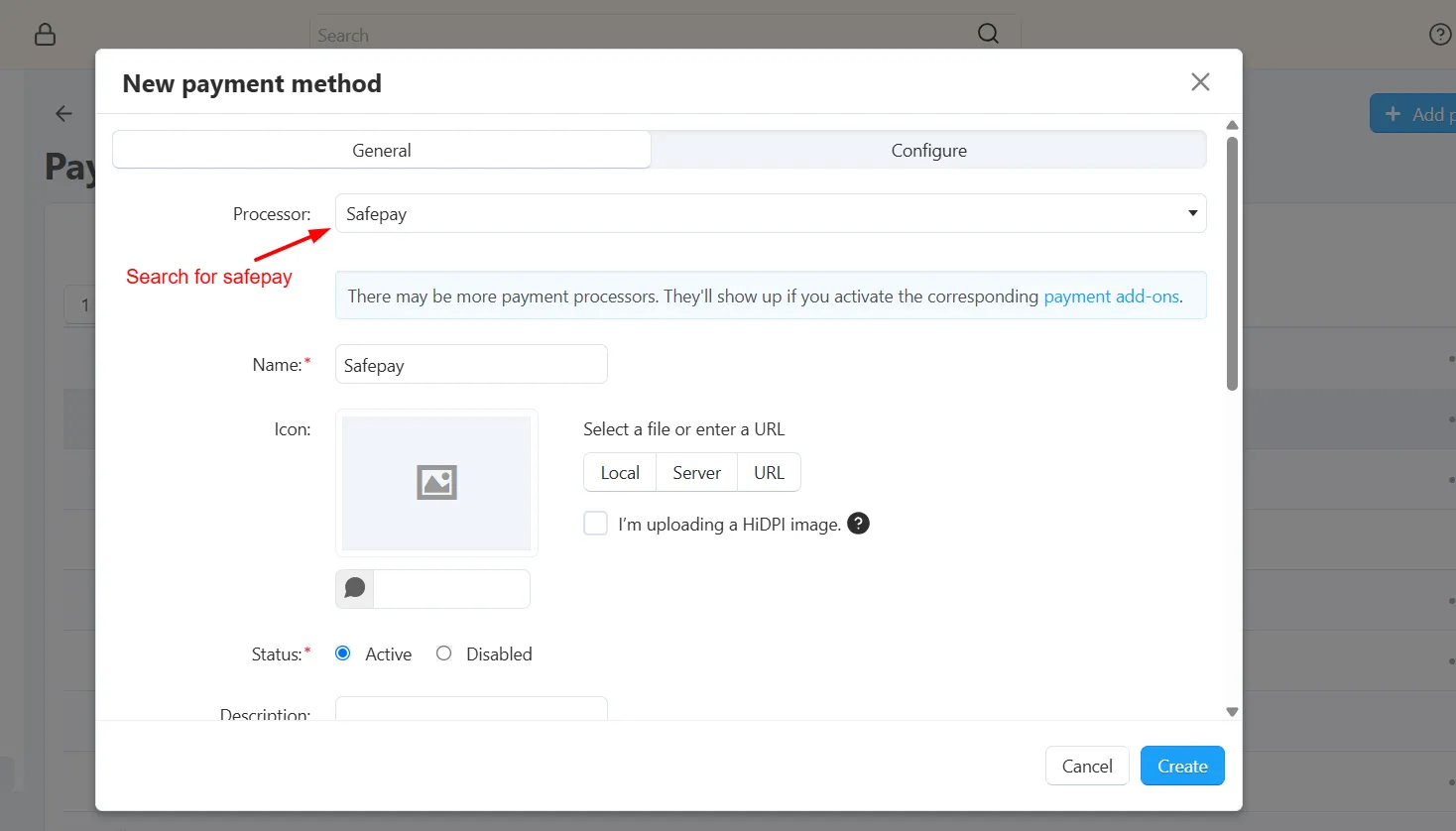
- Select the Processor – Search for and select Safepay from the Processor dropdown, then set a Name and Status.
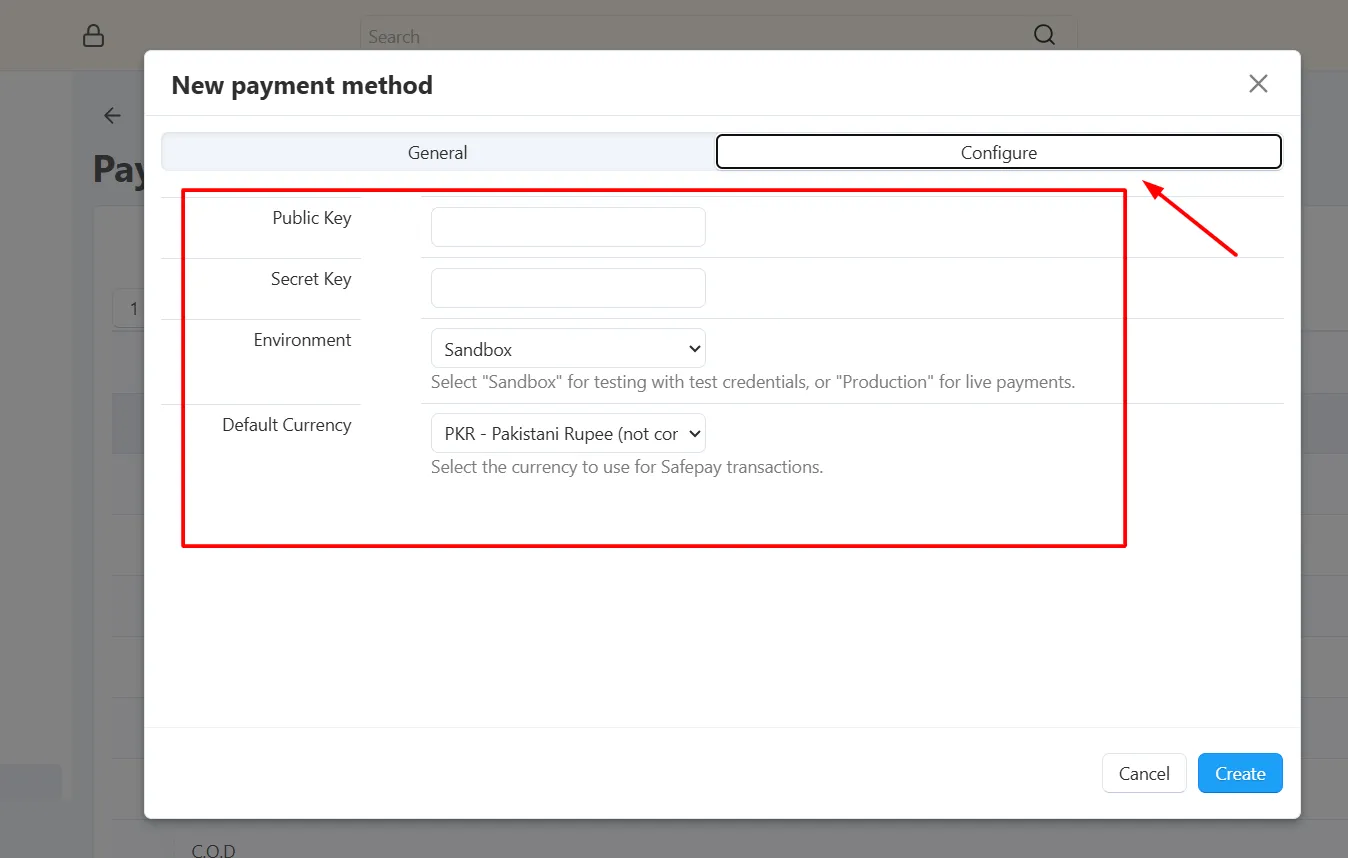
- Enter API Credentials – On the Configure tab, add your Public Key and Secret Key, choose the Environment (Sandbox/Production), and set the Default Currency.
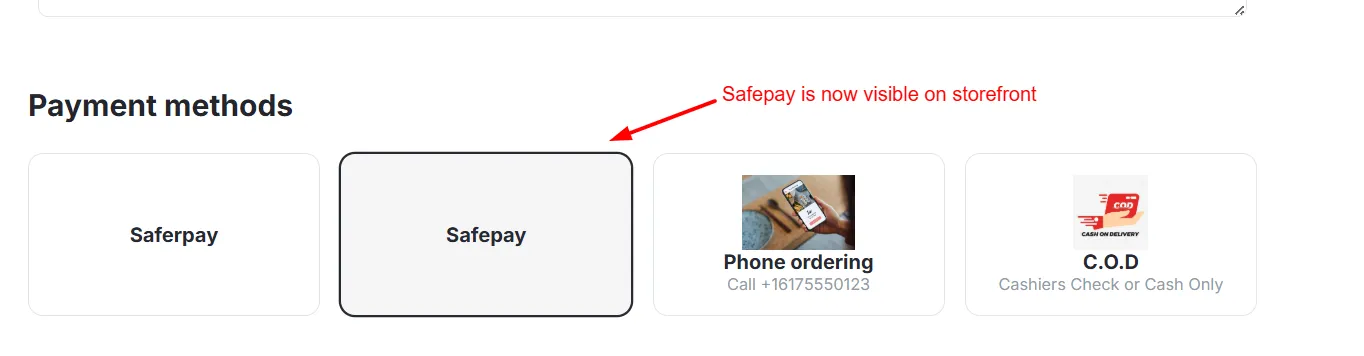
- Create – Save so Safepay becomes available on your storefront checkout.
Step 3: Review Order Status Behavior
Once the payment method is saved, Safepay drives order status changes automatically at each stage:
- Pending – Applied while the order's payment tracker is created and the customer is on Safepay's hosted checkout page.
- Success – Applied once Safepay confirms the tracker as completed.
- Failed – Applied if the customer cancels or the transaction isn't confirmed as completed.
Step 4: Set Up Multi-Currency Support
If your store sells in multiple currencies, make sure the secondary currency is configured correctly:
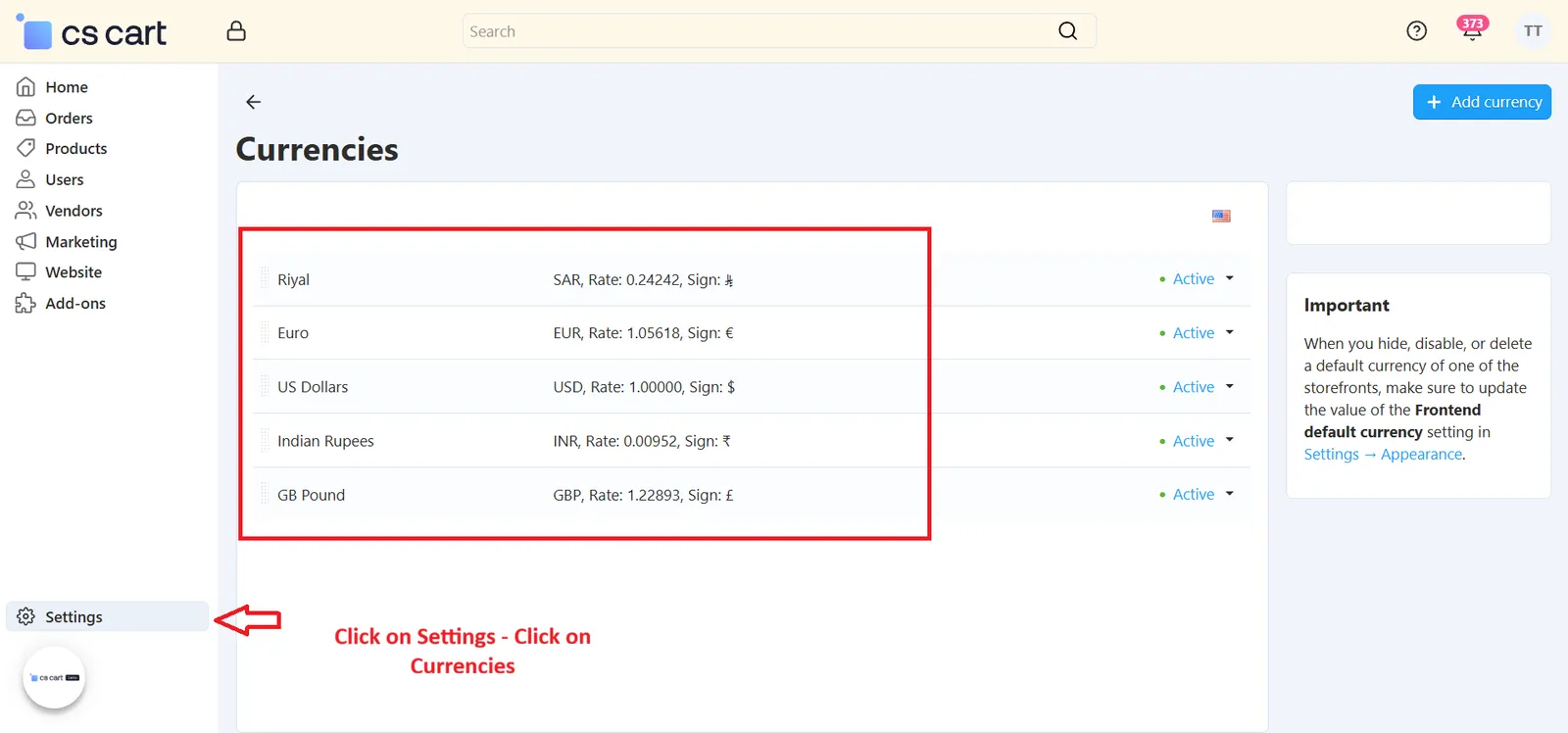
- Set Secondary Currency – Configure your store's CART_SECONDARY_CURRENCY under General Settings using one of Safepay's supported currencies: PKR, USD, EUR, GBP, AED, CAD, SAR.
- Automatic Fallback – If the secondary currency isn't on Safepay's supported list, the addon automatically charges in a configured default currency instead, so checkout never breaks.
Step 5: Test a Transaction
Before going live, place a test order and confirm the full payment flow works end-to-end:
- Create Tracker:
Placing the order generates a secure Safepay payment tracker and the customer is redirected to Safepay's hosted checkout page. - Complete Payment:
The customer completes payment on Safepay's page and is redirected back to your store. - Verify & Update Status:
The addon checks the tracker's status with Safepay and updates the order status automatically once it's confirmed complete.
Step 6: Process a Refund
Refunds always flow through an approved return request — once that's in place, you can process the refund from either the order page or the return page:
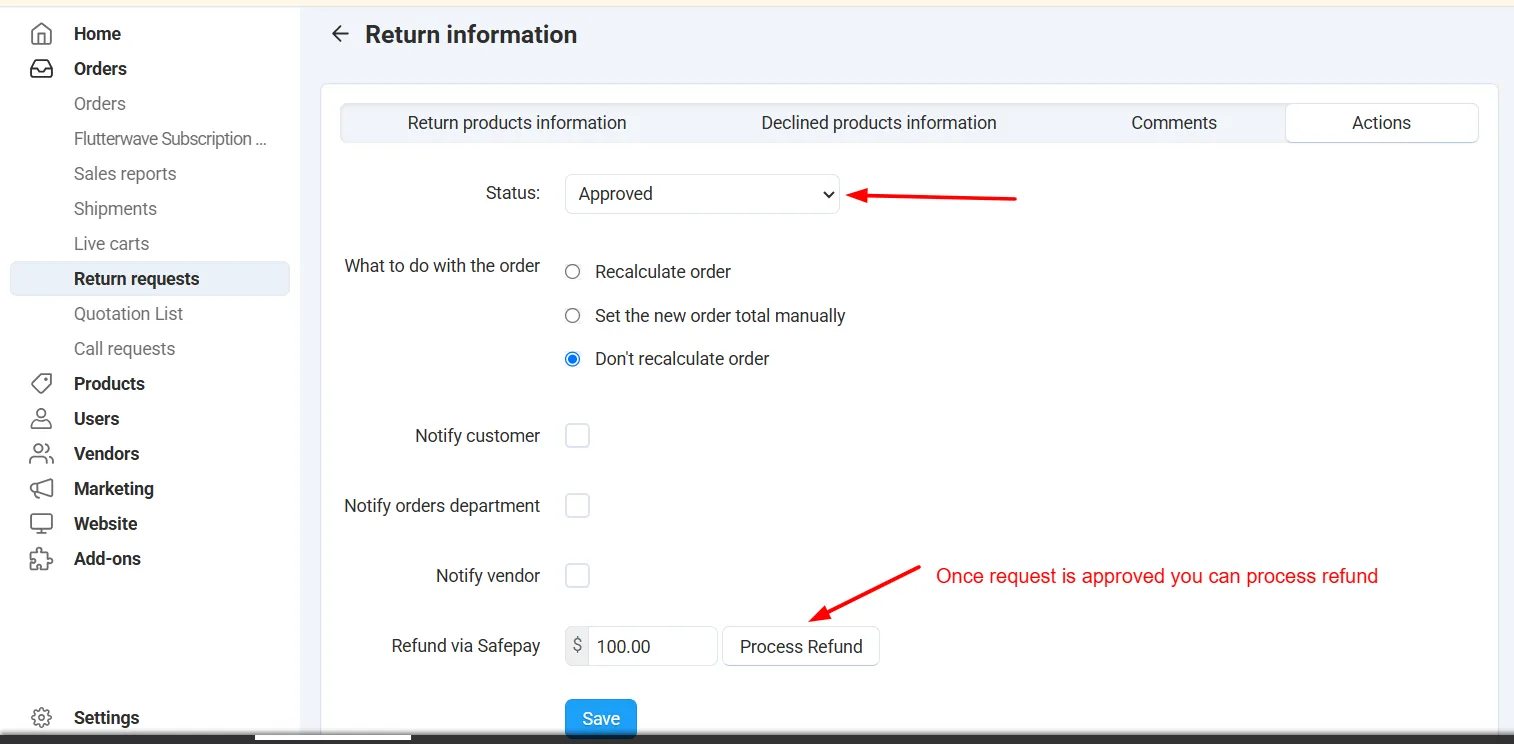
- Approve the Return First – Open Orders → Return requests, select the return for the order, and set its Status to Approved. The Refund via Safepay panel only appears once this step is done — it won't be visible on an order that has no approved return.
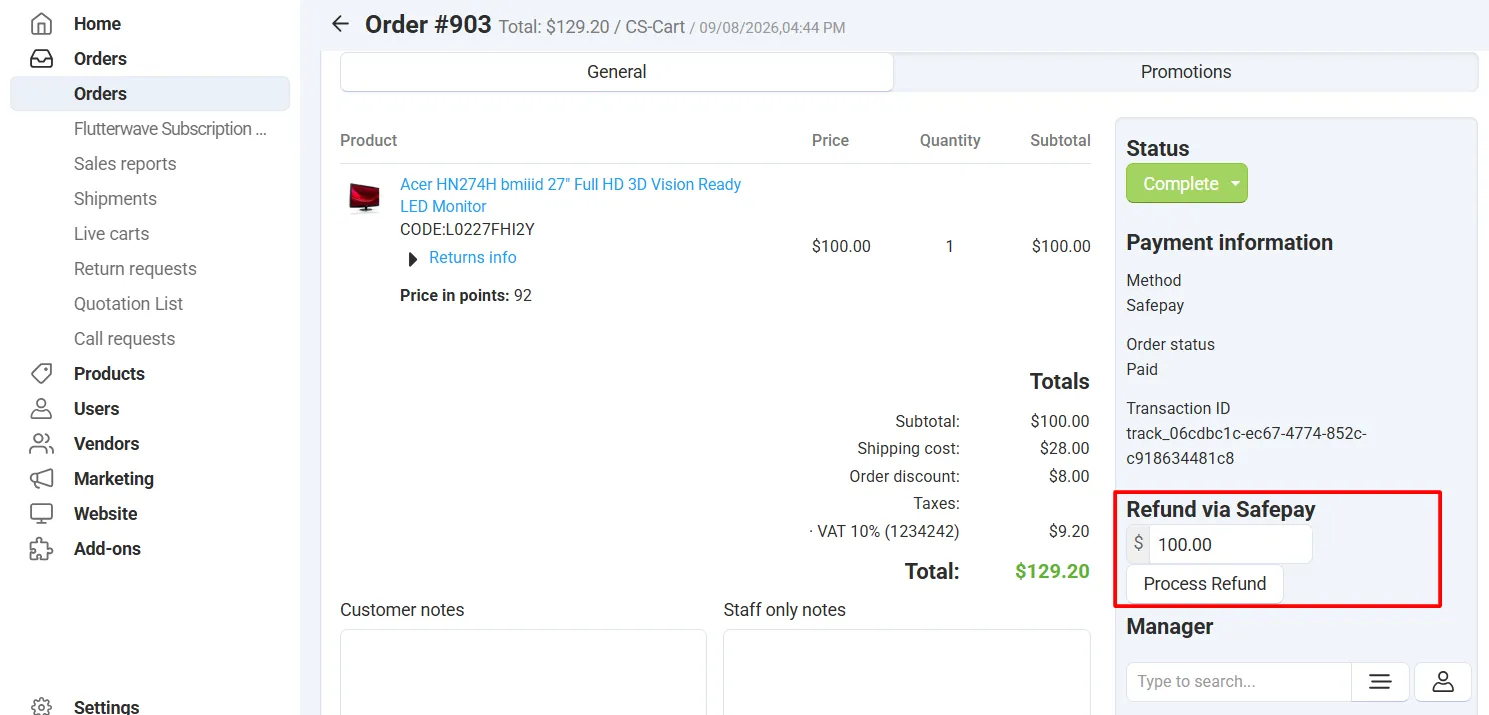
- Refund from the Order Page – Open Orders → Orders → [Select an Order]. Once the linked return is approved, the Refund via Safepay panel shows the payment method, order status, and transaction ID, along with a refund amount field.
- Refund from the Return Request – The same Refund via Safepay panel is also available directly on the approved return's details page — the order and refund records stay in sync automatically, no manual reconciliation needed.
- Choose Full or Partial Refund – Enter the refund amount, or refund the full order total, then click Process Refund. The refund amount is automatically capped to whatever is still refundable for that return.
Step 7: Process Refund from Vendor Panel
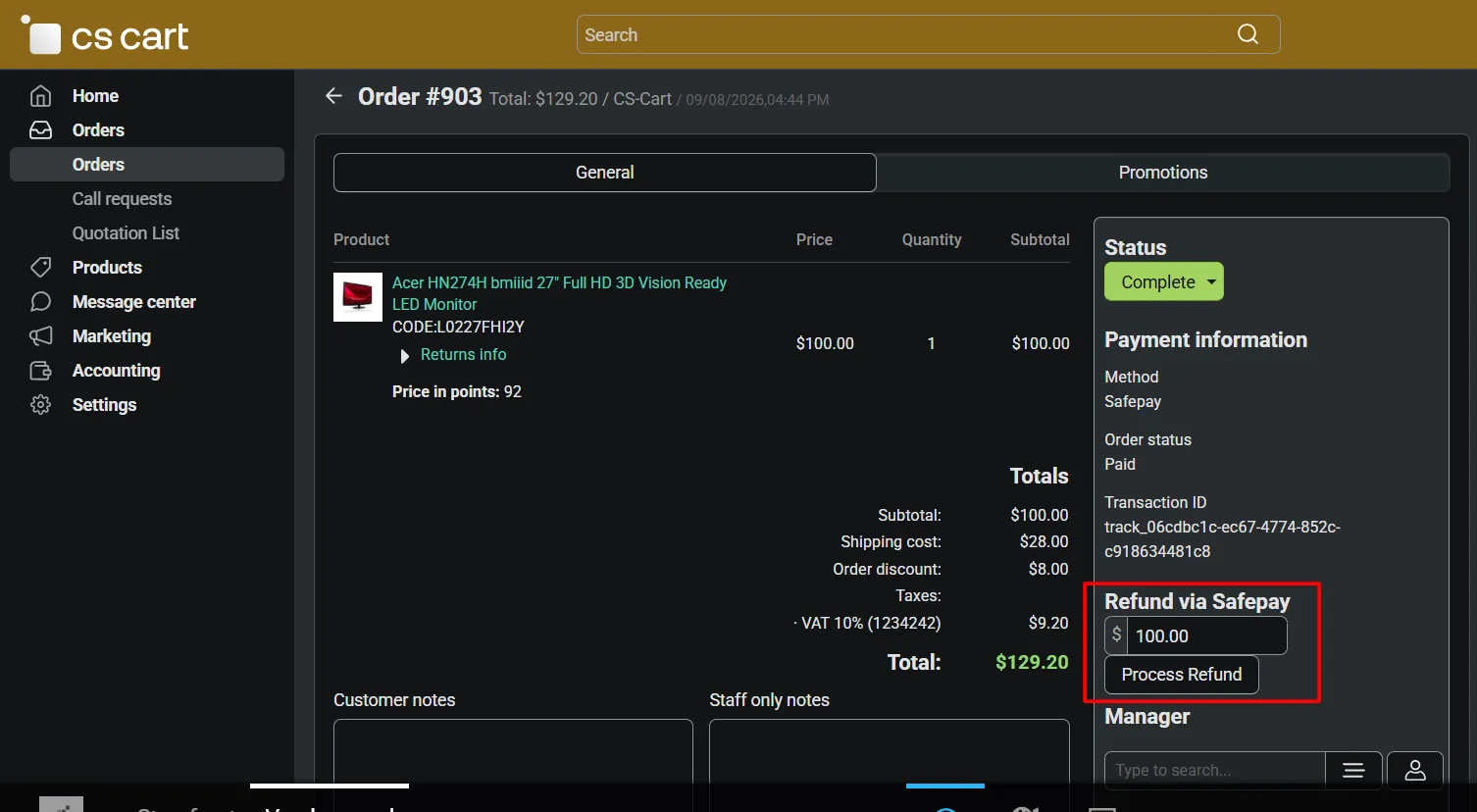
Go to Vendor Panel → Orders → [Select an Order]. Once a return request for that order has been approved, the Refund button becomes visible on the order details page.
Real-World Benefits & Results
Secure & Reliable Payments
The tracker-based hosted checkout flow ensures orders are only marked complete after Safepay verifies the payment.
Reduce failed or unverified transactions with a properly verified payment flow.
Supported-currency charging with automatic fallback keeps order totals accurate across currencies.
Simplified Refunds
Process refunds directly from the CS-Cart admin panel once a return is approved.
Refund records stay in sync with return requests automatically.
Let vendors handle their own refunds once a return is approved, reducing admin workload.
Easy Configuration
Pending, success, and failed order statuses are handled automatically right from the payment method settings.
Verify the full flow in Sandbox mode before switching to Production transactions.
Works out of the box for both single-vendor and multi-vendor CS-Cart stores.
Secure Payments, Simpler Refunds — Starting Today
Give your customers a trusted checkout experience with Safepay, and give your team a refund process that doesn't need a separate dashboard or manual reconciliation.
Tracker-based hosted checkout with status verification protects your store from failed transactions.
Process full or partial refunds directly from the admin panel, connected to RMA.
Charges in your store's supported secondary currency, with automatic fallback for accuracy.
Give vendors controlled refund permissions to reduce admin workload.
Add your API credentials and test transactions in minutes.
Test mode lets you verify everything before going live.