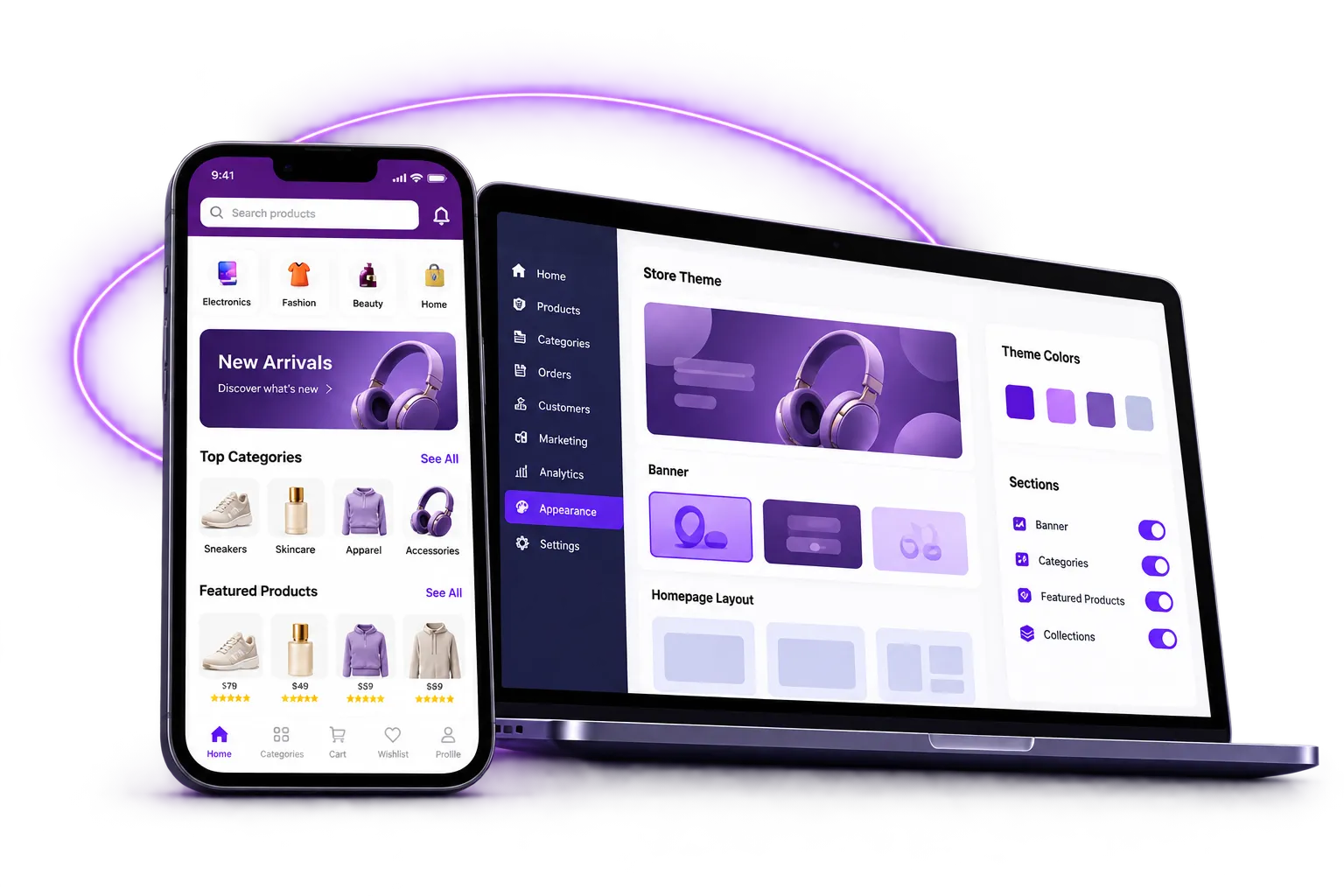

AI Merchandising Engine for Personalized Discovery
Deliver smart recommendations across products, categories, blogs and deals based on real shopper behavior.Get Started
Ecartify: AI Merchandising Engine – Smart Product Suggestions Powered by Real Shopper Behavior
Boost your store revenue by intelligently recommending relevant products to customers during their purchase journey. The AI Merchandising Engine addon uses vector-based AI technology to learn what your customers search, view, add to cart, and buy — then shows them the most relevant products at the right time. Powered by Qdrant (vector database) and Cohere (AI embeddings), this addon delivers truly personalized recommendations that increase average order value, reduce bounce rate, and keep customers coming back for more.
Key Features of AI Merchandising Engine
Learns from search, views, cart adds, and orders to build a personalized profile for each customer.
Uses lightning-fast vector similarity search to find the most relevant products in milliseconds.
Converts product and behavior data into smart embeddings that understand context and meaning.
Configure how much each action matters — views, cart adds, searches, and orders each carry adjustable weights.
Background cron job automatically syncs your entire product catalog into the AI vector database.
Show recommendations based only on Search, View, Cart, Order activity — or mix all together.
Add a Recommendation block anywhere on your storefront using CS-Cart's layout manager.
Recommendations display beautifully on Phone, Tablet, and Desktop with the Scroller template.
Show or hide the Add to Cart button on recommendation cards to match your store's design.
Step-by-Step Setup Guide
Step 1: Install the Addon
Get the AI Merchandising Engine running on your CS-Cart store in just a few minutes:
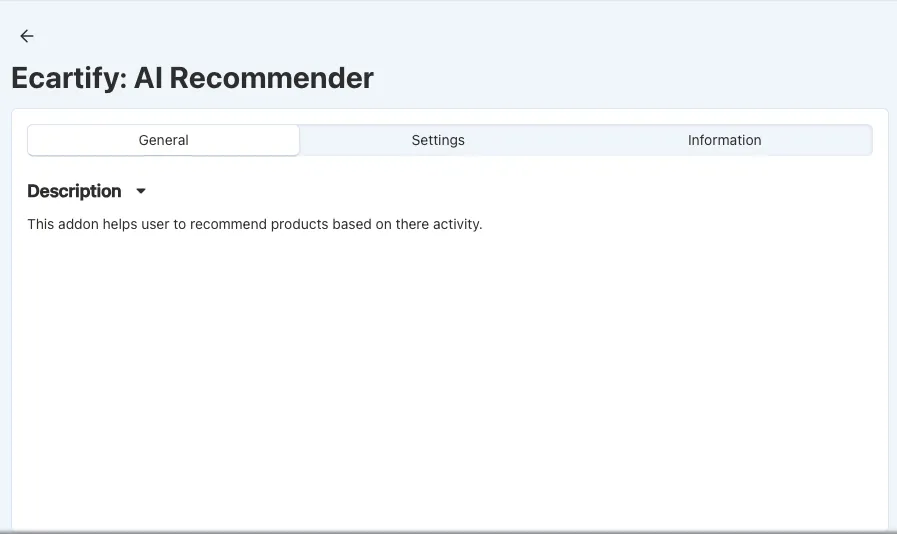
Once activated, go to Add-ons → Ecartify: AI Merchandising Engine to open the settings panel.
Step 2: Connect Your AI Services (Qdrant + Cohere)
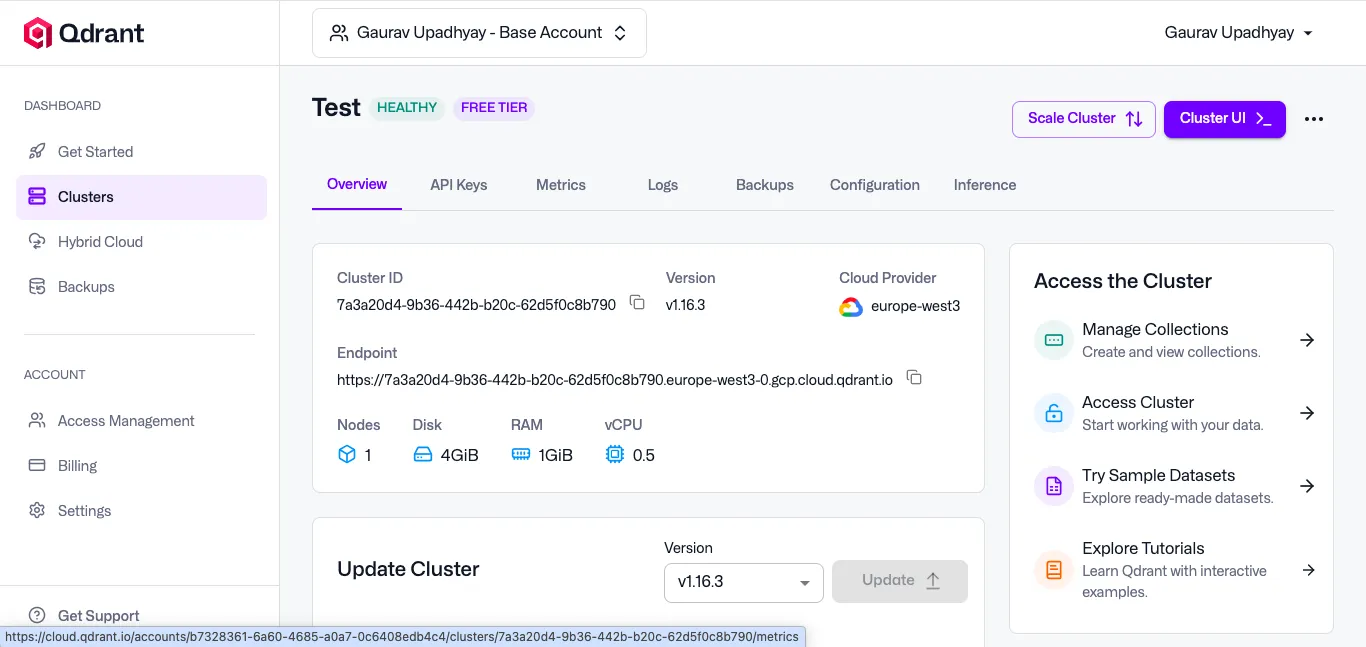
The AI AI Merchandising Engine needs two external services to work. Both have free tiers to get you started:
Your Qdrant cloud cluster URL (e.g.
https://xxxxxxxx-xxxx-xxxx-xxxx-xxxxxxxxxxxx.us-east4-0.gcp.cloud.qdrant.io). Sign up free at cloud.qdrant.io
Generated from your Qdrant cloud dashboard. Used to authenticate requests to the vector database.
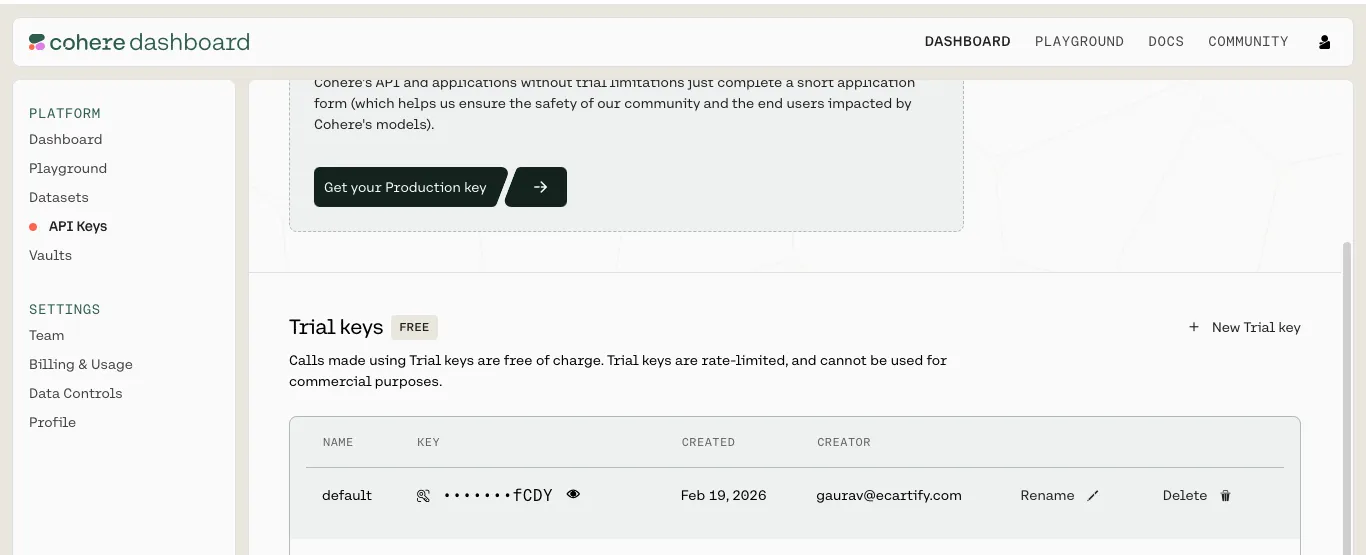
Get your free API key from cohere.com. Cohere converts product data into AI "embeddings" (smart numeric representations) for similarity matching.
Step 3: Set Activity Weights
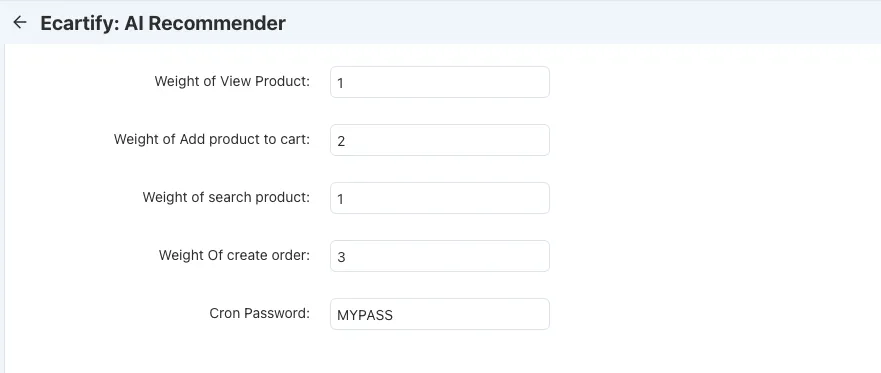
Tell the AI how much each customer action matters when calculating recommendations. Higher weight = more influence on the results:
How much a customer simply viewing a product page influences their recommendations. Low weight since browsing doesn't always mean strong interest.
Adding a product to cart shows strong buying intent. Higher weight means cart actions influence recommendations more.
When a customer searches for something, the AI learns what they're looking for. Searching shows active interest.
Completing a purchase is the strongest signal. A high weight means past purchases heavily shape future recommendations.
Step 4: Set Up Product Sync (Cron Job)
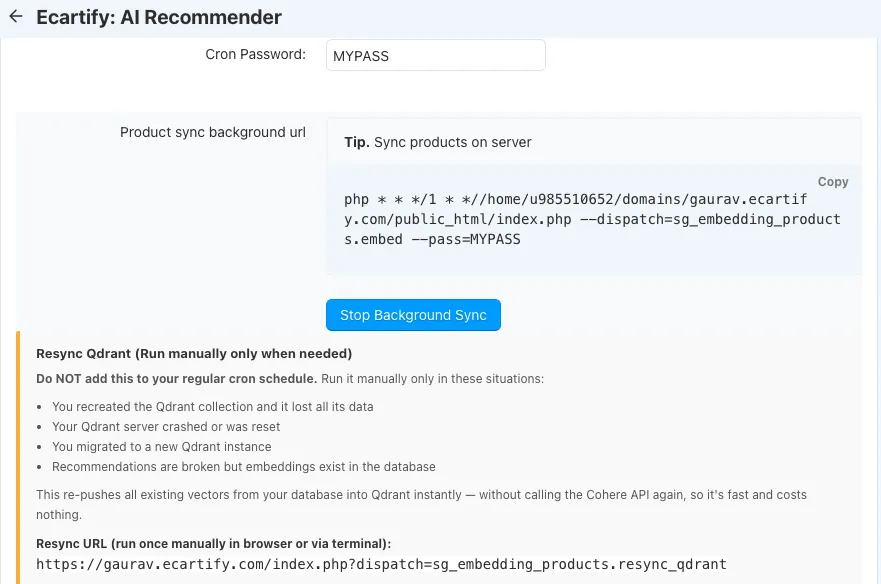
The AI needs to know about all your products. A background cron job syncs your product catalog to Qdrant automatically — every minute in the background:
Enter a secure password (e.g.
MYPASS). This protects the cron endpoint from unauthorized access.The addon shows the exact command to add to your server's cron scheduler.
Step 5: Add the Recommendation Block to Your Storefront
Now display personalized recommendations to your customers by adding the Recommendation block to any page layout:
Open the CS-Cart layout manager and select the page where you want recommendations to appear (homepage, product page, etc.)
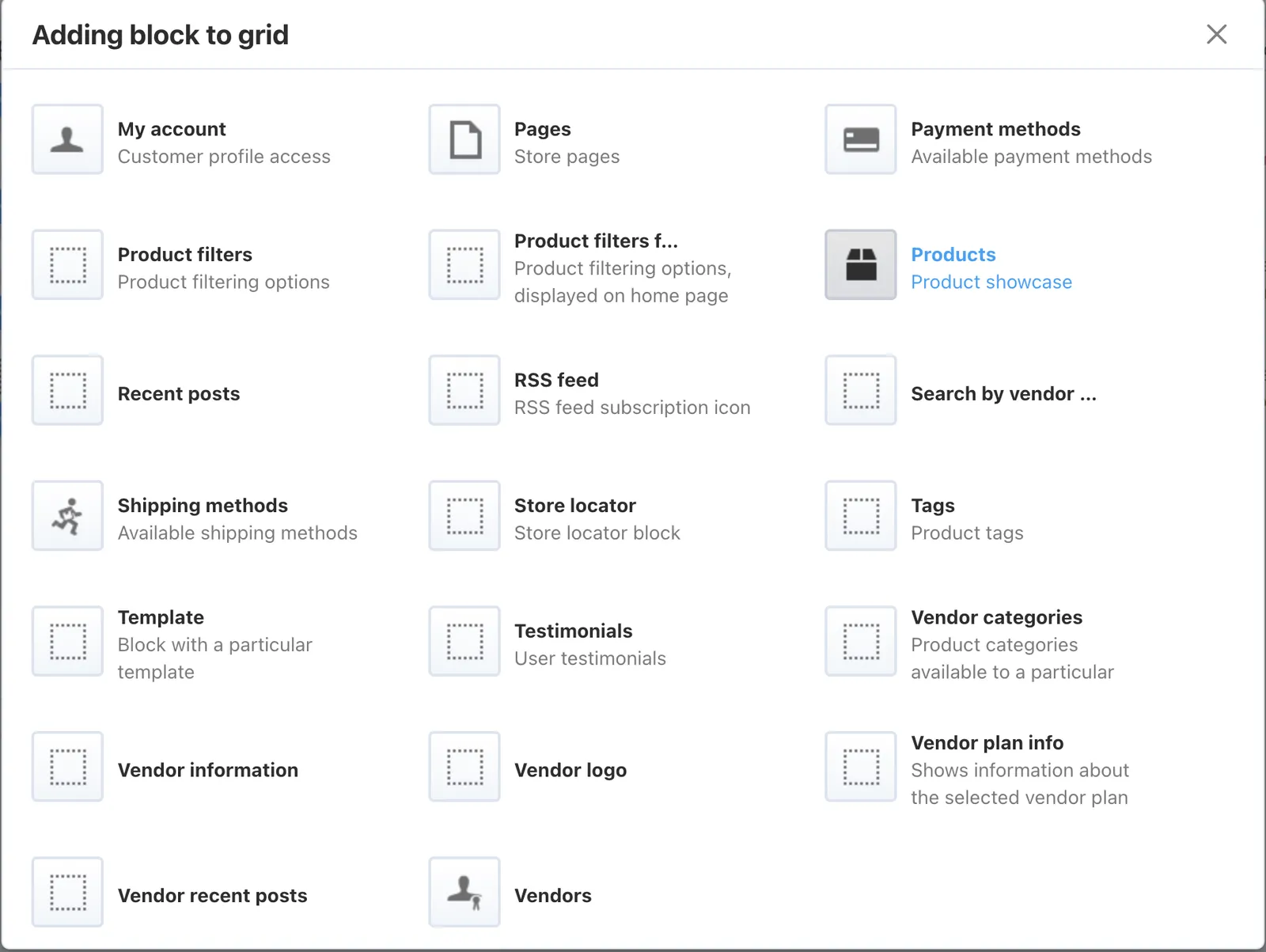
Click the +Icon in your chosen grid position and search for and check products and found in checkbox "Recommendation" in the check list
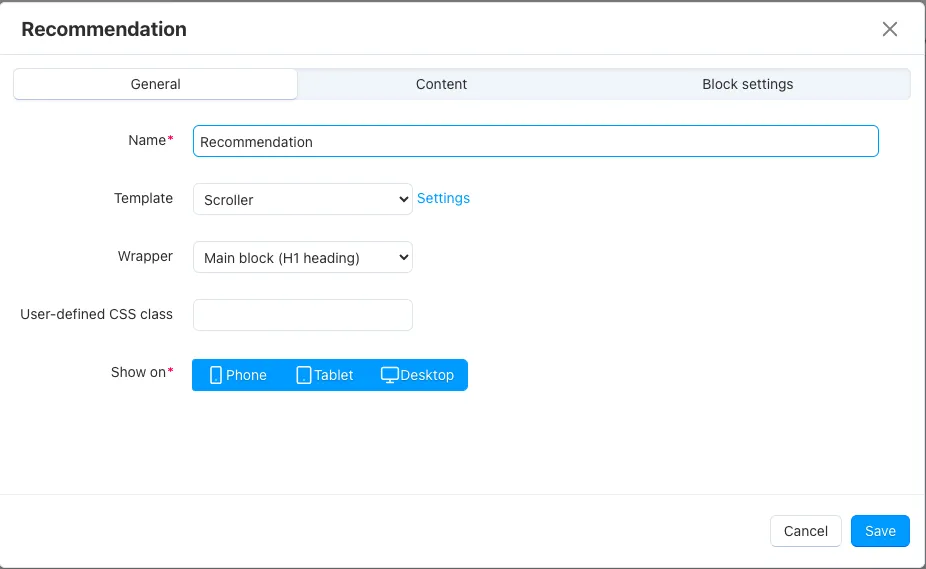
Set the block Name (e.g. "Recommendation"), choose Template as Scroller, set Wrapper to Main block (H1 heading), and select which devices to show on (Phone, Tablet, Desktop)
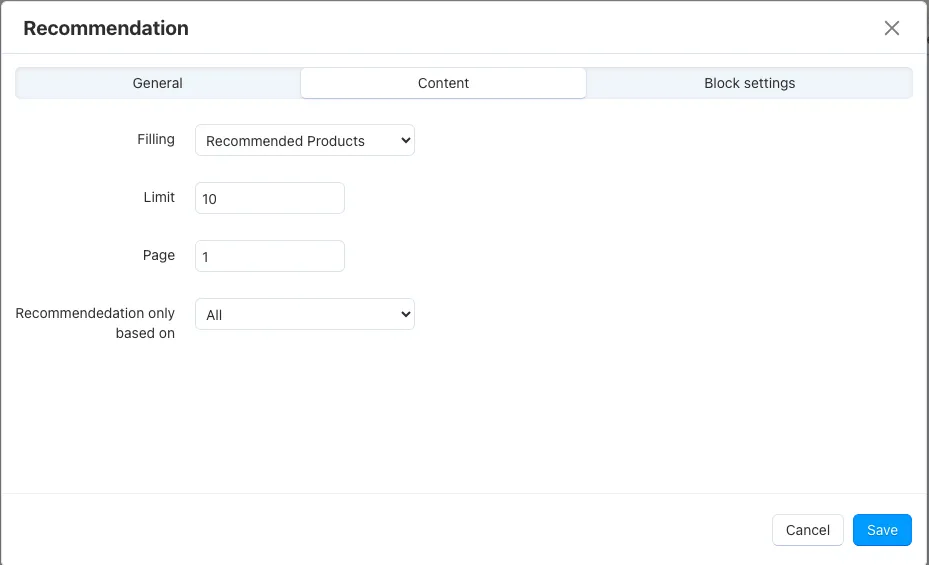
Set Filling to Recommended Products, set Limit (e.g. 10 products), set Page to 1, and choose which activity types to base recommendations on: All, Search, View, Cart, or Order
Step 6: Configure Block Settings
Fine-tune how the recommendation block behaves on your storefront:
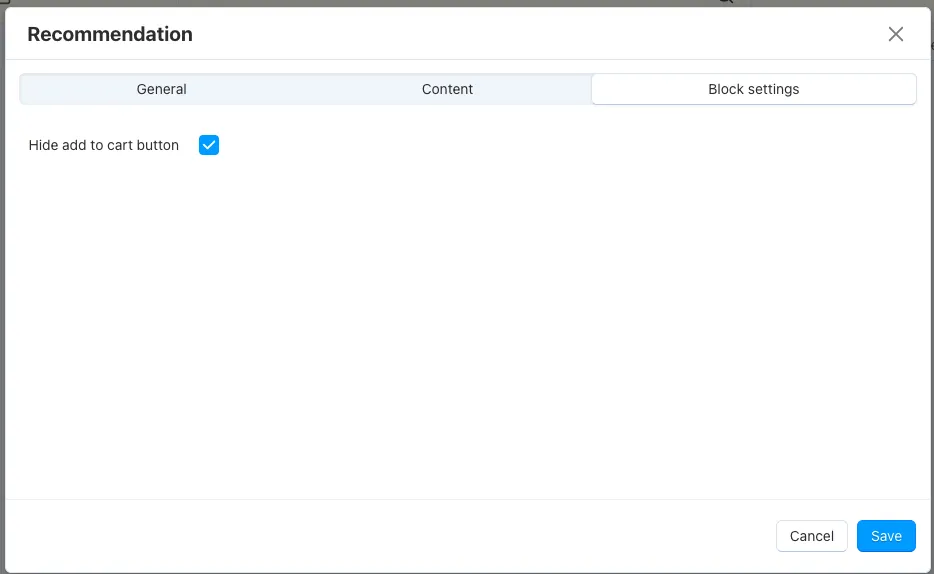
Check this box if you want a cleaner look — customers click the product to view it before buying. Uncheck to show "Add to Cart" directly on recommendation cards.
Control how many products appear (default: 10). The Scroller template lets customers scroll through all recommendations smoothly.
Click Save and then publish your layout changes. Visit your storefront to see the recommendation block live
Step 7: See It Live on Your Storefront
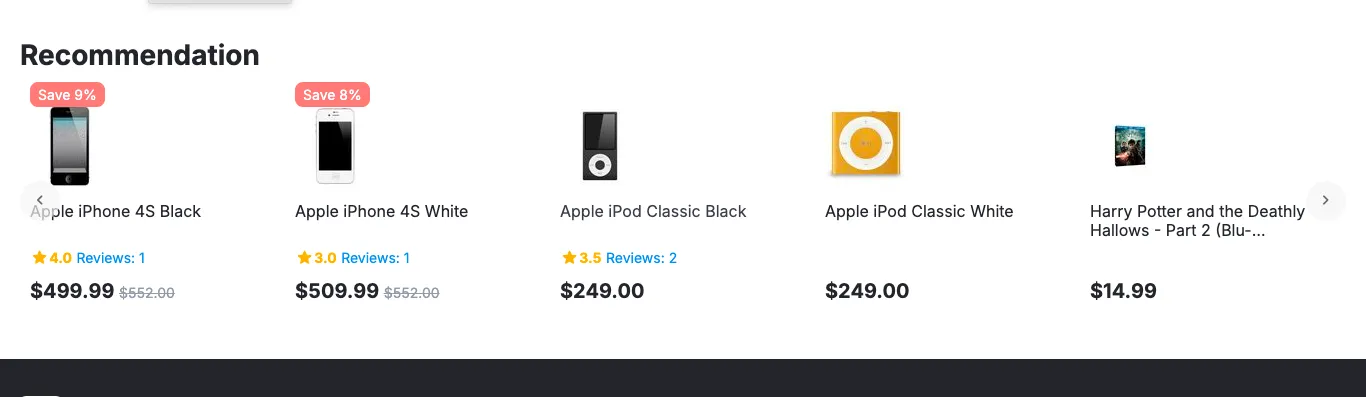
Once everything is set up, your storefront will show a beautiful "Recommendation" scroller section to every customer. Here's what happens automatically:
As soon as a customer views products, searches, or adds to cart — the AI starts tracking their preferences in real-time.
Qdrant searches through all product vectors to find items most similar to the customer's behavior profile, weighted by your activity settings.
A horizontal product scroller appears on the page showing personalized recommendations — each customer sees different products based on their own behavior.
The more a customer interacts with your store, the more accurate and personalized their recommendations become.
Step 8: Add the AI Recommended Categories Block
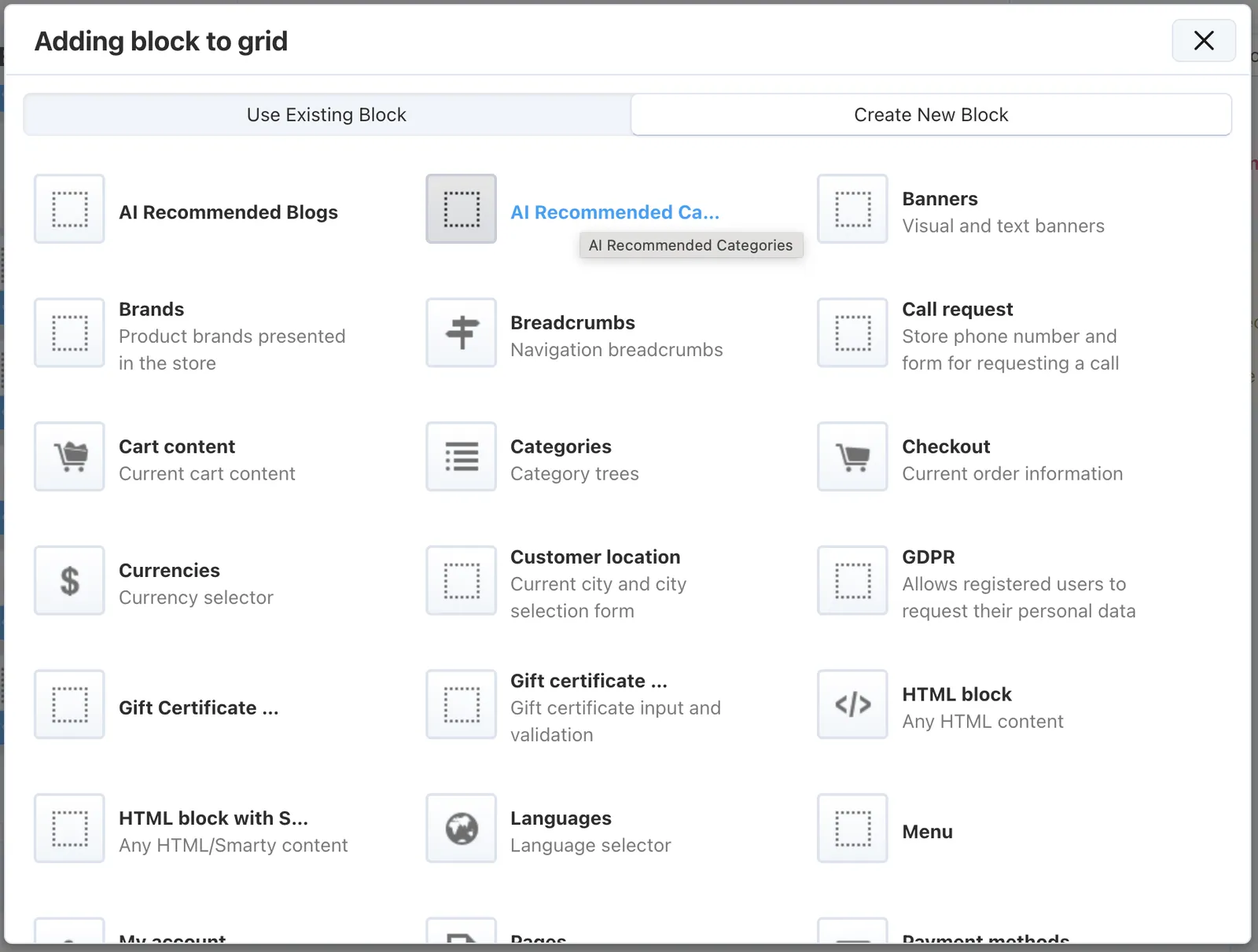
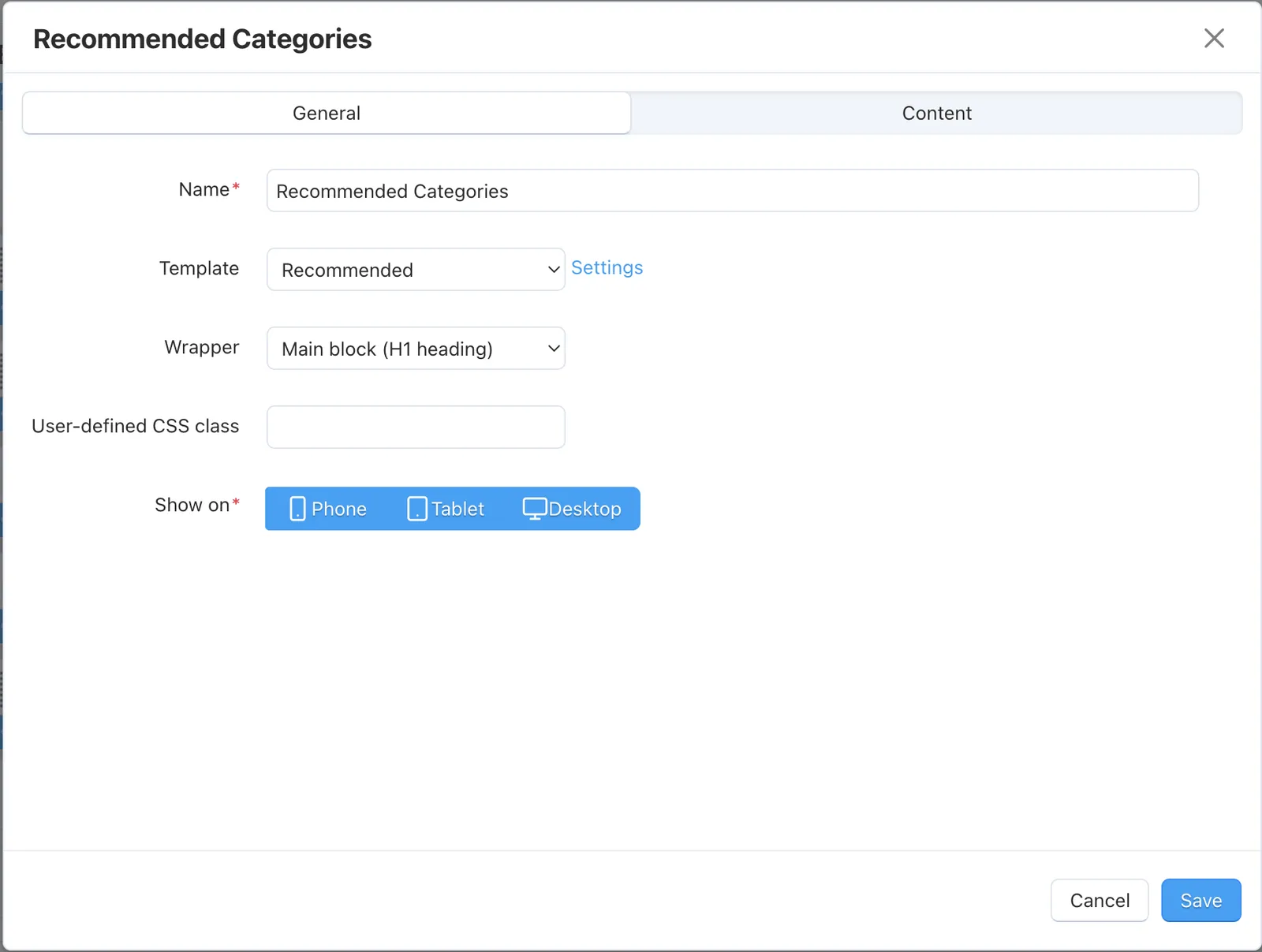
In your layout grid, click +, and under Use Existing Block select "AI Recommended Categories".
Set Name (e.g. "Recommended Categories"), Template to Recommended, Wrapper to Main block (H1 heading), and choose devices to show on.
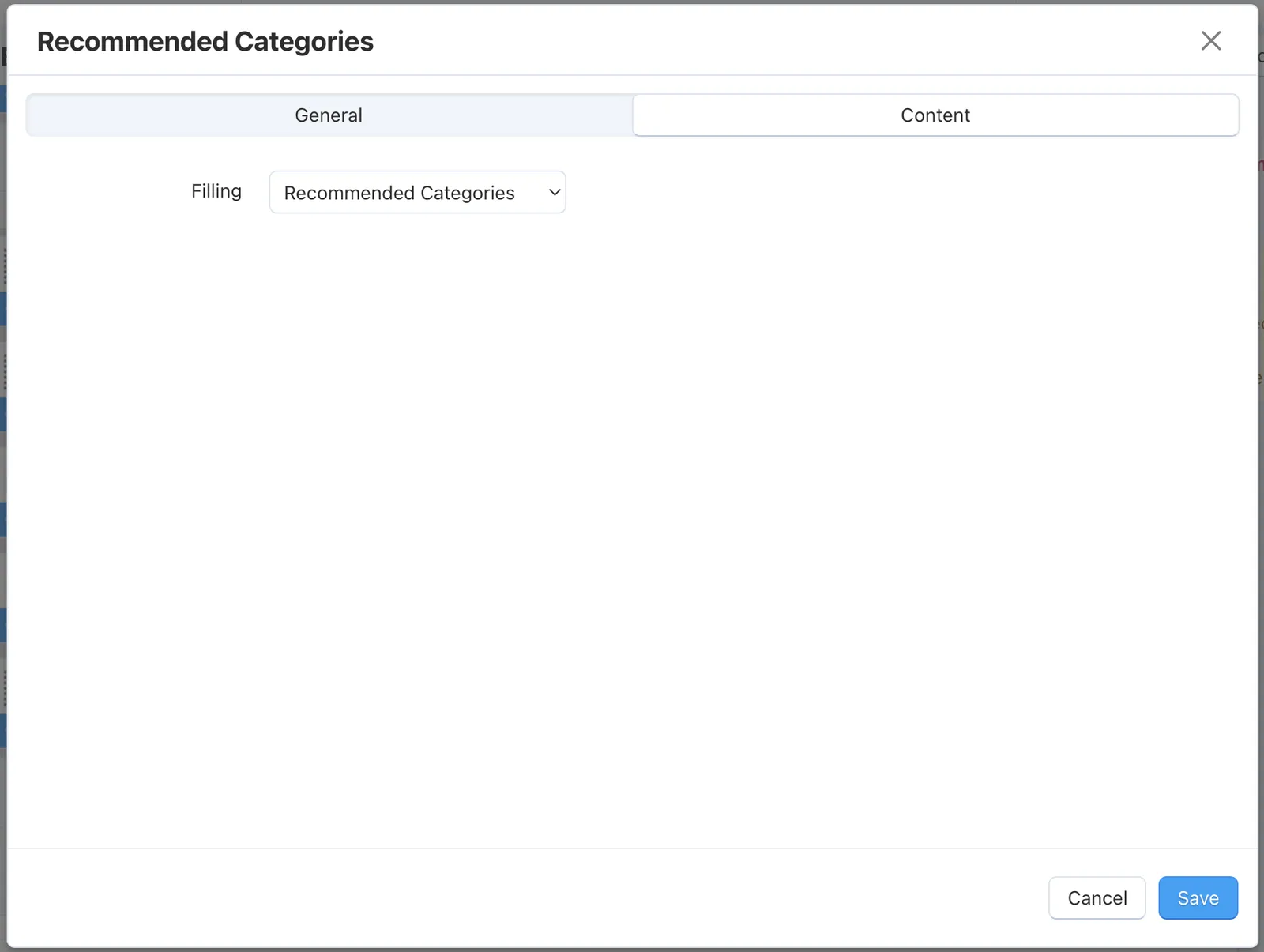
Set Filling to Recommended Categories. No further configuration is needed.
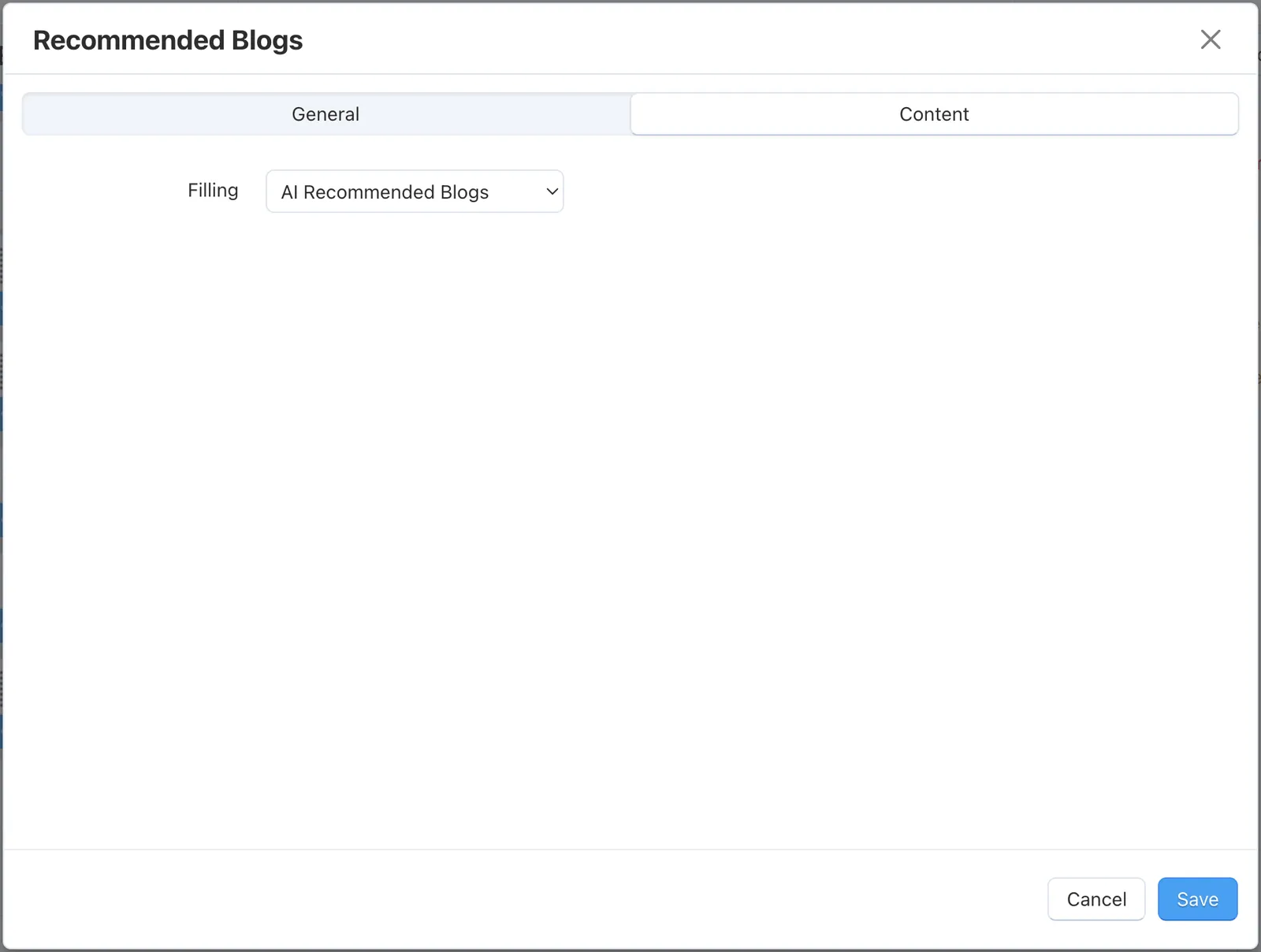
Step 9: Add the AI Recommended Blogs Block
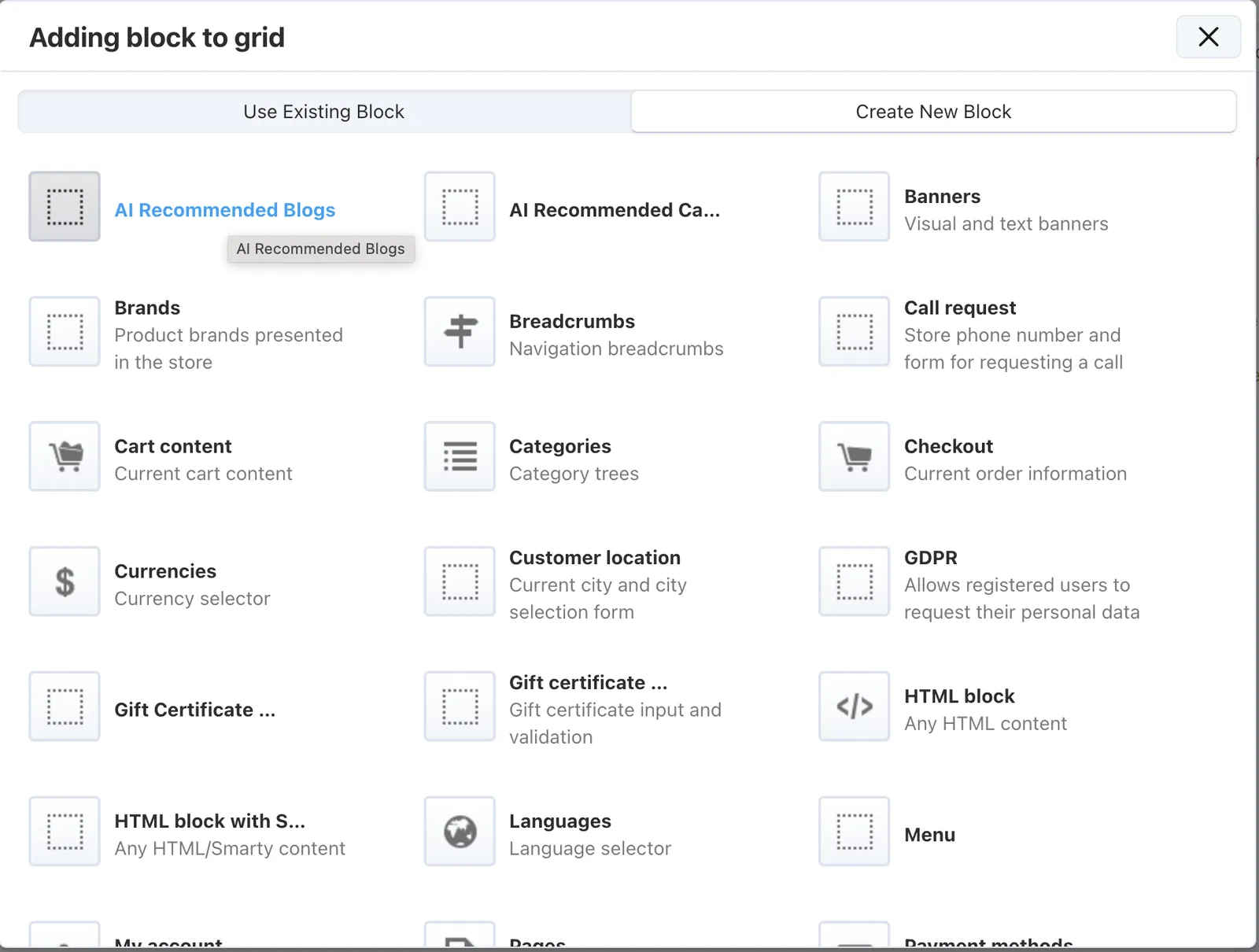
In your layout grid, click +, and under Use Existing Block select "AI Recommended Blogs".
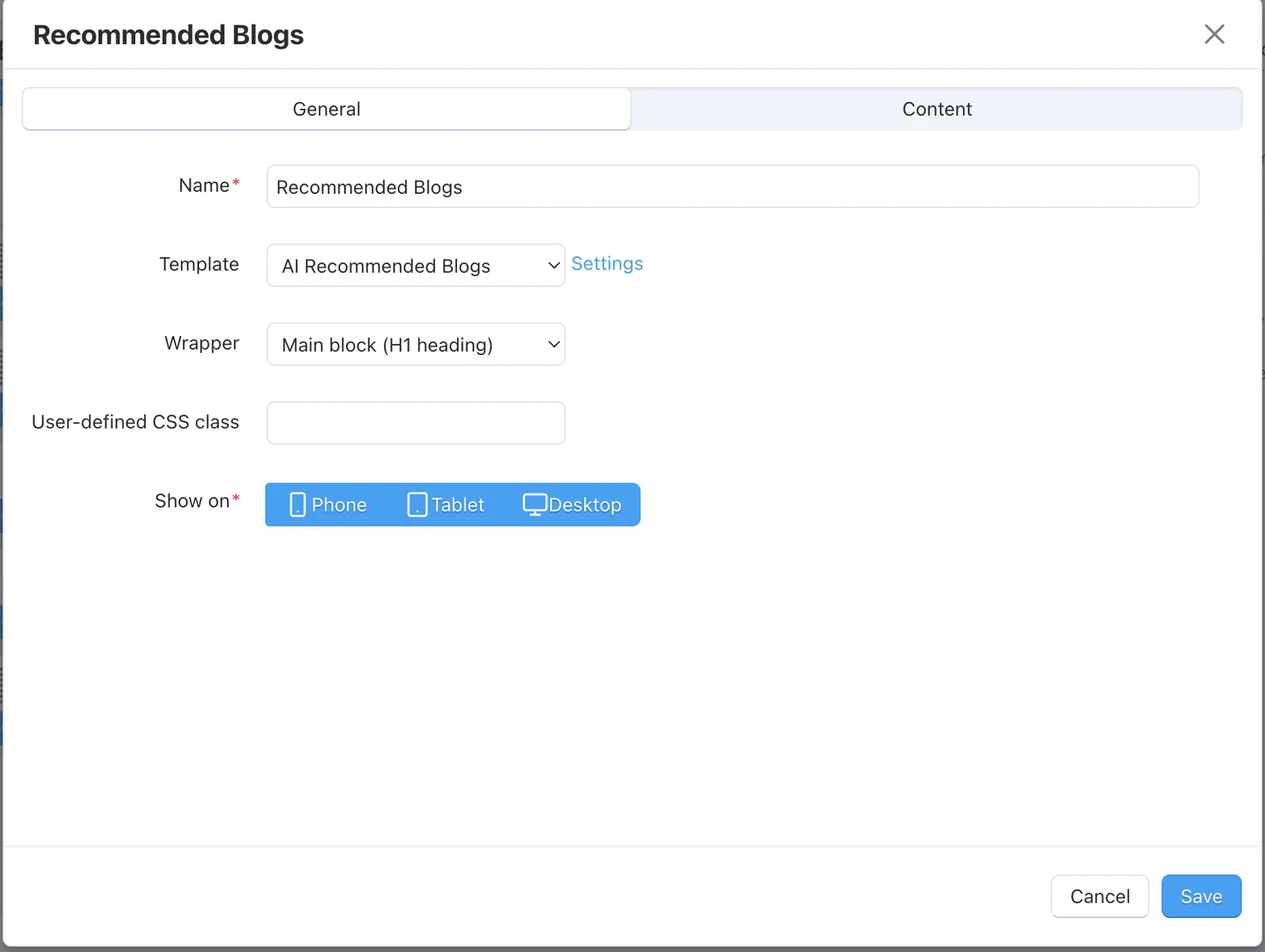
Set Name (e.g. "Recommended Blogs"), Template to AI Recommended Blogs, Wrapper to Main block (H1 heading), and choose devices to show on.
Set Filling to AI Recommended Blogs.
Step 10: Add the AI Recommended Best Deals Block
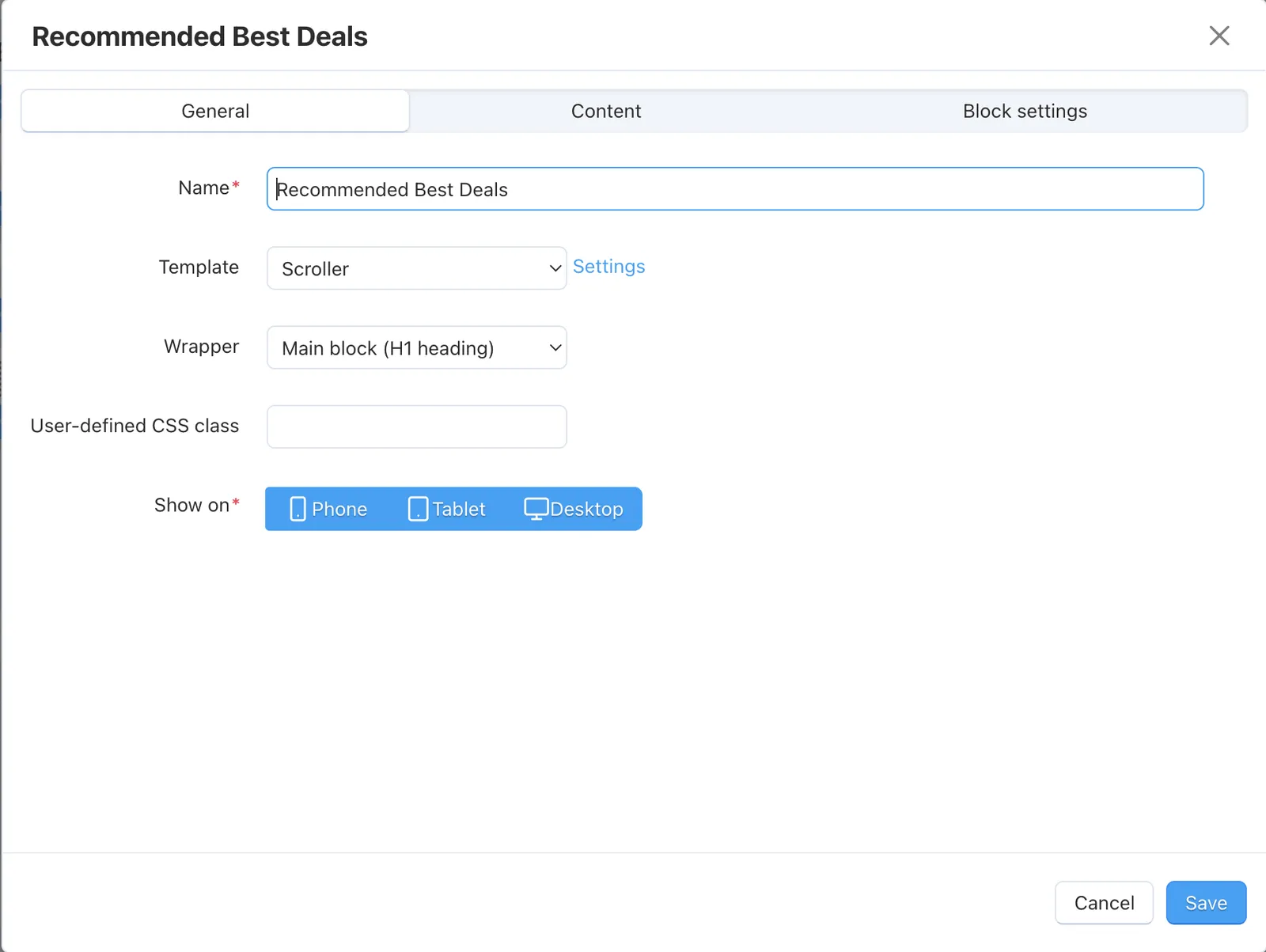
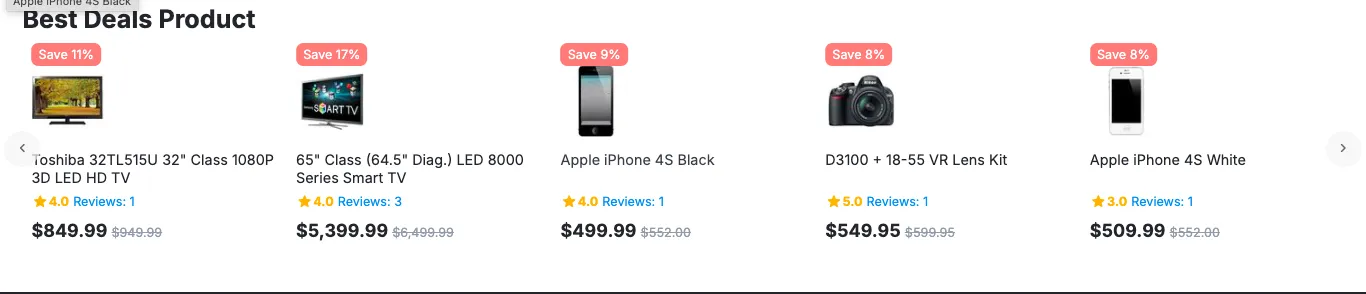
In your layout grid, click +, and under Use Existing Block select "AI Recommended Best Deals".
Set Name (e.g. "Recommended Best Deals"), Template to Scroller, Wrapper to Main block (H1 heading), and choose devices to show on.
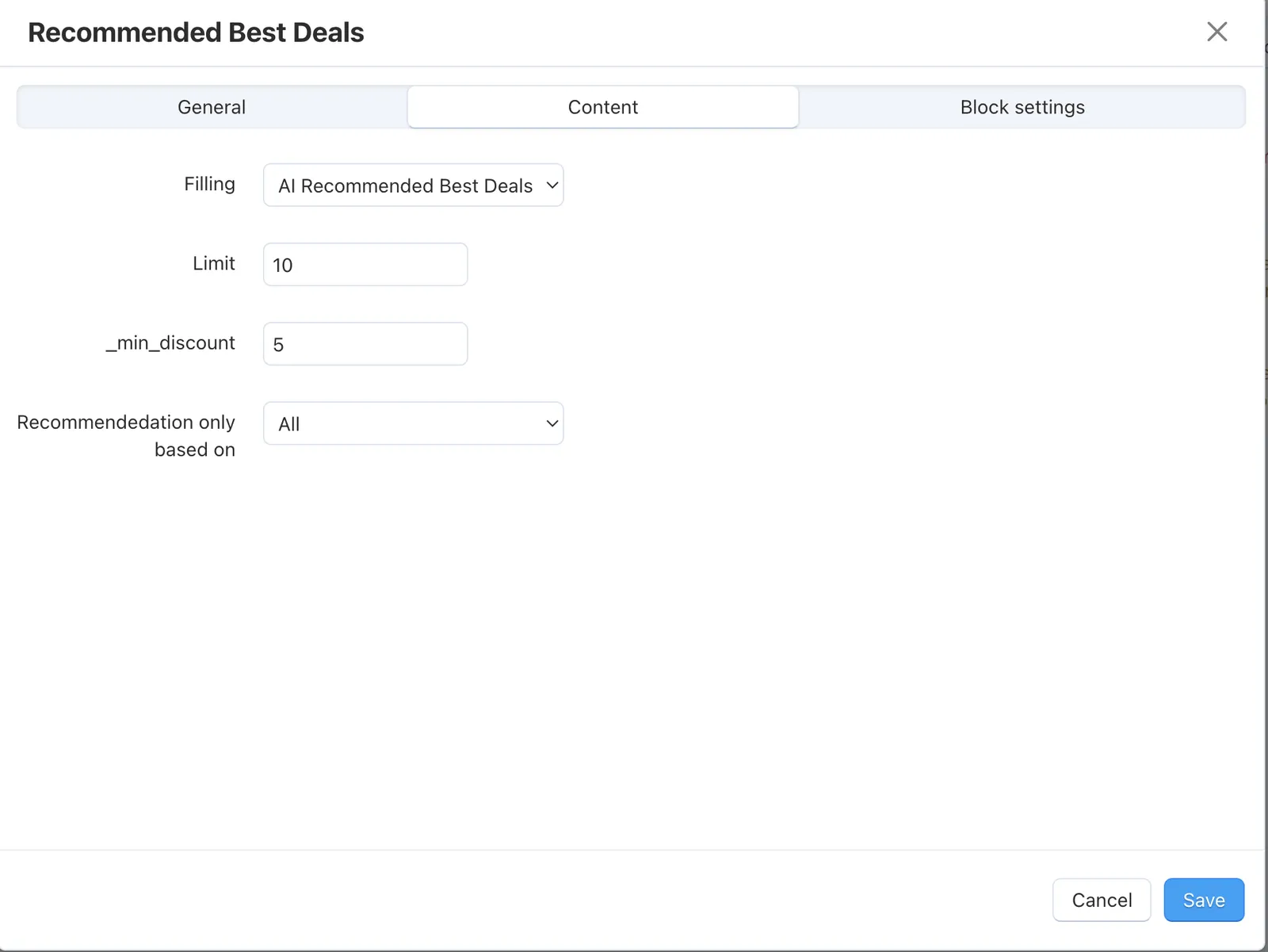
Set Filling to AI Recommended Best Deals, Limit (default 10), Minimum Discount % (e.g. 5), and Recommendation only based on (leave "All" or narrow to Search/View/Cart/Order).
Category-Based Suggestions
Beyond individual products, the AI Merchandising Engine can surface entire category suggestions based on what your customer has been browsing. This helps customers explore deeper sections of your catalog they may not have discovered on their own.
When a customer views products across multiple categories, the AI identifies their dominant interest and surfaces the most relevant category to explore next — keeping them engaged and browsing longer.
No extra configuration needed. The addon reads your CS-Cart category tree and maps product vectors to their parent categories automatically, so suggestions stay accurate as your catalog grows.
Place a Category Suggestion block near the top of your homepage or after the main banner to guide first-time visitors toward sections most relevant to their browsing intent.

AI-Powered Blog Suggestions
Keep customers engaged beyond the product pages. The AI Merchandising Engine can suggest relevant blog posts based on what a customer is actively viewing or searching — turning content into a conversion tool.
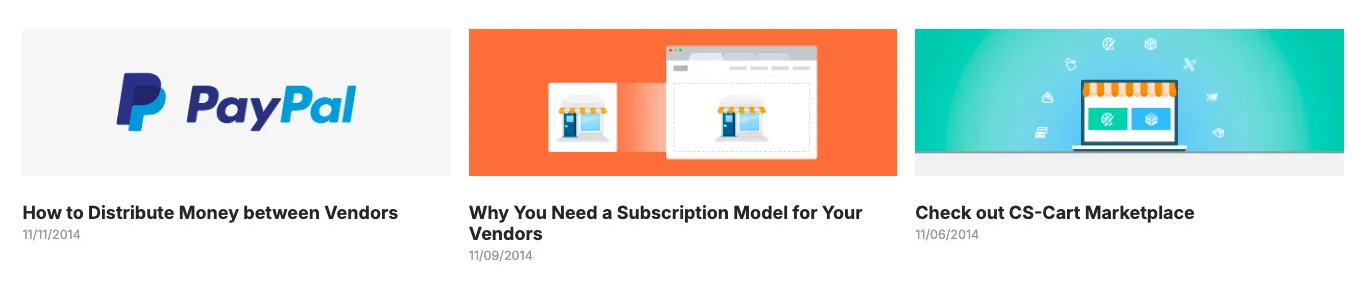
If a customer is browsing cameras, the AI surfaces blog posts like buying guides, comparison articles, or setup tutorials related to cameras — adding value and building trust before the purchase.
Recommended blog content keeps visitors reading longer, lowers bounce rate, and signals engagement to search engines — indirectly improving your store's organic ranking over time.
Just like the product recommendation block, you can add an "AI Recommended Blogs" block anywhere in your layout — on product pages, category pages, or the homepage — through the standard CS-Cart layout manager.
Best Deals Personalized to Each Shopper
The AI Merchandising Engine doesn't just suggest any discounted product — it shows the best deals that are most relevant to each individual customer based on their behavior, making promotions feel personal rather than generic.
Instead of showing the same sale items to everyone, the AI cross-references your discounted product list with each customer's activity profile — so they only see deals on products they actually care about.
Set a minimum discount percentage (e.g. 5%) so only meaningful deals surface in the Best Deals block. This keeps the section credible and prevents minor markdowns from diluting the impact.
When customers see discounts on products they've already viewed or added to cart, conversion rates spike. The AI naturally creates the right moment to close a sale — without aggressive pop-ups or countdown timers.
Real-World Benefits & Results
Increase Average Order Value
Boost Conversion Rates
Better Customer Experience
Zero Manual Work
Transform Your Store Into a Personalization Engine
Your AI Merchandising Engine addon is ready to make every customer's shopping experience feel like it was designed just for them. Say goodbye to generic "You might also like" lists that show the same products to everyone.
Pro Tip: Start with the default weights (View=1, Cart=2, Search=1, Order=3) and let the system collect data for 1-2 weeks. Then analyze which activity type drives the most conversions in your store and increase that weight. Set the recommendation block limit to 10 and place it just below your main homepage banner for maximum visibility.