

Wallet System – Faster Checkout, Easier Refunds
Give your customers a prepaid wallet on your CS-Cart store, and manage recharges, wallet payments, refunds, transfers, withdrawals and reward points conversion — all from your admin panel.Get Started
Wallet System for CS-Cart – Prepaid Balance, Instant Checkout & Hassle-Free Refunds
Let your customers store money in a personal wallet and use it to pay for orders in seconds with the Ecartify Wallet add-on. Customers can recharge their wallet, pay for an entire order or just a part of it from their balance, and see every credit and debit in a clear transaction history.
Refunds become simple too. Send money back to the customer's wallet from the order page, from a return request, or automatically when an order fails or is cancelled — with built-in protection so a customer is never refunded twice for the same amount.
Your customers can also send money to other users with OTP verification or a QR code, withdraw to their saved bank accounts, download PDF statements and receive monthly reports by email.
You stay in full control with recharge limits, manual credit and debit, wallet lock and unlock, payment method restrictions and a complete transaction log, plus the option to let customers convert their reward points into wallet balance.
Key Features of the Wallet Add-on
Wallet & Recharge
Every customer gets a wallet with a live balance and a full history of credits and debits.
Customers add money to the wallet through the normal checkout flow, using any payment method you allow. The balance is credited when the order reaches the status you choose.
Set the smallest and largest amount a customer can add in one go. Limits are shown on the recharge page and enforced on the website and in the mobile app.
Checkout & Payments
Customers can pay the whole order from the wallet, or apply part of the balance and pay the rest with another method.
When the wallet covers the full order total, the order is placed as paid right away, with no extra payment step.
Amounts are shown in the customer's selected currency while balances are stored in your store's primary currency, so figures always stay consistent.
Refunds to Wallet
Refund any amount up to the refundable balance straight to the customer's wallet. Partial refunds can be made as many times as needed for the same order.
Approve a return and refund the value of the accepted products to the wallet from the return request page, in one or more parts.
If an order is declined, failed or cancelled, the wallet amount used on it goes back automatically — and only what has not already been refunded, so there are no double refunds.
Transfers & Withdrawals
Customers can request a withdrawal from their wallet balance to a saved bank account. The amount is held immediately and you complete or reject the request from the admin panel.
Customers send balance to another user. Every transfer is confirmed with a one-time password (OTP) sent by email.
Every customer gets a personal QR code. Another customer can scan it, enter the amount and send money without typing any details.
Customers can add, edit, delete and set a default bank account from their wallet dashboard. Account numbers are stored encrypted and only the last 4 digits are shown.
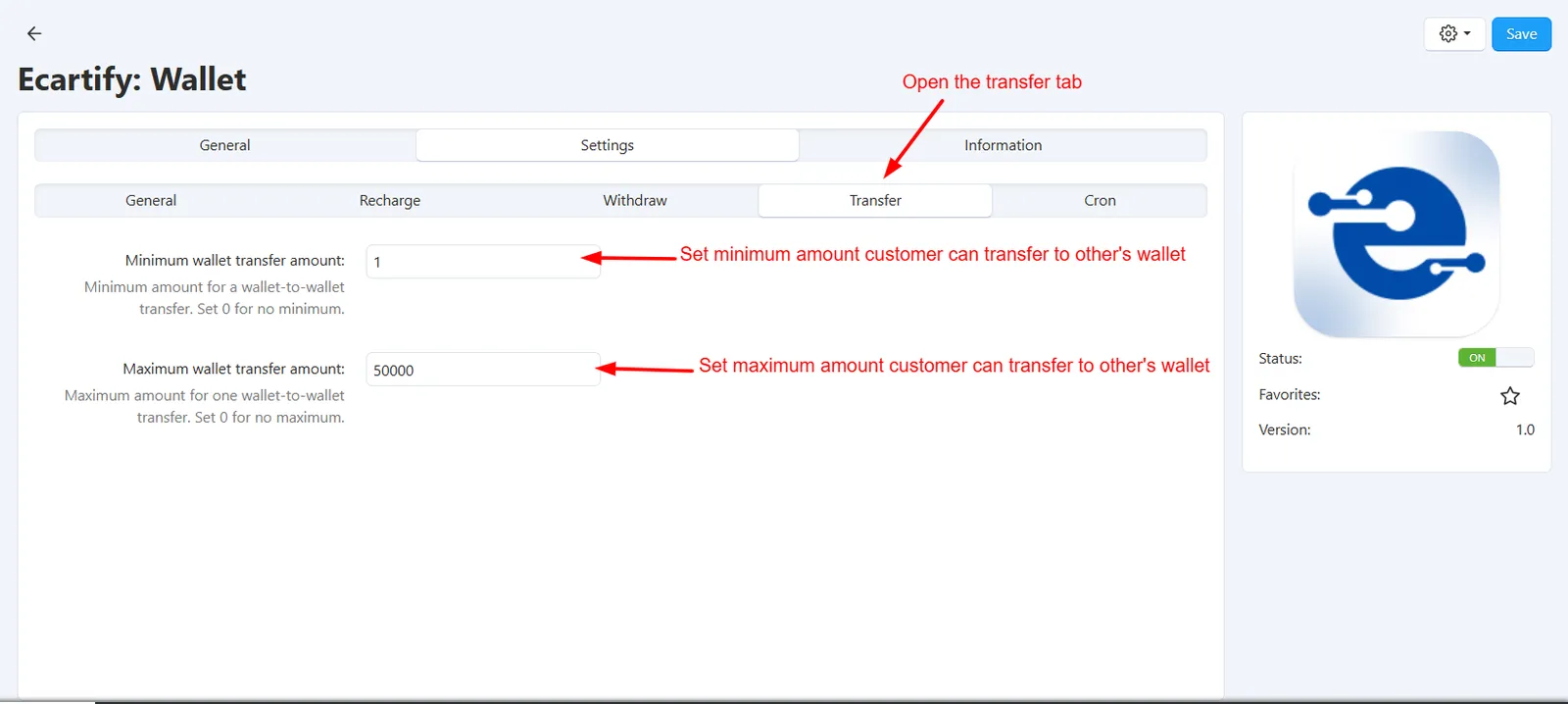
Set minimum and maximum amounts for withdrawals and wallet-to-wallet transfers from the add-on settings.
Statements & Reports
Customers choose a date range and download their wallet transaction history as a PDF. Requires the PDF Documents add-on to be active.
Send each customer a monthly email with opening balance, total credits, total debits, closing balance and the full list of transactions.
Admin Control & Rewards
Add or deduct wallet balance for any customer with a reason note. A debit can never take the balance below zero.
See every wallet transaction across all customers and filter by customer, email, phone, type, status and date.
Freeze the wallet of any customer with a reason note. A locked wallet cannot pay at checkout, withdraw or transfer money, and cannot receive transfers. Unlock it any time.
Choose which payment methods are not allowed for wallet recharge. Any payment method you add later stays allowed automatically.
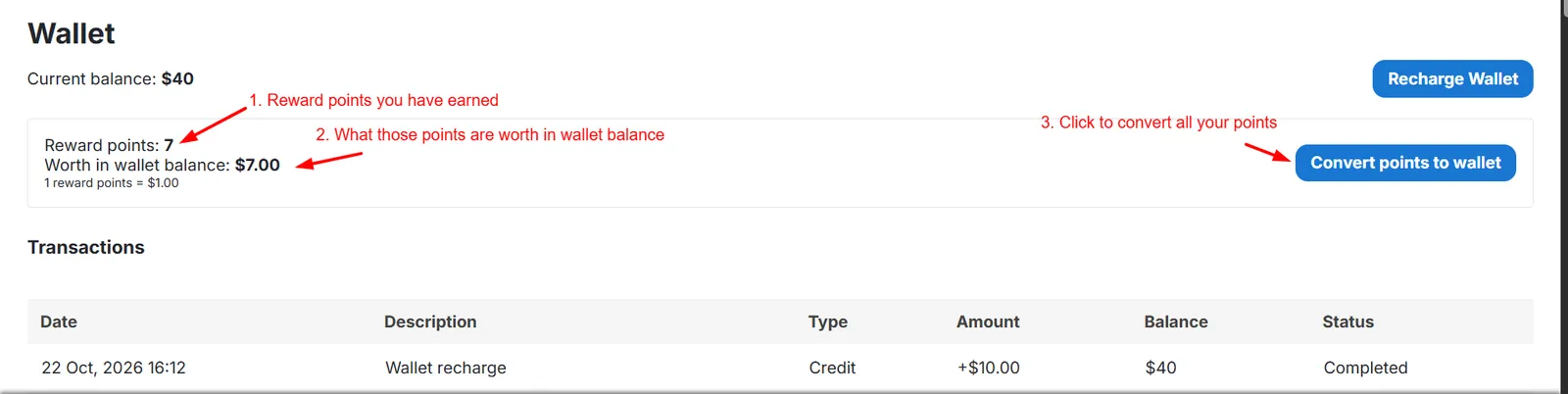
Customers see their reward points, what they are worth and the current rate on the Wallet page, and convert them to balance in one click. Every conversion is logged in the transaction history. Set the rate in the settings, or switch it off with 0. Requires the Reward Points add-on to be active.
Wallet balance, transactions, recharge and sorting are available through the wallet API for your mobile app.
Credits, debits and refunds stay with the marketplace admin, so vendor accounts cannot change customer wallet balances.
Step-by-Step Setup Guide
Step 1: Install the Add-on
Get the Wallet add-on running on your CS-Cart store in a few minutes:
- Download the Add-on – Download the Wallet package from the Ecartify website.
- Open Add-ons – Go to Add-ons → Manage Add-ons in the CS-Cart admin panel.
- Upload the Package – Click the "+" button and upload the Ecartify: Wallet package.
- Install & Activate – Click 'Install' and set the add-on status to 'ON'.
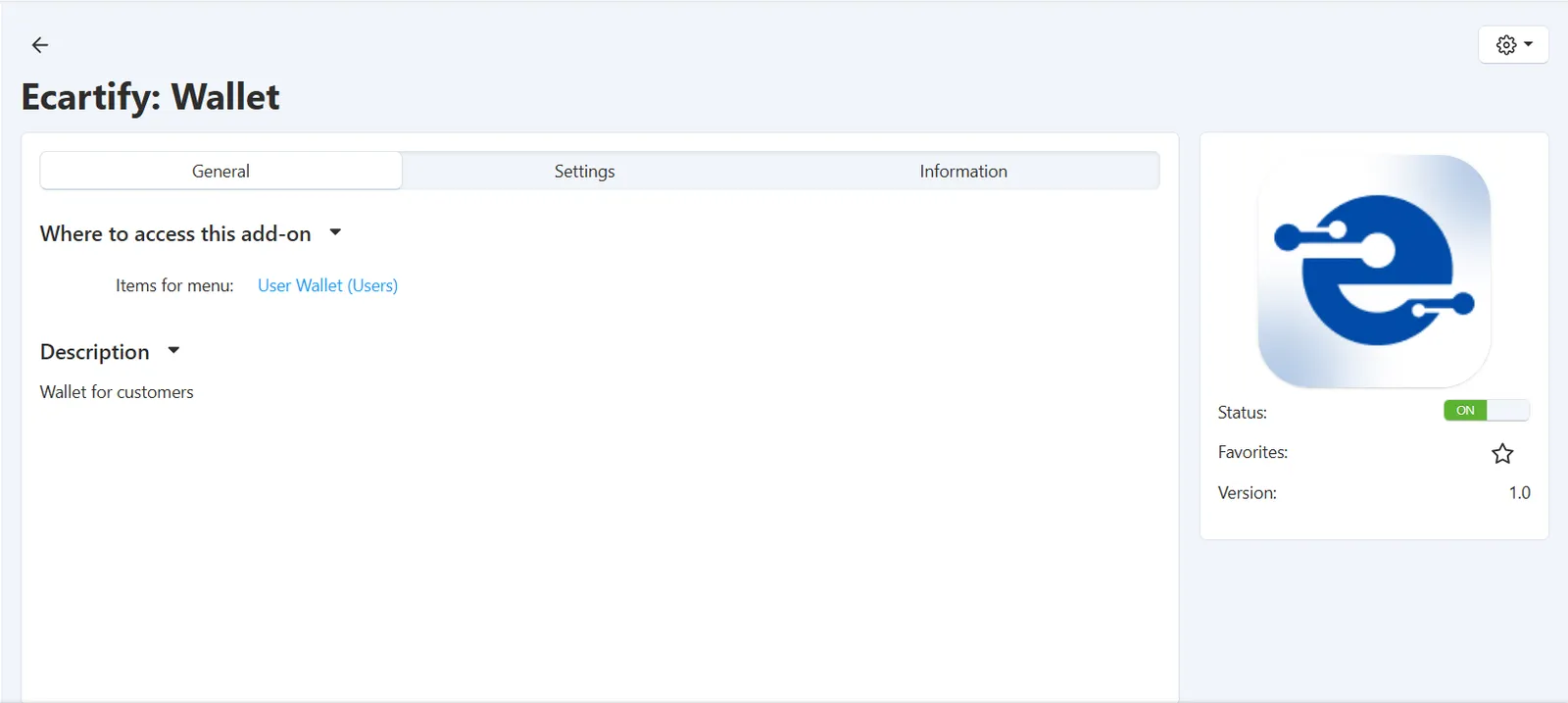
Step 2: Configure the Add-on Settings
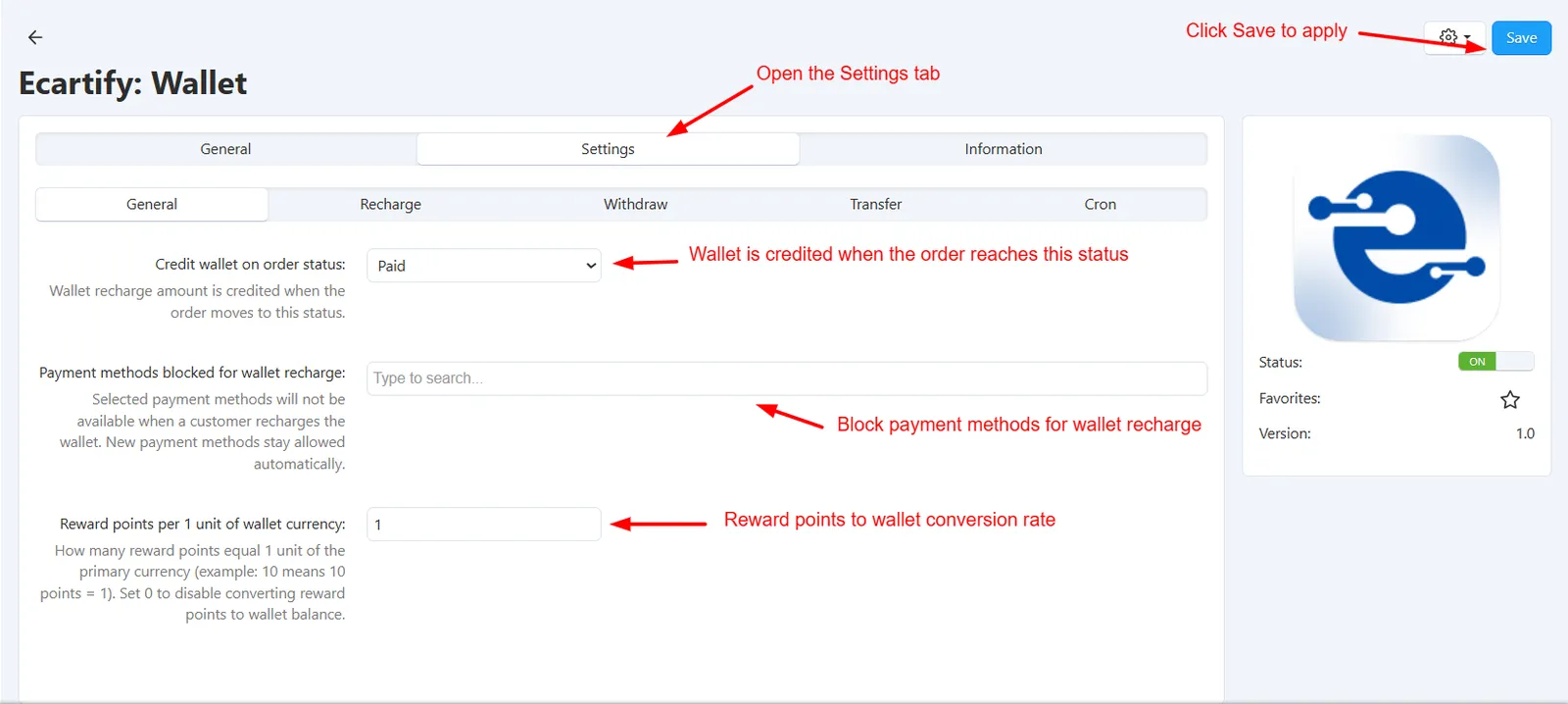
Open the add-on and go to the Settings tab to decide how the wallet behaves:
- Credit Wallet on Order Status – Choose the order status (for example, Paid) at which a recharge amount is added to the customer's wallet.
- Block Payment Methods for Recharge – Tick the payment methods that should not be available when a customer recharges the wallet. Leave all unticked to allow every method.
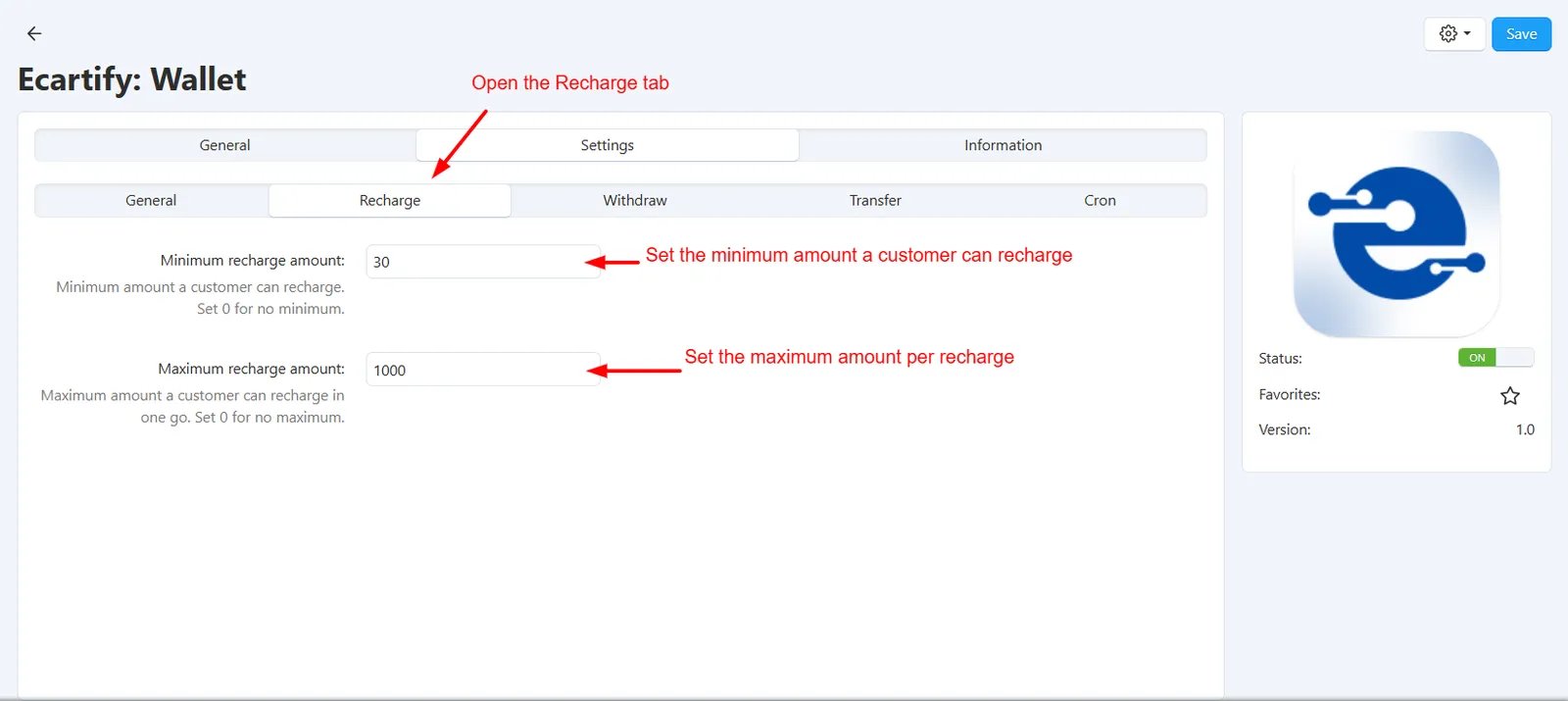
- Set Recharge Limits – Enter the Minimum and Maximum recharge amount in your primary currency. Use 0 for no limit.
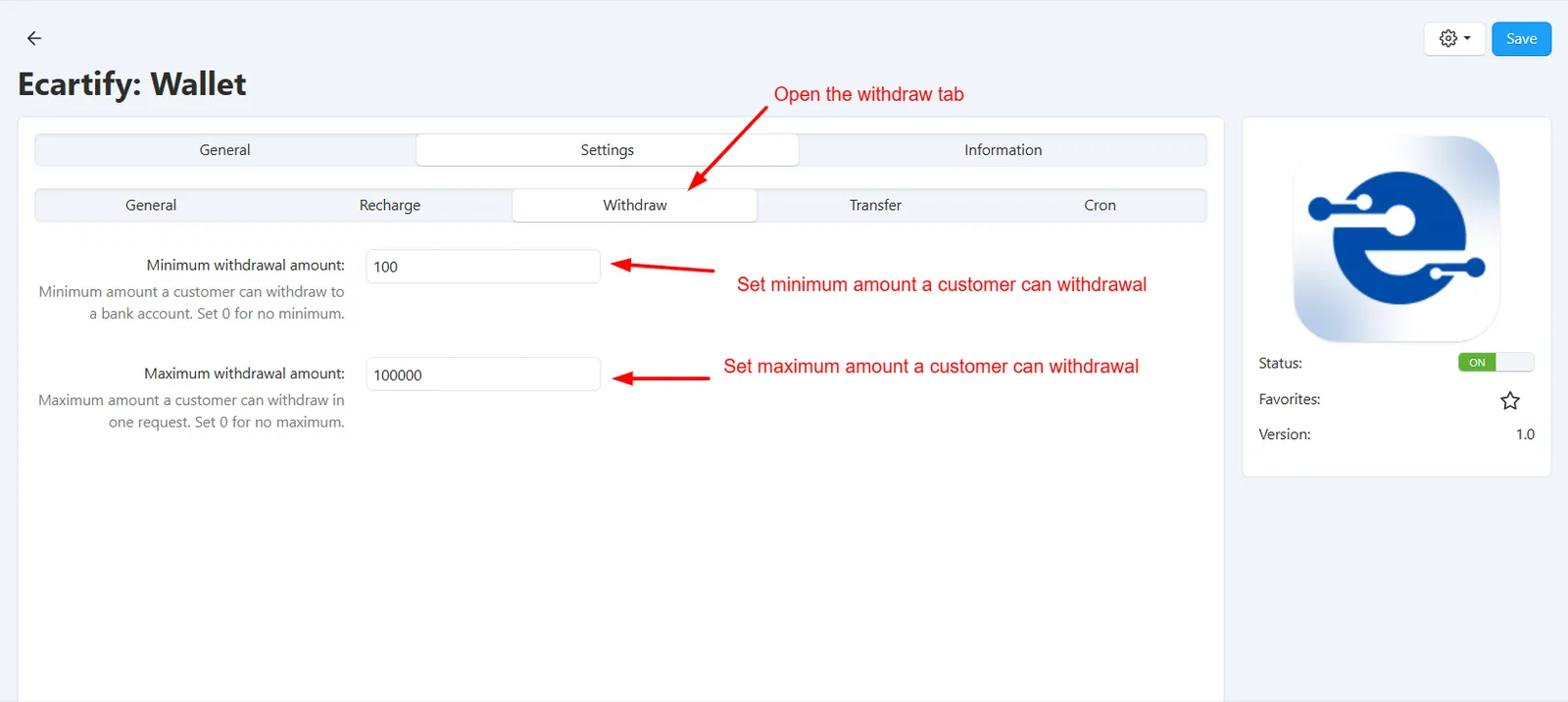
- Set Withdrawal Limits – Enter the Minimum and Maximum withdrawal amount a customer can request in one go. Use 0 for no limit.
- Set Transfer Limits – Enter the Minimum and Maximum wallet transfer amount for wallet-to-wallet transfers. Use 0 for no limit.
- Set the Reward Points Rate – Enter how many reward points equal 1 unit of wallet currency. Use 0 to turn off reward points conversion. This works only when the Reward Points add-on is active.
- Set the Cron Password – Enter a password for the monthly report cron job. The cron URL is shown right below it, ready to copy.
- Save the Settings – Click Save to apply the changes.
Step 3: Customers Recharge Their Wallet
Customers can add money to their wallet whenever they like:
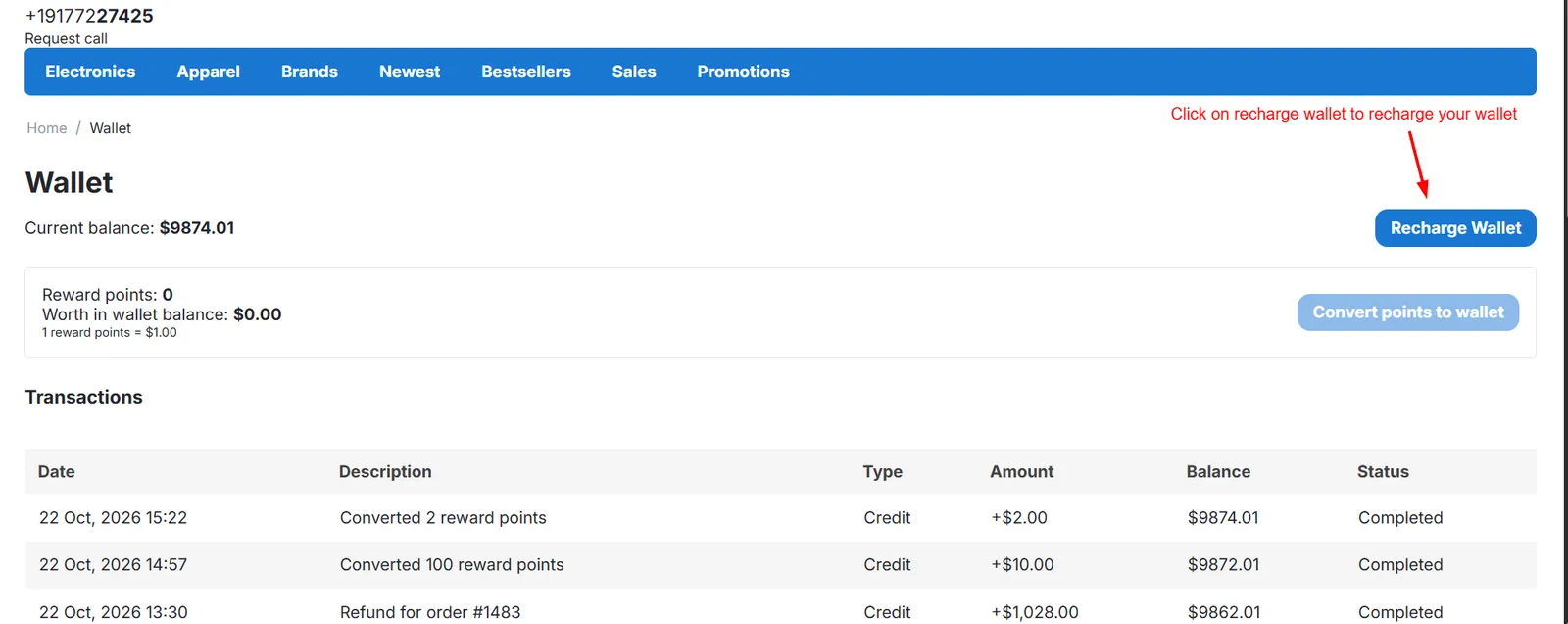
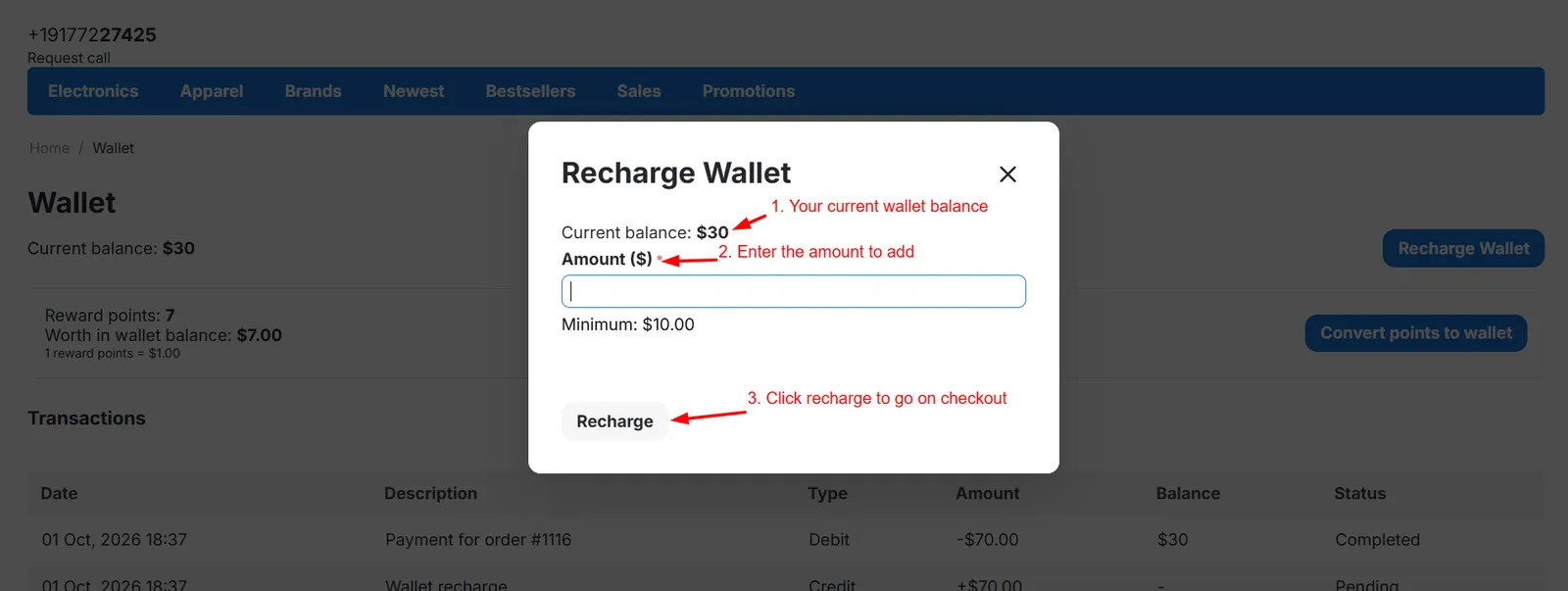
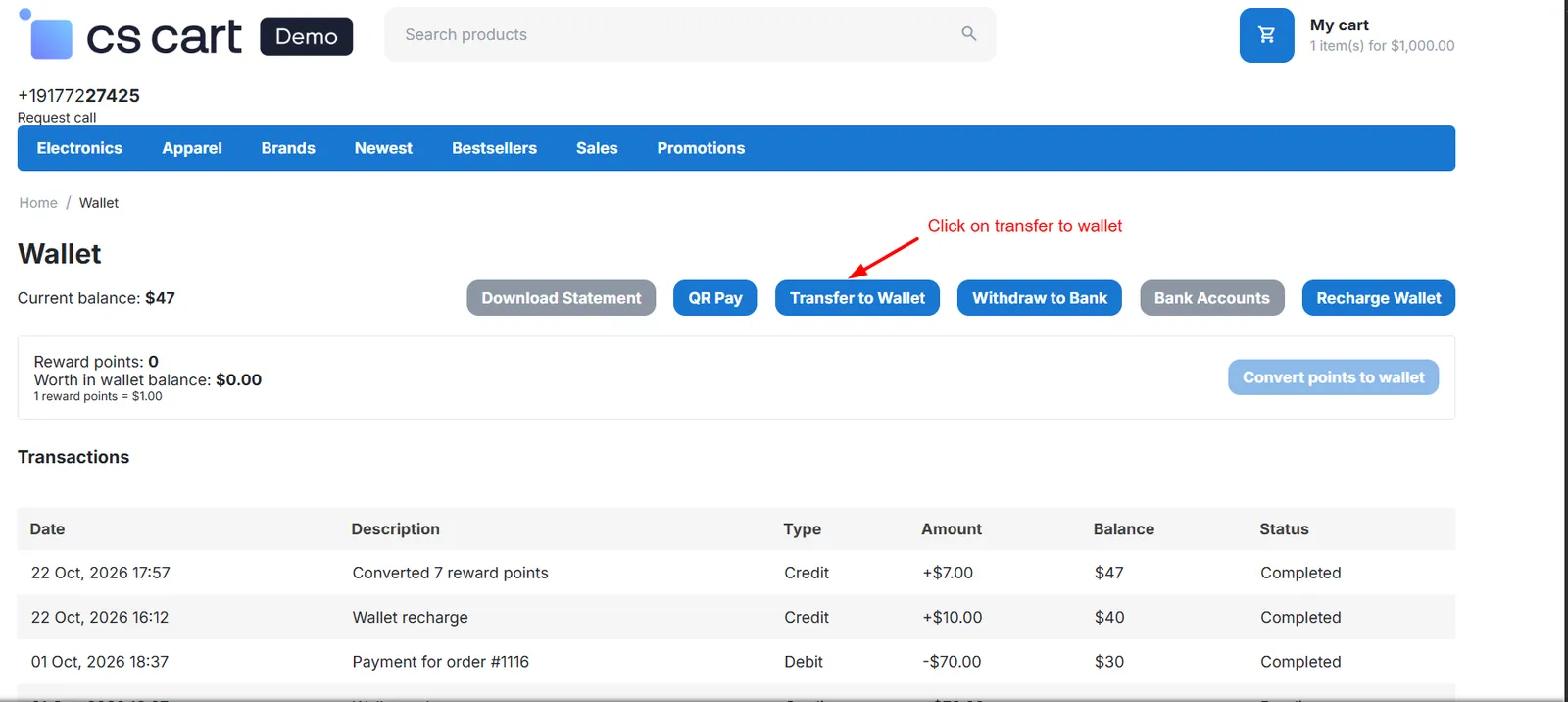
- Open the Wallet Page – The customer opens the Wallet page, which shows the current balance and transaction history, and clicks Recharge Wallet.
- Enter an Amount – On the recharge page, the customer enters the amount to add. The minimum and maximum limits are shown right there.
- Pay as Usual – The customer completes payment through checkout using any available payment method.
- Balance Updated – Once the order reaches the status you set in the settings, the amount is added to the wallet.
Step 4: Pay with the Wallet at Checkout
Customers with a balance see the wallet option on the checkout page:
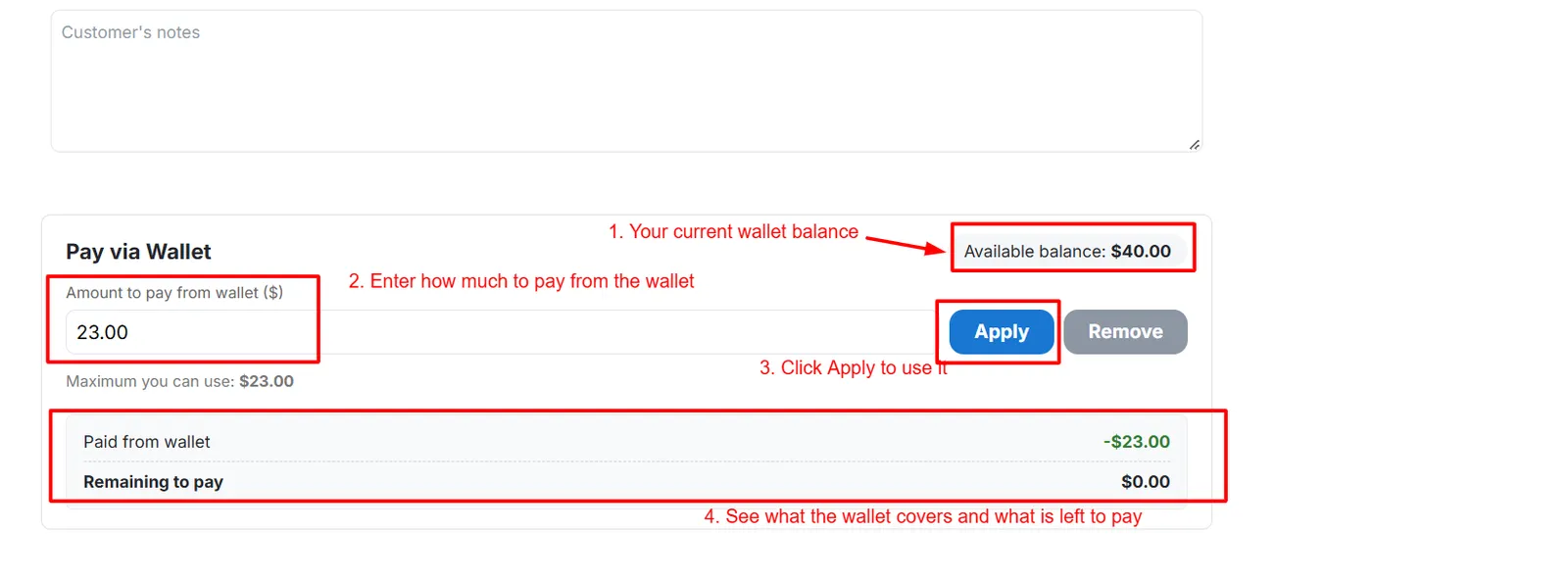
- Apply Wallet Balance – The customer chooses how much of the balance to use, up to the order total or the available balance.
- Pay the Remaining Amount – If the wallet does not cover everything, the customer pays the rest with any other payment method.
- Order Placed Instantly – When the wallet covers the full total, the order is placed as paid immediately.
Step 5: Convert Reward Points into Wallet Balance
This feature works when the Reward Points add-on is installed and active. If you use reward points, customers can turn them into spendable wallet money right from the Wallet page:
- Define the Rate – In the add-on settings, set how many reward points equal 1 unit of your primary currency. For example, 10 means 10 points = 1. Set 0 to turn the option off.
- See the Value – On the Wallet page, the customer sees their reward points, what they are worth in wallet balance, and the current rate (for example, 1 reward point = $1.00).
- Convert with One Click – The customer clicks Convert points to wallet. The button stays disabled while there are no points to convert.
- Balance Updated – The converted amount is added to the wallet and appears in the transaction history as a credit (for example, "Converted 100 reward points"), ready to use at checkout.
Step 6: Add and Manage Bank Accounts
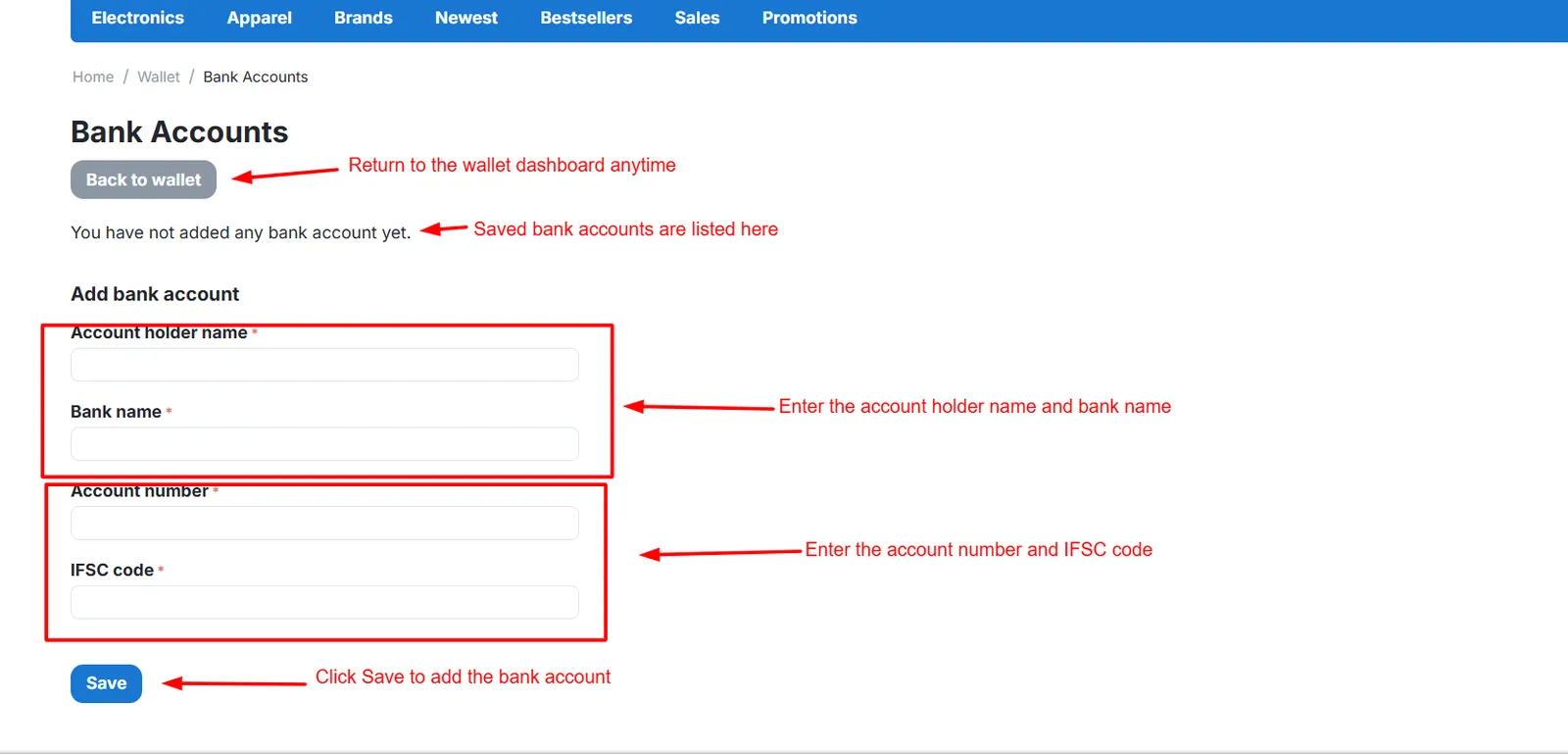
Before withdrawing money, customers save their bank details on the Bank accounts page of the wallet:
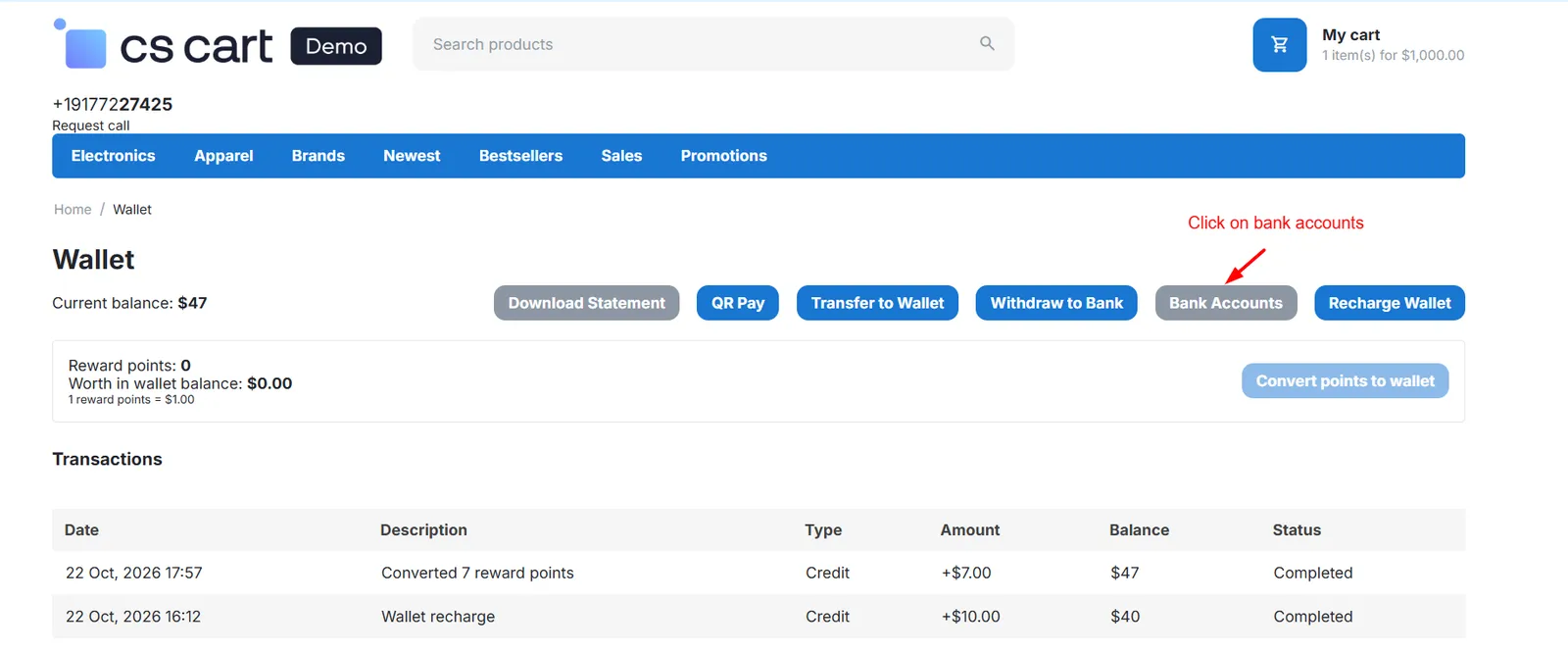
- Open Bank Accounts – From the Wallet page, the customer opens Bank accounts.
- Add an Account – Enter the account holder name, bank name, account number and IFSC code, then save.
- Set a Default Account – Mark one account as default. Edit or delete accounts at any time.
- Safe Storage – Account numbers are stored encrypted and only the last 4 digits are shown. A customer can save up to 5 bank accounts.
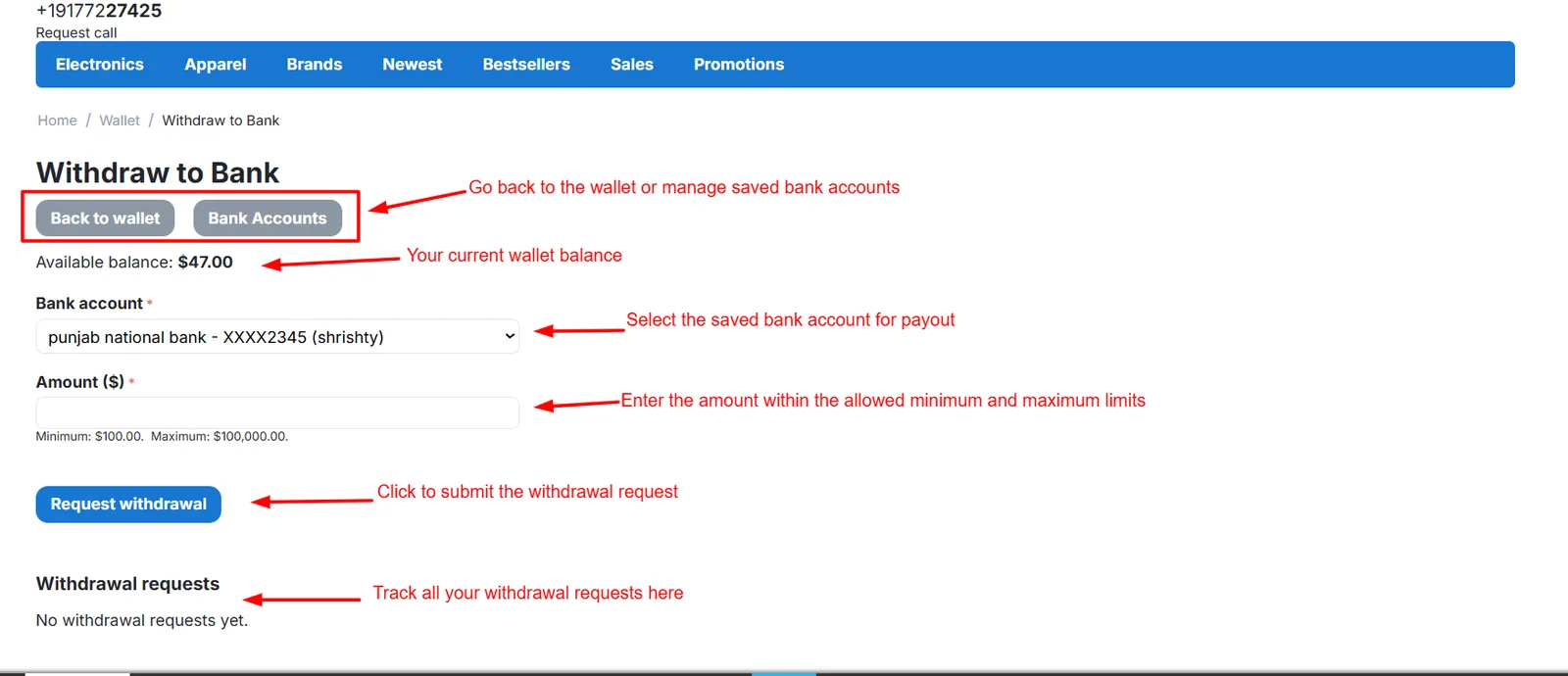
Step 7: Withdraw Wallet Balance to a Bank Account
Customers can move money from the wallet to a saved bank account:
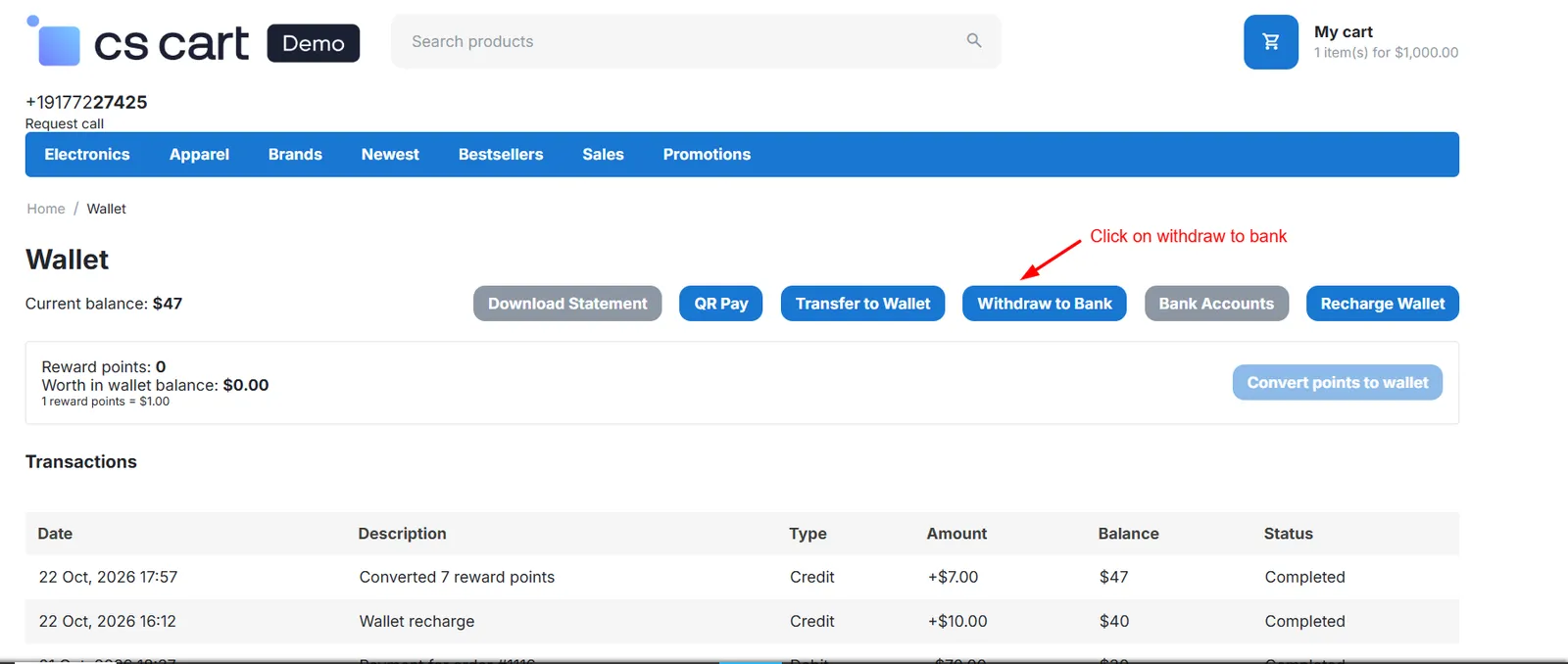
- Open Withdraw – On the Wallet page, the customer clicks Withdraw.
- Choose Account and Amount – Select a saved bank account and enter the amount. The minimum and maximum limits are shown on the page.
- Request Submitted – The amount is deducted from the wallet right away and the request shows as Pending until you process it.
- Track the Status – The customer sees every withdrawal request and its status on the same page.
Step 8: Transfer Money to Another Wallet with OTP
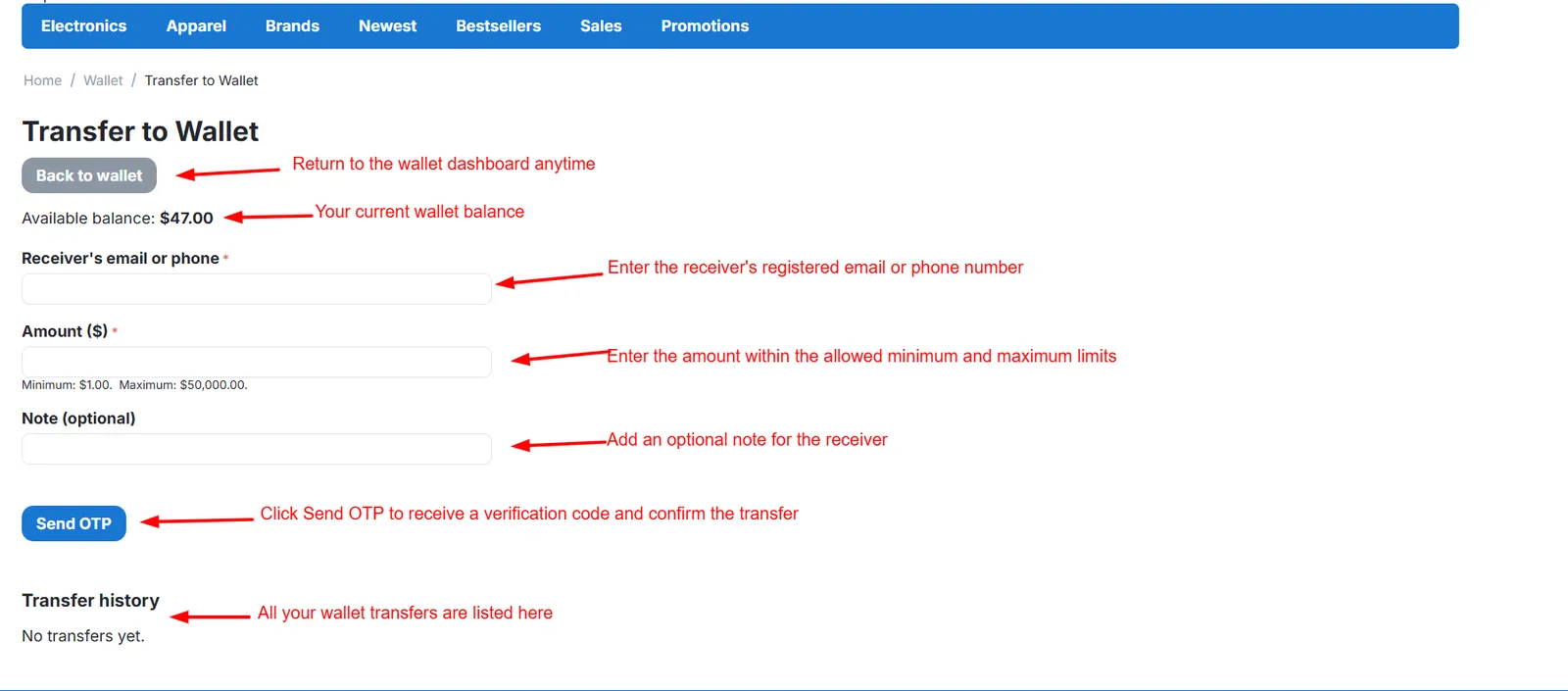
Customers can send wallet balance to any other customer, safely:
- Open Transfer – On the Wallet page, the customer clicks Transfer.
- Enter Receiver and Amount – Enter the receiver's email, the amount and an optional note. The receiver's name is shown partly hidden to protect privacy.
- Verify with OTP – A 6-digit OTP is emailed to the sender. It stays valid for 10 minutes, allows 5 attempts and can be resent after 60 seconds.
- Transfer Complete – After the correct OTP, the amount moves instantly. Both wallets show a transaction in their history.
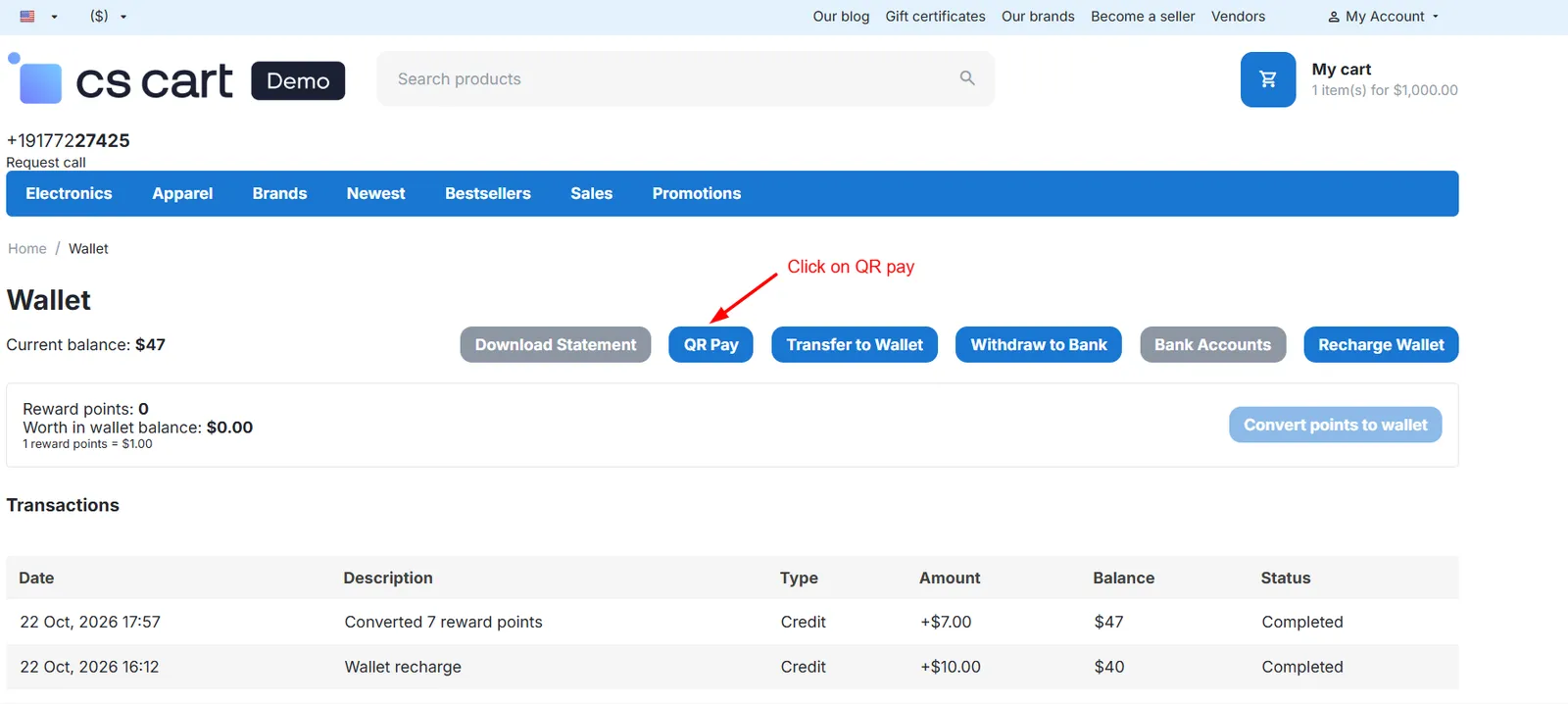
Step 9: Send Money with a QR Code
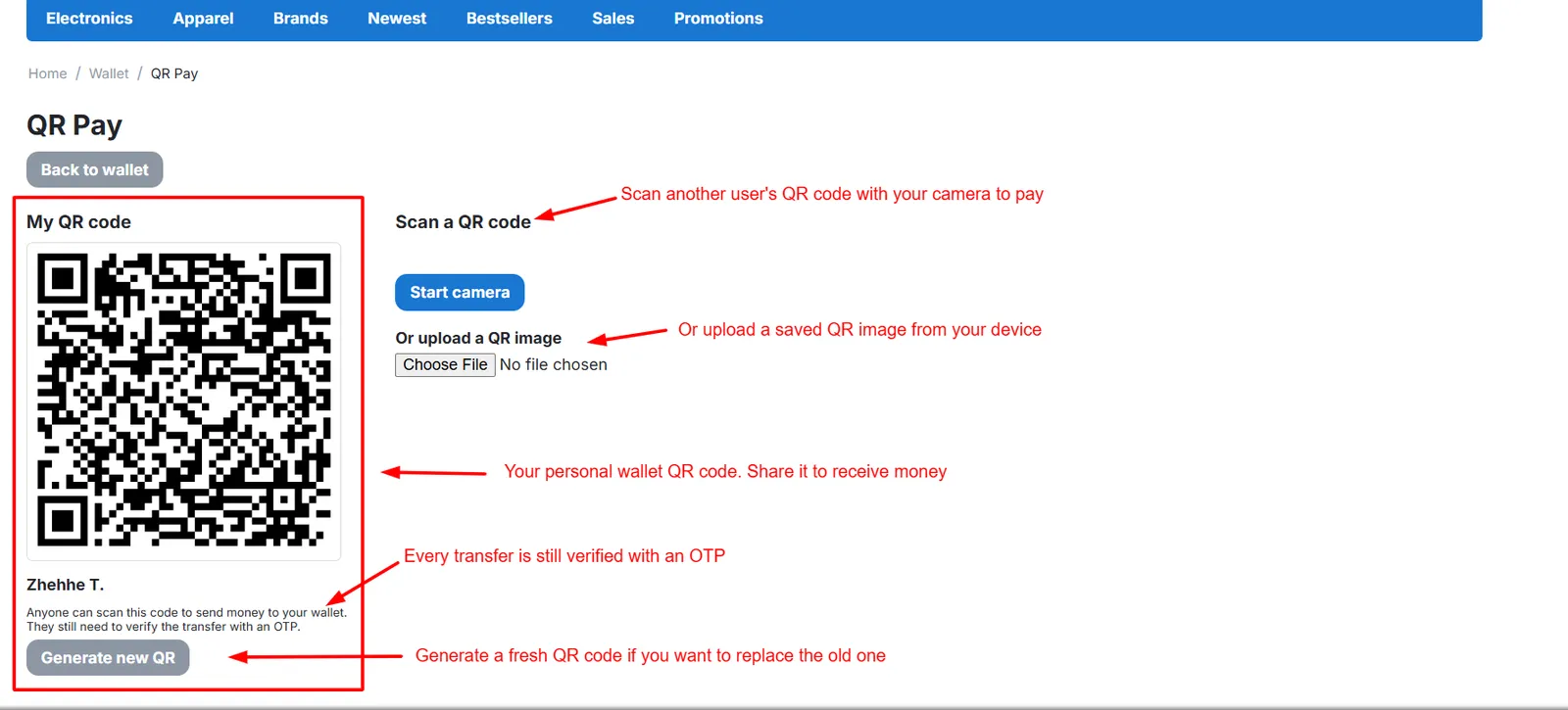
Every customer has a personal QR code, so friends can pay them without typing any details:
- Show Your QR – The customer opens the QR page and shows or shares the code. It can be regenerated if needed.
- Scan the Code – Another customer scans it with their phone and logs in if required. The receiver's name is already filled in.
- Enter the Amount – Enter the amount and an optional note, then continue.
- Confirm with OTP – The transfer is confirmed with the same OTP step as a normal transfer.
Step 10: Download a PDF Statement
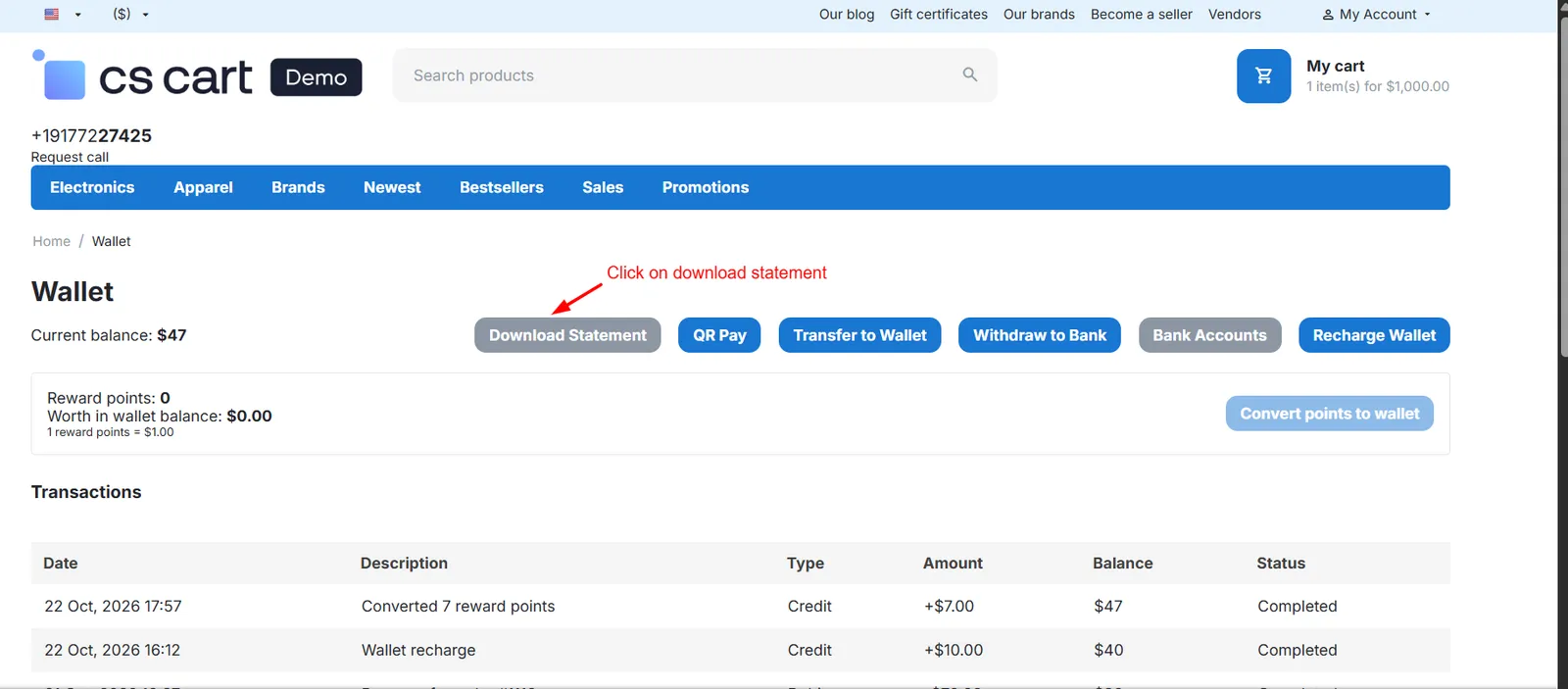
Customers can get a printable record of their wallet activity. The statement button appears only when the PDF Documents add-on is active:
- Open Download Statement – On the Wallet page, the customer clicks the statement button.
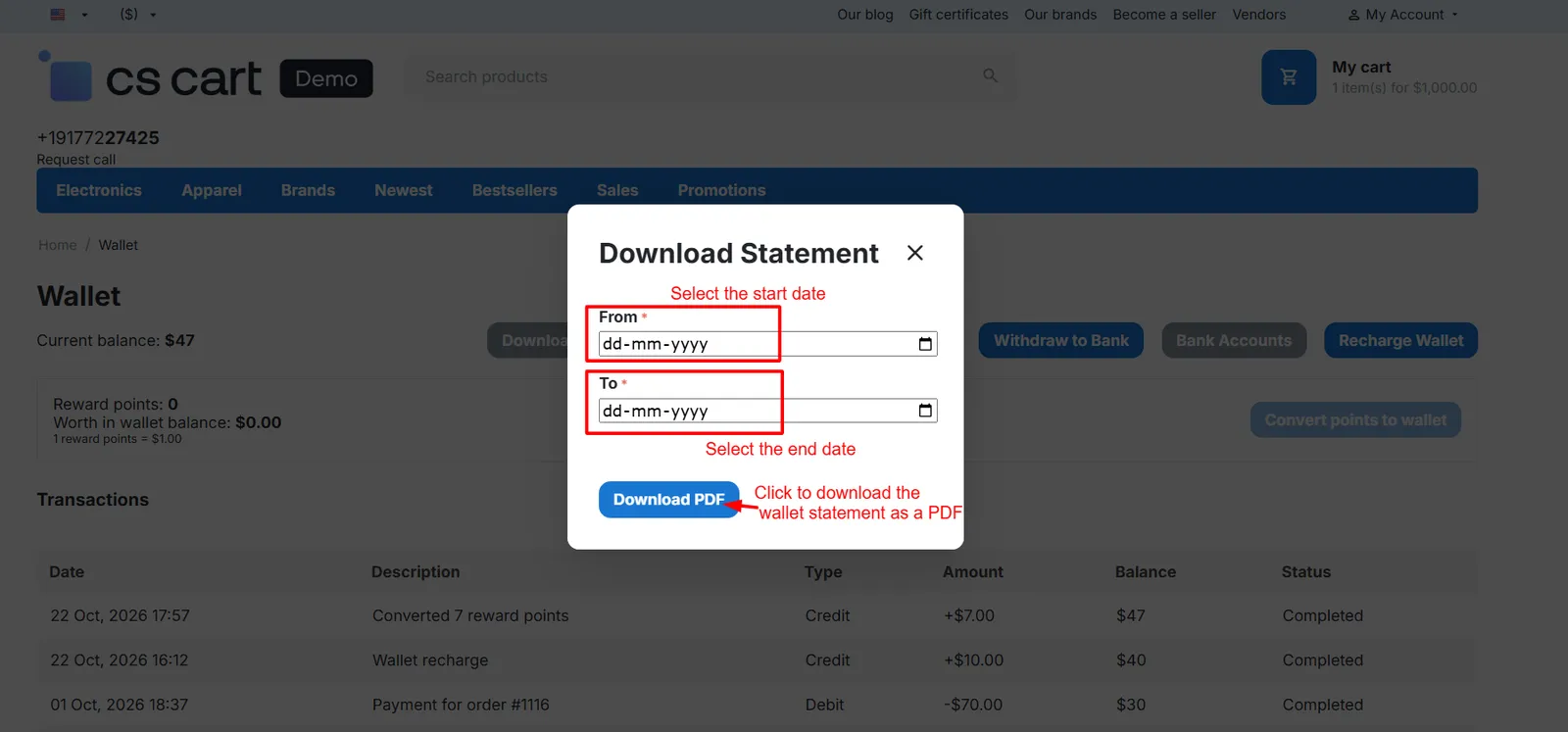
- Pick a Date Range – Choose the From and To dates in the popup.
- Download – Click Download to save the statement as a PDF.
Step 11: Manage Wallets from the Admin Panel
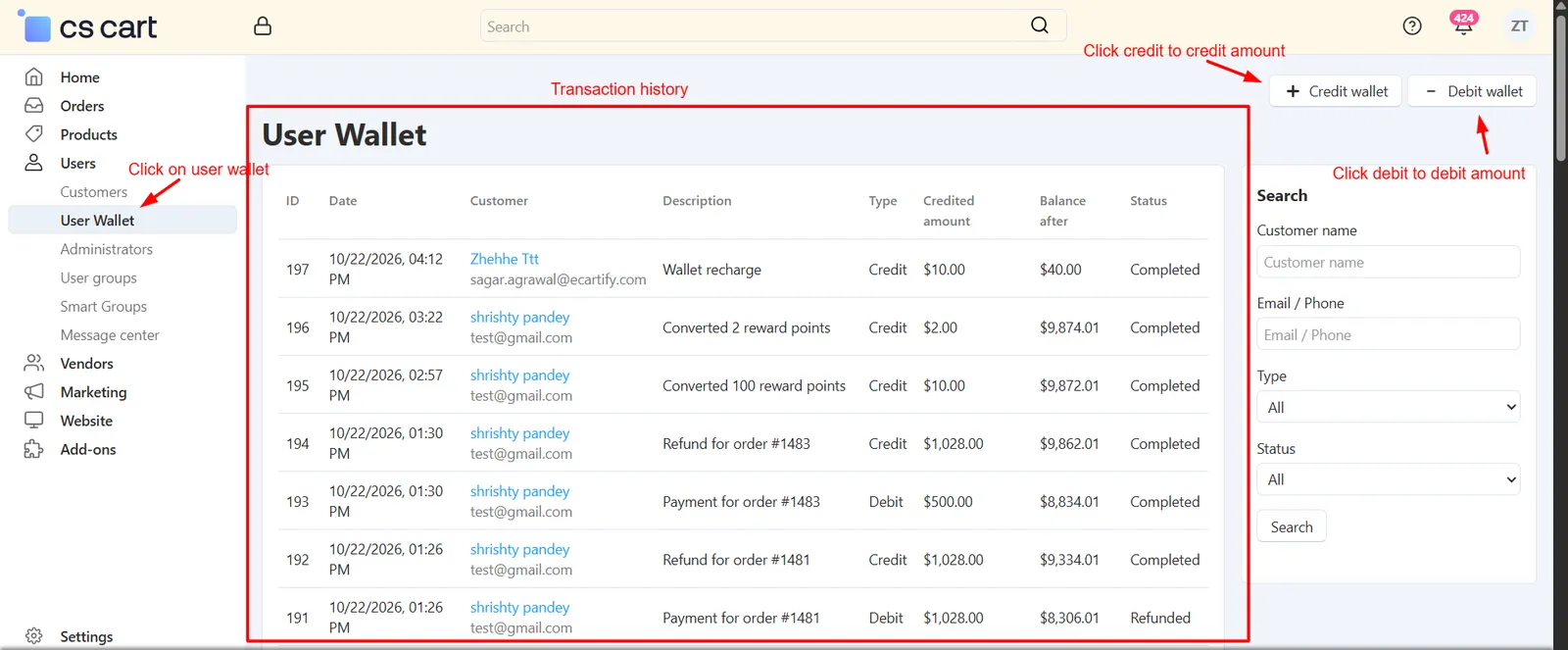
Go to Customers → User Wallet to see every wallet transaction in one place:
- Search & Filter – Find transactions by customer name, email, phone, type, status or date range.
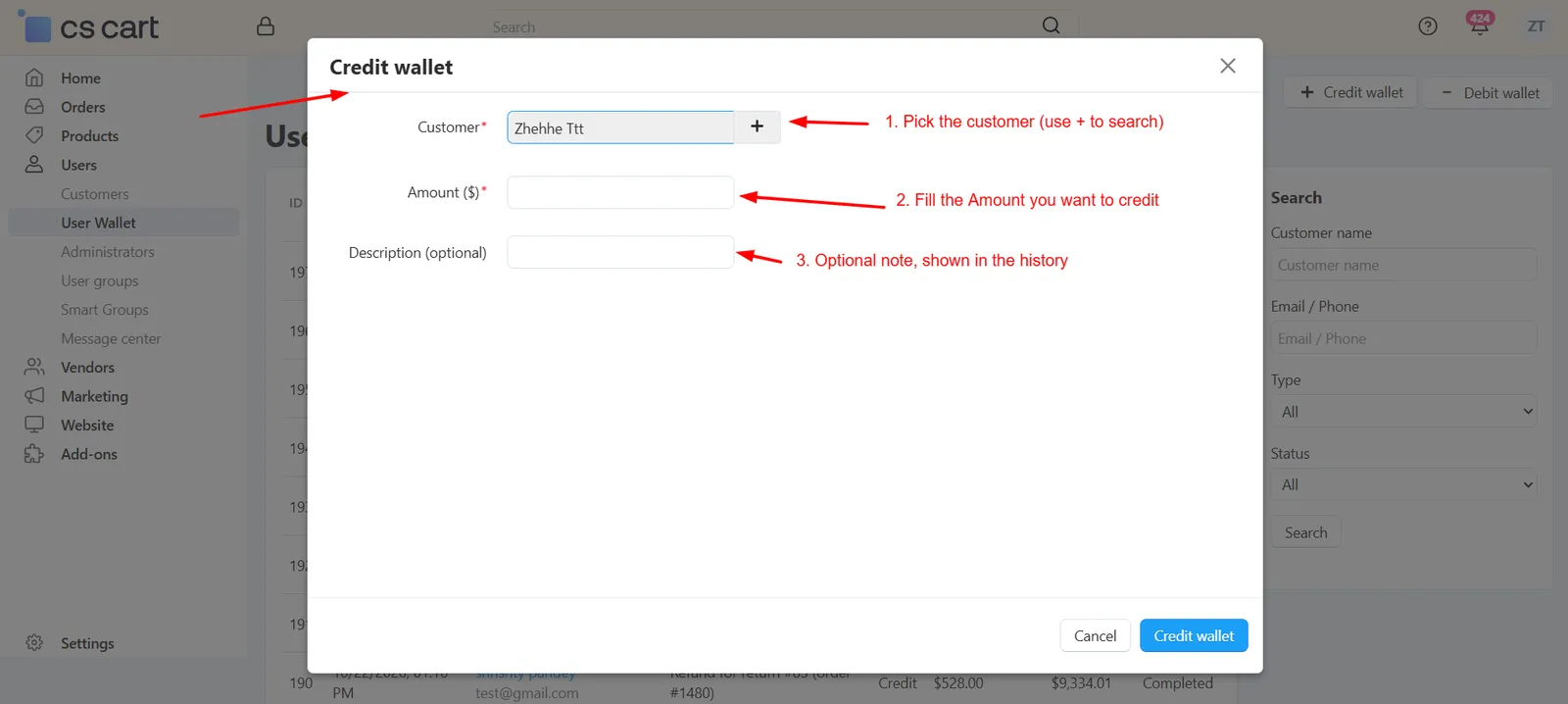
- Credit a Wallet – Click Credit wallet, pick the customer, enter the amount and an optional reason.
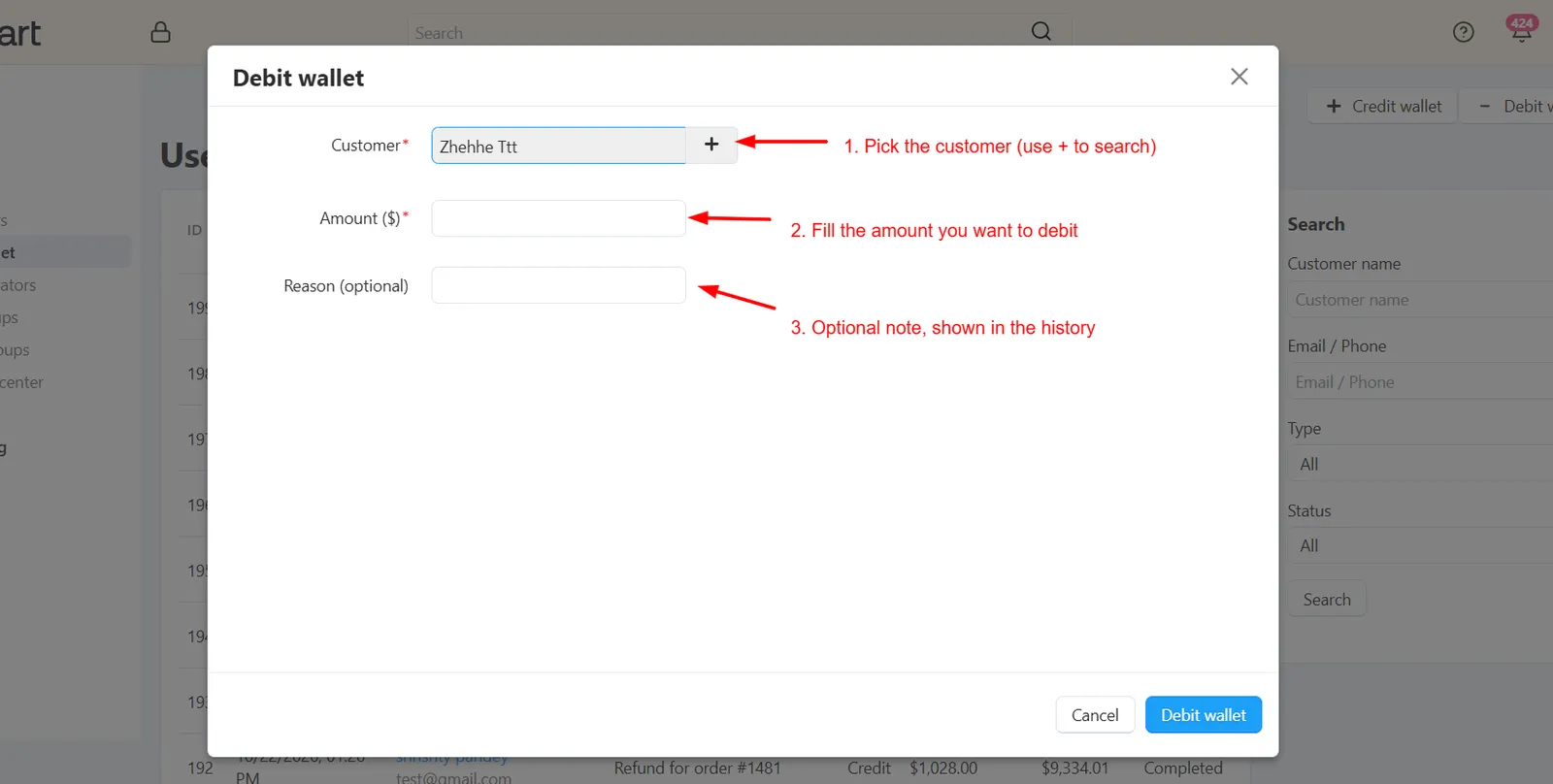
- Debit a Wallet – Click Debit wallet to deduct an amount. The deduction is blocked if the customer does not have enough balance.
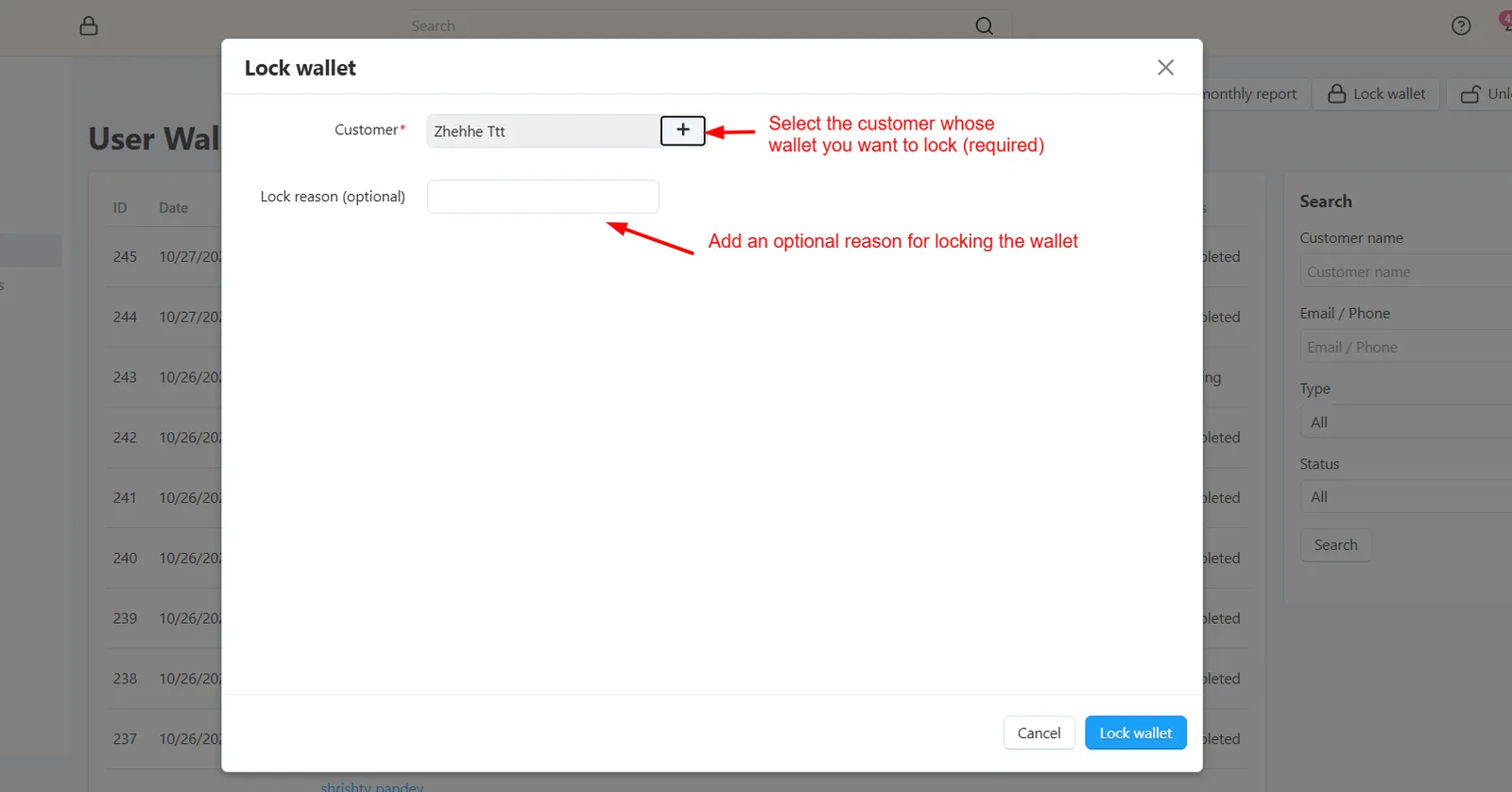
- Lock or Unlock a Wallet – Click Lock wallet, pick the customer and add a reason. A locked wallet cannot pay at checkout, withdraw or send or receive transfers until you click Unlock wallet.
Step 12: Process Withdrawal Requests
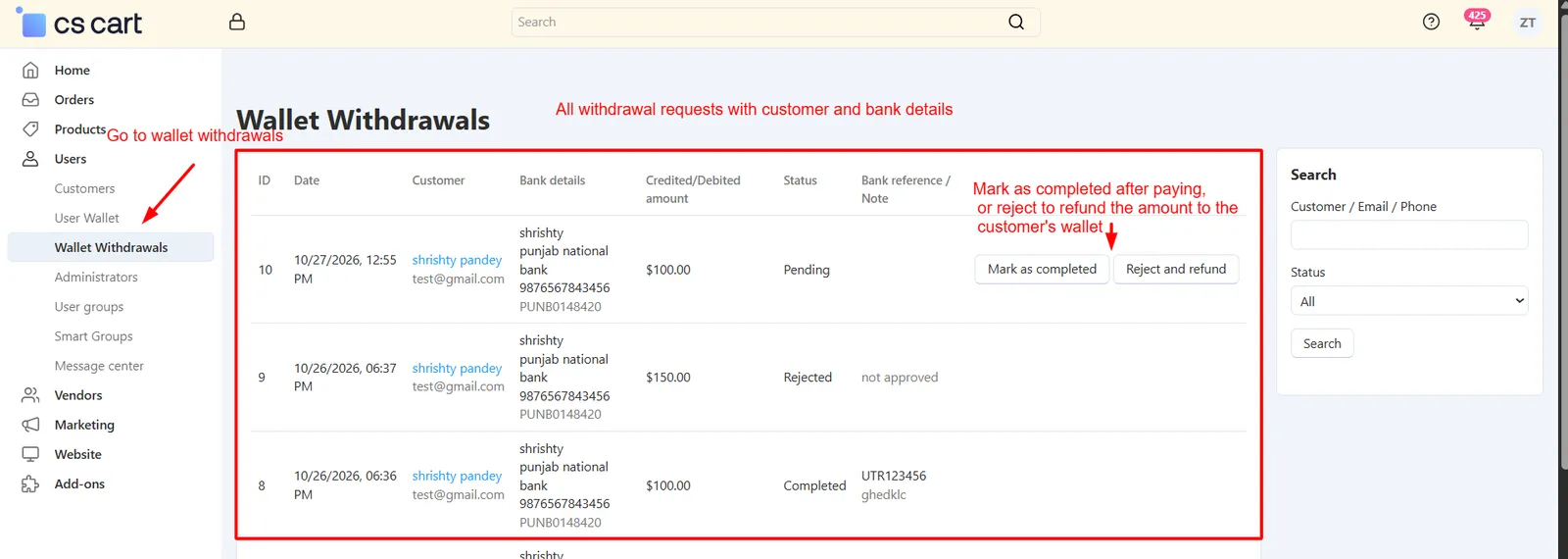
Go to Customers → Wallet Withdrawals to see every request:
- Review the Request – See the customer, amount, bank details (account number partly hidden) and status.
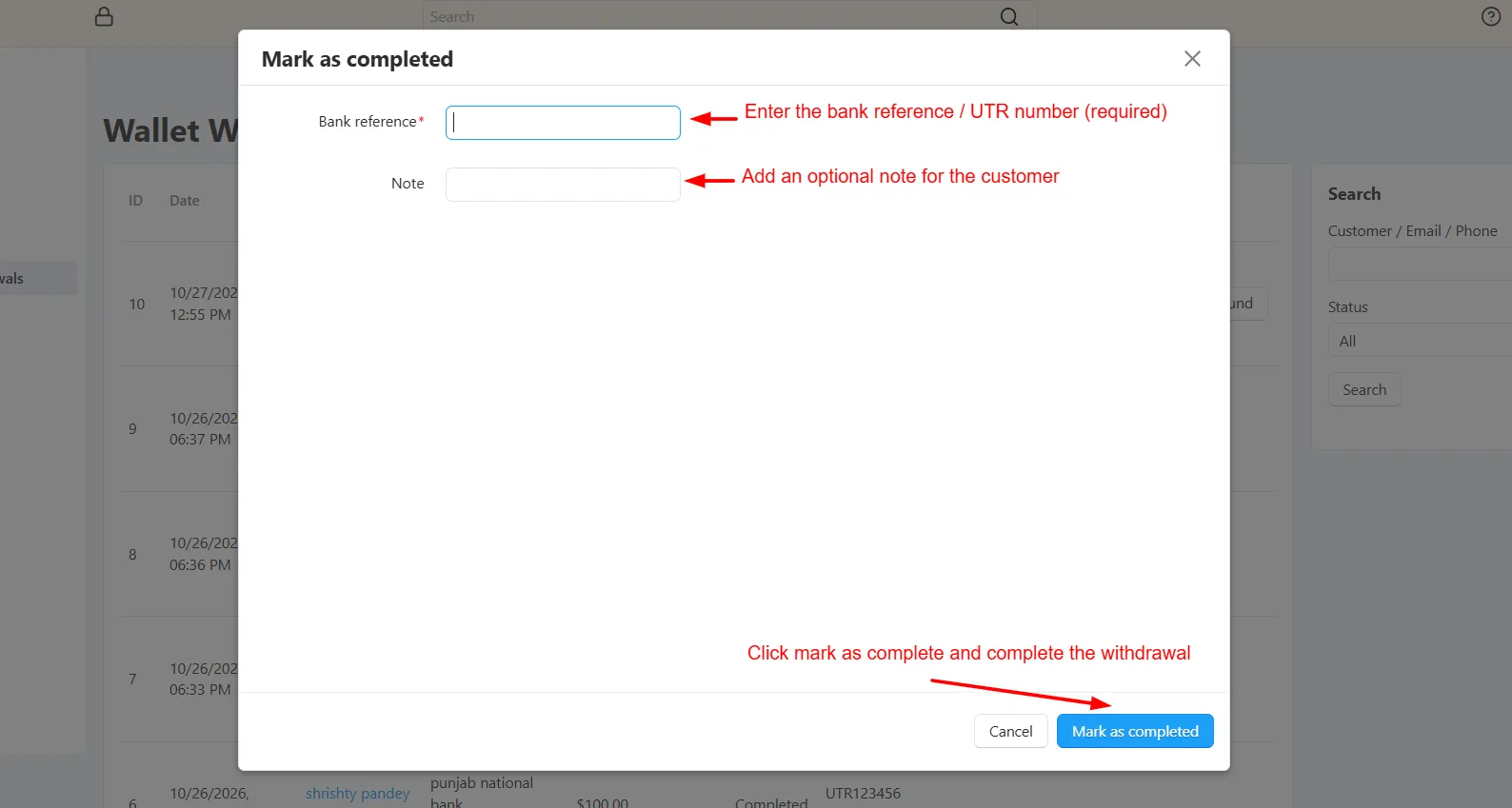
- Complete a Withdrawal – After sending the money, click Complete, enter the bank reference and an optional note.
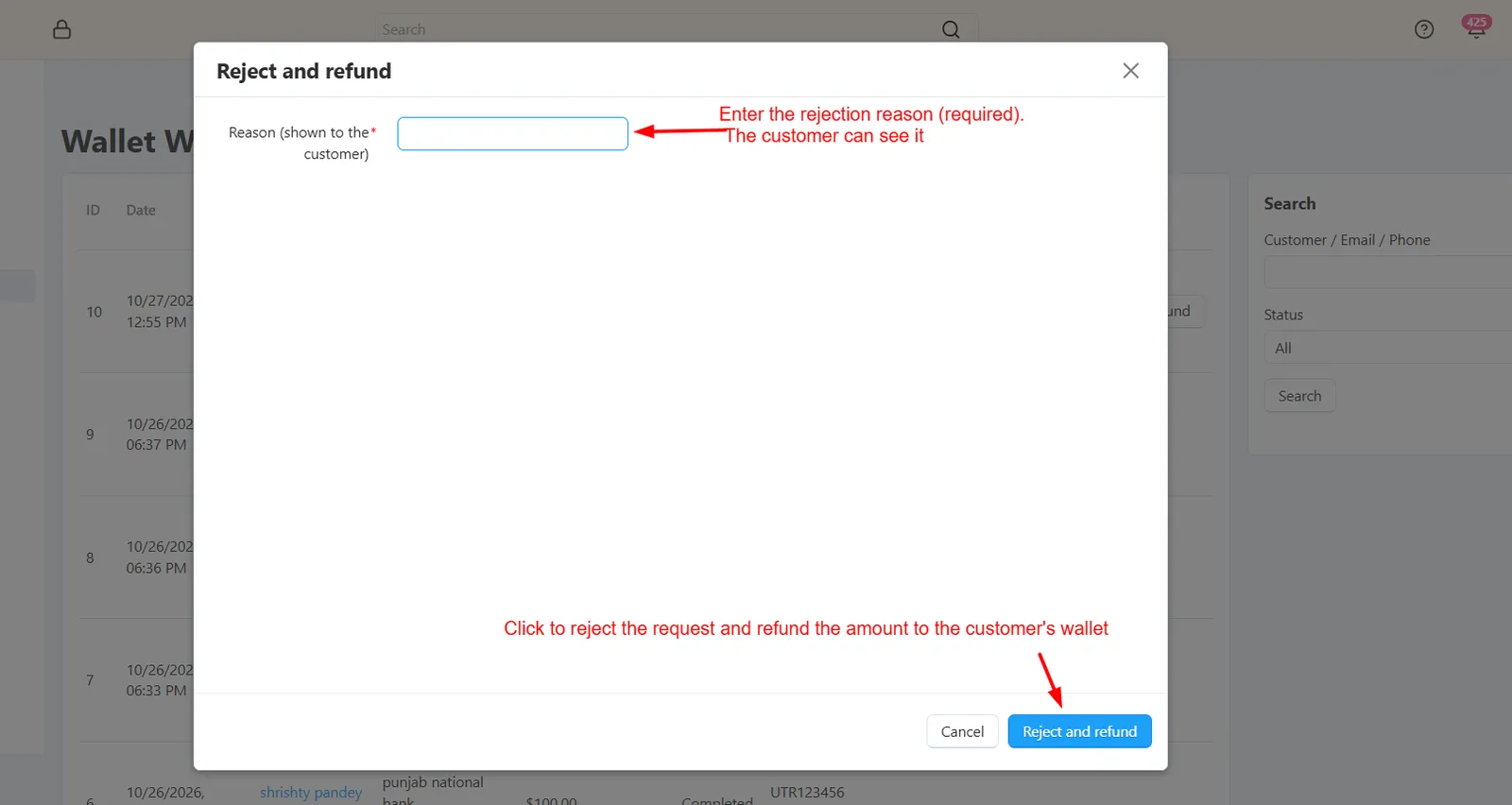
- Reject a Withdrawal – Click Reject and give a reason. The amount goes back to the customer's wallet automatically.
Step 13: Send Monthly Wallet Reports
Keep customers informed with a monthly summary of their wallet:
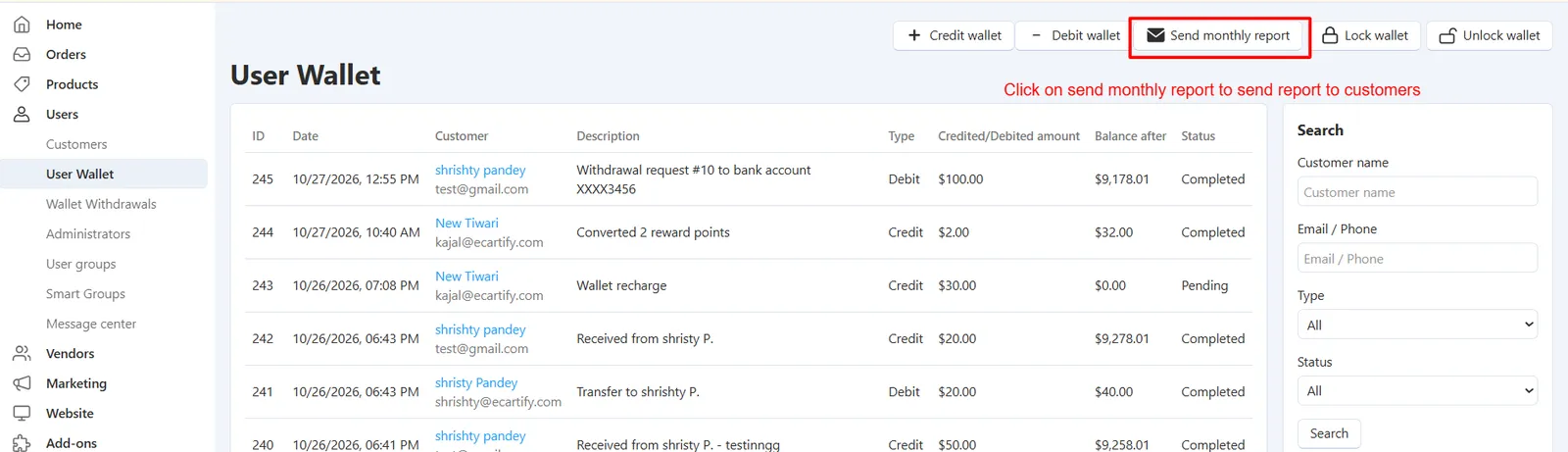
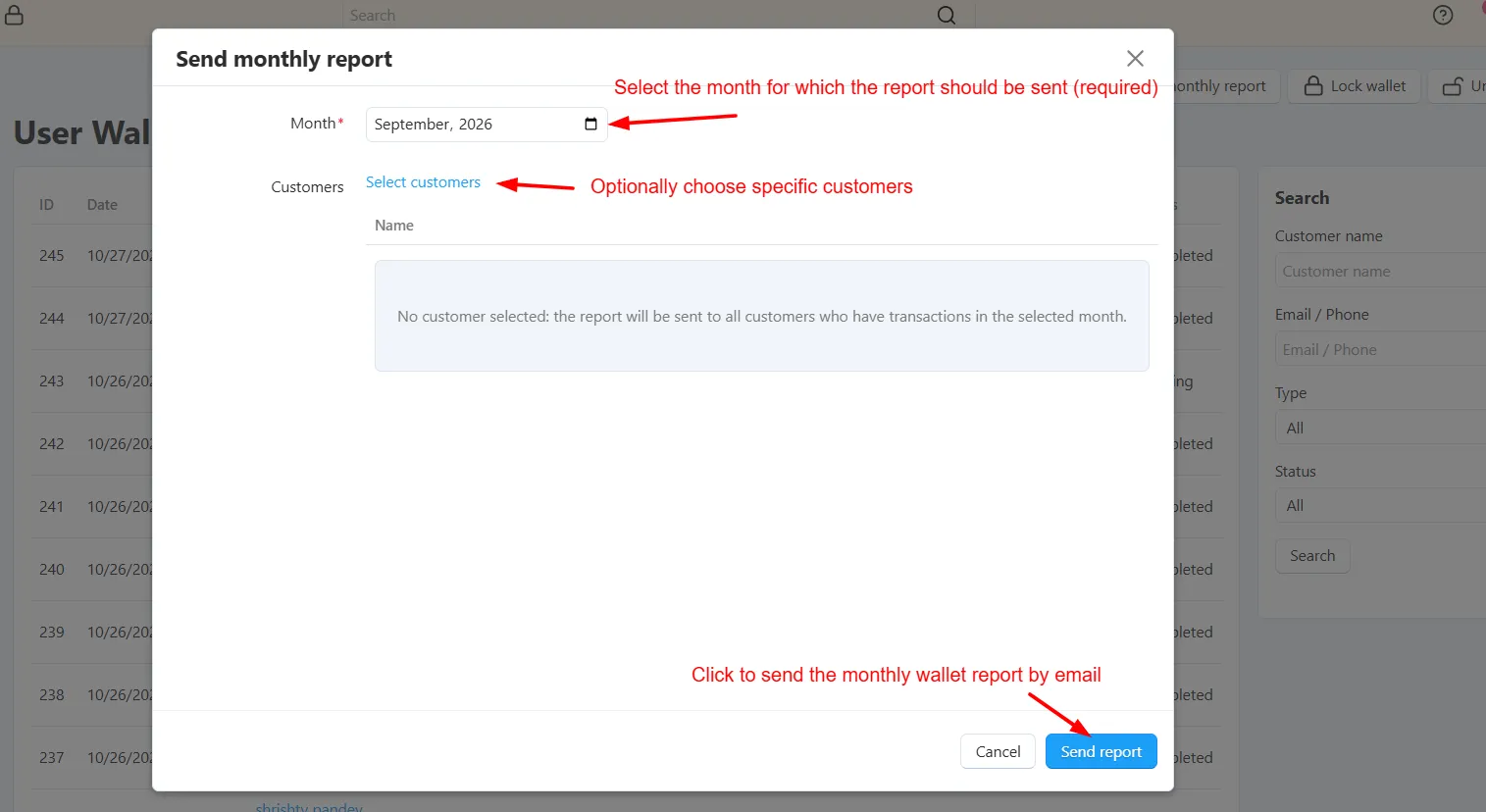
- Send Manually – On Customers → User Wallet, click Send monthly report, choose the month and select customers or if no customer selected: the report will be sent to all customers who have transactions in the selected month
- What Customers Get – An email with opening balance, total credits, total debits, closing balance and a table of every transaction.
Step 14: Refund an Order to the Wallet
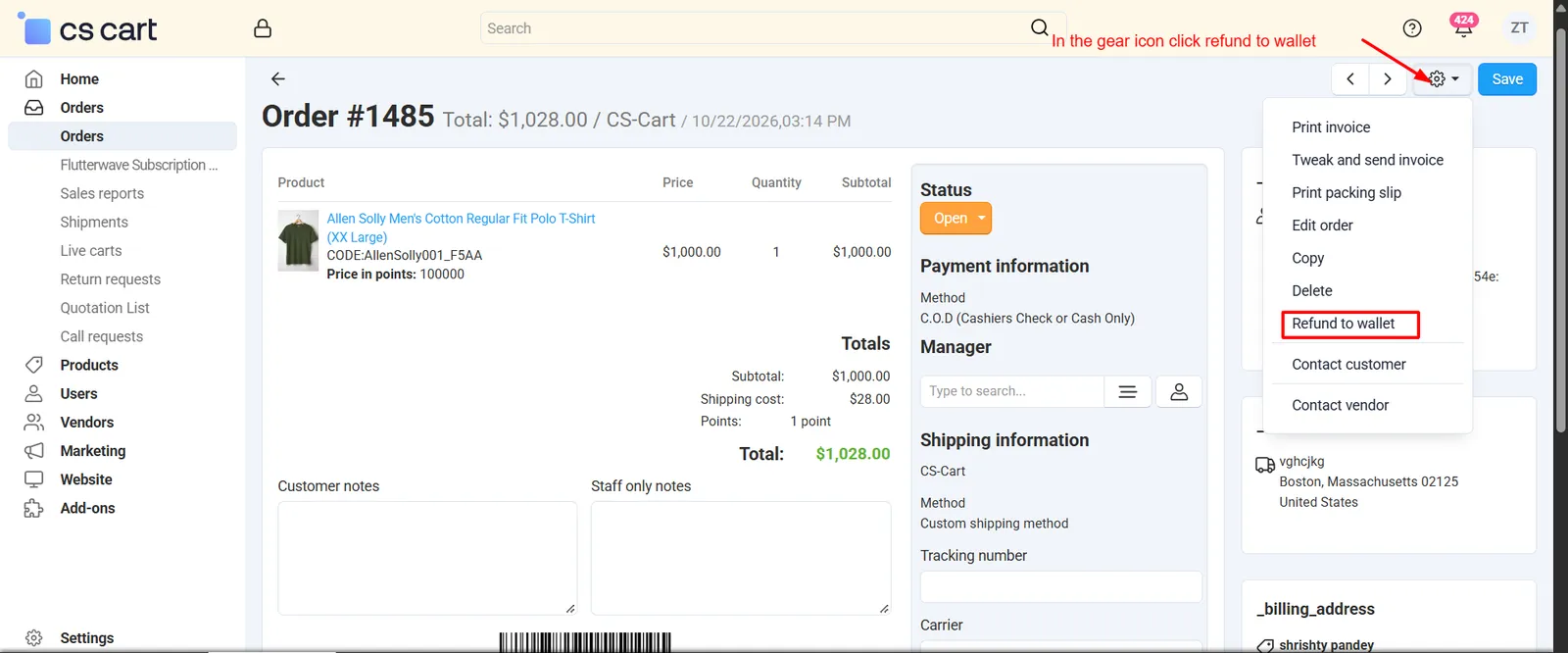
Go to Orders → [Select an Order] and open the Tools menu:
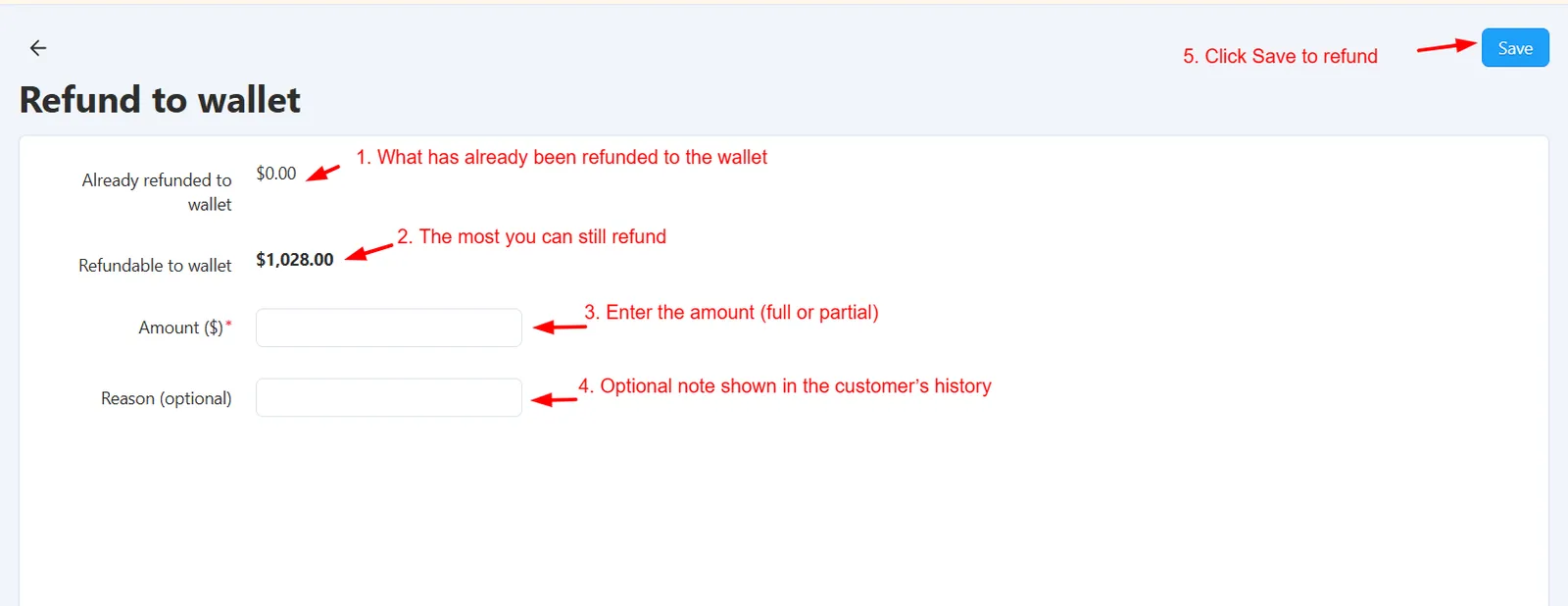
- Open Refund to Wallet – Choose Refund to wallet. You will see how much was paid from the wallet, how much is already refunded, and how much is still refundable.
- Enter the Amount – Refund the full refundable amount or just a part, and add a reason if needed.
- Confirm – The amount is added to the customer's wallet instantly. You can refund the same order again later, up to the remaining balance.
Step 15: Refund a Return Request to the Wallet
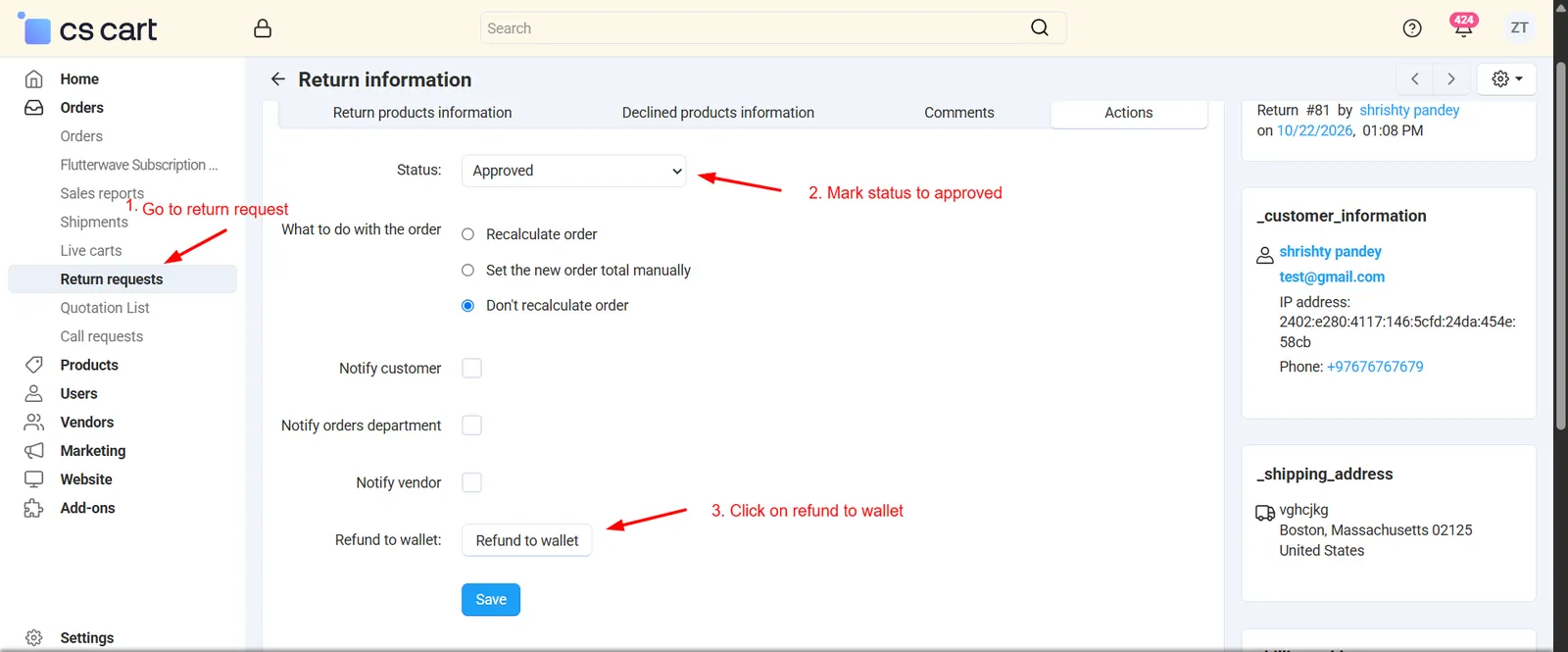
Go to Orders → Return requests and open a return:
- Accept the Returned Products – Approve the products you are accepting back from the customer.
- Open the Actions Tab – Click Refund to wallet. The page shows the approved return value, what is already refunded and what is left.
- Refund in One or More Parts – The refund can never go above the value of the accepted products, so a return is never over-refunded.
Step 16: Automatic Refunds on Failed or Cancelled Orders
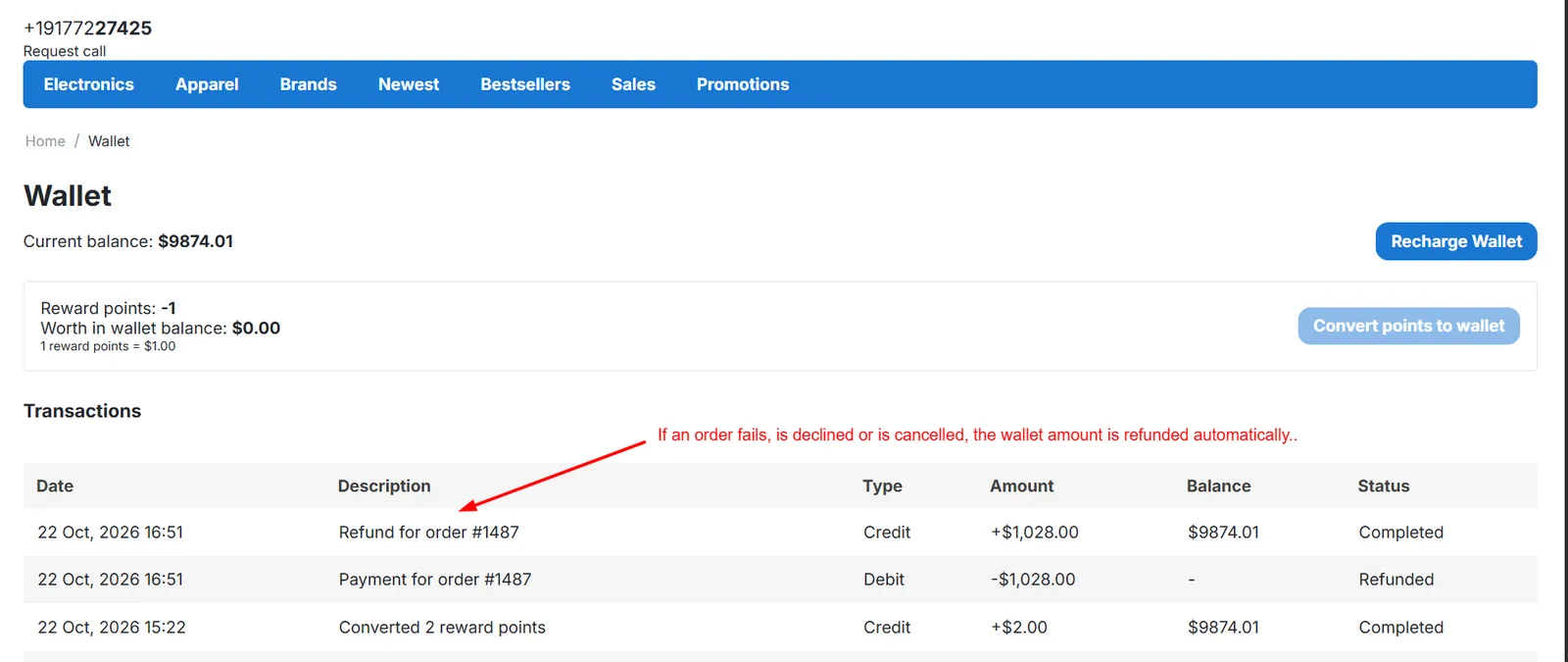
Nothing to configure here. Whenever an order paid with the wallet changes status, the add-on takes care of the refund:
- Order Fails or Is Cancelled:
The order status changes to Failed, Declined or Canceled. - Wallet Amount Returned:
The amount paid from the wallet is credited back to the customer automatically. - No Double Refund:
Anything you already refunded manually is subtracted, so the customer gets back only what is left.
Real-World Benefits & Results
Faster Checkout & More Repeat Orders
Customers with a balance can pay in a few clicks, without entering card details every time.
Refunds go back as wallet balance, encouraging customers to shop with you again.
Reward points turn into real spendable balance, giving customers a reason to come back.
Simpler Refund Handling
No waiting for bank or card settlements — the customer sees the refund in the wallet immediately.
Refund exactly the amount you want, as many times as needed, from the order page or a return request.
Refund limits and double-refund protection keep every order's refunds accurate.
Safer, Smarter Money Movement
Every wallet-to-wallet transfer is verified with a one-time password, so money is never sent by mistake or by someone else.
Customers can withdraw to their bank account, while you review and approve every request.
Freeze a suspicious wallet in one click and unlock it once the matter is resolved.
Total Admin Control
Every credit, debit, payment and refund is logged and searchable.
Control recharge, withdrawal and transfer amounts with minimum and maximum limits in your primary currency.
Prepaid Payments, Simpler Refunds — Starting Today
Give your customers a faster way to pay, and give your team a refund process that is quick, accurate and fully in your control.
Pay fully or partly from the wallet balance in a few clicks.
Refund orders and return requests to the wallet, in full or in parts.
Built-in protection keeps every order's refunds accurate.
Turn loyalty points into spendable wallet balance.
Credit, debit, lock, limits and a complete transaction log.
Wallet API for balance, transactions and recharge in your app.
Send money to other wallets by email or QR, verified with OTP.
Let customers cash out to saved bank accounts, approved by you.
PDF statements and automatic monthly reports for every customer.