
Ecartify: LiveAuction Pro
Real-Time Bidding
Ecartify: LiveAuction Pro Addon
Transform your CS-Cart store into a dynamic auction platform with the LiveAuction Pro Addon. This powerful extension lets you convert any product into an auction item with real-time bidding, countdown timers, automatic winner determination, and seamless order processing. Create excitement and urgency that drives customer engagement and increases sales with competitive bidding on your products.
Key Features of LiveAuction Pro Addon
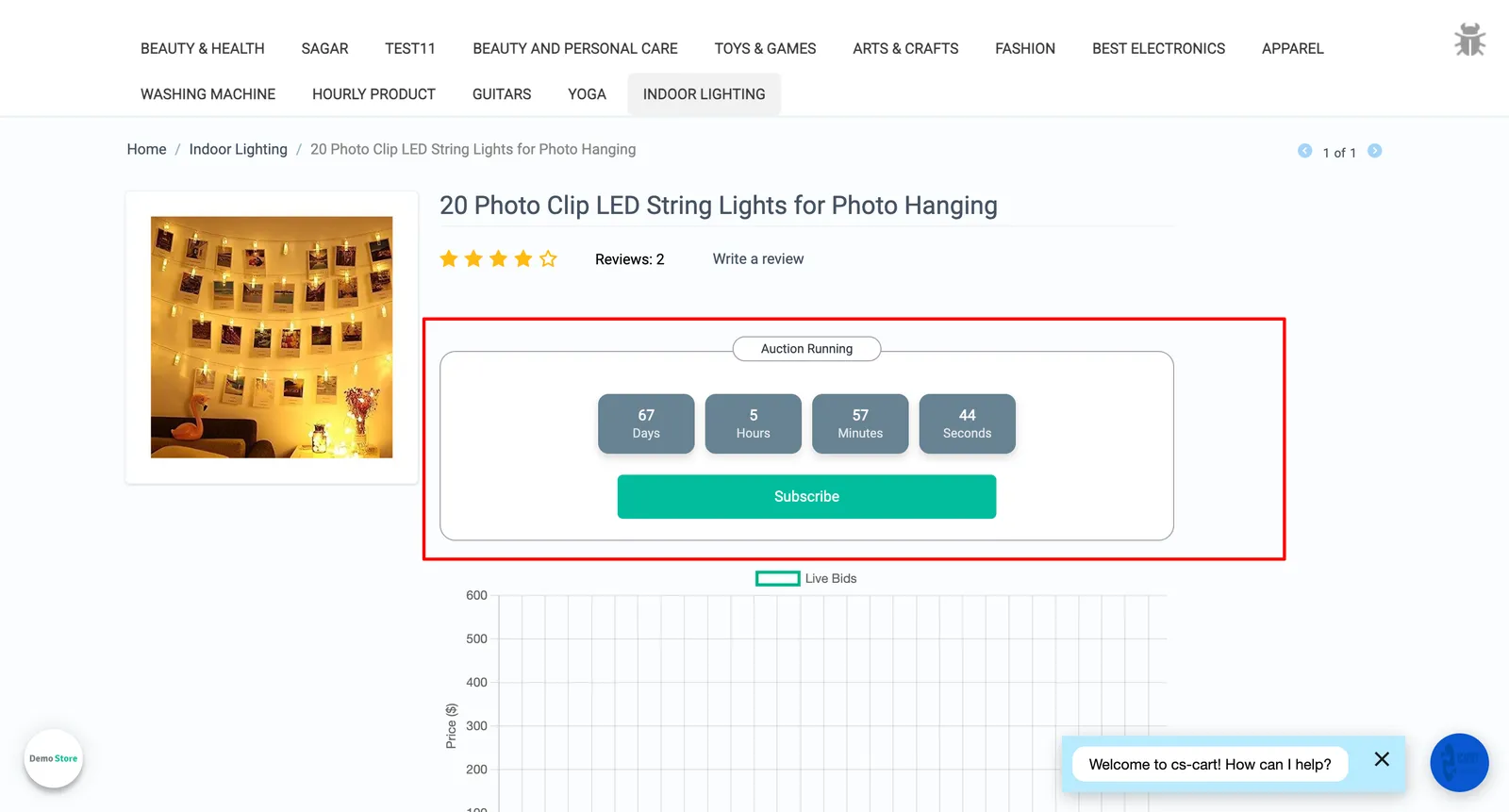
Display dynamic countdown showing days, hours, minutes, and seconds until auction ends.
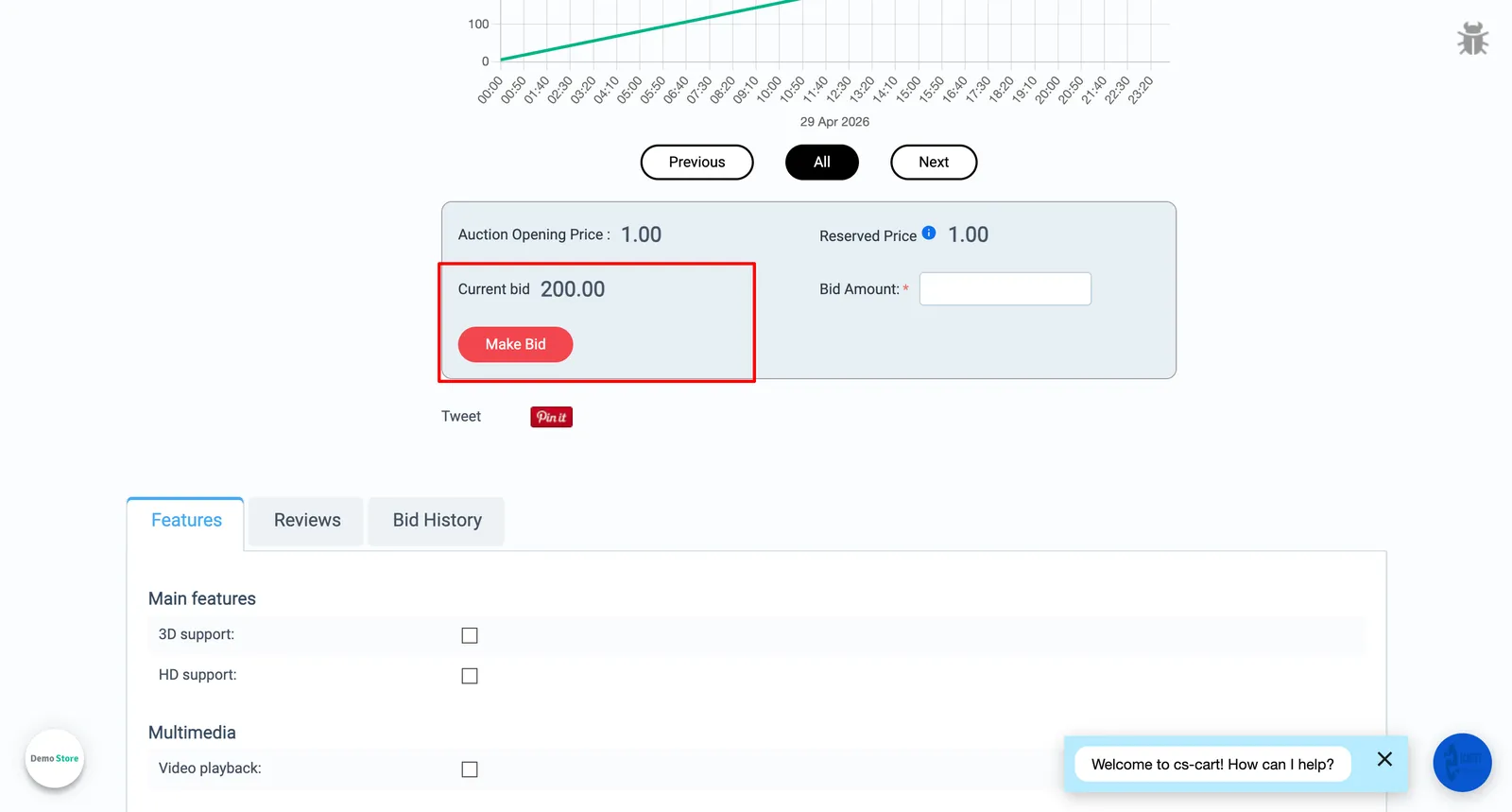
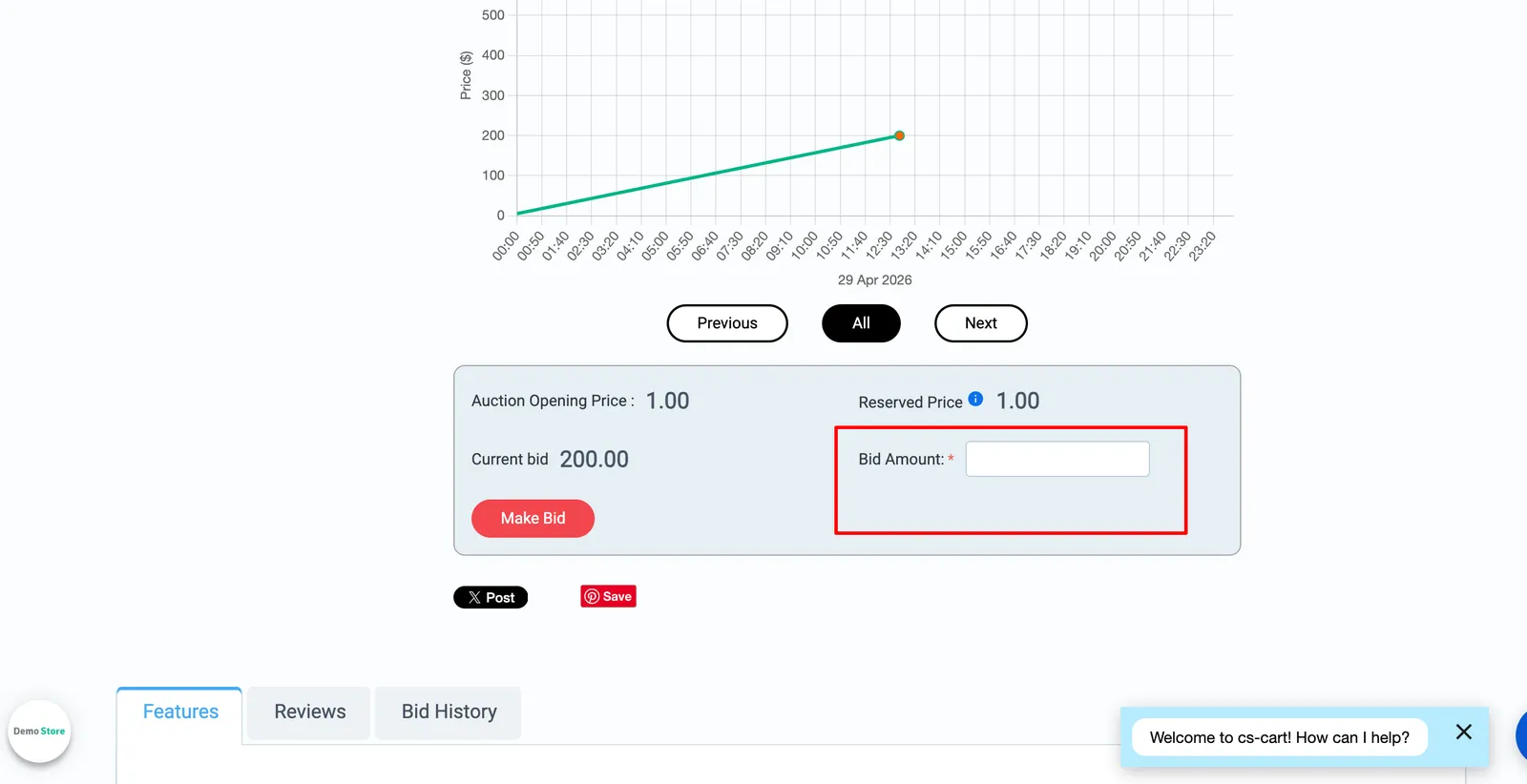
Customers place bids in real-time with instant validation and confirmation notifications.
System automatically determines and notifies the highest bidder when auction closes.
Complete audit trail showing all bids, bidders, timestamps, and bid amounts.
Set minimum reserve prices to protect your inventory value and profitability.
Define starting bid amounts to control auction starting points.
Set precise start and end dates/times for each auction campaign.
Run multiple concurrent auctions across your product catalog simultaneously.
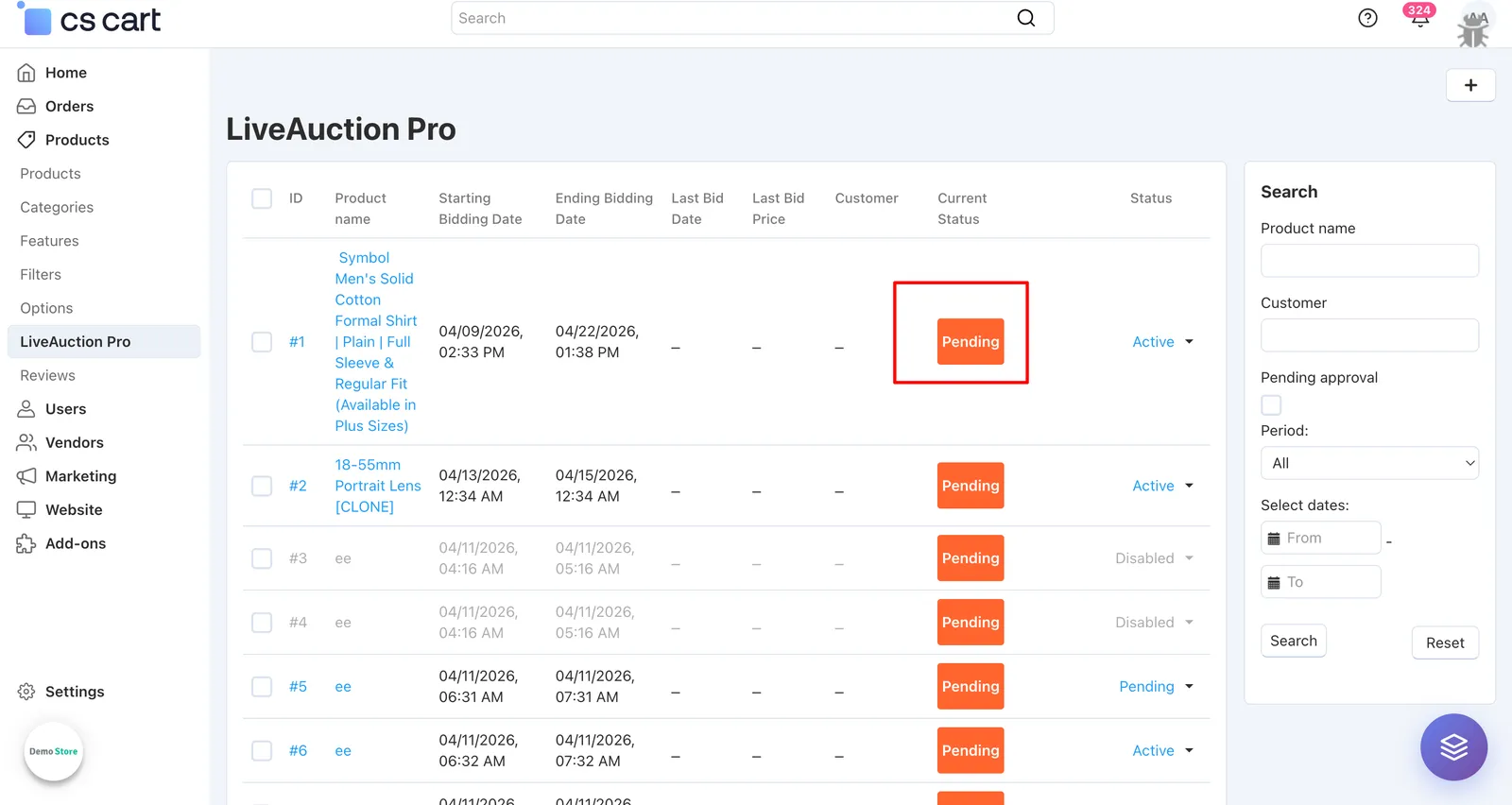
Monitor auction states: Pending, Running, or Completed with visual indicators.
Customers subscribe to receive notifications about auction progress and results.
Manually select auction winners when needed for special circumstances.
Step-by-Step Setup Guide
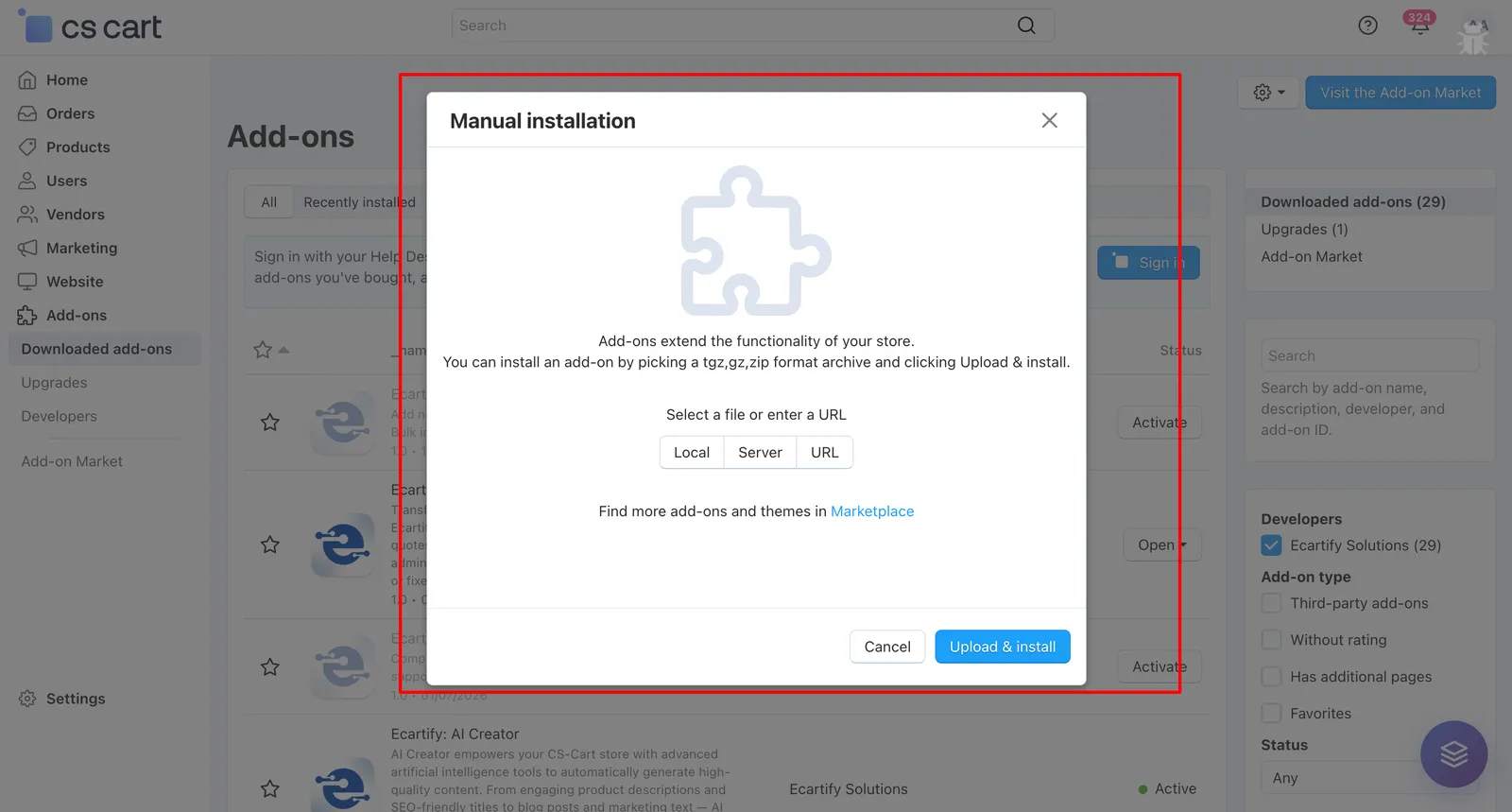
Step 1: Install the LiveAuction Pro Addon
Installing the Ecartify: LiveAuction Pro addon takes just minutes:
Once activated, you'll see a new "LiveAuction Pro" menu in your admin sidebar!
Step 2: Configure the Settings
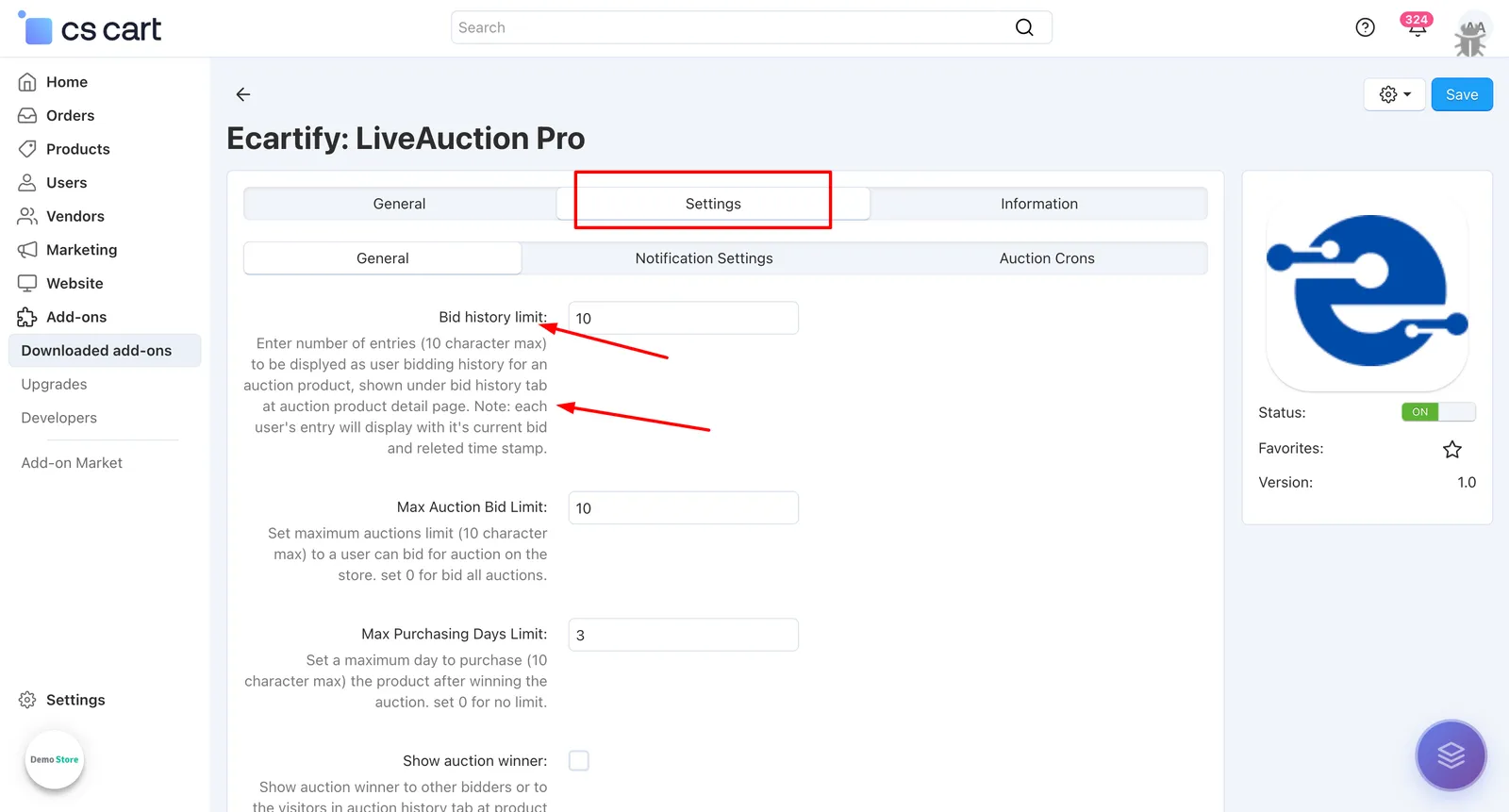
After installing the add-on, navigate to the Add-ons → Manage addons section and open the LiveAuction Pro add-on settings page. Here, you can configure the general options that control how the Auction works across your store.:
i) Input and select general setting:
The General Settings section allows the admin to control core auction behavior and limits for customers. These options help manage bidding activity, ensure fairness, and keep the auction process smooth and organized.
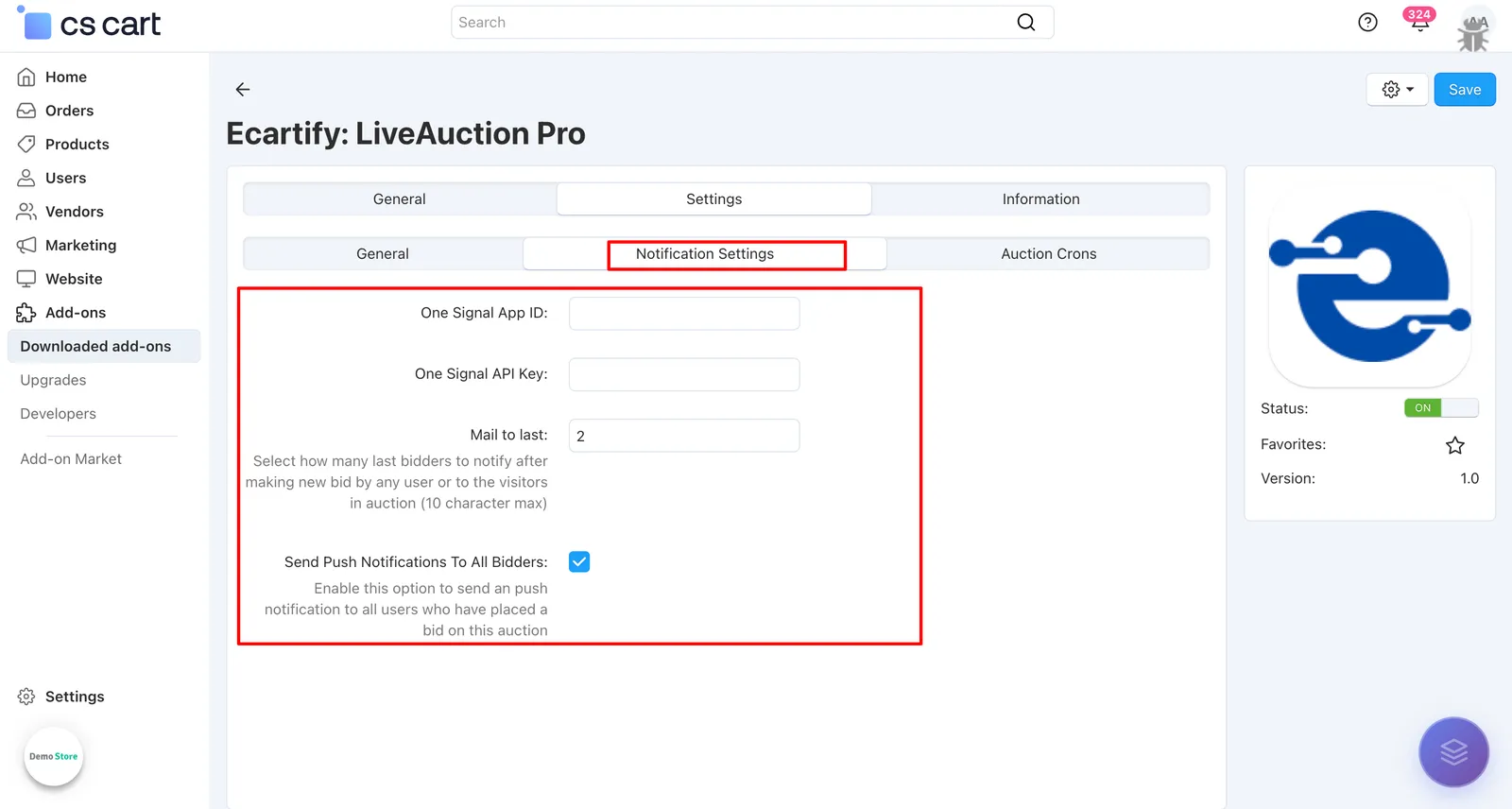
ii) Notifications settings :
-Enter your OneSignal App ID to enable push notifications for auction events. This allows real-time alerts to be sent to bidders when new bids are placed or auction status changes.-Enable the options Send Email and Send Push Notifications to all users who have placed a bid on the auction. This helps re-engage bidders whenever a new bid is placed or important auction updates occur.
iii) Auction Cron job setting:
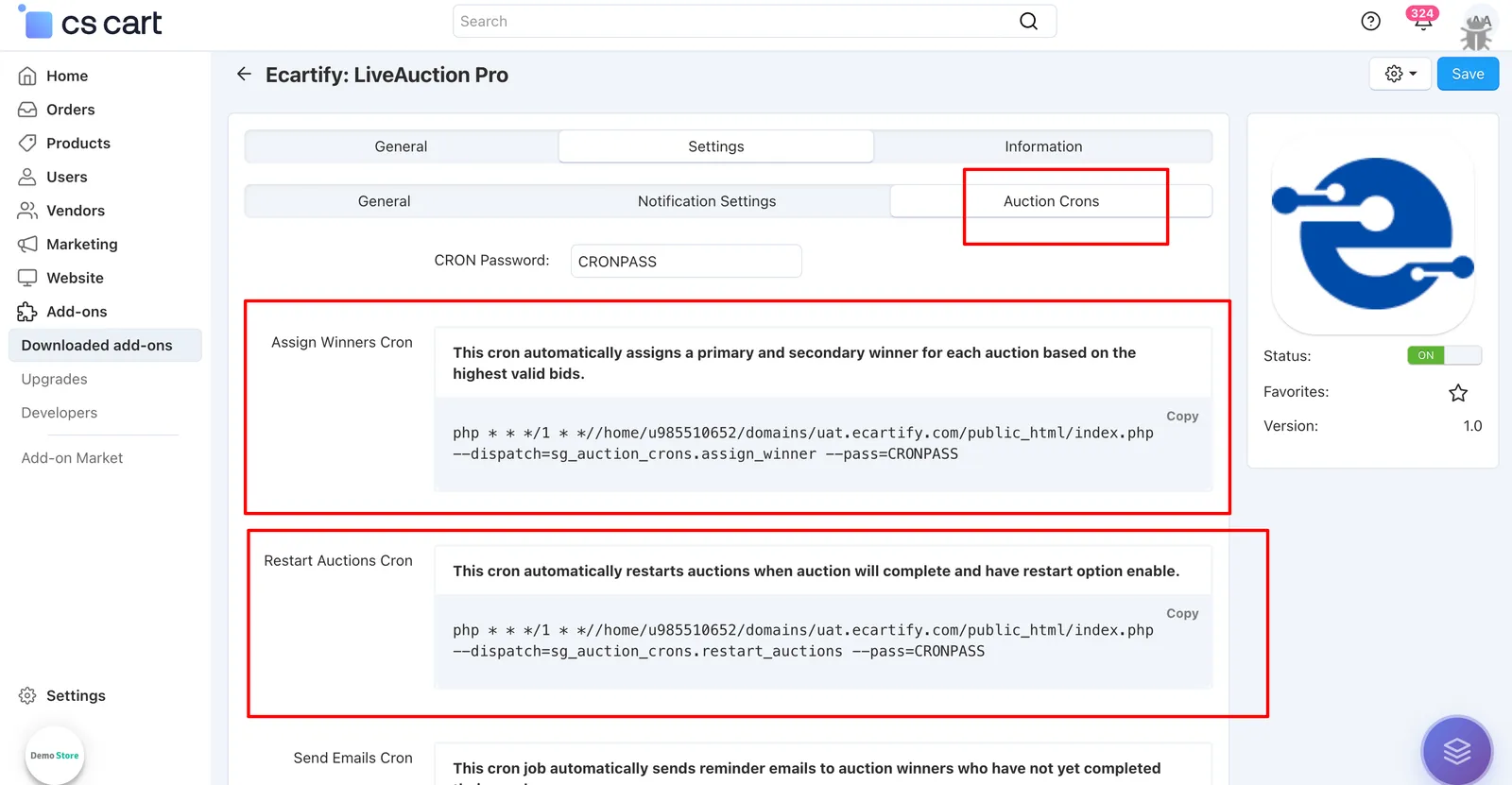
The Auction Crons section allows you to automate important auction processes using server cron jobs. These crons ensure that auctions run smoothly without manual intervention and that winners, restarts, and reminders are handled on time.
-Assign Winners Cron:
This cron job automatically assigns primary and secondary winners for each completed auction based on the highest valid bids.It ensures that winners are selected accurately and without manual effort.
-Restart Auctions Cron:
This cron automatically restarts auctions that have ended and have the restart option enabled.It is useful for recurring auctions or products that need continuous bidding.
-Send Emails Cron:
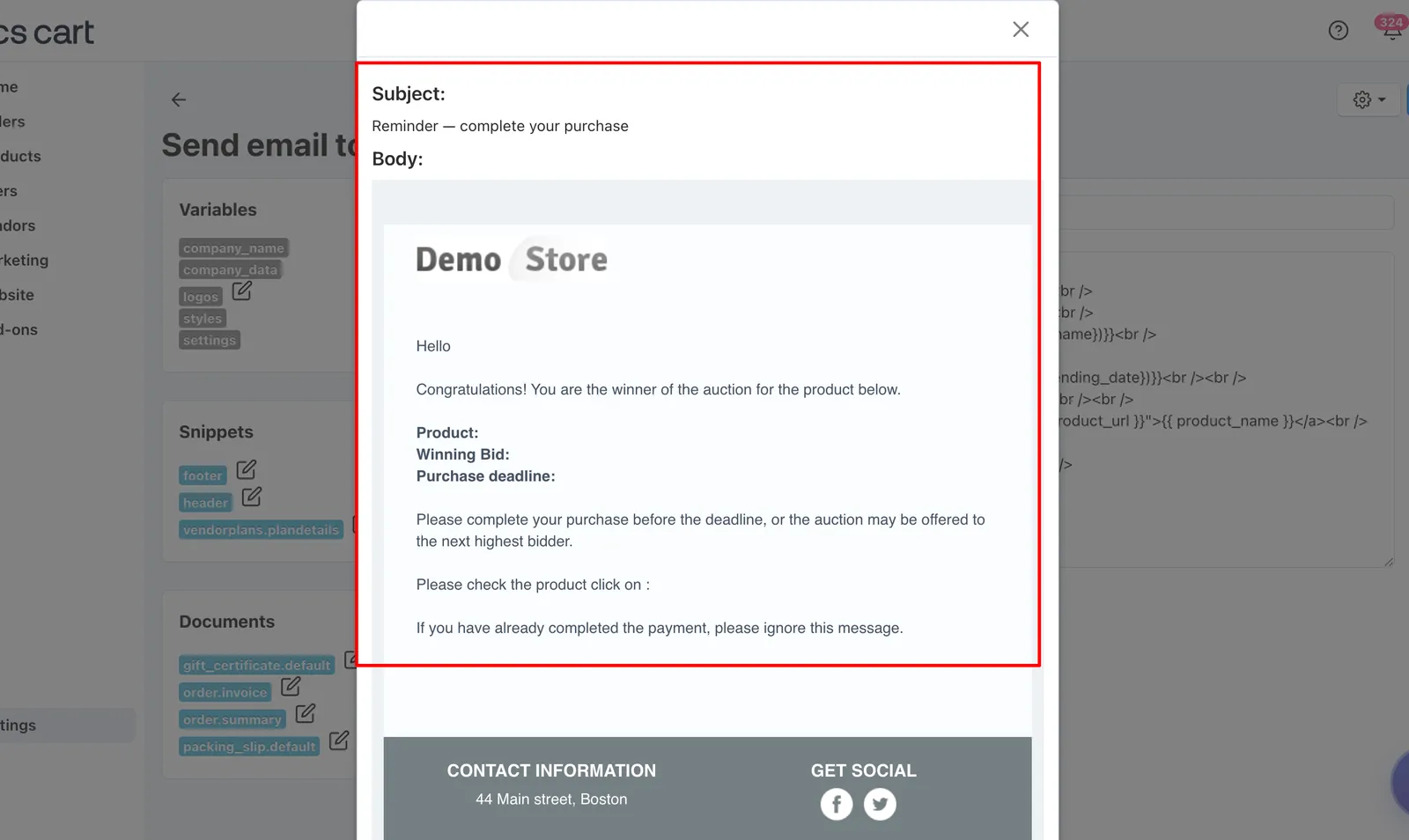
This cron job sends automatic reminder emails to auction winners who have not completed their purchase within the allowed time.It helps reduce abandoned wins and increases conversion rates.
All settings are now configured.
Step 3: Access LiveAuction Pro Management
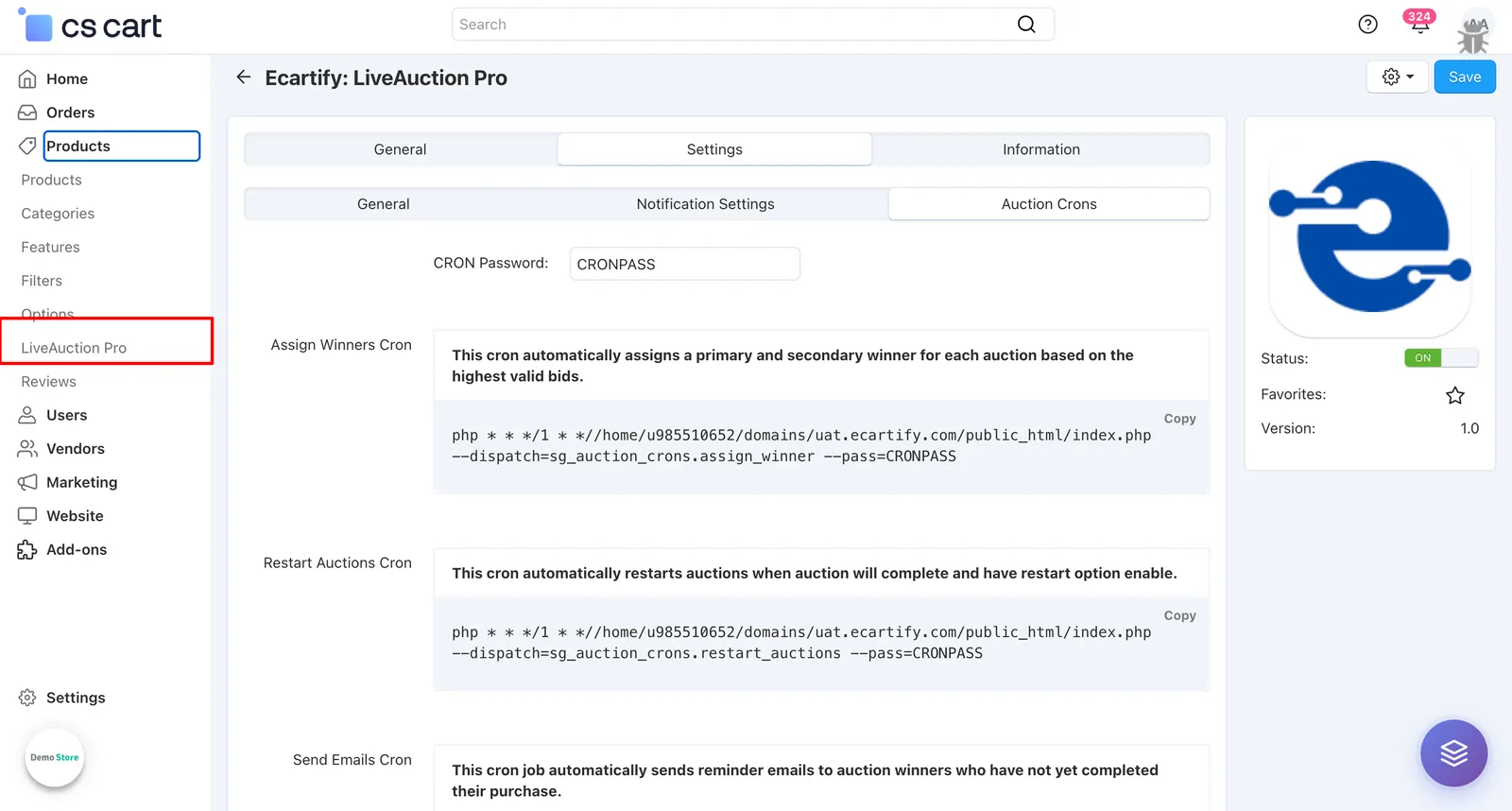
Navigate to the LiveAuction Pro management interface from your admin panel:
Look for "LiveAuction pro" in the left sidebar navigation menu
See list of all created auctions with status, dates, and current bids
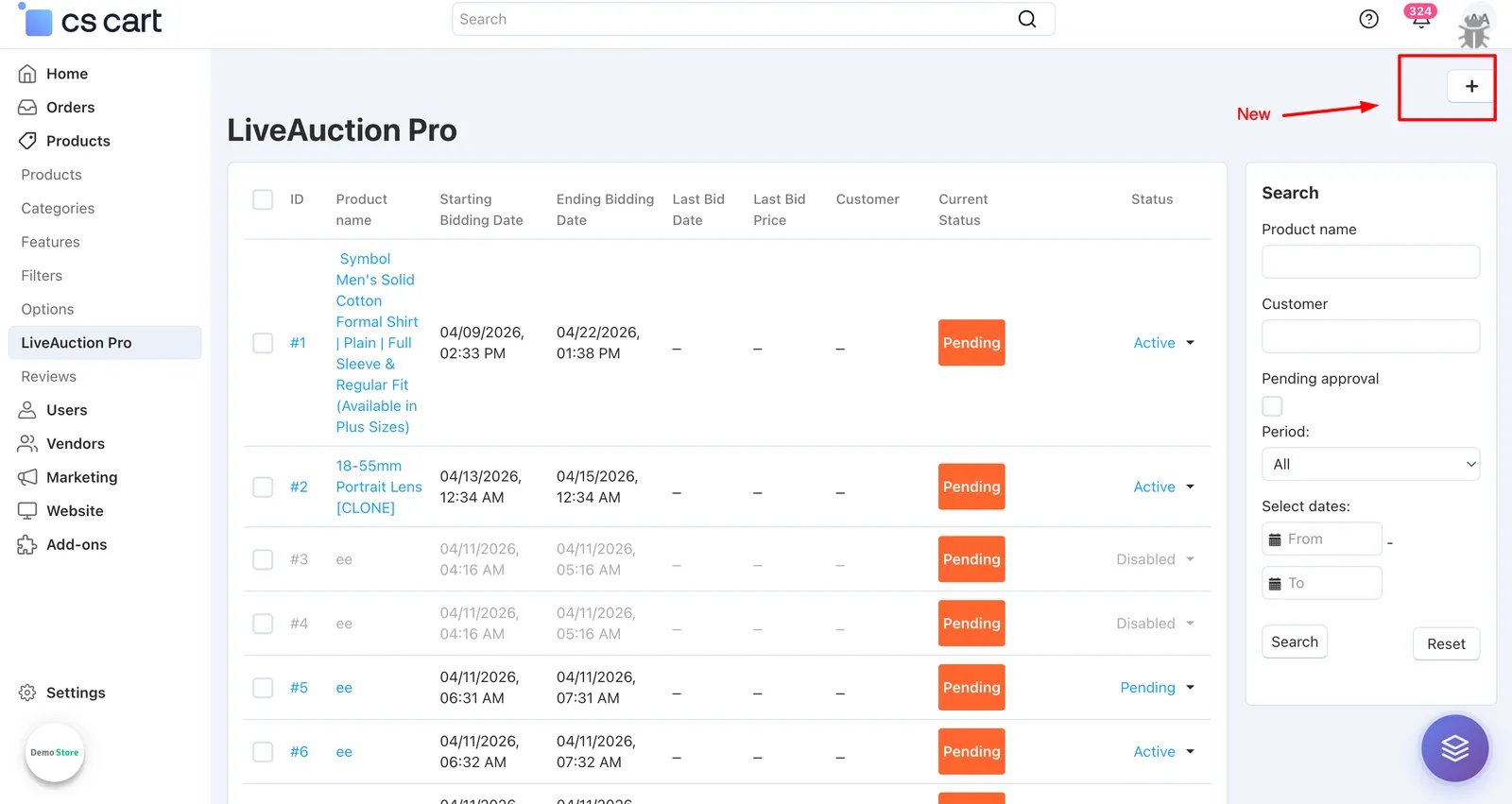
Use search filters to find specific auctions by product name or date range
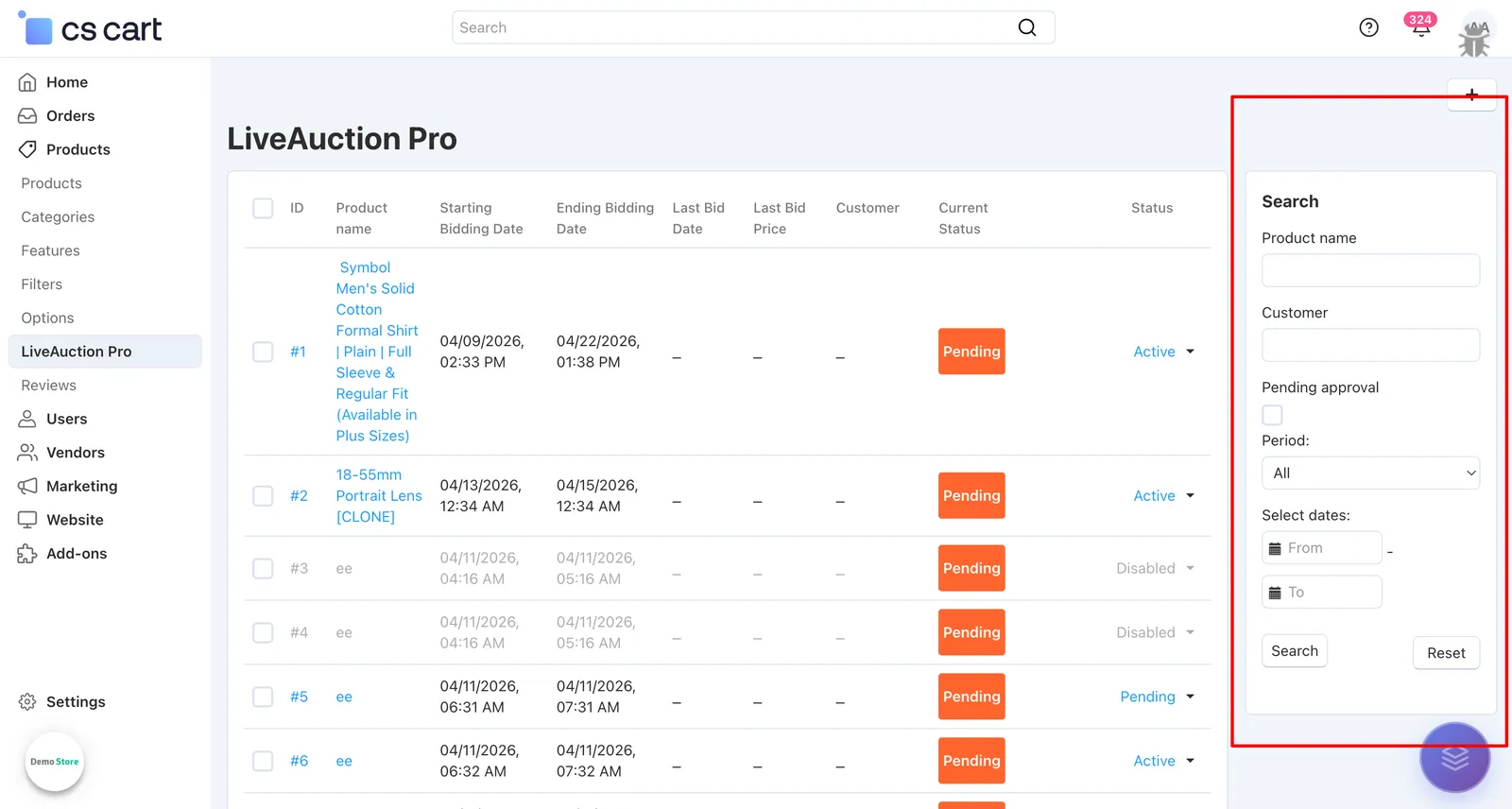
Quickly identify Running, Completed, and Pending auctions with color-coded badges
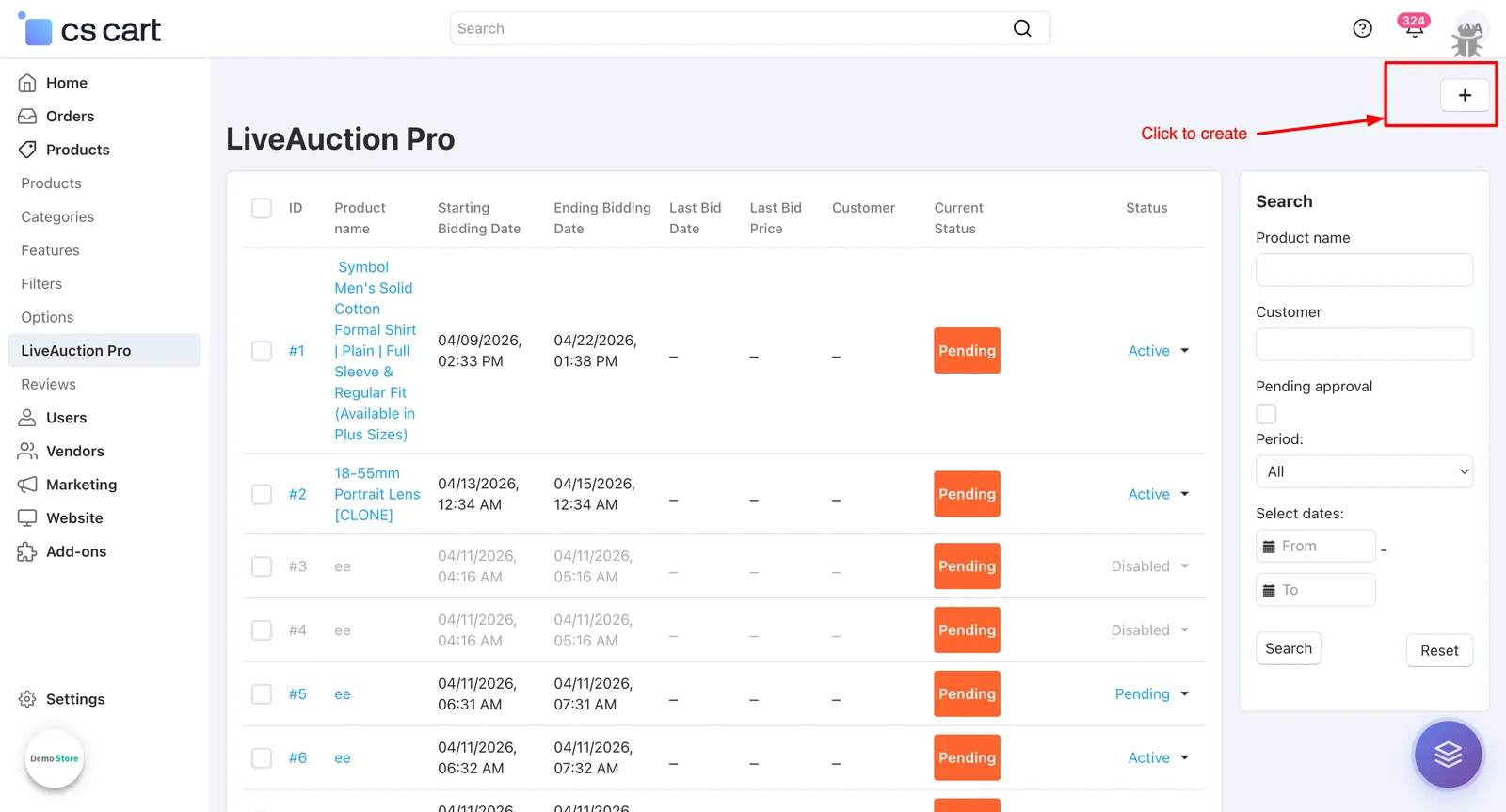
Step 3: Create Your First Auction
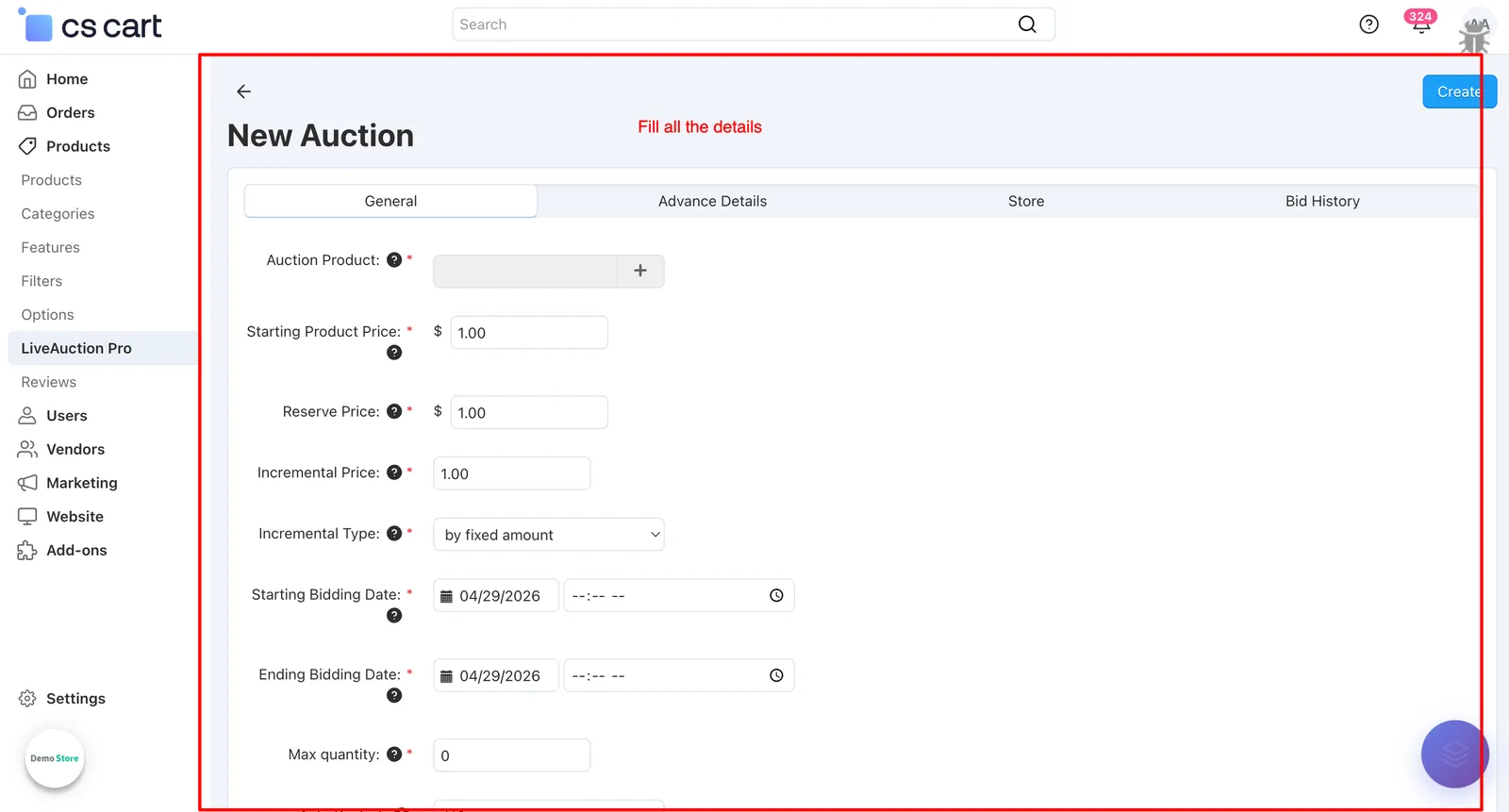
Set up a new auction for any product in your catalog:
Choose any existing product from your catalog to convert into an auction
Define when the auction will begin accepting bids (e.g., 01/21/2026, 00:00)
Specify when bidding closes and winner is determined (e.g., 01/23/2026, 11:11)
Set the starting bid amount (e.g., $11.00)
Your auction is now ready to accept bids when the start time arrives!
Step 4: Customer Auction Experience
Your customers get an engaging, intuitive bidding interface:
Step 5: Automatic Winner Determination
When auction ends, the system automatically processes the results:
Highest bidder is automatically marked as winner when time expires
Winner receives instant notification with order details
Seamless automation ensures winners can complete purchases instantly!
Step 6: Manual Winner Override
Admins have full control to manually select winners when needed:
Access complete list of all bids from auction editing interface
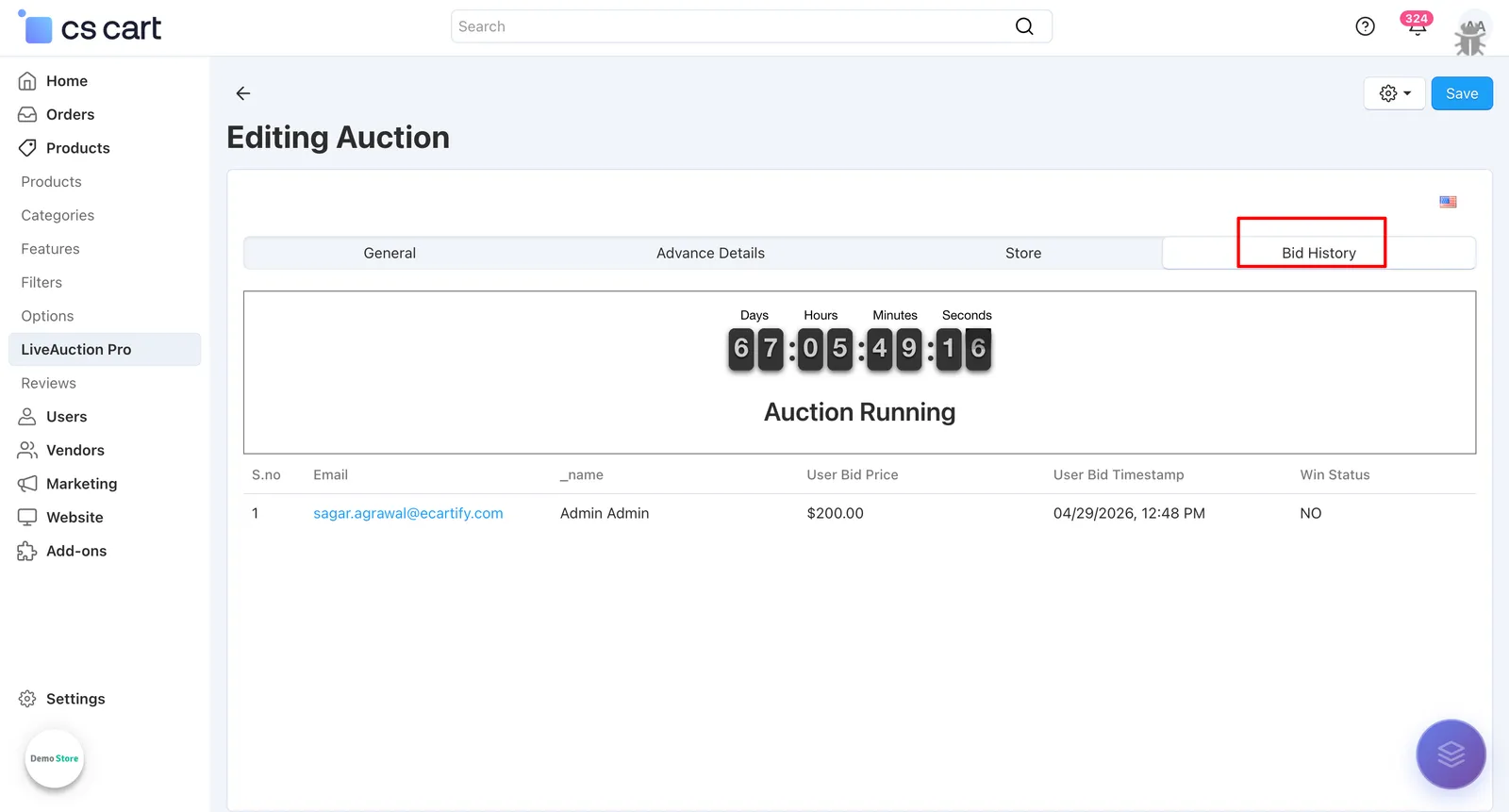
Choose any bidder and click "Make This User Auction Winner"
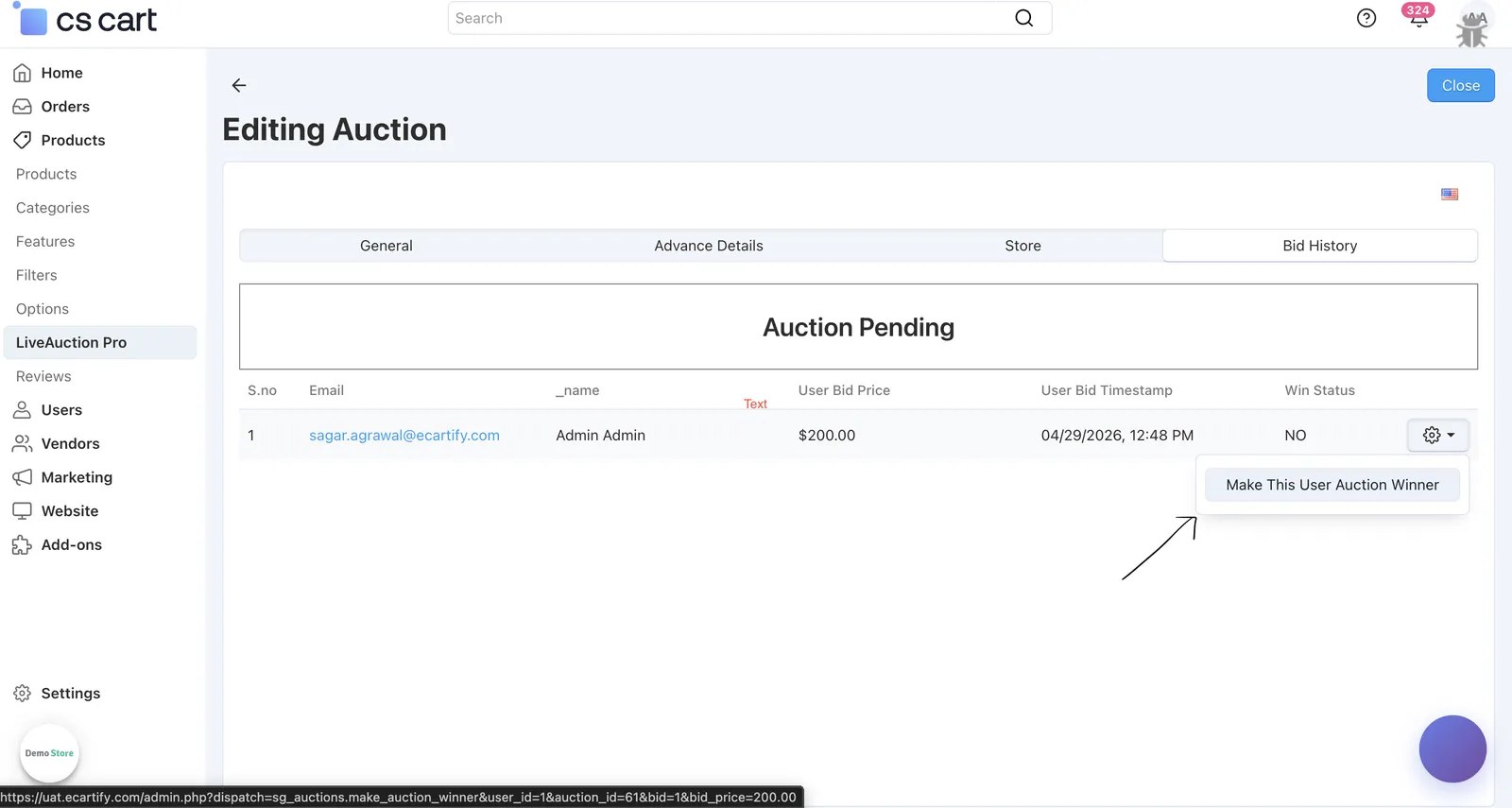
Useful for special circumstances, disputes, or promotional purposes
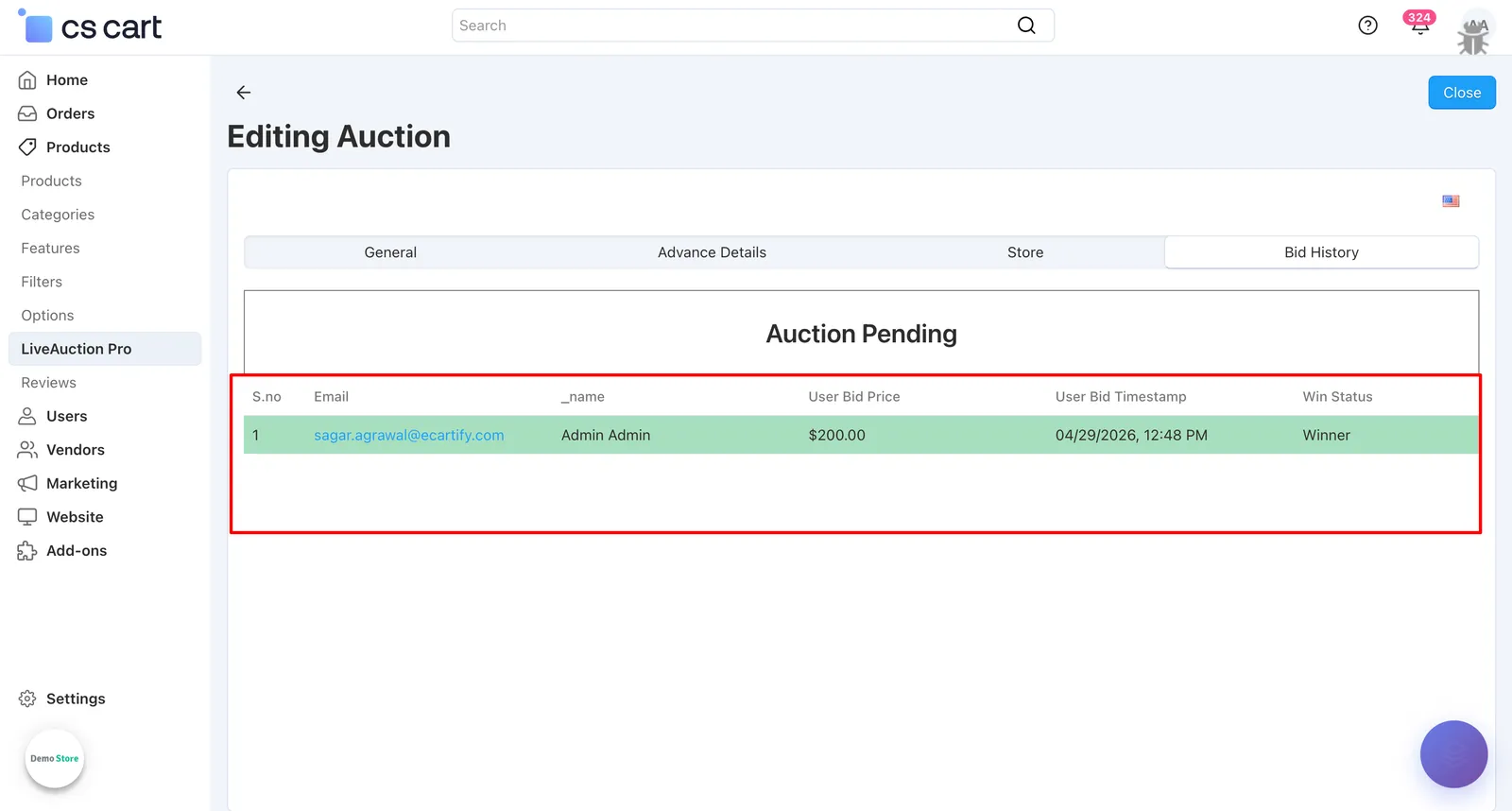
Winner Mention on frontend user's bid History
Step 7: Track Customer Bids
Admins have full control to manually select winners when needed:
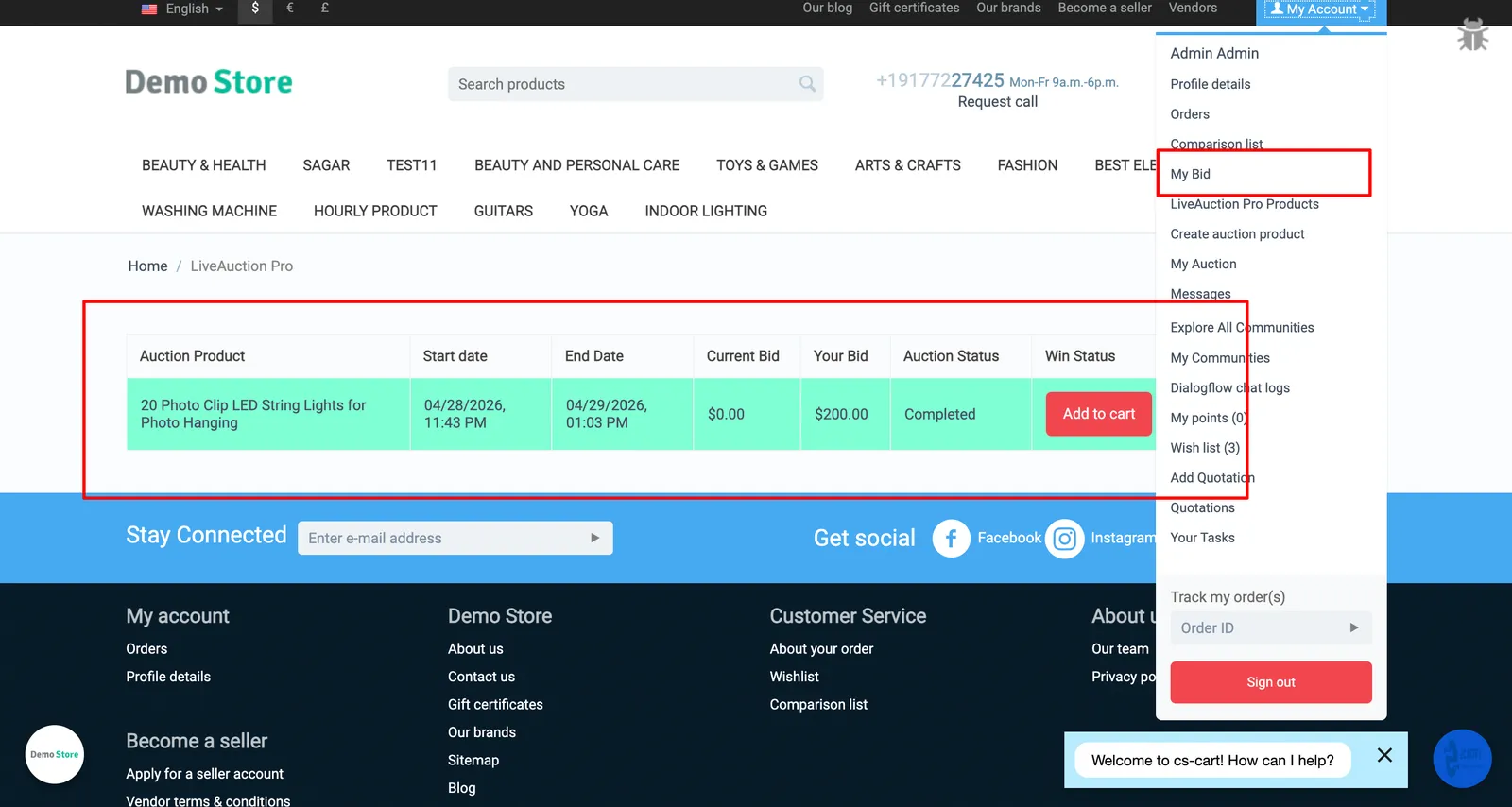
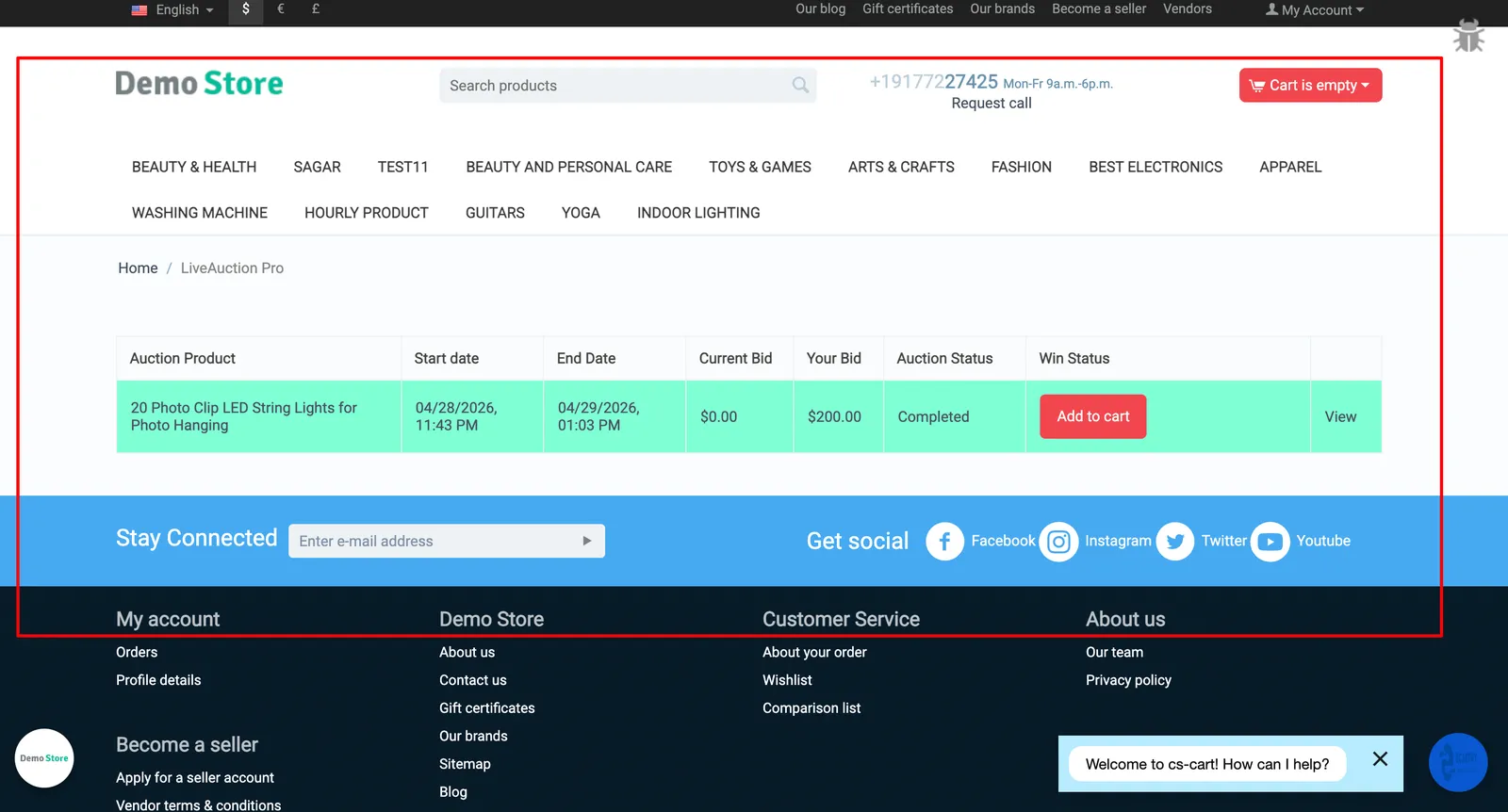
Step 8: Winner Checkout Process
Winners enjoy a streamlined path to purchase completion:
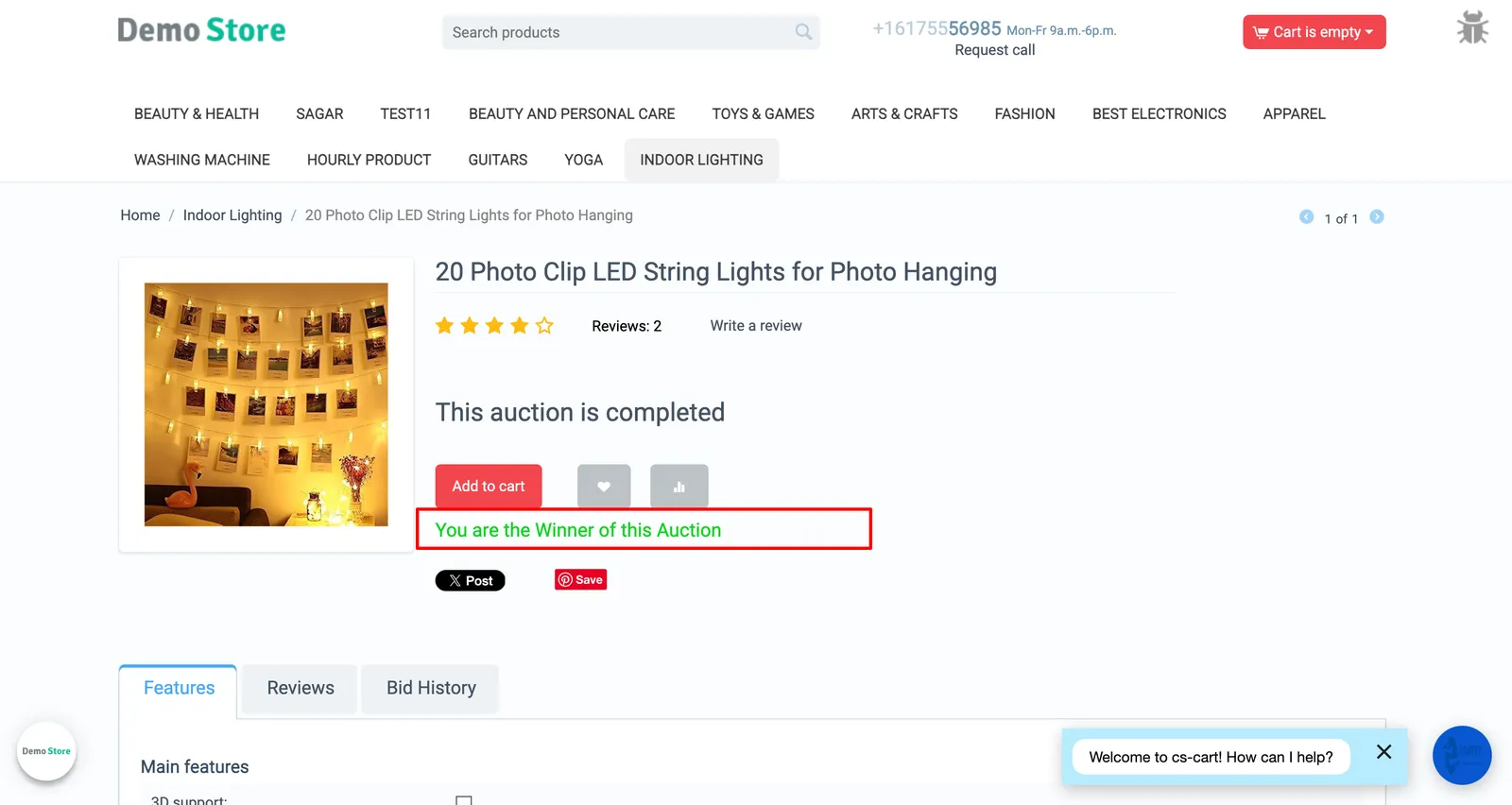
Clear message displays "You are the Winner of this Auction"
One-click button to add winning item to shopping cart
Complete purchase through normal CS-Cart checkout flow
A order id attached to your related auction
How the LiveAuction Pro System Works
The CS-Cart LiveAuction Pro addon provides a complete end-to-end auction experience:
Admin Creates Auction
Customers Place Bids
Real-Time Competition
Auction Closes
Winner Gets Notified
Order Completion
Benefits for Your Business
Increased Customer Engagement
Maximize Product Value
Inventory Management
Marketing Opportunities
Complete Automation
Advanced LiveAuction Pro Features
Flexible Scheduling
Bid Management
Visual Bid Tracking
Customer Features
Admin Controls
Transform Your Store with LiveAuction Pro Excitement
The CS-Cart LiveAuction Pro Addon is ready to revolutionize how you sell products and engage customers. Create competitive excitement, drive higher prices through bidding wars, and build a loyal customer base that keeps coming back for your auction events.
Pro Tip: Start with high-value or limited-edition products to generate maximum buzz. Promote upcoming auctions through email and social media to build anticipation. Use reserve prices to protect your margins while letting the market determine final values. Monitor bid patterns to understand customer demand and optimize future auction strategies!
Ready to launch your first auction? Install the LiveAuction Pro addon today and watch customer engagement soar as they compete for your products in real-time!