

Zoho Connector for CS-Cart with Seamless Two-Way Integration
Sync products, customers, and orders between CS-Cart and Zoho CRM, Zoho Inventory — automatically and in real-time with cron support.Ecartify: Zoho Connector – For CS-Cart Store Admins
The Ecartify Zoho Connector is a powerful CS-Cart admin add-on that bridges your online store with Zoho's suite of business applications — including Zoho CRM, Zoho Inventory. As a store admin, you get full two-way sync for products, customers, and orders: push your CS-Cart data into Zoho, or import Zoho records directly into CS-Cart. With built-in real-time cron automation, your data stays perpetually up-to-date without any manual effort. Configure order status mappings, customer field mappings, category and vendor defaults — and leverage the full power of Zoho from a single, clean CS-Cart admin interface.
Key Features
Push CS-Cart products to Zoho Inventory and import Zoho products back into CS-Cart — with pricing, SKU, stock, and descriptions kept in sync.
Sync CS-Cart customers to Zoho CRM as Contacts/Accounts. Import Zoho CRM accounts and contacts into CS-Cart with flexible field mapping.
Export CS-Cart orders to Zoho as Sales Orders and import Zoho orders into CS-Cart. Order statuses map automatically between both platforms.
Set up three cron jobs to auto-sync new customers, products, and orders from Zoho into CS-Cart every hour — completely hands-free.
Map all 108 standard Zoho contact fields to CS-Cart user/profile columns. Capture every custom field you store in Zoho — no data left behind.
Define how CS-Cart order statuses map to Zoho Sales Order statuses — keeping your pipeline consistent across both platforms.
Set default CS-Cart categories and vendor assignments for products imported from Zoho, keeping your catalog organized automatically.
Connect to Zoho using industry-standard token-based OAuth 2.0. Token expiry, refresh, and disconnect controls are always visible in the admin panel.
Setup & Configuration Guide
Step 1: Install & Activate the Add-on
Install the Ecartify Zoho Connector and enable it from the CS-Cart admin panel:
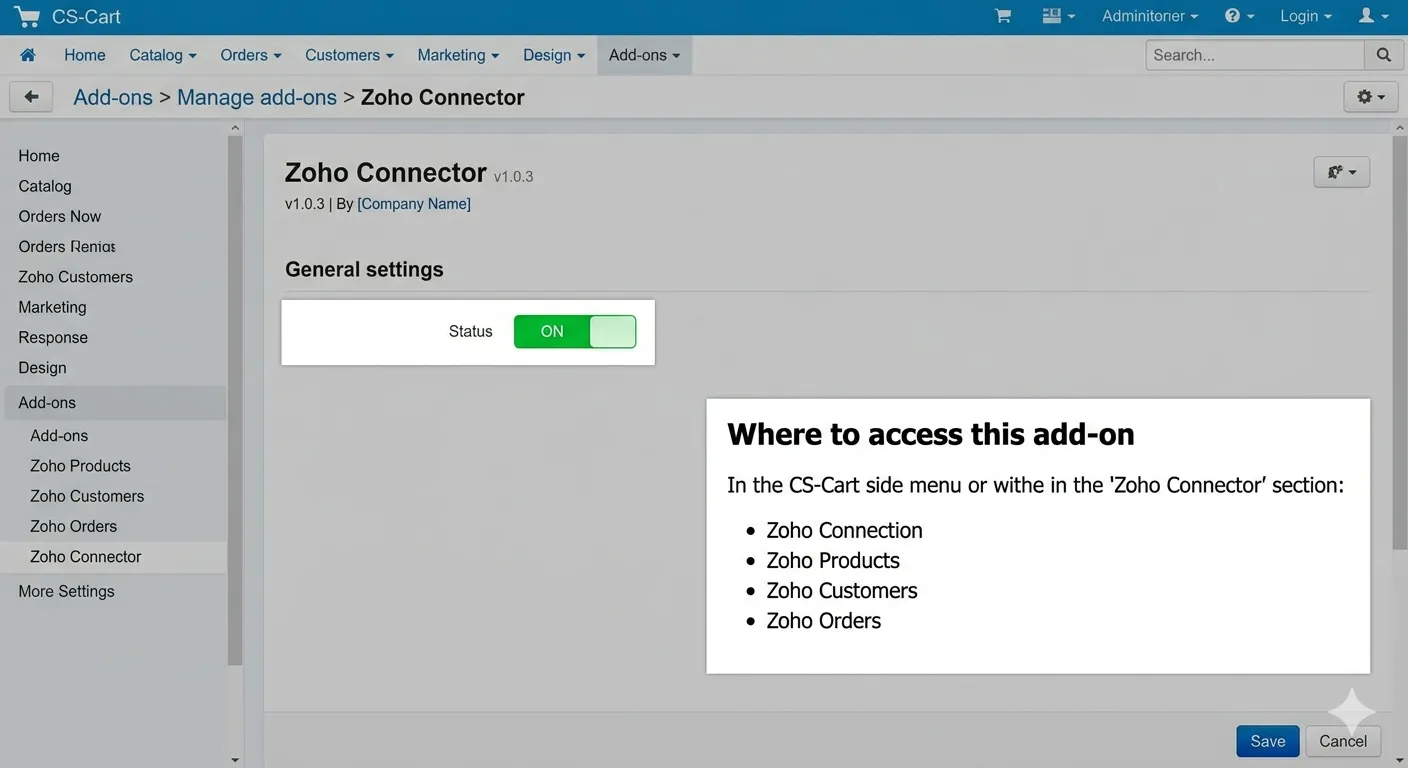
This is an admin-only add-on — it gives the store administrator full control over all Zoho sync operations.
Step 2: Create a Zoho Self-Client App & Enter Credentials
You need a Zoho API Self-Client to generate your Client ID and Client Secret. Here's how:
Step 3: Configure Order Status & Default Mappings
In the Settings tab, configure how CS-Cart statuses map to Zoho Sales Order statuses and set product defaults:
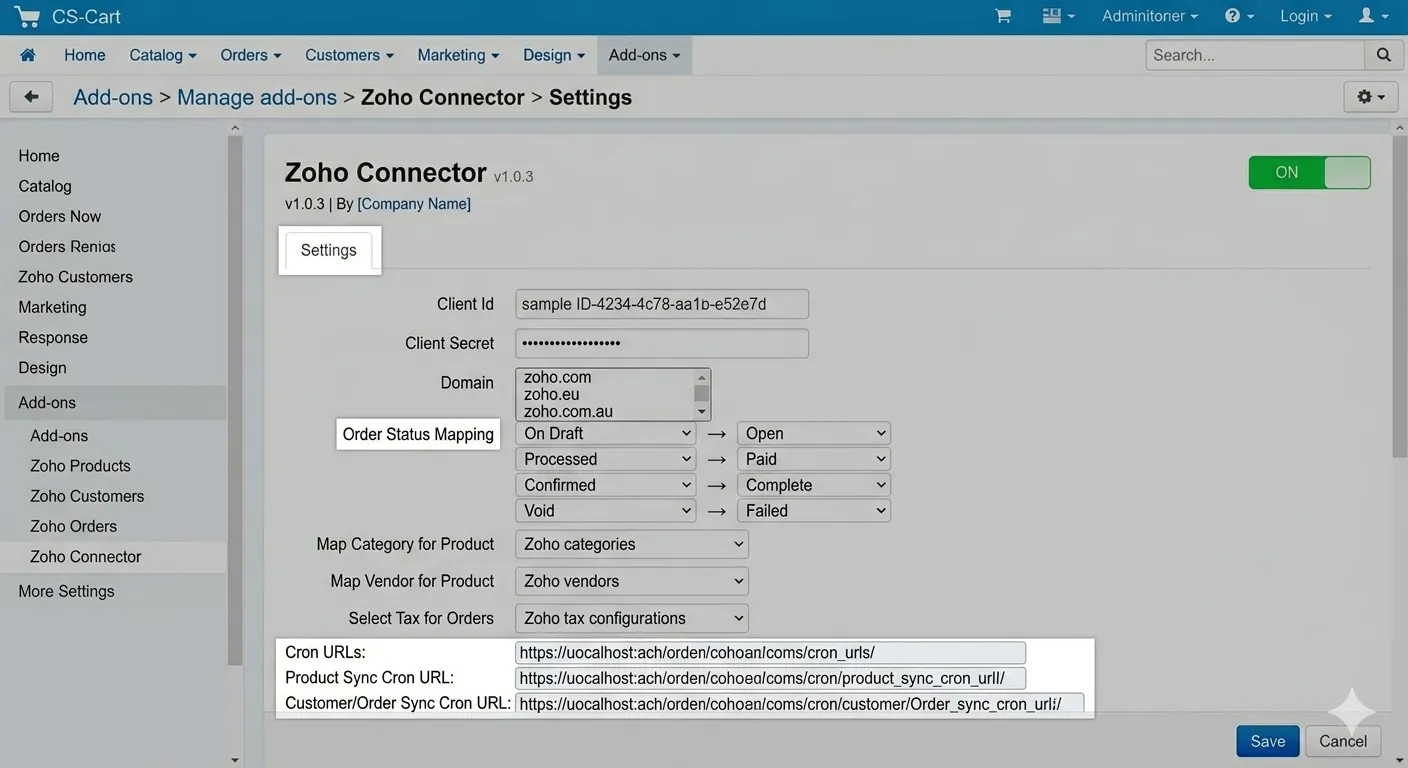
Click Save in the top-right to apply all mappings.
Step 4: Authorize the OAuth Connection
Complete the secure OAuth 2.0 handshake to connect CS-Cart with your Zoho account:
Step 5: Sync Your CS-Cart Products to Zoho
Push your CS-Cart product catalog into Zoho Inventory from the Products dashboard:
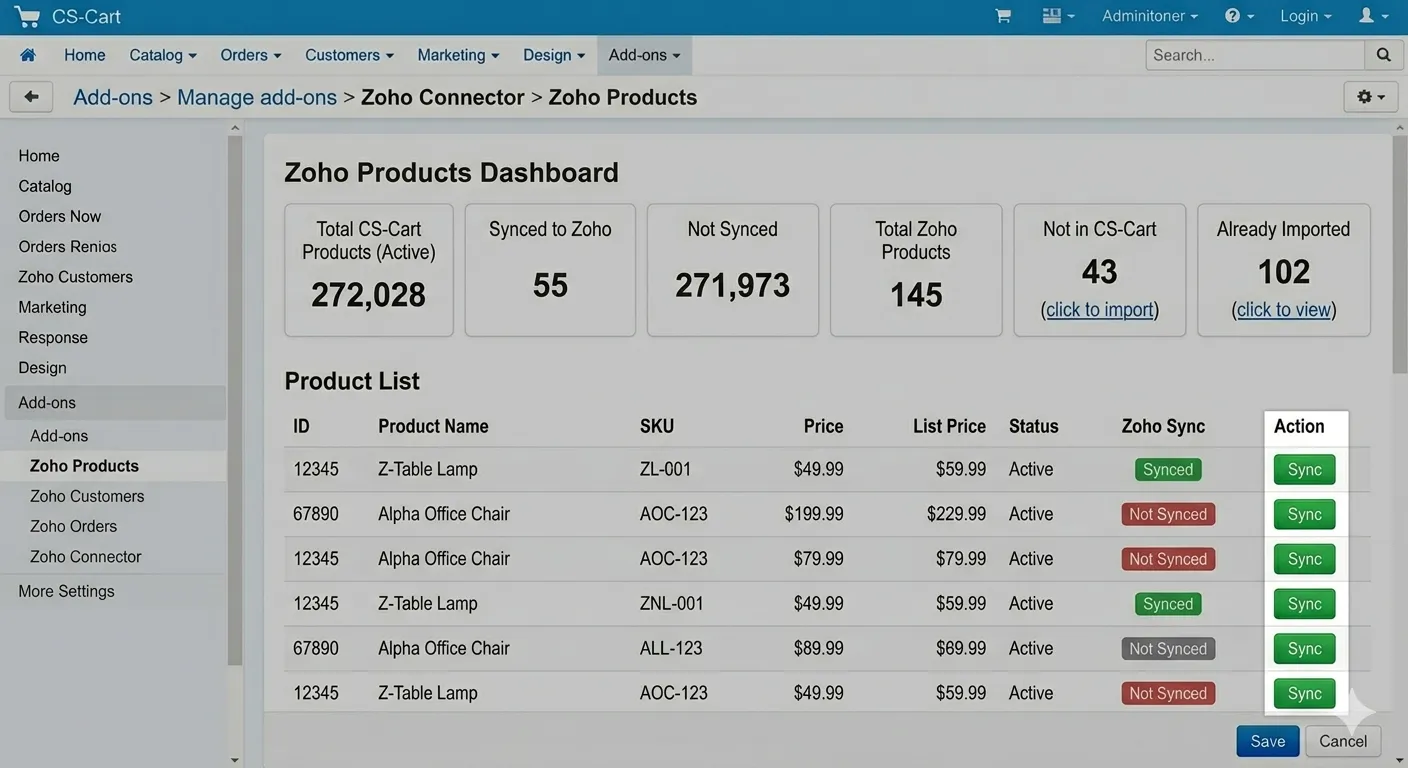
Step 6: Import Zoho Products into CS-Cart
Browse all Zoho Inventory products and import the ones that are not yet in your CS-Cart catalog:
Step 7: Sync Your CS-Cart Customers to Zoho & Configure Field Mapping
Sync your CS-Cart customers to Zoho CRM and control exactly which fields get mapped:
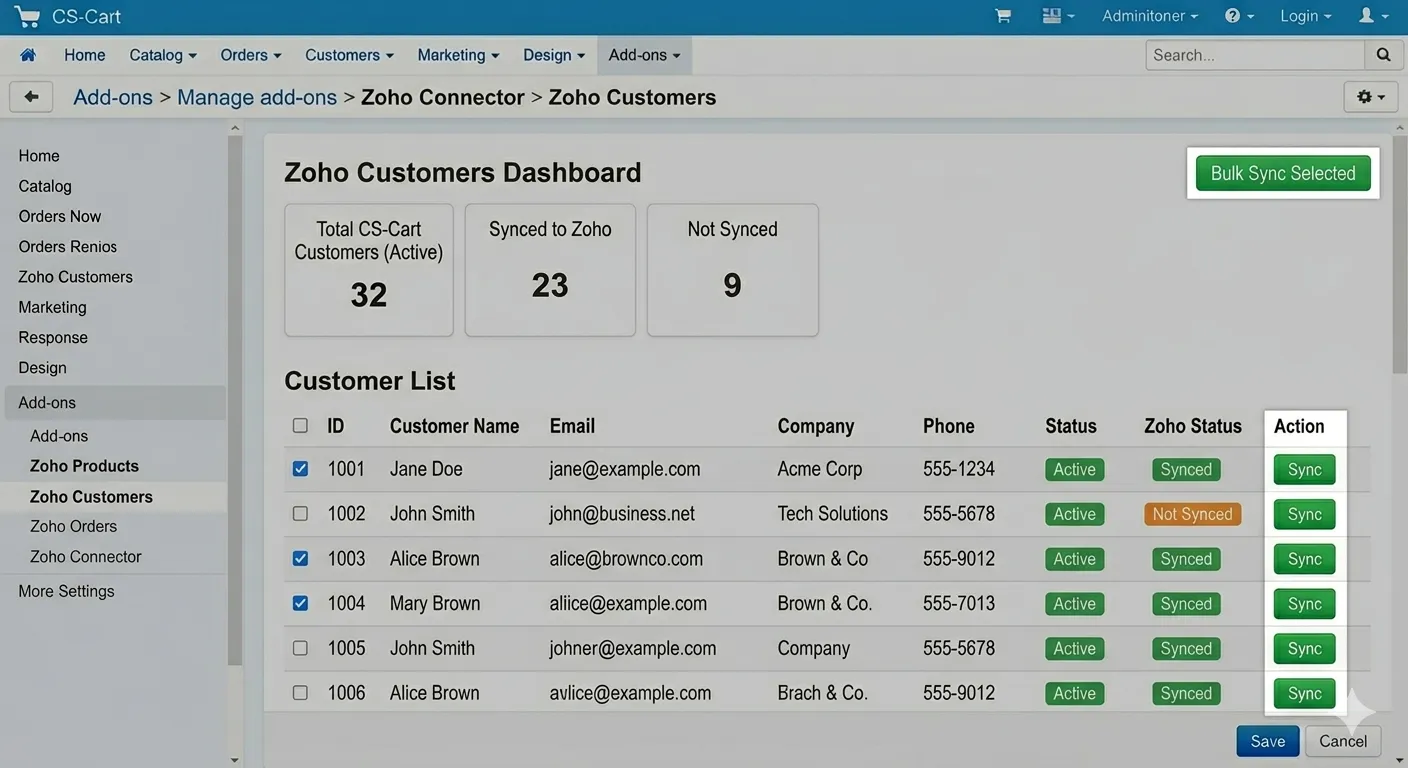
After configuring mappings click Save Mappings. The Status column shows which fields are Mapped.
Step 8: Import Zoho CRM Contacts into CS-Cart
Browse all Zoho CRM Accounts & Contacts and import them directly into CS-Cart as customers:
Step 9: Sync Your CS-Cart Orders to Zoho
Push your CS-Cart order history to Zoho as Sales Orders and keep them in sync:
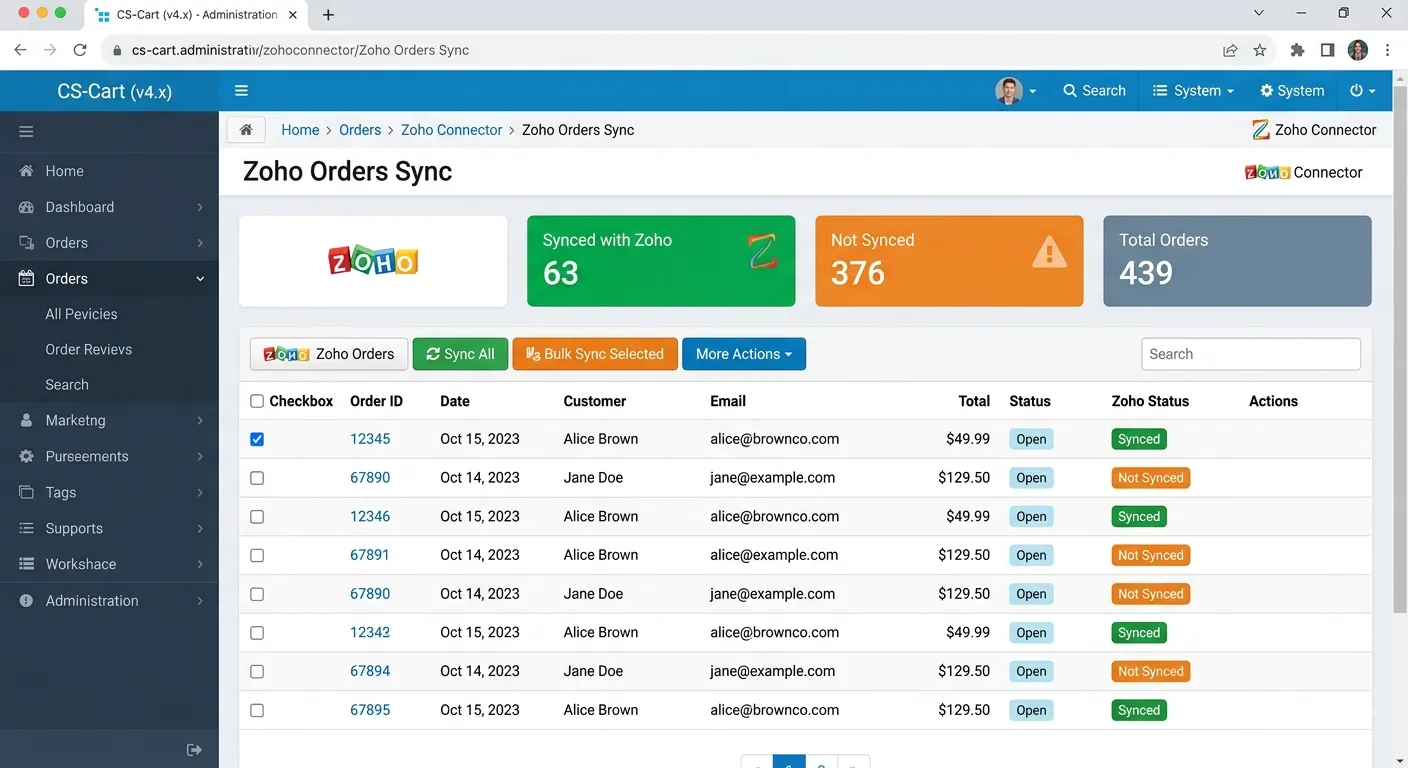
Order statuses in Zoho automatically reflect the status mappings configured in Step 3.
Step 10: Import Zoho Orders into CS-Cart
Browse Zoho Sales Orders and import them directly into CS-Cart:
Step 11: Set Up Cron Jobs for Real-Time Auto-Sync
Enable fully automated, hands-free sync by adding these three cron URLs to your server. Each runs hourly and automatically imports new records from Zoho into CS-Cart and syncs updates in real-time:
Run this URL every hour via cron. It automatically imports any new customers created in Zoho into CS-Cart, and syncs existing ones in real-time whenever the cron executes.
https://yourstore.com/index.php?dispatch=sg_zoho_cus_cron.run
Example crontab:
0 * * * * curl -s "https://yourstore.com/index.php?dispatch=sg_zoho_cus_cron.run"
Run this URL every hour via cron. It automatically imports any new products created in Zoho into CS-Cart, and syncs stock & pricing in real-time whenever the cron executes.
https://yourstore.com/index.php?dispatch=sg_zoho_pro_cron.run
Example crontab:
0 * * * * curl -s "https://yourstore.com/index.php?dispatch=sg_zoho_pro_cron.run"
Run this URL every hour via cron. It automatically imports any new orders created in Zoho into CS-Cart.
https://yourstore.com/index.php?dispatch=sg_zoho_order_cron.run
Example crontab:
0 * * * * curl -s "https://yourstore.com/index.php?dispatch=sg_zoho_order_cron.run"
Replace yourstore.com with your actual domain. Once set, your Zoho and CS-Cart data will stay perfectly synchronized every hour — automatically, with no manual action needed.
What Gets Synchronized?
A full overview of data flowing between CS-Cart and Zoho in both directions:
Your Products ↔ Zoho Inventory
Your Customers ↔ Zoho CRM Contacts & Accounts
Your Orders ↔ Zoho Sales Orders
Real-Time Cron Sync
How This Helps Your Business
Eliminate Manual Data Entry
Unified Business Operations
Flexibility & Full Control
Your Data is Secure
Common Questions
Is this add-on for store admins or vendors?
This is a CS-Cart admin-level add-on. It gives the store administrator full control over syncing the entire store's products, customers, and orders with Zoho. It is not a vendor-facing tool.
Which Zoho apps does this connector support?
The connector integrates with Zoho CRM (customers & contacts), Zoho Inventory (products & stock) (orders as Sales Orders) — all from a single OAuth connection.
How does real-time sync work with cron?
Set up the three provided cron URLs on your server to run every hour. Each execution automatically detects new or updated records in Zoho and imports/syncs them into CS-Cart — no manual intervention needed after the initial setup.
Can I import products from Zoho that don't exist in CS-Cart?
Yes. The Products dashboard shows a "Not in CS-Cart" count. Click it to view all Zoho products not yet in your catalog and import them individually or in bulk — with all product details brought across automatically.
What if a Zoho contact has no email address?
A placeholder email is auto-generated so the import does not fail. The Zoho Contacts browser clearly flags these records with a "No email" badge so you can review and update them after import.
Can I disconnect from Zoho at any time?
Yes. Click Disconnect on the Zoho Connection page to revoke the OAuth token instantly. The cron sync will stop but all your existing CS-Cart data remains completely intact. You can reconnect anytime.
Do I have to sync everything at once?
No. Each section — Products, Customers, Orders — is completely independent. You can sync products without setting up the order cron, or import customers without touching products. It is fully flexible based on your business needs.
Ready to Connect CS-Cart with Zoho?
The Ecartify Zoho Connector is the definitive integration between CS-Cart and Zoho's business suite. As a store admin, you get complete two-way data sync across products, customers, and orders — with the reliability of cron-based automation and the flexibility of granular field mapping.
What you gain:
✓ Two-way sync for products, customers & orders
✓ Import Zoho data directly into CS-Cart
✓ Real-time automation via three cron jobs
✓ 108-field customer field mapping
✓ Order status, category & vendor mapping
✓ Secure OAuth 2.0 with token refresh & disconnect
✓ Works with Zoho CRM, Inventory
Start syncing your CS-Cart store with Zoho today!